1
Editing Recordings - Recordable DVD (continued)
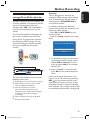
Changing the title name
The original recording title name is
generated automatically by this recorder.
You can give a new name to the title by
following the steps below.
English
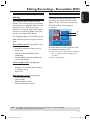
Using the title settings menu
In the title settings menu, you can change
the title name, view the hidden scene or
erase the title.
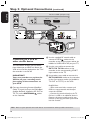
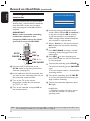
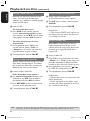
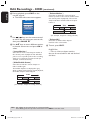
A Insert a recorded DVD into the recorder.
P06 30.03.2005
00:30:33 SP
Tue 30.03.2005
TELET 0.48:53:1:2
03:30:00 SP
Tue 31.03.2005
Empty title
B Use keys to select a title in the
Index Picture screen and press to
display the Title Settings menu.
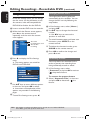
Title Settings
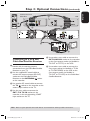
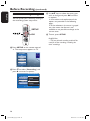
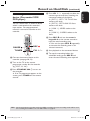
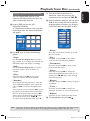
A In Title Settings menu, select { Name }
and press OK.
B Use keys to change the character/
number.
Use keys to move to the
previous or next field.
To switch between upper and lower case
characters, press SELECT on the
remote control.
To delete the character/number, press
CLEAR on the remote control.
C Press OK to confirm the changes and
press to exit.
Name
Play Full Title
Press OK
Erase Title
Press OK
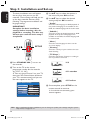
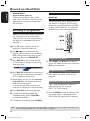
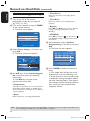
C Use keys to access different options
in the menu and press OK to select.
Instructions and explanation of the
options are provided in the following
pages.
D To exit Title Settings menu, press .
Playing the entire title including the
hidden scenes
In Title Settings menu, select { Play Full
Title } and press OK.
Playback begins automatically.
Erasing title
You can erase a specific title (recording)
from the disc. However, for DVD+R, the
deleted space cannot be used for further
recording.
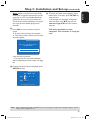
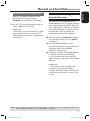
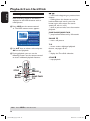
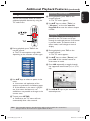
A In Title Settings menu, select { Erase
Title } and press OK.
A warning message appears.
B Press OK to proceed or press to
abort.
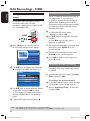
For DVD+RW disc, ‘Deleted Title’
will appear in the Index Picture screen
where the title was erased. The empty
space can be used for new recordings.
TIPS: No further recording and editing can be carried out on a finalised DVD+R.
Press to go back to previous menu item.
54
1_dvdr3300H_Eng17.indd 54
2005-07-01 9:59:10 AM