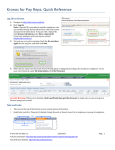
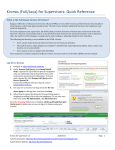
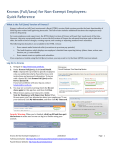
Download Time Card II Manual
Transcript
Systems Design, Inc. Food Service Management Systems TimeCard II System User Manual Systems Design, Inc. TimeCard II System User Manual © 2004, Systems De sign, Inc. 3407 Saturn Road Corpus Christi, TX 78413-1916 Phone 800-887-1828 • Fax 361-851-2048 Table of Contents List of Figures . . . . . . . . . . . . . . . . . . . . . . . . . . . . . . . . . . . . . . . . . . . . . . . . . . . . . . . . . . . . . . . . . . . iii Chapter 1 – Information about the TimeCard II System . . . . . . . . . . . . . . . . . . . . . . . . . . . . . . . . . . . . . Section 1.1 – Over view . . . . . . . . . . . . . . . . . . . . . . . . . . . . . . . . . . . . . . . . . . . . . . . . . . . . . . . Section 1.2 – Using this User’s Guide . . . . . . . . . . . . . . . . . . . . . . . . . . . . . . . . . . . . . . . . . . . . Section 1.2.1 – Headings . . . . . . . . . . . . . . . . . . . . . . . . . . . . . . . . . . . . . . . . . . . . . . . . Section 1.2.2 – Symbols . . . . . . . . . . . . . . . . . . . . . . . . . . . . . . . . . . . . . . . . . . . . . . . . Section 1.2.3 – Characters, Digits and Decimals . . . . . . . . . . . . . . . . . . . . . . . . . . . . . . Section 1.3 – Organization of this Guide . . . . . . . . . . . . . . . . . . . . . . . . . . . . . . . . . . . . . . . . . . Section 1.4 – Using the TimeCard II System . . . . . . . . . . . . . . . . . . . . . . . . . . . . . . . . . . . . . . . Section 1.4.1 – Keys . . . . . . . . . . . . . . . . . . . . . . . . . . . . . . . . . . . . . . . . . . . . . . . . . . . Section 1.4.2 – Menus . . . . . . . . . . . . . . . . . . . . . . . . . . . . . . . . . . . . . . . . . . . . . . . . . Section 1.4.3 – Pa sswords . . . . . . . . . . . . . . . . . . . . . . . . . . . . . . . . . . . . . . . . . . . . . . . Section 1.4.4 – Printer . . . . . . . . . . . . . . . . . . . . . . . . . . . . . . . . . . . . . . . . . . . . . . . . . Section 1.5 – Glossary . . . . . . . . . . . . . . . . . . . . . . . . . . . . . . . . . . . . . . . . . . . . . . . . . . . . . . . . 1 1 1 2 2 2 2 3 3 4 6 7 7 Chapter 2 – Setting up the TimeCard System . . . . . . . . . . . . . . . . . . . . . . . . . . . . . . . . . . . . . . . . . . . . . 9 Section 2.1 – Over view . . . . . . . . . . . . . . . . . . . . . . . . . . . . . . . . . . . . . . . . . . . . . . . . . . . . . . . 9 Section 2.2 – TimeCard Parameter Maintenance . . . . . . . . . . . . . . . . . . . . . . . . . . . . . . . . . . . . 9 Chapter 3 – Passwords . . . . . . . . . . . . . . . . . . . . . . . . . . . . . . . . . . . . . . . . . . . . . . . . . . . . . . . . . . . . . Section 3.1 – Over view . . . . . . . . . . . . . . . . . . . . . . . . . . . . . . . . . . . . . . . . . . . . . . . . . . . . . . Section 3.2 – Adjustment Password Maintenance . . . . . . . . . . . . . . . . . . . . . . . . . . . . . . . . . . . Section 3.3 – Adjustment Password Maintenance, Add . . . . . . . . . . . . . . . . . . . . . . . . . . . . . . . Section 3.4 – Adjustment Password Maintenance, Change . . . . . . . . . . . . . . . . . . . . . . . . . . . . Section 3.5 – Adjustment Password Maintenance, Delete . . . . . . . . . . . . . . . . . . . . . . . . . . . . . Section 3.6 – Adjustment Password Maintenance, Display . . . . . . . . . . . . . . . . . . . . . . . . . . . . Section 3.7 – Adjustment Password Maintenance, Pr int . . . . . . . . . . . . . . . . . . . . . . . . . . . . . . 15 15 15 17 19 20 21 22 Chapter 4 – File Maintenance . . . . . . . . . . . . . . . . . . . . . . . . . . . . . . . . . . . . . . . . . . . . . . . . . . . . . . . . Section 4.1 – Over view . . . . . . . . . . . . . . . . . . . . . . . . . . . . . . . . . . . . . . . . . . . . . . . . . . . . . . Section 4.2 – Budget Code Master Maintenance . . . . . . . . . . . . . . . . . . . . . . . . . . . . . . . . . . . . Section 4.3 – Employee Master Maintenance . . . . . . . . . . . . . . . . . . . . . . . . . . . . . . . . . . . . . . Section 4.4 – Transaction File Maintenance, Inquiry . . . . . . . . . . . . . . . . . . . . . . . . . . . . . . . . Section 4.5 – Transaction File Maintenance, Add, Change, Delete . . . . . . . . . . . . . . . . . . . . . . Section 4.6 – Transaction File Maintenance, Add . . . . . . . . . . . . . . . . . . . . . . . . . . . . . . . . . . . Section 4.7 – Transaction File Maintenance, Change . . . . . . . . . . . . . . . . . . . . . . . . . . . . . . . . Section 4.8 – Transaction File Maintenance, Delete . . . . . . . . . . . . . . . . . . . . . . . . . . . . . . . . . Section 4.9 – Employee Exception Time Maintenance . . . . . . . . . . . . . . . . . . . . . . . . . . . . . . . Section 4.10 – Print Employee Master (Short) . . . . . . . . . . . . . . . . . . . . . . . . . . . . . . . . . . . . . Section 4.11 – Print Employee Master (Full) . . . . . . . . . . . . . . . . . . . . . . . . . . . . . . . . . . . . . . Section 4.12 – Mass Set Tr ansactions Budget By Depar tment . . . . . . . . . . . . . . . . . . . . . . . . . Section 4.13 – Mass Set Pay Rate By Department . . . . . . . . . . . . . . . . . . . . . . . . . . . . . . . . . . Section 4.14 – Budget Code Masterfile Pr int . . . . . . . . . . . . . . . . . . . . . . . . . . . . . . . . . . . . . . Section 4.15 – Adjustment Password Maintenance . . . . . . . . . . . . . . . . . . . . . . . . . . . . . . . . . . Section 4.16 – Exception Time Posting . . . . . . . . . . . . . . . . . . . . . . . . . . . . . . . . . . . . . . . . . . Section 4.17 – Create Exception Time by Campus . . . . . . . . . . . . . . . . . . . . . . . . . . . . . . . . . . Section 4.18 – Create Exception Time by Individuals . . . . . . . . . . . . . . . . . . . . . . . . . . . . . . . . Section 4.19 – Mass Delete Exception Time . . . . . . . . . . . . . . . . . . . . . . . . . . . . . . . . . . . . . . 25 25 26 29 36 42 44 48 49 50 56 59 62 64 65 67 68 69 71 75 Systems Design, Inc. TMS II User Ma nual v1.2 Page i September 24, 2004 Section 4.20 – Delete Exception Time by Campus . . . . . . . . . . . . . . . . . . . . . . . . . . . . . . . . . . 75 Section 4.21 – Extract OE Codes From EDP P/R . . . . . . . . . . . . . . . . . . . . . . . . . . . . . . . . . . 77 Section 4.22 – Merge EDP Employees to TimeCard . . . . . . . . . . . . . . . . . . . . . . . . . . . . . . . . . 78 Chapter 5 – TimeCard Input . . . . . . . . . . . . . . . . . . . . . . . . . . . . . . . . . . . . . . . . . . . . . . . . . . . . . . . . 81 Section 5.1 – Over view . . . . . . . . . . . . . . . . . . . . . . . . . . . . . . . . . . . . . . . . . . . . . . . . . . . . . . 81 Section 5.2 – TimeCard Input . . . . . . . . . . . . . . . . . . . . . . . . . . . . . . . . . . . . . . . . . . . . . . . . . 81 Chapter 6 – Employee TimeCard Inquiry . . . . . . . . . . . . . . . . . . . . . . . . . . . . . . . . . . . . . . . . . . . . . . . 87 Section 6.1 – Over view . . . . . . . . . . . . . . . . . . . . . . . . . . . . . . . . . . . . . . . . . . . . . . . . . . . . . . 87 Section 6.2 – TimeCard Inquiry . . . . . . . . . . . . . . . . . . . . . . . . . . . . . . . . . . . . . . . . . . . . . . . . 87 Chapter 7 – TimeCard Reports . . . . . . . . . . . . . . . . . . . . . . . . . . . . . . . . . . . . . . . . . . . . . . . . . . . . . . 91 Section 7.1 – Over view . . . . . . . . . . . . . . . . . . . . . . . . . . . . . . . . . . . . . . . . . . . . . . . . . . . . . . 91 Section 7.2 – TimeCard Audit Reports . . . . . . . . . . . . . . . . . . . . . . . . . . . . . . . . . . . . . . . . . . 91 Section 7.3 – TimeCard Audit Report without Budget . . . . . . . . . . . . . . . . . . . . . . . . . . . . . . . 92 Section 7.4 – TimeCard Audit Report with Budget . . . . . . . . . . . . . . . . . . . . . . . . . . . . . . . . . . 96 Section 7.5 – TimeCard Print . . . . . . . . . . . . . . . . . . . . . . . . . . . . . . . . . . . . . . . . . . . . . . . . 102 Section 7.6 – Exception T ime Report by Department . . . . . . . . . . . . . . . . . . . . . . . . . . . . . . . 108 Section 7.7 – TimeCard Expense Reports . . . . . . . . . . . . . . . . . . . . . . . . . . . . . . . . . . . . . . . 111 Section 7.8 – Weekly Expense Report without Subtotals . . . . . . . . . . . . . . . . . . . . . . . . . . . . 112 Section 7.9 – Weekly Expense Report with Subtotals . . . . . . . . . . . . . . . . . . . . . . . . . . . . . . . 116 Section 7.10 – Rated TimeCard Print . . . . . . . . . . . . . . . . . . . . . . . . . . . . . . . . . . . . . . . . . . . 120 Section 7.11 – TimeCard Error Report . . . . . . . . . . . . . . . . . . . . . . . . . . . . . . . . . . . . . . . . . 127 Section 7.12 – TimeCard Campus Worked Summary Report . . . . . . . . . . . . . . . . . . . . . . . . . 130 Section 7.13 – Extract TimeCard to EDP P/R . . . . . . . . . . . . . . . . . . . . . . . . . . . . . . . . . . . . 134 Section 7.14 – Print TimeCard Extract . . . . . . . . . . . . . . . . . . . . . . . . . . . . . . . . . . . . . . . . . 137 Section 7.15 – Copy Reg/OT to EDP (Type 2) . . . . . . . . . . . . . . . . . . . . . . . . . . . . . . . . . . . 138 Section 7.16 – Copy Reg/OT to EDP (Type 3) . . . . . . . . . . . . . . . . . . . . . . . . . . . . . . . . . . . 139 Section 7.17 – Copy Reg/OT to EDP (Type 4) . . . . . . . . . . . . . . . . . . . . . . . . . . . . . . . . . . . 139 Chapter 8 – TimeCard Terminals . . . . . . . . . . . . . . . . . . . . . . . . . . . . . . . . . . . . . . . . . . . . . . . . . . . . Section 8.1 – Over view . . . . . . . . . . . . . . . . . . . . . . . . . . . . . . . . . . . . . . . . . . . . . . . . . . . . . Section 8.2 – TimeCard Login . . . . . . . . . . . . . . . . . . . . . . . . . . . . . . . . . . . . . . . . . . . . . . . . Section 8.3 – TimeCard Input . . . . . . . . . . . . . . . . . . . . . . . . . . . . . . . . . . . . . . . . . . . . . . . . Section 8.3.1 – CLOCK IN/OUT . . . . . . . . . . . . . . . . . . . . . . . . . . . . . . . . . . . . . . . Section 8.3.2 – Entry Verification . . . . . . . . . . . . . . . . . . . . . . . . . . . . . . . . . . . . . . . Systems Design, Inc. TMS II User Ma nual v1.2 Pag e ii September 24, 2004 141 141 141 142 142 143 List of Figures Figure 1 - T imeCard II System Main Menu . . . . . . . . . . . . . . . . . . . . . . . . . . . . . . . . . . . . . . . . . . . . . . 4 Figure 2 - T imeCard II Maintenance Menu . . . . . . . . . . . . . . . . . . . . . . . . . . . . . . . . . . . . . . . . . . . . . . . 5 Figure 3 - T imeCard II Reports Menu . . . . . . . . . . . . . . . . . . . . . . . . . . . . . . . . . . . . . . . . . . . . . . . . . . 5 Figure 4 - T imeCard II Mileage Menu . . . . . . . . . . . . . . . . . . . . . . . . . . . . . . . . . . . . . . . . . . . . . . . . . . 6 Figure 5 - Printer Selection . . . . . . . . . . . . . . . . . . . . . . . . . . . . . . . . . . . . . . . . . . . . . . . . . . . . . . . . . . 7 Figure 6 - Printer Selection Confirmation . . . . . . . . . . . . . . . . . . . . . . . . . . . . . . . . . . . . . . . . . . . . . . . . 7 Figure 7 - System Maintenance Menu . . . . . . . . . . . . . . . . . . . . . . . . . . . . . . . . . . . . . . . . . . . . . . . . . . 9 Figure 8 - T imeCard System Parameter Maintenance District Selection . . . . . . . . . . . . . . . . . . . . . . . . 10 Figure 9 - T imeCard System Parameter Maintenance Menu . . . . . . . . . . . . . . . . . . . . . . . . . . . . . . . . . 10 Figure 10 - TimeCard System Par ameter Maintenance, TimeCard II Codes Addition Confirmation . . . . 11 Figur e 11 - TimeCard System Parameter Maintenance, TimeCard II Codes . . . . . . . . . . . . . . . . . . . . . 11 Figure 12 - Adjustment Password Maintenance, Enter Password . . . . . . . . . . . . . . . . . . . . . . . . . . . . . . 16 Figure 13 - Adjustment Password Maintenance, Enter Security Access Code . . . . . . . . . . . . . . . . . . . . 16 Figure 14 - Adjustment Password Maintenance, Security Access Error . . . . . . . . . . . . . . . . . . . . . . . . . 16 Figure 15 - Security Password Maintenance Menu . . . . . . . . . . . . . . . . . . . . . . . . . . . . . . . . . . . . . . . . 17 Figur e 16 - Adjustment Password Maintenance, Add Screen . . . . . . . . . . . . . . . . . . . . . . . . . . . . . . . . . 17 Figur e 17 - Adjustment Password Maintenance, Change Screen . . . . . . . . . . . . . . . . . . . . . . . . . . . . . . 19 Figure 18 - Adjustment Password Maintenance, Change Screen Sample . . . . . . . . . . . . . . . . . . . . . . . . 20 Figur e 19 - Adjustment Password Maintenance, Delete Scr een . . . . . . . . . . . . . . . . . . . . . . . . . . . . . . . 20 Figure 20 - Adjustment Password Maintenance, Delete Screen Sample . . . . . . . . . . . . . . . . . . . . . . . . . 21 Figure 21 - Adjustment Password Maintenance, Displa y Passwords Sample . . . . . . . . . . . . . . . . . . . . . 22 Figure 22 - Adjustment Password Maintenance, Print, Sample Report . . . . . . . . . . . . . . . . . . . . . . . . . 23 Figur e 23 - Budget Account Code Maintenance, Account Code Entry Screen . . . . . . . . . . . . . . . . . . . . 26 Figur e 24 - Budget Account Code Maintenance, Record In Use Screen . . . . . . . . . . . . . . . . . . . . . . . . . 26 Figure 25 - Budget Account Code Maintenance, New Account Confirmation . . . . . . . . . . . . . . . . . . . . 27 Figur e 26 - Budget Account Code Maintenance, Edit Screen . . . . . . . . . . . . . . . . . . . . . . . . . . . . . . . . . 27 Figur e 27 - Employee Master Maintenance, Employee Number Entry Screen . . . . . . . . . . . . . . . . . . . . 29 Figur e 28 - Employee Master Maintenance, Record In Use Screen . . . . . . . . . . . . . . . . . . . . . . . . . . . . 30 Figure 29 - Employee Master Maintenance, New Employee Confirmation . . . . . . . . . . . . . . . . . . . . . . . 30 Figur e 30 - Employee Master Maintenance, Edit Screen . . . . . . . . . . . . . . . . . . . . . . . . . . . . . . . . . . . . 31 Figur e 31 - Employee Master Maintenance, Rates & Budget Codes . . . . . . . . . . . . . . . . . . . . . . . . . . . 32 Figur e 32 - Transaction File Maintenance, Menu Scr een . . . . . . . . . . . . . . . . . . . . . . . . . . . . . . . . . . . 37 Figure 33 - TimeCard Maintenance, TimeCard Inquiry . . . . . . . . . . . . . . . . . . . . . . . . . . . . . . . . . . . . . 38 Figure 34 - TimeCard Maintenance, TimeCard Inquiry, Period Start Date . . . . . . . . . . . . . . . . . . . . . . 38 Figure 35 - TimeCard Maintenance, TimeCard Inquiry, Period Stop Date . . . . . . . . . . . . . . . . . . . . . . . 39 Figure 36 - TimeCard Maintenance, TimeCard Inquiry, Confirmation . . . . . . . . . . . . . . . . . . . . . . . . . 39 Figure 37 - TimeCard Inquiry, Sample Inquiry without Budgetary Accounting I/F . . . . . . . . . . . . . . . . 40 Figure 38 - TimeCard Inquiry, Sample Inquiry with Budgetary Accounting I/F . . . . . . . . . . . . . . . . . . . 40 Figure 39 - TimeCard Inquiry, Sample Updated Inquiry without Budgetary Accounting Interface . . . . . 42 Figure 40 - TimeCard Inquiry, Sample Updated Inquiry with Budgetary Accounting Interface . . . . . . . 42 Figur e 41 - Transaction File Maintenance, Menu Scr een . . . . . . . . . . . . . . . . . . . . . . . . . . . . . . . . . . . 43 Figure 42 - TimeCard Maintenance, TimeCard Transaction Maintenance . . . . . . . . . . . . . . . . . . . . . . . 44 Figure 43 - TimeCar d Maintenance, Transaction already on file . . . . . . . . . . . . . . . . . . . . . . . . . . . . . . 44 Figure 44 - TimeCard Maintenance, New Transaction Entry . . . . . . . . . . . . . . . . . . . . . . . . . . . . . . . . . 45 Figure 45 - TimeCard Maintenance, Budget Code Selection . . . . . . . . . . . . . . . . . . . . . . . . . . . . . . . . . 46 Figure 46 - TimeCard Maintenance, Update Transaction Rate . . . . . . . . . . . . . . . . . . . . . . . . . . . . . . . 46 Figure 47 - TimeCard Maintenance, Completed New Transaction Entry . . . . . . . . . . . . . . . . . . . . . . . . 47 Figure 48 - TimeCard Maintenance, Update Clock In/Out Status . . . . . . . . . . . . . . . . . . . . . . . . . . . . . 47 Figure 49 - TimeCar d Maintenance, Transaction not on file . . . . . . . . . . . . . . . . . . . . . . . . . . . . . . . . . 48 Systems Design, Inc. TMS II User Ma nual v1.2 Pag e iii September 24, 2004 Figur e 50 - TimeCard Maintenance, Edit Transaction Screen . . . . . . . . . . . . . . . . . . . . . . . . . . . . . . . . Figure 51 - TimeCard Maintenance, Update Clock In/Out Status . . . . . . . . . . . . . . . . . . . . . . . . . . . . . Figure 52 - TimeCard Maintenance, Next Transaction . . . . . . . . . . . . . . . . . . . . . . . . . . . . . . . . . . . . . Figure 53 - TimeCar d Maintenance, Transaction not on file . . . . . . . . . . . . . . . . . . . . . . . . . . . . . . . . . Figur e 54 - TimeCard Maintenance, Delete Transaction Screen . . . . . . . . . . . . . . . . . . . . . . . . . . . . . . Figure 55 - TimeCard Maintenance, Delete Transaction confir mation . . . . . . . . . . . . . . . . . . . . . . . . . . Figur e 56 - Exception Time Maintenance, Entry Screen . . . . . . . . . . . . . . . . . . . . . . . . . . . . . . . . . . . . Figur e 57 - Exception Transaction Codes . . . . . . . . . . . . . . . . . . . . . . . . . . . . . . . . . . . . . . . . . . . . . . . Figure 58 - Exception Time Maintenance, Addition Confirmation . . . . . . . . . . . . . . . . . . . . . . . . . . . . . Figur e 59 - Exception Time Maintenance, Edit Screen . . . . . . . . . . . . . . . . . . . . . . . . . . . . . . . . . . . . . Figure 60 - Print Employee Master (Short), School Selection . . . . . . . . . . . . . . . . . . . . . . . . . . . . . . . . Figure 61 - Print Employee Master (Short), Department Selection . . . . . . . . . . . . . . . . . . . . . . . . . . . . Figure 62 - Print Employee Master (Short), Sort Selection . . . . . . . . . . . . . . . . . . . . . . . . . . . . . . . . . . Figure 63 - Print Employee Master (Short), Selection Confirmation . . . . . . . . . . . . . . . . . . . . . . . . . . . Figure 64 - Print Employee Master (Short), Run Date . . . . . . . . . . . . . . . . . . . . . . . . . . . . . . . . . . . . . Figure 65 - Print Employee Master (Short), Selection Confirmation . . . . . . . . . . . . . . . . . . . . . . . . . . . Figure 66 - Print Employee Master (Short), Sample Report . . . . . . . . . . . . . . . . . . . . . . . . . . . . . . . . . Figure 67 - Print Employee Master (Full), School Selection . . . . . . . . . . . . . . . . . . . . . . . . . . . . . . . . . Figure 68 - Print Employee Master (Full), Department Selection . . . . . . . . . . . . . . . . . . . . . . . . . . . . . . Figure 69 - Print Employee Master (Full), Sort Selection . . . . . . . . . . . . . . . . . . . . . . . . . . . . . . . . . . . Figure 70 - Print Employee Master (Full), Selection Confirmation . . . . . . . . . . . . . . . . . . . . . . . . . . . . Figure 71 - Print Employee Master (Full), Run Date . . . . . . . . . . . . . . . . . . . . . . . . . . . . . . . . . . . . . . . Figure 72 - Print Employee Master (Full), Selection Confirmation . . . . . . . . . . . . . . . . . . . . . . . . . . . . Figure 73 - Print Employee Master (Full), Sample Report . . . . . . . . . . . . . . . . . . . . . . . . . . . . . . . . . . Figur e 74 - Mass Set Transactions Budget by Department Selection Scr een . . . . . . . . . . . . . . . . . . . . . Figure 75 - Mass Set Transaction Budget by Department, Selection Confirmation . . . . . . . . . . . . . . . . Figur e 76 - Mass Set Pay Rate by Department Selection Screen . . . . . . . . . . . . . . . . . . . . . . . . . . . . . . Figure 77 - Mass Set Pay Rate by Department, Selection Confirmation . . . . . . . . . . . . . . . . . . . . . . . . Figur e 78 - Budget Code Masterfile Print, Entry Screen . . . . . . . . . . . . . . . . . . . . . . . . . . . . . . . . . . . . Figure 79 - Budget Code Masterfile Print, Sample Report . . . . . . . . . . . . . . . . . . . . . . . . . . . . . . . . . . . Figure 80 - Exception Time Posting Sub-Menu . . . . . . . . . . . . . . . . . . . . . . . . . . . . . . . . . . . . . . . . . . Figure 81 - Create Exception Time by Campus, Campus Selection . . . . . . . . . . . . . . . . . . . . . . . . . . . . Figur e 82 - Create Exception Time by Campus, Entry Screen . . . . . . . . . . . . . . . . . . . . . . . . . . . . . . . . Figur e 83 - Create Exception Time by Campus, Entry Screen . . . . . . . . . . . . . . . . . . . . . . . . . . . . . . . . Figur e 84 - Create Exception Time by Individuals, Employee Entry Screen . . . . . . . . . . . . . . . . . . . . . . Figure 85 - Create Exception Time by Individuals, Employee Entry Screen, Sample . . . . . . . . . . . . . . . Figure 86 - Mass Delete Exception Time Sub-Menu . . . . . . . . . . . . . . . . . . . . . . . . . . . . . . . . . . . . . . . Figure 87 - Delete Exception Time by Campus, Campus Selection . . . . . . . . . . . . . . . . . . . . . . . . . . . . Figur e 88 - Delete Exception Time by Campus, Entry Screen . . . . . . . . . . . . . . . . . . . . . . . . . . . . . . . . Figur e 89 - Extract OE Earnings Code from EDP P/R, Entry Screen . . . . . . . . . . . . . . . . . . . . . . . . . . Figur e 90 - Merge EDP Employees to T imeCard, Entry Screen . . . . . . . . . . . . . . . . . . . . . . . . . . . . . . Figur e 91 - TimeCard Input, Work Location Entry Screen . . . . . . . . . . . . . . . . . . . . . . . . . . . . . . . . . . Figur e 92 - TimeCard Input, Entry Screen . . . . . . . . . . . . . . . . . . . . . . . . . . . . . . . . . . . . . . . . . . . . . . Figur e 93 - TimeCard Input, Entry Sample Screen . . . . . . . . . . . . . . . . . . . . . . . . . . . . . . . . . . . . . . . . Figure 94 - TimeCard Input, Sample Budget Account Code field change . . . . . . . . . . . . . . . . . . . . . . . . Figur e 95 - Employee TimeCard Inquir y, Entry Screen . . . . . . . . . . . . . . . . . . . . . . . . . . . . . . . . . . . . . Figure 96 - Employee TimeCard Inquiry, Employee Password . . . . . . . . . . . . . . . . . . . . . . . . . . . . . . . Figure 97 - Employee TimeCard Inquiry, Period Start Date . . . . . . . . . . . . . . . . . . . . . . . . . . . . . . . . . Figure 98 - Employee TimeCard Inquiry, Period Stop Date . . . . . . . . . . . . . . . . . . . . . . . . . . . . . . . . . Figure 99 - Employee TimeCard Inquiry, Confirmation . . . . . . . . . . . . . . . . . . . . . . . . . . . . . . . . . . . . Figure 100 - Employee TimeCard Inquiry, Sample Inquiry without Budgetary Accounting I/F . . . . . . . Figure 101 - Employee TimeCard Inquiry, Sample Inquiry with Budgetary Accounting I/F . . . . . . . . . . Systems Design, Inc. TMS II User Ma nual v1.2 Pag e iv September 24, 2004 48 49 49 49 50 50 51 52 52 53 56 57 57 57 58 58 58 59 59 60 60 61 61 62 63 63 64 65 66 67 68 69 70 71 73 74 75 76 77 78 79 81 82 83 85 87 88 88 88 89 89 90 Figure 102 - TimeCar d Audit Reports Sub-Menu . . . . . . . . . . . . . . . . . . . . . . . . . . . . . . . . . . . . . . . . . 92 Figur e 103 - TimeCa rd Audit Report without Budget, Entry Screen . . . . . . . . . . . . . . . . . . . . . . . . . . . 93 Figure 104 - TimeCar d Audit Report without Budget, No Employees in specified Depar tment . . . . . . . 94 Figure 105 - TimeCard Audit Report without Budget, Run Date Entry . . . . . . . . . . . . . . . . . . . . . . . . . 94 Figure 106 - TimeCard Audit Report without Budget, Period Start Date Entry . . . . . . . . . . . . . . . . . . . 94 Figure 107 - TimeCard Audit Report without Budget, Period Stop Date . . . . . . . . . . . . . . . . . . . . . . . . 94 Figure 108 - TimeCar d Audit Report without Budget, Confirmation . . . . . . . . . . . . . . . . . . . . . . . . . . . 95 Figure 109 - TimeCard Audit Report without Budget, Sample Report . . . . . . . . . . . . . . . . . . . . . . . . . . 96 Figur e 110 - TimeCa rd Audit Report with Budget, Entry Screen . . . . . . . . . . . . . . . . . . . . . . . . . . . . . . 97 Figure 111 - TimeCar d Audit Report with Budget, No Employees in specified Department . . . . . . . . . . 98 Figure 112 - TimeCard Audit Report with Budget, Run Date Entry . . . . . . . . . . . . . . . . . . . . . . . . . . . 98 Figure 113 - TimeCard Audit Report with Budget, Period Start Date Entry . . . . . . . . . . . . . . . . . . . . . 99 Figure 114 - TimeCar d Audit Report with Budget, Confirmation . . . . . . . . . . . . . . . . . . . . . . . . . . . . 100 Figure 115 - TimeCard Audit Report with Budget, Sample Report . . . . . . . . . . . . . . . . . . . . . . . . . . . 101 Figur e 116 - TimeCa rd Pr int, Entry Screen . . . . . . . . . . . . . . . . . . . . . . . . . . . . . . . . . . . . . . . . . . . . 102 Figure 117 - TimeCar d Print, School Selection . . . . . . . . . . . . . . . . . . . . . . . . . . . . . . . . . . . . . . . . . . 103 Figure 118 - TimeCar d Print, Department Selection . . . . . . . . . . . . . . . . . . . . . . . . . . . . . . . . . . . . . . 103 Figure 119 - TimeCar d Print, Sort Selection . . . . . . . . . . . . . . . . . . . . . . . . . . . . . . . . . . . . . . . . . . . . 103 Figure 120 - TimeCar d Print - by School by Depar tment, No Employees in specified School/Depar tment . . . . . . . . . . . . . . . . . . . . . . . . . . . . . . . . . . . . . . . . . . . . . . . . . . . . . . . . . . . . . . . . . . . . . . . 104 Figur e 121 - TimeCa rd Pr int, Employee No. Entry Screen . . . . . . . . . . . . . . . . . . . . . . . . . . . . . . . . . 104 Figur e 122 - TimeCa rd Pr int, Week Dates Entry Screen . . . . . . . . . . . . . . . . . . . . . . . . . . . . . . . . . . . 105 Figure 123 - TimeCar d Print, Confirmation . . . . . . . . . . . . . . . . . . . . . . . . . . . . . . . . . . . . . . . . . . . . 106 Figur e 124 - TimeCa rd Pr int, Sample TimeCard Page 1 . . . . . . . . . . . . . . . . . . . . . . . . . . . . . . . . . . . 107 Figur e 125 - TimeCa rd Pr int, Sample TimeCard Page 2 . . . . . . . . . . . . . . . . . . . . . . . . . . . . . . . . . . . 108 Figur e 126 - Exception Time Report by Department, Entry Screen . . . . . . . . . . . . . . . . . . . . . . . . . . . 109 Figure 127 - Exception Time Report by Department, No Employees in specified Department . . . . . . . 110 Figure 128 - Exception Time Report by Department, Run Date Entry . . . . . . . . . . . . . . . . . . . . . . . . . 110 Figure 129 - Exception Time Report by Department, Period Start Date Entry . . . . . . . . . . . . . . . . . . . 110 Figure 130 - Exception Time Report by Department, Period Stop Date . . . . . . . . . . . . . . . . . . . . . . . . 110 Figure 131 - Exception Time Report by Department, Confirmation . . . . . . . . . . . . . . . . . . . . . . . . . . . 111 Figure 132 - Exception Time Report by Department, Sample Report . . . . . . . . . . . . . . . . . . . . . . . . . 111 Figure 133 - TimeCar d Weekly Expense Reports Sub-Menu . . . . . . . . . . . . . . . . . . . . . . . . . . . . . . . 112 Figur e 134 - TimeCa rd Weekly Expense Report without Subtotals, Entry Screen . . . . . . . . . . . . . . . . 113 Figure 135 - TimeCar d Weekly Expense Report without Subtotals, No Employees in specified Department . . . . . . . . . . . . . . . . . . . . . . . . . . . . . . . . . . . . . . . . . . . . . . . . . . . . . . . . . . . . . . . . . . . . . . . 114 Figure 136 - TimeCard Weekly Expense Report without Subtotals, Run Date Entry . . . . . . . . . . . . . . 114 Figure 137 - TimeCard Weekly Expense Report without Subtotals, Period Start Date Entry . . . . . . . . 114 Figure 138 - TimeCard Weekly Expense Report without Subtotals, Period Stop Date . . . . . . . . . . . . . 115 Figure 139 - TimeCar d Weekly Expense Report without Subtotals, Confirmation . . . . . . . . . . . . . . . . 115 Figure 140 - TimeCard Weekly Expense Report without Subtotals, Sample Report . . . . . . . . . . . . . . . 116 Figur e 141 - TimeCa rd Weekly Expense Report with Subtotals, Entry Screen . . . . . . . . . . . . . . . . . . . 117 Figur e 142 - TimeCa rd Weekly Expense Report with Subtotals, No Employees in specified School/Department . . . . . . . . . . . . . . . . . . . . . . . . . . . . . . . . . . . . . . . . . . . . . . . . . . . . . . . . 118 Figure 143 - TimeCard Weekly Expense Report with Subtotals, Run Date Entry . . . . . . . . . . . . . . . . 118 Figure 144 - TimeCard Weekly Expense Report with Subtotals, Period Start Date Entry . . . . . . . . . . 119 Figure 145 - TimeCard Weekly Expense Report with Subtotals, Period Stop Date . . . . . . . . . . . . . . . 119 Figure 146 - TimeCar d Weekly Expense Report with Subtotals, Confirmation . . . . . . . . . . . . . . . . . . 119 Figure 147 - TimeCard Weekly Expense Report with Subtotals, Sample Report . . . . . . . . . . . . . . . . . 120 Figure 148 - Rated TimeCard Print . . . . . . . . . . . . . . . . . . . . . . . . . . . . . . . . . . . . . . . . . . . . . . . . . . 121 Figure 149 - Rated TimeCard Print, No Employees in specified Department . . . . . . . . . . . . . . . . . . . . 122 Figur e 150 - Rated TimeCard Print, Entry Screen . . . . . . . . . . . . . . . . . . . . . . . . . . . . . . . . . . . . . . . . 122 Systems Design, Inc. TMS II User Ma nual v1.2 Page v September 24, 2004 Figure 151 - Rated TimeCard Print, Start Date Entry . . . . . . . . . . . . . . . . . . . . . . . . . . . . . . . . . . . . . Figur e 152 - Rated TimeCard Print, Sample Detailed TimeCard, Page 1 . . . . . . . . . . . . . . . . . . . . . . . Figur e 153 - Rated TimeCard Print, Sample Detailed TimeCard, Page 2 . . . . . . . . . . . . . . . . . . . . . . . Figur e 154 - Rated TimeCard Print, Sample Detailed TimeCard, Page 3 . . . . . . . . . . . . . . . . . . . . . . . Figure 155 - Rated TimeCard Print, Sample Summary TimeCard . . . . . . . . . . . . . . . . . . . . . . . . . . . . Figur e 156 - TimeCa rd Error Report, Entry Screen . . . . . . . . . . . . . . . . . . . . . . . . . . . . . . . . . . . . . . Figure 157 - TimeCar d Error Report, No Employees in specified Depar tment . . . . . . . . . . . . . . . . . . . Figure 158 - TimeCard Error Report, Run Date Entry . . . . . . . . . . . . . . . . . . . . . . . . . . . . . . . . . . . . Figure 159 - TimeCard Error Report, Period Start Date Entry . . . . . . . . . . . . . . . . . . . . . . . . . . . . . . Figure 160 - TimeCard Error Report, Period Stop Date . . . . . . . . . . . . . . . . . . . . . . . . . . . . . . . . . . . Figure 161 - TimeCar d Error Report, Confirmation . . . . . . . . . . . . . . . . . . . . . . . . . . . . . . . . . . . . . . Figure 162 - TimeCard Error Report, Sample Report . . . . . . . . . . . . . . . . . . . . . . . . . . . . . . . . . . . . . Figur e 163 - TimeCa rd Ca mpus Worked Summary Report, Entry Screen . . . . . . . . . . . . . . . . . . . . . . Figure 164 - TimeCard Campus Worked Summary Report, Run Date Entry . . . . . . . . . . . . . . . . . . . . Figure 165 - TimeCard Campus Worked Summary Report, Start Date Entry . . . . . . . . . . . . . . . . . . . Figure 166 - TimeCar d Campus Worked Summary Report, No TimeCard Entries for specified School . . . . . . . . . . . . . . . . . . . . . . .. . . . . . . . . . . . . . . . . . . . . . .. . . . . . . . . . . . . . . . . . . . . . .. . Figure 167 - Campus Worked Summary Report, Sample Report . . . . . . . . . . . . . . . . . . . . . . . . . . . . . Figure 168 - Extract TimeCard to EDP P/R, School Selection . . . . . . . . . . . . . . . . . . . . . . . . . . . . . . Figure 169 - Extract TimeCard to EDP P/R, Department Selection . . . . . . . . . . . . . . . . . . . . . . . . . . . Figure 170 - Extract TimeCard to EDP P/R, Selection Confir mation . . . . . . . . . . . . . . . . . . . . . . . . . Figur e 171 - TimeCa rd Pr int - Selected Employees, Entry Screen . . . . . . . . . . . . . . . . . . . . . . . . . . . . Figure 172 - TimeCard Extract Report, Type 2 Sample Report . . . . . . . . . . . . . . . . . . . . . . . . . . . . . . Figure 173 - TimeCard Extract Report, Type 3 Sample Report . . . . . . . . . . . . . . . . . . . . . . . . . . . . . . Figure 174 - TimeCard Extract Report, Type 4 Sample Report . . . . . . . . . . . . . . . . . . . . . . . . . . . . . . Figur e 175 - System login screen . . . . . . . . . . . . . . . . . . . . . . . . . . . . . . . . . . . . . . . . . . . . . . . . . . . . Figure 176 - System password prompt . . . . . . . . . . . . . . . . . . . . . . . . . . . . . . . . . . . . . . . . . . . . . . . . Figure 177 - Work Location entry . . . . . . . . . . . . . . . . . . . . . . . . . . . . . . . . . . . . . . . . . . . . . . . . . . . Figure 178 - TimeCard Input, Employee ID . . . . . . . . . . . . . . . . . . . . . . . . . . . . . . . . . . . . . . . . . . . . Figure 179 - TimeCard Input, Invalid Employee ID . . . . . . . . . . . . . . . . . . . . . . . . . . . . . . . . . . . . . . Figure 180 - TimeCar d Input, Entry Verification . . . . . . . . . . . . . . . . . . . . . . . . . . . . . . . . . . . . . . . . Figure 181 - TimeCard Input, Budget Account Code Entry . . . . . . . . . . . . . . . . . . . . . . . . . . . . . . . . . Systems Design, Inc. TMS II User Ma nual v1.2 Page vi September 24, 2004 122 124 125 126 127 128 129 129 129 130 130 130 131 132 132 133 134 135 135 136 136 138 138 138 141 141 142 142 142 143 144 Chapter 1 – Information about the TimeCard II System Section 1.1 – Overview The Systems Design TimeCard II system consists of the functions necessary to track the time worked for employees as well as non-worked hours, automatically catagorize those hours, allow supervisory personnel to check in realtime for up to the minute labor hours and costs for their departments, produce audit reports, timecards, employee ID cards, expense reports and error reports. The system has options to interface with other payroll accounting systems. The functions of the TimeCard System are: • Maintain employee account masters with support for multiple Budget Accounting Codes. • Provide an interface for employees to clock in and out. Both dedicated as well as via the Food Ser vice system. • Print Employee ID cards. • Print Employee timecards with selection by Campus, Department, or Selected Employees. • Provide Supervisor Audit, Expense, and Error reports. • Maintain timecard history. • Allow entry of exception (non-worked) time. (Jury Duty, Vacation, Personal Leave, etc.) The User Manual will provide complete instructions on the usage and operation of this system. Section 1.2 – Using this User’s Guide This user's guide describes how to use the TimeCard II System, which includes both technical and general tasks. The more technical tasks assume some in depth knowledge of the system. Every step has been taken to tell you exactly what values you should use. If this is your first time using the TimeCard II system or this guide, please read the rest of this chapter carefully. If the TimeCar d Para meters file has not been setup, you must do so before you can begin using the system. See Chapter 2 (pg. 9) to setup this record.. If you want to import Budget Accounting codes, go to Section 4.21 (pg. 77). If you want to maintain Budget Accounting codes, go to Section 4.2 (pg. 26). If you want to import Employee Masters, go to Section 4.22 (pg. 78). If you want to maintain Employee Masters, go to Section 4.3 (pg. 29). If you want to produce reports or timecards, go to chapter 7 (pg. 91). Systems Design, Inc. TMS II User Ma nual v1.2 Page 1 September 24, 2004 Chapter 1 - Information About The Time Card System If you need instructions for any of the TimeCard II tasks, consult the Table of Contents, Quick Reference, or Index. Some style conventions used in this guide are described next. Section 1.2.1 – Headings Headings are shown in the left margin of the pages. Other information in the left margin include reminders, hints, and sub-headings. Symbols may appear as well: Section 1.2.2 – Symbols F + The hand points out importa nt information and hints so you do not overlook them. This symbol signals a CAUTION! Cautions war n you of steps that may result in damage to your data or system if you do not follow them correctly. Please heed all cautions. Section 1.2.3 – Characters, Digits and Decimals Items that you must enter on the screen will be digits or characters. For characters, you can use any letter or number, and this guide indicates the maximum number of characters you can enter. A digit is strictly a number. Items such as quantities are digits, and this guide indicates the maximum number of digits that you can use. When a number has decimals, the number of digits and decimals allowed is shown in the form (4.2). In this example, you can enter up to 4 digits and 2 decimals. The format is (4.2-) if a negative number is allowed. Section 1.3 – Organization of this Guide This user's guide is organized into 7 chapters, plus an index and quick reference. It is set up in the same basic order as the utilities are listed on the menus, with a few exceptions. The chapters are: Chapter 1 – Information about the TimeCard II System. This chapter provides an overview of the TimeCard II System. Additionally general information about the operation of the system is provided here. Chapter 2 – Setting Up the TimeCard System. This chapter describes the process necessary to prepare the TimeCard II system for use. Systems Design, Inc. TMS II User Ma nual v1.2 Page 2 September 24, 2004 Chapter 1 - Information About The Time Card System Chapter 3 – Passwords This chapter describes the password system used by the TimeCard II system. Chapter 4 – File Maintenance. This chapter describes the File Maintenance menu options. Budget Account Codes, Employee Masters, TimeCard Transactions, Exception Time Transactions and import routines are covered her e. Chapter 5 – TimeCard Input. This chapter describes the TimeCard input option where employees will clock in and clock out. Chapter 6 – Employee TimeCard Inquiry. This chapter describes the TimeCard inquiry where employees or managers may review an employee’s TimeCard transactions. Chapter 7 – TimeCard Reports. This chapter describes the various procedures and options for printing timecards, as well as producing the input, exception, audit, expense, and campus worked reports produced by the system. Also described here are the procedures for interfacing with payroll systems. + *** SECURITY ALERT *** The Password Section should be removed and kept in a secure location to help prevent unauthorized access to the system. Section 1.4 – Using the TimeCard II System This section describes basic information that you must know to use the TimeCard II System. It describes the menus, keys, passwords, and print devices. Section 1.4.1 – Keys There are several keys on the keyboard that you will use in additional to the normal alphabet and numeric keys. These keys are described below. The ENTER Key After typing information on the screen, you must press the ENTER key to tell the system you are finished. Throughout the instructions in this guide, you are reminded of this by the symbol ¬. ¬ means you should press the ENTER key. Note that on some keyboards, the ENTER key is labeled RETURN. Capital Letters Systems Design, Inc. TMS II User Ma nual v1.2 Lock your keyboar d to the uppercase characters (using the Caps Lock key ª) while using the TimeCard II System. In Yes or No responses, the system accepts only a ca pital Y or N. Although you can use upper and lower case letters in other situations, doing so can cause confusion. If you use capital letters continuously, Page 3 September 24, 2004 Chapter 1 - Information About The Time Card System you will avoid problems. Backspace / Delete To erase information in a field, press the Backspace key ¥. This key erases one character at a time, starting at the end. Section 1.4.2 – Menus The TimeCard II System options are organized into menus from which you can choose the ta sk you want. Each item on a menu is preceded by two letters or two numbers. To select an item, just type the letters or numbers and press the ¬ key. Main Menu There are several levels of menus in the system. The first menu is the main menu: it contains an item for each system you have, such as Food Service and Inventory, as well as one item for the TimeCard II system. The position of the items on this menu vary depending on the number of systems you have. To use the TimeCard II system, type the characters that precede TimeCard System (usually TM), and press ¬. This guide assumes you have already selected the TimeCard System when starting the instructions. TimeCard Main Menu After selecting the TimeCard System from the system menu, you will see the TimeCard main menu, as shown below. MAY 19, 2003 D E M O TimeCard II CRT506 (XX=FS) MEN301--24 TIMECARD SYSTEM MENU 01 02 03 04 05 = = = = = TIMECARD MAINTENANCE MENU TIMECARD INPUT EMPLOYEE TIMECARD INQUIRY TIMECARD REPORTS MENU MILEAGE OPTIONS 99 = RETURN TO PREVIOUS MENU ENTER MENU OPTION-[ ] Last Selection: TM-01-02 *** Computer Systems Design, Inc. EMPLOYEE MASTERFILE MAINTENANCE *** Figure 1 - TimeCard II System Main Menu To choose an option from this menu, type the number that precedes it, and press ¬. A sub-menu appears. Systems Design, Inc. TMS II User Ma nual v1.2 Page 4 September 24, 2004 Chapter 1 - Information About The Time Card System Sub-Menus The sub-menu lists the tasks available for the chosen option. The three sub-menus are shown next. MAY 19, 2003 D E M O TimeCard II CRT506 (XX=FS) MEN301--24 TIMECARD MAINTENANCE MENU 01 02 03 04 = = = = BUDGET CODE MASTER MAINTENANCE EMPLOYEE MASTERFILE MAINT TRANSACTION FILE MAINTENANCE EMPLOYEE EXCEPTION TIME MAINT 13 = BUDGET CODE MASTERFILE PRINT 14 = ADJUSTMENT PASSWORD MAINT 16 = EXCEPTION TIME POSTING 17 = MASS DELETE EXCEPTION TIME 06 = PRINT EMPLOYEE MASTER (SHORT) 07 = PRINT EMPLOYEE MASTER (FULL) 20 = EXTRACT OE CODES FROM EDP P/R 11 = MASS SET TRANX BUD BY DEPT 12 = MASS SET PAY RATE BY DEPT 23 = MERGE EDP EMPLOYEES TO TIMECAR 99 = RETURN TO PREVIOUS MENU ENTER MENU OPTION-[ ] Last Selection: TM-01-02 *** Computer Systems Design, Inc. EMPLOYEE MASTERFILE MAINTENANCE *** Figure 2 - TimeCard II Maintenance Menu MAY 19, 2003 D E M O TimeCard II CRT506 (XX=FS) MEN301--24 TIME CARD REPORTS MENU 01 = TIMECARD AUDIT REPORTS MENU 02 = TIMECARD INPUT REPORT SUMMARY 13 = TIMECARD ERROR REPORT 14 = CAMPUS WORKED SUMMARY REPORT 04 = TIMECARD PRINT 05 = EXCEPTION TIME REPORT BY DEPT 16 17 18 19 20 21 08 = EMPLOYEE ID CARD PRINT MENU 09 = TIMECARD EXPENSE REPORTS MENU = = = = = = EXTRACT TIMECARD TO EDP P/R PRINT TIMECARD EXTRACT COPY REG/OT TO EDP (TYPE 2) COPY O/EARNS TO EDP (TYPE 3) COPY OE/RATE TO EDP (TYPE 4) EMPLOYEE STATUS REPORT 12 = RATED TIMECARD 99 = RETURN TO PREVIOUS MENU ENTER MENU OPTION-[ ] Last Selection: TM-01-02 *** Computer Systems Design, Inc. EMPLOYEE MASTERFILE MAINTENANCE *** Figure 3 - TimeCard II Reports Menu Systems Design, Inc. TMS II User Ma nual v1.2 Page 5 September 24, 2004 Chapter 1 - Information About The Time Card System MAY 19, 2003 D E M O TimeCard II CRT506 (XX=FS) MEN301--24 MILEAGE OPTION MENU 01 = MILEAGE INQUIRY/REPORT 02 = MILEAGE TRANSACTION MAINT. 99 = RETURN TO PREVIOUS MENU ENTER MENU OPTION-[ ] Last Selection: TM-01-02 *** Computer Systems Design, Inc. EMPLOYEE MASTERFILE MAINTENANCE *** Figure 4 - TimeCard II Mileage Menu To select a task from one of the sub-menus, type the number that pr ecedes the task, and press ¬. When you do, the instructions for the task appear. Other Ways to Use Menus To see a higher (previous) menu, you can enter 99¬ at the ENTER MENU OPTION prompt and the higher level menu will appear. If you want to quickly go to the System Main Menu you can type: MM¬ and you will be taken to your System Main Menu. Section 1.4.3 – Passwords Each item on the TimeCard System menu can be protected to control access by passwords to keep unauthorized persons from using the options. If your company wants to use passwords, an authorized person or "administrator" can assign them. Chapter 3 (pg. 15) discusses how to do this, but the password section may have been removed from that chapter to keep the password procedures secure. Not all of the options have passwords. For example, you might want to protect only the Maintenance and Reports option. Thus anyone who runs the TimeCard II System could use the other main menu options. However, a few special options, such as Employee Maintenance, may have passwords even if none of the main menu options do. Any time you select a n option from a protected menu, you are asked to "Enter Password". Type the password and ¬. To keep the password secure, it will not appear as you type it. If the password is correct, you will be allowed to continue. If it is incorrect, the system returns to the main menu. You can try again if you had made a mistake. Systems Design, Inc. TMS II User Ma nual v1.2 Page 6 September 24, 2004 Chapter 1 - Information About The Time Card System If you forget the password, see the TimeCard II system administrator. Section 1.4.4 – Printer Everyone using the TimeCard II System should have a printer where their reports are to print. This printer indicates the printer to be used and the print style. When you see: WHICH PRINTER?-[ ] Figure 5 - Pri nter Selection enter the number for the printer you want to use. Press ¬ to use the default printer assigned to you. You will be asked to confirm the printer number to be used: ARE YOU SURE? (Y/N)-[ ] Figure 6 - Pri nter Selection Confirmation Type Y if your choice was correct, other wise type N and you will be taken back to the Which Printer option. F If the an incorrect default printer number comes up for you, conta ct Systems Design and talk with a support person a bout changing your default printer number. Section 1.5 – Glossary This section defines some of the terminology used in this guide. ALPHANUMERIC A character set that contains numbers, letters, and special symbols, such as *,+. CURSOR A small square or dash that appears on the screen, marking your place. DATA Information that you enter into the computer. DELETE The process used to erase data. FIELD One piece of information within a record, such as an employee number, the total hours worked in a period, or a Budget Account Code. Systems Design, Inc. TMS II User Ma nual v1.2 Page 7 September 24, 2004 Chapter 1 - Information About The Time Card System FILE A collection of information about a specific subject, such as personnel information or invoices. FORMAT A specific arrangement of data. KEY A key is used by the computer to access a specific record. It is the name or number by which a record is referenced when stored in a file, such as a budget account code or employee number. NUMERIC A character set that contains only numbers. RECORD A unit of information within a file, or a collection of fields within a file that uniquely describes a single item, such as Sam Smith's Employee Record or Invoice #302. Every record has a corr esponding record number and is also referenced by a KEY. Systems Design, Inc. TMS II User Ma nual v1.2 Page 8 September 24, 2004 Chapter 2 – Setting up the TimeCard System Section 2.1 – Overview This chapter contains information about setting up the Systems Design TimeCard II System. This chapter contains the options for setting the TimeCard options. Use these options to control how the system operates. The ta sks discussed in this chapter are: • Overview of the setup and conversion process. • Maintain TimeCard Para meters -- to create, modify, and delete the TimeCard System parameters. • Password Files -- to password the system so only authorized persons can use it. Section 2.2 – TimeCard Parameter Maintenance This chapter instructs you on how to set up the parameters files for the TimeCard II System. Please read this chapter carefully before setting up or changing any of the parameters. The parameters are setup in the System Par ameter File. To access this you will enter SM¬ for System Maintenance at any Enter Menu Option prompt. The following screen will appear. MAY 19, 2003 D E M O TimeCard II CRT506 (XX=FS) MEN301--24 SYSTEM MAINTENANCE 01 02 03 04 = = = = SCREEN / JCL / MESSAGE MAINT. MENU CONTROL/PASSWORD OPTIONS PRINT MENU DATA SYSTEMS LOG OPTIONS 13 = ITX PRINTER EVFU PROGRAMMER 17 = JCL'S & PROGRAMS BACKUP 08 = SYSTEM PARAMETER FILE MAINT 09 = PRINT SYSTEM PARAMETER FILE 10 = HOLIDAY CALENDER MAINTENANCE 12 = CREATE CRT CONTROL STRINGS 20 = UNIX COMMANDS MENU 22 = DISPLAY PROCESS STATUSES 23 = ABORT PROCESSES 24 = UNLOCK A TERMINAL 99 = RETURN TO PREVIOUS MENU ENTER MENU OPTION-[ ] Computer Systems Design, Inc. Figure 7 - System Maintenance Menu Systems Design, Inc. TMS II User Ma nual v1.2 Page 9 September 24, 2004 From this screen you will select System Parameter File Maint by entering 08¬ at the Enter Menu Option prompt. MAY 19, 2003 The following screen will appear. SYSTEM PARAMETER MAINTENANCE SPF005--27 ENTER DISTRICT NUMBER -[**] COPYRIGHT 2004 - SYSTEMS DESIGN Figure 8 - Tim eCard System Para meter Main tena nce Dis trict Selection You will enter the District Number you are working with. If you only work with one district, then you will usually use 1 as the district number. Press ¬ after entering the district number. When a valid district number is entered a selection screen such as the following will display. MAY 19, 2003 SYSTEM PARAMETER MAINTENANCE TIMECARD II CODES 01=USE MILAGE? [Y] 02=TRANSPORT DEPT. [0015] 03=BUDGET TRACKING? [N] 04=AUTO OT TRACKING? [N] 05=DEPT SECURITY? [N] 06=BAC 16 CONVERSION?[Y] 07=DEMINIMUS RULE [N] (REPORT EXACT TIME) 08=ID CARD HAS C/R [N] 09=LUNCH ALLOWED [ .50] 10=EMPLOYEE ID BASE [ 900000] 11=BAC MASK [999-99-9999-99-999-9-99-9 12=SHOW RATES [Y] (Y=YES, N=NO, A=ASK) 13=ALLOW INQ TMS120II[Y] 14=ALLOW INQ LOOKUP [Y] SPF005--27 ] ALL OK?(YNCD)-[*] COPYRIGHT 2004 - SYSTEMS DESIGN Figure 9 - TimeCard System Parameter Maintenance Menu You will then select TimeCar d II Codes by entering II Codes record does not exist you will be asked: Systems Design, Inc. TMS II User Ma nual v1.2 16¬. If the TimeCard Page 10 September 24, 2004 DO YOU WISH TO ADD TIMECARD II CODES (Y/N)? * Figure 10 - Ti meCar d System Para meter Main tena nce, TimeCa rd II Codes Addition Confirmation Enter Y to setup the codes. If you do not want to setup the codes at this time then enter N. If you are upgrading fr om an earlier version of TimeCard some values will already be filled in. You will have the option to change these values. If the codes exist or you selected to create the codes the following screen will display. MAY 19, 2003 SYSTEM PARAMETER MAINTENANCE TIMECARD II CODES 01=USE MILAGE? [Y] 02=TRANSPORT DEPT. [0015] 03=BUDGET TRACKING? [N] 04=AUTO OT TRACKING? [N] 05=DEPT SECURITY? [N] 06=BAC 16 CONVERSION?[Y] 07=DEMINIMUS RULE [N] (REPORT EXACT TIME) 08=ID CARD HAS C/R [N] 09=LUNCH ALLOWED [ .50] 10=EMPLOYEE ID BASE [ 900000] 11=BAC MASK [999-99-9999-99-999-9-99-9 12=SHOW RATES [Y] (Y=YES, N=NO, A=ASK) 13=ALLOW INQ TMS120II[Y] 14=ALLOW INQ LOOKUP [Y] SPF005--27 ] ALL OK?(YNCD)-[*] COPYRIGHT 2004 - SYSTEMS DESIGN Figure 11 - TimeCard System Parameter Maintenance, TimeCard II Codes The options control the way the TimeCard II System beha ves. Be sure you have a through understanding of the effects of changing an option before you change its value. FIELD FORMAT EXPLANATION 01=USE MILAGE 1 character. This option control whether the interface with the mileage tracking system is activated. 02=TRANSPORT DEPT. 4 characters. This is the Department Number associated with transportation employees who record their vehicle’s mileage when they clock in or out. 03=BUDGET TRACKING 1 character. This option controls whether Budget Accounting Codes are used for categorizing employee time. Systems Design, Inc. TMS II User Ma nual v1.2 Page 11 September 24, 2004 04=AUTO OT TRACKING 1 character. 05=DEPT SECURITY1 character. 06=BAC 16 CONVERSION 1 character. Y indicates that the interface is active and will require Budget Accounting Codes. N indicates that the interface is not active and will not use or accept Budget Accounting Codes. This options controls whether the Default Over time Accounts will be included in Budget Account Code File Maintenance. Additionally this will control whether or not the Default Overtime Accounts from the Budget Account Code File are reported on the TimeCard Audit Report. This option controls whether security is implemented at a Departmental Level. Enabling this option causes the system to limit access only to the Department that is specified in the operator’s password record. Y indicates Department Security will be used throughout the system. N indicates that department level security is not active for the system. This option indicates if the employee file has been converted to support the 16 Budget Accounts and Hourly Rates. Y indicates the conversion has been performed. N indicates the conversion process has not been performed. When an operator enters a program this flag will be checked and if it does not contain a Y then the operator will be informed that the necessary conversion routine has not been ran. + Use extreme caution when changing this switch. Running the conversion process a second time will corrupt the Employee Master file! There is not an “UNDO” for this option. 07=DEMINIMUS RULE (REPORT EXACT TIME) 1 character. This option indicates if the time is to be reported exactly or if it should be rounded. If time is to be rounded it will be rounded to the nearest quarter of an hour on a daily basis. i.e. 7 minutes or less is rounded down and 8 minutes or more are rounded up. Systems Design, Inc. TMS II User Ma nual v1.2 Y indicates that exact time will be reported. N indicates that the time will be rounded. Page 12 September 24, 2004 08=ID CARD HAS 1 character. C/R This option indicates if the employee ID card has a carriage return programmed as pa rt of the employee number. Y indicates the ID card conta ins a carriage return. N indicates the ID card does not contain a carriage return. 09=LUNCH ALLOWED1.2 numeric. This is the system default amount of time an employee is allowed for lunch. This is used when Lunch Flag (see page 33) is set to N and Lunch Allowed (see page 34) is set to zero. 10=EMPLOYEE ID 9.0 numeric. BASE This value will be added to the Employee Number of the records imported from the EDP systems. See Section 4.22 (pg. 78) for further information. F Example: The EDP system employee number is 7056 and the value of the EMPLOYEE ID BASE is 900000, the Employee Number in the TimeCard system will be 907056 (7056 + 900000). 11=BAC MASK 30 characters. This is the format for the Budget Account Number used by the Budgetary Account Codes (see Section 4.2 (pg. 26)). When this field is selected for editing a window will appear along the valid codes. The field is input using the following characters: 9 a digit (0 - 9) A a letter (A - Z) D will be replaced by one char acter of the Department ID for the employee (Department IDs are 4 characters so you should insert DDDD to indicate all four positions of the Department ID) C will be replaced by one character of the Campus ID where the employee clocked in (Campus Ids are 3 characters so you should insert CCC to indicate all three positions of the Campus ID) - (hyphen) a hyphen or dash will be inserted at this point in the Budget Account Number. This is used for formatting. . (period/decimal) a period or decimal will be inserted at this point in the Budget Account Number. This is used for formatting. (space) a space will be inserted at this point in the Budget Account Number. This is used for formatting. Systems Design, Inc. TMS II User Ma nual v1.2 Page 13 September 24, 2004 12=SHOW RATES 13=ALLOW INQ TMS120II 14=ALLOW INQ LOOKUP Systems Design, Inc. TMS II User Ma nual v1.2 1 character. 1 character. 1 character. This option indicates if the employee pay rates should be displayed on selected reports. Y indicates the rates are always to be printed N indicates the rates are never to be printed A indicates the operator should be asked if the rates are to be printed This option indicates if inquiry is allowed by the employee in the TimeCard Input (see Section 5.2, pg. 81) Y indicates that inquiry is allowed N indicates that inquiry is not allowed This option indicates if employee lookup is allowed by the employee in the TimeCard Input (see Section 5.2, pg. 81) Y indicates that employee lookup is allowed N indicates that employee lookup is not allowed Page 14 September 24, 2004 Chapter 3 – Passwords Section 3.1 – Overview This chapter contains the options for maintaining the Password controls used by the TimeCard II System. Use these options to control access to maintenance routines as well as reports. The ta sks discussed in this chapter are: + • Maintain Password Records – to create, modify, and delete password controls records for the TimeCard System • Inquire Password Records - to display the passwords on file for the TimeCard System. • Print Password Records - to produce a report of the passwords on file for the TimeCard System. SECURITY ALERT! THIS SECTION SHOULD BE REMOVED AND PLACED IN A SECURE LOCATION TO PREVENT UNAUTHORIZED USERS FROM HAVING ACCESS TO THESE INSTRUCTIONS. For security purposes, it is recommended that you DO NOT WRITE PASSWORDS or SECURITY CODES IN THIS DOCUMENT. Section 3.2 – Adjustment Password Maintenance Purpose: To maintain passwords for control of the system. Menu Selection: From the TimeCard System Main Menu, TM-01-14 1. Type 2. Type 14¬ to choose Adjustment Password Maintenance. 3. You will be prompted for which printer to output the report: 01¬ to choose TimeCard WHICH PRINTER?-[ Maintenance Menu. ] Press ¬ and your default printer number will be displayed and used, otherwise enter the number of the printer to receive the report. Systems Design, Inc. TMS II User Ma nual v1.2 Page 15 September 24, 2004 F This function has the option of printing reports. Even though you may not plan to print the reports, it is necessary for you to enter the printer number. Be sure to select a printer in a secure location so unauthorized people do not have access to the report. 4. You will be asked to confirm the printer number to be used: ARE YOU SURE? (Y/N)-[ ] Type Y if your choice was correct, other wise type N and you will be taken back to the Which Printer option. 5. You will be prompted to enter your password: ENTER PASSWORD ______ Figure 12 - Adjustment Password Maintenance, Enter Password Enter the password provided to you and press ¬. Entering an invalid password will terminate this task. 6. You will be prompted to enter your Secur ity Access Code: Enter Security Access Code.. _________ Figure 13 - Adjustment Password Maintenance, Enter Security Access Code Enter the Security Access Code provided to you and press ¬. Entering an invalid Security Access Code will report: Security Access Error_ Figure 14 - Adj ustme nt Password Mai ntenance, Security Access Error If you received this error, press ¬ to clear the error and you will be prompted to reenter your Security Access Code. 7. Systems Design, Inc. TMS II User Ma nual v1.2 After entry of a valid Password and Security Access Code you will be presented with the Security Password Maintenance menu: Page 16 September 24, 2004 SECURITY 1. 2. 3. 4. 5. 9. PASSWORD MAINTENANCE ADD NEW PASSWORD CHANGE EXISTING PASSWORD DELETE EXISTING PASSWORD DISPLAY PASSWORDS PRINT PASSWORDS END ENTER CODE _ Figure 15 - Security Password Maintenance Menu 8. Enter the Number for the function you want to perform. Enter 9 to exit this menu. After entry of the information one of several things will occur depending which function you select. Go to the appr opriate step as noted: • Add - Go to Section 3.3 (pg. 17). • Change - Go to Section 3.4 (pg. 19). • Delete - Go to Section 3.5 (pg. 20). • Display - Go to Section 3.6 (pg. 21). • Print - Go to Section 3.7 (pg. 22). Section 3.3 – Adjustment Password Maintenance, Add Purpose: To add passwords for control of the system. Menu Selection: From the Security Password Maintenance Menu (TM-01-14), TM-01-14-1 1. Type 2. The screen displays: 1 to choose Add SECURITY PASSWORD OPERATOR INITIALS (1) PASSWORD DEPARTMENT (2) New Password. MAINTENANCE --------SECURITY LEVELS-------INQUIRY MAINTENANCE REPORTS (3) (4) (5) ______ Figure 16 - Adjustment Password Maintenance, Add Screen 3. Enter the password that you want to add. If you press ¬ without entering a password, the task will terminate and return you to the Security Password Maintenance Menu. Systems Design, Inc. TMS II User Ma nual v1.2 Page 17 September 24, 2004 If the password is already on file, the message displays: **ALREADY ON FILE, PRESS <ENTER> Press ¬ to clear the message and you will be allowed to enter another password. 4. Enter the operator initials associated with this password. 5. Enter the Department to be associated with this operator. If the operator is authorized to work in all Departments enter 9999. 6. Enter Y if the operator is authorized to perform Inquiries, otherwise enter N. 7. Enter Y if the operator is authorized to perform Maintenance, otherwise enter N. 8. Enter Y if the operator is authorized to perform Reports, otherwise enter N. 9. After entry of the above fields an ANY CHANGES ? (Y OR N) prompt displays. If the entries are correct, press Y. If you want to change any of the fields, press N and you will be prompted for the field number to change. Field Format Purpose Password 6 characters. Unique password for a user. Case insensitive. Initials 3 characters. Initials of the operator this password is assigned to. Case Insensitive. This ID will be stored in the system log as the author of any changes authorized with this password. These should be unique so it will be clear who performed changes in your system. Department 4 characters. This is the Department ID this password user is authorized to work with. Enter 9999 to authorize a user for ALL departments. Inquiry 1 character. This field indicates if the user is authorized to perform inquiries for the Department. Systems Design, Inc. TMS II User Ma nual v1.2 • Y User can perform inquiries. • N User is not allowed to perform inquiries. Page 18 September 24, 2004 1 character. Maintenance This field indicates if the user is authorized to perform maintenance for the Department. 1 character. Reports • Y User can perform maintenance. • N User is not allowed to perform maintenance. This field indicates if the user is authorized to perform reports for the Department. • Y User can perform reports. • N User is not allowed to perform reports. Section 3.4 – Adjustment Password Maintenance, Change Purpose: To change information related to a password for contr ol of the system. Menu Selection: From the Security Password Maintenance Menu (TM-01-14), TM-01-14-2 1. Type 2. The screen displays: 2 to choose Change SECURITY PASSWORD OPERATOR INITIALS (1) PASSWORD DEPARTMENT (2) Existing Password. MAINTENANCE --------SECURITY LEVELS-------INQUIRY MAINTENANCE REPORTS (3) (4) (5) ______ Figure 17 - Adjustment Password Maintenance, Change Screen 3. Enter the password that you want to change related information for. If you press ¬ without entering a password, the task will terminate and return you to the Security Password Maintenance Menu. If the password is not on file, the message displays: **PASSWORD NOT ON FILE, PRESS <ENTER> Press ¬ to clear the message and you will be allowed to enter another password, otherwise the record will display: Systems Design, Inc. TMS II User Ma nual v1.2 Page 19 September 24, 2004 SECURITY PASSWORD OPERATOR INITIALS (1) ENCAJE PASSWORD DEPARTMENT (2) RKM 9999 ANY CHANGE ? (Y OR N) MAINTENANCE --------SECURITY LEVELS-------INQUIRY MAINTENANCE REPORTS (3) (4) (5) Y N Y _ Figure 18 - Adjustment Password Maintenance, Change Screen Sample See page 18 for explanations about the fields. 4. After the record is displa yed you will be at the ANY CHANGE ? (Y OR N) prompt. If the entries are correct or no changes need to be made, press N. If you want to change any of the fields, press Y and you will be prompted for the number of the field you wish to change. Enter the number of the field and press ¬. You will be positioned at the field where you may enter the new value and press ¬ to return you to the ANY CHANGE ? (Y OR N) prompt. Section 3.5 – Adjustment Password Maintenance, Delete Purpose: To delete a password from control of the system. Menu Selection: From the Security Password Maintenance Menu (TM-01-14), TM-01-14-3 1. Type 2. The screen displays: 3 to choose Delete SECURITY PASSWORD OPERATOR INITIALS (1) PASSWORD DEPARTMENT (2) Existing Password. MAINTENANCE --------SECURITY LEVELS-------INQUIRY MAINTENANCE REPORTS (3) (4) (5) ______ Figure 19 - Adjustment Password Maintenance, Delete Screen Systems Design, Inc. TMS II User Ma nual v1.2 Page 20 September 24, 2004 3. Enter the password that you want to delete. If you press ¬ without entering a password, the task will terminate and return you to the Security Password Maintenance Menu. If the password is not on file, the message displays: **PASSWORD NOT ON FILE, PRESS <ENTER> Press ¬ to clear the message and you will be allowed to enter another password, otherwise the record will display: SECURITY PASSWORD OPERATOR INITIALS (1) ENCAJE DEPARTMENT (2) RKM 9999 OK TO DELETE ? (Y OR N) PASSWORD MAINTENANCE --------SECURITY LEVELS-------INQUIRY MAINTENANCE REPORTS (3) (4) (5) Y N Y _ Figure 20 - Adjustment Password Maintenance, Delete Screen Sample See page 18 for explanations about the fields. 4. After the record is displa yed you will be at the OK TO DELETE ? (Y OR N) prompt. If you do not want to delete this record, press N and you will be allowed to enter another password. If you want to delete this record, press Y and the record will be deleted. Section 3.6 – Adjustment Password Maintenance, Display Purpose: To displa y the passwords on file for the TimeCard System. Menu Selection: From the Security Password Maintenance Menu (TM-01-14), TM-01-14-4 1. Type 2. The screen displays the records: Systems Design, Inc. TMS II User Ma nual v1.2 4 to choose Display Passwords. Page 21 September 24, 2004 SECURITY PASSWORD OPERATOR INITIALS (1) ENCAJE FECHE KANT TADS EMERAL SUGAR MEI PHJP LOKK JULI SALT MONDE GENES RKM GJG JSD TWH KB NPH JVO PH VEE EEN DLH FRA DS PASSWORD DEPARTMENT (2) 0016 0025 9999 0087 0023 0025 0036 0058 0089 0032 0017 0079 0053 MAINTENANCE --------SECURITY LEVELS-------INQUIRY MAINTENANCE REPORTS (3) (4) (5) Y Y Y Y Y Y Y Y Y Y Y Y Y N N Y N N N N N N N N N N Y Y Y Y Y Y Y Y Y Y Y Y Y <ENTER> FOR NEXT PAGE OR <E> TO END ENTER RESPONSE * Figure 21 - Adjustment Password Maintenance, Display Passwords Sample 3. If there are more password entries than can display on the screen, you will be prompted <ENTER> FOR NEXT PAGE OR <E> TO END. Press ¬ and the next page of entries will display. Press E and you will return to the Security Password Maintenance Menu. If there are no more password entries to display, you will be prompted <ENTER> TO END. Press ¬ and you will return to the Security Password Maintenance Menu. Section 3.7 – Adjustment Password Maintenance, Print Purpose: To list the passwords on file for the TimeCard System. Menu Selection: From the Security Password Maintenance Menu (TM-01-14), TM-01-14-5 1. Type 2. The report will print on the specified printer and will return to the Security Password Maintenance Menu. Systems Design, Inc. TMS II User Ma nual v1.2 5 to choose Print Passwords. Page 22 September 24, 2004 05-19-2003 11:36:40 PASSWORD OPERATOR INITIALS (1) SECURITY DEPARTMENT (2) PASSWORD MAINTENANCE TMS II User Ma nual v1.2 1 --------SECURITY LEVELS-------INQUIRY MAINTENANCE REPORTS (3) (4) (5) ENCAJE RKM 0016 Y FECHE GJG 0025 Y KANT JSD 9999 Y TADS TWH 0087 Y EMERAL KB 0023 Y SUGAR NPH 0025 Y MEI JVO 0036 Y PHJP PH 0058 Y LOKK VEE 0089 Y JULI EEN 0032 Y SALT DLH 0017 Y MONDE FRA 0079 Y GENES DS 0053 Y KANT1 GS 0059 Y DENTEL JJJ 9999 Y IVORY LMH 0034 Y Figure 22 - Adjustment Password Maintenance, Print, Sample Report Systems Design, Inc. PAGE N N Y N N N N N N N N N N N Y N Y Y Y Y Y Y Y Y Y Y Y Y Y Y Y Y Page 23 September 24, 2004 Systems Design, Inc. TMS II User Ma nual v1.2 Page 24 September 24, 2004 Chapter 4 – File Maintenance Section 4.1 – Overview This chapter contains the options for maintaining the T imeCard II System files and records. Use these options to define Budget Accounting Codes, maintain employee records and edit TimeCard transactions, among others. The ta sks discussed in this chapter are: Systems Design, Inc. TMS II User Ma nual v1.2 • Maintain Budget Accounting Code Records – to create, modify, and delete records in the Budget Accounting Code file. • Maintain Employee Masterfile Records – to create, modify, and delete records in the Employee Masterfile. • Maintain Employee TimeCard Transactions – to create, modify and delete TimeCard transactions. • Maintain Employee Exception TimeCard Transactions – to create, modify and delete Exception TimeCard transactions (Jury Duty, Holiday, Leave, etc). • Print Employee Master (Short) – to produce a r eport listing basic employee information. • Print Employee Master (Long) – to produce a report listing all information for employees. • Mass Set Tra ns Bud By Dept – to set the Employee Masterfile Budget Accounting Code to records with the missing BAC in the Transaction file based on Date Range and Department. • Mass Set Pay Rate By Dept – to set Pay Rates, Budget Accounting Code and Employee Type in the Employee Masterfile based on Department. • Budget Code Masterfile Print – To print the Budget Account Codes and related information. • Adjustment Password Maintenance – to password the Employee TimeCard Maintenance so only authorized persons can use it. • Exception Time Posting – to create Exception TimeCard transactions by Campus or Specific Employees. • Mass Delete Exception Time – to delete Exception TimeCard transactions by Campus, Tra nsaction Date and Exception Code. • Extract OE Codes from EDP P/R – to extract EDP Other Earnings Codes and create corresponding Budget Accounting Codes. • Merge EDP Employees to TimeCard – to extract EDP Personnel Masters and create corresponding Employee Masters. Page 25 September 24, 2004 Chapter 4 - File Maintenance Section 4.2 – Budget Code Master Maintenance Purpose To add, change or delete account infor mation in the Budget Code Master File. F These records are only used to validate the entry of codes in various sections of the TimeCard II system. The information DOES NOT feed back into the EDP system. F These records should be imported directly from the EDP Personnel System. This will be the quickest as well as most accurate way of setting up the accounts. See Section 4.21 (pg. 77) for further information. Menu Selection: From the TimeCard System Main Menu, TM-01-01 1. Type 01¬ to choose TimeCard 2. Type 01¬ to choose Budget 3. The screen displays: MAY 19, 2003 BUDGET ACCOUNT CODE MAINTENANCE BUDGET ACCOUNT CODE-[ ] Maintenance Menu. Code Master Maintenance. TMS004II-22 PRESS <ENTER> TO QUIT Figure 23 - Budget Account Code Maintenance, Account Code Entry Screen 4. Enter the Budget Account Code and ¬ for the record you want to create, edit, or delete. The Budget Account Code identifies a record in the file. • Entering ¬ without entering a Budget Account Code will exit you from this ta sk. • Entering ?¬ will bring up a window with a list of Budget Account Codes. You may use the £ and ¢ keys to move the cursor up and down in the list. To select the highlighted code press ¬. To exit the lookup and not select a record press any other key. • If you see a screen similar to: +-------------------------+ | | | ** RECORD IN USE ** | | FILE NAME: BA005MST | | PROCESS ID: 0022344 | | USER ID: rkmtms | | Press <Enter> To Retry | | Press <CTRL C> To Abort | | | +-------------------------+ Figure 24 - Budget Account Code Maintenance, Record In Use Screen Systems Design, Inc. TMS II User Ma nual v1.2 Page 26 September 24, 2004 Chapter 4 - File Maintenance This means you requested a record being edited by someone else. Only one person can edit a record at a time. The person who has the record locked is identified by USER ID which is their login ID. Press ¬ to retry retrieving the record. You may break out of the record lock screen by pressing §C. You will then have the option to logout out of the system by press X or press C to return you to a menu. • If no records exists for the code you entered, you will be prompted with: DO YOU WANT TO ADD NEW ACCOUNT? - * Figure 25 - Bu dget Account Code Main tena nce, Ne w Account Confirmation Enter Y to create a record for this code, otherwise enter N to enter a different Budget Account Code. If you choose to create a new record, a blank screen will be presented for you to fill in the information for each field. • MAY 19, 2003 If the record exists, it will be displayed as shown below and you can edit, or delete it, as described below. BUDGET ACCOUNT CODE MAINTENANCE TMS004II-22 BUDGET ACCOUNT CODE-[A01] 01=ACCT DESCRIPTION-[AIDE SALARY ] 02=BUDGET ACCT NUM -[199-11-6129-00-110-3-11-A 03=ACCOUNT ACTIVE -[M] 05=EXTRA PAY ACCT 06=ACCOUNT TYPE 07=ACCESS ] -[ ] -[M] -[ ] ALL OK?(YNC)-[*] COPYRIGHT 2004 - SYSTEMS DESIGN Figure 26 - Budget Account Code Maintenance, Edit Screen 5. Systems Design, Inc. TMS II User Ma nual v1.2 To edit the record: Page 27 September 24, 2004 Chapter 4 - File Maintenance At the ALL OK? (YNC) prompt type N and you will be prompted for the number of the field you wish to change. Enter the number of the field and press ¬. You will be positioned at the field where you may enter the new value and press ¬ to return you to the field number prompt. Press ¬ at the field number prompt when you have completed your changes. You will then be returned to the All OK prompt where you may type 6. Y to keep the changes. To delete the record, type D. You will be asked to confir m your decision to delete the record. At the ALL OK? (YN) prompt type N to keep the record. If you are sure you want to delete the record you can enter Y. + CAUTION: Be sure you want to delete the record. There is NO way to bring it back. Field Format Purpose Budget Account Code 3 characters. Uniquely identifies a single record Account Description 12 characters. Describes the purpose of the account. Reference Only Budget Account Number 18 characters. This is the Budget Account number associated with this account. Reference Only Account Active 1 character. This field indicates if this record is active for use. Default Overtime Account 3 characters. • Y indicates the Budget Account Code is available for use. • N indicates the Budget Account Code is not available for use. This field indicates a different account code to be used for overtime hours. This field is only available if the Auto OT Tracking option is tur ned on. See Auto OT Tracking in Section 2.2 (pg. 12). F Extra Pay Account 3 characters. This field indicates a different account code to be used for extra hours. Extra hours ar e hours worked in excess of the scheduled or allowed hours but less than the Overtime Threshhold (See Allowable Hours, pg.. 34, Scheduled Hours, pg. 36, OT Threshold, pg. 34). Account Type 1 character. This field is informational only. Reference Only Systems Design, Inc. TMS II User Ma nual v1.2 Page 28 September 24, 2004 Chapter 4 - File Maintenance Access 1 character. This field is informational only. Reference Only Section 4.3 – Employee Master Maintenance Purpose: To add, change or delete employee infor mation in the Employee Master File. F These records are only used to validate the entry of codes in various sections of the TimeCard II system. The information DOES NOT feed back into the EDP system. F These records should be imported directly from the EDP Personnel System. This will be the quickest as well as most accurate way of setting up the accounts. See Section 4.22 (pg. 78) for further information. Menu Selection: From the TimeCard System Main Menu, TM-01-02 1. Type 01¬ to choose TimeCard Maintenance Menu. 2. Type 02¬ to choose Employee Master Maintenance. 3. The screen displays: MAY 19, 2003 EMPLOYEE NO EMPLOYEE MASTERFILE MAINTENANCE TMS005II-22 -[*********] Figure 27 - Employee Master Maintenance, Employee Number Entry Screen 4. Enter the Employee Number and ¬ for the record you want to create, edit, or delete. The Employee Number identifies a record in the file. • Pressing ¬ without entering an Employee Number will exit you from this task. • Entering ?¬ will bring up an employee search window. You will be prompted to enter Last Name:. Press ¬ without entering part of an employee name will exit you from the lookup. After entering the last name information, you will be prompted for the First Name:. You may enter none, all, or part of a first name to refine your search. Press ¬ when you have entered the first name and the list of employees will display. You may use the £ and ¢ keys to move the cursor up and down in the list. To select the highlighted employee press ¬. To exit the lookup and not select a record press any other key. • Systems Design, Inc. TMS II User Ma nual v1.2 If you see a screen similar to: Page 29 September 24, 2004 Chapter 4 - File Maintenance +-------------------------+ | | | ** RECORD IN USE ** | | FILE NAME: EM005MST | | PROCESS ID: 0022344 | | USER ID: rkmtms | | Press <Enter> To Retry | | Press <CTRL C> To Abort | | | +-------------------------+ Figure 28 - Employee Master Maintenance, Record In Use Screen This means you requested a record being edited by someone else. Only one person can edit a record at a time. The person who has the record locked is identified by USER ID which is their login ID. Press ¬ to retry retrieving the record. You may break out of the record lock screen by pressing §C. You will then have the option to logout out of the system by press £ or press ¢ to return you to a menu. • If no records exists for the employee number you entered, you will be prompted with: DO YOU WANT TO ADD NEW EMPLOYEE?- * Figure 29 - Employee M aste r Mai ntenance, New Emp loyee Confirmation Enter Y to create a record for this employee, otherwise enter N to enter a different Employee Number. If you choose to create a new record, a blank screen will be presented for you to fill in the information for each field. • Systems Design, Inc. TMS II User Ma nual v1.2 If the record exists, it will be displayed as shown below and you can edit, or delete it, as described below. Page 30 September 24, 2004 Chapter 4 - File Maintenance MAY 19, 2003 EMPLOYEE NO EMPLOYEE MASTERFILE MAINTENANCE TMS005II-22 -[000101741] 01=EMP LAST NAME-[SMITH ] 16=WORK CYCLE -[ ] 02=EMP FRST NAME-[LINDA ] 17=DOCK YTD HRS -[ .00 ] 03=EMP MDDL NAME-[ ] 18=ALLOWABLE HRS-[ .00 ] 04=EMP ADDRESS -[1810 SILVER SANDS DRIVE ] 19=HOURS DATE -[10/10/2000] 05=EMP CITY/STA -[CORPUS CHRISTI, TX ] 20=SICK ALLOW -[ .00 ] 06=EMP ZIP CODE -[000078413] 21=VAC ALLOW -[ .00 ] 07=EMP PHONE -[3612445555] 22=SICK ACCUM -[ .00 ] 08=SOC SEC NO -[645708339] 23=VAC ACCUM -[ .00 ] 09=DIST EMP NO -[000101741] 24=LUNCH ALLOWED-[ .00 ] 10=CAMPUS ID -[0114] 25=OT THRESHOLD -[ 2.02 ] 11=DEPARTMENT # -[0114] 12=CURR STATUS -[I] 13=ACTIVE?(Y/N) -[Y] 14=LUNCH FLAG -[Y] Y=CLOCKS OUT AT LUNCH 15=TEMP-EMPL -[Y] ALL OK?(YNCR)-[*] R=Change Rates COPYRIGHT 2004 - SYSTEMS DESIGN Figure 30 - Employee Master Maintenance, Edit Screen 5. To edit the record: At the ALL OK? (YNCR) prompt type N and you will be prompted for the number of the field you wish to change. Enter the number of the field and press ¬. You will be positioned at the field where you may enter the new value and press ¬ to return you to the field number prompt. Press ¬ at the field number prompt when you have completed your changes. You will then be returned to the All OK prompt where you may type 6. Systems Design, Inc. TMS II User Ma nual v1.2 Y to keep the changes. To Review or Edit the Employee’s rates, type R and a secondary window will display with the Employee’s Ra tes, Dates, Budget Account Codes and Scheduled Hours. Page 31 September 24, 2004 Chapter 4 - File Maintenance MAY 19, 2003+------------------EMPLOYEE RATES & BUDGET CODES-------------------+ | RATE BUDGET | EMPLOYEE| HOURLY CHANGE ACCT SCHEDULED | | RATE DATE CODE HOURS | 01=EMP LAST |01=[ 7.5000 ] 02=[11/12/2003] 03=[A01] [AIDE SALARY ] 04=[ .00] | 02=EMP FRST |05=[ 8.7500 ] 06=[11/12/2003] 07=[B02] [SUMMER SCH ] 08=[ .00] | 03=EMP MDDL |09=[ 10.5000 ] 10=[01/10/2000] 11=[A03] [BUS DUTY-REG] 12=[ .00] | 04=EMP ADDRE|13=[ 7.0000 ] 14=[01/01/2003] 15=[A98] [STAFF MEETG.] 16=[ .00] | 05=EMP CITY/|17=[ 8.1000 ] 18=[02/20/2003] 19=[B89] [HS VOE DRIVE] 20=[ .00] | 06=EMP ZIP C|21=[ 0.0000 ] 22=[00/00/0000] 23=[ ] [ ] 24=[ .00] | 07=EMP PHONE|25=[ 0.0000 ] 26=[00/00/0000] 27=[ ] [ ] 28=[ .00] | 08=SOC SEC N|29=[ 0.0000 ] 30=[00/00/0000] 31=[ ] [ ] 32=[ .00] | 09=DIST EMP |33=[ 0.0000 ] 34=[00/00/0000] 35=[ ] [ ] 36=[ .00] | 10=CAMPUS ID|37=[ 0.0000 ] 38=[00/00/0000] 39=[ ] [ ] 40=[ .00] | 11=DEPARTMEN|41=[ 0.0000 ] 42=[00/00/0000] 43=[ ] [ ] 44=[ .00] | 12=CURR STAT|45=[ 0.0000 ] 46=[00/00/0000] 47=[ ] [ ] 48=[ .00] | 13=ACTIVE?(Y|49=[ 0.0000 ] 50=[00/00/0000] 51=[ ] [ ] 52=[ .00] | 14=LUNCH FLA|53=[ 0.0000 ] 54=[00/00/0000] 55=[ ] [ ] 56=[ .00] | 15=TEMP-EMPL|57=[ 0.0000 ] 58=[00/00/0000] 59=[ ] [ ] 60=[ .00] | |61=[ 0.0000 ] 62=[00/00/0000] 63=[ ] [ ] 64=[ .00] | ALL OK?(YNCR| | R=Change Rat|FIELD-[**] | +------------------------------------------------------------------+ Figure 31 - Employee Master Maintenance, Rates & Budget Codes To edit the Rates, Dates, Budget Codes or Scheduled Hours: At the FIELD prompt you are prompted for the number of the field you wish to change. Enter the number of the field and press ¬. You will be positioned at the field where you may enter the new value and press ¬. You will return to the field number prompt. To exit this screen Press ¬ at the field number prompt when you have completed your changes or viewing. 7. To delete the record, type D. You will be asked to confir m your decision to delete the record. At the ALL OK? (YN) prompt type N to keep the record. If you are sure you want to delete the record you can enter Y. + CAUTION: Be sure you want to delete the record. There is NO way to bring it back. Field Format Purpose / Notes Employee No 9 characters. Uniquely identifies an employee’s record. Emp Last Name 20 characters. Employee’s Last Name. Required - non-blank. Emp Frst Name 15 characters. Employee’s First Name or Initial. Required - non-blank. Emp Mddl Name 15 characters. Employee’s Middle Name or Initial. Optional. Systems Design, Inc. TMS II User Ma nual v1.2 Page 32 September 24, 2004 Chapter 4 - File Maintenance Emp Address 25 characters. Employee’s Address. Reference Only. Emp City/Sta 20 characters. Employee’s City, State. Reference Only. Emp Zip Code 9 digits. Employee’s Zip Code. Reference Only. Emp Phone 10 digits. Employee’s Telephone Number. Reference Only. Soc Sec No 9 digits. Employee’s Social Security Number. Reference Only. Dist Emp No 9 digits. Employee’s District Employee Number. This number is used when interfacing to other payroll systems. Campus ID 4 characters. Employee’s Primary Campus ID. Used for ordering employees. Department # 4 characters. Employee’s Primary Department Number. Used for ordering employees. Curr Status 1 character. Employee’s Current TimeCard Status. Active?(Y/N) Lunch Flag Temp-Emp 1 character. 1 character. 1 character. • I indicates the employee is currently clocked in. • O indicates the employee is currently clocked out. Employee’s TimeCard Access Status. • Y indicates the employee is allowed to use the TimeCard System. • N indicates the employee is not allowed to use the TimeCard System. Employee’s Lunch Clock Out flag. • Y indicates the employee clocks out during lunch. • N indicates the employee does not clock out during lunch. The time specified in Lunch Allowed will be automatically deducted from this employee’s daily hours. Employee’s Temporary Status. Reference Only. • Systems Design, Inc. TMS II User Ma nual v1.2 Y indicates the employee is a temporary employee. Page 33 September 24, 2004 Chapter 4 - File Maintenance • Work Cycle 1 character. N indicates the employee is not a temporary employee. Employee’s Work Cycle. • D indicates the employee works a daily schedule. • W indicates the employee works a weekly schedule. Dock YTD Hrs 3.2- numeric. Number of hours has been Docked YTD. Not Editable. Allowable Hrs 3.2- numeric. Number of Hour s is scheduled to work. • Hours above this limit will be reported as Excess Hours on the Audit report and posted to the EXTRA PAY ACCT specified in the Budget Account Code. • When exception time is entered, this is the default number of hours. • This field does not cause the SCHEDULED HOURS OVER AND UNDER to print on the timecard. Use the Scheduled Hours field for that purpose. F This field does not cause the SCHEDULED HOURS OVER AND UNDER to print on the timecard. Use the Scheduled Hours field (pg. 36) for that purpose. F This field is not used if ANY Scheduled Hours (pg. 36) are specified for the employee. F This field is used for automa tic posting of exception time (e.g. holidays), see Exception Time by Campus - Section 4.17 (pg. 69), Exception Time by Individuals - Section 4.18 (pg. 71). Hours Date 6 digits. Date the Allowable Hours field was last changed. Sick Allow 3.2- numeric. Number of sick hours allowed per work period. Reference Only. Vac Allow 3.2- numeric. Number of vacation hours allowed per work period. Reference Only. Sick Accum 3.2- numeric. Number of sick hours available for use. Reference Only. Vac Accum 3.2- numeric. Number of vacation hours available for use. Reference Systems Design, Inc. TMS II User Ma nual v1.2 Page 34 September 24, 2004 Chapter 4 - File Maintenance Only. Lunch Allowed 1.2- numeric. Number of hours an employee is allowed for lunch. This is used when Lunch Flag is set to N. If the amount is set to zero, then the amount specified in the TimeCard System Parameter File (see LUNCH ALLOWED on page 13) will be used. OT Threshold 3.2- numeric. Number of hours an employee can work before being raised to over time. Employee Type 1 character. Indicator of how an employee’s hours ar e calculated. F • P Prescheduled Hours - Indicates the employee’s regular hours are not to be reported. This may indicate a para-professional employee or someone who is salar ied. • D Dual Rate - Indicates an employee has multiple rates, otherwise all time is ba sed on the primary (first) pay rate. • S Salaried - Indicates an employee’s Allowable hours aren’t to be reported to the payroll interface. e.g. An employee is contracted to work 30 hour s a week for a fixed amount of money. The employee master is set up with the following fields: Work Cycle W Allowable Hours 30.00 OT Threshold 40.00 Employee Type S Scenario 1: The employee works 28.00 hours. No time will be reported to the payroll system since he worked less hours than his salary requires. The payroll system will pay the base salary. Scenario 2: The employee works 35.00 hours. 5 hours of Excess time will be reported to the payroll system since he worked 5.00 more hour s than his salary requires. The Systems Design, Inc. TMS II User Ma nual v1.2 Page 35 September 24, 2004 Chapter 4 - File Maintenance payroll system will pay the base salary plus 5 hours. The extra hours will be associated with the Extra Pay Account specified in the Budget Account Master. If no code is specified, the hours will be associated with the Budget Account Code. Scenario 3: The employee works 45.00 hours. 10 hours of Excess time and 5 hour s of overtime will be reported to the payroll system since he worked more hours than his salary requires. 45 total hours worked - 40 hours (OT Threshold) = 5 hours overtime. 40 regular hours worked - 30 hours (Allow Hours) = 10 hours Excess time. The payroll system will pay his base salary plus 5 hours overtime plus 10 excess hours at the hourly rate. Hourly Rate 3.4- numeric. The hourly rate for this employee for time associated with the Budget Account Code. The first ra te (Field 01) is the default rate. If an Hourly Rate is not specified for a Budget Accounting Code, then the first rate will be used for all calculations. F Rate Change Date 6 digits. Date the Hourly Rate field was last changed. Budget Acct Code 3 characters. A Budget Account Code authorized for this employee. Scheduled Hours 2.2 numeric. The number of hours the employee is scheduled to work for the Budget Acct Code. F This field causes the SCHEDULED HOURS OVER AND UNDER to print on the timecar d. F This field OVERRIDES the Allowable Hours (pg. 34) for the employee. Section 4.4 – Transaction File Maintenance, Inquiry Purpose: To add, change, delete or inquire TimeCard transactions in the Transaction File. F Exception time transactions are not accessed with this program. See Section 4.9 (pg. 50) for further information on Exception Time. Systems Design, Inc. TMS II User Ma nual v1.2 Page 36 September 24, 2004 Chapter 4 - File Maintenance F Add, Change, and Delete functions are covered in sections 4.6 (pg. 44), 4.7 (pg. 48), and 4.8 (pg. 49) respectively. An overview of these functions are described in Section 4.5 (pg. 42) Menu Selection: From the TimeCard System Main Menu, TM-01-03 1. Type 01¬ to choose TimeCard 2. Type 03¬ to choose Transaction 3. The screen displays: MAY 19, 2003 Maintenance Menu. EMPLOYEE TIMECARD TRANS MAINT File Maintenance. TMS010II-21 A=ADD FUNCTION-[*] C=CHANGE D=DELETE I=INQUIRY E=RETURN TO DISTRICT OPTION COPYRIGHT 2004 - SYSTEMS DESIGN Figure 32 - Transaction File Maintenance, Menu Screen 4. F TMS II User Ma nual v1.2 • A Add TimeCard entries to the transaction file. • C Change TimeCard entries in the transaction file. • D Delete TimeCard entries from the transaction file. • I Inquire TimeCa rd entr ies in the transaction file. • E Exit from Transaction File Maintenance To help facilitate understanding TimeCard Transactions will first look at the Inquiry option since it will show some concepts that it is necessary to understand for the Add/Change/Delete functions. 5. Systems Design, Inc. From this menu you select which function you wish to perform. Type I and the TimeCar d Inquiry screen will display: Page 37 September 24, 2004 Chapter 4 - File Maintenance MAY 19, 2003 EMPLOYEE TIMECARD TRANS MAINT TMS010II-21 A=ADD FUNCTION-[*] C=CHANGE D=DELETE I=INQUIRY E=RETURN TO DISTRICT OPTION COPYRIGHT 2004 - SYSTEMS DESIGN Figure 33 - TimeCard Maintenance, TimeCard Inquiry 6. Enter the Employee Number and ¬ for the employee you want to inquire. The employee’s name will display to the right. • Pressing ¬ without entering an Employee Number will exit you from this task. • Entering ?¬ will bring up an employee search window. You will be prompted to enter Last Name:. Press ¬ without entering part of an employee name will exit you from the lookup. After entering the last name information, you will be prompted for the First Name:. You may enter none, all, or part of a first name to refine your search. Press ¬ when you have entered the first name and the list of employees will display. You may use the £ and ¢ keys to move the cursor up and down in the list. To select the highlighted employee press ¬. To exit the lookup and not select a record press any other key. After entering an employee number the screen will display: PERIOD START DATE-[****** ] Figure 34 - TimeCard Maintenance, TimeCard Inquiry, Period Start Date 7. Enter the Start Date (MMDDYY) of the period you want to inquire. Transactions before this date will not display. After entering the Period Start Date the screen will display: Systems Design, Inc. TMS II User Ma nual v1.2 Page 38 September 24, 2004 Chapter 4 - File Maintenance PERIOD STOP DATE--[****** ] Figure 35 - TimeCard Maintenance, TimeCard Inquiry, Period Stop Date 8. Enter the Stop Date (MMDDYY) of the period you want to inquire. Transactions after this date will not display. After entry of the information you will be asked to confirm your entries. MAY 19, 2003 TIMECARD INQUIRY ENTER EMPLOYEE ID-[ TMS301II-21 559437] LOGAN, OCTAVIA PERIOD START DATE-[03/01/2003] PERIOD STOP DATE--[03/07/2003] ALL OK?(YNC)-[*] COPYRIGHT 2004 - SYSTEMS DESIGN Figure 36 - Ti meCar d Mai ntenance, TimeCard Inq uiry, C onfirmation 9. If your want to change your choices enter N and the entry will restart at the employee number. Enter Y and the inquiry will display. Systems Design, Inc. TMS II User Ma nual v1.2 Page 39 September 24, 2004 Chapter 4 - File Maintenance MAY 19, 2003 TIMECARD INQUIRY REPORTING PERIOD: 03-01-2003 TO 03-07-2003 DEPT: 0016 EMPL# 559437 LOGAN, OCTAVIA DATE 03-03-03 SEQ IN 010 05:56 030 13:19 SEQ OUT 020 12:50 040 14:19 03-04-03 010 05:57 030 13:16 020 12:47 040 14:20 03-05-03 010 05:56 030 13:16 020 12:47 040 14:15 03-06-03 03-07-03 (0041)--- SICK PAY 010 05:57 020 12:49 030 13:16 040 14:25 TIME DATE TMS301II-21 SEQ IN SEQ OUT TIME 8.00 8.00 7.75 8.00 8.00 ** TOTAL DIST-ID# 'ENTER' TO CONTINUE 654321 39.75 ** COPYRIGHT 2004 - SYSTEMS DESIGN Figure 37 - TimeCard Inquiry, Sample Inquiry without Budgetary Accounting I/F MAY 19, 2003 TIMECARD INQUIRY REPORTING PERIOD: 03-01-2003 TO 03-07-2003 DEPT: 0016 EMPL# 559437 LOGAN, OCTAVIA DATE 03-03-03 03-04-03 03-05-03 SEQ IN SEQ OUT TIME 010 05:56 020 12:50 BUDGET: A39=REG RATE PAY 030 13:19 040 14:19 BUDGET: A39=REG RATE PAY 8.00 010 05:57 020 12:47 BUDGET: A39=REG RATE PAY 030 13:16 040 14:20 BUDGET: A39=REG RATE PAY 8.00 010 05:56 020 12:47 BUDGET: A39=REG RATE PAY 030 13:16 040 14:15 BUDGET: A39=REG RATE PAY 7.75 TMS301II-21 DATE SEQ IN SEQ OUT TIME 03-06-03 (0041)--- SICK PAY 8.00 03-07-03 010 05:57 020 12:49 BUDGET: A39=REG RATE PAY 030 13:16 040 14:25 BUDGET: A39=REG RATE PAY 8.00 ** TOTAL DIST-ID# 'ENTER' TO CONTINUE 654321 39.75 ** COPYRIGHT 2004 - SYSTEMS DESIGN Figure 38 - TimeCard Inquiry, Sample Inquiry with Budgetary Accounting I/F FIELD EXPLANATION REPORTING PERIODThe range of dates requested for this inquiry. DEPT Primary Department ID for this employee. EMPL# Employee Number and name. DATE Date the employee worked. Systems Design, Inc. TMS II User Ma nual v1.2 Page 40 September 24, 2004 Chapter 4 - File Maintenance SEQ The sequence number of the Clock In transaction. IN The time the employee Clocked-In. SEQ The sequence number of the Clock Out transaction. OUT The time the employee Clocked-Out. TIME The amount of time an employee worked. DIST-ID# The District (other payroll system) ID. TIME The total amount of time the employee worked. F Note that the sequence numbers are assigned automatically in increments of 10 (i.e. 10, 20, 30, ...) so as to allow room for insertion of additional clock in and clock out transactions. The transactions are processed in sequence number order. It is easiest to insert a missing transaction before any subsequent transactions (clock in/out) are created (i.e. fix it now, before the next clock in/out for this employee occurs). It is easiest to continue the same sequence number and increment for missing transactions (i.e. if only a clock in transaction exists with sequence number 010 it is easy to use the subsequent sequence numbers to keep things orderly (020, 030, ...). If the missing transaction(s) must be placed between two existing transactions it is necessary to select sequence numbers that would place the transactions into the proper order. e.g. An employee clocks in and out as usual, but didn’t clock out for a medical visit but does clock out when their work day is complete. Assuming we are using the transactions example for 03/04/03 shown on page 40. Let’s assume the employee left at 9:15 and returned at 10:00. We would need to insert two tra nsactions (a clock out at 9:15 and a clock in at 10:00). We pick two numbers between 010 and 020. Let make the clock out at 9:15 transaction # 13 and the clock in transaction # 16. After the corrections the screen would show: Systems Design, Inc. TMS II User Ma nual v1.2 Page 41 September 24, 2004 Chapter 4 - File Maintenance MAY 19, 2003 TIMECARD INQUIRY REPORTING PERIOD: 03-01-2003 TO 03-07-2003 DEPT: 0016 EMPL# 559437 LOGAN, OCTAVIA DATE 03-03-03 SEQ IN 010 05:56 030 13:19 SEQ OUT 020 12:50 040 14:19 TIME DATE TMS301II-21 SEQ IN SEQ OUT TIME 8.00 03-04-03 010 05:57 013 09:15 <-----------Inserted Clock Out transaction +------> 016 10:00 020 12:47 | 030 13:16 040 14:20 +-------------------------------7.25----Inserted Clock In Transaction 03-05-03 010 05:56 020 12:47 030 13:16 040 14:15 7.75 03-06-03 (0041)--- SICK PAY 8.00 03-07-03 010 05:57 020 12:49 030 13:16 040 14:25 8.00 ** TOTAL DIST-ID# 'ENTER' TO CONTINUE 654321 39.00 ** COPYRIGHT 2004 - SYSTEMS DESIGN Figure 3 9 - TimeCa rd Inquir y, Sample Update d Inquiry wit hout Budgetary Accounti ng Interface MAY 19, 2003 TIMECARD INQUIRY REPORTING PERIOD: 03-01-2003 TO 03-07-2003 DEPT: 0016 EMPL# 559437 LOGAN, OCTAVIA TMS301II-21 DATE 03-03-03 SEQ IN SEQ OUT TIME DATE SEQ IN SEQ OUT TIME 010 05:56 020 12:50 03-06-03 (0041)--- SICK PAY 8.00 BUDGET: A39=REG RATE PAY 03-07-03 010 05:57 020 12:49 030 13:19 040 14:19 BUDGET: A39=REG RATE PAY BUDGET: A39=REG RATE PAY 030 13:16 040 14:25 8.00 BUDGET: A39=REG RATE PAY 03-04-03 010 05:57 013 09:15 <---------Inserted Clock Out Transaction 8.00 BUDGET: A39=REG RATE PAY +------> 016 10:00 020 12:47 ** TOTAL DIST-ID# 654321 39.00 ** | BUDGET: A39=REG RATE PAY 'ENTER' TO CONTINUE | 030 13:16 040 14:20 | BUDGET: A39=REG RATE PAY +-------------------------------7.25----Inserted Clock In Transaction 03-05-03 010 05:56 020 12:47 BUDGET: A39=REG RATE PAY 030 13:16 040 14:15 BUDGET: A39=REG RATE PAY 7.75 COPYRIGHT 2004 - SYSTEMS DESIGN Figure 4 0 - TimeCa rd Inquir y, Sample Update d Inquiry wit h Budget ary Accounting Interface Section 4.5 – Transaction File Maintenance, Add, Change, Delete Purpose: To add, change, delete or inquire TimeCard transaction in the Transaction File. F Exception time transactions are not accessed with this program. See Sections 4.9 (pg. 50), 4.17 (pg. 69) and 4.18 (pg. 71) for further information on Exception Time. F The inquiry feature is explained in Section 4.4 (pg. 36). Systems Design, Inc. TMS II User Ma nual v1.2 Page 42 September 24, 2004 Chapter 4 - File Maintenance Menu Selection: From the TimeCard System Main Menu, TM-01-03 1. Type 01¬ to choose TimeCard 2. Type 03¬ to choose Transaction 3. The screen displays: MAY 19, 2003 Maintenance Menu. EMPLOYEE TIMECARD TRANS MAINT File Maintenance. TMS010II-21 A=ADD FUNCTION-[*] C=CHANGE D=DELETE I=INQUIRY E=RETURN TO DISTRICT OPTION COPYRIGHT 2004 - SYSTEMS DESIGN Figure 41 - Transaction File Maintenance, Menu Screen 4. F TMS II User Ma nual v1.2 • A Add TimeCard entries to the transaction file. • C Change TimeCard entries in the transaction file. • D Delete TimeCard entries from the transaction file. • I Inquire TimeCa rd entr ies in the transaction file. • E Exit from Transaction File Maintenance To help facilitate understanding TimeCard Transactions you should first look at the Inquiry option since it will show some concepts that are necessary to understand for the Add/Change/Delete functions. See Section 4.4 (pg. 36). 5. Systems Design, Inc. From this menu you select which function you wish to perform. Type A, C, or D and the TimeCar d Maintenance screen will display: Page 43 September 24, 2004 Chapter 4 - File Maintenance MAY 19, 2003 EMPLOYEE NO TRANS DATE SEQ NUMBER EMPLOYEE TIMECARD TRANS MAINT -[*********] -[ ] -[ ] ADD TMS010II-21 ^^^^^^ | + Function will show here (ADD, CHARGE OR DELETE) COPYRIGHT 2004 - SYSTEMS DESIGN Figure 4 2 - TimeCa rd Mai ntena nce, Tim eCard T ransa ction Ma inten ance 6. Enter the Employee Number and ¬ for the employee you want to add, change, or delete transactions. The employee’s name will display to the right. • Pressing ¬ without entering an Employee Number will exit you from this task. 7. Enter the Transaction Date (MMDDYY) for the transaction you want to maintenance. 8. Enter the Sequence Number of the transaction you want to maintenance. After entry of the information one of several things will occur depending which function you selected in step 4. Go to the appropriate step as noted: • Add - continue with Section 4.6 (pg. 44). • Change - Go to Step 4.7 (pg. 48). • Delete - Go to Step 4.8 (pg. 49). Section 4.6 – Transaction File Maintenance, Add 1. If a transaction exists which matches the parameters you entered, a message will display: * ERROR 04 TRANSACTION ALREADY ON FILE Figure 43 - TimeCard Maintenance, Transaction already on file Systems Design, Inc. TMS II User Ma nual v1.2 Page 44 September 24, 2004 Chapter 4 - File Maintenance and you will be taken back to Employee Number. otherwise the entry screen will display: 2. MAY 19, 2003 EMPLOYEE NO TRANS DATE SEQ NUMBER The entry screen will display for you to enter the information for the new transaction: EMPLOYEE TIMECARD TRANS MAINT ADD TMS010II-21 -[000559437] OCTAVIA LOGAN -[03/03/2003] -[050] 01=HOUR (00-23) -[**] 02=MINUTES -[ ] 03=TYPE -[ ] O=OUT I=IN 04=LOCATION CODE-[0041] BERTA CABAZA JUNIOR HIGH 05=LUNCH FLAG -[Y] 06=BUDGET CODE -[A03] BUS DUTY-REG 07=RATE -[ 6.5000 ] COPYRIGHT 2004 - SYSTEMS DESIGN Figure 44 - TimeCard Maintenance, New Transaction Entry FIELD FORMAT 01=HOUR (00-23) 2 digits. EXPLANATION The hour of the current transaction. This is stored in 24hour format. Hours after 12:00 noon have 12 added to them. Note the hour for Midnight is 0. Time Hour Time Hour Time Hour Time Hour 1 pm 13 4 pm 16 7 pm 19 10 pm 22 2 pm 14 5 pm 17 8 pm 20 11 pm 23 3 pm 15 6 pm 18 9 pm 21 12 pm 00 02=MINUTES 2 digits. The minutes of the current transaction. This must be in the range of 0 to 59. 03=TYPE 1 character. The type identifies the transaction type. 04=LOCATION CODE4 characters. Systems Design, Inc. TMS II User Ma nual v1.2 C I Indicates a Clock In transaction. C O Indicates a Clock Out transaction. The campus code for this transaction. The name of the campus will be display to the right. Page 45 September 24, 2004 Chapter 4 - File Maintenance 05=LUNCH FLAG 1 character. This flag is retrieved automatically from the Employee Master. This indicates if the employee clocks out for lunch or if a lunch period is automatically deducted from the employee’s time. See LUNCH FLAG on page 33 for further explanation. 06=BUDGET CODE 3 characters. The Budget Accounting Code associated with this transaction. 07=RATE The Pay Rate associated with this tra nsaction. This field is retrieved fr om the Employee Master when the Budget Accounting Code is selected. Reference only. 3.4- numeric. After entry of the above fields an ALL OK (YNC) prompt display. If the entries are correct, press Y. Continue with Step 3. If you want to change any of the fields, press N and you will be prompted for the field number to change. If you want to abandon this entry, press C. MAY 19, 2003 EMPLOYEE NO TRANS DATE SEQ NUMBER EMPLOYEE TIMECARD TRANS MAINT ADD TMS010II-21 -[000559437] OCTAVIA LOGAN -[03/03/2003] -[050] 01=HOUR (00-23) -[16] 02=MINUTES -[00] 03=TYPE -[I] O=OUT I=IN 04=LOCATION CODE-[0041] BERTA CABAZA JUNIOR HIGH 05=LUNCH FLAG -[Y] 06=BUDGET CODE -[A03] BUS DUTY-REG 07=RATE -[ 6.5000 ] +--BUDGET CODE CHOICES-+ | | | A03 BUS DUTY-REG | | A07 LIB. SETUP | | A57 EXTRA DAYS | | A72 TECHNOLOGY | | A77 BUS MONITOR | | AA6 PEIMS CLERK | | B02 SUMMER SCH | | B05 SP ED DRIVER | | B08 9TH SP. ED. | | B10 HS SP ED. | | A39 REG RATE PAY | | | +----------------------+ COPYRIGHT 2004 - SYSTEMS DESIGN Figure 45 - Ti meCar d Mai ntenance, Budget Code Se lecti on If a different Budget Code is selected you will be prompted with a messa ge: SHOULD I UPDATE THE RATE?(Y/N) [*] Figure 46 - TimeCard Maintenance, Update Transaction Rate Systems Design, Inc. TMS II User Ma nual v1.2 Page 46 September 24, 2004 Chapter 4 - File Maintenance The prompt lets you know the rate for this Budget Code may be different than the primary rate. Enter N if the rate is correct and you don’t want to change it. Enter Y if the rate is incorrect and you want it to be updated accordingly. MAY 19, 2003 EMPLOYEE NO TRANS DATE SEQ NUMBER EMPLOYEE TIMECARD TRANS MAINT ADD TMS010II-21 -[000559437] OCTAVIA LOGAN -[03/03/2003] -[050] 01=HOUR (00-23) -[16] 02=MINUTES -[00] 03=TYPE -[I] O=OUT I=IN 04=LOCATION CODE-[0041] BERTA CABAZA JUNIOR HIGH 05=LUNCH FLAG -[Y] 06=BUDGET CODE -[A39] REG RATE PAY 07=RATE -[ 7.0000 ] ALL OK?(YNC)-[*] COPYRIGHT 2004 - SYSTEMS DESIGN Figure 47 - TimeCard Maintenance, Completed New Transaction Entry 3. After storing the transaction you will be pr ompted with a message: CURRENT STATUS IS CLOCKED IN CHANGE THIS STATUS? (Y/N) - * Figure 48 - TimeCard Maintenance, Update Clock In/Out Status The prompt lets you know the current actual Clock In/Out status for this employee from their Employee Master record and gives you the option of updating it. If the employee is gone for lunch or the day then it should indicate they are clocked out. If they are on duty then it should indicate they are clocked in. Enter N if the status is correct and you don’t want to change it. Enter Y if the status is incorrect and you want it to be updated accordingly. F Systems Design, Inc. TMS II User Ma nual v1.2 You will only be asked this question once if you are entering a series of transactions for an employee. T o update the flag manually use Employee Master Maintenance - Current Status on page 33. Page 47 September 24, 2004 Chapter 4 - File Maintenance Section 4.7 – Transaction File Maintenance, Change 1. If a transaction does not exist which matches the parameters you entered, a message will display: * ERROR 05 TRANSACTION NOT ON FILE Figure 49 - TimeCard Maintenance, Transaction not on file and you will be taken back to Employee Number, otherwise the Transaction Maintenance scr een will display: MAY 19, 2003 EMPLOYEE NO TRANS DATE SEQ NUMBER EMPLOYEE TIMECARD TRANS MAINT CHANGE TMS010II-21 -[000559437] OCTAVIA LOGAN -[03/03/2003] -[010] 01=HOUR (00-23) -[05] 02=MINUTES -[56] 03=TYPE -[I] O=OUT I=IN 04=LOCATION CODE-[0041] BERTA CABAZA JUNIOR HIGH 05=LUNCH FLAG -[Y] 06=BUDGET CODE -[A39] REG RATE PAY 07=RATE -[ 7.0000 ] ALL OK?(YNC)-[*] COPYRIGHT 2004 - SYSTEMS DESIGN Figure 50 - TimeCard Maintenance, Edit Transaction Screen See page 45 for explanations about the fields. 2. After the record is displa yed you will be at the ALL OK (YNC) prompt. If the entries are correct or no changes need to be made, press Y. If you want to abandon the changes, press C for cancel. If you want to change any of the fields, press N and you will be prompted for the number of the field you wish to change. Enter the number of the field and press ¬. You will be positioned at the field where you may enter the new value and press ¬ to return you to the field number prompt. Press ¬ at the field number prompt when you have completed your changes. You will then be returned to the All OK prompt where you may type Y to keep the changes. Systems Design, Inc. TMS II User Ma nual v1.2 Page 48 September 24, 2004 Chapter 4 - File Maintenance 3. After storing the transaction you will be pr ompted with a message: CURRENT STATUS IS CLOCKED IN CHANGE THIS STATUS? (Y/N) - * Figure 51 - TimeCard Maintenance, Update Clock In/Out Status The prompt lets you know the current actual Clock In/Out status for this employee from their Employee Master record and gives you the option of updating it. If the employee is gone for lunch or the day then it should indicate they are clocked out. If they are on duty then it should indicate they are clocked in. Enter N if the status is correct and you don’t want to change it. Enter Y if the status is incorrect and you want it to be updated accordingly. You will only be asked this question once while working with a series of transactions for an employee. T o update the flag manually use Employee Master Maintenance - Current Status on page 33. F 4. After storing the transaction you will be prompted if you would like to work with the next transaction for this employee: DO YOU WANT TO ACCESS THE NEXT TRANSACTION? (Y/N) - * Figure 52 - Ti meCar d Mai ntenance, Next T rans action Enter Y to access the next transaction for this employee; otherwise enter N and you’ll be taken back to the Employee Number prompt. Section 4.8 – Transaction File Maintenance, Delete 1. If a transaction does not exist which matches the parameters you entered, a message will display: * ERROR 05 TRANSACTION NOT ON FILE Figure 53 - TimeCard Maintenance, Transaction not on file and you will be taken back to Employee Number. otherwise the Transaction Maintenance screen will display: Systems Design, Inc. TMS II User Ma nual v1.2 Page 49 September 24, 2004 Chapter 4 - File Maintenance MAY 19, 2003 EMPLOYEE NO TRANS DATE SEQ NUMBER EMPLOYEE TIMECARD TRANS MAINT DELETE TMS010II-21 -[000559437] OCTAVIA LOGAN -[03/03/2003] -[050] 01=HOUR (00-23) -[16] 02=MINUTES -[00] 03=TYPE -[I] O=OUT I=IN 04=LOCATION CODE-[0041] BERTA CABAZA JUNIOR HIGH 05=LUNCH FLAG -[Y] 06=BUDGET CODE -[A39] REG RATE PAY 07=RATE -[ 7.0000 ] ALL OK?(YNC)-[*] COPYRIGHT 2004 - SYSTEMS DESIGN Figure 54 - TimeCard Maintenance, Delete Transaction Screen After the record is displa yed you will be at the ALL OK (YNC) prompt. If you do not want to delete the record, enter N and you will be ta ken back to the Employee Number prompt. If you want to abandon deleting the transaction, press C for cancel. You will be prompted to confirm your decision to cancel deleting this transaction. Enter Y and you will be ta ken back to the Employee Number prompt; otherwise enter N and you will be taken back to the ALL OK (YNC) prompt. If you are sure you want to delete this record, press Y and you will be asked to confirm your decision to delete this record: ALL OK?(YNC)-[Y] ARE YOU SURE?(YN)-[*] Figure 55 - Ti meCar d Mai ntenance, Delet e Transact ion confi rmation If you are sure you want to delete this record, press Y; otherwise enter N and you will be taken back to the ALL OK (YNC) prompt. Section 4.9 – Employee Exception Time Maintenance Purpose: Systems Design, Inc. TMS II User Ma nual v1.2 To add, change, and delete Exception TimeCard Transactions to the Tra nsaction File. Page 50 September 24, 2004 Chapter 4 - File Maintenance F See Sections 4.16 (pg. 68), 4.17 (pg. 69), 4.18 (pg. 71), 4.19 (pg. 75), and 4.20 (pg. 75) for further information on Exception Time. F TimeCard transactions are covered in Sections 4.4 (pg. 36), 4.5 (pg. 42), 4.6 (pg. 44), 4.7 (pg. 48), and 4.8 (pg. 49). Menu Selection: From the TimeCard System Main Menu, TM-01-04 1. Type 2. Type 04¬ to choose Employee Exception Time Maintenance. 3. The screen displays: MAY 19, 2003 01¬ to choose TimeCard TIMECARD EXCEPTION TIME MAINT EMPLOYEE NO TRANS DATE TRANS CODE LOCATION Maintenance Menu. TMS020W-20 -[*********] -[ ] -[ ] -[ ] COPYRIGHT 2004 - SYSTEMS DESIGN Figure 56 - Exception Time Maintenance, Entry Screen 4. Enter the Employee Number and press ¬ for this Exception Transaction. The employee’s name will display to the right. • Pressing ¬ without entering an Employee Number will exit you from this task. • Entering ?¬ will bring up an employee search window. You will be prompted to enter Last Name:. Press ¬ without entering part of an employee name will exit you from the lookup. After entering the last name information, you will be prompted for the First Name:. You may enter none, all, or part of a first Systems Design, Inc. TMS II User Ma nual v1.2 Page 51 September 24, 2004 Chapter 4 - File Maintenance name to refine your search. Press ¬ when you have entered the first name and the list of employees will display. You may use the £ and ¢ keys to move the cursor up and down in the list. To select the highlighted employee press ¬. To exit the lookup and not select a record press any other key. • Entering I¬ will bring up the TimeCard Inquiry screen. See Section 4.4 (pg. 36) for instructions on how to use the Inquiry feature. 5. Enter the Date (MMDDYY) for this Exception Transaction. 6. Enter the Transaction Code for this entry. CODE EXPLANATION J Jury Duty H S V D R N L C B P Holiday Sick Pay Vacation Pay Dock Pay Retroactive Pay Non-Worked Hours Leave Without Pay Comp T ime Bereavement Personal Leave Figure 57 - Exception Transaction Codes 7. F Enter the Campus ID for this tra nsaction. This would usually be the primar y campus for this employee. See Campus ID in Employee File Maintenance on page 33 for further information. If a record doesn’t exist matching the fields you entered (Employee Number, Transaction Date, Transaction Code, and Campus ID), you will be given the option to create a new record: DO YOU WISH TO ADD NEW RECORD-Y/N Figure 58 - Ex cepti on Time Main tena nce, Add ition Confirmation Enter Yif you wish to create a new transaction and you will be given a screen with fields to create the transaction. If you do not wish to create a Systems Design, Inc. TMS II User Ma nual v1.2 Page 52 September 24, 2004 Chapter 4 - File Maintenance new transaction enter N. If a record exists matching the fields you entered it will be displa yed and you will be taken to edit mode: MAY 19, 2003 TIMECARD EXCEPTION TIME MAINT EMPLOYEE NO TRANS DATE TRANS CODE LOCATION -[000559437] OCTAVIA LOGAN -[03/21/2003] -[J] JURY DUTY -[0041] BERTA CABAZA JUNIOR HIGH 01=TIME 02=PAY RATE 03=EFF DATE 04=REASON 05=BUDGET ACCOUNT CODE -[ 8.00 ] -[ 7.0000 ] -[07/08/2003] -[COURT RECEIPT ] -[A03] BUS DUTY-REG TMS020W-20 ALL OK?(YNC)-[*] COPYRIGHT 2004 - SYSTEMS DESIGN Figure 59 - Exception Time Maintenance, Edit Screen FIELD EXPLANATION 01=TIME The number of hours the employee is to be compensated. 02=PAY RATE The hourly rate for the employee. Copied from Employee Master. 03=EFF DATE The effective date of the transaction. This is usually the date the transaction was entered. 04=REASON A description about the purpose or supporting documentation or other note about this transaction. Reference use only. 05=BUDGET ACCOUNT CODE The Budget Accounting Code associated with this transaction. 8. After the record is displa yed you will be at the ALL OK (YNC) prompt. If the entries are correct or no changes need to be made, press Y. If you want to abandon the changes, press C for cancel. If you want to change any of the fields, press N and you will be prompted for the number of the field you wish to change. Enter the number of the field and press ¬. You will be positioned at the field Systems Design, Inc. TMS II User Ma nual v1.2 Page 53 September 24, 2004 Chapter 4 - File Maintenance where you may enter the new value and press ¬ to return you to the field number prompt. Press ¬ at the field number prompt when you have completed your changes. You will then be returned to the All OK prompt where you may type Y to keep the changes. 9. To delete the record, type D. You will be asked to confir m your decision to delete the record. At the ALL OK? (YN) prompt type N to keep the record. If you are sure you want to delete the record you can enter Y. + Systems Design, Inc. TMS II User Ma nual v1.2 CAUTION: Be sure you want to delete the record. There is NO way to bring it back. Page 54 September 24, 2004 Chapter 4 - File Maintenance Systems Design, Inc. TMS II User Ma nual v1.2 Page 55 September 24, 2004 Chapter 4 - File Maintenance Section 4.10 – Print Employee Master (Short) Purpose: To print a report listing basic employee information. Menu Selection: From the TimeCard System Main Menu, TM-01-06 1. Type 01¬ to choose TimeCard 2. Type 06¬ to choose Print 3. You will be prompted for which printer to output the report: Maintenance Menu. Employee Master (Short). WHICH PRINTER?-[ ] Press ¬ and your default printer number will be displayed and used, otherwise enter the number of the printer to receive the report. 4. You will be asked to confirm the printer number to be used: ARE YOU SURE? (Y/N)-[ ] Type Y if your choice was correct, other wise type N and you will be taken back to the Which Printer option. 5. MAY 19, 2003 You will be asked which School’s (Campus’s) employees to list: EMPLOYEE TIME KEY BUILD TMS905-20 ENTER SCHOOL TO PRINT: **** (Press 'Enter' for All) Figure 60 - Pr int Employee M aste r (Short), School Se lecti on You may enter a specific School ID to select only those employees assigned to the specific school or type ¬ to list employees for all schools. 6. Systems Design, Inc. TMS II User Ma nual v1.2 You will be asked which Department’s employees to list: Page 56 September 24, 2004 Chapter 4 - File Maintenance ENTER DEPT-NO TO PRINT: **** (Press 'Enter' for All) Figure 61 - Pr int Employee M aste r (Short), Depar tment Selection You may enter a specific Department ID to select only those employees assigned to the specific depa rtment or type ¬ to list employees for all departments. 7. You will be asked the order the employees are to be sorted: ENTER SORT SEQUENCE: ** (S=BY SCHOOL, D=BY DEPARTMENT) SD=BY SCHOOL/DEPT, DS=BY DEPT/SCHOOL) Figure 62 - Pr int Employee M aste r (Short), Sort Se lecti on • • • • 8. Entering S¬ will sort the employees by School by Employee Name (Last, First). Each School will start on a new page. Entering D¬ will sort the employees by Department by Employee Name (Last, First). Each Department will start on a new page. Entering SD will sort the employees by School by Department by Employee Name (Last, First). Each School/Department will start on a new page. Entering DS will sort the employees by Department by School by Employee Name (Last, First). Each Department/School will start on a new page. You will be asked if all your selections are correct: ALL OK?(YNC)-[*] Figure 63 - Pr int Employee M aste r (Short), Selection Confirmation • Entering Y will proceed to the next option. • Entering N will take you back to the School Selection option (Step 5). • Entering C will cancel the report. You will be prompted to confirm your decision to cancel the report. Enter Y to confirm the cancellation, otherwise enter N and you will return to the Systems Design, Inc. TMS II User Ma nual v1.2 Page 57 September 24, 2004 Chapter 4 - File Maintenance ALL OK?(YNC) prompt. 9. You will be prompted for the Run Date: ENTER RUN DATE--[****** ] Figure 64 - Print Employee Master (Short), Run Date Enter the date (MMDDYY) for the report. Used for report headings only. • 10. Pressing ¬ without entering a Run Date will use the current system date. You will be asked if all your selections are correct: ALL OK?(YNC)-[*] Figure 65 - Pr int Employee M aste r (Short), Selection Confirmation • Entering Y will cause the report to be pr oduced. • Entering N will take you back to the Run Date option (Step 9). • Entering C will cancel the report. You will be prompted to confirm your decision to cancel the report. Enter Y to confirm the cancellation, otherwise enter N and you will return to the ALL OK?(YNC) prompt. D E M O TimeCard II PAGE TIMECARD MASTERFILE AT 05-19-2003 1 TMS500II-21 MAY 19, 2003 06:31-PM ==================================================================================================================================== EMPLOYEE# EMPLOYEE NAME SOC-SEC-NUM DIST# CAMP DEPT ACT ST DEF BUDGET CODE ALLOW ==================================================================================================================================== 99282 BAKER, EMILY D 125-68-9765 00098468 0041 0016 Y I 40.00 96389 HOUSER, PAULA 654-89-7456 00032646 0041 0016 Y I 20.00 96373 KERR, AMELIA 563-21-8699 00321564 0041 0016 Y I 32.00 559437 LOGAN, OCTAVIA 258-15-5817 00654321 0041 0016 Y O 40.00 99501 MIRELEZ, MELVA 123-56-4987 08364345 0041 0016 Y I 24.00 99504 MUNOZ, RONA 231-87-9324 00324896 0041 0016 Y O 16.00 99506 RATLIFF, CYNTHIA 987-93-5437 00235467 0041 0016 Y I 24.00 99500 SMITH, IRMA 215-64-8358 00085648 0041 0016 Y O 24.00 99510 TRUJILLO, HILDE 893-12-6889 00893152 0041 0016 Y I 24.00 Figure 66 - Print Employee Master (Short), Sample Report Systems Design, Inc. TMS II User Ma nual v1.2 Page 58 September 24, 2004 Chapter 4 - File Maintenance Section 4.11 – Print Employee Master (Full) Purpose: To print a report listing all employee information. Menu Selection: From the TimeCard System Main Menu, TM-01-07 1. Type 01¬ to choose TimeCard 2. Type 07¬ to choose Print 3. You will be prompted for which printer to output the report: Maintenance Menu. Employee Master (Full). WHICH PRINTER?-[ ] Press ¬ and your default printer number will be displayed and used, otherwise enter the number of the printer to receive the report. 4. You will be asked to confirm the printer number to be used: ARE YOU SURE? (Y/N)-[ ] Type Y if your choice was correct, other wise type N and you will be taken back to the Which Printer option. 5. MAY 19, 2003 You will be asked which School’s (Campus’s) employees to list: EMPLOYEE TIME KEY BUILD TMS903W-20 ENTER SCHOOL TO PRINT: **** (Press 'Enter' for All) Figure 67 - Pr int Employee M aste r (Full), School Se lecti on You may enter a specific School ID to select only those employees assigned to the specific school or type ¬ to list employees for all schools. 6. You will be asked which Department’s employees to list: ENTER DEPT-NO TO PRINT: **** (Press 'Enter' for All) Figure 68 - Pr int Employee M aste r (Full), Depar tment Selection Systems Design, Inc. TMS II User Ma nual v1.2 Page 59 September 24, 2004 Chapter 4 - File Maintenance You may enter a specific Department ID to select only those employees assigned to the specific depa rtment or type ¬ to list employees for all departments. 7. You will be asked the order the employees are to be sorted: ENTER SORT SEQUENCE: ** (S=BY SCHOOL, D=BY DEPARTMENT) SD=BY SCHOOL/DEPT, DS=BY DEPT/SCHOOL) Figure 69 - Pr int Employee M aste r (Full), Sort Se lecti on • • • • 8. Entering S¬ will sort the employees by School by Employee Name (Last, First). Each School will start on a new page. Entering D¬ will sort the employees by Department by Employee Name (Last, First). Each Department will start on a new page. Entering SD will sort the employees by School by Department by Employee Name (Last, First). Each School/Department will start on a new page. Entering DS will sort the employees by Department by School by Employee Name (Last, First). Each Department/School will start on a new page. You will be asked if all your selections are correct: ALL OK?(YNC)-[*] Figure 70 - Pr int Employee M aste r (Full), Selection Confirmation • Entering Y will proceed to the next option. • Entering N will take you back to the School Selection option (Step 5). • Entering C will cancel the report. You will be prompted to confirm your decision to cancel the report. Enter Y to confirm the cancellation, otherwise enter N and you will return to the ALL OK?(YNC) prompt. 9. Systems Design, Inc. TMS II User Ma nual v1.2 You will be prompted for the Run Date: Page 60 September 24, 2004 Chapter 4 - File Maintenance ENTER RUN DATE--[****** ] Figure 71 - Print Employee Master (Full), Run Date Enter the date (MMDDYY) for the report. Used for report headings only. • 10. Pressing ¬ without entering a Run Date will use the current system date. You will be asked if all your selections are correct: ALL OK?(YNC)-[*] Figure 72 - Pr int Employee M aste r (Full), Selection Confirmation • Entering Y will cause the report to be pr oduced. • Entering N will take you back to the Run Date option (Step 9). • Entering C will cancel the report. You will be prompted to confirm your decision to cancel the report. Enter Y to confirm the cancellation, otherwise enter N and you will return to the ALL OK?(YNC) prompt. Systems Design, Inc. TMS II User Ma nual v1.2 Page 61 September 24, 2004 Chapter 4 - File Maintenance D E M O TimeCard II PAGE TIMECARD MASTERFILE AT 05-19-2003 1 TMS501II-22 MAY 19, 2003 06:37-PM ==================================================================================================================================== EMPLOYEE NO -[ 99282] 01=EMP LAST NAME-[BAKER ] 16=WORK CYCLE -[W] BUDGET CHANGE ACCT RATE DATE CODE 01=[ 0.0000 ] 02=[00/00/0000] 03=[ ] [ ] 05=[ 0.0000 ] 06=[00/00/0000] 07=[ ] [ ] 02=EMP FRST NAME-[EMILY ] 17=DOCK YTD HRS -[ 03=EMP MDDL NAME-[DIANE ] 18=ALLOWABLE HRS-[40.00 ] 09=[ 3.0000 ] 10=[07/16/2003] 11=[ ] [ ] 19=HOURS DATE -[08/15/2002] 13=[ 4.0000 ] 14=[07/16/2003] 15=[ ] [ ] 20=SICK ALLOW -[ .00 ] 17=[ 5.0000 ] 18=[07/16/2003] 19=[ ] [ ] 06=EMP ZIP CODE -[000000000] 21=VAC ALLOW -[ .00 ] 21=[ 6.0000 ] 22=[07/16/2003] 23=[ ] [ ] 07=EMP PHONE -[0000000000] 22=SICK ACCUM -[ .00 ] 25=[ 7.0000 ] 26=[07/16/2003] 27=[ ] [ ] 08=SOC SEC NO -[125689765] 23=VAC -[ .00 ] 29=[ 8.0000 ] 30=[07/16/2003] 31=[ ] [ ] 09=DIST EMP NO -[000098468] 24=LUNCH ALLOWED-[ .00 ] 33=[ 9.0000 ] 34=[07/16/2003] 35=[ ] [ ] 10=CAMPUS ID -[0041] 25=OT THRESHOLD -[40.00 ] 37=[ 10.0000 ] 38=[07/16/2003] 39=[ ] [ ] 26=EMPLOYEE TYPE-[ ] 41=[ 11.0000 ] 42=[07/16/2003] 43=[ ] [ ] -[I] 45=[ 12.0000 ] 46=[07/16/2003] 47=[ ] [ ] 13=ACTIVE?(Y/N) -[Y] 49=[ 13.0000 ] 50=[07/16/2003] 51=[ ] [ ] 14=LUNCH FLAG -[Y] 53=[ 14.0000 ] 54=[07/16/2003] 55=[ ] [ ] 15=TEMP-EMPL -[ ] 57=[ 15.0000 ] 58=[07/16/2003] 59=[ ] [ ] 61=[ 16.0000 ] 62=[07/16/2003] 63=[ ] [ ] 04=EMP ADDRESS -[ ] 05=EMP CITY/STA -[ ] 11=DEPARTMENT # -[0016] 12=CURR STATUS ACCUM .00 ] RATE HOURLY ========= S C H E D U L E D H O U R S ========= 04=[20.20] 20=[20.20] 36=[20.20] 52=[20.20] 08=[20.20] 24=[20.20] 40=[20.20] 56=[20.20] 12=[20.20] 28=[20.20] 44=[20.20] 60=[20.20] 16=[20.20] 32=[20.20] 48=[20.20] 64=[20.20] ==================================================================================================================================== EMPLOYEE NO -[ 96389] 01=EMP LAST NAME-[HOUSER ] 16=WORK CYCLE -[W] BUDGET CHANGE ACCT RATE DATE CODE 01=[ 0.0000 ] 02=[00/00/0000] 03=[ ] [ ] 05=[ 0.0000 ] 06=[00/00/0000] 07=[ ] [ ] 02=EMP FRST NAME-[PAULA ] 17=DOCK YTD HRS -[ 03=EMP MDDL NAME-[ ] 18=ALLOWABLE HRS-[20.00 ] 09=[ 0.0000 ] 10=[00/00/0000] 11=[ ] [ ] 19=HOURS DATE -[08/15/2002] 13=[ 0.0000 ] 14=[00/00/0000] 15=[ ] [ ] 20=SICK ALLOW -[ .00 ] 17=[ 0.0000 ] 18=[00/00/0000] 19=[ ] [ ] 06=EMP ZIP CODE -[000000000] 21=VAC ALLOW -[ .00 ] 21=[ 0.0000 ] 22=[00/00/0000] 23=[ ] [ ] 07=EMP PHONE -[0000000000] 22=SICK ACCUM -[ .00 ] 25=[ 0.0000 ] 26=[00/00/0000] 27=[ ] [ ] 08=SOC SEC NO -[654897456] 23=VAC -[ .00 ] 29=[ 0.0000 ] 30=[00/00/0000] 31=[ ] [ ] 09=DIST EMP NO -[000032646] 24=LUNCH ALLOWED-[ .00 ] 33=[ 0.0000 ] 34=[00/00/0000] 35=[ ] [ ] 10=CAMPUS ID -[0041] 25=OT THRESHOLD -[40.00 ] 37=[ 0.0000 ] 38=[00/00/0000] 39=[ ] [ ] 26=EMPLOYEE TYPE-[ ] 41=[ 0.0000 ] 42=[00/00/0000] 43=[ ] [ ] -[I] 45=[ 0.0000 ] 46=[00/00/0000] 47=[ ] [ ] 13=ACTIVE?(Y/N) -[Y] 49=[ 0.0000 ] 50=[00/00/0000] 51=[ ] [ ] 14=LUNCH FLAG -[Y] 53=[ 0.0000 ] 54=[00/00/0000] 55=[ ] [ ] 15=TEMP-EMPL -[ ] 57=[ 0.0000 ] 58=[00/00/0000] 59=[ ] [ ] 61=[ 0.0000 ] 62=[00/00/0000] 63=[ ] [ ] 04=EMP ADDRESS -[ ] 05=EMP CITY/STA -[ ] 11=DEPARTMENT # -[0016] 12=CURR STATUS ACCUM .00 ] RATE HOURLY ========= S C H E D U L E D H O U R S ========= 04=[20.20] 20=[20.20] 36=[20.20] 52=[20.20] 08=[20.20] 24=[20.20] 40=[20.20] 56=[20.20] 12=[20.20] 28=[20.20] 44=[20.20] 60=[20.20] 16=[20.20] 32=[20.20] 48=[20.20] 64=[20.20] Figure 73 - Print Employee Master (Full), Sample Report Section 4.12 – Mass Set Transactions Budget By Department Purpose: To set the Budget Code in TimeCard Transactions. Only transactions with the specified Department and in the Date Range that do not have a Budget Code will be updated. The Budget Code placed in the records comes from the first Budget Code in the Employee Master. Menu Selection: From the TimeCard System Main Menu, TM-01-11 1. Type 01¬ to choose TimeCard 2. Type 11¬ to choose Mass Systems Design, Inc. TMS II User Ma nual v1.2 Maintenance Menu. Set Tranx Bud By Dept. Page 62 September 24, 2004 Chapter 4 - File Maintenance 3. MAY 19, 2003 The screen displays: MASS SET TRANSACTIONS BUDGET BY DEPT ENTER DEPARTMENT NUMBER - [****] ENTER PERIOD START DATE ENTER PERIOD STOP DATE - [ - [ TMS002II-20 ] ] COPYRIGHT 2004 - SYSTEMS DESIGN Figure 74 - Mass Set Transactions Budget by Department Selection Screen 4. Enter the Depa rtment number for the employees you want to update. If you want to update all Departments, it will be necessary to process each Department individually. 5. Enter the Starting Date of the transactions you want to update. 6. Enter the Ending Date of the tr ansactions you want to update. 7. You will be asked if all your selections are correct: ALL OK?(YNC)-[*] Figure 75 - Mass Set Transaction Budget by Depar tment , Sel ection Confirmation • Entering Y will proceed to update the transactions. • Entering N will take you back to the Department Number selection (Step 4). • Entering C will cancel the update and exit this routine. You will be prompted to confirm your decision to cancel the update. Enter Y to confirm the cancellation, otherwise enter N and you will return to the ALL OK?(YNC) prompt. Systems Design, Inc. TMS II User Ma nual v1.2 Page 63 September 24, 2004 Chapter 4 - File Maintenance Section 4.13 – Mass Set Pay Rate By Department Purpose: To set Pay Rate(1), Budget Code(1) and Employee Type in Employee Masters. Only Employee Masters with the specified Department will be updated. F Pay Rate(1) is the Hourly Rate (Field 01) in the Employee Master Rates. Budget Code(1) is the Budget Code (Field 03) in the Employee Master Ra tes. See Section 4.3 (pg. 29) for more information. + Use extreme caution when using this option. Running this will update ALL Employee Masters for the specified Department! There is not an “UNDO” for this option. Menu Selection: From the TimeCard System Main Menu, TM-01-12 1. Type 01¬ to choose TimeCard 2. Type 12¬ to choose Mass 3. The screen displays: MAY 19, 2003 Set Pay Rate By Dept. EMPLOYEE PAY RATE SET BY DEPT ENTER DEPARTMENT NUMBER - [****] ENTER PAY RATE (1) ENTER BUDGET CODE (1) ENTER EMPLOYEE TYPE - [ - [ ] - [ ] Maintenance Menu. TMS007--20 ] COPYRIGHT 2004 - SYSTEMS DESIGN Figure 76 - Mass Set Pay Rate by Department Selection Screen 4. Enter the Depa rtment number for the employees you want to update. If you want to update all Departments, it will be necessary to process each Department individually. Systems Design, Inc. TMS II User Ma nual v1.2 5. Enter the Pay Rate(1) to be set in the Employee Master. If no amount is entered, then the Rate will not be updated in the selected Employee Masters. 6. Enter the Budget Code(1) to be set in the Employee Master. If no code is Page 64 September 24, 2004 Chapter 4 - File Maintenance entered, then the Budget Code will not be upda ted in the selected Employee Masters. 7. Enter the Employee Type to be set in the Employee Master. If no code is entered, then the Employee Type will not be upda ted in the selected Employee Masters. 8. You will be asked if all your selections are correct: ALL OK?(YNC)-[*] Figure 77 - Mass Set Pay Rate by De part ment, Selection Confirmation • Entering Y will proceed to update the Employee Masters. • Entering N will take you back to the Department Number selection (Step 4). • Entering C will cancel the update and exit this routine. You will be prompted to confirm your decision to cancel the update. Enter Y to confirm the cancellation, otherwise enter N and you will return to the ALL OK?(YNC) prompt. Section 4.14 – Budget Code Masterfile Print Purpose: To list the Budget Code Masters. Menu Selection: From the TimeCard System Main Menu, TM-01-13 1. Type 01¬ to choose TimeCard 2. Type 13¬ to choose Budget 3. You will be prompted for which printer to output the report: WHICH PRINTER?-[ Maintenance Menu. Code Masterfile Print. ] Press ¬ and your default printer number will be displayed and used, otherwise enter the number of the printer to receive the report. 4. Systems Design, Inc. TMS II User Ma nual v1.2 You will be asked to confirm the printer number to be used: Page 65 September 24, 2004 Chapter 4 - File Maintenance ARE YOU SURE? (Y/N)-[ ] Type Y if your choice was correct, other wise type N and you will be taken back to the Which Printer option. 5. The screen displays: MAY 19, 2003 BUDGET CODES MASTERFILE PRINT ENTER DISTRICT NUMBER-[01] D E M O ENTER RUN DATE--[****** TMS494II-22 TimeCard II ] COPYRIGHT 2004 - SYSTEMS DESIGN Figure 78 - Budget Code Masterfile Print, Entry Screen 6. Enter the Run Date: Enter the date (MMDDYY) for the report. Used for report headings only. • 7. Pressing ¬ without entering a Run Date will use the current system date. You will be asked if all your selections are correct: • Entering Y will cause the report to be pr oduced. • Entering N will take you back to the Run Date option (Step 8). • Entering C will cancel the report. You will be prompted to confirm your decision to cancel the report. Enter Y to confirm the cancellation, otherwise enter N and you will return to the ALL OK?(YNC) prompt. Systems Design, Inc. TMS II User Ma nual v1.2 Page 66 September 24, 2004 Chapter 4 - File Maintenance D E M O TimeCard II PAGE BUDGET CODES MASTERFILE AT 05-19-2003 DIST: 01 1 TMS494II-22 MAY 19, 2003 11:12-AM ==================================================================================================================================== ACCT NO TYP OEC DESC ACC ACT OTC OT DSC ==================================================================================================================================== 199-11-6112-00-042-3-11-A M 046 SUB TEACHER M 199-11-6112-00-041-3-11-A M 068 SUB TEACHER M 199-41-6117-00-727-3-99-A M 727 HUMAN RESOUR M 199-11-6129-00-110-3-11-A M A01 AIDE SALARY M WB7 OVERTIME PAY 199-11-6129-00-101-3-23-A M A03 BUS DUTY-REG M W84 OVERTIME PAY 199-34-6129-00-933-3-23-A M A04 BUS DUTY-REG M B15 OT SP E DRIV 211-21-6129-00-803-3-24-A F A05 EX.EARNING'S F 199-32-6129-00-950-3-24-A M A06 AIDE SALARY M WC4 OVERTIME PAY 199-12-6129-00-041-3-11-A M A07 LIB. SETUP M W03 LIB. SETUP 199-32-6129-00-950-3-99-A M A08 REG RATE OT M W88 OVERTIME PAY 211-61-6129-00-950-3-24-A F A09 REG RATE PAY F 199-11-6129-00-109-3-25-A M A11 REG RATE PAY M 280-21-6129-00-809-3-24-A F A12 EXTRA EARN. F 199-11-6129-00-114-3-11-A M A13 AIDE SALARY M 199-11-6129-00-042-3-11-A M A14 AIDE SALARY M SU1 U I L 199-11-6129-00-001-3-24-A M A15 REG RATE PAY M I28 TUTORIAL 199-11-6129-27-001-3-22-A M A16 AIDE SALARY M W83 OVERTIME PAY 199-23-6129-00-042-3-99-A M A17 AIDE SALARY M W06 O/T EARNINGS 199-11-6129-00-102-1-23-A M A18 AIDE SALARY M W40 O. T. SP ED 199-23-6129-00-041-3-99-A M A19 REG EX EARN M W05 O/T EARNINGS 199-11-6129-00-102-1-23-A M A20 AIDE SALARY M W40 O. T. SP ED 224-11-6129-00-042-3-23-A F A21 AIDE SALARY F 199-23-6129-00-109-3-99-A M A22 AIDE SALARY M W13 OVERTIME PAY 199-11-6129-00-112-3-24-A M A23 AIDE SALARY M WJ1 OVERTIME PAY 199-11-6129-00-108-3-24-A M A24 AIDE SALARY M WE9 OVERTIME PAY 199-11-6129-00-103-3-11-A M A25 AIDE SALARY M WC5 OVERTIME PAY 199-11-6129-00-042-3-24-A M A26 AIDE SALARY M WG5 OVERTIME PAY 199-12-6129-00-041-3-24-I M A27 LIBRARY-REG. M W87 LIBRARY O.T. 212-11-6129-00-001-1-24-A F A28 AIDE SALARY F 211-12-6129-00-042-1-24-A F A29 AIDE SALARY F 199-41-6129-00-801-3-99-A M A30 REG RATE PAY M W68 OT - CURRIC. 199-41-6129-00-716-3-99-A M A31 REG RATE PAY M W58 OVERTIME 199-31-6129-00-042-3-24-A M A32 AIDE SALARY M W57 OVERTIME PAY 211-11-6129-00-042-2-24-A F A33 AIDE SALARY F 212-11-6129-56-042-3-24-A F A34 AIDE SALARY F 199-23-6129-00-042-3-99-A M A35 REG EX EARN M W06 O/T EARNINGS 199-21-6129-00-001-3-24-A M A36 REG RATE OT M W79 OVERTIME PAY 199-21-6129-27-001-3-22-A M A37 EX REG RATE M E36 EXTRA DAYS 199-11-6129-00-103-3-24-A M A38 AIDE SALARY M W29 OVERTIME PAY 219-61-6129-00-950-1-25-A F A39 REG RATE PAY Y 756-41-6129-00-999-3-99-A L A40 EX. EARNINGS L W22 OVERTIME PAY 211-12-6129-00-109-1-24-A F A41 STAFF MEETG. F 199-23-6129-00-109-3-99-A M A42 AIDE SALARY M W13 OVERTIME PAY 199-11-6129-00-041-3-11-A M A43 AIDE SALARY M WF3 OVERTIME PAY 199-31-6129-00-041-3-11-A M A44 AIDE SALARY M WC6 OVERTIME PAY 211-11-6129-00-042-1-24-A F A45 AIDE SALARY F 212-11-6129-56-001-3-24-A F A46 EXTRA PAY F 404-11-6129-00-106-3-24-A S A47 REG RATE PAY S 199-11-6129-00-108-3-11-A M A48 AIDE SALARY M ST8 OVERTIME PAY 199-23-6129-00-103-3-99-A M A50 REG RATE PAY M W09 OVERTIME PAY Figure 79 - Budget Code Masterfile Print, Sample Report Section 4.15 – Adjustment Password Maintenance Purpose: To maintain passwords for control of the system. Menu Selection: From the TimeCard System Main Menu, TM-01-14 1. Type 01¬ to choose TimeCard 2. Type 14¬ to choose Adjustment Systems Design, Inc. TMS II User Ma nual v1.2 Maintenance Menu. Password Page 67 September 24, 2004 Chapter 4 - File Maintenance Maintenance. 3. The instructions for these routines ha s been moved and placed in Cha pter 3 (pg. 15) for security purposes. Section 4.16 – Exception Time Posting Purpose: To add Exception TimeCard Transactions to the Transaction File on a group basis. Menu Selection: From the TimeCard System Main Menu, TM-01-16 1. Type 01¬ to choose TimeCard 2. Type 16¬ to choose Exception 3. A sub-menu displays: MAY 19, 2003 Maintenance Menu. TIMECARD EXCEPTION TIME POSTING ENTER DISTRICT NUMBER-[01] D E M O Time Posting. TMS130--22 TimeCard II 1. CREATE EXCEPTION TIME BY CAMPUS 2. CREATE EXCEPTION TIME BY INDIVIDUALS 99. END ENTER SELECTION - [**] COPYRIGHT 2004 - SYSTEMS DESIGN Figure 80 - Exception Time Posting Sub-Menu 4. Type 01 to Create Exception Time by Campus and continue with Section 4.17 (pg. 69). Type 02 to Create Exception Time by Individuals and continue with Section 4.18 (pg. 71). Type Systems Design, Inc. TMS II User Ma nual v1.2 99 to exit this task. Page 68 September 24, 2004 Chapter 4 - File Maintenance Section 4.17 – Create Exception Time by Campus Purpose: To add Exception TimeCard Transactions to the Transaction File for all employees based on their Campus. Menu Selection: From the TimeCard System Main Menu, TM-01-16-01 1. Type 01¬ to choose TimeCard 2. Type 16¬ to choose Exception 3. Type 01 to choose Create 4. You will be asked to confirm your selection by an ALL OK?(YNC) Maintenance Menu. Time Posting. Exception Time by Campus. prompt. Type Y to continue with your selection, otherwise type N to exit this ta sk. 5. MAY 19, 2003 The screen displays: TIMECARD EXCEPTION TIME POSTING TMS130--22 ENTER CAMPUS TO PROCESS - [ALL ] COPYRIGHT 2004 - SYSTEMS DESIGN Figure 81 - Cr eate Except ion Time by Camp us, Ca mpus S elect ion ¬ to select employees for ALL Campuses, otherwise enter the Campus ID and press ¬ to select a specific Campus. 6. Type 7. You will be asked to confirm your Campus selection by an ALL OK?(YNC) prompt. Type Y to verify your selection, otherwise type N to re-enter the Campus. 8. Systems Design, Inc. TMS II User Ma nual v1.2 The screen displays: Page 69 September 24, 2004 Chapter 4 - File Maintenance MAY 19, 2003 TIMECARD EXCEPTION TIME POSTING TMS130--22 1. ENTER TRANSACTION DATE - [MMDDYY ] 2. ENTER EFFECTIVE DATE - [MMDDYY ] 3. ENTER EXCEPTION CODE - [?] 4. ENTER EXCEPTION TIME - [000.00] Zero for scheduled hours 5. ENTER EXCEPTION REASON - COPYRIGHT 2004 - SYSTEMS DESIGN Figure 82 - Create Exception Time by Campus, Entry Screen 9. Enter the Transaction Date (MMDDYY) for these Transactions. This is the date the employees are being paid for. 10. Enter the Effective Date (MMDDYY) for these Transactions. This is usually the date the transaction was entered. 11. Enter the Exception Code for these Transactions. See Exception Transaction Codes on page 52. Press ¬ or ? and a list of the current Exception Transactions Codes will display on the right side of the screen. 12. Enter the number of hours the employees are to be paid. Enter zero and the employees will be paid the number of hours in the Allowable Hours in their Employee Master. See page 34. 13. Enter the exception reason. T his is a description about the purpose or supporting documentation or other note about this transaction. Reference use only. 14. After entry of the above fields an ALL OK?(YNC) prompt displays. If the entries are correct, press Y and the program will create the transactions. If you want to change any of the fields, press N and you will be prompted for the field number to change. If you want to abort the task, press C and you will be retur ned to the menu. Systems Design, Inc. TMS II User Ma nual v1.2 Page 70 September 24, 2004 Chapter 4 - File Maintenance F If you see a message such as the following, this indicates that a transaction alr eady exists for this employee with the same date, exception code and campus. A duplicate transaction will NOT be created. Press ¬ and processing will continue with the next employee. * ERROR 08 RECORD NOT UPDATED PRESS <ENTER> TO CONTINUE Section 4.18 – Create Exception Time by Individuals Purpose: To add Exception TimeCard Transactions to the Transaction File for specific employees. Menu Selection: From the TimeCard System Main Menu, TM-01-16-02 1. Type 01¬ to choose TimeCard 2. Type 16¬ to choose Exception 3. Type 02 to choose Create Exception Time by Individuals. 4. You will be asked to confirm your selection by an ALL OK?(YNC) Maintenance Menu. Time Posting. prompt. Type Y to continue with your selection, otherwise type N to exit this ta sk. 5. MAY 19, 2003 The screen displays: TIMECARD EXCEPTION TIME POSTING TMS130--22 1. ENTER TRANSACTION DATE - [MMDDYY ] 2. ENTER EFFECTIVE DATE - [MMDDYY ] 3. ENTER EXCEPTION CODE - [?] 4. ENTER EXCEPTION TIME - [000.00] Zero for scheduled hours 5. ENTER EXCEPTION REASON - COPYRIGHT 2004 - SYSTEMS DESIGN Figure 83 - Create Exception Time by Campus, Entry Screen Systems Design, Inc. TMS II User Ma nual v1.2 Page 71 September 24, 2004 Chapter 4 - File Maintenance 6. Enter the Transaction Date (MMDDYY) for these Transactions. This is the date the employees are being paid for. 7. Enter the Effective Date (MMDDYY) for these Transactions. This is usually the date the transaction was entered. 8. Enter the Exception Code for these Transactions. See Exception Transaction Codes on page 52. Press ¬ or ? and a list of the current Exception Transactions Codes will display on the right side of the screen. 9. Enter the number of hours the employees are to be paid. Enter zero and the employees will be paid the number of hours in the Allowable Hours in their Employee Master. See page 34. 10. Enter the exception reason. T his is a description about the purpose or supporting documentation or other note about this transaction. Reference use only. 11. You will be asked to confirm your selection by an ALL OK?(YNC) prompt. Type Y to accept your entries, otherwise type N to exit this task. 12. After entry of the above fields an ALL OK?(YNC) prompt displays. If the entries are correct, press Y and proceed to the next step. If you want to change any of the fields, press N and you will be prompted for the field number to change. If you want to abort the task, press C and you will be retur ned to the menu. F If you see a message such as the following, this indicates that a transaction alr eady exists for this employee with the same date, exception code and campus. A duplicate transaction will NOT be created. Press ¬ and processing will continue with the next employee. * ERROR 08 RECORD NOT UPDATED PRESS <ENTER> TO CONTINUE 13. Systems Design, Inc. TMS II User Ma nual v1.2 The screen displays: Page 72 September 24, 2004 Chapter 4 - File Maintenance MAY 19, 2003 TIMECARD EXCEPTION TIME POSTING ENTER LIST OF EMPLOYEES TO POST TMS130--22 Employee No: [*********] COPYRIGHT 2004 - SYSTEMS DESIGN Figure 84 - Create Exception Time by Individuals, Employee Entry Screen 14. Enter the employee number to be paid exception time. Press ¬ when you are finished entering employees. Continue with Step 15. If you enter an invalid employee number, you will be repositioned to enter the employee number again. If the employee number is valid, the counter will increment and position on a new line for the entry of the next employee number. F You may enter a maximum of 90 employee numbers in a batch. 15. Systems Design, Inc. TMS II User Ma nual v1.2 After entry of the employee numbers an ALL OK?(YNC) prompt displays: Page 73 September 24, 2004 Chapter 4 - File Maintenance MAY 19, 2003 01 02 03 04 05 06 07 08 TIMECARD EXCEPTION TIME POSTING ENTER LIST OF EMPLOYEES TO POST TMS130--22 000100341 000100885 000101136 000101741 000102592 000152709 000559437 000644199 Employee No: [000000000] ALL OK?(YNC)-[*] COPYRIGHT 2004 - SYSTEMS DESIGN Figure 85 - Create Exception Time by Individuals, Employee Entry Screen, Sample If the entries are correct, press Y and the program will create the transactions, then return you to the TimeCard System menu. If you want to change any of the employees in the list, press N and you will be prompted for the field number to change. Enter the line number of the employee you want to change or remove. When prompted for the Employee Number enter the correct Employee Number or press ¬ to remove the employee from the list. If you want to continue entering a list, press N and you will be pr ompted for the field number to change. Enter a number greater than the last line shown and you will be taken back to list entry mode. If you want to abort the task, press C and you will be retur ned to the menu. F If you see a message similar to the following, this indicates that a transaction already exists for this employee with the same date, exception code and campus. A duplicate transaction will NOT be created. Press ¬ and processing will continue with the next employee. The employee number is shown in parenthesis. *DUPLICATE RECORD NOT WRITTEN (000100341) PRESS <ENTER> TO CONTINUE Systems Design, Inc. TMS II User Ma nual v1.2 Page 74 September 24, 2004 Chapter 4 - File Maintenance Section 4.19 – Mass Delete Exception Time Purpose: To delete Exception TimeCard Transactions from the Transaction File on a group basis. Menu Selection: From the TimeCard System Main Menu, TM-01-17 1. Type 01¬ to choose TimeCard 2. Type 17¬ to choose Mass 3. A sub-menu displays: MAY 19, 2003 Delete Exception Time. TIMECARD EXCEPTION TIME DELETE ENTER DISTRICT NUMBER-[01] D E M O Maintenance Menu. TMS131--22 TimeCard II 1. DELETE EXCEPTION TIME BY CAMPUS 99. END ENTER SELECTION - [**] COPYRIGHT 2004 - SYSTEMS DESIGN Figure 86 - Mass Delete Exception Time Sub-Menu 4. Type 01 to Delete Exception Time by Campus and continue with Section 4.20 (pg. 75). Type 99 to exit this task. Section 4.20 – Delete Exception Time by Campus Purpose: To Delete Exception TimeCard Tr ansactions to the Transaction File for all employees based on their Campus. Menu Selection: From the TimeCard System Main Menu, TM-01-17-01 1. Type 01¬ to choose TimeCard 2. Type 17¬ to choose Mass Systems Design, Inc. TMS II User Ma nual v1.2 Maintenance Menu. Delete Exception Time. Page 75 September 24, 2004 Chapter 4 - File Maintenance 01 to choose Delete 3. Type 4. You will be asked to confirm your selection by an ALL OK?(YNC) Exception Time by Campus. prompt. Type Y to continue with your selection, otherwise type N to exit this ta sk. 5. MAY 19, 2003 The screen displays: TIMECARD EXCEPTION TIME DELETE TMS131--22 ENTER CAMPUS TO PROCESS - [ALL ] COPYRIGHT 2004 - SYSTEMS DESIGN Figure 87 - De lete Except ion Time by Camp us, Ca mpus S elect ion ¬ to select employees for ALL Campuses, otherwise enter the Campus ID and press ¬ to select a specific Campus. 6. Type 7. You will be asked to confirm your Campus selection by an ALL OK?(YNC) prompt. Type Y to verify your selection, otherwise type N to re-enter the Campus. 8. Systems Design, Inc. TMS II User Ma nual v1.2 The screen displays: Page 76 September 24, 2004 Chapter 4 - File Maintenance MAY 19, 2003 TIMECARD EXCEPTION TIME DELETE 1. ENTER TRANSACTION DATE - [MMDDYY 3. ENTER EXCEPTION CODE TMS131--22 ] - [?] COPYRIGHT 2004 - SYSTEMS DESIGN Figure 88 - Delete Exception Time by Campus, Entry Screen 9. Enter the Transaction Date (MMDDYY) for these Transactions. This is the date the employees are being paid for. 10. Enter the Exception Code for these Transactions. See Exception Transaction Codes on page 52. Press ¬ or ? and a list of the current Exception Transactions Codes will display on the right side of the screen. 11. After entry of the above fields an ALL OK?(YNC) prompt displays. If the entries are correct, press Y and the program will delete the specified transactions. If you want to change any of the fields, press N and you will be prompted for the field number to change. If you want to abort the task, press C and you will be retur ned to the menu. Section 4.21 – Extract OE Codes From EDP P/R Purpose: To build Budget Accounting Codes by extracting the Other Earning Codes from the EDP P/R system. Menu Selection: From the TimeCard System Main Menu, TM-01-20 1. Type 01¬ to choose TimeCard 2. Type 20¬ to chooseExtract Systems Design, Inc. TMS II User Ma nual v1.2 Maintenance Menu. OE Codes from EDP P/R. Page 77 September 24, 2004 Chapter 4 - File Maintenance 3. MAY 19, 2003 The screen displays: BUDGETARY CODE EXTRACTION PROG ENTER DISTRICT NUMBER-[01] D E M O TMSBACEX-20 TimeCard II ARE YOU READY TO PROCESS?(YN)-[*] COPYRIGHT 2004 - SYSTEMS DESIGN Figure 89 - Extract OE Earnings Code from EDP P/R, Entry Screen 4. You will be asked if you are ready to proceed: • Entering Y will begin processing the OE codes and building the Budget Accounting Code records. • Entering N will exit from this program. Section 4.22 – Merge EDP Employees to TimeCard Purpose: To build Employee Masters by extr acting records from the EDP Personnel system. F These records can be edited after importation. See Employee Masterfile Maintenance in Section 4.3 (pg. 29) for further information. Menu Selection: From the TimeCard System Main Menu, TM-01-23 1. Type 2. Type 23¬ to chooseMerge EDP Employees to TimeCard. 3. The screen displays: Systems Design, Inc. TMS II User Ma nual v1.2 01¬ to choose TimeCard Maintenance Menu. Page 78 September 24, 2004 Chapter 4 - File Maintenance MAY 19, 2003 MERGE EDP PERSONNEL MASTERS TO TIMECARD ENTER DISTRICT NUMBER-[01] D E M O TMS222--23 TimeCard II ADD PERSONNEL RECORDS TO TIMECARD EMPLOYEE ID BASE [ 900000] ARE YOU READY TO PROCESS?(YN)-[*] COPYRIGHT 2004 - SYSTEMS DESIGN Figure 90 - Merge EDP Employees to TimeCard, Entry Screen F Note the EMPLOYEE ID BASE which will be added to the Employee Number of the records imported from the EDP systems. See EMPLOYEE ID BASE (pg. 13) for further information or to change this value. 4. Systems Design, Inc. TMS II User Ma nual v1.2 You will be asked if you are ready to proceed: • Entering Y will begin processing the Personnel records and building the Employee Master records. • Entering N will exit from this program. Page 79 September 24, 2004 Chapter 4 - File Maintenance Systems Design, Inc. TMS II User Ma nual v1.2 Page 80 September 24, 2004 Chapter 5 – TimeCard Input Section 5.1 – Overview This chapter contains the instructions for clocking in and out of the TimeCard II System. The ta sks discussed in this chapter are: • How to enter and exit from TimeCard Input. • How to Clock In and Clock Out of the system. Section 5.2 – TimeCard Input Purpose To Clock In and Clock Out of the TimeCard II System. Menu Selection: From the TimeCard System Main Menu, TM-02 02¬ to choose TimeCard 1. Type 2. The screen displays: MAY 19, 2003 TIMECARD II INPUT ENTER DISTRICT NUMBER-[01] D E M O Input. TMS120II-25 TimeCard II ENTER WORK LOCATION-[____] COPYRIGHT 2004 - SYSTEMS DESIGN Figure 91 - TimeCard Input, Work Location Entry Screen 3. Enter the Work Location (Campus ID) for the location you are going to enter TimeCard Transactions and press ¬. The Campus Description will display to the right for verification. If an invalid Work Location is entered the message * CAMPUS NOT Systems Design, Inc. TMS II User Ma nual v1.2 Page 81 September 24, 2004 Chapter 5 - TimeCard Input ON FILE * displays. Campus IDs are set up in the Food Service System (FS-01-03). F 4. After entry of the Work Location an ALL OK (YNC) prompt displays. If the Work Location is correct, press Y. Continue with Step 5. If you want to change the Work Location, press N and you will be ta ken back to the Work Location field. If you want to abandon entering TimeCard entries, press C. 5. MAY 19, 2003 The screen displays: 11:35 TIMECARD II INPUT EMPLOYEE ID TMS120II-25 -[*********] 01=CAMPUS ID -[0001] SAN BENITO HIGH SCHOOL COPYRIGHT 2004 - SYSTEMS DESIGN Figure 92 - TimeCard Input, Entry Screen 6. Enter the Employee ID to begin clocking the employee in or out. You may enter I¬ and perform an Inquiry at this screen if this is allowed by the TimeCar d System Par ameter File (see Section 2 ALLOW INQ TMS120II, pg. 14.) You may enter ?¬ to perform employee lookup by name if this is allowed by the TimeCar d System Par ameter File (see Section 14 ALLOW INQ LOOKUP, pg. 14.) 7. Enter the Employee Number and ¬ for the employee you want to clock in or out. The Employee Number identifies a record in the file. • Systems Design, Inc. TMS II User Ma nual v1.2 Pressing ¬ without entering an Employee Number will exit you Page 82 September 24, 2004 Chapter 5 - TimeCard Input from this task. • Entering ?¬ will bring up an employee search window. You will be prompted to enter Last Name:. Press ¬ without entering part of an employee name will exit you from the lookup. After entering the last name information, you will be prompted for the First Name:. You may enter none, all, or part of a first name to refine your search. Press ¬ when you have entered the first name and the list of employees will display. You may use the £ and ¢ keys to move the cursor up and down in the list. To select the highlighted employee press ¬. To exit the lookup and not select a record press any other key. • Entering I¬ will bring up an employee inquiry window. You will be prompted to enter an Employee ID. Press ¬ without entering an Employee ID will exit you fr om the inquiry. 8. MAY 19, 2003 After entering the employee number, the screen displays: 05:36 TIMECARD II INPUT EMPLOYEE ID -[ 01=CAMPUS ID TMS120II-25 559437] OCTAVIA LOGAN -[0001] SAN BENITO HIGH SCHOOL DATE -[MAY 19, 2003] TIME -[05:36-AM] 02=STATUS -[I] CLOCK IN 03=BUDGET ACCOUNT CODE -[A03] BUS DUTY-REG ALL OK?(YNC)-[*] COPYRIGHT 2004 - SYSTEMS DESIGN Figure 93 - TimeCard Input, Entry Sample Screen 9. The system prompts ALL OK (YNC) if the TimeCard Entry is correct. If the entry is correct, press Y. The entry is recorded and the system prepares for the next employee to clock in/out (Step 6). If you wa nt to change the Campus ID, Status, or Budget Account Code, press N and you will be pr ompted for the field number to change. If you want to abandon this entry, press C. Systems Design, Inc. TMS II User Ma nual v1.2 Page 83 September 24, 2004 Chapter 5 - TimeCard Input The system will automatically abandon this entry if a response isn’t made in 30 seconds. FIELD FORMAT EXPLANATION 01=Campus ID 4 characters. This is the identifier assigned to the Campus (Work Location). Campus IDs are set up in the Food Service System (FS01-03). F 02=Status 1 character. This is an indicator of the type of entry. • I Indicates this is a clock in entry. • O Indicates this is a clock out entry. This entry is automatically determined based on the Curr Status field in the Employee Master, see page 33. If an incorrect status appears, this usually indicates an employee forgot to clock in or out. Check the transaction through an inquiry and compare the last entry against the Employee Master. 03=Budget Account Code This code controls how the expense is to be allocated with this time entry. See 4.2 (pg. 26) - Budget Code Master Maintenance. This field is only shown for Clock In entries. F If the field is selected to edit, a list of the Budget Accounting Codes from the Employee’s Master will be displayed on the right. See Figure 94. The appropriate code may be selected by using the arrow keys to move up or down through the list. Press ¬ to select the desired Budget Code. F Systems Design, Inc. TMS II User Ma nual v1.2 This field is only available if Budget Tracking is enabled. See Budget Tracking in Section 2.2 (pg. 11). Page 84 September 24, 2004 Chapter 5 - TimeCard Input MAY 19, 2003 05:36 EMPLOYEE ID TIMECARD II INPUT -[ TMS120II-25 559437] OCTAVIA LOGAN 01=CAMPUS ID -[0001] SAN BENITO HIGH SCHOOL +--BUDGET CODE CHOICES-+ | | DATE -[MAY 19, 2003] | A03 BUS DUTY-REG | | A07 LIB. SETUP | TIME -[05:36-AM] | A57 EXTRA DAYS | | A72 TECHNOLOGY | 02=STATUS -[I] CLOCK IN | A77 BUS MONITOR | | AA6 PEIMS CLERK | 03=BUDGET ACCOUNT CODE -[***] | B02 SUMMER SCH | | B05 SP ED DRIVER | | B08 9TH SP. ED. | | B10 HS SP ED. | | A39 REG RATE PAY | | | +----------------------+ ALL OK?(YNC)-[N] FIELD-[03] COPYRIGHT 2004 - SYSTEMS DESIGN Figure 94 - Ti meCar d Input, Samp le Bud get Account Code field change Systems Design, Inc. TMS II User Ma nual v1.2 Page 85 September 24, 2004 Chapter 5 - TimeCard Input Systems Design, Inc. TMS II User Ma nual v1.2 Page 86 September 24, 2004 Chapter 6 – Employee TimeCard Inquiry Section 6.1 – Overview This chapter contains the instructions for performing an inquiry on employee’s hours using the TimeCard II System. The ta sks discussed in this chapter are: • How to perform an inquiry for an employee. Section 6.2 – TimeCard Inquiry Purpose To inquire an employee’s time in the TimeCard II System. Menu Selection: From the TimeCard System Main Menu, TM-03 03¬ to choose Employee 1. Type 2. The screen displays: MAY 19, 2003 TIMECARD INQUIRY ENTER DISTRICT NUMBER-[01] D E M O TimeCard Inquiry. TMS300II-20 TimeCard II ENTER EMPLOYEE ID-[*********] COPYRIGHT 2004 - SYSTEMS DESIGN Figure 95 - Employee TimeCard Inquiry, Entry Screen 3. Enter the Employee Number and ¬ for the employee you want to inquire. The employee’s name will display to the right. • Systems Design, Inc. TMS II User Ma nual v1.2 Pressing ¬ without entering an Employee Number will exit you from this task. Page 87 September 24, 2004 Chapter 6 - Employee TimeCard Inquiry Entering ?¬ will bring up an employee search window. You • will be prompted to enter Last Name:. Press ¬ without entering part of an employee name will exit you from the lookup. After entering the last name information, you will be prompted for the First Name:. You may enter none, all, or part of a first name to refine your search. Press ¬ when you have entered the first name and the list of employees will display. You may use the £ and ¢ keys to move the cursor up and down in the list. To select the highlighted employee press ¬. To exit the lookup and not select a record press any other key. 4. ENTER EMPLOYEE ID-[ After entering the Employee Number the screen will prompts for the Employee’s Password: 559437] ENTER EMPLOYEE PASSWORD-[****] Figure 96 - Employee TimeCard Inquiry, Employee Password The Employee’s Password is the last four digits of their Social Security Number. • 5. Entering an invalid password will cause the system to return to the Enter Employee ID prompt. Next the system displays: PERIOD START DATE-[****** ] Figure 97 - Employee TimeCard Inquiry, Period Start Date 6. Enter the Start Date (MMDDYY) of the period you want to inquire. Transactions before this date will not display. After entering the Period Start Date the screen displays: PERIOD STOP DATE--[****** ] Figure 98 - Employee TimeCard Inquiry, Period Stop Date 7. Enter the Stop Date (MMDDYY) of the period you want to inquire. Transactions after this date will not display. After entry of the information you will be asked to confirm your entries. Systems Design, Inc. TMS II User Ma nual v1.2 Page 88 September 24, 2004 Chapter 6 - Employee TimeCard Inquiry MAY 19, 2003 TIMECARD INQUIRY ENTER DISTRICT NUMBER-[01] ENTER EMPLOYEE ID-[ D E M O 559437] TMS300II-20 TimeCard II ENTER EMPLOYEE PASSWORD-[****] PERIOD START DATE-[03/01/2003] PERIOD STOP DATE--[03/07/2003] ALL OK?(YNC)-[*] COPYRIGHT 2004 - SYSTEMS DESIGN Figure 99 - Employee TimeCa rd Inquiry, Con firma tion 8. If your want to change your choices enter N and the entry will restart at the employee number. Enter Y and the inquiry will display. MAY 19, 2003 TIMECARD INQUIRY REPORTING PERIOD: 03-01-2003 TO 03-07-2003 DEPT: 0016 EMPL# 559437 LOGAN, OCTAVIA DATE 03-03-03 SEQ IN 010 05:56 030 13:19 SEQ OUT 020 12:50 040 14:19 03-04-03 010 05:57 030 13:16 020 12:47 040 14:20 03-05-03 010 05:56 030 13:16 020 12:47 040 14:15 03-06-03 03-07-03 (0041)--- SICK PAY 010 05:57 020 12:49 030 13:16 040 14:25 TIME DATE TMS300II-20 SEQ IN SEQ OUT TIME 8.00 8.00 7.75 8.00 8.00 ** TOTAL DIST-ID# 'ENTER' TO CONTINUE 654321 39.75 COPYRIGHT 2004 - SYSTEMS DESIGN _ Figure 100 - Employee TimeCard Inquiry, Sample Inquiry without Budgetary Accounting I/F Systems Design, Inc. TMS II User Ma nual v1.2 Page 89 September 24, 2004 Chapter 6 - Employee TimeCard Inquiry MAY 19, 2003 TIMECARD INQUIRY REPORTING PERIOD: 03-01-2003 TO 03-07-2003 DEPT: 0016 EMPL# 559437 LOGAN, OCTAVIA DATE 03-03-03 03-04-03 03-05-03 SEQ IN SEQ OUT TIME 010 05:56 020 12:50 BUDGET: A39=REG RATE PAY 030 13:19 040 14:19 BUDGET: A39=REG RATE PAY 8.00 010 05:57 020 12:47 BUDGET: A39=REG RATE PAY 030 13:16 040 14:20 BUDGET: A39=REG RATE PAY 8.00 010 05:56 020 12:47 BUDGET: A39=REG RATE PAY 030 13:16 040 14:15 BUDGET: A39=REG RATE PAY 7.75 TMS300II-20 DATE SEQ IN SEQ OUT TIME 03-06-03 (0041)--- SICK PAY 8.00 03-07-03 010 05:57 020 12:49 BUDGET: A39=REG RATE PAY 030 13:16 040 14:25 BUDGET: A39=REG RATE PAY 8.00 ** TOTAL DIST-ID# 'ENTER' TO CONTINUE 654321 39.75 COPYRIGHT 2004 - SYSTEMS DESIGN Figure 101 - Employee TimeCard Inquiry, Sample Inquiry with Budgetary Accounting I/F F Systems Design, Inc. TMS II User Ma nual v1.2 For an explanation of the fields, see the Field Explanation ta ble on page 40. Page 90 September 24, 2004 Chapter 7 – TimeCard Reports Section 7.1 – Overview This chapter contains the options for producing reports from the TimeCard II System. These reports are designed to be tools for your managers in allocating the resources of their personnel. The ta sks discussed in this chapter are: • TimeCard Audit Reports with and without Budget Account Codes. • TimeCard Input Report Summary • TimeCard Print by Employee, Department, or Campus or by Campus and Department • Rated TimeCard • Exception Time Report • Employee ID Card Print • TimeCard Expense Report • TimeCard Error Report • Campus Worked Summary Report • TimeCard interface to EDP P/R • Employee Status Report Section 7.2 – TimeCard Audit Reports Purpose: To produce Audit Reports from the TimeCard Transaction File for a specific time period. Menu Selection: From the TimeCard System Main Menu, TM-04-01 1. Type 04¬ to choose TimeCard Reports Menu. 2. Type 01¬ to choose TimeCard Audit Reports Menu. 3. A sub-menu displays: Systems Design, Inc. TMS II User Ma nual v1.2 Page 91 September 24, 2004 MAY 19, 2003 D E M O TimeCard II CRT506 (XX=FS) MEN301--24 TIME CARD AUDIT REPORTS MENU 01 = TIMECARD AUDIT WITHOUT BUDGET 02 = TIMECARD AUDIT WITH BUDGET 99 = RETURN TO PREVIOUS MENU ENTER MENU OPTION-[ ] Last Selection: TM-03 *** Computer Systems Design, Inc. EMPLOYEE TIME CARD INQUIRY *** Figure 102 - TimeCard Audit Reports Sub-Menu 4. Type 01 to produce an Audit Report without Budget Account Codes and continue with Section 7.3 (pg. 92). Type 02 to produce an Audit Report with Budget Account Codes and continue with Section 7.4 (pg. 96). Type 99 to exit this task. Section 7.3 – TimeCard Audit Report without Budget Purpose: To produce Audit Reports from the TimeCard Transaction File for a specific time period without Budget Account Codes. Menu Selection: From the TimeCard System Main Menu, TM-04-01-01 1. Type 04¬ to choose TimeCard Reports Menu. 2. Type 01¬ to choose TimeCard Audit Reports Menu. 3. Type 01 to choose TimeCard 4. You will be prompted for which printer to output the report: WHICH PRINTER?-[ Audit without Budget. ] Press ¬ and your default printer number will display and be used to print the report, otherwise enter the number of the printer to receive the Systems Design, Inc. TMS II User Ma nual v1.2 Page 92 September 24, 2004 report. 5. You will be asked to confirm the printer number to be used: ARE YOU SURE? (Y/N)-[ ] Type Y if your choice was correct, other wise type N and you will be taken back to the Which Printer option. 6. MAY 19, 2003 After entry of the printer number, you will be asked which Department range of employees to list. The screen displays: EMPLOYEE TIME KEY BUILD TMS900W-20 ENTER DEPT-NO TO PRINT - FROM: **** (Press 'Enter' for All) COPYRIGHT 2004 - SYSTEMS DESIGN Figure 103 - TimeCard Audit Report without Budget, Entry Screen 7. Press ¬ to select employees for ALL Departments, otherwise enter the desired starting Department ID. You will then be prompted for the ending Department ID. To print only the employees in one Department, press ¬, otherwise enter the ending Department ID of the Department range to be printed. See Department # in Employee File Maintenance on page 33. F 8. You will be asked to confirm your Department selection by an ALL OK?(YNC) prompt. Type Y to verify your selection, otherwise type N to re-enter the Department ID. Systems Design, Inc. TMS II User Ma nual v1.2 Page 93 September 24, 2004 F If you see a screen like the following it indicates that no employees were found for the Department ID you entered. Press ¬ and the program will terminate. Verify the Department ID you entered has employees assigned to it. MAY 19, 2003 EMPLOYEE TIMECARD AUDIT REPORT ENTER DISTRICT NUMBER-[01] D E M O TMS400W-25 TimeCard II NO DATA EXTRACTED COPYRIGHT 2004 - SYSTEMS DESIGN Figure 104 - TimeCard Audit Report without Budget, No Employees in specified Department 9. You will be prompted for the Run Date: ENTER RUN DATE--[****** ] Figure 105 - TimeCard Audit Report without Budget, Run Date Entry Enter the Run Date (MMDDYY) for the report. Used for report headings only. Pressing ¬ without entering a Run Date will use the current system date. 10. You will next be pr ompted for the Period Start Date: PERIOD START DATE-[****** ] Figure 106 - TimeCard Audit Report without Budget, Period Start Date Entry Enter the Start Date (MMDDYY) of the period you want to report. Transactions before this date will not display. After entering the Period Start Date the screen displays: Systems Design, Inc. TMS II User Ma nual v1.2 Page 94 September 24, 2004 PERIOD STOP DATE--[****** ] Figure 107 - TimeCard Audit Report without Budget, Period Stop Date 11. Enter the Stop Date (MMDDYY) of the period you want to inquire. Transactions after this date will not display. After entry of the information you will be asked to confirm your entries. MAY 19, 2003 EMPLOYEE TIMECARD AUDIT REPORT ENTER DISTRICT NUMBER-[01] D E M O TMS400W-25 TimeCard II ENTER RUN DATE--[05-19-2003] PERIOD START DATE-[03/01/2003] PERIOD STOP DATE--[03/07/2003] ALL OK?(YNC)-[*] COPYRIGHT 2004 - SYSTEMS DESIGN Figure 108 - T imeCa rd Audi t Repor t wit hout Bu dget, Confirmation 12. If your want to change your choices enter N and the selection will restart at Enter Run Date. Enter Y and the report will be produced. Systems Design, Inc. TMS II User Ma nual v1.2 Page 95 September 24, 2004 D E M O TimeCard II PAGE TIMECARD AUDIT REPORT AT 05-19-2003 1 TMS400W-25 REPORTING PERIOD: 03-01-2003 TO 03-07-2003 MAY 19, 2003 12:48-PM ==================================================================================================================================== EMP ID# EMPLOYEE NAME DEPT DATE SEQ IN SEQ OUT TIME SCHED EXCESS ALLOW O T EXCP ==================================================================================================================================== 100387 GALLEGOS, DIANE 0016 03-03-2003 010 10:18 020 12:37 030 13:03 040 13:46 03-04-2003 010 10:19 020 12:35 030 13:02 040 13:43 03-05-2003 010 10:18 020 12:34 030 13:03 040 13:42 03-06-2003 010 10:19 020 12:37 030 13:02 040 13:31 03-07-2003 010 10:16 020 12:42 030 13:04 040 13:42 40.00 3.00 3.00 3.00 3.00 3.00 3.00 2.75 2.75 3.00 3.00 -------------------------------------------------------------------------------------------** TOTAL DIST-ID# 302762 GARCIA, DENISE 0016 100387 03-03-2003 010 10:14 020 12:17 030 12:40 040 13:47 03-04-2003 010 10:11 020 12:13 030 12:40 040 13:40 03-05-2003 010 10:20 020 12:31 030 12:41 040 13:53 03-06-2003 010 10:10 020 12:14 030 12:39 040 13:44 03-07-2003 010 10:14 020 12:14 030 12:33 040 13:40 14.75 14.75 3.25 3.25 3.00 3.00 3.50 3.50 3.25 3.25 3.00 3.00 0.00 0.00 0.00 40.00 -------------------------------------------------------------------------------------------** TOTAL DIST-ID# 100536 GONZALEZ, YVONNE 0016 302762 03-03-2003 010 10:18 020 12:37 030 12:56 040 13:42 03-04-2003 010 10:19 020 12:34 030 12:56 040 13:43 03-05-2003 010 10:18 020 12:34 030 12:57 040 13:42 03-06-2003 010 10:19 020 12:33 030 12:55 040 13:31 03-07-2003 010 10:16 020 12:33 030 12:54 040 13:42 16.00 16.00 3.00 3.00 3.00 3.00 3.00 3.00 2.75 2.75 3.00 3.00 0.00 0.00 0.00 40.00 -------------------------------------------------------------------------------------------** TOTAL DIST-ID# 207351 HARRIS, CINDY 0016 100536 03-03-2003 010 07:27 020 11:01 030 12:03 040 16:30 03-04-2003 010 07:28 020 11:00 030 12:02 040 16:30 03-05-2003 010 07:29 020 10:59 030 12:01 040 16:30 03-06-2003 010 07:29 020 11:00 030 12:00 040 16:30 03-07-2003 010 07:27 020 11:00 030 12:01 040 16:30 14.75 14.75 8.00 8.00 8.00 8.00 8.00 8.00 8.00 8.00 8.00 8.00 0.00 0.00 0.00 40.00 -------------------------------------------------------------------------------------------** TOTAL DIST-ID# 207351 40.00 40.00 0.00 0.00 0.00 Figure 109 - TimeCard Audit Report without Budget, Sample Report Section 7.4 – TimeCard Audit Report with Budget Purpose: To produce Audit Reports from the TimeCard Transaction File for a specific time period with Budget Account Codes. Menu Selection: From the TimeCard System Main Menu, TM-04-01-02 1. Type 04¬ to choose TimeCard Reports Menu. 2. Type 01¬ to choose TimeCard Audit Reports Menu. Systems Design, Inc. TMS II User Ma nual v1.2 Page 96 September 24, 2004 02 to choose TimeCard 3. Type 4. You will be prompted for which printer to output the report: WHICH PRINTER?-[ Audit with Budget. ] Press ¬ and your default printer number will display and be used to print the report, otherwise enter the number of the printer to receive the report. 5. You will be asked to confirm the printer number to be used: ARE YOU SURE? (Y/N)-[ ] Type Y if your choice was correct, other wise type N and you will be taken back to the Which Printer option. 6. MAY 19, 2003 After entry of the printer number, you will be asked which Department’s employees to list. The screen displays: EMPLOYEE TIME KEY BUILD TMS900W-20 ENTER DEPT-NO TO PRINT: **** (Press 'Enter' for All) COPYRIGHT 2004 - SYSTEMS DESIGN Figure 110 - TimeCard Audit Report with Budget, Entry Screen 7. ¬ to select employees for ALL Departments, otherwise enter the desired Department ID and press ¬ to limit the report to only those Type employees assigned to that specific Department. Systems Design, Inc. TMS II User Ma nual v1.2 Page 97 September 24, 2004 See Department # in Employee File Maintenance on page 33. F 8. You will be asked to confirm your Department selection by an ALL OK?(YNC) prompt. Type Y to verify your selection, otherwise type N to re-enter the Department ID. F If you see a screen like the following it indicates that no employees were found for the Department ID you entered. Press ¬ and the program will terminate. Verify the Department ID you entered has employees assigned to it. MAY 19, 2003 EMPLOYEE TIMECARD AUDIT REPORT ENTER DISTRICT NUMBER-[01] D E M O TMS400II-26 TimeCard II NO DATA EXTRACTED COPYRIGHT 2004 - SYSTEMS DESIGN Figure 111 - TimeCard Audit Report with Budget, No Employees in specified Department 9. ENTER RUN DATE--[****** You will be prompted for the Run Date: ] Figure 112 - TimeCard Audit Report with Budget, Run Date Entry Enter the Run Date (MMDDYY) for the report. Used for report headings only. Pressing ¬ without entering a Run Date will use the current system date. 10. Systems Design, Inc. TMS II User Ma nual v1.2 You will next be asked for the start and end dates of the weeks to print for the TimeCard Audit Report. The screen displays: Page 98 September 24, 2004 MAY 19, 2003 EMPLOYEE TIMECARD AUDIT REPORT ENTER DISTRICT NUMBER-[01] D E M O TMS400II-26 TimeCard II ENTER RUN DATE--[05/19/2003] WEEK 1 START DATE-[****** ] COPYRIGHT 2004 - SYSTEMS DESIGN Figure 113 - TimeCard Audit Report with Budget, Period Start Date Entry The following two fields can be repeated up to 8 times. 11. Enter the Start Date (MMDDYY) of the week to be printed on the TimeCard Audit Report. Press ¬ when you have entered all the week dates to print on the report. 12. You will next be prompted for the End Date (MMDDYY) of the week. These two fields (Start Date and End Date) will be repeated allowing you to the enter the week date ranges to be reported on. F Press ¬ and the date 6 days after the Start Date will automatically be F If you need to correct a previous date field, you may enter 99¬ and you will be taken back to the previous field. This may be repeated as many times as needed. used. (i.e. press ¬ after entering a Start Date of 03/01/03 will give an End Date of 03/07/03.) 13. After entering the date ranges to be printed on the report, you may be prompted whether the rates are to be printed on the report by a PRINT RATES?(YN) prompt. Type Y to have the rates printed on the report, otherwise type N to not print the rates. The option to print the rates is controlled by the SHOW RATES option in the TimeCard System Parameter file. See SHOW RATES (pg. 14.) F 14. Next you will be prompted whether you want Daily Totals to be printed by a PRINT DAILY TOTALS ?(YN) prompt. Type Y to have the Systems Design, Inc. TMS II User Ma nual v1.2 Page 99 September 24, 2004 daily totals printed on the repor t, otherwise type N to not print them. 15. Next you will be prompted whether you want Budget Account Totals to be printed by a PRINT BUDGET ACCOUNT TOTALS ?(YN) prompt. Type Y to have the budget account totals printed on the report, otherwise type N to not print them. 16. Next if you answered Yes to the previous question (PRINT BUDGET ACCOUNT TOTALS), you will be prompted whether you want Weekly Budget Account Totals to be printed by a PRINT WEEKLY BUDGET ACCOUNT TOTALS ?(YN) prompt. Type Y to have the weekly budget account totals printed on the report, other wise type N to not print them. After entry of the information you will be asked to confirm your entries. MAY 19, 2003 EMPLOYEE TIMECARD AUDIT REPORT ENTER DISTRICT NUMBER-[01] D E M O TMS400II-26 TimeCard II ENTER RUN DATE--[05/19/2003] WEEK 1 START DATE-[03/01/2003] WEEK 2 START DATE-[****** ] WEEK 1 STOP DATE--[03/07/2003] PRINT RATES?(YN)-[Y] PRINT DAILY TOTALS?(YN)-[Y] PRINT BUDGET ACCOUNT TOTALS?(YN)-[Y] PRINT WEEKLY BUDGET ACCOUNT TOTALS?(YN)-[Y] ALL OK?(YNC)-[*] COPYRIGHT 2004 - SYSTEMS DESIGN Figure 114 - T imeCa rd Audi t Repor t wit h Budge t, Confirma tion 17. If your want to change your choices enter N and the selection will restart at Enter Run Date. Enter Y and the report will be produced. Systems Design, Inc. TMS II User Ma nual v1.2 Page 100 September 24, 2004 D E M O TimeCard II PAGE TIMECARD AUDIT REPORT AT 05-19-2003 1 TMS400II-26 REPORTING PERIOD: 03-01-2003 TO 03-07-2003 MAY 19, 2003 03:30-PM ==================================================================================================================================== F/S-ID# DATE EMPLOYEE NAME SEQ IN ACTUAL SEQ OUT TIME -----------WORKED---------- O/T BAC RATE ALLOWED LUNCH SCHEDULED EXCESS OVERTIME BAC -------EXCESS------EXCP BALANCE OVER UNDER ==================================================================================================================================== 100387 GALLEGOS, DIANE 03-03-2003 010 10:18 020 12:37 2.32 A39 0.00 030 13:03 040 13:46 0.72 A39 0.00 40.00 2.32 0.72 _________________________________________________________________________________________________________________________________ DAILY TOTALS 3.00 40.00 0.00 3.00 0.00 0.00 0.00 0.00 --------------------------------------------------------------------------------------------------------------------------------03-04-2003 010 10:19 020 12:35 2.27 A39 0.00 2.27 030 13:02 040 13:43 0.68 A39 0.00 0.68 _________________________________________________________________________________________________________________________________ DAILY TOTALS 3.00 0.00 0.00 3.00 0.00 0.00 0.00 0.00 --------------------------------------------------------------------------------------------------------------------------------03-05-2003 010 10:18 020 12:34 2.27 A39 0.00 2.27 030 13:03 040 13:42 0.65 A39 0.00 0.65 _________________________________________________________________________________________________________________________________ DAILY TOTALS 3.00 0.00 0.00 3.00 0.00 0.00 0.00 0.00 --------------------------------------------------------------------------------------------------------------------------------03-06-2003 010 10:19 020 12:37 2.30 A39 0.00 2.30 030 13:02 040 13:31 0.48 A39 0.00 0.48 _________________________________________________________________________________________________________________________________ DAILY TOTALS 2.75 0.00 0.00 2.75 0.00 0.00 0.00 0.00 --------------------------------------------------------------------------------------------------------------------------------03-07-2003 010 10:16 020 12:42 2.43 A39 0.00 2.43 030 13:04 040 13:42 0.63 A39 0.00 0.63 _________________________________________________________________________________________________________________________________ DAILY TOTALS 3.00 0.00 0.00 3.00 0.00 0.00 0.00 0.00 --------------------------------------------------------------------------------------------------------------------------------A39-REG RATE PAY 14.75 14.75 0.00 0.00 0.00 0.00 0.00 0.00 _________________________________________________________________________________________________________________________________ WEEK-1 TOTALS 14.75 40.00 0.00 14.75 0.00 0.00 0.00 0.00 ================================================================================================================================= A39-REG RATE PAY 14.75 14.75 0.00 0.00 0.00 0.00 0.00 0.00 _________________________________________________________________________________________________________________________________ ** TOTAL DIST-ID# 100387 14.75 40.00 0.00 14.75 0.00 0.00 0.00 0.00 =================================================================================================================== 302762 GARCIA, DENISE 03-03-2003 010 10:14 020 12:17 2.05 030 12:40 040 13:47 1.12 40.00 2.05 1.12 _________________________________________________________________________________________________________________________________ DAILY TOTALS 3.25 40.00 0.00 3.25 0.00 0.00 0.00 0.00 --------------------------------------------------------------------------------------------------------------------------------03-04-2003 010 10:11 020 12:13 2.03 2.03 030 12:40 040 13:40 1.00 1.00 _________________________________________________________________________________________________________________________________ DAILY TOTALS 3.00 0.00 0.00 3.00 0.00 0.00 0.00 0.00 --------------------------------------------------------------------------------------------------------------------------------03-05-2003 010 10:20 020 12:31 2.18 2.18 030 12:41 040 13:53 1.20 1.20 _________________________________________________________________________________________________________________________________ DAILY TOTALS 3.50 0.00 0.00 3.50 0.00 0.00 0.00 0.00 --------------------------------------------------------------------------------------------------------------------------------03-06-2003 010 10:10 020 12:14 2.07 2.07 030 12:39 040 13:44 1.08 1.08 _________________________________________________________________________________________________________________________________ DAILY TOTALS 3.25 0.00 0.00 3.25 0.00 0.00 0.00 0.00 --------------------------------------------------------------------------------------------------------------------------------03-07-2003 010 10:14 020 12:14 2.00 2.00 030 12:33 040 13:40 1.12 1.12 _________________________________________________________________________________________________________________________________ DAILY TOTALS 3.00 0.00 0.00 3.00 0.00 0.00 0.00 0.00 --------------------------------------------------------------------------------------------------------------------------------WEEK-1 TOTALS 15.85 40.00 0.00 16.00 0.00 0.00 0.00 0.00 ================================================================================================================================= ** TOTAL DIST-ID# 302762 15.85 40.00 0.00 16.00 0.00 0.00 0.00 0.00 =================================================================================================================== 100536 GONZALEZ, YVONNE 03-03-2003 010 10:18 020 12:37 2.32 40.00 2.32 Figure 115 - TimeCard Audit Report with Budget, Sample Report Systems Design, Inc. TMS II User Ma nual v1.2 Page 101 September 24, 2004 Section 7.5 – TimeCard Print Purpose: To pr oduce timecards from the TimeCard Transaction File. Menu Selection: From the TimeCard System Main Menu, TM-04-04 1. Type 04¬ to choose TimeCard Reports Menu. 2. Type 04¬ to choose TimeCard Print. 3. You will be prompted for which printer to output the timecards: WHICH PRINTER?-[ ] Press ¬ and your default printer number will display and be used to print the report, otherwise enter the number of the printer to receive the report. 4. You will be asked to confirm the printer number to be used: ARE YOU SURE? (Y/N)-[ ] Type Y if your choice was correct, other wise type N and you will be taken back to the Which Printer option. 5. After entry of the printer number, you will be asked if you want to print timecards for select individuals. The screen displays: MAY 19, 2003 EMPLOYEE TIME KEY BUILD ENTER DISTRICT NUMBER-[01] D E M O TMS904-20 TimeCard II SELECT INDIVIDUALS TO PRINT?(YN)-[*] COPYRIGHT 2004 - SYSTEMS DESIGN Figure 116 - TimeCard Print, Entry Screen Systems Design, Inc. TMS II User Ma nual v1.2 Page 102 September 24, 2004 6. 7. Y if you want to print timecards for specific individuals, otherwise type N and you will be able to select by School and Department. Type If you selected not to pr int individual timecar ds, you will be prompted for the School to print timecards. The screen displays: ENTER SCHOOL TO PRINT: **** (Press 'Enter' for All) Figure 117 - T imeCa rd Print, School Se lecti on ¬ to select employees for ALL Schools, otherwise enter the desired School ID and press ¬ to limit the report to only those Type employees assigned to that specific School. 8. If you selected not to pr int individual timecar ds, you will be prompted for the Department to print timecards. The screen displays: ENTER DEPT-NO TO PRINT - FROM: **** (Press 'Enter' for All) Figure 118 - T imeCa rd Print, Depar tment Selection Press ¬ to select employees for ALL Departments, otherwise enter the desired starting Department ID. You will then be prompted for the ending Department ID. To print only the employees in one Department, press ¬, otherwise enter the ending Department ID of the Department range to be printed. 9. You will be asked the order the employees are to be sorted: ENTER SORT SEQUENCE: ** (ENTER=ALPHA ONLY, S=BY SCHOOL, D=BY DEPT, SD=BY SCHOOL/DEPT, DS=BY DEPT/SCHOOL) Figure 119 - T imeCa rd Print, Sort Se lecti on • Entering ¬ will sort the employees by Employee Name (Last, First). • Entering S¬ will sort the employees by School by Employee Name (Last, First). Each School will start on a new page. • Systems Design, Inc. TMS II User Ma nual v1.2 Entering D¬ will sort the employees by Department by Employee Name (Last, First). Each Department will start on a new page. Page 103 September 24, 2004 • • 10. Entering SD will sort the employees by School by Department by Employee Name (Last, First). Each School/Department will start on a new page. Entering DS will sort the employees by Department by School by Employee Name (Last, First). Each Depar tment/School will start on a new page. You will be asked to confirm your selections by an ALL OK?(YNC) prompt. Type Y to verify your selections, otherwise type N to re-enter your selections. F If you see a screen like the following it indicates that no employees were found matching the options you specified. Press ¬ and the program will terminate. Verify the School and Department IDs you entered has employees assigned to them. MAY 19, 2003 EMPLOYEE TIMECARD PRINT ENTER DISTRICT NUMBER-[01] D E M O TMS414II-20 TimeCard II NO DATA EXTRACTED * COPYRIGHT 2001 - SYSTEMS DESIGN Figure 120 - TimeCard Print - by School by Department, No Employees in specified School/Department 11. EMPLOYEE NO: [ If you selected to print timecards for individuals, you will be prompted to enter the Employee No: ] Figure 121 - TimeCard Print, Employee No. Entry Screen After entering the Employee Number the name will display on the screen for verification. If you enter an invalid Employee Number the screen will display EMPLOYEE NOT ON FILE. Continue entering the Employee Numbers that you want to print Systems Design, Inc. TMS II User Ma nual v1.2 Page 104 September 24, 2004 timecards. When you are finished press ¬ 12. You will be asked for the start and end dates of the weeks to print for the timecards. The screen displays: MAY 19, 2003 EMPLOYEE TIMECARD PRINT ENTER DISTRICT NUMBER-[01] D E M O WEEK 1 START DATE-[****** TMS416II-24 TimeCard II ] COPYRIGHT 2004 - SYSTEMS DESIGN Figure 122 - TimeCard Print, Week Dates Entry Screen The following two fields can be repeated up to 8 times. 13. Enter the Start Date (MMDDYY) of the week to be printed on the timecards for the report. Press ¬ when you have entered all the week dates to print on the timecards. 14. You will next be prompted for the End Date (MMDDYY) of the week. These two fields (Start Date and End Date) will be repeated allowing you to the enter the week date ranges for the period to be reported on. Press ¬ and the date 6 days after the Start Date will automatically be used. (i.e. press ¬ after entering a Start Date of 03/01/03 will give an End Date of 03/07/03.) If you need to correct a Start Date and you are at the End Date field, you F may enter 99¬ and you will be taken back to the Start Date field. 15. After entering the date ranges to be printed on the timecards, you will be prompted whether you want Daily Totals to be printed by a PRINT DAILY TOTALS ?(YN) prompt. Type Y to have the daily totals printed on the timecards, otherwise type N to not print them. 16. Systems Design, Inc. TMS II User Ma nual v1.2 Next you will be prompted whether you want Budget Account Totals to Page 105 September 24, 2004 be printed by a PRINT BUDGET ACCOUNT TOTALS ?(YN) prompt. Type Y to have the budget account totals printed on the timecards, otherwise type N to not print them. 17. Next if you answered Yes to the previous question (PRINT BUDGET ACCOUNT TOTALS), you will be prompted whether you want Weekly Budget Account Totals to be printed by a PRINT WEEKLY BUDGET ACCOUNT TOTALS ?(YN) prompt. Type Y to have the weekly budget account totals printed on the timecards, otherwise type N to not print them. After entry of the information you will be asked to confirm your entries. MAY 19, 2003 EMPLOYEE TIMECARD PRINT ENTER DISTRICT NUMBER-[01] WEEK WEEK WEEK WEEK WEEK 1 2 3 4 5 START START START START START D E M O DATE-[03/01/2003] DATE-[03/08/2003] DATE-[03/15/2003] DATE-[03/22/2003] DATE-[****** ] WEEK WEEK WEEK WEEK TMS416II-24 TimeCard II 1 2 3 4 STOP STOP STOP STOP DATE--[03/07/2003] DATE--[03/14/2003] DATE--[03/21/2003] DATE--[03/28/2003] PRINT DAILY TOTALS?(YN)-[Y] PRINT BUDGET ACCOUNT TOTALS?(YN)-[Y] PRINT WEEKLY BUDGET ACCOUNT TOTALS?(YN)-[Y] ALL OK?(YNC)-[*] COPYRIGHT 2004 - SYSTEMS DESIGN Figure 123 - T imeCa rd Print, Confirmation 18. If your want to change your choices enter N and the selection will restart at WEEK 1 START DATE. Enter Y and the timecards will be produced. Systems Design, Inc. TMS II User Ma nual v1.2 Page 106 September 24, 2004 D E M O TimeCard II PAGE T I M E C A R D 1 TMS416II-24 MAY 19, 2003 05:07-PM EMPLOYEE NO: 559437 SCHOOL: 0041 EMPLOYEE NAME: LOGAN, OCTAVIA PAYROLL PERIOD: 03-01-2003 TO 03-28-2003 SSN# 258-15-5817 DEPT: 0016 DIST NO: 654321 ==================================================================================================================================== CLOCK-IN DATE CAMPUS SEQ TIME CLOCK-OUT SEQ TIME --------WORKED------TIME ALLOW LUNCH SCHED. EXCESS O/TIME EXCP EXCESS HOURS BALANCE BUDGET CODE OVERTIME BUDGET ==================================================================================================================================== 03-03-2003 0041 010 05:56 020 12:50 7.00 0041 030 13:19 040 14:19 1.00 DAILY TOTALS 8.00 40.00 7.00 40.00 0.00 8.00 03-04-2003 0041 010 05:57 020 12:47 6.75 6.75 0041 030 13:16 040 14:20 1.25 1.25 DAILY TOTALS 8.00 0.00 0.00 8.00 03-05-2003 0041 010 05:56 020 12:47 6.75 6.75 0041 030 13:16 040 14:15 1.00 1.00 DAILY TOTALS A39-REG RATE PAY 1.00 7.75 0.00 0.00 7.75 0.00 0.00 0.00 0.00 03-06-2003 0041 S I C K A39-REG RATE PAY 0.00 0.00 03-07-2003 0041 010 05:57 020 12:49 6.75 6.75 0041 030 13:16 040 14:25 1.25 1.25 DAILY TOTALS 8.00 0.00 0.00 8.00 0.00 A39-REG RATE PAY A39-REG RATE PAY 0.00 0.00 0.00 0.00 A39-REG RATE PAY A39-REG RATE PAY 0.00 0.00 SICK CHILD DAILY TOTALS 0.00 0.00 0.00 0.00 8.00 0.00 8.00 A30-REG RATE PAY 0.00 A39-REG RATE PAY A39-REG RATE PAY 0.00 0.00 0.00 0.00 ---------------------------------------------------------------------------------------------------------------------------------A30-REG RATE PAY 0.00 0.00 0.00 0.00 8.00 0.00 SCHD OVER 0.00 SCHD UNDER 0.00 A39-REG RATE PAY 31.75 31.75 0.00 0.00 0.00 0.00 SCHD OVER 0.00 SCHD UNDER 0.00 31.75 0.00 0.00 8.00 0.00 WEEK-1 TOTALS 31.75 40.00 0.00 03-10-2003 0041 010 05:57 020 12:57 7.00 7.00 0041 030 13:23 040 14:21 1.00 1.00 DAILY TOTALS 8.00 0.00 0.00 8.00 03-11-2003 0041 010 05:56 020 12:46 6.75 6.75 0041 030 13:08 040 15:03 2.00 2.00 DAILY TOTALS 8.75 0.00 0.00 8.75 03-12-2003 0041 010 05:56 020 12:48 6.75 6.75 0041 030 13:18 040 14:33 1.25 1.25 DAILY TOTALS 8.00 0.00 0.00 8.00 03-13-2003 0041 010 05:57 020 12:46 6.75 6.75 0041 030 13:10 040 14:17 1.25 1.25 DAILY TOTALS 8.00 0.00 0.00 8.00 03-14-2003 0041 010 05:56 020 12:44 6.75 6.75 0041 030 13:12 040 14:16 1.00 0.50 DAILY TOTALS 7.75 0.00 0.00 7.25 A39-REG RATE PAY A39-REG RATE PAY 0.00 0.00 0.00 0.00 A39-REG RATE PAY A39-REG RATE PAY 0.00 0.00 0.00 0.00 A39-REG RATE PAY A39-REG RATE PAY 0.00 0.00 0.00 0.00 A39-REG RATE PAY A39-REG RATE PAY 0.00 0.00 0.00 0.00 A39-REG RATE PAY 0.50 0.00 0.50 A39-REG RATE PAY 0.00 A39-REG RATE PAY 0.00 ---------------------------------------------------------------------------------------------------------------------------------A39-REG RATE PAY A39-REG RATE PA WEEK-2 TOTALS 40.50 40.50 0.00 0.00 40.00 0.00 0.50 0.00 0.00 40.00 0.00 0.50 0.00 0.00 03-17-2003 0001 010 05:55 020 12:00 6.00 6.00 0001 030 12:30 040 16:25 4.00 4.00 DAILY TOTALS 10.00 0.00 0.00 10.00 SCHD OVER 0.00 SCHD UNDER 0.00 A39-REG RATE PAY A39-REG RATE PAY 0.00 0.00 0.00 0.00 Figure 124 - TimeCard Print, Sample TimeCard Page 1 Systems Design, Inc. TMS II User Ma nual v1.2 Page 107 September 24, 2004 D E M O TimeCard II PAGE T I M E C A R D 2 TMS416II-24 MAY 19, 2003 05:07-PM EMPLOYEE NO: 559437 SCHOOL: 0041 EMPLOYEE NAME: LOGAN, OCTAVIA PAYROLL PERIOD: 03-01-2003 TO 03-28-2003 SSN# 258-15-5817 DEPT: 0016 DIST NO: 654321 ==================================================================================================================================== CLOCK-IN DATE CAMPUS SEQ TIME CLOCK-OUT SEQ TIME --------WORKED------TIME ALLOW LUNCH SCHED. EXCESS O/TIME EXCP EXCESS HOURS BALANCE BUDGET CODE OVERTIME BUDGET ==================================================================================================================================== 03-18-2003 0001 010 05:54 020 12:00 6.00 6.00 0001 030 12:30 040 16:24 4.00 4.00 DAILY TOTALS 10.00 0.00 0.00 10.00 03-19-2003 0001 010 05:56 020 12:00 6.00 6.00 0001 030 12:30 040 16:34 4.25 4.25 DAILY TOTALS 10.25 0.00 0.00 10.25 03-20-2003 0001 010 05:54 020 12:00 6.00 6.00 0001 030 12:30 040 16:25 4.00 3.75 DAILY TOTALS 10.00 0.00 0.00 9.75 0.00 0.00 0.00 0.00 03-21-2003 0041 J U R Y A39-REG RATE PAY A39-REG RATE PAY 0.00 0.00 0.00 A39-REG RATE PAY A39-REG RATE PAY 0.00 0.00 0.00 0.00 A39-REG RATE PAY 0.25 0.00 0.25 COURT RECEIPT DAILY TOTALS 0.00 0.00 0.00 A39-REG RATE PAY 0.00 8.00 8.00 A39-REG RATE PAY 0.00 A30-REG RATE PAY 0.00 ---------------------------------------------------------------------------------------------------------------------------------A30-REG RATE PAY A39-REG RATE PAY A39-REG RATE PA WEEK-3 TOTALS 0.00 0.00 0.00 0.00 8.00 0.00 SCHD OVER 0.00 SCHD UNDER 0.00 40.25 40.00 0.00 0.25 0.00 0.00 SCHD OVER 0.00 SCHD UNDER 0.00 40.00 0.00 0.25 8.00 0.00 40.25 0.00 0.00 03-24-2003 0041 010 05:57 020 11:40 5.75 5.75 0041 030 12:12 040 13:31 1.25 1.25 DAILY TOTALS 7.00 0.00 0.00 7.00 03-25-2003 0041 010 05:57 020 12:46 6.75 6.75 0041 030 13:14 040 14:13 1.00 1.00 DAILY TOTALS 7.75 0.00 0.00 7.75 03-26-2003 0041 010 05:56 020 12:48 6.75 6.75 0004 030 13:14 040 14:21 1.25 1.25 DAILY TOTALS 8.00 0.00 0.00 8.00 03-27-2003 0041 010 05:56 020 12:50 7.00 7.00 0041 030 13:18 040 14:16 0.75 0.75 DAILY TOTALS 7.75 0.00 0.00 7.75 0.00 0.00 0.00 0.00 03-28-2003 0041 V A C A T I O N A39-REG RATE PAY A39-REG RATE PAY 0.00 0.00 0.00 A39-REG RATE PAY A39-REG RATE PAY 0.00 0.00 0.00 0.00 A39-REG RATE PAY A39-REG RATE PAY 0.00 0.00 0.00 0.00 A39-REG RATE PAY A39-REG RATE PAY 0.00 0.00 SCHEDULED DAILY TOTALS 0.00 0.00 0.00 0.00 8.00 0.00 8.00 A31-REG RATE PAY 0.00 ---------------------------------------------------------------------------------------------------------------------------------A31-REG RATE PAY 0.00 0.00 0.00 0.00 8.00 0.00 SCHD OVER 0.00 SCHD UNDER 0.00 A39-REG RATE PAY 30.50 30.50 0.00 0.00 0.00 0.00 SCHD OVER 0.00 SCHD UNDER 0.00 30.50 0.00 0.00 8.00 0.00 WEEK-4 TOTALS 30.50 0.00 0.00 A30-REG RATE PAY 0.00 0.00 0.00 0.00 16.00 0.00 SCHD OVER 0.00 SCHD UNDER 0.00 A31-REG RATE PAY 0.00 0.00 0.00 0.00 8.00 0.00 SCHD OVER 0.00 SCHD UNDER 0.00 143.00 142.25 0.00 0.75 0.00 0.00 SCHD OVER 0.00 SCHD UNDER 0.00 142.25 0.00 0.75 24.00 0.00 A39-REG RATE PAY A39-REG RATE PA PERIOD TOTALS 143.00 40.00 0.00 ---------------------------- ---------------------------- EMPLOYEE'S SIGNATURE SUPERVISOR'S SIGNATURE Figure 125 - TimeCard Print, Sample TimeCard Page 2 Section 7.6 – Exception Time Report by Department Purpose: To produce a report of Exception Time from the TimeCard Transaction File for a specific or all departments. Menu Selection: From the TimeCard System Main Menu, Systems Design, Inc. TMS II User Ma nual v1.2 Page 108 September 24, 2004 TM-04-05 1. Type 04¬ to choose TimeCard 2. Type 05¬ to choose Exception 3. You will be prompted for which printer to output the report: WHICH PRINTER?-[ Reports Menu. Time Report by Dept. ] Press ¬ and your default printer number will display and be used to print the report, otherwise enter the number of the printer to receive the report. 4. You will be asked to confirm the printer number to be used: ARE YOU SURE? (Y/N)-[ ] Type Y if your choice was correct, other wise type N and you will be taken back to the Which Printer option. 5. MAY 19, 2003 You will be asked which Department’s employees to list. The screen displays: EMPLOYEE TIME KEY BUILD TMS900W-20 ENTER DEPT-NO TO PRINT: **** (Press 'Enter' for All) COPYRIGHT 2004 - SYSTEMS DESIGN Figure 126 - Exception Time Report by Department, Entry Screen 6. ¬ to select employees for ALL Departments, otherwise enter the desired Department ID and press ¬ to limit the report to only those Type employees assigned to that specific Department. Systems Design, Inc. TMS II User Ma nual v1.2 Page 109 September 24, 2004 See Department # in Employee File Maintenance on page 33. F 7. You will be asked to confirm your Department selection by an ALL OK?(YNC) prompt. Type Y to verify your selection, otherwise type N to re-enter the Department ID. F If you see a message like the following it indicates that no employees were found for the Department ID you entered. Press ¬ and the program will terminate. Verify the Department ID you entered has employees assigned to it. NO DATA EXTRACTED * Figure 127 - Exception Time Report by Department, No Employees in specified Department 8. You will be prompted for the Run Date: ENTER RUN DATE--[****** ] Figure 128 - Exception Time Report by Department, Run Date Entry Enter the Run Date (MMDDYY) for the report. Used for report headings only. Pressing ¬ without entering a Run Date will use the current system date. 9. You will next be pr ompted for the Period Start Date: PERIOD START DATE-[****** ] Figure 129 - Exception Time Report by Department, Period Start Date Entry Enter the Start Date (MMDDYY) of the period you want to report. Transactions before this date will not display. After entering the Period Start Date the screen displays: PERIOD STOP DATE--[****** ] Figure 130 - Exception Time Report by Department, Period Stop Date 10. Systems Design, Inc. TMS II User Ma nual v1.2 Enter the Stop Date (MMDDYY) of the period you want to inquire. Page 110 September 24, 2004 Transactions after this date will not display. After entry of the information you will be asked to confirm your entries. MAY 19, 2003 EMPLOYEE TIMECARD AUDIT REPORT ENTER DISTRICT NUMBER-[01] D E M O TMS415--22 TimeCard II ENTER RUN DATE--[05/19/2003] PERIOD START DATE-[03/01/2003] PERIOD STOP DATE--[03/28/2003] ALL OK?(YNC)-[*] COPYRIGHT 2004 - SYSTEMS DESIGN Figure 131 - E xcept ion Time Report by Dep artment, Confirmation 11. If your want to change your choices enter N and the selection will restart at Enter Run Date. Enter Y and the report will be produced. D E M O TimeCard II RUN DATE EXCEPTION TIME REPORT PERIOD: 03-01-2003 05-19-2003 TO PAGE 03-28-2003 1 TMS415--22 MAY 19, 2003 05:12-PM EMPL. NO. NAME DEPT CAMPUS DATE TYPE TIME REASON BUDGET CODE ==================================================================================================================================== 100387 559437 GALLEGOS, DIANE 0016 LOGAN, OCTAVIA 0016 0115 03-14-2003 VAC 3.00 SCHEDULED 0115 03-17-2003 VAC 3.00 SCHEDULED 0115 03-18-2003 VAC 3.00 SCHEDULED 0115 03-19-2003 VAC 3.00 SCHEDULED 0115 03-20-2003 VAC 3.00 SCHEDULED 0115 03-21-2003 VAC 3.00 SCHEDULED 0041 03-06-2003 SCK 8.00 SICK CHILD A30-REG RATE PAY 0041 03-21-2003 JUR 8.00 COURT RECEIPT A30-REG RATE PAY 0041 03-28-2003 VAC 8.00 SCHEDULED A31-REG RATE PAY Figure 132 - Exception Time Report by Department, Sample Report Section 7.7 – TimeCard Expense Reports Purpose: To produce Weekly Expense Reports from the TimeCard Transaction File for a specific time period. Menu Selection: From the TimeCard System Main Menu, TM-04-01 1. Type 04¬ to choose TimeCard Reports Menu. 2. Type 09¬ to choose TimeCard Expense Reports Menu. Systems Design, Inc. TMS II User Ma nual v1.2 Page 111 September 24, 2004 3. A sub-menu displays: MAY 19, 2003 D E M O TimeCard II CRT506 (XX=FS) MEN301--24 TIMECARD EXPENSE REPORTS MENU 01 = EXPENSE REPORT WITHOUT SUBTOTS 02 = EXPENSE REPORT WITH SUBTOTALS 99 = RETURN TO PREVIOUS MENU ENTER MENU OPTION-[ ] Computer Systems Design, Inc. Figure 133 - TimeCard Weekly Expense Reports Sub-Menu 4. Type 01 to produce a Weekly Expense Report without Subtotals and continue with Section 7.8 (pg. 112). Type 02 to produce a Weekly Expense Report with Subtotals and continue with Section 7.9 (pg. 116). Type 99 to exit this task. Section 7.8 – Weekly Expense Report without Subtotals Purpose: To produce a Weekly Expense Report from the TimeCard Transaction File for a specific time period without Subtotals. Menu Selection: From the TimeCard System Main Menu, TM-04-09-01 1. Type 04¬ to choose TimeCard Reports Menu. 2. Type 09¬ to choose TimeCard Expense Reports Menu. 3. Type 01 to choose Expense 4. You will be prompted for which printer to output the report: Report without Subtotals. WHICH PRINTER?-[ Systems Design, Inc. TMS II User Ma nual v1.2 ] Page 112 September 24, 2004 Press ¬ and your default printer number will display and be used to print the report, otherwise enter the number of the printer to receive the report. 5. You will be asked to confirm the printer number to be used: ARE YOU SURE? (Y/N)-[ ] Type Y if your choice was correct, other wise type N and you will be taken back to the Which Printer option. 6. MAY 19, 2003 After entry of the printer number, you will be asked which Department’s employees to list. The screen displays: EMPLOYEE TIME KEY BUILD TMS900W-20 ENTER DEPT-NO TO PRINT: **** (Press 'Enter' for All) COPYRIGHT 2004 - SYSTEMS DESIGN Figure 134 - TimeCard Weekly Expense Report without Subtotals, Entry Screen 7. ¬ to select employees for ALL Departments, otherwise enter the desired Department ID and press ¬ to limit the report to only those Type employees assigned to that specific Department. See Department # in Employee File Maintenance on page 33. F 8. You will be asked to confirm your Department selection by an ALL OK?(YNC) prompt. Type Y to verify your selection, otherwise type N to re-enter the Department ID. Systems Design, Inc. TMS II User Ma nual v1.2 Page 113 September 24, 2004 F If you see a screen like the following it indicates that no employees were found for the Department ID you entered. Press ¬ and the program will terminate. Verify the Department ID you entered has employees assigned to it. MAY 19, 2003 EMPLOYEE TIMECARD EXPENSE REPORT ENTER DISTRICT NUMBER-[01] D E M O TMS405II-22 TimeCard II NO DATA EXTRACTED COPYRIGHT 2004 - SYSTEMS DESIGN Figure 135 - TimeCard Weekly Expense Report without Subtotals, No Employees in specified Department 9. You will be prompted for the Run Date: ENTER RUN DATE--[****** ] Figure 136 - TimeCard Weekly Expense Report without Subtotals, Run Date Entry Enter the Run Date (MMDDYY) for the report. Used for report headings only. Pressing ¬ without entering a Run Date will use the current system date. 10. You will next be pr ompted for the Period Start Date: PERIOD START DATE-[****** ] Figure 137 - TimeCard Weekly Expense Report without Subtotals, Period Start Date Entry Enter the Start Date (MMDDYY) of the period you want to report. Transactions before this date will not display. After entering the Period Start Date the screen displays: Systems Design, Inc. TMS II User Ma nual v1.2 Page 114 September 24, 2004 PERIOD STOP DATE--[****** ] Figure 138 - TimeCard Weekly Expense Report without Subtotals, Period Stop Date 11. Enter the Stop Date (MMDDYY) of the period you want to inquire. Transactions after this date will not display. After entry of the information you will be asked to confirm your entries. MAY 19, 2003 EMPLOYEE TIMECARD EXPENSE REPORT ENTER DISTRICT NUMBER-[01] D E M O TMS405II-22 TimeCard II ENTER RUN DATE--[05/19/2003] PERIOD START DATE-[03/01/2003] PERIOD STOP DATE--[03/07/2003] ALL OK?(YNC)-[*] COPYRIGHT 2004 - SYSTEMS DESIGN Figure 139 - T imeCa rd Weekly Expe nse Re port wi thout Subtot als, Confirmation 12. If your want to change your choices enter N and the selection will restart at Enter Run Date. Enter Y and the report will be produced. Systems Design, Inc. TMS II User Ma nual v1.2 Page 115 September 24, 2004 D E M O TimeCard II PAYROLL EXPENSE REPORT AT 05-19-2003 REPORTING PERIOD: 03-01-2003 TO 03-07-2003 PAGE 1 TMS405II-22 MAY 19, 2003 05:28-PM DEPT: 0016 ================================================================================ F/S-ID# EMPLOYEE NAME TIME O T RATE EXPENSE ================================================================================ 100387 GALLEGOS, DIANE 14.75 0.00 6.50 95.87 302762 GARCIA, DENISE 16.00 0.00 6.50 104.00 100536 GONZALEZ, YVONNE 14.75 0.00 6.75 99.56 207351 HARRIS, CINDY 40.00 0.00 10.16 406.40 559437 LOGAN, OCTAVIA 39.75 0.00 6.50 258.37 101376 LOYA, MONICA M 15.25 0.00 6.50 99.12 101537 MIRANDA, SULEMA 18.75 0.00 6.75 126.56 101532 MONTGOMERY, GERALD 8.75 0.00 6.60 57.75 101384 MONTOYA, YOLANDA Z 20.50 0.00 7.50 153.75 228419 MOTE, LOLLY 40.00 0.00 9.61 384.40 101388 ORTIZ, JESSICA 11.50 0.00 6.75 77.62 101495 PINEDA, VICTOR 12.00 0.00 6.50 78.00 628113 RAMIREZ, ARNOLDO J 40.00 0.00 6.50 260.00 294184 SONNY, VALERIE A 40.00 0.00 11.29 451.60 << TOTALS >> 332.00 0.00 Figure 140 - TimeCard Weekly Expense Report without Subtotals, Sample Report 2653.00 Section 7.9 – Weekly Expense Report with Subtotals Purpose: To produce a Weekly Expense Report from the TimeCard Transaction File for a specific time period with Subtotals. Menu Selection: From the TimeCard System Main Menu, TM-04-09-02 1. Type 04¬ to choose TimeCard Reports Menu. 2. Type 09¬ to choose TimeCard Expense Reports Menu. 3. Type 02 to choose Expense 4. You will be prompted for which printer to output the report: Report with Subtotals. WHICH PRINTER?-[ ] Press ¬ and your default printer number will display and be used to print the report, otherwise enter the number of the printer to receive the Systems Design, Inc. TMS II User Ma nual v1.2 Page 116 September 24, 2004 report. 5. You will be asked to confirm the printer number to be used: ARE YOU SURE? (Y/N)-[ ] Type Y if your choice was correct, other wise type N and you will be taken back to the Which Printer option. 6. MAY 19, 2003 After entry of the printer number, you will be asked which School’s employees to list. The screen displays: EMPLOYEE TIME KEY BUILD TMS903W-20 ENTER SCHOOL TO PRINT: **** (Press 'Enter' for All) COPYRIGHT 2004 - SYSTEMS DESIGN Figure 141 - TimeCard Weekly Expense Report with Subtotals, Entry Screen 7. ¬ to select employees for ALL Schools, otherwise enter the desired School ID and press ¬ to limit the report to only those Type employees assigned to that specific School. See Campus ID in Employee File Maintenance on page 33. F 8. Next you will be asked which Department’s employees to list. The screen displays: ENTER DEPT-NO TO PRINT: **** (Press 'Enter' for All) 9. Systems Design, Inc. TMS II User Ma nual v1.2 Type ¬ to select employees for ALL Departments, otherwise enter the Page 117 September 24, 2004 desired Department ID and press ¬ to limit the report to only those employees assigned to that specific Department. See Department # in Employee File Maintenance on page 33. F F The combination of School with Department allows you to specify that you only want the employees in a certain Department who are assigned to a certain school. You will be asked to confirm your selections by an ALL OK?(YNC) 10. prompt. Type Y to verify your selection, otherwise type N to re-enter the School and Department IDs. F If you see a screen like the following it indicates that no employees were found matching the options you specified. Press ¬ and the program will terminate. Verify the School and Department IDs you entered has employees assigned to them. MAY 19, 2003 EMPLOYEE TIME CARD EXPENSE REPORT ENTER DISTRICT NUMBER-[01] D E M O TMS409II-23 TimeCard II NO DATA EXTRACTED COPYRIGHT 2004 - SYSTEMS DESIGN Figure 142 - TimeCard Weekly Expense Report with Subtotals, No Employees in specified School/Department 11. ENTER RUN DATE--[****** You will be prompted for the Run Date: ] Figure 143 - TimeCard Weekly Expense Report with Subtotals, Run Date Entry Enter the Run Date (MMDDYY) for the report. Used for report headings only. Pressing ¬ without entering a Run Date will use the current system Systems Design, Inc. TMS II User Ma nual v1.2 Page 118 September 24, 2004 date. 12. You will next be pr ompted for the Period Start Date: PERIOD START DATE-[****** ] Figure 144 - TimeCard Weekly Expense Report with Subtotals, Period Start Date Entry Enter the Start Date (MMDDYY) of the period you want to report. Transactions before this date will not display. After entering the Period Start Date the screen displays: PERIOD STOP DATE--[****** ] Figure 145 - TimeCard Weekly Expense Report with Subtotals, Period Stop Date 13. Enter the Stop Date (MMDDYY) of the period you want to inquire. Transactions after this date will not display. After entry of the information you will be asked to confirm your entries. MAY 19, 2003 EMPLOYEE TIME CARD EXPENSE REPORT ENTER DISTRICT NUMBER-[01] D E M O TMS409II-23 TimeCard II ENTER RUN DATE--[05/19/2003] PERIOD START DATE-[03/01/2003] PERIOD STOP DATE--[03/07/2003] ALL OK?(YNC)-[*] COPYRIGHT 2004 - SYSTEMS DESIGN Figure 146 - T imeCa rd Weekly Expe nse Re port wi th Sub total s, Confirmation 14. If your want to change your choices enter N and the selection will restart at Enter Run Date. Enter Y and the report will be produced. Systems Design, Inc. TMS II User Ma nual v1.2 Page 119 September 24, 2004 D E M O TimeCard II PAGE PAYROLL EXPENSE REPORT AT 05-19-2003 CAMPUS: 0016 DEPT: 0016 1 TMS409II-23 REPORTING PERIOD: 03-01-2003 TO 03-07-2003 MAY 19, 2003 05:33-PM ==================================================================================================================================== F/S-ID# EMPLOYEE NAME TIME O T RATE EXPENSE ==================================================================================================================================== 302762 GARCIA, DENISE 16.00 0.00 6.50 104.00 100536 GONZALEZ, YVONNE 14.75 0.00 6.75 99.56 207351 HARRIS, CINDY 40.00 0.00 10.16 406.40 101376 LOYA, MONICA M 15.25 0.00 6.50 99.12 101537 MIRANDA, SULEMA 18.75 0.00 6.75 126.56 101532 MONTGOMERY, GERALD 8.75 0.00 6.60 57.75 101384 MONTOYA, YOLANDA Z 20.50 0.00 7.50 153.75 228419 MOTE, LOLLY 40.00 0.00 9.61 384.40 101388 ORTIZ, JESSICA 11.50 0.00 6.75 77.62 101495 PINEDA, VICTOR 12.00 0.00 6.50 78.00 628113 RAMIREZ, ARNOLDO J 40.00 0.00 6.50 260.00 294184 SONNY, VALERIE A 40.00 0.00 11.29 451.60 277.50 0.00 << SUBTOTALS >> 2298.76 /\/\/\/\/\/\/\/\/\/\/\/\/\/\/\/\/\/\/\/\/\/\/\/\/\/\/\/\/\/\ PAGE BREAK /\/\/\/\/\/\/\/\/\/\/\/\/\/\/\/\/\/\/\/\/\/\/\/\/\/\/\/\/\/\ D E M O TimeCard II PAGE PAYROLL EXPENSE REPORT AT 05-19-2003 CAMPUS: 0041 DEPT: 0016 2 TMS409II-23 REPORTING PERIOD: 03-01-2003 TO 03-07-2003 MAY 19, 2003 05:33-PM ==================================================================================================================================== F/S-ID# EMPLOYEE NAME TIME O T RATE EXPENSE ==================================================================================================================================== 559437 LOGAN, OCTAVIA << SUBTOTALS >> 39.75 0.00 39.75 0.00 6.50 258.37 258.37 /\/\/\/\/\/\/\/\/\/\/\/\/\/\/\/\/\/\/\/\/\/\/\/\/\/\/\/\/\/\ PAGE BREAK /\/\/\/\/\/\/\/\/\/\/\/\/\/\/\/\/\/\/\/\/\/\/\/\/\/\/\/\/\/\ D E M O TimeCard II PAGE PAYROLL EXPENSE REPORT AT 05-19-2003 CAMPUS: 0115 DEPT: 0016 3 TMS409II-23 REPORTING PERIOD: 03-01-2003 TO 03-07-2003 MAY 19, 2003 05:33-PM ==================================================================================================================================== F/S-ID# EMPLOYEE NAME TIME O T RATE EXPENSE ==================================================================================================================================== 100387 GALLEGOS, DIANE << SUBTOTALS >> << TOTALS >> 14.75 0.00 6.50 95.87 14.75 0.00 95.87 332.00 0.00 2653.00 Figure 147 - TimeCard Weekly Expense Report with Subtotals, Sample Report Section 7.10 – Rated TimeCard Print Purpose: To produce Rated timecar ds from the TimeCard Transaction File for a specific or all departments. Menu Selection: From the TimeCard System Main Menu, TM-04-12 1. Type 04¬ to choose TimeCard 2. Type 12¬ to choose Rated Systems Design, Inc. TMS II User Ma nual v1.2 Reports Menu. TimeCard. Page 120 September 24, 2004 3. You will be prompted for which printer to output the timecards: WHICH PRINTER?-[ ] Press ¬ and your default printer number will display and be used to print the timecards, otherwise enter the number of the printer to receive the report. 4. You will be asked to confirm the printer number to be used: ARE YOU SURE? (Y/N)-[ ] Type Y if your choice was correct, other wise type N and you will be taken back to the Which Printer option. 5. After entry of the printer number, you will be asked which Department’s employees to print timecards for. The screen displays: MAY 19, 2003 EMPLOYEE TIME KEY BUILD TMS900W-20 ENTER DEPT-NO TO PRINT: **** (Press 'Enter' for All) COPYRIGHT 2004 - SYSTEMS DESIGN Figure 148 - Rated TimeCard Print 6. ¬ to select employees for ALL Departments, otherwise enter the desired Department ID and press ¬ to limit the timecards to only those Type employees assigned to that specific Department. F Systems Design, Inc. TMS II User Ma nual v1.2 See Department # in Employee File Maintenance on page 33. Page 121 September 24, 2004 7. You will be asked to confirm your Department selection by an ALL OK?(YNC) prompt. Type Y to verify your selection, otherwise type N to re-enter the Department ID. F If you see a message like the following it indicates that no employees were found for the Department ID you entered. Press ¬ and the program will terminate. Verify the Department ID you entered has employees assigned to it. NO DATA EXTRACTED * Figure 149 - Rated TimeCard Print, No Employees in specified Department 8. You will be asked if you want to include detail for the timecards. The screen displays: MAY 19, 2003 EMPLOYEE TIME CARD PRINT ENTER DISTRICT NUMBER-[01] D E M O TMS413IIR-21 TimeCard II INCLUDE DETAIL(Y/N)?-[*] COPYRIGHT 2004 - SYSTEMS DESIGN Figure 150 - Rated TimeCard Print, Entry Screen Enter Y to include detail for these timecards, otherwise enter N to print Summary timecards. 9. You will be asked for the start and end dates of the weeks to print for the timecards. The screen displays: WEEK 1 START DATE-[****** ] Figure 151 - Rated TimeCard Print, Start Date Entry Systems Design, Inc. TMS II User Ma nual v1.2 Page 122 September 24, 2004 The following two fields can be repeated up to 8 times. 10. Enter the Start Date (MMDDYY) of the week to be printed on the timecards. Press ¬ when you have entered all the week dates to print on the timecards. 11. You will next be prompted for the End Date (MMDDYY) of the week. These two fields (Start Date and End Date) will be repeated allowing you to the enter the week date ranges for the period to be reported on. Press ¬ and the date 6 days after the Start Date will automatically be used. (i.e. press ¬ after entering a Start Date of 03/01/03 will give an End Date of 03/07/03.) If you need to correct a Start Date and you are at the End Date field, you F may enter 99¬ and you will be taken back to the Start Date field. 12. After entering the date ranges to be printed on the timecards, you will be asked to confirm your date entries by an ALL OK?(YNC) prompt. Type Y to verify your selection and the timecards will print, otherwise type N to re-enter the Department ID. Enter C to cancel this process of printing timecards. Systems Design, Inc. TMS II User Ma nual v1.2 Page 123 September 24, 2004 D E M O TimeCard II T I M E C A R D PAGE S Y S T E M 1 TMS413IIR-22 MAY 19, 2003 05:59-PM EMPLOYEE NO: 644199 CAMPUS: 0905 EMPLOYEE NAME: REYNA, MARIA J PAYROLL PERIOD: 09-01-2003 TO 09-28-2003 SSN# 463-29-4132 DEPT: 1905 F/S NO: 644199 ==================================================================================================================================== DATE CLOCK-IN CLOCK-OUT HOURS WKD OTH HRS SCHL BUDGET CODE EXCP REASON ==================================================================================================================================== 09-01-2003 09-02-2003 0905 TRD-ROUTE DRIVE 04:57 ---- HOLIDAY 08:03 3.00 8.00 0905 TRD-ROUTE DRIVE 14:45 18:03 3.50 0905 TRD-ROUTE DRIVE 18:03 20:16 2.00 0905 MCU-MT CUSTODIAL 8.50 * 09-03-2003 * 05:00 08:10 3.25 0905 TRD-ROUTE DRIVE 14:35 18:05 3.50 0905 TRD-ROUTE DRIVE 18:06 19:54 1.75 0905 MCU-MT CUSTODIAL 8.50 * 09-04-2003 * 04:54 08:05 3.25 0905 TRD-ROUTE DRIVE 14:41 18:03 3.25 0905 TRD-ROUTE DRIVE 18:03 20:08 2.25 0905 MCU-MT CUSTODIAL 8.75 * 09-05-2003 * 04:55 08:13 3.25 0905 TRD-ROUTE DRIVE 14:34 18:09 3.75 0905 TRD-ROUTE DRIVE 0905 TRD-ROUTE DRIVE 7.00 * 09-06-2003 08:05 10:11 LABOR DAY HOLIDAY * 2.00 2.00 * * ---------------------------------------------WEEK-1 TOTALS 34.75 ** 8.00 ** TOTAL HOURS: 42.75 ** BDG DESCRIPTION RATE WRK HRS WRK EXT NON HRS REG HRS REG PAY OT HRS OT PAY TOT PAY TRD-ROUTE DRIVE 12.00 28.75 345.00 8.00 36.75 441.00 0.00 0.00 441.00 8.25 6.00 49.50 0.00 6.00 49.50 0.00 0.00 49.50 MCU-MT CUSTODIAL ---------------------------------------------------------*** 34.75 09-08-2003 394.50 8.00 0.00 08:20 3.25 0905 TRD-ROUTE DRIVE 18:01 3.50 0905 TRD-ROUTE DRIVE 18:00 20:00 2.00 0905 TOF-MECH/OFFICE 20:00 20:30 0.50 0905 MCU-MT CUSTODIAL 08:05 3.25 0905 TRD-ROUTE DRIVE 14:39 18:05 3.50 0905 TRD-ROUTE DRIVE 18:06 20:29 2.25 0905 MCU-MT CUSTODIAL 490.50 * 04:58 08:05 3.00 0905 TRD-ROUTE DRIVE 14:39 18:38 4.00 0905 TRD-ROUTE DRIVE 18:39 19:58 1.50 0905 MCU-MT CUSTODIAL * 04:56 08:05 3.25 0905 TRD-ROUTE DRIVE 14:43 18:04 3.25 0905 TRD-ROUTE DRIVE 18:04 20:20 2.25 0905 MCU-MT CUSTODIAL 8.75 * 0.00 * 04:52 8.50 * 09-11-2003 490.50 14:31 9.00 * 09-10-2003 42.75 04:58 9.25 * 09-09-2003 ------------------------------------------------- * Figure 152 - Rated TimeCard Print, Sample Detailed TimeCard, Page 1 Systems Design, Inc. TMS II User Ma nual v1.2 Page 124 September 24, 2004 D E M O TimeCard II T I M E C A R D PAGE S Y S T E M 2 TMS413IIR-22 MAY 19, 2003 05:59-PM EMPLOYEE NO: 644199 CAMPUS: 0905 EMPLOYEE NAME: REYNA, MARIA J PAYROLL PERIOD: 09-01-2003 TO 09-28-2003 SSN# 463-29-4132 DEPT: 1905 F/S NO: 644199 ==================================================================================================================================== DATE CLOCK-IN CLOCK-OUT HOURS WKD OTH HRS SCHL BUDGET CODE EXCP REASON ==================================================================================================================================== 09-12-2003 04:56 08:03 3.00 0905 TRD-ROUTE DRIVE 14:38 18:09 3.75 0905 TRD-ROUTE DRIVE 0905 MCU-MT CUSTODIAL 6.75 * 09-13-2003 10:14 14:26 * 4.25 4.25 * * ---------------------------------------------WEEK-2 TOTALS 46.50 ** 0.00 ** TOTAL HOURS: 46.50 ** BDG DESCRIPTION RATE WRK HRS WRK EXT NON HRS REG HRS REG PAY OT HRS OT PAY TOT PAY TRD-ROUTE DRIVE 12.00 33.75 405.00 0.00 33.75 405.00 0.00 0.00 405.00 TOF-MECH/OFFICE 7.50 2.00 15.00 0.00 2.00 15.00 0.00 0.00 15.00 MCU-MT CUSTODIAL 8.25 10.75 88.69 0.00 10.75 88.69 0.00 0.00 88.69 ---------------------------------------------------------*** 46.50 09-15-2003 508.69 ------------------------------------------------- 0.00 46.50 08:11 3.25 0905 TRD-ROUTE DRIVE 14:37 18:07 3.50 0905 TRD-ROUTE DRIVE 18:08 19:01 0.75 0905 MCU-MT CUSTODIAL 04:51 08:04 3.25 0905 TRD-ROUTE DRIVE 14:29 17:57 3.50 0905 TRD-ROUTE DRIVE 17:58 19:33 1.50 0905 MCU-MT CUSTODIAL 04:57 08:04 3.00 0905 TRD-ROUTE DRIVE 14:39 18:10 3.75 0905 TRD-ROUTE DRIVE 18:10 20:30 2.25 0905 MCU-MT CUSTODIAL * 04:57 08:04 3.00 0905 TRD-ROUTE DRIVE 14:32 18:03 3.75 0905 TRD-ROUTE DRIVE 18:03 19:50 1.75 0905 MCU-MT CUSTODIAL 8.50 * 09-19-2003 * 04:54 08:06 3.25 0905 TRD-ROUTE DRIVE 14:35 17:58 3.25 0905 TRD-ROUTE DRIVE 0905 MCU-MT CUSTODIAL 6.50 * 09-20-2003 09:20 10:45 508.69 * 9.00 * 09-18-2003 0.00 * 8.25 * 09-17-2003 0.00 04:59 7.50 * 09-16-2003 508.69 * 1.50 1.50 * * ---------------------------------------------WEEK-3 TOTALS 41.25 ** 0.00 ** TOTAL HOURS: 41.25 ** BDG DESCRIPTION RATE WRK HRS WRK EXT NON HRS REG HRS REG PAY OT HRS OT PAY TOT PAY TRD-ROUTE DRIVE 12.00 33.50 402.00 0.00 33.50 402.00 0.00 0.00 402.00 8.25 7.75 63.94 0.00 7.75 63.94 0.00 0.00 63.94 MCU-MT CUSTODIAL ---------------------------------------------------------*** 41.25 465.94 0.00 ------------------------------------------------41.25 465.94 0.00 0.00 465.94 Figure 153 - Rated TimeCard Print, Sample Detailed TimeCard, Page 2 Systems Design, Inc. TMS II User Ma nual v1.2 Page 125 September 24, 2004 D E M O TimeCard II T I M E C A R D PAGE S Y S T E M 3 TMS413IIR-22 MAY 19, 2003 05:59-PM EMPLOYEE NO: 644199 CAMPUS: 0905 EMPLOYEE NAME: REYNA, MARIA J PAYROLL PERIOD: 09-01-2003 TO 09-28-2003 SSN# 463-29-4132 DEPT: 1905 F/S NO: 644199 ==================================================================================================================================== DATE CLOCK-IN CLOCK-OUT HOURS WKD OTH HRS SCHL BUDGET CODE EXCP REASON ==================================================================================================================================== 09-22-2003 04:58 08:02 3.00 0905 TRD-ROUTE DRIVE 14:32 17:58 3.50 0905 TRD-ROUTE DRIVE 17:58 20:10 2.25 0905 MCU-MT CUSTODIAL 8.75 * 09-23-2003 * 04:58 08:03 3.00 0905 TRD-ROUTE DRIVE 14:34 18:10 3.75 0905 TRD-ROUTE DRIVE 18:10 20:25 2.25 0905 MCU-MT CUSTODIAL 9.00 * 09-24-2003 * 04:57 08:10 3.25 0905 TRD-ROUTE DRIVE 18:15 20:27 2.25 0905 TRD-ROUTE DRIVE 5.50 * 09-24-2003 ---- SICK PAY 09-25-2003 * 0905 TRD-ROUTE DRIVE 05:02 08:11 3.25 3.00 0905 TRD-ROUTE DRIVE 14:35 18:06 3.50 0905 TRD-ROUTE DRIVE 18:06 19:43 1.50 0905 MCU-MT CUSTODIAL 8.25 * 09-26-2003 * 05:00 08:07 3.00 0905 TRD-ROUTE DRIVE 14:40 17:58 3.50 0905 TRD-ROUTE DRIVE 0905 MCU-MT CUSTODIAL 6.50 * 09-27-2003 17:36 19:35 USED LC - GRANCHILD TO DR * 2.00 2.00 * * ---------------------------------------------WEEK-4 TOTALS 40.00 ** 3.00 ** TOTAL HOURS: 43.00 ** BDG DESCRIPTION RATE WRK HRS WRK EXT NON HRS REG HRS REG PAY OT HRS OT PAY TOT PAY TRD-ROUTE DRIVE 12.00 32.00 384.00 3.00 35.00 420.00 0.00 0.00 420.00 8.25 8.00 66.00 0.00 8.00 66.00 0.00 0.00 66.00 MCU-MT CUSTODIAL ---------------------------------------------------------*** 40.00 450.00 PERIOD TOTALS 3.00 162.50 ** 11.00 ** ------------------------------------------------43.00 486.00 0.00 0.00 486.00 TOTAL HOURS: 173.50 ** ============================================== BDG DESCRIPTION RATE WRK HRS WRK EXT NON HRS REG HRS REG PAY OT HRS OT PAY TOT PAY TRD-ROUTE DRIVE 12.00 128.00 1536.00 11.00 139.00 1668.00 0.00 0.00 1668.00 TOF-MECH/OFFICE 7.50 2.00 15.00 0.00 2.00 15.00 0.00 0.00 15.00 MCU-MT CUSTODIAL 8.25 32.50 268.13 0.00 32.50 268.13 0.00 0.00 268.13 ---------------------------------------------------------- ------------------------------------------------- XXX-PERIOD TOTALS 173.50 162.50 1819.13 11.00 ---------------------------- ---------------------------- EMPLOYEE'S SIGNATURE SUPERVISOR'S SIGNATURE 1951.13 0.00 0.00 1951.13 Figure 154 - Rated TimeCard Print, Sample Detailed TimeCard, Page 3 Systems Design, Inc. TMS II User Ma nual v1.2 Page 126 September 24, 2004 D E M O TimeCard II T I M E C A R D PAGE S Y S T E M 1 TMS413IIR-22 MAY 19, 2003 05:59-PM EMPLOYEE NO: 644199 CAMPUS: 0905 EMPLOYEE NAME: REYNA, MARIA J PAYROLL PERIOD: 09-01-2003 TO 09-28-2003 SSN# 463-29-4132 DEPT: 1905 F/S NO: 644199 ==================================================================================================================================== DATE CLOCK-IN CLOCK-OUT HOURS WKD OTH HRS SCHL BUDGET CODE EXCP REASON ==================================================================================================================================== WEEK-1 TOTALS 34.75 ** 8.00 ** TOTAL HOURS: 42.75 ** BDG DESCRIPTION RATE WRK HRS WRK EXT NON HRS REG HRS REG PAY OT HRS OT PAY TOT PAY TRD-ROUTE DRIVE 12.00 28.75 345.00 8.00 36.75 441.00 0.00 0.00 441.00 8.25 6.00 49.50 0.00 6.00 49.50 0.00 0.00 49.50 34.75 394.50 8.00 42.75 490.50 0.00 0.00 490.50 MCU-MT CUSTODIAL *** WEEK-2 TOTALS 46.50 ** 0.00 ** TOTAL HOURS: 46.50 ** BDG DESCRIPTION RATE WRK HRS WRK EXT NON HRS REG HRS REG PAY OT HRS OT PAY TOT PAY TRD-ROUTE DRIVE 12.00 33.75 405.00 0.00 33.75 405.00 0.00 0.00 405.00 TOF-MECH/OFFICE 7.50 2.00 15.00 0.00 2.00 15.00 0.00 0.00 15.00 MCU-MT CUSTODIAL 8.25 10.75 88.69 0.00 10.75 88.69 0.00 0.00 88.69 46.50 508.69 0.00 46.50 508.69 0.00 0.00 508.69 *** WEEK-3 TOTALS 41.25 ** 0.00 ** TOTAL HOURS: 41.25 ** BDG DESCRIPTION RATE WRK HRS WRK EXT NON HRS REG HRS REG PAY OT HRS OT PAY TOT PAY TRD-ROUTE DRIVE 12.00 33.50 402.00 0.00 33.50 402.00 0.00 0.00 402.00 8.25 7.75 63.94 0.00 7.75 63.94 0.00 0.00 63.94 41.25 465.94 0.00 41.25 465.94 0.00 0.00 465.94 MCU-MT CUSTODIAL *** WEEK-4 TOTALS 40.00 ** 3.00 ** TOTAL HOURS: 43.00 ** BDG DESCRIPTION RATE WRK HRS WRK EXT NON HRS REG HRS REG PAY OT HRS OT PAY TOT PAY TRD-ROUTE DRIVE 12.00 32.00 384.00 3.00 35.00 420.00 0.00 0.00 420.00 8.25 8.00 66.00 0.00 8.00 66.00 0.00 0.00 66.00 40.00 450.00 3.00 43.00 486.00 0.00 0.00 486.00 MCU-MT CUSTODIAL *** PERIOD TOTALS 162.50 ** 11.00 ** TOTAL HOURS: 173.50 ** ============================================== BDG DESCRIPTION RATE WRK HRS WRK EXT NON HRS REG HRS REG PAY OT HRS OT PAY TOT PAY TRD-ROUTE DRIVE 12.00 128.00 1536.00 11.00 139.00 1668.00 0.00 0.00 1668.00 TOF-MECH/OFFICE 7.50 2.00 15.00 0.00 2.00 15.00 0.00 0.00 15.00 MCU-MT CUSTODIAL 8.25 32.50 268.13 0.00 32.50 268.13 0.00 0.00 268.13 ---------------------------------------------------------- ------------------------------------------------- XXX-PERIOD TOTALS 173.50 162.50 1819.13 11.00 ---------------------------- ---------------------------- EMPLOYEE'S SIGNATURE SUPERVISOR'S SIGNATURE 1951.13 0.00 0.00 1951.13 Figure 155 - Rated TimeCard Print, Sample Summary TimeCard Section 7.11 – TimeCard Error Report Purpose: To produce an Error Report from the TimeCard Transaction File for a specific time period. Menu Selection: From the TimeCard System Main Menu, TM-04-13 1. Type 04¬ to choose TimeCard Reports Menu. 2. Type 13¬ to choose TimeCard Error Report. Systems Design, Inc. TMS II User Ma nual v1.2 Page 127 September 24, 2004 3. You will be prompted for which printer to output the report: WHICH PRINTER?-[ ] Press ¬ and your default printer number will display and be used to print the report, otherwise enter the number of the printer to receive the report. 4. You will be asked to confirm the printer number to be used: ARE YOU SURE? (Y/N)-[ ] Type Y if your choice was correct, other wise type N and you will be taken back to the Which Printer option. 5. MAY 19, 2003 After entry of the printer number, you will be asked which Department’s employees to list. The screen displays: EMPLOYEE TIME KEY BUILD TMS900W-20 ENTER DEPT-NO TO PRINT: **** (Press 'Enter' for All) COPYRIGHT 2004 - SYSTEMS DESIGN Figure 156 - TimeCard Error Report, Entry Screen 6. ¬ to select employees for ALL Departments, otherwise enter the desired Department ID and press ¬ to limit the report to only those Type employees assigned to that specific Department. F Systems Design, Inc. TMS II User Ma nual v1.2 See Department # in Employee File Maintenance on page 33. Page 128 September 24, 2004 7. You will be asked to confirm your Department selection by an ALL OK?(YNC) prompt. Type Y to verify your selection, otherwise type N to re-enter the Department ID. F If you see a screen like the following it indicates that no employees were found for the Department ID you entered. Press ¬ and the program will terminate. Verify the Department ID you entered has employees assigned to it. MAY 19, 2003 EMPLOYEE TIMECARD ERROR REPORT ENTER DISTRICT NUMBER-[01] D E M O TMS402II-21 TimeCard II NO DATA EXTRACTED COPYRIGHT 2004 - SYSTEMS DESIGN Figure 157 - TimeCard Error Report, No Employees in specified Department 8. You will be prompted for the Run Date: ENTER RUN DATE--[****** ] Figure 158 - TimeCard Error Report, Run Date Entry Enter the Run Date (MMDDYY) for the report. Used for report headings only. Pressing ¬ without entering a Run Date will use the current system date. 9. You will next be pr ompted for the Period Start Date: PERIOD START DATE-[****** ] Figure 159 - TimeCard Error Report, Period Start Date Entry Enter the Start Date (MMDDYY) of the period you want to report. Transactions before this date will not display. Systems Design, Inc. TMS II User Ma nual v1.2 Page 129 September 24, 2004 After entering the Period Start Date the screen displays: PERIOD STOP DATE--[****** ] Figure 160 - TimeCard Error Report, Period Stop Date 10. Enter the Stop Date (MMDDYY) of the period you want to inquire. Transactions after this date will not display. After entry of the information you will be asked to confirm your entries. MAY 19, 2003 EMPLOYEE TIMECARD ERROR REPORT ENTER DISTRICT NUMBER-[01] D E M O TMS402II-21 TimeCard II ENTER RUN DATE--[05/19/2003] PERIOD START DATE-[03/01/2003] PERIOD STOP DATE--[03/28/2003] ALL OK?(YNC)-[*] COPYRIGHT 2004 - SYSTEMS DESIGN Figure 161 - T imeCa rd Error Report, Confirmation If your want to change your choices enter N and the selection will restart 11. at Enter Run Date. Enter Y and the report will be produced. D E M O TimeCard II PAGE TIMECARD ERROR REPORT AT 05-19-2003 DEPT: 1 TMS402II-21 MAY 19, 2003 06:18-PM REPORTING PERIOD: 03-01-2003 TO 03-28-2003 ==================================================================================================================================== F/S-ID# EMPLOYEE NAME DATE SEQ IN SEQ OUT TIME SCHED BUDGET CODE ==================================================================================================================================== 100341 GONZALEZ, NORMA H 03-05-03 010 22:58 03-06-03 ** 010 06:43 ** Figure 162 - TimeCard Error Report, Sample Report Section 7.12 – TimeCard Campus Worked Summary Report Purpose: To produce a report summarizing the hours worked at a specific campus. Menu Selection: From the TimeCard System Main Menu, Systems Design, Inc. TMS II User Ma nual v1.2 Page 130 September 24, 2004 TM-04-14 1. Type 04¬ to choose TimeCard 2. Type 14¬ to choose Campus 3. You will be prompted for which printer to output the report: Reports Menu. Worked Summary Report. WHICH PRINTER?-[ ] Press ¬ and your default printer number will display and be used to print the report, otherwise enter the number of the printer to receive the report. 4. You will be asked to confirm the printer number to be used: ARE YOU SURE? (Y/N)-[ ] Type Y if your choice was correct, other wise type N and you will be taken back to the Which Printer option. 5. MAY 19, 2003 You will be asked which School’s (Campus’s) to hours to report: TIMECARD CAMPUS WORKED SUMMARY REPORT ENTER DISTRICT NUMBER-[01] ENTER SCHOOL TO PRINT: D E M O TMS404II-21 TimeCard II **** COPYRIGHT 2004 - SYSTEMS DESIGN Figure 163 - TimeCard Campus Worked Summary Report, Entry Screen You must enter a specific School ID to report the hours worked at that location. Systems Design, Inc. TMS II User Ma nual v1.2 Page 131 September 24, 2004 See Campus ID in Employee File Maintenance on page 33. F 6. You will be prompted for the Run Date: ENTER RUN DATE--[****** ] Figure 164 - TimeCard Campus Worked Summary Report, Run Date Entry Enter the Run Date (MMDDYY) for the report. Used for report headings only. Pressing ¬ without entering a Run Date will use the current system date. 7. You will be asked for the start and end dates of the weeks to print for the timecards. The screen displays: WEEK 1 START DATE-[****** ] Figure 165 - TimeCard Campus Worked Summary Report, Start Date Entry The following two fields can be repeated up to 8 times. 8. Enter the Start Date (MMDDYY) of the week to be printed on the timecards. Press ¬ when you have entered all the week dates to print on the timecards. 9. You will next be prompted for the End Date (MMDDYY) of the week. These two fields (Start Date and End Date) will be repeated allowing you to the enter the week date ranges for the period to be reported on. Press ¬ and the date 6 days after the Start Date will automatically be used. (i.e. press ¬ after entering a Start Date of 03/01/03 will give an End Date of 03/07/03.) If you need to correct a Start Date and you are at the End Date field, you F may enter 99¬ and you will be taken back to the Start Date field. 10. After entering the date ranges to be printed on the timecards, you will be asked to confirm your date entries by an ALL OK?(YNC) prompt. Type Y to verify your selection and the timecards will print, otherwise type N to re-enter the School ID. Enter C to cancel this report. Systems Design, Inc. TMS II User Ma nual v1.2 Page 132 September 24, 2004 F If you see a screen like the following it indicates that no TimeCard entries were found within the specified dates for the School ID you entered. Press ¬ and the program will terminate. Verify the School ID you entered has employees working during the reporting time period. TIMECARD EXTRACT FILE EMPTY Figure 166 - T imeCa rd Campus Wor ked Su mmary Report, No TimeCard E ntri es for s pecifi ed School Systems Design, Inc. TMS II User Ma nual v1.2 Page 133 September 24, 2004 D E M O TimeCard II PAGE TIMECARD CAMPUS WORKED SUMMARY REPORT AT 05-19-2003 CAMPUS: 0115 1 TMS404II-22 MAY 19, 2003 04:57-PM REPORTING PERIOD: 03-01-2003 TO 03-28-2003 = = = = = = = = = = = = = = = = = = = = = = = = = = = = = = = = = = = = = = = = = = = = = = = = = = = = = = = = = = = = = = = = = = EMPL-NO EMPLOYEE'S NAME DATE DESCR ---ACTUAL H O U R S SCHED ----EXCESS -------------O T SICK E X C E P T I O N D I S T R I B U T I O N VAC COMP HOL LWOP DISC JURY NON-W -------------RETRO BEREV DOCK = = = = = = = = = = = = = = = = = = = = = = = = = = = = = = = = = = = = = = = = = = = = = = = = = = = = = = = = = = = = = = = = = = 117145 ALVAREZ, PATRICIA 03-04-2003 SICK PAY .00 .00 WEEK-1 TOTALS .00 .00 .00 .00 .00 .00 .00 .00 .00 .00 .00 .00 .00 .00 .00 ___________________________________________________________________________________________________________________________ PERIOD TOTAL: .00 .00 .00 .00 .00 .00 .00 .00 .00 .00 .00 .00 .00 .00 = = = = = = = = = = = = = = = = = = = = = = = = = = = = = = = = = = = = = = = = = = = = = = = = = = = = = = = = = = = = = = = = = = 122593 ARELLANO, LINDA M 03-03-2003 SICK PAY .00 .00 WEEK-1 TOTALS .00 .00 .00 .00 .00 ___________________________________________________________________________________________________________________________ PERIOD TOTAL: .00 .00 .00 .00 .00 .00 .00 .00 .00 .00 .00 .00 .00 .00 = = = = = = = = = = = = = = = = = = = = = = = = = = = = = = = = = = = = = = = = = = = = = = = = = = = = = = = = = = = = = = = = = = 100812 BALTIERREZ, VANESSA T 0284 03-03-2003 .75 .00 .75 .75 03-04-2003 .75 .00 .75 .75 03-05-2003 .75 .00 .75 .75 03-06-2003 .50 .00 .50 .50 03-07-2003 .50 .00 .50 .50 3.25 .00 3.25 3.25 WEEK-1 TOTALS ___________________________________________________________________________________________________________________________ 03-10-2003 .50 .00 .50 .50 03-11-2003 .50 .00 .50 .50 03-12-2003 .75 .00 .75 .75 03-13-2003 .50 .00 .50 .50 03-14-2003 2.00 .00 2.00 2.00 4.25 .00 4.25 4.25 WEEK-2 TOTALS ___________________________________________________________________________________________________________________________ 03-25-2003 .75 .00 .75 03-26-2003 .75 .00 .75 .75 03-27-2003 1.75 .00 1.75 1.75 .75 .00 .75 .75 4.00 .00 4.00 4.00 03-28-2003 WEEK-4 TOTALS .75 ___________________________________________________________________________________________________________________________ PERIOD TOTAL: 11.50 .00 11.50 .00 .00 .00 .00 .00 .00 .00 .00 .00 .00 .00 = = = = = = = = = = = = = = = = = = = = = = = = = = = = = = = = = = = = = = = = = = = = = = = = = = = = = = = = = = = = = = = = = = 148697 BENAVIDEZ, RAQUEL 03-07-2003 SICK PAY .00 .00 WEEK-1 TOTALS .00 .00 .00 .00 .00 ___________________________________________________________________________________________________________________________ 03-14-2003 SICK PAY .00 .00 WEEK-2 TOTALS .00 .00 .00 .00 .00 ___________________________________________________________________________________________________________________________ PERIOD TOTAL: .00 .00 .00 .00 .00 .00 .00 .00 .00 .00 .00 .00 .00 .00 = = = = = = = = = = = = = = = = = = = = = = = = = = = = = = = = = = = = = = = = = = = = = = = = = = = = = = = = = = = = = = = = = = 101065 CONTRERAS, IGNACIO 9361 03-03-2003 SICK PAY .00 .00 WEEK-1 TOTALS .00 .00 .00 .00 .00 ___________________________________________________________________________________________________________________________ PERIOD TOTAL: .00 .00 .00 .00 .00 .00 .00 .00 .00 .00 .00 .00 .00 = = = = = = = = = = = = = = = = = = = = = = = = = = = = = = = = = = = = = = = = = = = = = = = = = = = = = = = = = = = = = = = = = = 100387 GALLEGOS, DIANE 03-03-2003 .75 40.00 03-04-2003 .75 40.00 03-05-2003 .75 40.00 03-06-2003 .50 40.00 .00 Figure 167 - Campus Worked Summary Report, Sample Report Section 7.13 – Extract TimeCard to EDP P/R Purpose: To prepa re the TimeCard files for export to the EDP Payroll System. Menu Selection: From the TimeCard System Main Menu, TM-04-16 1. Systems Design, Inc. TMS II User Ma nual v1.2 Type 04¬ to choose TimeCard Reports Menu. Page 134 September 24, 2004 .00 16¬ to choose Extract 2. Type 3. You will be prompted for which printer to output the report: WHICH PRINTER?-[ TimeCard to EDP P/R. ] Press ¬ and your default printer number will display and be used to print the report, otherwise enter the number of the printer to receive the report. 4. You will be asked to confirm the printer number to be used: ARE YOU SURE? (Y/N)-[ ] Type Y if your choice was correct, other wise type N and you will be taken back to the Which Printer option. 5. MAY 19, 2003 You will be asked which School’s (Campus’s) employees to report: EMPLOYEE TIME KEY BUILD TMS906-20 ENTER SCHOOL TO PRINT: **** (Press 'Enter' for All) Figure 168 - E xtra ct Time Card t o EDP P/R, School Selection You may enter a specific School ID to select only those employees assigned to the specific school or type ¬ to report employees for all schools. See Campus ID in Employee File Maintenance on page 33. F 6. You will be asked which Department’s employees to report: ENTER DEPT-NO TO PRINT: **** (Press 'Enter' for All) Figure 169 - E xtra ct Time Card t o EDP P/R, Dep artment Select ion You may enter a specific Department ID to select only those employees assigned to the specific depa rtment or type ¬ to report employees for all Systems Design, Inc. TMS II User Ma nual v1.2 Page 135 September 24, 2004 departments. See Department # in Employee File Maintenance on page 33. F 7. You will be asked if all your selections are correct: ALL OK?(YNC)-[*] Figure 170 - E xtra ct Time Card t o EDP P/R, Sel ection Confirmation • Entering Y will proceed to the next option. • Entering N will take you back to the School # option (Step 5). • Entering C will cancel the report. You will be prompted to confirm your decision to cancel the report. Enter Y to confirm the cancellation, otherwise enter N and you will return to the ALL OK?(YNC) prompt. 8. MAY 19, 2003 The screen displays: TIMECARD/EDP INTERFACE FILE EXTRACT ENTER DISTRICT NUMBER-[01] D E M O TMS406II-20 TimeCard II RUN DATE--[05/19/2003] WEEK 1 START DATE-[****** ] COPYRIGHT 2004 - SYSTEMS DESIGN Figure 171 - TimeCard Print - Selected Employees, Entry Screen The following two fields can be repeated up to 8 times. 9. Systems Design, Inc. TMS II User Ma nual v1.2 Enter the Start Date (MMDDYY) of the week to be printed on the timecards for the report. Page 136 September 24, 2004 Press ¬ when you have entered all the week dates to print on the timecards. 10. You will next be prompted for the End Date (MMDDYY) of the week. These two fields (Start Date and End Date) will be repeated allowing you to the enter the week date ranges for the period to be reported on. Press ¬ and the date 6 days after the Start Date will automatically be used. (i.e. press ¬ after entering a Start Date of 03/01/03 will give an End Date of 03/07/03.) If you need to correct a Start Date and you are at the End Date field, you F may enter 99¬ and you will be taken back to the Start Date field. 11. After entering the date ranges to be reported, you will be asked to confirm your date entries by an ALL OK?(YNC) prompt. Type Y to verify your selection and proceed with preparing the interface files, otherwise type N to re-enter starting with the Week 1 Start Date. Enter C to cancel this process. F Note that NO report is produced. Section 7.14 – Print TimeCard Extract Purpose: To produce a hard copy of the extract files that were prepared for export to the EDP Payroll system. Menu Selection: From the TimeCard System Main Menu, TM-04-17 1. Type 04¬ to choose TimeCard 2. Type 17¬ to choose Print F Reports Menu. TimeCard Extract. You will NOT be pr ompted for which printer to output the report. During installation of your system the printer was preset. If the printer number is no longer appropriate then contact Systems Design and request it be changed. After selection of the menu item the report will be produced. Systems Design, Inc. TMS II User Ma nual v1.2 Page 137 September 24, 2004 0000332419 0000332419 0000102648 0000102648 0000102648 0000107289 0000107289 0000109292 0000109292 0000113726 0000113726 0000113726 0000118244 0000126084 0000126084 0000128514 REG OT2 REG OT OT2 REG OT2 REG OT2 REG OT OT2 REG REG OT2 REG 00028.0000 00007.0000 00000.0000 00028.0000 00007.0000 00028.0000 00007.0000 00034.7500 00008.2500 00000.0000 00036.2500 00005.5000 00007.5000 00028.0000 00007.0000 00000.0000 Figure 172 - TimeCard Extract Report, Type 2 Sample Report 0000109292 0000341884 0000370554 0000431011 0000511329 0000742143 CB5 HA7 HA7 HA7 HA7 HA7 00004.0167 00005.3000 00005.3333 00005.3333 00005.2833 00004.6500 REG REG REG REG REG REG Figure 173 - TimeCard Extract Report, Type 3 Sample Report NO SAMPLE AVAILABLE AT THIS TIME Figure 174 - TimeCard Extract Report, Type 4 Sample Report Section 7.15 – Copy Reg/OT to EDP (Type 2) Purpose: To copy the current Type 2 transaction into the intermediate file to be imported by the EDP Pa yroll system. F Only one type of earnings may be transferred to the EDP at a time. After copying the file it is necessary to run the import utility on the EDP system. If you copy a file without importing the previous file, just copy the correct file and then run the import routine. Menu Selection: From the TimeCard System Main Menu, TM-04-18 1. Type 04¬ to choose TimeCard 2. Type 18¬ to choose Copy F Reports Menu. Reg/OT to EDP (Type 2). You will NOT be prompted for any input. There will be no confirmation about overwriting the current intermediate file. After selection of the menu item the file will be copied. Systems Design, Inc. TMS II User Ma nual v1.2 Page 138 September 24, 2004 Section 7.16 – Copy Reg/OT to EDP (Type 3) Purpose: To copy the current Type 3 transaction into the intermediate file to be imported by the EDP Pa yroll system. F Only one type of earnings may be transferred to the EDP at a time. After copying the file it is necessary to run the import utility on the EDP system. If you copy a file without importing the previous file, just copy the correct file and then run the import routine. Menu Selection: From the TimeCard System Main Menu, TM-04-19 1. Type 04¬ to choose TimeCard 2. Type 19¬ to choose Copy F Reports Menu. Reg/OT to EDP (Type 3). You will NOT be prompted for any input. There will be no confirmation about overwriting the current intermediate file. After selection of the menu item the file will be copied. Section 7.17 – Copy Reg/OT to EDP (Type 4) Purpose: To copy the current Type 4 transaction into the intermediate file to be imported by the EDP Pa yroll system. F Only one type of earnings may be transferred to the EDP at a time. After copying the file it is necessary to run the import utility on the EDP system. If you copy a file without importing the previous file, just copy the correct file and then run the import routine. Menu Selection: From the TimeCard System Main Menu, TM-04-20 1. Type 04¬ to choose TimeCard 2. Type 20¬ to choose Copy F Reports Menu. Reg/OT to EDP (Type 4). You will NOT be prompted for any input. There will be no confirmation about overwriting the current intermediate file. After selection of the menu item the file will be copied. Systems Design, Inc. TMS II User Ma nual v1.2 Page 139 September 24, 2004 Systems Design, Inc. TMS II User Ma nual v1.2 Page 140 September 24, 2004 Chapter 8 – TimeCard Terminals Section 8.1 – Overview This chapter contains the instructions for clocking in and out of the TimeCard II System utilizing TimeCard terminals. The ta sks discussed in this chapter are: • How to login to TimeCard terminal. • How to Clock In and Clock Out of the system. • How to login from EDP Section 8.2 – TimeCard Login Purpose To Clock In and Clock Out of the TimeCard II System. In order for the employees to clock in and out it is necessary for the terminal to be logged into the system. To be able to login you should have a scr een similar to: SCO OpenServer(TM) Release 5 (swisdsys) (ttyp4) login: Figure 175 - System login screen At the time clock terminals the user just needs to press the key and the terminal login id will be entered. Next, the system prompts for the password: SCO OpenServer(TM) Release 5 (swisdsys) (ttyp4) login: tc1 Password: Figure 176 - System password prompt The user will just press key and the password will be entered. F Systems Design, Inc. TMS II User Ma nual v1.2 The user MUST turn on the ª at this time. If this key gets tur ned off the system usually will NOT recognize the user's responses to questions since we only accept answers with UPPERCASE letters. Page 141 September 24, 2004 Next, the system prompts for the terminal's Work Location (Campus/School ID). MAY 19, 2003 TIMECARD II INPUT ENTER DISTRICT NUMBER-[01] D E M O TMS120II-25 TimeCard II ENTER WORK LOCATION-[____] Figure 177 - Work Location entry The user just needs to press the key and the Work Location will be entered. The system will display the Work Location description and prompt the user to confirm this is correct. If the entries are correct, press Y, otherwise press N and the cursor will be positioned for entry of the Work Location. Section 8.3 – TimeCard Input The TimeCard input screen displays: MAY 19, 2003 EMPLOYEE ID 01=CAMPUS ID 17:03 TIMECARD II INPUT TMS120II-25 -[*********] -[0001] SAN BENITO HIGH SCHOOL Figu re 178 - TimeCard Inpu t, Employee ID Section 8.3.1 – CLOCK IN/OUT The employee will enter their Employee ID and press ¬. If the employee enters an invalid number the number will be erased and a message will display: ** EMPLOYEE NOT ON FILE ** PLEASE TRY AGAIN !! Figu re 179 - TimeCard Inpu t, Invali d Emp loyee ID The employee may then enter their correct employee ID. When a valid Employee ID is entered, the screen displays the appropriate CLOCK IN or CLOCK OUT screen: Systems Design, Inc. TMS II User Ma nual v1.2 Page 142 September 24, 2004 MAY 19, 2003 EMPLOYEE ID 01=CAMPUS ID TIMECARD II INPUT -[ 101741] LINDA SMITH -[0001] SAN BENITO HIGH SCHOOL DATE -[SEP 17, 2004] TIME -[07:10-AM] 02=STATUS TMS120II-25 -[I] CLOCK IN 03=BUDGET ACCOUNT CODE -[A01] AIDE SALARY ALL OK?(YNC)-[*] COPYRIGHT 2004 - SYSTEMS DESIGN Figure 180 - T imeCa rd Input, Entry Verificat ion Section 8.3.2 – Entry Verification If the In/Out status and Budget Account Code is correct, press Y. The entry will be recorded, a confirmation message will display and then prepare for the next employee to clock in or out. Go back to section CLOCK IN/OUT. F If the employee failed to clock in or out, they should go ahead and press Y to accept the entry so the proper time is recorded. They need to notify their supervisor promptly so the appropriate corrections can be made. If you need to change the Budget Account Code because you are working in a different capacity, press N and you will be prompted for the number of the field you wish to change. Enter 3¬ and a list of the Budget Accounting Codes from the Employee’s Master will be displayed on the right. The appropriate code may be selected by using the arrow keys to move up or down through the list. Press ¬ to select the desired Budget Code.. Systems Design, Inc. TMS II User Ma nual v1.2 Page 143 September 24, 2004 MAY 19, 2003 07:10 EMPLOYEE ID 01=CAMPUS ID TIMECARD II INPUT -[ 101741] LINDA SMITH -[0001] SAN BENITO HIGH SCHOOL DATE -[SEP 17, 2004] TIME -[07:10-AM] 02=STATUS -[I] CLOCK IN 03=BUDGET ACCOUNT CODE -[***] ALL OK?(YNC)-[N] TMS120II-25 +--BUDGET CODE CHOICES-+ | | | A01 AIDE SALARY | | B02 SUMMER SCH | | A03 BUS DUTY-REG | | A98 STAFF MEETG. | | B89 HS VOE DRIVE | | | +----------------------+ FIELD-[03] COPYRIGHT 2004 - SYSTEMS DESIGN Figure 181 - TimeCard Input, Budget Account Code Entry Select the appropriate Budget Account Code and you will be taken back to the FIELD prompt. Press ¬ and you will be returned to the ALL OK?(YNC) prompt.. Systems Design, Inc. TMS II User Ma nual v1.2 Page 144 September 24, 2004