1
RT2000 Installation & User Guide.book Page 127 Monday, April 2, 2001 3:51 PM
127
Creating a subdirectory for your new organic wipes
Your new organic wipes must be added to a subdirectory where you installed
Matrox Video Tools. If you chose the default location when you installed Matrox
Video Tools, your Matrox organic wipes will be installed at:
Program Files\Matrox Video Tools\Effects\Organic Wipes
Under the Organic Wipes directory, create a new subdirectory in which to store
your own organic wipe patterns, such as:
Program Files\Matrox Video Tools\Effects\Organic Wipes\My Patterns
°Important To create your own organic wipe patterns for use in a
widescreen production, create them with a 16:9 aspect ratio. For more
information, see “Creating a production in 16:9 format” on page 106.
Creating your own organic wipe patterns in Adobe Photoshop LE
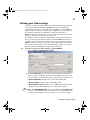
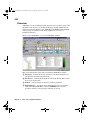
1 Start Adobe Photoshop LE, then choose File > New.
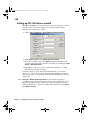
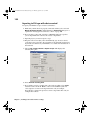
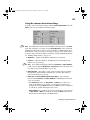
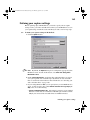
2 In the New dialog box, define the size of your image:
✄
For an NTSC image, select 720 pixels for Width and 480 pixels for Height.
✄
For a PAL image, select 720 pixels for Width and 576 pixels for Height.
¯Note If you want to create an organic wipe for use in a widescreen (16:9)
production, create your image at 853×480 (NTSC) or 1024×576 (PAL), then
resize it to 720×480 (NTSC) or 720×576 (PAL). When you resize the image,
your graphic will appear elongated on your computer screen.
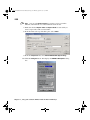
3 Choose Image > Mode, then select Grayscale and 8 bits/channel.
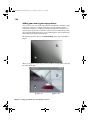
4 Create your organic wipe pattern using any of the tools in the toolbox. The
gradient tools, however, work best for creating organic wipe patterns.
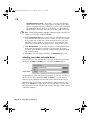
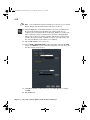
5 When finished, choose File > Save As, name your file, select Targa [*.tga,
*.vda, *.icb, *.vst] as the file type, and select your subdirectory under the
Organic Wipes directory.
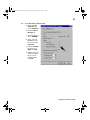
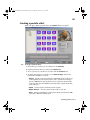
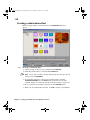
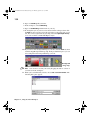
6 When you open your subdirectory within the Matrox realtime plug-in for
Adobe Premiere, you’ll see that the new effect was found, and an icon of
your pattern will be added to the Effect List.
¯Note While these instructions are for creating organic wipe patterns with Adobe
Photoshop LE, you can use any image-editing software—as long as you specify
the correct image size, select 8-bit grayscale, and save your pattern as a .tga file.
If your program provides the option of saving your .tga file as Compressed or
Uncompressed, make sure you select the Uncompressed option.
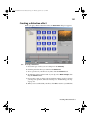
Creating an organic wipe