1
WavePost
Post Processing Software
User Manual
for the 3D-ACM Wave
January 2000
Falmouth Scientific, Inc.
1140 Route 28A
Cataumet, MA 02534
Tel: (508) 564-7640
Fax: (508) 564-7643
ii
The information, descriptions and illustrations in this manual are the property of
Falmouth Scientific, Inc. (FSI), and may be disclosed only to those persons or
organizations specifically authorized by FSI. Duplication of any part of this
manual is strictly prohibited unless authorized in writing by FSI.
WavePost User Manual
January 2000
iii
Falmouth Scientific, Inc. Limited Warranty
Falmouth Scientific, Inc. (FSI) guarantees its products to be free from defects in
materials and workmanship for a period of one year from the date of shipment.
FSI’s CTD designated products are guaranteed for the life of the product. In the
event a product malfunctions during this period, FSI’s obligation is limited to the
repair or replacement, at FSI’s option, of any product returned to the FSI factory.
Products found defective should be returned to the factory freight prepaid and
carefully packed, as the customer will be responsible for any damage during
shipment.
Repairs or replacements, parts, labor, and return shipment under this warranty will
be at no cost to the customer. This warranty is void if, in FSI’s opinion, the product
has been damaged by accident or mishandled, altered, or repaired by the customer,
where such treatment has affected its performance or reliability. In the event of
such mishandling, all costs for repair and return freight will be charged to the
customer. All products supplied by FSI that are designed for use under hydrostatic
loading have been certified by actual pressure testing prior to shipment. Any
damage that occurs as a direct result of flooding is NOT covered by this warranty.
If a product is returned for warranty repair and no defect is found, the customer
will be charged a diagnostic fee plus all shipping costs. Incidental or consequential
damages or costs incurred as a result of a product’s malfunction are not the
responsibility of FSI.
Equipment not manufactured by FSI is supported only to the extent of the original
equipment manufacturer’s (OEM) original warranties. All OEM sensors that
utilize electrodes (oxygen cartridges, pH, ORP, etc.) are warranted at the time of
shipment, and shall perform upon initial installation within stated specifications. If
the product proves to be defective within the OEM’s warranty, FSI will replace the
product or defective part with a similar model, product or part, but only to the
extent that the OEM warrants.
All returned products must be accompanied by a Returned Material Authorization
(RMA) number issued by FSI. Shipments without an RMA number will not be
accepted.
Liability
FSI shall not be liable for incidental or consequential damages, injuries, or losses
as a result of the installation, testing, operation, or servicing of FSI products.
iv
Falmouth Scientific, Inc. Return Procedure
Before returning any equipment to FSI, you must contact FSI and obtain a
Returned Material Authorization (RMA) number. The RMA number assists FSI in
identifying the origin and tracking the location of returned items.
When returning items to FSI from outside the United States, follow the checklist
presented below to prevent any delays or additional costs.
❏ Include with all shipments two copies of your commercial invoice showing the
value of the items and the reason you are returning them. Whenever possible,
send copies of the original export shipping documents with the consignment.
❏ If the total value of the items is in excess of $1,000, include the following
shippers oath with the invoices. (This can be typed on the invoices or on a
separate letterhead.)
I, ____________________, declare that the articles herein specified
are the growth, produce, or manufacture of the United States; that
they were exported from the United States from the Port
of____________________, on or about ____________________;
that they are returned without having been advanced in value or
improved in condition by any process of manufacture or any other
means, that no drawback, bounty, or allowance has been paid or
admitted thereof.
Signed ______________________________
❏ If there is more than one item per consignment, include a packing list with the
shipment. It is acceptable to combine the commercial invoice and packing list
with the contents of each carton, clearly numbered and identified on the
commercial invoice.
❏ Consign all air freight shipments to Falmouth Scientific, Inc. in care of Air Sea
Forwarders, 140 Eastern Avenue, Chelsea, MA 02150.
❏ If the items are the property of FSI, please insure for them for their full value.
❏ Route via Logan International Airport only as the final destination.
❏ Mail or Fax one copy each of the invoice, packing list, and airway bill to FSI
upon shipment.
❏ Refer to the FSI issued RMA number on all documents and correspondence.
❏ Prepay the freight.
WavePost User Manual
January 2000
v
Preface
Congratulations on your purchase of an FSI precision oceanographic instrument.
Founded in 1989, FSI has become an international leader in the development and
manufacture of oceanographic instrumentation, including Conductivity/Depth/
Temperature (CTD) profilers, acoustic current meters, high performance water
samplers, and wave and tide instruments. FSI products provide the highest
accuracy for your monitoring needs in environments ranging from estuarine to full
ocean depth.
What’s in This Manual
This user manual provides information pertaining to the installation and operation
of WavePost, a software program that processes and displays current velocity and
pressure data acquired from FSI’s 3D-ACM Wave Acoustic Current Meter. The
manual is divided into the following six sections:
Section 1: About WavePost describes the key features of WavePost, and
provides a general overview of the WavePost compatible acquisition software,
3DACM97, and the 3D-ACM Wave Acoustic Current Meter.
Section 2: Installing and Starting WavePost provides installation and
startup procedures for getting WavePost running on your computer, as well as
procedures for exiting and uninstalling WavePost.
Section 3: Windows and Commands describes the WavePost Main
window and how to access menus and choose commands.
Section 4: Opening, Viewing and Printing Data Files describes how
to configure and open data files and how to view and print the parameter data
in the files.
Section 5: Viewing and Printing the Graphics Displays describes
the seven graphics displays, and how to view, set up, arrange, and print the
graphics displays.
Section 6: Auto Processing and Exporting Data describes how you
can use WavePost to auto process the pressure and current velocity data to
determine wave direction, wave frequency and wave height information and
save the information to a data file, and how you can export parameter data
along with calculated current speed and direction.
vi
System Configuration Requirements
The system configuration required for WavePost to operate properly includes the
following:
• Microsoft Windows 95®, Windows 98® or Windows NT®
• A computer with an Intel 80486® or Pentium® processor
• Minimum 64 MB of RAM
• A VGA monitor with 800 x 600 resolution
• A CD-ROM drive
• A hard disk with 10 MB free space
Pull-Down Menus
Like most programs, WavePost uses pull-down menus, which are opened from the
menu bar in the program’s Main window by pointing to the item with the mouse
pointer and clicking the left mouse button. When the menu is open, you can select
an item from it in the same manner.
In many of the procedures presented in this manual, the ➤ symbol is used to
represent a sequence of menu item selections. For example, “Choose
File ➤ Open” means select File from the menu bar, and then choose Open from
the File menu when it opens.
Notes and Cautions
Where applicable, notes and cautions are provided as follows:
Note: Recommendations or general information that is particular to the
material being presented or a referral to another part of this manual or to another
manual.
Caution: A reminder that you are in danger of losing or misinterpreting data.
WavePost User Manual
January 2000
vii
WavePost Version Number
For information about WavePost, choose Help ➤ About. The About window
opens, which provides important information about your version of WavePost:
Customer Service
FSI welcomes your feedback. Therefore, please contact FSI customer service to
offer any comments or suggestions or to request technical support.
FSI can be contacted using any of the following means:
Mail
Falmouth Scientific, Inc.
P.O. Box 315
Cataumet, MA 02534
U.S.A.
E-mail
[email protected]
Telephone or Facsimile
Telephone: (508) 564-7640
Facsimile: (508) 564-7643
viii
Table of Contents
Falmouth Scientific, Inc. Limited Warranty . . . . . . . . . . . . . . . . . . iii
Liability . . . . . . . . . . . . . . . . . . . . . . . . . . . . . . . . . . . . . . . . . . . . . iii
Falmouth Scientific, Inc. Return Procedure . . . . . . . . . . . . . . . . iv
Preface . . . . . . . . . . . . . . . . . . . . . . . . . . . . . . . . . . . . . . . . . . . . . v
What’s in This Manual . . . . . . . . . . . . . . . . . . . . . . . . . . . . . . . v
System Configuration Requirements . . . . . . . . . . . . . . . . . . . vi
Pull-Down Menus . . . . . . . . . . . . . . . . . . . . . . . . . . . . . . . . . vi
Notes and Cautions . . . . . . . . . . . . . . . . . . . . . . . . . . . . . . . . vi
WavePost Version Number . . . . . . . . . . . . . . . . . . . . . . . . . . vii
Customer Service . . . . . . . . . . . . . . . . . . . . . . . . . . . . . . . . . vii
Table of Contents . . . . . . . . . . . . . . . . . . . . . . . . . . . . . . . . . . . . viii
List of Figures . . . . . . . . . . . . . . . . . . . . . . . . . . . . . . . . . . . . . . . . x
SECTION 1:
About WavePost . . . . . . . . . . . . . . . . . . . . . . . . . . . . 1-1
WavePost Overview . . . . . . . . . . . . . . . . . . . . . . . . . . . . . . . . . 1-1
3DACM97 Configuration and Acquisition Software . . . . . . . . . 1-2
The 3D-ACM Wave Acoustic Current Meter . . . . . . . . . . . . . . . 1-3
SECTION 2:
Installing and Starting WavePost . . . . . . . . . . . . . . 2-1
Installing WavePost . . . . . . . . . . . . . . . . . . . . . . . . . . . . . . . . .
Starting WavePost . . . . . . . . . . . . . . . . . . . . . . . . . . . . . . . . . .
Exiting WavePost . . . . . . . . . . . . . . . . . . . . . . . . . . . . . . . . . . .
Uninstalling WavePost . . . . . . . . . . . . . . . . . . . . . . . . . . . . . . .
SECTION 3:
2-1
2-4
2-5
2-5
Windows and Commands . . . . . . . . . . . . . . . . . . . . 3-1
The Main Window . . . . . . . . . . . . . . . . . . . . . . . . . . . . . . . . . . . 3-1
Menu Bar . . . . . . . . . . . . . . . . . . . . . . . . . . . . . . . . . . . . . . . 3-2
Display Area . . . . . . . . . . . . . . . . . . . . . . . . . . . . . . . . . . . . 3-2
SECTION 4:
Opening, Viewing and Printing Data Files . . . . . . . 4-1
Verifying the Data File Configuration . . . . . . . . . . . . . . . . . . . .
Opening Data Files . . . . . . . . . . . . . . . . . . . . . . . . . . . . . . . . . .
Viewing and Printing Data Files . . . . . . . . . . . . . . . . . . . . . . . .
Viewing Header Information in Data Files . . . . . . . . . . . . . . . . .
WavePost User Manual
4-1
4-4
4-6
4-8
January 2000
ix
SECTION 5:
Viewing and Printing the Graphics Displays . . . . . 5-1
Viewing the Graphics Displays . . . . . . . . . . . . . . . . . . . . . . . . . . 5-1
Viewing the Velocity Time Series Graphics Display . . . . . . . 5-2
Viewing the Speed and Direction Graphics Display . . . . . . . 5-2
Viewing the Progressive Vector Graphics Display . . . . . . . . 5-3
Viewing the Distribution Graphics Display . . . . . . . . . . . . . . 5-3
Viewing the Pressure Analysis Graphics Display . . . . . . . . . 5-5
Viewing the Wave Direction Graphics Display . . . . . . . . . . . 5-5
Viewing the Wave Height and Direction Graphics Display . . 5-7
Arranging the Graphics Display Windows . . . . . . . . . . . . . . . . . 5-8
Arranging Windows in a Cascade Configuration . . . . . . . . . 5-8
Arranging Windows in a Vertical Tile Configuration . . . . . . . 5-8
Arranging Windows in a Horizontal Tile Configuration . . . . . 5-9
Arranging Icons . . . . . . . . . . . . . . . . . . . . . . . . . . . . . . . . . . . 5-9
Closing all the Windows at Once . . . . . . . . . . . . . . . . . . . . 5-10
Setting up the Graphics Displays . . . . . . . . . . . . . . . . . . . . . . . 5-11
Setting up the Velocity Time Series Graphics Display . . . . 5-11
Setting up the Speed and Direction Graphics Display . . . . 5-13
Setting up the Progressive Vector Graphics Display . . . . . 5-14
Setting up the Distribution Graphics Display . . . . . . . . . . . 5-16
Setting up the Pressure Analysis Graphics Display . . . . . . 5-17
Setting up the Wave Direction Graphics Display . . . . . . . . 5-19
Setting up the Wave Height and
Direction Graphics Display . . . . . . . . . . . . . . . . . . . . . . . . . 5-20
Changing the Default Graphics Display Setups . . . . . . . . . 5-21
Printing the Graphs . . . . . . . . . . . . . . . . . . . . . . . . . . . . . . . . . 5-22
SECTION 6:
Auto Processing and Exporting Data . . . . . . . . . . . 6-1
Auto Processing to Determine Wave Information . . . . . . . . . . .
Types of Wave Information . . . . . . . . . . . . . . . . . . . . . . . . . .
Wave Analysis Methods Used by WavePost . . . . . . . . . . . .
Auto Processing the Data . . . . . . . . . . . . . . . . . . . . . . . . . . . . .
Exporting the Data . . . . . . . . . . . . . . . . . . . . . . . . . . . . . . . . . . .
6-1
6-1
6-2
6-4
6-6
x
List of Figures
Figure 3-1: The Main Window . . . . . . . . . . . . . . . . . . . . . . . . . . . . . . . . . . . . . . . . . 3-1
Figure 3-2: The Open File Menu . . . . . . . . . . . . . . . . . . . . . . . . . . . . . . . . . . . . . . . 3-2
Figure 4-1: The Properties Dialog Box . . . . . . . . . . . . . . . . . . . . . . . . . . . . . . . . . . 4-2
Figure 4-2: The Open Dialog Box for ACM Data Files . . . . . . . . . . . . . . . . . . . . . . . 4-4
Figure 4-3: Graphics Display Windows for Multiple Open Data Files . . . . . . . . . . . 4-5
Figure 4-4: The View Data Window . . . . . . . . . . . . . . . . . . . . . . . . . . . . . . . . . . . . . 4-7
Figure 4-5: The Header Information Window
. . . . . . . . . . . . . . . . . . . . . . . . . . . . . 4-9
Figure 5-1: The Velocity Time Series Graphics Display
. . . . . . . . . . . . . . . . . . . . . 5-2
Figure 5-2: The Speed and Direction Graphics Display
. . . . . . . . . . . . . . . . . . . . . 5-3
Figure 5-3: The Progressive Vector Graphics Display . . . . . . . . . . . . . . . . . . . . . . . 5-4
Figure 5-4: The Distribution Graphics Display . . . . . . . . . . . . . . . . . . . . . . . . . . . . . 5-4
Figure 5-5: The Pressure Analysis Graphics Display . . . . . . . . . . . . . . . . . . . . . . . 5-5
Figure 5-6: The Wave Direction Graphics Display—Wave Direction . . . . . . . . . . . . 5-6
Figure 5-7: The Wave Direction Graphics Display—Direction Coefficients . . . . . . . 5-6
Figure 5-8: The Wave Height and Direction Graphics Display
. . . . . . . . . . . . . . . . 5-7
Figure 5-9: Four Graphics Display Windows Tiled Vertically . . . . . . . . . . . . . . . . . . 5-9
Figure 5-10: Three Graphics Display Windows Tiled Horizontally
. . . . . . . . . . . . 5-10
Figure 5-11: The Time Graph Setup Dialog Box . . . . . . . . . . . . . . . . . . . . . . . . . . 5-11
Figure 5-12: The Speed and Direction Graph Options Dialog Box . . . . . . . . . . . . 5-13
Figure 5-13: The Progressive Vector Graph Options Dialog Box
Figure 5-14: The Distribution Graph Options Dialog Box
. . . . . . . . . . . . . 5-15
. . . . . . . . . . . . . . . . . . . 5-17
Figure 5-15: The Pressure Analysis Setup Dialog Box . . . . . . . . . . . . . . . . . . . . . 5-18
Figure 5-16: The Direction Setup Dialog Box . . . . . . . . . . . . . . . . . . . . . . . . . . . . 5-19
Figure 5-17: The Wave Height Setup Dialog Box . . . . . . . . . . . . . . . . . . . . . . . . . 5-20
Figure 5-18: Example Print Preview of the Velocity Time Series Graph . . . . . . . . 5-23
Figure 5-19: Example Velocity Time Series Graph Printout . . . . . . . . . . . . . . . . . 5-24
WavePost User Manual
January 2000
xi
Figure 5-20: Example Speed and Direction Graph Printout . . . . . . . . . . . . . . . . . 5-25
Figure 5-21: Example Progressive Vector Graph Printout . . . . . . . . . . . . . . . . . . 5-26
Figure 5-22: Example Distribution Graph Printout . . . . . . . . . . . . . . . . . . . . . . . . 5-27
Figure 5-23: Example Pressure Analysis Graph Printout . . . . . . . . . . . . . . . . . . . 5-28
Figure 5-24: Example Wave Direction Graph Printout . . . . . . . . . . . . . . . . . . . . . 5-29
Figure 5-25: Example Wave Direction Coefficients Graph Printout . . . . . . . . . . . 5-30
Figure 5-26: Example Wave Height and Direction Graph Printout . . . . . . . . . . . . 5-31
Figure 6-1: The Auto Process Dialog Box
. . . . . . . . . . . . . . . . . . . . . . . . . . . . . . . 6-4
Figure 6-2: The Save As Dialog Box for DAT Data Files . . . . . . . . . . . . . . . . . . . . . 6-5
Figure 6-3: The Select Output Data Format Dialog Box . . . . . . . . . . . . . . . . . . . . . 6-6
Figure 6-4: The Save As Dialog Box for ACM Data Files . . . . . . . . . . . . . . . . . . . . 6-7
xii
WavePost User Manual
January 2000
1-1
SECTION 1: About WavePost
he WavePost post processing software provides a convenient, user
friendly means of processing, viewing and printing parameter data that
have been acquired from FSI’s 3D-ACM Wave Acoustic Current Meter
(ACM) instruments and saved to an ASCII data file. All the parameter data can be
viewed in a data window, and the current velocity and pressure data and wave
information can be viewed in graphics displays.
T
The 3D-ACM Wave collects, outputs and stores current velocity data, pressure
data, 3-axis compass data, 2-axis tilt data, temperature data, and data from optional
sensors, including a CTD. All the data stored in a 3D-ACM Wave can be retrieved
and saved as an ASCII data file using 3DACM97, a software program available
from FSI that is also used to configure and to acquire data in real time from a
3D-ACM Wave.
This section provides an overview of WavePost and its key features, along with a
description of 3DACM97 and the 3D-ACM Wave.
WavePost Overview
WavePost runs on the Windows 95, the Windows 98 or the Windows NT platform.
WavePost inputs and processes data files that have been created using 3DACM97.
After processing, the data can be viewed in a data window or in graphics displays,
and printed. Specifically, the major functions that WavePost allows you to perform
are the following:
Input data by opening any number of data files containing parameter data
acquired by a 3D-ACM Wave and saved using 3DACM97.
Choose to input either instantaneous or vector averaged current
velocities by setting the appropriate data file configuration settings.
Choose the data file properties by setting the appropriate data file
configurations settings, including whether to print a header when printing a
graph; adjusting the true north correction; compensating for depth attenuation;
selecting the number of samples to process when calculating wave height,
frequency and direction; and applying temperature and atmospheric
corrections to the pressure data.
View the data files in a view data window which allows you to view a
selection of any four parameters in any of the open data files simultaneously,
and to scroll through all of the scans.
1-2
SECTION 1 About WavePost
Print the data files from a view data window which allows you to print all
the parameter data in any of the open data files.
View header information in any of the open data files.
View the graphics displays for any of the open data files, where the
graphics displays comprise four current velocity graphics displays—Velocity
Time Series, Speed and Direction, Progressive Vector, and Distribution; and
three pressure graphics displays—Pressure Analysis, Wave Direction, and
Wave Height and Direction.
Set up the graphics displays by selecting the colors of the plots and
graph backgrounds, the full scale ranges and other setup parameters.
Change the default graphics display settings for any of the graphics
displays setups.
Arrange any number of graphics display windows in the Main
window, one for each open data file, and select any window for viewing the
graphics displays, setting up the graphics displays, and printing the graphs.
Print preview the graphs in a print preview window for any of the open
graphics display windows before printing.
Print the graphs for any of the open graphics display windows from the
print preview window, or directly without previewing first.
Auto process the pressure and current velocity data to determine
wave direction, wave frequency and wave height information for multiple data
sets of pressure and current velocity data, and save the information to a file.
Export all the parameter data along with calculated current speed and
direction, or just the current speed and direction, in comma delimited, tab
delimited or Matlab format.
3DACM97 Configuration and Acquisition
Software
WavePost inputs data that have been acquired in real time from a 3D-ACM Wave,
or retrieved from the instrument’s internal memory, and saved to a file in ASCII
format. To acquire or retrieve the data, the 3DACM97 configuration and
acquisition software is required and is included with the 3D-ACM Wave.
3DACM97 runs on the Windows 95, the Windows 98 or the Windows NT
platform and primarily is used to check, to configure and to prepare the 3D-ACM
Wave for deployment. In addition, 3DACM97 is used to acquire and display the
data in real time, to retrieve data from the instrument’s internal memory, to view
the data, and to save the data for processing, displaying and printing by WavePost.
WavePost User Manual
January 2000
The 3D-ACM Wave Acoustic Current Meter
1-3
The 3D-ACM Wave Acoustic Current Meter
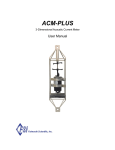
The 3D-ACM Wave Acoustic
Current Meter measures current
velocity in three dimensions
and includes a precision
micro-machined pressure sensor
for measuring wave height, a
3-axis fluxgate compass for
measuring the Earth’s magnetic
field, a 2-axis electrolytic tilt
sensor for measuring tilt, and an a
solid state temperature sensor for
measuring water temperature.
The 3D-ACM can also interface
with an optional CTD and
includes two DC input channels
which interface with most DC output sensors, including dissolved oxygen, pH,
chlorophyll, light transmission, and others. The 3D-ACM can be powered from an
external DC power supply or from an internal alkaline battery pack. Data can be
acquired in real time in ASCII format through an RS-232 or optional RS-485 serial
interface at baud rates up to 19200 bits/sec, or the instrument can be deployed and
the data stored in its standard internal 32 MB PCMCIA flash memory card for later
retrieval. The 3D-ACM has a depth rating of 25 meters, and a tri-pod stand is
available as an option.
1-4
SECTION 1 About WavePost
WavePost User Manual
January 2000
2-1
SECTION 2: Installing and Starting
WavePost
his section describes how to install WavePost from the WavePost For
Windows 95 CD-ROM. WavePost is installed using the FSI WavePost
Setup program, which is started by choosing the Add/Remove Programs
icon in the Windows Control Panel. In addition, this section describes how to start,
exit, and uninstall WavePost.
T
Note: Before installing WavePost, uninstall any previous version of the
program if installed on your computer. (See “Uninstalling WavePost” on
page 2-5 for instructions on how to uninstall WavePost.)
Installing WavePost
To install WavePost:
1
Exit all programs and turn off any virus protection or screen saver software.
2
Insert the WavePost For Windows 95 CD-ROM into your CD-ROM drive.
3
Select Start ➤ Settings ➤ Control Panel to open the Control Panel.
4
Choose Add/Remove Programs in the Control Panel.
The Add/Remove Programs Properties dialog box opens:
2-2
SECTION 2 Installing and Starting WavePost
5
Click Install.
The Install Program From Floppy Disk or CD-ROM dialog box opens:
6
Click Next.
The Run Installation Program dialog box opens:
7
Click Finish.
After the InstallShield Wizard is prepared, the Welcome dialog box opens:
WavePost User Manual
January 2000
Installing WavePost
8
2-3
Click Next.
The Choose Destination Location dialog box opens:
9
Click Next to accept the specified destination directory as the directory in
which the WavePost program will be installed. Or instead, click Browse and
follow the instructions to select a different directory, and then click Next.
The Select Program Folder dialog box opens:
10
Click Next to accept FSI Applications as the name of the program folder in
which the WavePost program icons will be added. Or instead, select an
existing program folder from the list or type a new folder name, and then
click Next.
The WavePost program files are copied to the specified destination directory,
and then the Setup Complete dialog box opens.
11
Click Finish in the Setup Complete dialog box to exit from the
FSI WavePost Setup program.
WavePost is installed and ready to be started.
2-4
SECTION 2 Installing and Starting WavePost
Starting WavePost
To start WavePost:
1
Select Start ➤ Programs ➤ FSI Applications.
The FSI Applications menu opens:
2
Choose WavePost.
WavePost starts and the WavePost Main window opens:
WavePost User Manual
January 2000
Exiting WavePost
2-5
Exiting WavePost
To exit WavePost:
1
Select File from the menu bar in the Main window. (See “SECTION 3:
Windows and Commands,” for information on the Main window and how to
access commands from the menu bar.)
The File menu opens.
2
Choose Exit.
Uninstalling WavePost
To uninstall WavePost:
1
Exit from WavePost.
2
Select Start ➤ Settings ➤ Control Panel to open the Control Panel.
3
Choose Add/Remove Programs in the Control Panel.
The Add/Remove Programs Properties dialog box opens:
4
Select FSI WavePost and click Add/Remove.
5
Click Yes when asked to confirm that you want to remove the program and
all of its components.
WavePost is removed from your computer.
2-6
SECTION 2 Installing and Starting WavePost
WavePost User Manual
January 2000
3-1
SECTION 3: Windows and Commands
ll of WavePost’s commands are accessed from the Main window, which
opens after WavePost has completed its startup. (See “Starting
WavePost” on page 2-4 for instructions on how to start WavePost.) This
section provides a general description of the Main window and describes how to
access menus and choose commands.
A
The Main Window
After WavePost has completed its startup, the Main window shown in Figure 3-1
opens. The Main window provides access to all of WavePost’s commands
Close button
Control menu
Title bar
Maximize button
Menu bar
Display area
Figure 3-1: The Main Window
Minimize button
3-2
SECTION 3 Windows and Commands
through the menu bar. The Main window also contains standard Windows
features, such as the Control menu, the Title bar, and the Maximize, Minimize, and
Close buttons. The display area composes the rest of the Main window.
Menu Bar
The menu bar, which contains pull-down menus, provides access to all of the
WavePost commands. To open a menu from the menu bar, place the mouse pointer
on the menu name to select it and then click the left mouse button. The menu opens
as shown in Figure 3-2, which shows the open File menu. To choose an item from
the menu, place the mouse pointer on the item to select it and then click the left
mouse button.
You can also use the shortcut method for selecting menu items. To do this, press
ALT followed by the underlined letter of the item you want to select on the menu
bar, and then the underlined letter of the item you want to select in the menu that
opens.
Figure 3-2: The Open File Menu
Display Area
The display area of the Main window is reserved for graphics display windows and
dialog boxes. (See Figure 4-3 on page 4-5 for an example of graphics display
windows in the display area.)
WavePost User Manual
January 2000
4-1
SECTION 4: Opening, Viewing and
Printing Data Files
fter using 3DACM97 to acquire data in real time from a 3D-ACM Wave,
or to retrieve data from the instrument’s internal memory, and save the
data to an ASCII data file, the current velocity and pressure data, along
with all the other parameter data in the data file, can be input to WavePost for
viewing and printing. To input the data, the data file is opened in WavePost. This
section describes how to configure and open data files, and how to view and print
the parameter data in the files.
A
Once a data file is open, the current velocity and pressure data can also be viewed
on graphics displays and the graphs printed. (See “SECTION 5: Viewing and
Printing the Graphics Displays.”)
Note: For information on how 3DACM97 is used to acquire data in real time
from a 3D-ACM Wave, or to retrieve the data from the instrument’s internal
memory, and save the data to a file, refer to the “3DACM97 Configuration and
Acquisition Software User Manual” provided with the 3D-ACM Wave.
Verifying the Data File Configuration
Prior to opening data files containing current velocity and pressure data, it may be
required to verify or change the file configuration settings. You need to do this
only once, even when opening more than one data file, as long as the configuration
requirements remain the same for all the files. Most of the settings, except where
noted, can also be changed after the data file is opened.
To verify or change the data file configuration settings:
1
Choose File ➤ Properties.
The Properties dialog box shown in Figure 4-1 opens.
2
In the Velocity Data used in Calculations area of the Properties dialog box,
select one of the following options:
• Average Velocities (AVN, AVE, AVU) to input only the vector averaged
velocity data from the data file.
• Instantaneous Velocities (VN, VE, VU) to input only the instantaneous
velocity data from the data file.
4-2
SECTION 4 Opening, Viewing and Printing Data Files
Figure 4-1: The Properties Dialog Box
Note: The instantaneous current velocity and pressure data in the data file are
either the instantaneous current velocity and pressure data recorded by the
3D-ACM Wave with the vector averaged current velocity data at the end of each
averaging interval, or the selected burst current velocity and pressure data
recorded during each Burst On Time. Which depends on whether average data or
burst data, respectively, is chosen in 3DACM97 when retrieving and saving the
data to the data file from the 3D-ACM Wave. In addition, if the data in the data
file were acquired in real time with 3DACM97, the data are the selected burst
current velocity and pressure data, which are acquired at a one second rate.
Note: This selection must always be made before opening the data file.
Changing the selection after the file is open has no effect; the file must be
reopened for the change to apply.
WavePost User Manual
January 2000
Verifying the Data File Configuration
4-3
3
In the Print Options area, select the Header check box if you want to print
header information when printing a graph, or clear the check box if you want
the graph to fill the page. (See “Printing the Graphs” on page 5-22 for
instructions on how to print the graphs.)
4
If it is required to correct for magnetic field errors, enter a correction for true
north in the True North Correction text box in the Direction Correction area.
The entered value is subtracted from the current direction calculations.
Caution: Unlike wind direction, which is defined as the direction from which
the wind is blowing, current and wave direction is defined as the direction toward
which the current is flowing. For example, a current direction of 180 degrees
indicates that the current is flowing in the southerly direction—from north to
south.
5
In the Depth Attenuation Correction area, select the Enable check box if you
want to enable depth correction, or clear the check box if you do not.
If you select Enable, enter the 3D-ACM Wave’s height off the bottom in
meters in the Instrument Depth Off Bottom text box.
6
In the Number of Samples to Process area, select the number of scans in a
data set of pressure and current velocity data to process when determining
information on wave height, wave frequency and wave direction. (See “Auto
Processing to Determine Wave Information” on page 6-1 for information on
how WavePost processes the pressure and current velocity data to determine
wave information.)
7
In the Pressure to Water Height Correction area, enter the water temperature
in °C in the Water Temp text box if you want to apply a constant temperature
correction in the pressure to water height calculation.
8
Select the Use Sea Temperature in Data File check box if you want to use the
temperature data from the data file for the temperature correction in the
pressure to water height calculation, or clear the check box to use the
temperature entered in the Water Temp text box, if any.
9
Enter the atmospheric pressure in kPa in the Atmospheric Pressure text box.
4-4
SECTION 4 Opening, Viewing and Printing Data Files
Opening Data Files
Data files containing current velocity and pressure data acquired from a 3D-ACM
Wave should be opened only after the correct file configuration settings have been
made in the Properties dialog box.
To open one or more data files:
1
Choose File ➤ Open.
The Open dialog box for ACM data files shown in Figure 4-2 opens. The
example in the figure shows four data files: Wave1.dat, Wave2.dat,
Wave3.dat, and Wave4.dat.
If the file you want to open is not visible, it may be in a different folder than
the one shown. In this case, click the arrow in the Look in drop-down list box
and select the folder in which the file is located.
Figure 4-2: The Open Dialog Box for ACM Data Files
2
Click the file you want to open, and then click Open.
WavePost reads the data file, and the Velocity Time Series graphics display
opens in a graphics display window with the current velocity data plotted.
(For information on the Velocity Time Series graphics display and the other
graphics displays, see “Viewing the Graphics Displays” on page 5-1.)
3
Repeat Step 1 and Step 2 for all the data files you want to open.
WavePost User Manual
January 2000
Opening Data Files
4-5
A graphics display window with the Velocity Time Series graphics display
opens and is cascaded automatically for each of the data files, as shown in
Figure 4-3, where three data files are open: Wave1.dat, Wave2.dat and
Wave3.dat.
Figure 4-3: Graphics Display Windows for Multiple Open Data Files
4
To view any of the other graphics displays in a graphics display window,
click the corresponding button in the upper left corner of the display.
To view a different graphics display window, click the window’s title bar to
make it the active window. The window moves to the front.
5
To close a graphics display window, and its data file, click the Cancel button.
4-6
SECTION 4 Opening, Viewing and Printing Data Files
Viewing and Printing Data Files
The current velocity and pressure data and all the other parameter data retrieved
from a 3D-ACM Wave by 3DACM97 and saved to a data file can be viewed and
printed at any time after opening the file in WavePost. Any number of data files
can be open at the same time.
Note: If you will be printing the data in a data file, set up the page first. To set
up the page, choose File ➤ Print Setup and follow the instructions in the Page
Setup dialog box that opens. Once the page is set up, it is not necessary to set it up
again unless your page requirements change.
The parameter data that can be viewed and printed when the data file contains
instantaneous current velocity data and pressure data include the following:
SCANS:
Scan number
TIME:
Time in days
VN:
Instantaneous north current velocity in m/sec
VE:
Instantaneous east current velocity in m/sec
VU:
Instantaneous up current velocity in m/sec
SPRES:
Pressure in dBars
The parameter data that can be viewed and printed when the data file contains
vector averaged current velocity data and pressure data include the following:
SCANS:
Scan number
TIME:
Time in days
AVN:
Vector averaged north current velocity in m/sec
AVE:
Vector averaged east current velocity in m/sec
AVU:
Vector averaged up current velocity in m/sec
SPRES:
Pressure in dBars
Note: All the other parameter data saved to the data file can also be viewed. For
a complete list of the parameters, their definitions and units of measure, refer to
the “3DACM97 Configuration and Acquisition Software User Manual” provided
with the 3D-ACM Wave.
WavePost User Manual
January 2000
Viewing and Printing Data Files
4-7
To view and print the data in a data file:
1
Open one or more data files.
WavePost reads the data files, and a graphics display window with the
Velocity Time Series graphics display opens and is cascaded automatically
for each of the data files opened.
2
If more than one data file is open, click the title bar of the graphics display
window corresponding to the data file for which you want to view the data.
The graphics display window is made active. If only one data file is open, the
graphics display window for that data file will already be the active window.
3
Choose Data ➤ View Parameter Data.
The View Data window shown in Figure 4-4 opens.
Figure 4-4: The View Data Window
4
In the Parameter 1 column of the View Data window, click the down arrow
and select a parameter to display.
5
Repeat Step 4 for the Parameter 2, Parameter 3, and Parameter 4 columns.
6
Click the up or down arrow in the vertical scroll bar to scroll through the data
one scan at a time. Or drag the scroll box up or down to quickly scroll
through the data.
7
If you want to print the data, scroll to the first line of data you want to print,
and then click Print. Or to close the View Data window, click Close.
If you click Print, the Number of Data Points dialog box opens:
4-8
SECTION 4 Opening, Viewing and Printing Data Files
8
Enter the number of scans to print in the text box, and then click OK.
The Print dialog box opens.
9
Select your printer, and then click OK.
10
To close the View Data window, click Close.
11
To close the data file, click the Cancel button in the graphics display window
for the data file.
Viewing Header Information in Data Files
The header information retrieved from a 3D-ACM Wave by 3DACM97 and saved
to a data file can be viewed and printed at any time after opening the file in
WavePost. Any number of data files can be open at the same time.
To view the header information in a data file:
1
Open one or more data files.
WavePost reads the data files, and a graphics display window with the
Velocity Time Series graphics display opens and is cascaded automatically
for each of the data files opened.
2
If more than one data file is open, click the title bar of the graphics display
window corresponding to the data file for which you want to view the header
information.
The graphics display window is made active. If only one data file is open, the
graphics display window for that data file will already be the active window.
3
Choose Data ➤ View Header Information.
The Header Information window shown in Figure 4-5 opens.
WavePost User Manual
January 2000
Viewing Header Information in Data Files
4-9
Figure 4-5: The Header Information Window
4
To close the Header Information window, click Close.
5
To close the data file, click the Cancel button in the graphics display window
for the data file.
4-10
SECTION 4 Opening, Viewing and Printing Data Files
WavePost User Manual
January 2000
5-1
SECTION 5: Viewing and Printing the
Graphics Displays
avePost provides seven graphics displays, where four are specifically
designed for viewing current velocity data—the Velocity Time Series,
Speed and Direction, Progressive Vector, and Distribution graphics
displays; and three are specifically designed for viewing pressure data—the
Pressure Analysis, Wave Direction, and Wave Height and Direction graphics
displays. The graph scales, the colors of the plots and graph backgrounds, and
various other graphics display settings can be changed from the default or previous
setup. This section describes the graphics displays, and how to view, set up,
arrange, and print the graphics displays.
W
Viewing the Graphics Displays
The data displayed in the current velocity graphics displays—Velocity Time
Series, Speed and Direction, Progressive Vector, and Distribution—depend on the
selection in the Velocity Data used in Calculations area of the Properties dialog
box. (See “Verifying the Data File Configuration” on page 4-1 for information on
the Properties dialog box.) When Average Velocities (AVN, AVE, AVU) is
selected before opening a data file, WavePost displays the vector averaged current
velocities read from the data file in the current velocity graphics displays. When
Instantaneous Velocities (VN, VE, VU) is selected before opening a data file,
WavePost displays the instantaneous current velocities read from the data file. The
data displayed in the pressure graphics displays—Pressure Analysis, Wave
Direction, and Wave Height and Direction—are always based on instantaneous
pressure data.
Note: The instantaneous current velocity and pressure data in the data file are
either the instantaneous current velocity and pressure data recorded by the
3D-ACM Wave with the vector averaged current velocity data at the end of each
averaging interval, or the selected burst current velocity and pressure data
recorded during each Burst On Time. Which depends on whether average data or
burst data, respectively, is chosen in 3DACM97 when retrieving and saving the
data to the data file from the 3D-ACM Wave. In addition, if the data in the data
file were acquired in real time with 3DACM97, the data are the selected burst
current velocity and pressure data, which are acquired at a one second rate.
To view any of the graphics displays, you must first open a data file as described in
“Opening Data Files” on page 4-4. Any number of data files can be open at the
same time. When a data file is opened, the Velocity Time Series graphics display
opens by default.
5-2
SECTION 5 Viewing and Printing the Graphics Displays
Viewing the Velocity Time Series Graphics Display
The Velocity Time Series graphics display, which is shown in Figure 5-1, displays
plots of instantaneous or vector averaged north, east and up current velocities in
m/sec verses time in Julian days or number of scans. When displaying
instantaneous current velocities, VN, VE and VU are displayed in the upper right
corner of the display; otherwise AVN, AVE, and AVU are displayed. Although the
Velocity Time Series graphics display opens first by default when opening a data
file, to view the display from any of the other graphics displays, click the Velocity
button. For instructions on how to set up the Velocity Time Series graphics
display, see “Setting up the Velocity Time Series Graphics Display” on page 5-11.
Figure 5-1: The Velocity Time Series Graphics Display
Viewing the Speed and Direction Graphics Display
The Speed and Direction graphics display, which is shown in Figure 5-2, provides
a stick plot of current speed and direction, where the speed is calculated from the
square root of the sum of the squares of the instantaneous or vector averaged
horizontal current velocities and the direction is calculated from the arctangent.
You can also choose to include the up velocities, along with the horizontal
velocities, in the current speed calculations. The current speed in m/sec is
represented as the length of a line—one line for each scan, and the direction as the
orientation of each line—0° to 360° clockwise from straight up, where 0° is true
north. To view the Speed and Direction graphics display, click the Speed Dir.
button. For instructions on how to set up the Speed and Direction graphics display,
see “Setting up the Speed and Direction Graphics Display” on page 5-13.
WavePost User Manual
January 2000
Viewing the Graphics Displays
5-3
Figure 5-2: The Speed and Direction Graphics Display
Viewing the Progressive Vector Graphics Display
The Progressive Vector graphics display, which is shown in Figure 5-3, provides a
vector plot of current speed and direction on a polar graph, where the speed is
calculated from the square root of the sum of the squares of the instantaneous or
vector averaged horizontal current velocities and the direction is calculated from
the arctangent. You can also choose to include the up velocities, along with the
horizontal velocities, in the current speed calculations. The current speed in m/sec
is represented as the length of a line—one line for each scan, and the direction as
the orientation of each line, where 0° is true north. To view the Progressive Vector
graphics display, click the Prog. Vector button. For instructions on how to set up
the Progressive Vector graphics display, see “Setting up the Progressive Vector
Graphics Display” on page 5-14.
Viewing the Distribution Graphics Display
The Distribution graphics display provides a histogram of the current speed or the
current direction or both verses number of scans. The current speed in m/sec is
calculated from the square root of the sum of the squares of the instantaneous or
vector averaged horizontal current velocities and the direction is calculated from
the arctangent, where 0° is true north. You can also choose to include the up
velocities, along with the horizontal velocities, in the current speed calculations.
The Distribution graphics display shown in Figure 5-4 shows both current speed
and direction. To view the Distribution graphics display, click the Distribution
5-4
SECTION 5 Viewing and Printing the Graphics Displays
Figure 5-3: The Progressive Vector Graphics Display
button. For instructions on how to set up the Distribution graphics display, see
“Setting up the Distribution Graphics Display” on page 5-16.
Figure 5-4: The Distribution Graphics Display
WavePost User Manual
January 2000
Viewing the Graphics Displays
5-5
Viewing the Pressure Analysis Graphics Display
The Pressure Analysis graphics display, which is shown in Figure 5-5, provides
both a plot of pressure in dBars verses number of scans and a frequency spectrum
of wave height in m2/Hz. In addition, processed pressure and current velocity data,
which are based on the Number of Samples to Process selection in the Properties
dialog box and shown plotted in blue on the graph, are displayed as wave
information in the lower right corner of the graphics display. The frequency
spectrum can also be displayed as a bar graph, a continuous line, or X marks. To
view the Pressure Analysis graphics display, click the Press. Analysis button. For
instructions on how to set up the Pressure Analysis graphics display, see “Setting
up the Pressure Analysis Graphics Display” on page 5-17.
Figure 5-5: The Pressure Analysis Graphics Display
Viewing the Wave Direction Graphics Display
The Wave Direction graphics display, which is shown in Figure 5-6, provides a
display of wave direction, frequency and height. The frequency scale is along the
vertical axis, and the direction scale is along the horizontal axis. Wave height is in
meters and is represented by the color of the plot at each of the graph coordinates,
where the color scale is shown to the right of the display. Brown represents the
highest wave height and orange the lowest. The wave information, which is also
displayed at the top of the graphics display, is based on the Number of Samples to
Process selection in the Properties dialog box. The Wave Direction graphics
display also allows you to display the coefficients of the equation that determines
the directional wave spectra in the Wave Direction Coefficients display shown in
Figure 5-7. To view the Wave Direction graphics display, click the Wave
5-6
SECTION 5 Viewing and Printing the Graphics Displays
Figure 5-6: The Wave Direction Graphics Display—Wave Direction
Direction button. For instructions on how to set up the Wave Direction graphics
display and how to view the Wave Direction Coefficients display, see “Setting up
the Wave Direction Graphics Display” on page 5-19.
Figure 5-7: The Wave Direction Graphics Display—Direction
Coefficients
WavePost User Manual
January 2000
Viewing the Graphics Displays
5-7
Viewing the Wave Height and Direction Graphics
Display
The Wave Height and Direction graphics display, which is shown in Figure 5-8,
provides a plot of wave height or wave direction or both verses number of data
sets, where a data set is the pressure and current velocity data for a selected
number of contiguous scans—512, 1024, 2048, or 4096. The first scan of each data
set is the first scan following a time transition in a data file. The number of scans in
a data set is selected in the Number of Samples to Process area of the Properties
dialog box.
WavePost uses auto processing to determine wave direction, wave frequency and
wave height information from one or more data sets of pressure and current
velocity data in a data file. Each point in the wave height plot in the Wave Height
and Direction graphics display represents wave height in meters as determined by
processing a single data set. Similarly, each point in the wave direction plot
represents wave direction in degrees. (See “Auto Processing to Determine Wave
Information” on page 6-1 for information on how WavePost processes the pressure
and current velocity data to determine wave information.)
To view the Wave Height and Direction graphics display, click the Wave Ht. Time
button. For instructions on how to set up the Wave Height and Direction graphics
display, see “Setting up the Wave Height and Direction Graphics Display” on
page 5-20.
Figure 5-8: The Wave Height and Direction Graphics Display
5-8
SECTION 5 Viewing and Printing the Graphics Displays
Arranging the Graphics Display Windows
The graphics displays are viewed in graphics display windows, a separate window
for each open data file. As in all Windows based programs, each window can be
minimized, maximized, restored, resized, moved, and closed using the Control
menu in the upper left corner of the window or, for some of these functions, the
buttons in the upper right corner of the window. In addition, an unlimited number
of windows can be open at the same time and arranged in a cascade, a vertical tile,
or a horizontal tile configuration in the display area of the Main window. When
minimized, a window changes to an icon, which can also be arranged with other
icons.
To display multiple graphics display windows, open the data file for each. (See
“Opening Data Files” on page 4-4 for instructions on how to open data files.)
When a data file is opened, the Velocity Time Series graphics display opens by
default in its own graphics display window. To change to any of the other graphics
displays, click the corresponding button in the upper left corner of the display. To
close a graphics display window, click the Cancel button. Closing a graphics
display window also closes its data file.
Arranging Windows in a Cascade Configuration
When multiple graphics display windows are opened, they are automatically
cascaded in the display area of the Main window as shown in Figure 4-3 on page
4-5. However, if you move the windows about the display area, they can be
cascaded again.
To arrange multiple windows in a cascade configuration in the display area of the
Main window, choose Window ➤ Cascade.
When windows are cascaded, they are arranged in an overlapping configuration so
that each title bar is visible on each window. The front window, which is displayed
in its entirety, is the active window. Clicking the title bar of any of the other
windows brings the window to the front and makes it the active window.
Arranging Windows in a Vertical Tile Configuration
When multiple graphics display windows are open, they can be arranged in a
vertical tile configuration as shown in Figure 5-9. Windows arranged in a vertical
tile configuration altogether completely fill the display area of the Main window.
Clicking a window’s title bar makes it the active window.
To arrange multiple windows in a vertical tile configuration in the display area of
the Main window, choose Window ➤ Tile Vertical.
WavePost User Manual
January 2000
Arranging the Graphics Display Windows
5-9
Figure 5-9: Four Graphics Display Windows Tiled Vertically
Arranging Windows in a Horizontal Tile
Configuration
When multiple graphics display windows are open, they can be arranged in a
horizontal tile configuration as shown in Figure 5-10. Windows arranged in a
horizontal tile configuration altogether completely fill the display area of the Main
window. Clicking a window’s title bar makes it the active window.
To arrange multiple windows in a horizontal tile configuration in the display area
of the Main window, choose Window ➤ Tile Horizontal.
Arranging Icons
When windows are minimized, they can be moved anywhere in the display area:
5-10
SECTION 5 Viewing and Printing the Graphics Displays
Figure 5-10: Three Graphics Display Windows Tiled Horizontally
To arrange the icons in a neat row at the bottom of the display area, choose
Window ➤ Arrange Icons:
Closing all the Windows at Once
All the graphics display windows can be closed simultaneously. And when closed,
their data files close also.
To close all the graphics display windows at once, choose Window ➤ Close All.
WavePost User Manual
January 2000
Setting up the Graphics Displays
5-11
Setting up the Graphics Displays
WavePost allows you to set up the full scale ranges of the graph scales, the colors
of the plots and graph backgrounds and other setup parameters—including the
default setup—for the graphics displays. In addition, a title can be added for each
of the graphs. The title is printed when the graph is printed. The setups are
performed in seven dialog boxes corresponding to the seven graphics displays.
Setting up the Velocity Time Series Graphics
Display
The Velocity Time Series graphics display can be set up to plot any combination
of North Velocity, East Velocity and Up Velocity. WavePost also allows you to
adjust the full scale velocity shown on the vertical axis in m/sec and select either
time in Julian days or number of scans for the horizontal axis. In addition, the
background color of the graph can be selected from a number of available colors,
and a grid can be added.
To set up the Velocity Time Series graphics display:
1
Double-click anywhere in the Velocity Time Series graphics display, or
right-click and then choose Graph Setup from the shortcut menu that opens.
The Time Graph Setup dialog box shown in Figure 5-11 opens.
Figure 5-11: The Time Graph Setup Dialog Box
5-12
SECTION 5 Viewing and Printing the Graphics Displays
2
In the Velocity Axis area of the Time Graph Setup dialog box, do one or both
of the following to adjust the full scale velocity for the vertical axis:
• Enter the maximum velocity in m/sec in the Maximum text box.
• Enter the minimum velocity in m/sec in the Minimum text box.
3
In the X Axis area, do one or both of the following to select which scan
numbers to display:
• Enter the maximum scan number in the Maximum text box.
• Enter the minimum scan number in the Minimum text box.
Note: The minimum and maximum settings affect all seven graphics displays.
4
Select the Zoom to X Scan Settings check box to adjust the full scale scan
numbers on the horizontal axis from the minimum to the maximum scan
number settings made in Step 3. Clear the check box to display all the scan
numbers, and to display a box that marks the minimum and maximum scan
number settings.
5
In the Units area, select Scans to scale the horizontal axis in number of scans,
or Time to scale the axis in Julian days.
6
In the Display Velocities area, select the velocities you want to display.
7
In the Graph Background Color drop-down list box, select a color for the
graph background.
8
Select the Use Grid check box if you want to place a grid over the graph.
9
In the Title of Time Graph Plot area, enter a title for the graph in the Title text
box if you want to print a title for the graph when the graph is printed.
10
Click OK to save the new graph setup and close the Time Graph Setup dialog
box, or click Cancel to close the dialog box without saving the new setup.
In addition to the settings made in the Time Graph Setup dialog box, you can
automatically fit all the data in the graph plot. To do this, right-click anywhere in
the graph, and then choose Zoom All from the shortcut menu that opens.
WavePost automatically scales the vertical axis to fit the maximum current
velocities and the horizontal axis to fit all the scan numbers. To set the Velocity
Time Series graphics display as it was before selecting Zoom All, perform Step 1
through Step 3 above, and then click OK.
WavePost User Manual
January 2000
Setting up the Graphics Displays
5-13
Setting up the Speed and Direction Graphics
Display
The Speed and Direction graphics display can be set up to provide three different
colors for the stick plots, depending on the range in percent of full scale in which
the calculated speed falls for each scan. In addition, WavePost allows you to adjust
the full scale speed shown on the vertical axis in m/sec and to choose whether to
include the up velocities, along with the horizontal velocities, in the current speed
calculations. You can also select to have each stick plot represent the average
current speed and direction over a specified number of scans.
To set up the Speed and Direction graphics display:
1
Double-click anywhere in the Speed and Direction graphics display, or
right-click and then choose Graph Setup from the shortcut menu that opens.
The Speed and Direction Graph Options dialog box shown in Figure 5-12
opens.
2
In the Speed and Direction Graph Options area of the Speed and Direction
Graph Options dialog box, enter the full scale current speed for the vertical
axis in the Maximum Velocity, Y Axis text box.
Figure 5-12: The Speed and Direction Graph Options Dialog Box
5-14
SECTION 5 Viewing and Printing the Graphics Displays
3
Enter the number of scans over which to average the speed and direction data
for each stick plot in the Average Length text box. Or enter zero if you do not
want to display averages.
4
In the Graph Needle Color area, click the down arrow in the 0 to 39%
drop-down list box and select a color for the stick plots.
The color of the sticks in the plot will be the selected color when the current
speed is anywhere in the range 0 to 39% of the Maximum Velocity, Y Axis
entered in Step 2.
5
Repeat Step 4 for the 40 to 79% and 80 to 100% drop-down list boxes.
The colors of the sticks in the plot will be the selected colors when the current
speed is within the corresponding range of the Maximum Velocity, Y Axis.
6
Select the Use Up Velocity in calculations check box if you want to include
the up velocities, along with the horizontal velocities, in the current speed
calculations.
7
In the Title of Speed and Direction Plot area, enter a title for the graph in the
Title text box if you want to print a title for the graph when the graph is
printed.
8
Click OK to save the new graph setup and close the Speed and Direction
Graph Options dialog box, or click Cancel to close the dialog box without
saving the new setup.
Setting up the Progressive Vector Graphics Display
The Progressive Vector graphics display can be set up to provide three different
colors for the vector plots, depending on the range in percent of full scale in which
the calculated speed falls for each scan. In addition, WavePost allows you to adjust
the full scale speed shown on the polar graph in m/sec and to choose whether to
include the up velocities, along with the horizontal velocities, in the current speed
calculations. You can also choose to sum the vector plots and to select to have each
vector plot represent the average current speed and direction over a specified
number of scans.
To set up the Progressive Vector graphics display:
1
Double-click anywhere in the Progressive Vector graphics display, or
right-click and then choose Graph Setup from the shortcut menu that opens.
WavePost User Manual
January 2000
Setting up the Graphics Displays
5-15
The Progressive Vector Graph Options dialog box shown in Figure 5-13
opens.
Figure 5-13: The Progressive Vector Graph Options Dialog Box
2
In the Progressive Vector Graph Options area of the Progressive Vector
Graph Options dialog box, enter the full scale current speed for the polar
graph in the Maximum Magnitude text box.
3
Enter the number of scans over which to average the speed and direction data
for each vector plot in the Average Length text box. Or enter zero if you do
not want to display averages.
4
In the Graph Needle Color area, click the down arrow in the 0 to 39%
drop-down list box and select a color for the vector plots.
The color of the vectors in the plot will be the selected color when the current
speed is anywhere in the range 0 to 39% of the Maximum Magnitude entered
in Step 2.
5
Repeat Step 4 for the 40 to 79% and 80 to 100% drop-down list boxes.
The colors of the vectors in the plot will be the selected colors when the
current speed is within the corresponding range of the Maximum Magnitude.
5-16
SECTION 5 Viewing and Printing the Graphics Displays
6
Select the Sum Vectors on Progressive Plot check box if you want to sum the
vector plots.
If you select the Sum Vectors on Progressive Plot check box, WavePost sums
the vector plots end to end, displaying a figure eight if the current is tidal.
7
Select the Use Up Velocity in calculations check box if you want to include
the up velocities, along with the horizontal velocities, in the current speed
calculations.
8
In the Title of Progressive Vector Plot area, enter a title for the graph in the
Title text box if you want to print a title for the graph when the graph is
printed.
9
Click OK to save the new graph setup and close the Progressive Vector
Graph Options dialog box, or click Cancel to close the dialog box without
saving the new setup.
Setting up the Distribution Graphics Display
The Distribution graphics display can be set up to display current speed or current
direction or both verses number of scans. In addition, you can choose whether to
include the up velocities, along with the horizontal velocities, in the current speed
calculations.
To set up the Distribution graphics display:
1
Double-click anywhere in the Distribution graphics display, or right-click
and then choose Graph Setup from the shortcut menu that opens.
The Distribution Graph Options dialog box shown in Figure 5-14 opens.
2
In the Plotting Options area of the Distribution Graph Options dialog box,
select the Speed, the Direction or the Plot Both option.
3
Select the Use Up Velocity in calculations check box if you want to include
the up velocities, along with the horizontal velocities, in the current speed
calculations.
4
In the Title of Distribution Plot area, enter a title for the graph in the Title text
box if you want to print a title for the graph when the graph is printed.
5
Click OK to save the new graph setup and close the Distribution Graph
Options dialog box, or click Cancel to close the dialog box without saving the
new setup.
WavePost User Manual
January 2000
Setting up the Graphics Displays
5-17
Figure 5-14: The Distribution Graph Options Dialog Box
Setting up the Pressure Analysis Graphics Display
The Pressure Analysis graphics display displays both a plot of pressure and a
frequency spectrum of wave height, and can be set up to display the wave
frequency spectrum in any of three frequency scales and in any of three available
spectrum display styles.
To set up the Pressure Analysis graphics display:
1
Double-click anywhere in the Pressure Analysis graphics display, or
right-click and then choose Graph Setup from the shortcut menu that opens.
The Pressure Analysis Setup dialog box shown in Figure 5-15 opens.
2
In the Spectrum Display area of the Pressure Analysis Setup dialog box,
select the Bar Graph, the Continuous Line or the X Marks option.
3
In the X Axis, Time and Pressure Plots area, do one or both of the following
to select which scan numbers to display:
• Enter the maximum scan number in the Maximum text box.
• Enter the minimum scan number in the Minimum text box.
Note: The minimum and maximum settings affect all seven graphics displays.
5-18
SECTION 5 Viewing and Printing the Graphics Displays
Figure 5-15: The Pressure Analysis Setup Dialog Box
4
In the Frequency Scale area, select a frequency scale for the wave height
frequency spectrum.
The selected frequency scale determines full scale for the horizontal axis of
the wave height frequency spectrum.
5
In the Title of Pressure Analysis Plot area, enter a title for the graph in the
Title text box if you want to print a title for the graph when the graph is
printed.
6
Click OK to save the new graph setup and close the Pressure Analysis Setup
dialog box, or click Cancel to close the dialog box without saving the new
setup.
WavePost User Manual
January 2000
Setting up the Graphics Displays
5-19
Setting up the Wave Direction Graphics Display
The Wave Direction graphics display displays wave direction, wave frequency and
wave height, where any of three frequency scales can be selected.
To set up the Wave Direction graphics display:
1
Double-click anywhere in the Wave Direction graphics display, or right-click
and then choose Graph Setup from the shortcut menu that opens.
The Direction Setup dialog box shown in Figure 5-16 opens.
Figure 5-16: The Direction Setup Dialog Box
2
In the Plot Type area of the Direction Setup dialog box, select Direction to
display the Wave Direction graphics display, or select Coefficients to display
the Wave Direction Coefficients graphics display.
3
In the Frequency Scale area, select a frequency scale for the wave height
frequency spectrum.
The selected frequency scale determines full scale for the vertical axis.
4
In the Title of Direction Plot area, enter a title for the graph in the Title text
box if you want to print a title for the graph when the graph is printed.
5
Click OK to save the new graph setup and close the Direction Setup dialog
box, or click Cancel to close the dialog box without saving any changes.
5-20
SECTION 5 Viewing and Printing the Graphics Displays
Setting up the Wave Height and Direction Graphics
Display
The Wave Height and Direction graphics display can be set up to display wave
height or wave direction or both verses number of data sets.
To set up the Wave Height and Direction graphics display:
1
Double-click anywhere in the Wave Height and Direction graphics display,
or right-click and then choose Graph Setup from the shortcut menu that
opens.
The Wave Height Setup dialog box shown in Figure 5-17 opens.
Figure 5-17: The Wave Height Setup Dialog Box
2
In the Wave Height area of the Wave Height Setup dialog box, select the
Display Wave Height check box if you want to display wave height.
If you select the Display Wave Height check box, do one or both of the
following to adjust the full scale wave height for the vertical axis:
• Enter the maximum wave height in meters in the Maximum text box.
• Enter the minimum wave height in meters in the Minimum text box.
WavePost User Manual
January 2000
Setting up the Graphics Displays
3
5-21
In the Direction area, select the Display Direction check box if you want to
display wave direction.
If you select the Display Direction check box, do one or both of the following
to adjust the full scale wave direction for the vertical axis:
• Enter the maximum wave direction in degrees in the Maximum text box.
• Enter the minimum wave direction in degrees in the Minimum text box.
4
In the X Axis area, do one or both of the following to select which data sets to
display:
• Enter the maximum data set in the Maximum text box.
• Enter the minimum data set in the Minimum text box.
5
Select the Grid check box if you want to place a grid over the graph.
6
In the Title of Significant Wave Height Plot area, enter a title for the graph in
the Title text box if you want to print a title for the graph when the graph is
printed.
7
Click OK to save the new graph setup and close the Wave Height Setup
dialog box, or click Cancel to close the dialog box without saving the new
setup.
Changing the Default Graphics Display Setups
When any of the graphics displays are first opened in a graphics display window,
the graphics display setup is the last saved default setup. Changing the setup for a
graphics display does not change the default graphics display setup; the changed
setup remains in effect only while the data file is open. And for a data file to
remain open, a graphics display window for the data file must remain open.
WavePost allows you to change the default setup for any of the graphics displays.
The changed default setup, however, becomes effective only after WavePost is
restarted.
Note: A data file does not have to be open to change the default setup for a
graphics display.
To change the default setup for one or more graphics displays:
1
Select Graph from the menu bar, and then choose a graphics display from the
Graph menu when it opens.
The options or setup dialog box for the selected graphics display opens.
5-22
SECTION 5 Viewing and Printing the Graphics Displays
2
Change the graphics display settings in accordance with your requirements.
3
Click OK to save the new default setup for the graphics display.
4
Repeat Step 1 through Step 3 for each graphics display for which you want to
change the default setup.
5
Exit and then restart WavePost.
The new default graphics display setups take effect.
Printing the Graphs
The graph for any graphics display can be printed, and before printing, it can be
previewed. To print preview or print a graph, the graphics display window
containing the graph must be the active window.
Note: If necessary, before printing a graph, set up the page first. To set up the
page, choose File ➤ Print Setup and follow the instructions in the Page Setup
dialog box that opens. Once the page is set up, it is not necessary to set it up again
unless your page requirements change.
To print preview and print a graph:
1
Open one or more data files.
WavePost reads the data files and the Velocity Time Series graphics display
for each data file opens.
2
If more than one data file is open, click the title bar of the graphics display
window for which you want to print a graph.
The graphics display window is made active. If only one data file is open, the
graphics display window for that data file will already be the active window.
3
If you want to print a graph other than the Velocity Time Series graph, select
the graphics display for the graph you want to print by clicking the
corresponding button in the upper left corner of the display.
4
If you want to print a title for the graph, double-click anywhere in the
graphics display to open the options or setup dialog box for the display. Or
right-click and then choose Graph Setup from the shortcut menu that opens.
Enter the title in the Title text box, and then click OK.
WavePost User Manual
January 2000
Printing the Graphs
5-23
5
If you want to print header information, choose File ➤ Properties to open the
Properties dialog box. Select the Header check box in the Print Options area,
and then click OK.
6
Choose File ➤ Print Preview to preview the graph before printing, or File ➤
Print to print the graph without previewing.
If you choose Print Preview, the Print Preview window shown in Figure 5-18
opens, which shows an example print preview of the Velocity Time Series
graph. To print the graph, click the Print Graph button in the upper left corner
of the Print Preview window, select your printer in the Print dialog box that
opens, and then click OK. Or if you do not want to print the graph, click the
Close button to close the Print Preview window without printing.
If you choose Print directly from the File menu, select your printer in the
Print dialog box that opens, and then click OK.
Figure 5-18: Example Print Preview of the Velocity Time Series Graph
Figure 5-19 through Figure 5-26 in the following pages show example printouts of
the graphs for each of the seven graphics displays, along with the Wave Direction
Coefficients graph.
5-24
SECTION 5 Viewing and Printing the Graphics Displays
Figure 5-19: Example Velocity Time Series Graph Printout
WavePost User Manual
January 2000
Printing the Graphs
Figure 5-20: Example Speed and Direction Graph Printout
5-25
5-26
SECTION 5 Viewing and Printing the Graphics Displays
Figure 5-21: Example Progressive Vector Graph Printout
WavePost User Manual
January 2000
Printing the Graphs
Figure 5-22: Example Distribution Graph Printout
5-27
5-28
SECTION 5 Viewing and Printing the Graphics Displays
Figure 5-23: Example Pressure Analysis Graph Printout
WavePost User Manual
January 2000
Printing the Graphs
Figure 5-24: Example Wave Direction Graph Printout
5-29
5-30
SECTION 5 Viewing and Printing the Graphics Displays
Figure 5-25: Example Wave Direction Coefficients Graph Printout
WavePost User Manual
January 2000
Printing the Graphs
5-31
Figure 5-26: Example Wave Height and Direction Graph Printout
5-32
SECTION 5 Viewing and Printing the Graphics Displays
WavePost User Manual
January 2000
6-1
SECTION 6: Auto Processing and
Exporting Data
o determine wave direction, wave frequency and wave height
information, WavePost processes a selected data set of the pressure and
current velocity data in a data file. The resulting wave information is
displayed in the Pressure Analysis and Wave Direction graphics displays. The data
set of pressure and current velocity data processed is shown in blue in the Pressure
Analysis graphics display. WavePost can, however, process multiple data sets
automatically using auto process and save the resulting wave information to a file.
This wave information is also displayed in the Wave Height and Direction
graphics display. This section describes auto processing and how to use it to
process the pressure and current velocity data and save the resulting wave
information for an entire data file in a new ASCII data file. In addition,
instructions are provided on how to export all the parameter data in a data file
along with the calculated current speed and direction.
T
To auto process the pressure data in a data file, or to export the parameter data in a
data file, you must first open the data file as described in “Opening Data Files” on
page 4-4. Any number of data files can be open at the same time. When a data file
is opened, the Velocity Time Series graphics display opens by default.
Auto Processing to Determine Wave Information
Auto processing is the means by which WavePost processes multiple data sets of
pressure and current velocity data in a data file to determine wave direction, wave
frequency and wave height information.
Types of Wave Information
Auto processing provides four different types of wave information:
• Wave Average Results
• Wave Spectrum Results
• Wave Directional Coefficients
• Wave Direction Spectrum
When saving the wave information to a file, WavePost always saves the Wave
Average Results for each data set. However, because the files can be very large,
WavePost allows you to save any combination of the other types of wave
information.
6-2
SECTION 6 Auto Processing and Exporting Data
The Wave Average Results include the following information:
• Data set No.
• Time stamp
• Significant wave height
• Peak period
• Peak frequency
• Mean zero (spectral)
• Average period
• Maximum wave height
• Maximum wave period
• Mean zero
• Mean wave direction
The Wave Spectrum Results provides wave frequency data based on pressure data;
the Wave Directional Coefficients are the coefficients a0, a1, b1, a2, b2, and are
based on pressure and current velocity data; and the Wave Direction Spectrum
provides wave direction and frequency data for every 5 degrees over a 360 degree
range based on pressure and current velocity data.
Wave Analysis Methods Used by WavePost
The Wave Spectrum Results, the Wave Directional Coefficients and the Wave
Direction Spectrum are derived from wave analysis methods used by the Field
Wave Gaging Program (FWGP) networks, where the analysis methods are
generally accepted by the oceanographic and coastal engineering communities.
The analysis consists of the following eight steps, which are performed by auto
processing in the order in which they are listed:
1. Demean each segment.
2. Remove trend from each segment.
3. Apply 10% cosine taper for each segment.
4. Maintain variance.
5. Perform 512-scan FFT.
6. Analyze in frequency bands of 1/512–5/512 Hz.
7. Apply depth correction factor of 31.63.
8. Perform directional analysis - Longuet-Higgens, Cartwright and
Smith (1963)
WavePost User Manual
January 2000
Auto Processing to Determine Wave Information
6-3
Auto processing searches the entire data file for interval boundaries. An interval
boundary occurs at the start of each Interval Time, where the 3D-ACM Wave turns
on and collects parameter data for the Average On Time or the Burst On Time.
However, for an interval boundary to be detected, the data file must have a time
stamp for each data record.
Note: For more information on how the 3D-ACM Wave collects parameter data
and records a time stamp for each record, and for the definition of Interval Time,
Average On Time, and Burst On Time, refer to the “3DACM97 Configuration and
Acquisition Software User Manual” provided with the 3D-ACM Wave.
When an interval boundary is detected, a wave height and direction analysis is
performed on a selected data set, which is the pressure and current velocity data for
a selected number of contiguous scans—512, 1024, 2048, or 4096. The number of
scans in a data set is selected in the Number of Samples to Process area of the
Properties dialog box. (See “Verifying the Data File Configuration” on page 4-1
for instructions on how to select the number of scans in a data set.)
To obtain the Wave Spectrum Results, the pressure data in each data set is
processed as described in Step 1 through Step 7 above. If the number of scans in a
data set is greater than 512, processing is performed on 50% overlapping segments
of 512 scans each, where the spectra data from each segment is added to the next
segment until the total number of scans in the data set is reached. The accumulated
spectrum is divided by the number of segments in the data set to produce the Wave
Spectrum Results, from which wave height is computed.
Similarly, to obtain the Wave Directional Coefficients and the Wave Direction
Spectrum, each segment in a data set of pressure, instantaneous current velocity
north (VN) and east (VE) is processed. The result is further processed, as
described in Step 8, using the directional analysis method of Longuet-Higgens,
Cartwright and Smith.
Auto processing is the same processing that determines the wave information in
the Wave Height and Direction graphics display. It is also the same processing
used in the Pressure Analysis and Wave Direction graphics displays. However, in
the latter case, only one data set is processed—the data set shown in blue in the
Pressure Analysis graphics display. You can shift the data set along the display by
adjusting the minimum and maximum scan numbers in either the Time Graph
Setup dialog box or the Pressure Analysis Setup dialog box. Here also, the number
of scans in the data set is selected in the Properties dialog box. Auto processing,
therefore, eliminates the task of manually adjusting the minimum and maximum
scan settings to position a data set at each of the time transitions in a data file in
order to determine wave information.
6-4
SECTION 6 Auto Processing and Exporting Data
Auto Processing the Data
To auto process the pressure and current velocity data:
1
Open one or more data files.
WavePost reads the data files and the Velocity Time Series graphics display
for each data file opens.
2
If more than one data file is open, click the title bar of the graphics display
window corresponding to the data file to be auto processed.
The graphics display window is made active. If only one data file is open, the
graphics display window for that data file will already be the active window.
3
Choose Process ➤ Auto Process.
The Auto Process dialog box shown in Figure 6-1 opens.
Figure 6-1: The Auto Process Dialog Box
4
In the Auto Process dialog box, select the Include Spectrum Results S(f)
check box if you want to include the Wave Spectrum Results with the Wave
Average Results when saving the wave information.
5
Select the Include Directional Coefficients (a0, a1, b1, a2, b2) check box if
you want to include the Wave Directional Coefficients with the Wave
Average Results when saving the wave information.
6
Select the Include Direction Spectrum S(f, theta) check box if you want to
include the Wave Direction Spectrum with the Wave Average Results when
saving the wave information.
WavePost User Manual
January 2000
Auto Processing the Data
7
6-5
In the File Information area, do one of the following:
• In the File name text box, enter a path and filename, including a filename
extension, of the file in which to save wave information.
• Click Browse. The Save As dialog box for DAT data files shown in
Figure 6-2 opens.
Figure 6-2: The Save As Dialog Box for DAT Data Files
8
If you entered a path and filename in Step 7, click OK. The wave information
is saved to the specified file, and the Auto Process dialog box closes.
If you clicked Browse to open the Save As dialog box, continue with Step 9.
9
Click the arrow in the Save in drop-down list box and select the folder in
which to save the wave information data file.
10
Select the file in which to save the wave information, or enter the name of the
file in the File name text box. The extension .dat is added automatically.
11
Click Save to close the Save As dialog box.
12
Click OK in the Auto Process dialog box.
The wave information is saved to the specified file and the Auto Process
dialog box closes.
6-6
SECTION 6 Auto Processing and Exporting Data
Exporting the Data
WavePost allows you to export all the parameter data in a data file plus current
speed and direction, where WavePost calculates current speed and direction from
the current velocities. You can also choose to export only current speed and
direction.
To export the parameter data plus the current speed and direction, or just the
current speed and direction:
1
Open one or more data files.
WavePost reads the data files and the Velocity Time Series graphics display
for each data file opens.
2
If more than one data file is open, click the title bar of the graphics display
window corresponding to the data file to be exported.
The graphics display window is made active. If only one data file is open, the
graphics display window for that data file will already be the active window.
3
Choose Process ➤ Export Data
The Select Output Data Format dialog box shown in Figure 6-3 opens.
Figure 6-3: The Select Output Data Format Dialog Box
WavePost User Manual
January 2000
Exporting the Data
4
6-7
In the Output Parameters area of the Select Output Data Format dialog box,
select one of the following options:
• All Parameters with Speed and Direction to export all the parameter data in
the data file plus the calculated current speed and direction.
• Only Speed and Direction to export only the calculated current speed and
direction.
5
In the File Format area, select one of the following options:
• Comma Delimited to use a comma delimited format.
• Tab Delimited to use a tab delimited format.
• Matlab to use a Matlab format.
6
In the File Information area, do one of the following:
• Verify that the path and filename WavePost automatically enters in the
Filename text box is satisfactory.
• In the Filename text box, enter a different path and filename, including a
filename extension, of the file to which to export the data.
• Click Browse. The Save As dialog box for ACM data files shown in
Figure 6-4 opens.
Figure 6-4: The Save As Dialog Box for ACM Data Files
6-8
SECTION 6 Auto Processing and Exporting Data
7
If you verified that the filename in the Filename text box is satisfactory or
entered a new filename in Step 6, click OK. The data are exported to the
specified file, and the Select Output Data Format dialog box closes.
If you clicked Browse to open the Save As dialog box, continue with Step 8.
8
Click the arrow in the Save in drop-down list box and select the folder in
which to save the exported parameter data file.
9
Select the file to which to export the data, or enter the name of the file in the
File name text box. The extension .acm is added automatically.
10
Click Save to close the Save As dialog box.
11
Click OK in the Select Output Data Format dialog box.
The data are exported to the specified file, and the Select Output Data Format
dialog box closes.
WavePost User Manual
January 2000