1
Audio Technology Switzerland 2013
USER MANUAL NAGRA MEZZO
CONTENT
IMPORTANT………………………………………………………………………………………………….………..- 4 MEZZO STANDARD PACKAGE……………………..……………………..……………………..…………….….- 5 -
1 BEFORE RECORD
1 PANEL DESCRIPTION………..………………..………………..………………..………………………….……- 7 2 RECORDING WINDOW DESCRIPTION………..………………..………………..………………..……..……- 9 3 BATTERIES………..………………..………………..………………..………………..………………….………- 10 4 HOLD ………..………………..………………..………………..………………..………………..…………….…- 11 5 DATE & TIME………..………………..………………..………………..………………..………………..………- 11 6 SELECT THE FOLDER………..………………..………………..………………..………………..……….……- 12 7 DELETE FILE………..………………..………………..………………..………………..………………..………- 13 -
2 RECORD
1 RECORDING AUDIO IN THE FIELD………..………………..………………..………………..…………….…- 15 2 ENTERING MARKS………..………………..………………..………………..………………..…….………..…- 16 3 ADJUSTING INPUT LEVELS………..………………..………………..………………..………………..………- 16 4 CHANGE RECORDING FORMAT………..………………..………………..………………..……………..……- 16 5 AUTOMATIC GAIN CONTROL (AGC) ………..………………..………………..……………………….………- 18 6 VOLUME OPERATED RECORDING (VOR) ………..………………..………………..………………..………- 19 7 MICROPHONE POWER SUPPLY(Mic Power) ………..………………..………………..……………..………- 20 8 FILTER………..………………..………………..………………..………………..………………..……...........…- 21 MEZZO
-2-
Audio Technology Switzerland S.A.
3 PLAYBACK
1 PLAYBACK………..………………..………………..………………..………………..………………..…….……- 23 2 A-B REPEAT………..………………..………………..………………..………………..………………..…...……- 24 3 REPEAT MODE………..………………..………………..………………..………………..………………………- 25 -
4 MENUS
1 OPERATIONAL APPROACH………..………………..………………..………………..……………….…..……- 27 2 OPTIONS………..………………..………………..………………..………………..………………..…..……..…- 28 -
5 TROUBLE SHOOTING
1 SYSTEM TIPS………..………………..………………..………………..………………..…………………..……- 36 2 FAQ………..………………..………………..………………..………………..………………..……………..……- 38 -
6 ADDITIONAL INFO
1 SPECIFICATIONS………..………………..………………..………………..………………..……………...……- 41 2 SAFETY STATEMENT………..………………..………………..………………..………………..…….….…..…- 43 -
MEZZO
-3-
Audio Technology Switzerland S.A.
IMPORTANT
Disclaimer
All rights reserved. Without the written approval in advance, this manual and machine software whether in
whole, or in part, cannot be copied, translated, nor compressed into computer-readable data.
Audio Technology Switzerland is not responsible for incidents, consequences or losses due to the violation of
the IP rights.
Audio Technology Switzerland reserves the right to modify this manual and all the included information at any
time without prior notification.
Trademarks Notices
NAGRA is the registered trademark of NAGRAVISION SA.
IBM and PC/AT are registered trademarks of the international business recorder company.
Microsoft and Windows are Microsoft Corporation’s registered trademarks in America and other countries.
Apple and Macintosh are Apple Computer Inc.’s registered trademarks in America and other countries.
Pentium is Intel Corporation’s registered trademark.
Other trademarks and registered trademarks are owned by their respective companies.
MEZZO
-4-
Audio Technology Switzerland S.A.
MEZZO STANDARD PACKAGE
The package includes:
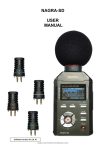
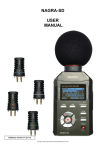
1 NAGRA MEZZO
1 USB cable
1 Wrist strap
1 Foam Windshield
MEZZO
-5-
Audio Technology Switzerland S.A.
MEZZO
-6-
Audio Technology Switzerland S.A.
1 PANEL DESCRIPTION
1. BUILT-IN MIC (LEFT CHANNEL)
2. BUILT-IN MIC (RIGHT CHANNEL)
3. LCD SCREEN
4. FOLDER key
5. MENU key
6. PLAY/PAUSE key
7. PREV/FF/LEVEL- key
8. NEXT/FB/LEVEL+ key
9. REC/OK key
10. STOP key
11. MARK/A-B key
12. POWER key
13. DELETE key
14. SPEAKER
15. SCREW HOLE
16. BATTERY BOX
MEZZO
-7-
Audio Technology Switzerland S.A.
17. PHONE JACK
18. VOLUME + key
19. VOLUME - key
20. HOLD switch
21. HAND STRAP HOLE
22. MIC IN JACK
23. LINE IN JACK
24. USB INTERFACE
MEZZO
-8-
Audio Technology Switzerland S.A.
2 RECORDING WINDOW DESCRIPTION
1 Current Date & Time
2 Battery status
3 Recording file format
12 formats can be set: HPCM-S / HPCM-M / MPCM-S /
MPCM-M / LPCM-S / LPCM-M / HMP3-S / HMP3-M / MMP3-S /
MMP3-M / LMP3-S / LMP3-M
4 Current folder
Folder A / Folder B / Folder C / Folder D / Folder E / Folder MUSIC
5 MARK position / MARK counter
3 marks can be entered when recording files.
6 Input Devices
IMIC / EMIC / LINE
7 Filter status
Filter active, this symbol appears
8 VOR or AGC status
9 PEAK status
10 Level meter
11 Run status
12 Recording duration
13 Recording time remaining
14 File name
MEZZO
-9-
Audio Technology Switzerland S.A.
3 BATTERIES
Insert 2 “AA” batteries taking care of the correct polarity and close the
cover. Rechargeable batteries (NiCd or Ni-mH) can also be used but
they cannot be charged inside the MEZZO.
The battery type can be chosen in the “System Settings” menu. Please
choose the correct battery type according to battery so that MEZZO can
display the correct remaining power level.
Installing batteries
1. According to the figure, slide and open the battery compartment
cover.
2. Insert 2 “AA” batteries taking care of the correct polarity.
3. Replace the cover.
Symbol
MEZZO
Dry or rechargeable battery
Sufficient
About 30% remaining
About 15% remaining
About 5% remaining
- 10 -
Audio Technology Switzerland S.A.
4 HOLD
Sliding HOLD to [ON] will lock all keys to prevent activation of the keys
accidentally during all modes, including power off.
Once the keyboard is locked, it doesn’t work no matter what keys you
press, the screen will show “HOLD”. To UNLOCK the MEZZO, please
slide HOLD to [OFF].
HOLD [ON]: Keys are locked.
HOLD [OFF]: Keys are unlocked.
5 DATE & TIME
Please set up DATE & TIME before the first use or following a reboot
or long periods without use. Setting correct system DATE & TIME, will
guarantee the accuracy of record time during recording.
You can check current time during recording.
1. Press the <MENU> key in STOP mode to enter the settings.
2. Select [System Settings] and press <REC/OK> key to enter.
3. Press < >< > key to select [Date & Time] and press <REC/OK> key to confirm.
4. Press <
MEZZO
> < > key to select desired DATE & TIME information, press <
- 11 -
><
> keys to set value and
Audio Technology Switzerland S.A.
press <REC/OK> key when setting is completed.
5. Press < > key to return to the main menu or press <MENU> key to exit.
Note:
Time and date information will be kept while you change batteries.
6 SELECT THE FOLDER
The MEZZO has 6 built-in default folders, they are [Folder A] [Folder B] [Folder C] [Folder D] [Folder E]
[Folder MUSIC].
These 6 folders are displayed as [A] [B] [C] [D] [E] [M]
. The MEZZO can identify audio files stored in these 6 folders and the root directory.
. Non audio files stored in [A] [B] [C] [D] [E] [M] and sub-folders cannot be recognized.
. Other folders and internal files in the memory cannot be recognized.
SWITCH FOLDER
1. Press <FOLDER>, popup folder list will appear.
2. Press the < >< > key to select target folder, press the <REC/OK> key to confirm.
3. Press the <FOLDER> key to exit.
Note:
.
[A] [B] [C] [D] [E] [M] are default system folders. Please note that when deleting these 6 folders, they will automatically
re-create upon start-up.
MEZZO
- 12 -
Audio Technology Switzerland S.A.
7 DELETE FILE
1. Press the < DELETE> key to show the DELETE MENU.
2. Delete files
Delete the file
.Press < >< > to select [Delete this file] and press <REC/OK> key.
.Press < >< > key to select [OK] and press <REC/OK> key to confirm.
Delete all the files in the folder
.Press < >< > to select [Delete files in this folder] and press <REC/OK> key.
.Press < >< > to select [OK] and press <REC/OK> to confirm.
Delete bookmark
.Press < >< > to select [Delete bookmark] and press the <REC/OK> key.
.Press < >< > to select [OK] and press <REC/OK> to confirm.
3. If you don’t need to delete the file, please select [CANCEL] at STEP 2.
MEZZO
- 13 -
Audio Technology Switzerland S.A.
MEZZO
- 14 -
Audio Technology Switzerland S.A.
1 RECORDING AUDIO IN THE FIELD
Before making a recording the compression mode needs to be chosen.
If nothing is set in the templates prior to the first recording, then the
“default” settings will be adopted. Please check the batteries before
recording to make sure that recorder has enough battery power to
record normally.
Press the centre key once more. The red LED will stay red and the
record symbol is shown on the display. The levels can be seen on the
display and adjusted during recording as necessary, assuming the AGC
is not activated.
1 START recording
·Point the microphone towards the sound source.
·Press <REC> key to start recording.
·If screen status icon display
and the recording LED is on, this
indicates recording is under way.
2 PAUSE recording
·Press < > key to pause.
·Press < > key again to continue to record.
3 STOP recording
·Press and hold the < > key for 3 seconds until recording stops.
●
MEZZO
- 15 -
Audio Technology Switzerland S.A.
2 ENTERING MARKERS
During record, press the <MARK/A-B> key to enter markers.
Note:
3 markers can be entered when recording files.
3 ADJUSTING INPUT LEVELS
In stereo or mono mode the input level can be adjusted using the <
dB to 40 dB for the microphone input.
> or <
> keys in steps of 1 dB from 0
1. Press <REC> key to start recording.
2. Press < /LEVEL+> key to increase input gain during recording process.
Press < /LEVEL-> key to decrease input gain during recording process.
3. Press and hold the < > key to stop recording.
Note:
. AGC must be OFF.
4 CHANGE RECORDING FORMAT
The MEZZO supports 12 recording formats. PCM is up to 96 KHz 24 bit WAV lossless stereo. PCM format
files are larger, but have higher fidelity. MP3 format file has good recording quality, yet smaller capacity.
MEZZO
- 16 -
Audio Technology Switzerland S.A.
1. Press the <MENU> key to enter the settings.
2. Press the < >< > key to select [Recording settings] and press the <REC/OK> key to enter.
3. Press the < >< > key to select [Format] and press the <REC/OK> key to enter.
4. Press the < >< > key to select the desired recording format and press the <REC/OK> key to confirm.
5. Press the <MENU> key to exit settings.
The different recording formats are as follows:
RECORDING FORMAT
CODEC
CHANNEL
HPCM-S
96kHz
24Bits
PCM
Stereo
HPCM-M
96kHz
24Bits
PCM
Mono
MPCM-S
48kHz
24Bits
PCM
Stereo
MPCM-M
48kHz
24Bits
PCM
Mono
LPCM-S
48kHz
16Bits
PCM
Stereo
LPCM-M
48kHz
16Bits
PCM
Mono
HMP3-S
48kHz
320kbps
MP3
Stereo
HMP3-M
48kHz
160kbps
MP3
Mono
MMP3-S
48kHz
256kbps
MP3
Stereo
MMP3-M
48kHz
128kbps
MP3
Mono
LMP3-S
48kHz 128kbps
MP3
Stereo
LMP3-M
48kHz
MP3
Mono
MEZZO
64kbps
- 17 -
Audio Technology Switzerland S.A.
5 AUTOMATIC GAIN CONTROL (AGC)
AGC operates in the digital domain and allows the operator to make recordings without under / over
modulating when the audio levels are unpredictable. If the level of sound is weak, AGC increases the gain
automatically. When the volume of sound is loud, AGC reduces gain so that recording level will not exceed
limits, to avoid distortion.
1. Press the <MENU> key to enter the settings.
2. Press the < >< > key to choose [Recording settings] and press the <REC/OK> key to enter.
3. Press the < >< > key to choose [AGC] and press the <REC/OK> key to enter.
4. Press the < >< > key to choose [ON] and press <REC/OK> key to confirm
[OFF]: Turns off AGC
[ON]: Turns on AGC
5. Press the <MENU> key to exit settings.
6. Press the <REC> key to start recording.
When “AGC” is used, LEVEL adjustments will not work.
7. Press and hold the < > key to stop recording.
MEZZO
- 18 -
Audio Technology Switzerland S.A.
6 VOLUME OPERATED RECORDING (VOR)
By monitoring the input sound level, the MEZZO can switch to record mode automatically. The MEZZO stops
recording automatically when sound level drops below a certain pre-set level. When the sound level
increases again, it restarts recording.
If sound volume is lower than the pre-set level for 10 seconds, recording will stop and the MEZZO returns to
PAUSE RECORDING so that you can save disk space and reduce empty file content.
1. Press the <MENU> key to enter the settings.
2. Press the < >< > key to select [Recording settings] and press the <REC/OK> key to enter.
3. Press the < >< > key to select [VOR] and press the <REC/OK> key to enter.
4. Press the < >< > key to select sensitivity level and press the <REC/OK> key to confirm.
. [OFF]: Turn off VOR
. [L-Sensitivity]: Turn on VOR and sensitivity is set to low. More volume needed to start recording.
. [M-Sensitivity]: Turn on VOR and sensitivity is moderate. Moderate volume will start recording.
. [H-Sensitivity]: Turn on VOR and sensitivity is high. Less volume needed to start recording.
5. Press the <MENU> key to exit settings.
6. Press the <REC> key to start recording.
7. Press and hold the < > key to stop recording.
Note:
AGC will not work when VOR is on.
MEZZO
- 19 -
Audio Technology Switzerland S.A.
7 MICROPHONE POWER SUPPLY (Mic Power)
Some external microphones require power to be supplied from the recorder. The MEZZO can provide 3V
power to supply external electret microphones. Please set this function when you need to turn on the power
supply.
1. Press the <MENU> key to enter the settings.
2. Press the < >< > key to select [Recording settings] and press the <REC/OK> key to enter.
3. Press the < >< > key to select [Mic Power] and press the <REC/OK> key to enter.
4. Press the < >< > key to select [ON] and press the <REC/OK> key to confirm.
. [OFF]: Turns off microphone power supply.
. [ON]: Turns on microphone power supply.
5. Press the <MENU> key to exit settings.
Note:
. If you supply power unnecessarily to a microphone, it may cause noise during the recording, and reduce battery life.
8 FILTER
Turn on Filter to decrease low-frequency noise during record. Low-frequency noise, for instance, could be the
MEZZO
- 20 -
Audio Technology Switzerland S.A.
low-frequency sound of the wind or the “hum” noise from an electrical device.
1. Press the <MENU> key to enter the settings.
2. Press the < >< > key to select [Recording settings] and press the <REC/OK> key to enter.
3. Press the < >< > key to select [Filter] and press the <REC/OK> key to enter.
4. Press the < >< > key to select [ON] and press the <REC/OK> key to confirm.
[OFF]: Turns off Filter.
[ON]: Turns on Filter.
The top of screen displays "
" indicating filter is on.
5. Press the <MENU> key to exit settings.
MEZZO
- 21 -
Audio Technology Switzerland S.A.
MEZZO
- 22 -
Audio Technology Switzerland S.A.
1 PLAYBACK
The MEZZO supports: WAV, MPEG1-layerⅡ(MP2), MPEG1-layerⅢ(MP3) and WMA playback formats.
1. START PLAYBACK
. Press the < > key and the machine starts play the selected file
immediately.
2. PAUSE PLAYBACK
. Press the < > key to pause during playback process.
. Press the < > key again, to continue playback.
3. STOP PLAYBACK
. Press < > to stop the file playback.
4. PREVIOUS TRACK / NEXT TRACK
. Press < > to skip to the start of the previous track.
. Press <
> to skip to the start of the next track.
Note:
If you added bookmarks, press <
><
> key to jump between
bookmarks.
5. REWIND / FORWARD
. Press < > without letting go, then release key to stop rewind.
. Press < > without letting go, then release key to stop forward.
MEZZO
- 23 -
Audio Technology Switzerland S.A.
2 A-B REPEAT
1. Press the < >< > key to select the file.
2. Press < > to start playback.
3. Playback to the start of the portion to be repeated, press <MARK/A-B> to set the start point A.
. Screen displays: A
4. Playback to the ending of the portion to be repeated, press <MARK/A-B> key again to set-up the B point.
. Screen displays: A-B
5. Exit A-B repeat mode
. Press the <MARK/A-B> key at third time, exit A-B mode and continue to playback the file.
. Press the < > key to exit A-B repeat mode and stop playback.
Note:
. Rewind / Forward works normally under the A-B repeat mode.
. You cannot use A-B repeat mode across tracks.
. You can pause playback while in A-B repeat mode.
MEZZO
- 24 -
Audio Technology Switzerland S.A.
3 REPEAT MODE
You can set the playback mode to three modes: [Sequential], [Loop Once] or [Loop].
1. Press the <MENU> key to enter settings.
2. Press < >< > to select [Playback Settings] and then press the <REC/OK> key to enter.
3. Press < >< > to select [Repeat] and press <REC/OK> key to enter.
4. Press < >< >> to select cycle mode and press the <REC/OK> key to confirm.
. [Sequential]: Playback all the files in the folder in order, then playback stops.
. [Loop Once]: Repeat the file.
. [Loop]: Repeat all the files in folder.
5. Press the < > key to move back through the menu or press <MENU> to exit the settings menu.
6. Press < > to playback the file.
. No icon when using Sequential.
. Icon displays
under Loop Once mode.
. Icon displays
under Loop mode.
7. Press < > key to stop.
MEZZO
- 25 -
Audio Technology Switzerland S.A.
MEZZO
- 26 -
Audio Technology Switzerland S.A.
1 OPERATIONAL APPROACH
All of the settings and parameters of the MEZZO are
made through a selection of menu’s.
Press the <MENU> key and a sub-menu appears giving
access to the “Recording Settings”, “Playback Settings”
and “System Settings”.
1. Enter menu
. Press the <MENU> key to enter sub-menu in STOP
mode.
. Press the <MENU> key to enter “Playback settings”
in PLAYBACK mode.
2. Up/down through menus
. Press < > and scroll up to browse menu options.
. Press < >and scroll down to browse menu options.
3. Enter this option
. Press the < > key to select option.
4. Set up parameter
. Press the < > key to set up parameter and press the <REC/OK> key to confirm.
5. Exit menu
. Press the < > key to back-step through the menu.
. Press the <MENU> key to exit and return to STOP mode.
MEZZO
- 27 -
Audio Technology Switzerland S.A.
2 OPTIONS
MEZZO
- 28 -
Audio Technology Switzerland S.A.
MEZZO
- 29 -
Audio Technology Switzerland S.A.
Recording settings
Format
AGC
VOR
MEZZO
Set recording format.
[HPCM-S]: 96kHz-24Bits PCM Stereo
[HPCM-M]: 96kHz-24Bits PCM Mono
[MPCM-S]: 48kHz-24Bits PCM Stereo
[MPCM-M]: 48kHz-24Bits PCM Mono
[LPCM-S]: 48kHz-16Bits PCM Stereo
[LPCM-M]: 48kHz-16Bits PCM Mono
[HMP3-S]: 48kHz-320kbps MP3 Stereo
[HMP3-M]: 48kHz-160kbps MP3 Mono
[MMP3-S]: 48kHz-256kbps MP3 Stereo
[MMP3-M]: 48kHz-128kbps MP3 Mono
[LMP3-S]: 48kHz-128kbps MP3 Stereo
[LMP3-M]: 48kHz-64kbps MP3 Mono
Page 16
Set up AGC “ON” or “OFF”.
[OFF]:Turn off AGC
[ON]:Turn on AGC
Page 18
Set up VOR “ON” or “OFF”.
[OFF]:Turn off VOR
[L-Sensitivity]:Turn on VOR, Higher volume needed to start recording
[M-Sensitivity]:Turn on VOR, moderate volume needed to start recording
[H-Sensitivity]:Turn on VOR, lower volume needed to start recording
Page 19
- 30 -
Audio Technology Switzerland S.A.
MIC Power
Filter
Set up microphone power supply “ON” or “OFF”
[OFF]:Turn off microphone power supply
[ON]:Turn on microphone power supply
Page 20
Set up recording filter “ON” or “OFF”
[OFF]:Turn off recording filter
[ON]:Turn on recording filter
Page 21
Playback Settings
Repeat
Set up the repeat mode.
[Sequential]:Playback the files in order, until the last one. Then playback
stops.
[Loop Once]:Repeat the file.
[Loop]:Repeat all the files in folder.
Page 24
System Settings
DATE & TIME
During the recording process, screen displays DATE & TIME.
This sets the master system clock.
Recording LED
Set recording light “ON” or “OFF”.
[OFF]: During recording, record LED is OFF
[ON]: During recording, record LED flashes.
Beep
Beep is the sound when you press any key.
You can turn ON or OFF the beep function using this option.
[OFF]:Turn off beep
[ON]:Turn on beep
Notes:
MEZZO
- 31 -
Page 11
Audio Technology Switzerland S.A.
. The beep tone can only be heard through headphones.
Speaker
Set up built-in speaker “ON” or “OFF”
[OFF]:Internal speaker OFF
[ON]:Internal speaker ON
Note:
. Built-in speaker will be cut when headphones are connected.
Screen Timeout
Set the display backlight “ON” or “OFF”
[NEVER] :Screen backlight remains ON permanently.
[10 SECONDS]:Screen backlight goes off automatically after 10 seconds.
[30 SECONDS]:Screen backlight goes off automatically after 30 seconds
[60 SECONDS]:Screen backlight goes off automatically after 60 seconds
Note:
. Pressing any key will re-light the display for the selected time period.
Shut Down
Timeout
Set automatic shutdown time.
[NEVER] :Never turn off the recorder
[30 SECONDS]:Recorder turns off automatically after 30 seconds of
no-operation.
[60 SECONDS]:Recorder turns off automatically after 60 seconds of
no-operation.
[180 SECONDS]:Recorder turns off automatically after 3 minutes of
no-operation.
[300 SECONDS]:Recorder turns off automatically after 5 minutes of
no-operation.
MEZZO
- 32 -
Audio Technology Switzerland S.A.
Note:
. When recorder is in RECORD, PLAYBACK AND PAUSE modes,
automatic shutdown is inhibited.
Battery Type
Please set according to the current batteries being used so that the
MEZZO can display the correct remaining power accurately.
[DRY BATTERY]:Choose this option when using 2 regular alkaline “AA”
dry batteries.
[RECHARGEABLE BATTERY]:Choose this option when using
rechargeable batteries.
Disk Information
Check total capacity, available capacity and used capacity of the internal
memory.
[CAPACITY]
[AVAILABLE]
[USED]
Version
Check software version, hardware version and loader program version.
[SOFTWARE]
[HARDWARE]
[LOADER]
Format Disk
Formatting disk can delete all files in recorder rapidly.
Notes:
. [A] [B] [C] [D] [E] [M] are system folders, they will be re-created after
formatting.
System Reset
Reset the following functions to their default values.
MEZZO
- 33 -
Audio Technology Switzerland S.A.
[Format]:HMP3-S
[AGC]:OFF
[VOR]:OFF
[Mic Power]:ON
[Filter]:OFF
[Repeat]:Sequential
[Recording LED]:ON
[Beep]:OFF
[Speaker]:ON
[Screen Timeout]:30 seconds
[Shut Down Timeout]: 300 seconds
[Battery Type]:Dry cells
[Folder]:A
[LEVEL]:15
[VOLUME]:-32
Note:
. System settings can only be accessed in STOP mode.
. Long press the <MENU> key in STOP mode to enter settings menu. Settings menu includes [Recording settings] [Playback
Settings] and [System Settings] .
MEZZO
- 34 -
Audio Technology Switzerland S.A.
MEZZO
- 35 -
Audio Technology Switzerland S.A.
1 SYSTEM TIPS
While using the MEZZO, some information tips or error messages may appear. Primary causes and solutions
are listed below.
Note:
. You can try the following instructions to troubleshoot the problem yourself. Please contact to our customer support for
additional information.
SYSTEM TIPS
"Low Power"
Causes & Solution
. Batteries are exhausted
——Change internal batteries
"HOLD"
. HOLD ON
——Switch to HOLD switch to the OFF position and retry
"No File"
. No files in current folder
"Failed to record"
. System error
——Reinstall default settings and format disk
"Failed to open work folder"
. Disk or system error
——Turn off recorder, reboot and retry. If problem prevails, re-format disk
"Failed to scan file"
. Disk or system error
——Turn off recorder, reboot and retry. If problem prevails, re-format disk
MEZZO
- 36 -
Audio Technology Switzerland S.A.
"Too many files in the folder " . The MEZZO can read the first 1000 files in any folder.
——Delete some files
"Failed to open file"
"Low free space"
"Disk Error and power off"
"Format Failed"
. File is damaged
. File format is unsupported
. Internal memory is full
——Delete some files
. Error occurs
——Format disk
. Problem occurs when formatting disk. Cannot complete formatting
——Please retry formatting. If problem continues, use a computer to format
disk
"AGC is opening."
. Cannot adjust LEVEL or set VOR under this condition
——Retry to adjust LEVEL or set VOR after cancelling the AGC function
"VOR is opening. "
. Cannot open AGC under this condition
——Retry to open AGC after cancelling VOR function
" The file can't FF "
. Some WMA files do not support fast forward mode
" The file can't FB"
. Some WMA files do not support rewind mode
" The file can't set AB"
" The file can't mark"
MEZZO
. Some WMA files do not support A-B repeat mode
. Some WMA files cannot accept bookmarks
- 37 -
Audio Technology Switzerland S.A.
2 FAQ
You can try the following instructions to troubleshoot problems. Please contact to our after-sales service department if the
problems continue.
FAULT PHENOMENON
Cannot Boot
Speaker Doesn’t Work
CAUSES AND SOLUTION
. Wrong battery polarity
——Correct polarity
. Low battery
——Install new batteries
. HOLD ON
——Switch to HOLD OFF and reboot
. Lowest volume is set
——Increase the volume
.Headphone inserted
——When inserting headphone, speaker stops working automatically.
Pulling out headphone connector, allows the internal speaker to work
again.
. The option “SPEAKER” in “System Setting” is “OFF”.
——Set the option “ON”
When Inserting Headphone, . Headphone failure
The headphone doesn’t
——Change a headphone
MEZZO
- 38 -
Audio Technology Switzerland S.A.
work
Cannot Record
. Headphone not inserted correctly into the bottom jack socket
——Please insert headphone to the bottom of jack
. Not enough storage capacity
——Delete some files or format disk
Recorded file empty
. Recording level too low, MIC did not receive any sound
——increase record gain and record again
Recorded File Aborts
Automatically
. VOR is ON
——Record pauses automatically when level is below VOR trigger level.
Low Volume of Recorded
File
. Some audio details cannot be heard due to low volume
——Turn up volume
. Gain too low when recording causes level of recorded file to be too low
——External software may be used to enhance recorded level. Please be
careful to use a suitable record gain in future
Recorder Stop Functioning
Normally
. This may be caused by battery contact fault or low battery reserve. The
MEZZO may crash
——Take out batteries and replace them with 2 new batteries and retry
. Disk or system error
——Recover system setting and format disk
Screen Time Display as
"□□□□-□□-□□ □□:□□:□□"
. No file in recorder
——If there is no file in recorder, time information cannot be displayed
Incomplete Menu Display
. In the playback process, “Recording settings” and “System Settings” are
not adjustable, so the menu will only display “Playback Settings”
MEZZO
- 39 -
Audio Technology Switzerland S.A.
MEZZO
- 40 -
Audio Technology Switzerland S.A.
1 SPECIFICATIONS
GENERAL
Compression type
PCM ,MP3
Sampling rate
96KHz
Playback format
WAV ,MP2 ,MP3 ,WMA
Frequency response
20Hz ~40KHz,+-0.5dB
SNR(Playback)
94dB (bandwidth 20Hz~22KHz,ASA “A” weighted)
SNR (MIC channel)
90dB (Mic input +19dB Pre-amp + A/D, 20Hz to 22KHz,ASA “A” weighted)
Dynamic range(Line in)
>90dB
MIC EIN
>122dB A weights
PHYSICAL
Weight
92g (without batteries)
Dimensions
135.2(L)*44(W)*22.5(H) mm
Operating temperature
0~70℃
Operating humidity
20%~80%
MEZZO
- 41 -
Audio Technology Switzerland S.A.
INPUTS & OUTPUTS
MIC filter
100Hz~40KHz
MIC Max. Gain
40dB
MIC Min. Gain
0dB
Headphone Max. outputs
30mW (left) + 30mW (right) (16Ω)
Built-in MIC
Built-in stereo microphone
MIC IN
3.5 mm stereo jack connector
LINE IN
3.5 mm unbalanced stereo jack connector
Stereo headphone output
3.5 mm stereo jack connector
POWER SUPPLY
Battery
2 × “AA” dry or rechargeable batteries
USB
Mini USB jack
Consumption
138mW(Standby) / 192mW(Recording)
MEZZO
- 42 -
Audio Technology Switzerland S.A.
2 SAFETY STATEMENT
Product Safety
. Do not place any heavy item on the recorder
. Do not drop the recorder or accessories
. Do not use the MEZZO in very wet environments
. Do not use chemicals or detergents to clean the recorder
. Do not use the recorder in excessively dusty or smoky areas
. Do not use the recorder when there is lightening
. Do not open / disassemble the recorder
. Do not use the MEZZO close to ferromagnetic substances
Battery Safety
. Do not put the batteries into an open fire or heat the batteries excessively; this will lead to battery explosion.
. Do not invert battery polarity.
. Do not mix new batteries with the semi-used batteries
. If batteries appear hot, please stop using the MEZZO immediately.
. Do not attempt to charge the alkaline batteries
. Please keep batteries out of the reach of the children.
. Do not use the damaged batteries.
MEZZO
- 43 -
Audio Technology Switzerland S.A.
Audio Technology Switzerland S.A.
Chemin de l’Orio, 30A
1032 Romanel-sur-Lausanne
Switzerland
Tel : +41 21 643 7240
Fax : +41 21 641 7532
www.nagraaudio.com
[email protected]