1
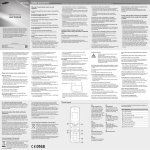
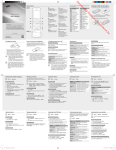
Your phone displays the following status indicators on the
top of the screen:
Icon Description
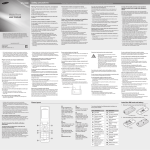
Install the SIM card and battery
• Do not remove the battery while the device is
connected to the travel adapter. Doing so may
cause damage to the device.
• Unplug the travel adapter when not in use to save
energy. When in use, the travel adapter should
remain close to the socket. The travel adapter
does not have a power switch, so it must be
unplugged from the outlet to interrupt the power
supply.
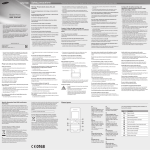
1. Remove the back cover and battery, and then insert
the SIM card.
Signal strength
Call in progress
Call diverting activated
Roaming (outside of normal service area)
Alarm activated
FM radio on
2. Insert the battery and replace the back cover.
Instructional icons
Note: notes, usage tips, or additional
information
Normal profile activated
Followed by: the order of options or menus
you must select to perform a step; for
example: In Menu mode, select Messages
→ Create message (represents Messages,
followed by Create message)
Silent profile activated
→
Battery
Charge the battery
1. Plug a travel adapter into
the multifunction jack.
Make a call
To turn your phone on,
1. In Idle mode, enter an area code and a phone
number.
2. Press [ ] to dial the number.
].
3. To end the call, press [
].
1. Press and hold [
2. Enter your PIN and press <OK> (if necessary).
3. When the set-up wizard opens, customize your
phone as desired by following the screen.
If the battery is removed for more than a few
minutes, the time and date will be reset.
SIM card
Back cover
New text message
Battery power level
Turn your phone on or off
2. When charging is
finished, unplug the
travel adapter.
[
<
]
Square brackets: phone keys; for example:
] (represents the Power/End key)
[
>
Angled brackets: softkeys that control
different functions at each screen; for
example: <OK> (represents the OK softkey)
To turn your phone off, repeat step 1 above.
Access menus
Adjust the volume
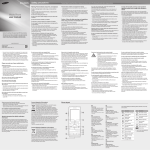
To access your phone’s menus,
1. In Idle mode, press <Menu> to access Menu mode.
You may need to press the Confirm key to access
Menu mode depending on your region or service
provider.
2. Use the Navigation key to scroll to a menu or option.
3. Press <Select>, <Save>, or the Confirm key to
confirm the highlighted option.
] to
4. Press <Back> to move up one level; Press [
return to Idle mode.
• When you access a menu requiring the PIN2, you
must enter the PIN2 supplied by the SIM card. For
details, contact your service provider.
• Samsung is not responsible for any loss of
passwords or private information or other
damages caused by illegal software.
To AC power outlet
Change your ringtone
Use the shortcut toolbar
Lock your phone
1. In Menu mode, select Settings → Profiles.
2. Scroll to the profile you are using.
You can use the shortcut toolbar to access your favorite
menus.
1. In Menu mode, select Settings → Security →
Phone lock → On.
2. Enter a new 4- to 8-digit password and press <OK>.
3. Enter the new password again and press <OK>.
If you are using the silent or offline profile, you are
not allowed to change the ringtone.
3. Press <Options> → Edit.
4. Select Call ringtone.
5. Select a ringtone.
To switch to another profile, select it from the list.
Call a recently dialed number
1. In Idle mode, press [ ] to display a list of recent
numbers.
2. Scroll left or right to a call type.
3. Scroll up or down to a number or name.
4. Press the Confirm key to view details of the call or
[ ] to dial the number.
Send and view messages
To send a text message
1. In Menu mode, select Messages → Create
message.
2. Enter a destination number and scroll down.
3. Enter the message text. See “Enter text”
4. Press the Confirm key to send the message.
To view text messages
1. In Menu mode, select Messages → Inbox.
2. Select a text message.
Make fake calls
You can simulate an incoming call when you want to get
out of meetings or unwanted conversations.
To activate the fake call feature
In Menu mode, select Settings → Applications → Call
→ Fake call → Fake call hot key → On.
To make a fake call
In Idle mode, press and hold the Navigation key down.
To add menus on the shortcut toolbar
1. In Menu mode, select Settings → Display →
Shortcuts toolbar.
2. Select an empty location.
3. Select your favorite menus.
Press the navigation key right to select submenus (if
necessary).
4. Press <Save>, or press <Options> → Save.
To access a menu from the shortcut toolbar
In Idle mode, scroll left or right to the menu you want and
press the Confirm key.
When the shortcut toolbar is activated, the
Navigation key does not work as shortcuts
depending on your region.
Activate the mobile tracker 2.0
When someone inserts a new SIM card in your phone,
the mobile tracker feature will automatically send the
contact number to specified recipients to help you locate
and recover your phone.
To activate the mobile tracker,
1. In Menu mode, select Settings → Security →
Mobile Tracker 2.0.
2. Enter your password and select <OK>.
The first time you access Mobile Tracker 2.0, you
will be prompted to create and confirm a password.
3. Select Settings.
4. Enter your mobile tracker password and press
<OK>.
The first time you access Settings, you will be
prompted to create and confirm a password.
5. Scroll left or right to On to turn on the mobile tracker
feature.
Lock your SIM card
You can lock your SIM card to allow the phone to use
only the SIM card and to prevent other people from using
the SIM card.
To allow the phone to use only your SIM card
1. In Menu mode, select Settings → Security → SIM
lock → On.
2. Enter a new 4- to 8-digit password and press <OK>.
3. Enter the new password again and press <OK>.
To prevent others from using the SIM card
Enter text
To change the text input mode
• Press and hold [ ] to switch between T9 and ABC
modes. Depending on your region, you may be able to
access an input mode for your specific language.
• Press [ ] to change case or switch to Number mode.
• Press [ ] to switch to Symbol mode.
• Press and hold [ ] to select an input mode or change
the input language.
T9 mode
1. Press the appropriate alphanumeric keys to enter an
entire word.
2. When the word displays correctly, press [0] to insert
a space. If the correct word does not display, press
the Navigation key up or down to select an alternate
word.
ABC mode
Press an appropriate alphanumeric key until the
character you want appears on the display.
6. Select Recipients and press <Options> →
Contacts to open your contact list.
7. Select a contact.
8. Select a number (if necessary).
9. When you are finished setting the recipients, press
the Confirm key to save the recipients.
10.Scroll down and enter the sender’s name.
11.Press the Confirm key → <Accept>.
Listen to the FM radio
Number mode
Press an appropriate alphanumeric key to enter a
number.
To listen to the FM radio, you must connect a
headset which is compatible to your phone.
1.
2.
3.
4.
Plug a headset into the phone.
In Menu mode, select FM radio.
Press the Confirm key to start the FM radio.
Press <Yes> to start automatic tuning. The radio
scans and saves available stations automatically.
The first time you turn on the FM radio, you will be
prompted to start automatic tuning.
5. Control the FM radio using the following keys:
Key
Function
Confirm
Turn the FM radio on or off
Navigation
].
To adjust the volume of the ringtone
1. In Menu mode, select Settings → Profiles.
2. Scroll to the profile you are using.
If you are using the silent or offline profile, you are
not allowed to adjust the volume of the ringtone.
3.
4.
5.
6.
Press <Options> → Edit.
Select Volume and scroll to Call alert.
Scroll left or right to adjust the volume level.
Press <Save>.
To adjust the volume of voice during a call
While a call is in progress, press the Navigation key up
or down to adjust the volume.
In noisy environments, you may have difficulty
hearing the calls while using the speakerphone
feature. For better audio performance, use the
normal phone mode.
Symbol mode
1. In Menu mode, select Settings → Security → PIN
lock → On.
2. Enter the 4-digit PIN supplied with the SIM card and
press <OK>.
• By setting the options in Access remote phone,
you can delete data on your lost phone or receive
calls to the phone.
• To change the password for the mobile tracker,
select Change mobile tracker 2.0 password.
Answer a call
1. When a call comes in, press [
].
2. To end the call, press [
•Left/Right: Tune a radio station
•Up/Down: Adjust the volume
6. To turn off the FM radio, press the Confirm key.
Press an appropriate alphanumeric key to enter a
symbol.
To use other features for text input
• To move the cursor, press the Navigation key.
• To delete characters one by one, press <Clear>. To
quickly delete the characters, press and hold <Clear>.
• To insert a space between characters, press [0].
• To start a new line, press [0] three times.
• To enter punctuation marks, press [1].
Add a new contact
The memory location to save new contacts may
be preset depending on your service provider. To
change the memory location, in Menu mode, select
Contacts → Management → Save new contacts
to → a memory location.
1. In Idle mode, enter a phone number and press
<Options>.
2. Select Create contact → a memory location (if
necessary).
3. Select a number type (if necessary).
4. Enter contact information.
5. Press <Options> → Save to add the contact to
memory.
Set and use alarms
To set a new alarm
1.
2.
3.
4.
In Menu mode, select Alarms.
Select an empty alarm location.
Set alarm details.
Press <Save>, or press <Options> → Save.
To stop an alarm
When the alarm sounds,
• Press <OK> or the Confirm key to stop the alarm.
• Press <Snooze> to silence the alarm for the snooze
period.
To deactivate an alarm
1.
2.
3.
4.
In Menu mode, select Alarms.
Select the alarm you want to deactivate.
Scroll left or right to Off.
Press <Save>.
Activate the torch light
The torch light feature helps you see in dark places by
making the display backlight as bright as possible.
In Idle mode, press and hold the Navigation key up
to turn on the display backlight. You can also select
Applications → Torch light → <On>.
To turn off the display backlight, press <Off>.