1
site to site, the Gadget will automatically “lock on” to the closest
site.
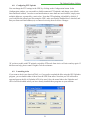
Trap Placement
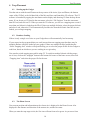
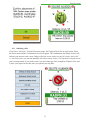
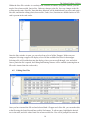
Depending on what operations have been performed at a
particular site, the Site icon may change: A tree indicates an
unaddressed site; if a trap has been placed, the icon will display
either a delta or milk carton image. To place a trap or perform an
inspection, simply click on the Site icon. Once a trap has been
inspected there will be a magnifying glass icon to the right of the
trap icon.
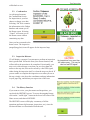
4.4. Compass
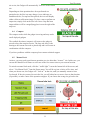
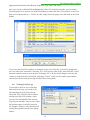
The compass works while the gadget is moving and may not be
on all deployed gadgets.
The cardinal directions (compass) will rotate as the gadget is
moved to keep the compass correct. The large red arrow is the
bearing to the current site node or placed trap and it will rotate in
coordination with the compass.
If you have problems with the compass please contact technical support.
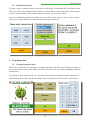
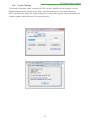
4.5. Manual Lock
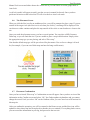
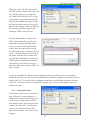
At times, you may need to perform an operation at a site other than “`nearest”’ site. In this case, you
can use the Manual Lock feature to select one of the five nearest sites to your current location.
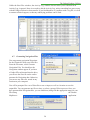
To switch to manual lock mode, click the “`traffic light”’ icon at the bottom left of the screen, and
select “`Use Manual Lock”’ from the Extras menu. You will be a given a choice of five sites, and
when you choose one, the Gadget will “`lock on”’ to that site, until you manually return to Auto
Lock mode. If the site you need is not in the list, you will either have to move closer to that location
(if possible), or make a note of the operation on paper. If you choose the wrong site go back to the
11