1
4.2.2
Install libnddsc.so and libnddscore.so
This section only applies to Solaris and Linux systems. (On AIX systems, libnddsc.so
and libnddscore.so are in librtirtc_oracleq.so.)
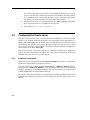
librtirtc_oracleq.so uses Connext and thus the shared libraries libnddsc.so and
libnddscore.so must also be installed and be accessible at runtime by the Oracle server.
Add the directory containing the appropriate Connext libraries to the environment variable, LD_LIBRARY_PATH, for the user who starts the Oracle server. You may need to
restart the Oracle server after this variable has been changed.
Other ways of installing libnddsc.so and libnddscore.so on the Oracle server can be
found in Chapter 4 in the Real-Time Connect User’s Manual.
4.2.3
Create an Oracle Account
Before you can use Real-Time Connect to Oracle, you need to obtain an Oracle account
from your database administrator. If you are acting as your own database administrator,
start SQL*Plus from the command prompt on the Oracle server and log in as the system
manager:
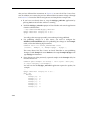
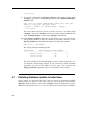
> sqlplus system/<password>@<Oracle_Service_Name>
For example, to create a new Oracle account for “Student” on the Oracle database identified by the connection string “orcl11g” with system manager password “mypsswrd”,
enter the following:1
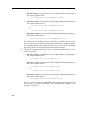
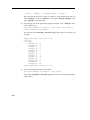
> sqlplus system/mypsswrd@orcl
SQL> CREATE USER Student IDENTIFIED BY mypsswrd DEFAULT TABLESPACE
users;
SQL> GRANT connect, resource, create any trigger, create any
library, create any table TO Student;
SQL> COMMIT;
SQL> EXIT
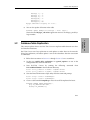
The remaining sections in this chapter assume that an Oracle user named "Student"
with the password "mypsswrd" has an account for the “orcl11g” database.
1. If sqlplus is not on your path, it can be found in the bin/ directory of your Oracle installation.
4-4