1
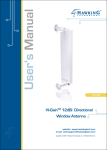
La Fontenna
User Manual
INDEX
Index
1. Package Contents...............................................................................4
2.Hardware Description..........................................................................6
2.1. Front Side
7
2.2. Back Side
3.Hardware Insallation...........................................................................8
4.La Fontenna Mounting Options...........................................................10
4.1. On a Window
11
4.2. On a Wall
4.1.1. Indoor
4.1.2. Outdoor
5. How Antennas Work...........................................................................12
6. What is a Directional Antenna?..........................................................14
7. Streamline your Performance..............................................................16
8. Antenna Terminology..........................................................................20
9. Antenna Specifications.......................................................................22
9.1. Range
23
9.2. Dimensions
9.3. Other Specifications
Warranty Statement...........................................................................24
Safety Notices....................................................................................25
Developed by
© FON Wireless Limited
Department of Marketing
marketing_manual_lafontenna_001
If you have any comments about this manual,
please send an email to
[email protected]
Document file
Name: LA FONTENNA USER MANUAL
First Version Date: May 21st, 2007
Current Version: 1.0
Current Version date: May 21st, 2007
1. Package Contents
1.
Package Contents
1. Package Contents
In the La Fontenna package you should find the following items included:
•
1 La Fontenna
•
1 Wall mounting kit (two screws + one plastic hanger)
•
1 Interior mounting kit (two adhesive stickers)
•
1 Quick Installation Guide
Please immediately inform us in the event of any missing or damaged
parts. Visit www.fon.com and choose Help to report any problem or to
visit our support site.t leave it over your La Fonera unless you want to
cohe upper floor of your house or your neighbour’s house above you.
2.Hardware Description
2.
Hardware
Description
2. Hardware Description
The La Fontenna has two sides and a cable that you must plug into the
connector of the La Fonera. Don’t forget to first remove its white antenna or you will face some problems trying to get the two connectors
in at the same time.
2.1. Front Side
This side is where the antenna goes in. Place the front of the antenna
towards the area you want to give wifi coverage to. Please, see the La
Fontenna Mounting Options section for proper installation.
2.2. Back Side
The back side of the La Fontenna will be useful for its installation. You
can use the adhesive stickers or the plastic hanger to attach it on a window or on a wall.
•
NOTE: As this is a directional antenna, you should not place it
on top of your La Fonera unless you want to cover the upper
floor of your house or your neighbour’s house above you. You
can find more information regarding this matter in the “What’s a
Directional Antenna?” section.
3.Hardware Insallation
3.
Hardware Installation
3. Hardware Installation
1.
Find your La Fonera
2. Remove the antenna
To remove the antenna, hold it by it’s base and unscrew
firmly by turning it counter-clockwise until the antenna is separated from the connector.
3. Connect the La Fontenna
Take your La Fontenna connector and screw it (clockwise) into
your La Fonera.
4.
Installation is complete.
Now place your La Fontenna in a strategic location.
4.La Fontenna Mounting Options
4.
La Fontenna
Mounting Options
4. La Fontenna Mounting Options
The La Fontenna is a panel antenna designed to be used with the La
Fonera. It has an SMA connector which is the same as the one in your
device. In the package you will find mounting kits for internal or external use. We recommend you place the embossed side (the one with the
FON logo) facing the area you want to cover. That way your signal will
be more powerful.
•
NOTE: As a general rule, if you are going to mount the La
Fontenna using the adhesive stickers, we recommend you cut
both stickers with scissors. This way you can fix the stickers on four
different sides, that will ensure that the la Fontenna will be sturdy.
4.1. On a Window
This side is where the antenna goes in. You must face it against the area
you want to cover. Please, watch the La Fontenna Mounting Options
section in order to see how to install it properly.
4.1.1. Indoor
Place the four stickers
(see previous note) as
shown.
4.1.2. Outdoor
Place the four stickers
(see previous note) as
shown.
4.2. On a Wall
Screw the plastic hanger to the back of the
La Fontenna and fix it
to the wall facing the
street.
11
5. How Antennas Work
5.
How Antennas Work
5. How Antennas Work
Suppose you have a room with the La Fonera and that the device you
want to connect is in another room separated by a wall.
Your apartment walls may weaken the strength of your wifi signal and
you may not have a good wifi coverage. To solve this problem the La
Fontenna is set up to direct wireless signals out the door towards the
room with the La Fonera. Radio frequencies lose significant signal
strength when travelling through concrete and especially metal walls.
To solve this it may be easier to bounce an amplified signal towards the
opening in the room with the La Fonera.
The same happens in spare space. This way, you’ll gain more coverage
if you direct your La Fontenna to a nearby garden or to the buildings
outside.
13
6. What is a Directional Antenna
6.
What is a Directional
Antenna
6. What is a Directional Antenna?
Your La Fonera comes with an omni-directional antenna. This is an
antenna system that radiates power uniformly in one plane with a
directive pattern in a perpendicular plane. Sounds complicated? Think
of it as a candle with a small flame giving off light in all directions. The
La Fontenna is a directional antenna. A directional antenna radiates
greater power in one or more directions allowing increased performance on transmission and reception and reducing interference from
unwanted sources. As a directional antenna, your La Fontenna works
more like a torch/flashlight that gives off a lot of light primarily in one
direction. Therefore, it is important that you direct it towards the area
you want to provide the most coverage.
All practical antennas are at least somewhat directional, although usually only the direction of the plane parallel to the earth is considered.
Practical antennas can easily be omni-directional in one plane.
15
7. Streamline your Performance
7.
Streamline your
performance
7. Streamline your Performance
Your new La Fontenna is ideal for areas that receive poor coverage, as
you can amplify the signal from the receiving end, i.e. your laptop.
The embossed side with the FON logo is the Hi-Gain side, which may
send out a signal quickly. However, the other end (without the logo),
may not have the strength to send back the signal instantaneously (and
with the same strength).
•
NOTE: Many factors around you may affect your wifi signal’s
range.
Your wireless connection will be stronger the closer your computer is to
your router. In the same way, your wireless connection and performance
will decrease somewhat as the distance between your router and the
connected devices increases. This may or may not be noticeable to you.
As you move farther from your router, connection speed may decrease.
Factors that can weaken signals simply by getting in the way of your
network’s radio waves include metal appliances or obstructions, and
walls.
If you have concerns about your network’s performance that might be
related to range or obstruction factors, try moving the computer to a
position between five and 10 feet away from the router to see if distance is the problem.
•
1. NOTE: While some of the items listed below can affect network
performance, they will not keep your wireless network from
functioning. If you are concerned that your network is not
operating at its maximum effectiveness, this checklist may help.
Wireless Router Placement
Place your router, the central connection point of your network,
as close as possible to the center of your wireless network devices or to the area you want to cover.
•
17
Ensure that your router’s networking antennas are parallel to
each other and are positioned vertically (toward the ceiling).
If your router itself is positioned vertically, point the antennas
as much as possible in an upward direction.
7. Streamline your Performance
2. •
In multistory areas, place the router on a floor that is as close
to the center of the area as possible. This may mean placing
the router on an upper floor.
•
Try not to place the router near a cordless phone.
Avoid Obstacles and Interference
Avoid placing your router near devices that may emit radio
“noise,” such as microwave ovens. Dense objects that can inhibit
wireless communication include:
•
Refrigerators
•
Washers and/or dryers
•
Metal cabinets
•
Large aquariums
•
Metallic-based, UV-tinted windows
If your wireless signal seems weak in some spots, make sure
that objects such as the above are not blocking the signal’s path
(between your computers and router).
3. Cordless Phones
If the performance of your wireless network is impaired after
reviewing to the above, and you have a cordless phone:
18
•
Try moving cordless phones away from the router and your
wireless-enabled computers.
•
Unplug and remove the battery from any cordless phone
that operates on the 2.4GHz band (check the manufacturer’s
information). If this fixes the problem, your phone may be
interfering.
•
If your phone supports channel selection, change the channel
on the phone to the furthest channel from your wireless
network. For example, change the phone to channel 1 and
move your router to channel 11. See your phone’s user
manual for detailed instructions.
•
If necessary, consider switching to a 900MHz cordless phone.
7. Streamline your Performance
4.
Choose the “Quietest” Channel for your Wireless Network
In locations where homes or offices are close together, such as
apartment buildings or office complexes, there may be wireless
networks nearby that can conflict with yours.
Use the Site Survey capabilities found in the wireless utility of
your wireless adapter or card to locate any other wireless networks that are available (see your wireless adapter or card’s user
manual), and move your router and computers to a channel as
far away from other networks as possible.
•
Experiment with more than one of the available channels in
order to find the clearest connection and avoid interference
from neighboring cordless phones or other wireless devices.
These guidelines should allow you to cover the maximum possible area
with your router.
19
8. Antenna Terminology
8.
Antenna Terminology
8. Antenna Terminology
dBi (Decibel Isotropic) is a measurement unit of gain for an antenna
strength. It is compared to a mathematically ideal which uniformly distributes energy in all directions. The standard factory antenna strength
for the La Fonera is 2 dBi. A higher dBi level, like the 7dBi of the La
Fontenna, means a more powerful wireless signal.
Reverse SMA Plug: Standard connector for the antenna of the La Fonera which comes with a detachable antenna, and the La Fontenna. The
plug is on the end of the antenna connector that screws/fastens into
the wireless device.
Reverse SMA Jack. The connector on the La Fonera side that screws
into the Reverse SMA Plug.
21
9. Antenna Specifications
9.
Antenna
Specifications
9. Antenna Specifications
9.1. Range
These coverage diagrams show the direction and area of the amplified
wireless signal. Base your setup location on these specifications
9.2. Dimensions
9.3. Other Specifications
Frequency Range: Antenna gain-without cable:
Antenna gain-with cable: VSWR 2.0 : Polarization:
Impedance: Temperature:
Connector: Cable:
23
2400 MHz – 2500 MHz
7 dBi
6.5 dBi
1 Max.
Linear, vertical
50 Ω
-10ºC to +55ºC
R/P SMA PLUG
ULA168,L = 3M
Warranty Statement
Warranty Statement
FON Wireless Limited warrants this product to be free from defects in
material and workmanship under normal use for a period of two years
from the Date of Purchase. This limited warranty extends only to the
original purchaser. If the FON product malfunctions or fails to meet its
published specifications covered by this warranty during the warranty
period, FON Wireless Limited will repair or replace the product at no
charge, provided the product has not been subject to misuse, abuse
or non-FON Wireless Limited authorised alterations, modifications or
repairs, abnormal physical or electrical stress, misuse, negligence, or
accident and has been installed, operated, repaired, or maintained in
accordance with instructions supplied by FON. Shipment of a returned
product to FON Wireless Limited is the responsibility of the purchaser.
All expressed and implied warranties for the FON product line and the
warranties of merchantability and fitness for a particular purpose, are
limited in duration to the above period.
Under no circumstances shall FON Wireless Limited be liable in any way
to the user for damages including any lost profits, lost savings or other
indirect, incidental, special, or consequential damages arising out of the
use of, or inability to use, the FON products.
FON Wireless Limited shall have no responsibility for any data loss and
shall have no liability arising out of any damage to or loss of such data
while the product is in the user’s possession.
FON Wireless Limited reserves the right to revise or update its products, software, or documentation without obligation to notify any
individual or entity.
In no event shall FON Wireless Limited liability exceed the price paid
for the product from direct, indirect, special, incidental or consequential damages resulting from the use of the product, its accompanying
software, or its documentation. FON Wireless Limited does not offer
refunds for any product.
•
24
Disclaimer: Distance thresholds can be drastically reduced by
environmental interferences.
First read all of the instructions listed here and/or in the user manual
before you operate this equipment. Pay particular attention to all safety
precautions.
Retain the instructions for future reference.
All instructions, warning and caution statements (listed here and/or
in the user manual) that accompany this equipment and of the router
manufacturer must be strictly followed at all times to ensure the safe
use of the equipment. Observe all warning and caution symbols that are
affixed to this equipment.
This electrical equipment is designed with the utmost care for the safety of those who install and use it. However, when using this device, basic
safety precautions should be followed at all times to reduce the risk of
fire and injury to persons and the dangers of electric shock and static
electricity, including the following:
This device was qualified under test conditions. To be in compliance with
regulations:
The user must use the appliances supplied with the unit and install them
properly.
Comply with the connection values and ratings when connecting the
product to other devices.
Place unit to allow for easy access when connecting it to other devices.
Operate this product only with the types of devices indicated in the
product’s manual. If you are not sure of the types of devices, consult
with your dealer.
Do not use this product near water, for example, in a wet basement or
near a swimming pool or bath tub.
Keep the product away from excessive heat and humidity and keep the
product free from vibration and dust.
Wipe the unit with a clean, dry cloth. Never use cleaning fluid or similar
chemicals. Do not spray cleaners directly on the unit or use forced air
to remove dust.
Do not cover the product, or block the airflow to the product with any
other objects.
25
Safety Notices
Safety Notices
Safety Notices
Avoid installing or using this product during an electrical storm. There
may be a remote risk of electric shock from lightning. During a lightning storm for added protection, unplug the product from any other
device, unplug those from the electical outlet and disconnect the devices. This will prevent damages due to lightning and power surges. Also
do not leave the product unattended for long periods of time.
For safety reasons, we recommend that the product only be opened or
handled by authorized service technicians. Authorized service technicians should allow for sufficient cooling off time prior to opening the
device’s casing as some of its components may reach high temperatures
that may cause severe burns upon in contact with skin.
Be careful as this product may affect the proper functioning of medical
equipment.
Wireless LAN and your Health
This product like other radio devices, emits radio frequency electromagnetic energy, but operates within the guidelines found in radio
frequency safety standards and recommendations.
26