1
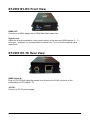
Panel Descriptions ET-HK0101-TC Front View HDMI IN: Connects to a HDMI source with a HDMI Male-Male cable here MODE: 0 = [Video] – supports up to HDMI 1.3 output. [Audio] – supports up to 7.1ch output 1 = [Video] – supports up to HDMI 1.3 output. [Audio] – locks to stereo audio output 2 = [Video] – locks to HDMI 1.2 output. [Audio] – supports up to 7.1ch output 3 = [Video] – locks to HDMI 1.2 output. [Audio] – locks to stereo audio output 4 = [Video] – DVI display mode. [Audio] – no audio output 5 = [Safe Mode] – uses default EDID1 with video supported up to 720p/1080i 6 = [Default Mode] – uses default EDID2 with video supported up to 1080p 7 = [EDID Learning Mode] – learns EDID3 from the display Note for EDID (Extended Display Identification Data) learning 1. If you cannot get the audio/video output from the connected display from the first time setup. Please follow the instructions below to check if the extender is OK: Step 1 – Please set the rotary arrow on TX at “Mode 5” for Safe Mode, and wait for the LED of the RJ-45 connector blinks for a couple seconds. Step 2 – Please turn the rotary arrow counterclockwise [ ] from Mode 5 to Mode 3. If you can get audio/video from the display, you can stay tune at this setting for 720p or 1080i and stereo audio. If you need to get 720p/1080i with 7.1ch audio output, please turn the rotary arrow counterclockwise [ ] from Mode 3 to Mode 2. For better audio/video output, please check Note#2. If you still cannot get the audio/video out normally, please go on the next step. Step 3 – Please turn the rotary arrow counterclockwise [ ] from Mode 3 to Mode 7. Wait a few seconds until the LED of the RJ-45 connector dims and then lights again. Step 4 – Please turn the rotary arrow clockwise [] from Mode 7 to Mode 1. You should have normal audio/video output. If not, please contact technical support. 6 / 10