1
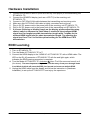
Hardware Installation 1. 2. 3. 4. 5. 6. 7. Connect the HDMI/DVI source (such as a Blu-ray Disc player) to the transmitting unit ET-HK0101-TC. Connect the HDMI/DVI display (such as a LCD TV) to the receiving unit ET-HK0101-TC. Connect a CAT-5/5e/6 LAN cable between the transmitting and receiving units. Make sure this CAT-5/5e/6 LAN cable is tightly connected and not loose. Plug in 5V DC power cord to the power jack of the receiving unit ET-HK0101-TC. Plug in 5V DC power cord to the power jack of the transmitting unit ET-HK0101-TC. If you see flickering or blinking image on the display, please adjust the rotary control switch to improve the cable skew. 0 stands for the strongest HDMI signal level for longest possible transmission length while 7 stands for the weakest HDMI signal level for short transmission length. Try adjusting the signal level from 7 to 0 to find the optimal setting for the HDMI over CAT5 transmission. EDID Learning 1. Turn on ET-HK0101-TC. 2. Turn the Mode of ET-HK0101-TC to 7. 3. Connect the HDMI display to the “HDMI IN” of ET-HK0101-TC with a HDMI cable. The LED on the RJ-45 connector of ET-HK0101-TC will dim and light again, which indicates the EDID learning procedure is complete. 4. Turn the Mode of ET-HK0101-TC clockwise [] from 7 to 0 (for surround sound) or 1 (for stereo). The most important thing is don’t let the rotary arrow pass through mode 5 and Mode 6 which will erase the EDID just learned and restore to default EDID. 5. Unplug the HDMI cable from the display and follow the instruction in [Hardware Installation] to set up the ET-HK0101-TC and enjoy the experience. 9 / 10