1
ENGLISH
FRANÇAIS
DEUTSCH
ESPAÑOL
int'l
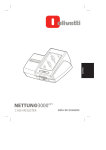
NETTUN@3000
CASH REGISTER
UPDATES TO THE USER'S GUIDE
Publication issued by:
Olivetti S.p.A.
Telecom Italia Group
Via Jervis, 77 - 10015 Ivrea (TO)
Copyright © 2014, by Olivetti
All rights reserved
This manual describes the CRF3000 cash register sold with the name
int’l
NETTUN@3000 , and provides information of a general nature necessary for
using the cash register for the first time.
For more detailed information on how to use the cash register functions, a
Programming manual can be downloaded from the Olivetti site (www.olivetti.com)
that contains detailed information on programming the settings.
The manufacturer reserves the right to carry out modifications to the product
described in this manual at any time without any notice.
The quality requirements of this product are attested
through display of
marking on the product.
Your attention is drawn to the following actions which could compromise the
conformity attested to above and also product characteristics:
• incorrect power supply;
• incorrect installation, incorrect or improper use or use not in compliance with
the warnings provided in the User’s Manual furnished with the product;
• replacement of original components or accessories with others of a type not
approved by the manufacturer, or performed by unauthorised personnel
User Safety
Connect the machine to a nearby and readily accessible current outlet.
Access the print unit area only to replace accessories. Do not use the machine
above or close to sources of heat (e.g. radiators) or very close to water (e.g.
swimming-pools or showers).
To effectively disconnect the appliance, remove the plug of the power cord from the
current outlet. To clean the machine, disconnect it from the current outlet, use a
damp cloth. Do NOT not use corrosive liquids.
ENGLISH
TABLE OF CONTENTS
INTRODUCTION ............................................................................................1
CONFIGURING THE MACHINE ....................................................................2
OPERATOR MANAGEMENT.................................................................................2
VARIANT MANAGEMENT .....................................................................................2
APPLICATION TYPE ..............................................................................................3
RECEIPT/INVOICE PRINTER................................................................................3
NO. CHARS VIRTUAL TICKET..............................................................................3
KEYPAD USE MODE .............................................................................................3
RETAIL ENVIRONMENT – GENERIC MODE.......................................................4
GENERIC PROGRAMMING OF THE KEYPAD....................................................4
HOW TO ASSOCIATE AND CUSTOMISE KEYS.................................................5
DELETING THE ASSOCIATION TO A KEY..........................................................8
OPERATOR FUNCTION ACCESS CONTROL.............................................9
SET 601 – OPERATOR TYPE ...............................................................................9
DEFINING OPERATING PROFILES FOR EACH OPERATOR........................ 10
SET 370 - ENABLING/DISABLING OPERATOR MANAGEMENT ................... 11
SELECTING AN OPERATOR ............................................................................. 12
TEMPORARILY MODIFYING VAT RATES.................................................14
DEPT/PLU FAST ACCESS PROGRAMMING ............................................15
DEPARTMENT DETAIL....................................................................................... 16
ADDING/MODIFYING AN ITEM (PLU BCR) ...................................................... 17
CATERING ENVIRONMENT – TABLE OPERATIONS ..............................19
KEY DESCRIPTION............................................................................................. 20
CONFIGURING A TABLE.................................................................................... 21
ORDER MANAGEMENT ..................................................................................... 22
VARIANT PROGRAMMING ................................................................................ 22
ENTER VARIANTS .............................................................................................. 24
USING VARIANTS ............................................................................................... 24
ORDER PRINTING .............................................................................................. 24
TABLE PRINTING................................................................................................ 24
iii
FUNCTIONS.................................................................................................25
ACCOUNT FUNCTIONS ..................................................................................... 26
SET SETUP.......................................................................................................... 28
PROGRAMMING LIST......................................................................................... 29
EXECUTING THE SET COMMAND FROM THE PROGRAMMING LIST........ 29
PRINTING DAILY AND PERIODIC REPORTS ...........................................34
INSERTING A FREE DESCRIPTION INTO THE TICKET ..........................36
APPLYING A FREE DESCRIPTION TO A TICKET........................................... 37
WAREHOUSE STOCK CONTROL .............................................................38
INSERTING STOCK QUANTITY BY DEPARTMENT........................................ 38
INSERTING STOCK QUANTITY BY ITEM (PLU).............................................. 38
CUSTOMER MANAGEMENT ......................................................................39
QR CODE .....................................................................................................40
SET 342 – PROFORMA MESSAGE............................................................41
SET 366 –MULTIPLE TICKET.....................................................................41
CONNECTION MODE..................................................................................42
LIST OF POSSIBLE CONNECTION MODES .................................................... 42
CONNECTION MODE ......................................................................................... 43
iv
This Addendum contains all the additional information necessary to update and
complete the information already provided in the manual entitled "Instructions for
Use" supplied inside the cash register package.
To make this document easier to understand, the same structure and page layout
has been used as in the original "Instructions for Use". Also the information is
provided within the same context in which it originally appeared and, where
necessary, the entire page contents.
1
ENGLISH
INTRODUCTION
CONFIGURING THE MACHINE
This function can be accessed from the [F] > GENERAL FUNCTIONS environment,
by pressing the [Config] > [Machine Configuration] keys.
OPERATOR MANAGEMENT
In this environment you can assign different function access profiles to operators (for
more information refer to the “Operator Management” section).
VARIANT MANAGEMENT
In this environment, you can manage variants (for more information refer to the
“Order Management” section).
2
In this environment you can select the type of application environment you want to
use : Retail or Hospitality.
RECEIPT/INVOICE PRINTER
In this environment, you can choose which printer to use for printing invoices:
• external printer
• cash register (internal) printer.
NO. CHARS VIRTUAL TICKET
In this environment, you can select the maximum number of characters that can be
displayed on the ticket on the screen: 37 or 28 characters.
KEYPAD USE MODE
Possible use modes are: Dept/PLU or Generic. When the Dept/PLU key is selected,
the keys related to Dept/PLU on the sales screen keypad have standard dimensions.
When the Generic key is selected, you can edit and/or create keys on the sales
screen keypad according to your own personal requirements (key dimensions,
position on the display and link type: Department, PLU-item, functions, payments).
3
ENGLISH
APPLICATION TYPE
RETAIL ENVIRONMENT – GENERIC MODE
This environment is recommended for non-specific use of the cash register in that
you can reprogram the main window to meet your own personal needs.
All the functions and programming of DEPARTMENT/PLU environment are still
available in Generic mode (for more information on the Retail – DEPARTMENT/PLU
environment, refer to the related chapter).
To set up the cash register for Generic mode, select [F] (Functions) > GENERAL
FUNCTIONS > [Config] > [MACHINE CONFIGURATION]. Select [Generic] (for
followed by keys [User Interface configuration] >
Keypad Use Mode). Select
[Keypad int. config].
GENERIC PROGRAMMING OF THE KEYPAD
Setting Generic mode for displaying the keypad and keys in the Sales window on the
touch screen allows these items to be modified freely, and you can customise them
to meet your own personal requirements (in terms of key dimension, position on the
display and link type: department, PLU-item, functions, payments).
F
4
03.03.2012 18.10 Till No.: 1
Vch: ON Pr.list 1 Operator: Disabled
ENGLISH
Key
Description
Lists the departments and, if present, the items linked with the
department, that can be associated with a key.
Lists the departments available that can be associated with a
key.
Lists the functions available that can be associated with a
key.
PLU_BCR
Depts
Functions
Paymt.
Lists the payment types that can be associated with a key.
Department details
Displays the details of the department selected (if available).
Displays the details of the PLU_BCR selected, allowing them to
be modified.
Allows the font size used on the key to be modified, with a choice of
3 sizes.
Assigns the selection of a PLU_BCR, Department, Function or
Payment type to a free key.
PLU details
AA
Assign to free pos.
List of PLUs available
Selects all available PLUs
Removes the assignment of a key to a PLU_BCR, Department,
Function or Payment type.
Closes the configuration window and returns to the main Sales
screen.
Delete assign.
HOW TO ASSOCIATE AND CUSTOMISE KEYS
To associate a key with a PLU, Department, Function or Payment type:
1. Select it from one of the lists shown on the display:
Depts*
PLU_BCR
F
03.03.2012 18.10 Till No.: 1
Vch: ON Pr.list 1 Operator: Disabled
F
03.03.2012 18.10 Till No.: 1
Vch: ON Pr.list 1 Operator: Disabled
Functions**
F
03.03.2012 18.10 Till No.: 1
Vch: ON Pr.list 1 Operator: Disabled
Paymt***
F
03.03.2012 18.10 Till No.: 1
Vch: ON Pr.list 1 Operator: Disabled
5
2. Select the key to associate with it, selecting the page, if necessary, using
(previous page) and
*
**
***
(next page) keys:
= Depts: in the “Item list” column the departments are displayed.
= Functions: in the “Functions” column the functions are displayed.
= Paymt: in the “Payment Types” column the types of payment possible are
displayed.
3. With the AA key you can modify the size of the font appearing on a key, selecting one
A
of the 3 sizes available. To modify the font, select the key to modify then the A key.
6
F
key which
03.03.2012 18.10 Till No.: 1
Vch: ON Pr.list 1 Operator: Disabled
5. Select one of the colours available. Using the keys at bottom left you can also set
double width and/or height for the key.
7
ENGLISH
4. You can customise the key dimensions by selecting the
displays:
6. Exit from the environment using the
shown on the display.
F
key. The new key configuration created is
03.03.2012 18.10 Till No.: 1
Vch: ON Pr.list 1 Operator: Disabled
DELETING THE ASSOCIATION TO A KEY
Referring to the window above:
- Select the [Delete assign] key.
- Select the key to delete from those shown in the window.
8
With the (default) factory settings, the cash register can handle up to 10 operators
each of whom can be assigned one of 8 hierarchical levels (known as operating
profiles).
To perform these types of operations on operators, you must:
• program the personal details and profile for each operator (SET 601 code in SET
mode)
• manage the functions that can be performed by each operator (by associating an
operating profile with each operator).
• enable operator management (SET 370 code in SET mode).
SET 601 – OPERATOR TYPE
This function is used to program the personal information for each operator
(description, access code, etc..) and their operating profile
Note: The dimension of the programming fields depend on the value set using
option 102.
Operating Procedure
.6. .0. 1. .X.
[OPERATOR “n”] .X.
[PERS. CODE] .X.
[OPERATOR NAME] .X.
[OPERATING PROFILE] .X.
Enter a number from 1 to 10
Enter a numeric code comprised of a maximum of
4 figures, or no number.
Enter the name to be assigned to the operator
Enter an operating profile for the operator,
choosing a number between 0 and 7:
0 = Lev. Supervisor
1 = Lev. Cashier
2 = Lev. Operator 1
3 = Lev. Operator 2
4 = Lev. Operator 3
5 = Lev. Operator 4
6 = Lev. Operator 5
7 = Lev. Operator 6
[TRAINING] .X.
0 = DisablesTraining Mode
1 = Enables Training Mode
[ENABLE] .X.
0 = Disables the operator
1 = Enables the operator
To apply the settings, exit from the SET environment by pressing the key
To exit from SET 601 programming, press the [Total.] key.
.
9
ENGLISH
OPERATOR FUNCTION ACCESS CONTROL
DEFINING OPERATING PROFILES FOR EACH OPERATOR
In this environment you can define which functions are enabled or disabled for each
operating profile that can be associated with operators.
To access this environment, select F (Functions) > General Functions > Config.>
Machine Configuration >, then [Operator Mngmt].
The cash register can manage different operating profiles, that is, different levels of
access to the various functions available. In fact, eight operating profiles are present
on the cash register.
How to select an operator and enable them to perform a given function are
represented in the following screen.
Key
Confirm
Set default
10
Description
Confirms the assignments and changes made in this environment.
Resets all functional assignments to their factory settings (that is, all
functions are assigned “Operator Level 6”).
In this case, all cash register functions are enabled for all operating
profiles that can be associated with operators.
SET 370 - ENABLING/DISABLING OPERATOR MANAGEMENT
This function is used to enable or disable operators and their operating profiles.
Operating Procedure
1.
.3. .7. 0. .X.
2.
.0. .X.
To disable operator management (default)
.1. .X.
To enable operator management
3.
Work shift closure
.0. .X.
To disable printing of the operator report on shift closure
.1. .X.
To enable printing of the operator report on shift closure (default
setting).
4.
Suspend. Aut.
.0. .X.
To disable the “Suspend Aut.”* function (Default)
.1. .X.
To enable the “Suspend Aut.”* function
5.
Set Mode
6.
Cash till Position
[ENTER CODE] Enter the predefined access code (111111)
.0. .X.
To disable printing of the cash till total in the operator report
.1. .X.
To enable printing of the cash till total in the operator report
(Default)
* The “Suspend Aut.” function allows you to set automatic deactivation of an operator
when they close a ticket (function set to 1).
11
ENGLISH
The list of all functions available appears in the column on the left.
To each of these can be assigned an operating profile, selecting it from those listed
in the “OPER PROFILES” area.
Enabling a function for a given operating profile, the profiles of the higher levels are
automatically enabled to perform the same function (for example, enabling the
“Payment” function for the Operator Level 1 operating profile, the
“Cashier Level” and “Supervisor Level” profiles are also enabled to perform that
function).
SELECTING AN OPERATOR
To access the environment, select F (Functions) > ECR Functions then Operator.
In this screen you can select the operator required, then activate them by selecting
“Apply selected operator”.
Key
Description
Exits from the operator selection environment.
Shift closre
Suspend operator
(*)
(T)
Apply selected
operator
12
Terminates the activity of the selected operator, printing the activity
report of the operator.
Temporarily suspends the activity of an operator. To access the cash
register, the operator must be selected and their identification code
entered.
The * symbol indicates which operators use a password for accessing
the cash register.
The letter T indicates that the operator is enabled to use Training
mode.
Note: if no symbol appears, as for Operator_1 in the screen, it means
that the operator is enabled for Normal mode but no password is
assigned.
Applies the operator selected in the list.
Sales management information related to each single operator logged in is frozen
instantly at the moment of their suspension allowing another operator to perform the
login procedure and continue with the current sales ticket.
The operating profile of the operator who performs the ticket closure is updated with
the data related to the sales total.
Note: when several operators perform operations alternatively on the same ticket,
they just have to select their operating profile and enter the related
identification code.
Note: in the operator management reports, details are provided for each operator of
the amounts actually taken for sales transactions performed and the types of
payment used.
In this way, an operator of a higher level can intervene to delete sales transactions
previously registered by another operator.
13
ENGLISH
For a faster set up procedure, you can choose the operator, enter their personal
code on the numeric keypad, then select one of the key functions described in the
table to apply the function directly (Key
, Work shift closure, Suspend operator or
Apply selected operator).
TEMPORARILY MODIFYING VAT RATES
You can modify a previously programmed VAT rate in a simple, flexible way. The
variation can be applied to a single sales item or to the whole sales ticket currently
open.
To manage VAT rates in this way, you must:
• program the VAT rates using the code SET 308
• apply the VAT rates to the virtual ticket during sales operations.
If you intend to use this functionality, to facilitate its use it is advisable to link the
VATmgmt function to a programmable key as described in the section “User Interface
Configuration and Programmable Function Keys”, so that the key can be accessed
directly from the main Sales screen.
Activating the VAT mgmt key function, a menu is displayed from which you can
select one of the different items programmed on the cash register. The screen for
temporarily applying a VAT rate is as follows:
Select the type of VAT rate required, applying it to a single sales item or to the whole
current ticket, and at the end press the
key to conclude the sale.
Note: Temporary variation of the VAT rate results in the final price previously set for
an item being modified.
The department report printed will therefore be modified. In this case, use only
the “tax extraction” report.
14
To be able to use the keypad in Dept/PLU mode, select the keypad type from the
environment F (Functions) > General Functions > Config. > Machine
Configuration > [Dept/PLU] key.
To add or modify a department, select F (Functions) > General Functions >Config >
User Interface Configuration, followed by [Depts/PLU Config.].
F
03.03.2012 18.10 Till No.: 1
Vch: ON Pr.list 1 Operator: Disabled
From this environment you can enter the items (PLUs) and the departments directly,
in visual mode (this method is equivalent to programming in Set mode using the
commands SET 401 and SET 802).
15
ENGLISH
DEPT/PLU FAST ACCESS PROGRAMMING
DEPARTMENT DETAIL
Select a department from the list of departments then, with a touch, select the
Department details key. The details of the department are displayed and you can
customise them to your requirements.
Note: for how to use the Stock parameter, refer to the section “Warehouse Stock
Control”.
16
You can add or modify an item in visual mode using one of two methods:
• from the department add/modify screen, selecting the New item key
• from the Dept/PLU management screen, selecting an already existing item. In
this case, the Modify item, New item and Delete item keys are enabled.
17
ENGLISH
ADDING/MODIFYING AN ITEM (PLU BCR)
When you select the Modify item key, a screen appears in which you can edit the
item details.
Note: when you select the [Barcode type] key, the types of barcodes handled by
the system and linked to items are displayed (EAN/UPC, C39, Datamatrix).
Note: for how to use the Stock parameter, refer to the section “Warehouse Stock
control”.
18
This environment is recommended when the cash register is to be used in a catering
environment. To set up the cash register for use in a catering environment, select [F]
(Functions) > GENERAL FUNCTIONS > [Config] > [Machine Configuration].
From this window, select [Hospitality] (for Application Type).
When this setup is chosen, the main Sales environment proposes the table layout as
the first window (with a maximum of 40 tables). From this window you can move
attributed items from one table to another, divide an account in “Analytical” modes
and issue a proforma ticket.
Vch: ON Pr.list 1 Operator: Disabled
From the table layout, after selecting a table, you can pass to the Sales environment
(main Sales screen) to conclude the sale for the table selected.
19
ENGLISH
CATERING ENVIRONMENT – TABLE OPERATIONS
KEY DESCRIPTION
Key
Description
Counter not
auto
Activates the main Sales screen and allows sales transactions to be
attributed to a table if one is selected. When the ticket is closed, the Table
screen is displayed.
Counter auto
Activates the main Sales screen and allows sales transactions to be
attributed to a table if one is selected. When the ticket is closed; the Sales
screen is displayed.
TakeAway not
auto and
TakeAway auto
For [TakeAway auto] the main Sales screen is displayed where only
certain departments - pre-programmed for this functionality - can be
accessed. With [TakeAway not auto] all programmed departments are
displayed.
Tables 21 - 40
Changes the table screen, displaying tables from 21 to 40. When you
select this key, the cash register displays tables from 21 to 40 and the key
function changes to [Tables 1-20] so that pressing it you can return to the
first 20 tables.
Reserve Unify
Can be used to reserve a table or unify the accounts of several tables
chosen from the 40 tables available.
On completion of the operation, the key related to the selected table
appears in grey.
Table Config
Allows a table to be configured, associating with it specific attributes such
as price listing, description, etc…
Open Drawer
Opens the cash drawer outside of a sales operation.
20
You can configure a table by first selecting Table Config and then touching the number of the
table. The screen for configuring table 1 appears as follows:
Key
Description
Description
Assigns an alphanumeric description to the table
List 1, 2, 3, 4
Applies the listing selected to the table
Not set
Completely free management of price list associated with table
Conf.
Confirms the operation.
21
ENGLISH
CONFIGURING A TABLE
ORDER MANAGEMENT
In the Hospitality environment, the cash register can issue an order printing it on the
internal printer.
Three specific environments are used for this functionality:
• variant programming and use
(for more information refer to the related sections)
•
print order
•
print table.
To facilitate use of these functions from the sales environment, it is advisable to map
the functions Variants, Print Order and Print Table onto keys as described in the
section “User Interface Configuration and Programmable Function Keys”. In this way,
the functions can be accessed directly from the main Sales screen.
VARIANT PROGRAMMING
To access the environment for managing variants, select the environment
F (Functions) > General Functions > Config. > Machine Configuration and
then [Variant Mngmt].
The Variants are made up of 50 elements (in total) relating to particular details that
can be associated with an item in a given customer order. These elements are
programmable texts that can be associated with the various merchandise categories,
and that have been previously programmed in the SET 305 environment (and linked
to the various sales departments).
If printing is set to Yes for the group, then the group name is preceded by an asterisk.
22
ENGLISH
Key
Description
Enter Variant
Allows you to enter a new variant into the selected group
Modify Variant
Allows you to modify the variant selected, introducing
changes
Delete Variant
Deletes the variant selected
Print selected variant
(Yes/No)
Enables or disables printing of the variant on the document
related to the selected order
Note: the symbol “*“ preceding a variant indicates that
printing is enabled for it.
Returns to the “Machine Configuration” environment.
23
ENTER VARIANTS
When an item is selected in the GROUPS list, the Enter Variant key is enabled. When
you select this key, the screen below is displayed allowing you to insert the variant and
confirm with the Conf. key.
The variant is inserted into the VARIANTS list.
USING VARIANTS
When you select Variants (after previously mapping the function onto a key), a screen is
displayed containing the list of variants that have been linked with a given group.
For example, a merchandise category such as Cafeteria could have variants with names
such as: espresso, caffe macchiato, iced coffee, laced coffee.
The variant screen contains the keys:
•
Page Up / Page down for scrolling through the list of variants
•
Apply selected variant to apply the variant.
To insert a variant, the operator has to highlight it in the list and then confirm it by
selecting the Apply selected variant key. After the variant is inserted, the list is closed.
To cancel insertion, select the Close list key.
Variants cannot be attributed values (that is, it is not possible to assign a separate price to
each variant).
ORDER PRINTING
From the main screen, press the Print order key to print the order on the internal
printer.
Additional “Orders” from the same customer or table are indicated with the caption
“more”.
The name of the operator, the time the order was taken and the table number are
indicated on the order.
TABLE PRINTING
From the main screen, press the Print table key to print on the internal printer a
document summarising the orders taken up to that moment for the selected table.
24
ENGLISH
FUNCTIONS
From the main Sales environment, using the F (Functions) key, you can access the
Functions environment from which you can perform operations on the current ticket
such as “ACCOUNT FUNCTIONS” and “ACCOUNT CLOSURE”, or on the register
such as “TILL STATUS”, “ECR FUNCTIONS” and “GENERAL FUNCTIONS”, or
otherwise you carry out operations on tables with ”OPS. ON TABLES”.
F
03.03.2012
18.10 Till No.: 1
Vch: ON Pr.list 1 Operator: Disabled
TOTAL
0,00
F
03.03.2012
18.10 Till No.: 1
Vch: ON Pr.list 1 Operator: Disabled
TOTAL
F-
F
03.03.2012
18.10 Till No.: 1
Vch: ON Pr.list 1 Operator: Disabled
TOTAL
0,00
F
F+
03.03.2012
18.10 Till No.: 1
Vch: ON Pr.list 1 Operator: Disabled
TOTAL
0,00
FF-
03.03.2012
18.10 Till No.: 1
Vch: ON Pr.list 1 Operator: Disabled
TOTAL
F+
0,00
Credit
Note
VAT
mgmt
25
ACCOUNT FUNCTIONS
Key
Customer
T. Code
VAT No.
Free
description
Credit Note
VAT mgmt
Credit
collection
Price lists
Discount
Markup
26
Description
Activates the Customer List screen displaying all the customers saved on the
cash register.
From this screen you can enter the personal details of a new customer, select
an existing customer, modify customer details, delete a customer, etc.
Activates a screen displaying a QUERTY keyboard with alphanumeric
characters, and an editable field for entering the Tax Code (T.C.) or VAT
Number of a customer (for example, for a documentary invoice).
Activates the screen for entering an alphanumeric description for a sales
ticket.
Displays a screen in which you can specify if the note relates to an invoice or
a ticket, the serial number and number and date of the ticket to which the
credit note refers.
Displays a screen that allows you to select if VAT is to be applied (TAX) or not
(No TAX) to the single sale, to the ticket on the screen, or always.
Issues a ticket registering the payment of an amount that was previously taken
on credit (the amount received is decremented from the totaliser for “credits”).
- Press the [Credit collection] key.
The screen show the payment to select the credit collection mode (cash,
checks, currency, etc.).
Activates the screen for selecting a price list and a price. The options are.
Permanent Change – Price List n (from 1 to 4) is valid outside the sales ticket and
for all items sold subsequently.
Change for Current Ticket –Price List n (from 1 to 4) is valid for the current sales
ticket until the ticket is closed.
Change for single sale - Price n (from 1 to 4) is valid only temporarily, and only for
the next transaction.
The price list with the active price is displayed in the main screen.
You can apply a discount to the price of an item selected in the ticket on the
screen.
You can apply an increase to the price of an item that is selected in the ticket
on the screen. Different methods are possible, for example:
To apply an absolute increase of 5 to the selected item:
Select the item in the ticket on the screen (if it is not the last item).
Press the key [5] on the numeric keypad.
Press the [Markup] key.
To apply an increase of 5% to an item selected:
Select the item in the ticket on the screen (if it is not the last item).
Press the key [5] on the numeric keypad.
Press the [%] key on the numeric keypad.
Press the [Markup] key.
To display a list of all the “absolute” and “percentage” markups programmed:
Select the item required, then select [Apply selected markup]
Indirect
discount
Return
Sales Offer
Description
Allows you to apply an Indirect Discount to a subtotal:
Press the [Subtotal] key.
Using the numeric keypad, enter the amount due from the Customer.
Press the [Indirect discount] key.
Check that the amount is ≤ the subtotal.
Allows you to perform a return operation, change items or rectify incorrect
invoicing amounts. The data collected for the Z4 and Z10 reports is updated to
reflect these transactions.
The return operation can be performed on a single item, on a single
department, on a single PLU or on the sales ticket Total. If it is necessary to
perform a return operation on more than one item, Department or PLU, then
the operation must be repeated for each one separately.
Allows you to perform a return operation:
Select [Function]>[Return].
Select the item/Department/PLU/ticket Total and the related amount.
Press the [TICKET] key.
If a return operation is required for other items/Departments/PLUs, repeat the
same procedure.
This function can be activated in manual or automatic mode after
programming the offer and programming the departments and PLUs to which
the offer applies.
• Manual Management N x M by Department (M less than N):
[N] [x] [M] [Sales Offer] [DEPT_1]
• Automatic Management: Sale with sales offer 3x2 for DEPT_1(*):
[DEPT_1] [DEPT_2] [DEPT_1] [DEPT_3] [DEPT_1] [Ticket]
Prints the descriptor of the programmed offer and the related discount
associated with Department 1 for which the offer parameter is active.
*
Separation
Change
price
Change
quantity
ENGLISH
Key
For this function, program the option SET 372 from Automatic Discount,
then associate it with a department using option SET 401.
Allows you to separate the figures in an amount for that of a PLU from that of a
DEPT.
The “I” character is displayed in the area for displaying the sale total.
Allows you to change the price of the item selected in the ticket on the screen.
Allows you to change the quantity of the item selected in the ticket on the screen.
27
SET SETUP
This function can be accessed from the [F] > GENERAL FUNCTIONS environment,
by pressing [Config] > [Set setup] keys.
For this environment, you must use the numeric programming codes displayed by pressing
the [Prog. List] key. For more information refer to the chapter “Programming List”.
Key
Description
Prog. List
Displays a list of options (consisting of a description and
number) that can be used for programming the machine.
PLU Search
Allows you to search for a PLU-BCR by entering its
alphanumeric description as the search key, and using its
department as the search (filter) mode.
EAN/UPC
Allows a EAN 8/13 or UPC A/E type BCR-PLU to be entered in
the PLU search options.
Item C39
Allows a C39 type BCR-PLU to be entered in the PLU search
options.
Datamatrix
Allows a Datamatrix type BCR-PLU to be entered in the PLU
search options.
To return to the previous screen page.
28
The cash register can be programmed from the Programming environment which can
be accessed from the main Sales screen by selecting the [F] (Functions)>
GENERAL FUNCTIONS environment followed by the [Config] > [Set setup] keys.
From this environment, using the [Prog. List] key, you can display a list of all the
functions available on the cash register for programming, and the code to use for
enabling the function.
F
03.03.2012 18.10 Till No.: 1
Vch: ON Pr.list 1 Operator: Disabled
Exec
Note:
The programming functions that can be used by the user are listed below.
EXECUTING THE SET COMMAND FROM THE PROGRAMMING LIST
A command can be selected from F (Functions) > General Functions
environment > Config > Set setup > [Program. List].
From the list of SET programming commands you can execute a command directly
by simply touching the command line or its description followed by the Exec key with,
therefore, direct access to the programming environment.
29
ENGLISH
PROGRAMMING LIST
This section indicates the procedures and codes to be used for configuring the cash
register.
SET
102
150
151
152
154
155
157
160
162
171
200
201
203
206
296
297
298
299
300
301
302
303
304
305
306
307
308
309
310
311
314
315
316
318
320
321
322
324
30
Programming Type
Format machine data
Display till total amount
Set machine date and time
Change automat. date & time
Reset register GT
Activate obligatory invoice heading for invoice
Enabling rescue reports
Language selection
Rounding type selection
Set ticket gran total parametres
Print Series 200 options list
Set up merchandise icons
Set up point icons
Set up public holiday icons
Print logos present on machine
Print list of icon-phrase combinations
Print list of merchandise phrases
Print list of merchandise icons
Print Series 300 option list
Set machine code
Set up heading lines
Set up courtesy phrases
Set payment mode parameters
Set group descriptors
Enable obligatory execution of daily report
Set up discount table
Set VAT rates
Set percent markup parameters
Set money order descriptor
Set HALO value for change
Print machine configuration
X mode automatic report management
Z mode automatic report management
Enable oblig. calculation of change
Select courtesy message type
Enable zero price
Select machine font
Select VAT details
ENGLISH
SET
329
332
334
335
338
339
340
341
342
343
345
346
347
348
349
350
351
352
355
356
358
359
360
361
362
363
364
365
366
367
368
370
371
372
375
380
389
390
391
392
393
Programming Type
Enable single item sales
Generation QR Code
Enable printing of VAT sales details
Enable reports reset
Set header lines for invoice
Set Simplified Invoice parameters
Set WEEE generic message descriptors
Set WEEE message value descriptors
Set proforma receipt message
Set sales receipt message
Save database data and def. settings
Restore database data and def. settings
Reset BCR PLU data
Save database data, def. settings and formatting
Restore database data, def. settings and formatting
Backup user data
Restore user data
Select ADD MODE type
Enable cutter
Enable acoustic warning for barcode reader
Enable report saving on EJ
Enable BCR printing
Enable password management
Set SUPERVISOR password
Set cashier password
Select no. tickets on EJ to print
Select type and thrshld. value for EJ end
Save all tickets on EJ
Enable multiple tickets
Enable printing of articles sold
Enable till total display
Enable operators
Enable customer accounts
Set offer values
Print TICKET information
Wait for display switch-off
Enable chipcard management
Print Series 390 options list
Chipcard formatting management
Chipcard programming information
Chipcard deletion
31
SET
394
395
396
397
398
399
400
401
451
452
453
454
455
458
459
460
461
510
600
601
650
651
652
653
654
800
801
802
803
804
900
901
902
903
904
905
906
919
920
921
922
923
924
32
Programming Type
Chipcard duplication
Chipcard code management
Dealer chipcard code management
Wallet chipcard code management
Chipcard pnts management
Chipcard loading management
Print Series 400 options list
Set information for each department
Print information of all EJ used by machine
Print ticket selected by number
Print tickets of a given date
Print tickets comprised between two numbers
Print tickets comprised between two dates
Full printing of EJ
EJ deletion
Print current EJ information
EJ free space management
Print Series 510 options list
Print Series 600 options list
Set information for each operator
Print Series 650 options list
Set information for each account
Delete customer account information
Delete information of more than one account
Delete all customer accounts
Print BCR PLU information read as code
Format BCR PLU area
Insert new BCR PLU
Delete BCR PLU
Modify BCR PLU
Print Series 900 options list
Set serial channel 1 information
Loading serial channel 1 device
Set serial channel 2 information
Loading serial channel 2 default
Serial device configure
Enable USB connection
Enable network services
ETH activation parameters
Channel 1 ETH settings
Channel 2 WLAN settings
PPP settings
WIFI settings
Programming Type
ADSL settings
Ftp settings
SNMP settings
HSDPA settings
VPN settings
ETH advanced settings
Select FW update mode
Select DB update mode
Test network
Set slip printer information
Calibrate Slip Printer module
ENGLISH
SET
925
926
927
928
929
930
931
932
933
950
951
For more detailed information on the functions provided by the SET
commands, a Programming Manual is provided on the Olivetti site
(www.olivetti.com) which provides detailed information on how to
program the settings.
33
PRINTING DAILY AND PERIODIC REPORTS
These functions can be accessed by pressing the [Reports] key in the [F]
(Functions) > TILL STATUS environment. From the screen that appears, shown
below, you can print a report by selecting it on the touch screen.
Item
Report WITHOUT
zeroing / Reports
WITH zeroing tab
Periodic1 / Daily key
set
Periodic2 / Periodic
key set
34
Description
Selection tabs for printing reports WITH zeroing or WITHOUT
ZEROING.
The following types of report can be printed: Departments,
Management, Till operations, Currencies, BCR PLUs, Slip Printer
Documents, Operators, Luncheon voucher, Customer account,
Customer account movements, Sales per hour. When printing is
terminated, depending on which of the two tabs is selected, the
related data is either maintained or zeroed.
The following types of report can be printed: Departments,
Management, Till operations, Currencies, BCR PLUs, Slip Printer
Documents, Operators, Luncheon voucher, Customer account,
Customer account movements, Tax extraction. When printing is
terminated, depending on which of the two tabs is selected, the
related data is either maintained or zeroed.
Operation reports
Description
Prints management reports related to cash register transactions
(this key is active only when the Management Report with Reset
tab is selected).
VAT variation
mandatory reports
Prints the set of reports that must be printed before varying the rates
in the VAT table (with zeroing after printing).
Report (Z10)
Prints the daily Z10 report with zeroing.
Printing active/ not
active
Automatic report
WITHOUT zeroing
Automatic report
WITH zeroing
Enabled only when "Reports with Reset" is selected. Reports are
generated and printed on the printer (for printing active), otherwise
they are generated but not printed.
Prints all the reports specified using the option SET 315 but without
zeroing. For more information, refer to the chapter “SET 315 – X
MODE AUTOMATIC REPORT MANAGEMENT”.
Prints all the reports specified using the option SET 316 with zeroing.
For more information, refer to the chapter “SET 316 - Z MODE
AUTOMATIC REPORT MANAGEMENT”.
Closes this window and returns to the Functions environment.
Note: if operators are active, an additional key, Training not active/Training active,
appears in the reports screen allowing you to select the report printing mode
(Training or No training).
35
ENGLISH
Item
INSERTING A FREE DESCRIPTION INTO THE TICKET
This function can be selected from the Functions > Account Functions
environment > with the [Free Description] key. You can enter a numeric or
alphanumeric caption between one sales transaction and the next.
If you intend to use this functionality frequently, to facilitate its use it is advisable to
map the Free Description function onto a programmable function key, as described
in the section “User Interface Configuration and Programmable Function Keys”. In
this way, the key can be accessed directly from the main Sales screen.
The initial screen is displayed as below:
Note: you can create a list with a maximum of 10 free descriptions.
Note: the number of characters available for the free description varies according to
the number of characters that has been configured for the virtual ticket (37 or
28). This option is selected from the environment F (Functions) > General
Functions > Config. > Machine Configuration.
36
To call up a free description and apply it to a ticket, select the Free Description key.
The following screen is displayed:
Prodotto con marcatura CE
Management dicitura art. 62
Key
Temporary description
Enter the description
Description
Allows a free description to be entered for a ticket without
saving the description in the cash register
Allows a free description to be entered for a ticket and saved so
that it can be used again for other tickets
Modify the description
Allows you to modify the free description selected
Delete the description
Allows you to delete the free description selected
Confirm the description
Applies the selected description to the current sales ticket
Exits from the “Free Description” management
environment
Note: you can add more than one free description to a given ticket by selecting the
descriptions one at a time from the screen and confirming with the “Confirm
the description” key.
Descriptions are added to the ticket in the order in which they appear in the
list and not the order in which they are selected.
37
ENGLISH
APPLYING A FREE DESCRIPTION TO A TICKET
WAREHOUSE STOCK CONTROL
To enable stock control by department and by PLU, for code SET 102 (for
departments) and code SET 801 (for items) you must enable the option
•
STOCK QUANT. = 1.
Subsequently, when you insert items into the cash register using codes SET 401 and
SET 802, you can also enter the quantity in stock.
INSERTING STOCK QUANTITY BY DEPARTMENT
When programming SET 401 the following item is available:
Stock
Number from 0 to 9999
Note: if you do not want stock control to be applied to a given sales item, just leave
the value 0.
INSERTING STOCK QUANTITY BY ITEM (PLU)
When programming SET 802 the following item is available:
Stock
Number from 0 to 9999
Note: if you do not want stock control to be applied to a given sales item, just leave
the value 0.
Note: Enabling stock control by Department, the department report indicates the
total number sold by department and not the total quantities sold by PLUs
linked with that department. In this case, the quantities sold by PLUs are
given in the PLU_BCR report.
Note: When stock control is enabled and an item is running out of stock, a message
appears “Item below stock”.
38
Customer management can be selected from the environment Functions
>Account Functions > with the [Customer] key.
− This screen provides an example list of customers saved with the information
specific to each customer.
To facilitate access to the list and therefore to customer data, you can list the
customers in alphanumeric order by selecting the [Order] key.
To display the customers in numeric order again, exit from the screen using the
key and then return to the screen by selecting the Customers key.
39
ENGLISH
CUSTOMER MANAGEMENT
QR CODE
The cash register is able to recognise and print 2-D barcodes of QR Code type.
It is possible to codify links to Internet sites, publicity messages etc using this type of
2-D graphics. After the QR code is generated and printed, it can be retrieved by
special applications resident, for example, in a smartphone.
The description for translation into QR Code is programmed using SET 332.
The QR Code generated in this way can be inserted as a logo at the bottom of a
ticket.
Note: To program the logo use the code SET 303.
To print the logos saved in the cash register use the code SET 296.
Operating Procedure
1.
2.
.3. .3. .2. .X.
[FORMATS ?] 0 = Disabled to continue
1 = Format the logo present in the machine
3.
40
In the field, enter the description you want to codify as a
QR Code, confirming at the end with .X.
Allows you to customise the proforma document, adding a free description of up to 2
lines.
Operating Procedure
1.
.3. .4. 2. .X.
2.
Text Attributes
342-LINE 1 Enter a description for line 1
.0. .X. NORM. ATTRIB. (normal text)
.1. .X. D.HGT. ATTRIB. (double-height text)
3.
Characters/Row
.0. .X. 24 chars/row
.1. .X. 29 chars/row
342-LINE 2 Same settings as for line 1
SET 366 –MULTIPLE TICKET
On multiple tickets allows sales items to be grouped by merchandise category, by
item or by department.
Operating Procedure
1.
2.
.3. .6. .6. .X.
.0. .X. To disable the function
.1. .X.
3.
4.
To enable the function
.0. .X. Selects grouping by department
.1. .X.
Selects grouping by merchandise category
.2. .X.
Selects grouping by item
.0. .X. Manual, for generating a multiple ticket manually
.1. .X.
Automatic, for generating a multiple ticket automatically
41
ENGLISH
SET 342 – PROFORMA MESSAGE
CONNECTION MODE
In the operator information area, an indicator signals the Internet connection modes
“connection active” or “connection absent”.
Cash register operating mode
notification area
F
<-<--->
- ->
23.09.2013 - 18.10 Cassa N.ro: 1
Operatore 1
Listino 1
F = Firmware
L = LAN
S = Centro Servizi
W = WiFi
L = LAN
G=
= HSDPA
W
WiFi
- - F S L,W,G
G = HSDPA
LIST OF POSSIBLE CONNECTION MODES
CASH REGISTER CONNECTED TO INTERNET
<<--->>
<<--L>>
<<--W>>
<<--G>>
42
This symbol is displayed when the cash register is not connected to the
Internet
Machine connected to Internet over an active LAN connection
Machine connected to Internet over an active WiFi connection
Machine connected to Internet over an active HSDPA connection
This function can be selected from the environment F (Functions) > General
Functions > [Config.] > with the Connection key.
When the cash register is connected via a USB/Serial cable and Connection is
selected, the cash register automatically enters a mode allowing:
•
configuration, using an external software program (for example, Resource Kit)
•
ticket printing by applications resident on the computer.
43
ENGLISH
CONNECTION MODE
DIRECTIVE 2002/96/EC ON THE TREATMENT, COLLECTION, RECYCLING
AND DISPOSAL OF ELECTRIC AND ELECTRONIC DEVICES AND THEIR
COMPONENTS
1. FOR COUNTRIES IN THE EUROPEAN UNION (EU)
The disposal of electric and electronic devices as solid urban waste is
strictly prohibited: it must be collected separately. The dumping of
these devices at unequipped and unauthorized places may have
hazardous effects on health and the environment. Offenders will be
subjected to the penalties and measures laid down by the law.
TO DISPOSE OF OUR DEVICES CORRECTLY:
a) Contact the Local Authorities, who will give you the practical
information you need and the instructions for handling the waste
correctly, for example: location and times of the waste collection
centres, etc.
b) When you purchase a new device of ours, give a used device similar
to the one purchased to our dealer for disposal.
The crossed dustbin symbol on the device means that:
- When it to be disposed of, the device is to be taken to the
equipped waste collection centres and is to be handled
separately from urban waste;
- Olivetti guarantees the activation of the treatment,
collection, recycling and disposal procedures in
accordance with Directive 2002/96/EC (and subsequent
amendments).
2. FOR OTHER COUNTRIES (NOT IN THE EU)
The treatment, collection, recycling and disposal of electric and
electronic devices will be carried out in accordance with the laws in
force in the country in question.
Code: 584201
Printed in Italy
UPDATES TO THE USER'S GUIDE
NETTUN@3000
int'l
CASH REGISTER
MISES À JOUR DU GUIDE D’UTILISATION
GEBRAUCHSANLEITUNGS-AKTUALISIERUNGEN
ACTUALIZACIONES A LA GUÍA DEL USUARIO