1
User Manual
TM
The following command is available if the camera connected with PC via USB 2.0 is EASIR -4.
Calibration (F2)
Send calibration command to the camera
Near Focus (F3)
Press F3 continously to adjust near focus, stop adjusting by releasing the
bottom
Far Focus (F4)
Press F4 continously to adjust far focus, stop adjusting by releasing the
bottom
Video capture command
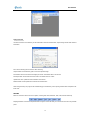
When playing infrared video, use this command under Video Menu or Press Ctrl + T to capture the current image. The
capture image can be done as following
z
Save as .IRI file or .JPG file to the appointed directory path
z
Open as new .IRI or .JPG file
z
Save as .IRI file or .JPG file and open it
TM
Note: For EASIR -4, the file fomat is .JPG
Auto focusing command
When playing infrared video, use this command under Video Menu or Press Ctrl + F to perform auto fucus operation
on camera.
Play command
Use this command or press
to play infrared video. If it is play mode, perform this command to change it to pause
mode.
Pause Command
Use this command or press
to pause infrared video. If it is pause mode, perform this command to change it to
play mode
Forward command
User this command or press
to make the video go forward by one frame when playing video.
Backward command
Use this command or press
to make the video go backward by one frame when playing video.
Record command
Use this command or press
TM
to record the video capture by EASIR -4 and save it in appointed directory. The
default saving directory is in the sub-directory of capture under installation directory. Computer system will denominate
the video file automatically.
Perform this command again after stopping record.
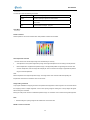
Transferring Data from the Camera to PC
•
TM
Before transferring data from the EASIR -4 camera to PC, ensure that the PC offers USB2.0 interface and the
21