1
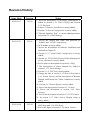
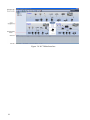
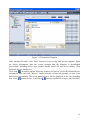
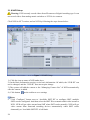
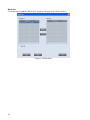
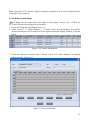
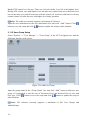
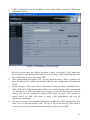
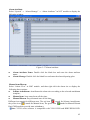
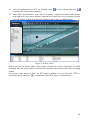
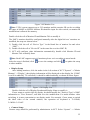
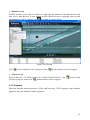
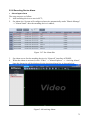
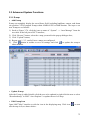
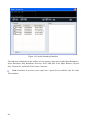
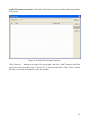
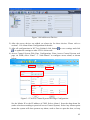
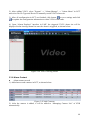
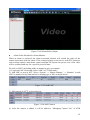
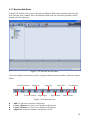
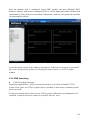
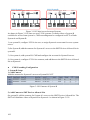
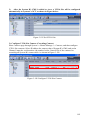
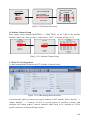
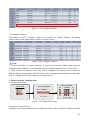
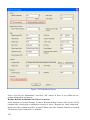
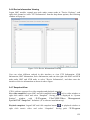
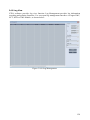
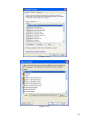
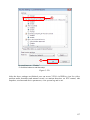
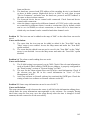
Figure 3-49 Monitor List
Note: V2216 system supports up to 512 monitors and the monitor ID can be set within
the range of 000001 to 999999. Monitor ID should be input for video switch, so monitor ID
modification is allowed for memory.
Double click the cell of Monitor ID and Monitor Title to modify it.
The LMC’s monitor should be configured manually after the digital deivces’ monitors are
modified, the steps are shown below:
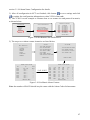
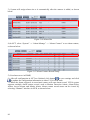
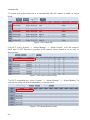
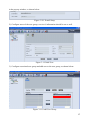
1) Double click the cell of “Device Type” in the blank line of monitor list and select
“LMC”;
2) Double click the cell of “Device IP” in the same line to select LMC IP;
3) NCT will configure other information automatically; double click Monitor ID and
Monitor Title to modify them.
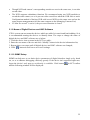
Note: Each LMC supports up to 64 monitors please set it according to actual needs.
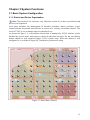
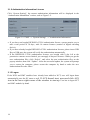
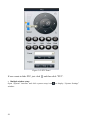
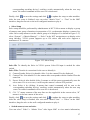
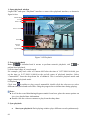
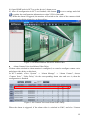
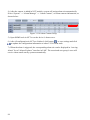
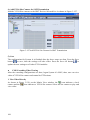
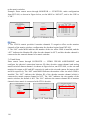
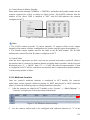
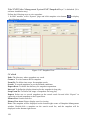
After the setup is finished, click
to save the settings and click
to update the setup
to other modules.
Display Setup
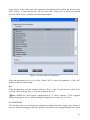
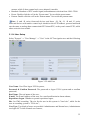
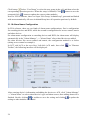
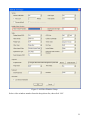
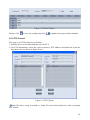
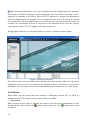
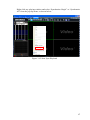
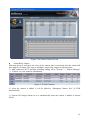
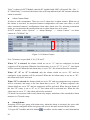
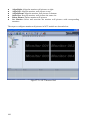
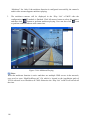
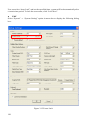
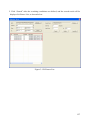
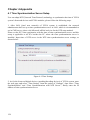
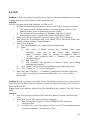
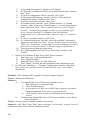
After adding monitors, click the nodes in the left section of NCT "System" →"Matrix
Manage" →"Display", then display information will be displayed on the display list. If LMC
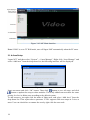
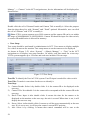
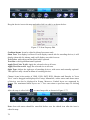
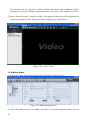
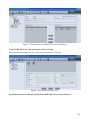
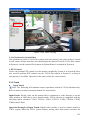
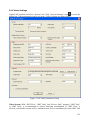
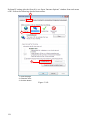
is set to be added by TV wall mode, it should be added manually, as shown in below figure:
z
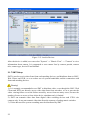
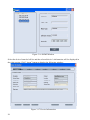
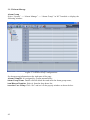
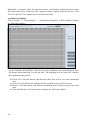
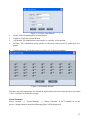
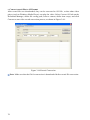
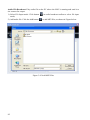
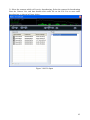
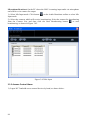
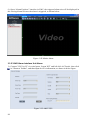
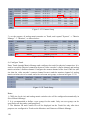
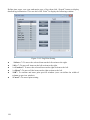
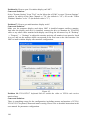
Figure 3-50 Display List
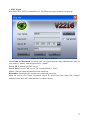
Double click the cell of Display Pseudo and Display Name to modify it.
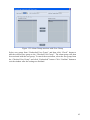
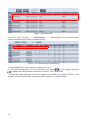
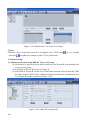
If user wants to switch video by display, he should modify the "Protocol Type" of LMC
information to "New Protocol", and then save the modification. For multi-window video
switching, it is more convenient to use display mode. For example, if user wants to switch
the third video of the second window, the operation on keyboard is "2+NEAR,
2+MON+3+CAM".
z
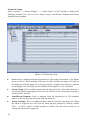
Camera Setup
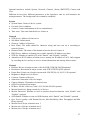
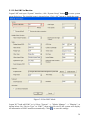
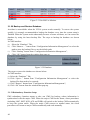
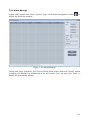
Camera setup should be performed by administrator in NCT. Select “System” → “Matrix
55