1
Opus Student User Manual
Student Worker Support
11
July 2013
TABLE OF CONTENTS
22
CODE OF CONDUCT
3
ACCESSING TIMESHEETS TO APPROVE
3
APPROVING TIMESHEETS
4
FAQ’S
6
SUPPORT
6
July 2013
CODE OF CONDUCT
It is your responsibility to inform Randstad of a regularly checked e-mail account and to
give an update should this change
It is your responsibility to action a timesheet email at the earliest convenient time and to
approve your workers hours
It is your responsibility to authorise any cancellations or failure to attend if you did not
follow the cancellation policy
Do not allow anyone to access your e-mail account, as per university policies
ACCESSING TIMESHEETS TO APPROVE
When any of your support workers submits a timesheet, you will receive an email requesting
authorisation
The email will provide you with a link so that you can view and authorise timesheets. When
using a link from any email you receive, you will be redirected to a list of all timesheets for
any of your support workers
Please note: An authorisation link in an email can only be used once. After it has been used
once, the link becomes ‘expired’ and will not allow access to the system
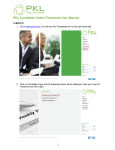
Click on the link -
33
July 2013
APPROVING TIMESHEETS
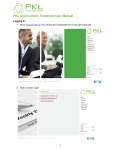
When you clicked on the link from the email for the first time, you will be taken to this screen
–
Select ‘Approve’ or ‘Reject’ on the timesheets (you can select more than one timesheet at a
time to submit) –
Select ‘Submit’ –
44
July 2013
Select ‘Ok’ to continue approving or ‘Cancel’ if you have made a mistake –
You will receive a message advising that the submission was successful –
Once you have ‘Approved’ or ‘Declined’ the timesheet and submitted, those timesheet will
disappear from the list –
55
July 2013
FAQ’S
Q. What is the deadline for approving timesheets?
A. The deadline for processing approved timesheets in the 17th of each month. It is the
responsibility of your support worker to submit their timesheets with sufficient approval time.
Q. What if I encounter any technical problems when using the system?
A. Please contact the support team on the details under the ‘Support’ section of this
document
SUPPORT
If you have encounter any technical issues when using the system the please email
[email protected] or call 0845 130 4655
66
July 2013