1
Hardware MediaBridge
Configuration
1. Plug Crossover/Ethernet cable into Port #1 of MediaBridge and then plug the
other end into your PC/Mac.
2. Plug power cord into the MediaBridge, and then plug the other end into wall outlet.
3.
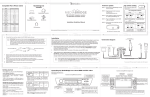
In your network configuration tab, manually assign your IP Address to 192.168.0.101.
(You have the option to choose any # between 2 and 254, but never 1, 100 or 255.)
4. See Figure 2.1.
5. Select Apply/OK to activate settings to establish the connection between your
MediaBridge and PC/Mac.
6. Login to MediaBridge IP Address http://192.168.0.100. (Username = admin,
Password = default.)
CommandCenterHD User Manual
www.industryweapon.com
1
7. Click “Edit IP Configuration.” Update the following:
o
IP Address
o
Subnet Mask
o
Gateway
o
DNS1
Hardware MediaBridge Configuration
2
8. Choose “Save,” and then reboot the machine.
9. Disconnect the MediaBridge from laptop & connect to your network.
10. When device is powered on again, access web interface at applied IP Address.
(Username = admin, Password = default.)
11. Click “Edit Account Information.”
12. Update the following:
o Account ID (Your account ID is the text that appears between http:// and
.channelshd.com in your account’s URL. For example,
http://industryweapon.channelshd.com. Industry Weapon would be the account ID.)
o Account PIN (from the Configuration page of CCHD)
o Zone ID (from the Configuration page of CCHD)
o Timezone
13. Reboot again. Your MediaBridge should now be configured to communicate with
CCHD.
CommandCenterHD User Manual
www.industryweapon.com
3