1
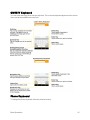
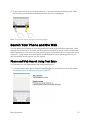
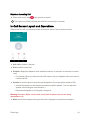
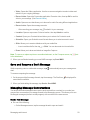
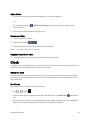
 n Bluetooth (Only available when a Bluetooth headset is connected to your phone) to route the phone's audio through a connected Bluetooth headset (On) or through the speaker (Off). For details about pairing the phone with a Bluetooth headset, see Pair Bluetooth Devices.
l When the call is routed to a Bluetooth headset, the current call area shows the Bluetooth call icon (
).
Note: The Bluetooth button is activated to show the current call is routed to the connected Bluetooth headset. l To route the current call back to the phone, tap Bluetooth to temporarily use the phone. Tap it again to route the call back to the connected Bluetooth headset.
l When Bluetooth or the Bluetooth headset is turned off, the call is routed through either the earpiece or speaker and shows (
Tap ).
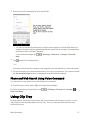
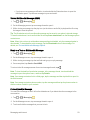
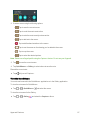
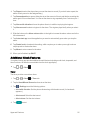
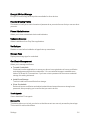
during a call to display a list of additional in-call features. Tap an option to select it. n Contacts: Display your contacts list.
n QuickMemo+: Open the QuickMemo+ app.
n Messaging: Opens the Messaging app.
n Voice clarity: Enhances voice clarity in noisy environments so you can hear more clearly.
Place Calls from Contacts/Call History
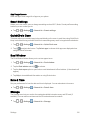
Make calls quickly using Contacts and Call History.
Place a Call from Contacts
You can place phone calls directly from entries in your Contacts list.
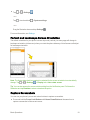
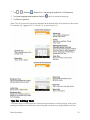
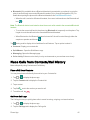
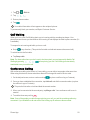
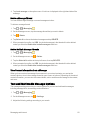
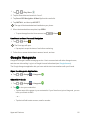
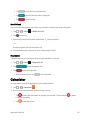
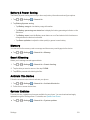
1. Tap > to display the phone app.
2. Tap the Contacts tab to display the Contacts list.
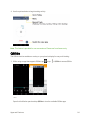
3. Tap a contact.
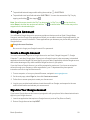
4. Tap Call next to the number you want to call.
5. To end the call, tap .
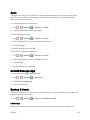
Call from Call Logs
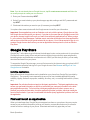
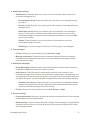
The Call logs list lets you quickly place calls to recent incoming, outgoing, or missed numbers.
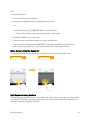
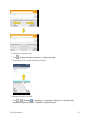
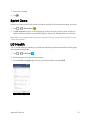
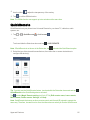
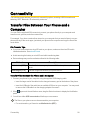
1. Tap > to display the phone app.
2. Tap the Call logs tab to display the Call logs list.
Phone App
45