1
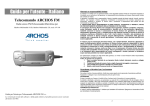
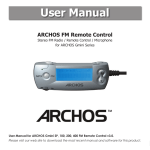
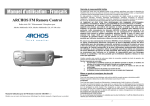
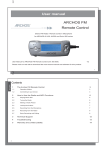
2 How to Use the Radio and MP3 Functions If you would like to name your Preset radio stations, you can do this by editing, with a text editor such as Notepad (Windows®) or SimpleText (Macintosh®), the file FMPreset.txt which 2.1 Playing MP3 files you will find in the System folder on the root directory of the AV300 hard drive. Please note You can connect your FM Remote to the AV300 at any time. The remote’s screen will show your current directory or the file name you are currently playing. Make a long press on the FM/MP3 mode button and you will be sent to the main screen of the AV300. You can choose either the <Music> or <Browser> icon. Use the remote’s / rocker control as you would the UP/DOWN joystick controls and the PLAY as the PLAY button on the AV300. This that you should not use a word processor such as Microsoft Word® to edit the preset text file. Each line of the text file should contain the station frequency, a space, and then the name of the station. You can name the station whatever you want, some examples are 90.1 Easy Jazz or 90s Hits FM Radio 107.8 or 91.3 KGTS. You are limited to 32 characters for naming a station preset. The entry on a line of 0.0 represents an empty preset slot. will allow you to search your directory structure to find songs and playlists that you want to play. If you are in the FM mode, just click on the MP3/FM button to go to MP3 mode. Use 2.4 Setting the HOLD mode the Increase and Decrease buttons on the Remote FM to control headphone volume. Use this feature if you would like to prevent the FM Remote from changing stations or settings accidentally if a button is pressed or hit. Hold down for three seconds on the HOLD 2.2 Tuning the Radio button to activate this. The buttons will be locked and not respond if pressed. To de-activate Once the remote is plugged in, click on the mode button MP3/FM to go to the radio mode. Use the rocker control Left and Right to go up and down the frequency range. A short press on the rocker button will rotate through the three FM tuning modes, Preset (you can HOLD and make the buttons usable, press the HOLD button again for 3 seconds. Using the HOLD on the Remote will lock both the Remote’s buttons and the AV300 buttons. You can also hold down on the top function button of the AV300 to de-activate HOLD. choose one of your 20 preset stations), Manual (tune your station manually), Search (let the radio search for the next clear station). Press the MP3/FM button to leave the Radio mode and 2.5 Recording from the Microphone go back to the MP3 mode. First make sure you are in the MP3 mode (MP3/FM button to change modes). Simply click once on the REC button and the recording starts. The REC button will light up red to indicate that 2.3 Making a Radio Preset you are making a recording. When you are done, click on REC again and the recording will You can save up to 20 preset stations with the FM remote control. Once you have found the radio frequency you finish and write to your hard drive. Your recorded file will be saved in the last folder that was used for audio recording. want to save as a preset, press and hold the rocker PLAY For example, if you have a folder /HD/Music/Voice that you made an audio recording in, then button for 3 seconds. The Remote will show P2 Saved, for the next time you click the REC on the remote control, it will save the file to that Voice folder. example, indicating that this radio station is now program If you have used only the AudioCorder icon from the main AV300 screen for recording, then number 2. If you would like to erase a preset station, go to the recording will be stored in /HD/Music since no other folder had been identified as the last the tuning Preset mode, scroll to the preset number you recording folder. The file name for this recording will be VOICExxxx.mp3, where xxxx are want to clear, then hold down on PLAY for three incremental numbers. During the recording, you can change the recording gain. Press the rocker seconds. You now have a free program slot to make a control to the left (less gain) when the sound you’re recording is loud, or to the right different FM preset. (more gain) when the sound is soft. 5 6