1
CAMERA
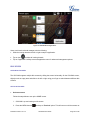
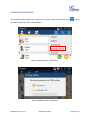
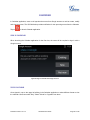
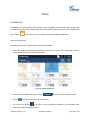
The GXV3240 has built-in Camera to support taking pictures and recording videos. Users can also use
the camera during SIP video calls as well as video calls via 3rd party applications such as Microsoft Lync.
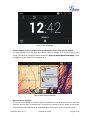
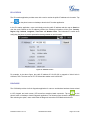
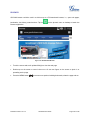
To access Camera to take pictures and videos, tap on Camera icon
menu.
on the desktop or phone's
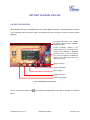
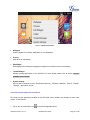
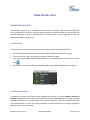
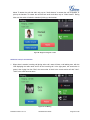
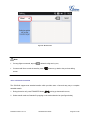
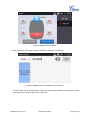
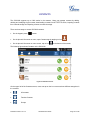
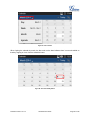
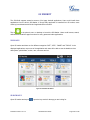
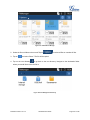
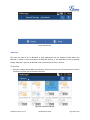
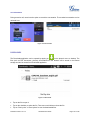
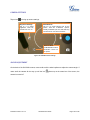
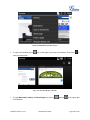
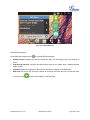
Camera Settings:
- Brightness settings
- White balance
- Store location on/off
Take Picture/Video:
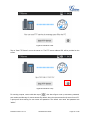
If camera mode is "Taking Picture", tap on the Blue
button to take a picture.
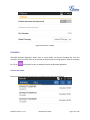
If camera mode is "Taking Video", it will show Red
button. Tap on it to start/stop taking video.
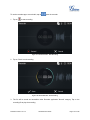
Camera Mode:
Tap on the camera icon here to switch mode
between taking video or picture.
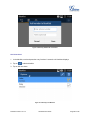
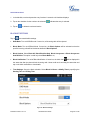
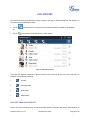
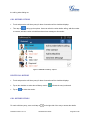
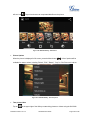
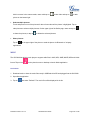
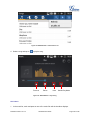
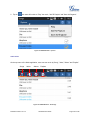
Figure 117: GXV3240 Camera
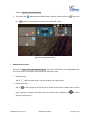
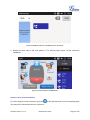
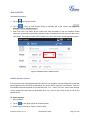
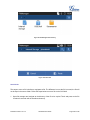
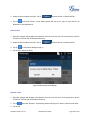
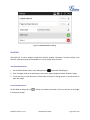
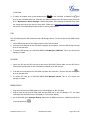
TAKE PICTURE
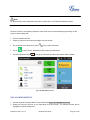
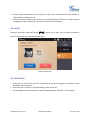
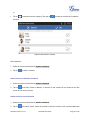
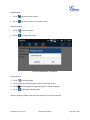
1. Select the camera mode as
to take picture.
2. Tap on the Blue button to take a picture.
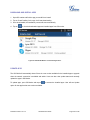
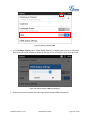
3. The captured picture can be accessed under FileManager->Internal Storage->DCIM->Camera.
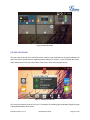
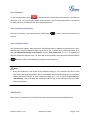
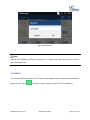
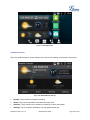
RECORD VIDEO
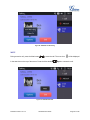
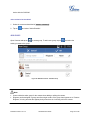
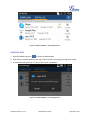
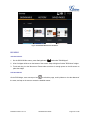
1. Select the camera mode as
to record video.
2. Tap on the Red button to start/stop recording.
3. The recorded video can be accessed under FileManager->Internal Storage->DCIM->Camera.
Firmware Version 1.0.1.27
GXV3240 User Guide
Page 117 of 138