1
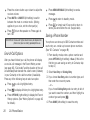
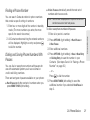
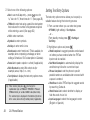
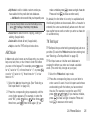
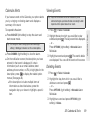
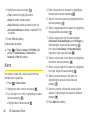
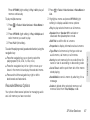
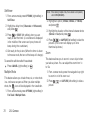
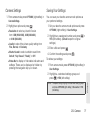
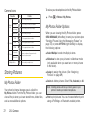
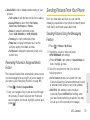
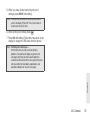
Viewing Events If you have an event on the Calendar, your phone alerts you by a ringing or vibrating alarm and displays a summary of the event. Tip: Days with scheduled events are indicated by small To respond to the alarm: 1. Press 䢇 Press SNOOZE (left softkey) to stop the alarm and start snooze mode. Tip: To change the alarm settings, press OPTIONS (right softkey) > Settings > Alarm to set the snooze options. 䢇 䢇 Press DISMISS (right softkey) to clear the alarm. On the notification screen, the description you have entered for that event is displayed. If certain information (such as an email address, street address, phone number, or URL) is highlighted in the description, press to display the related option menus. (See page 26.) 䡲 If the description includes multiple items of information as described above, press the navigation key up or down to highlight a specific item. colored rectangles just below the date. A rectangle’s color depends on the repeat status for an event. > Tools > Calendar. 2. Highlight the day for which you would like to view events and press . The day’s event list is displayed. – or – Press OPTIONS (right softkey) > Schedule List or To Do List. 3. Highlight an event and press . The event’s details are displayed. You can edit the event on this screen. Deleting Events 1. Press > Tools > Calendar. 2. Highlight the day from which you would like to delete an event and press . – or – Press OPTIONS (right softkey) > Schedule List or To Do List. 3. Highlight an event and press OPTIONS (right softkey) > Delete. 2E. Calendar & Tools 59 Calendar / Tools Calendar Alerts