1
Uconnect姞 8.4 & 8.4N
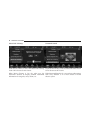
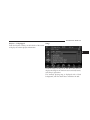
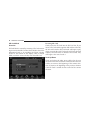
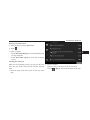
Navigating to a Saved Trip
87
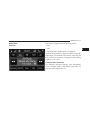
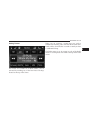
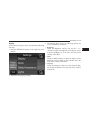
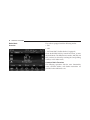
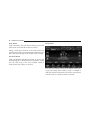
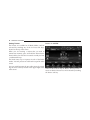
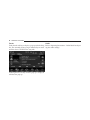
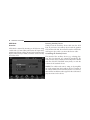
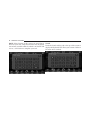
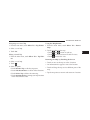
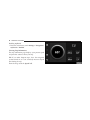
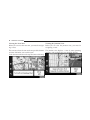
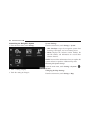
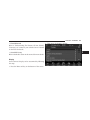
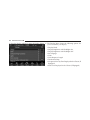
Using the Map Buttons
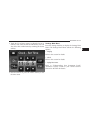
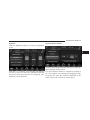
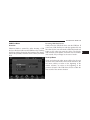
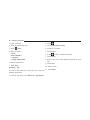
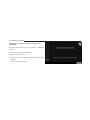
1. From the main menu, touch Where To? > Trip Planner. 1. From the main menu, touch Where To? > Browse
Map.
2. Select a saved trip.
2. Touch anywhere on the map.
3. Touch Go!.
and
to zoom in and out.
• Touch
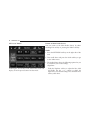
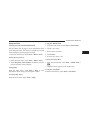
Editing a Saved Trip
to switch between 2D and 3D views.
• Touch
to rotate the view.
• Touch
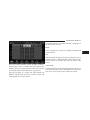
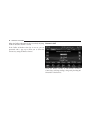
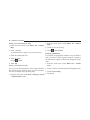
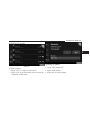
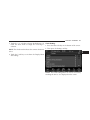
1. From the main menu, touch Where To? > Trip Planner.
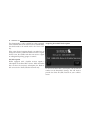
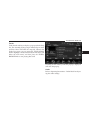
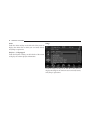
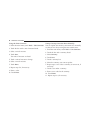
Browsing the Map by Touching the Screen
2. Select a saved trip.
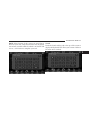
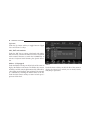
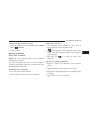
• Touch an area on the map to select a location.
.
3. Touch
• An information box appears next to the location.
4. Select an option:
• Touch and drag the map to view different parts of the
• Touch Rename Trip to edit the trip name.
map.
• Touch Edit Destinations to add or delete locations.
• Tap the map twice to zoom in and center on a location.
• Touch Delete Trip to delete the entire trip.
• Touch Optimize Order to arrange your trip locations
in the most efficient order.
3