1
User Manual
EzBee
Table of Contents
1.Packing List .............................................. 3
2.Symbols ..................................................... 3
3.Definitions ................................................. 5
4. EzBee Overview ....................................... 6
4.1 About EzBee........................................ 6
4.1.1 Functions of EzBee ...................... 8
4.1.2 Key Features............................... 10
4.2 EzBee operating parameter ............... 10
5.Instructions of EzBee ............................. 13
5.1 Connect EzBee to PC ........................ 14
1 / 32 5.2 Set up Inverters Network ID and
Channel ID for privacy............................ 16
5.3 Set up EzBee Network ID and Channel
ID for privacy .......................................... 20
5.4 Operate Inverters on EzExplorer
wirelessly ................................................ 23
5.5 FAQs ................................................. 25
6. Warranty ................................................ 28
6.1 Warranty Period ................................. 28
6.2 Warranty Card ................................... 29
6.3 Warranty Conditions.......................... 29
6.4 Warranty Declaration ........................ 30
7. Contact ................................................... 31
2 / 32 1.Packing List
EzBee device……………………………….1
USBExtended Cable……………….…….. ..1
User Manual ………………………….….....1
USB Flash Disc (EzExplorer Software)...….1
2.Symbols
Caution! - Failure to observe a warning
indicated in this manual may result in minor or
moderate injury.
Product should not be disposed as normal
3 / 32 household waste.
Components of the product can be
recycled.
Fragile-The package/product should be
handled carefully and never be tipped over or
slung.
Keep Dry – The package/product must be
protected from excessive humidity and must
accordingly be stored under cover.
CE Mark
4 / 32 3.Definitions
EzBee:It is a device used to receive wireless
signal from GoodWe inverters.
Wireless Module:It is the key components for
Inverter to send wireless signal, and EzBee to
receive wireless signal
EzExplorer: It is a monitoring software
designed by GoodWe for solar power systems
which could be obtain from the included U flash
Disc or download from: www.goodwe.com.cn.
5 / 32 4. EzBee Overview
4.1 About EzBee
EzBee,a PV monitoring-related device and a
key component used to realize the wireless
monitoring of the solar power system, was
independently developed by GoodWe Power
Supply Technology and is convenient to record
PV power station’s output electricity, running
condition and error message when it is
connected to GoodWe inverters. EzBee is
widely used to for the management of solar
power system including power plants, office
6 / 32 buildings, shopping malls, hotels, living district
and etc. EzBee is famous for high reliability,
powerful functions and convenient maintenance.
The wireless monitoring function is realized
simply by plugging the EzBee to PC, which
installed EzExplorer, directly or via USB
Extended Cable. One EzBee can monitor and
communicate with up to 50 inverters at the same
time, which is suitable for small-to-medium
solar power plants.
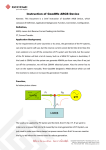
7 / 32 4.1.1 Functions of EzBee The Graph 1 below shows EzBee is the device
in a photovoltaic power station as a bridge for
the wireless connection between PC and
inverters. EzBee can acquire data from inverters
wirelessly, and then transfer the data to
EzExploer in the PC.
8 / 32 Graph 1
9 / 32 4.1.2 Key Features 1. Independently developed monitoring main
board;
2. Real-time data update;
3. Monitoring multiple inverters at the same
time with one EzBee in one PC;
4. High reliability, low power consumption;
5. USB Port, user friendly;
4.2 EzBee operating parameter
10 / 32 Operating Frequency
2.4GHz
Communication Protocol
Zigbee
Transmission Rate
250Kbps
Transmitting Power
63mW
(+18dBm)
Receiving Sensitivity
-100dBm
(1% PER)
Interface Mode with PC
USB 2.0
Max. Communication
Distance (Out door without
any obstacles)
1000m
Max. Inverter Support
50
Power Supply
USB
11 / 32 Working Condition
Instructions
LED
Working Humidity
5%~95%
Working Temperatur
-25°C~ +60°C
Size (W/H/D)mm
30.5*13.5*63
Weight(g)
26
Install Location
Indoor
Certificate
CE
Remarks:
The Maximum communication distance is
related to obstacles’ size and property!
12 / 32 5.Instructions of EzBee
Any operations via EzBee need to be realized
together with EzExplorer, such as to set up
Network ID and Channel ID of wireless
communication for the privacy purpose.
In the default setting, wireless function could be
realized with setting the Network ID and
Channel ID of wireless communication for
EzBee and Inverters in the EzExplorer. Network
ID and Channel ID can be modified to prevent
the conflict between other similar products to
realize the privacy purpose.
13 / 32 The parameters of Network ID and Channel ID
msut be the same for the EzBee and Inverters
connected!!!
5.1 Connect EzBee to PC
Insert EzBee to the USB port of PC, directly or
via the USB Extended Cable, which has
installed EzExplorer. EzBee is plug -and-play
functioned for a PC installed EzExplorer, and no
need to install extra driver for the EzBee
14 / 32 The icon of Wireless(refer to Graph 2) turns to
grey when EzExplorer started. When EzBee
plugged in to PC, the EzBee icon will turn to
yellow which means the connection between
EzBee and EzExplorer is normal.
Wait for a while if inverters turned off, or turn
on inverters if inverters are off, the icon of
Wireless turns green which means the
connection between Inverters, EzBee and PC
are completed.
15 / 32 Step 5.2 and 5.3 are only required for the
purpose of privacy setting.
5.2 Set up Inverters Network ID and
Channel ID for privacy
The parameters of Network ID and Channel
ID must be the same for both EzBee and
Inverters monitored!!!
16 / 32 Two choices will pop up when right click the
Wireless icon on the Configuration Management
area, shown as in Graph 2. To click on the
“Broadcast Set Wireless Param” to set wireless
modules parameters for inverters connected.
The icon of Wireless
Graph 2
17 / 32 A password dialog box will pop up, as in Graph
3, enter password: 123456 (default Password,
and it could be updated in the Menu Bar and
click the Pane Manger and select “ Update
Local Password”),
Graph 3
18 / 32 A wireless module parameters dialog box for
Inverters will pop up, and you need to set both
parameters: Network ID and Channel ID, shown
as is Graph 4:
Graph 4
19 / 32 5.3 Set up EzBee Network ID and
Channel ID for privacy
Two choices will pop up when right click the
Wireless icon, shown as in Graph 5. Click on
the “Set Wireless Param for EzBee” to select the
wireless parameter for EzBee.
20 / 32 Graph 5
A password dialog box will pop up shown as in
Graph 6, enter password: 123456(default
password),
Graph 6
21 / 32 A wireless module parameters dialog box will
pop up, and you need to set both parameters:
Network ID and Channel ID, shown as is Graph
7:
Graph 7
22 / 32 5.4 Operate Inverters on EzExplorer
wirelessly
Choose the target inverter; right click on the
icon for the inverter that you wish to set up for,
shown as in Graph 8:
23 / 32 Graph 8
24 / 32 Select the options to realize the preferred
functions. More details about operating inverters
via EzExplorer please refer to EzExplorer
Software Help.
5.5 FAQs
1. If the light of EzBee device does not turn on
after pluging the device to the USB port, please
check the connection between the device and
USB port.
2. If the icon of wireless is grey while EzBee
connected to PC, please plug out EzBee from
PC and plug in again;
25 / 32 3. If the data cannot be obtained, in condition of
the normal connection between EzExplorer and
EzBee, please check the availability of working
conditions of inverters. If the inverter does not
work in the normal condition, please contact
professional for detection.
4. If the above issues could not be solved, please
perform the Factory Default by the following
step:
Step1: go back to “5.3 Set up EzBee
Network ID and Channel ID for
privacy”.
26 / 32 Step2: refer to Graph 7, type in the
Network ID: 0x7FFF, type in the
Channel: 0x0C.
Step 3: click ok to perform the Factory
Default of EzBee monitoring.
Step 4: at the same time, perform the
Factory Default setting of inverter,
please refer to the user manual of
inverter.
5. When the portable/mobile office facilities are
used as the monitoring software for platform
operation, the power management should be set
as follows: enter 【Control Panel】->【Power
27 / 32 Selection】and then select the 【Advanced】
property. Select ‘Take no measures’ in the
【When Connecting the Computer】of power
button title block and then click ‘confirm’.
6. Warranty
6.1 Warranty Period
GoodWe provides standard warranty period of 5
years for EzBee (Warranty period begins from
the date on purchase invoice). Provision will be
subject to contract if there is a contact signed.
28 / 32 6.2 Warranty Card
Warranty card and purchase invoice should be
properly kept within product warranty period.
Meanwhile, the nameplate on products shall be
clear to read. Otherwise GoodWe may deny the
warranty service or only provide paid service.
6.3 Warranty Conditions
If a device becomes defective within warranty
period due to its own quality problem on the
condition that it has been operated correctly and
normally following GoodWe User Manual, the
EzBee device will be, as selected by GoodWe
29 / 32 according to circumstances:
1. Return to the factory for maintenance;
2. Products Replacement (if the original
model has stopped in production, GoodWe
will provide a replacement device of
equivalent value according to model.).
6.4 Warranty Declaration
Warranty declaration is excluded in the
following situations:
1. Products or accessories exceed warranty
period (exclude the warranty extension
agreement signed beforehand).
2. Fault or damage due to improper operation
30 / 32 without following user manual, product
instruction, and relevant safety regulations.
3. Fault or damage due to improper installation,
repair, change or removal by persons who are
not authorized by GoodWe.
4. Fault or damage due to unpredictable
accidental factors, human errors or force
majeure.
5. Fault or damage which is not caused due to
products quality problem.
7. Contact
If there are any enquiries or technical problems
31 / 32 concerning GoodWe EzBee, please contact our
customer services.
Add:No.189 Kunlunshan Road,Suzhou New
District, Jiangsu, China
Tel: + 86 512 6239 6771
Fax: + 86 512 6239 7972
E-mail: [email protected]
Website: www.goodwe.com.cn
32 / 32