1
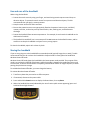
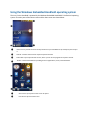
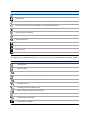
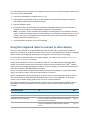
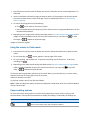
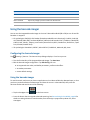
❶ Pull down list: tap anywhere on the title bar to open the title bar pull-down list, where you can access
connectivity controls (the Wireless Manager), battery information, time and date settings, and volume.
❷ Connectivity icons: tap either icon to access the Wireless Manager.
Status indicators
The battery status icon on the title bar of the Home screen or the Start screen shows the status of the
battery charge. To access the Power control dialog, tap the title bar and then on the pull-down list tap
the
icon. See Checking the level of battery power , page 18.
The speaker status icon on the title bar of the Home screen or the Start screen shows the status of the
speaker. Tap the title bar and then on the pull-down list tap the icon to adjust the volume and to turn
the speaker on or off.
Note – You can also adjust the volume using the Volume buttons on the left side of the handheld.
The network and modem status icons on the title bar of the Home screen or the Start screen show the
status of each radio. Tap the title bar and then on the pull-down list tap the
or
icon. In the
Connectivity or Phone dialog, select Wireless Manager and turn on or turn off the radio.
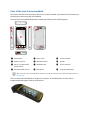
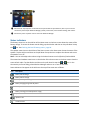
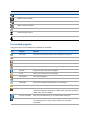
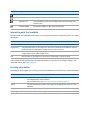
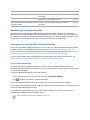
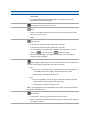
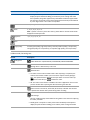
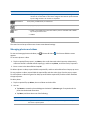
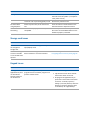
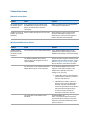
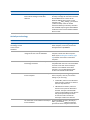
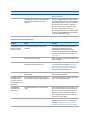
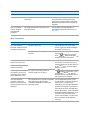
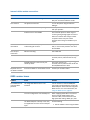
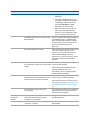
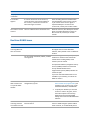
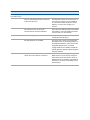
Status indicators that appear in the title bar at the top of the screen are as follows:
Icon
Description
Battery has full charge
Battery has low charge
Battery has very low charge
Battery charging/using external power
Battery communication error
Battery warning (out of temperature range)
Speaker is on
Speaker is off
Email received