1
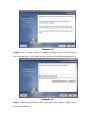
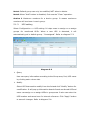
Shortcut icon ViewPower Pro icon 3.1.Start Monitor This software will be automatically activated when installing it as service application. At this time, users can remote monitor UPSs through web browser even though users do not login in operation system. If service application can not be registered successfully, when starting up tray service, it will automatically activate monitoring application. If it’s failed or stopped manually, simply click “Start Monitor” to activate it. “Start Monitor” will check if monitoring application is registered as service application. If it’s successfully, this software will be activated from service mode. If not, this software will be activated as monitoring mode. Users can identify the application mode from tray icon as below: l Monitoring application is not activated successfully: l Monitoring application is activated as service mode: l Monitoring application is activated as monitoring mode: 3.2.Stop Monitor Click “Stop Monitor” to stop monitoring application. 3.3.SNMP Manager Click the “SNMP Manager” to access the SNMP management tool. For details, please refer to “SNMP Manager User manual”. 3.4.Configuration