1
Chapter 3
Changing the Volume Lock
By default, the volume buttons control the volume for the device programmed on the selected
device mode. To configure your remote so that the volume buttons always control a specific
device (such as a TV), even if another device mode is selected, complete the following
instructions. This chapter also includes instructions for overriding this setting for one or more
devices, and for restoring the remote control to the default volume settings.
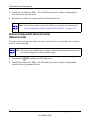
Note: The volume controls affect only programmed devices. See Chapter 2,
“Programming the NETGEAR Universal Remote” for more information.
Locking Volume Control to a Specific Device
(Global Volume Lock)
To configure your remote so that the volume buttons always control a specific device (such as a
TV), even if another device mode is selected:
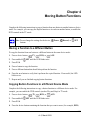
1. Press and hold
SET until the red LED blinks twice.
2. Enter 9 9 3, and then press the mode button for the device you want to control volume (for
example, TV). The LED blinks twice.
Once set, volume is controlled for the configured device (for example, TV) even if another
device mode is selected.
Unlocking Volume Control for a Single Device
If the volume is locked to a specific device (as described in the previous instructions), you can
unlock the volume controls for the device. This allows you to control the volume for that device
when the device mode is selected.
For example, you can set the remote to always control the TV, and then unlock the AUX device
button so that you can control your stereo’s volume when the AUX mode is selected.
1. Press a device button, for eample, TV.
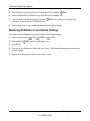
2. Press
SET until the red LED blinks twice.
3-9
v1.0, March 2009