1
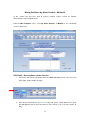
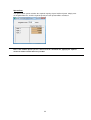
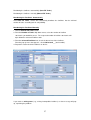
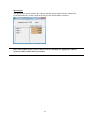
Note: Smart! uses a unique optimization algorithm that takes into consideration both your
target values and fertilizer prices, so that you always reach the highest accuracy at the lowest
cost.
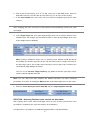
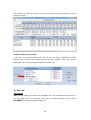
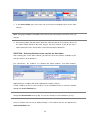
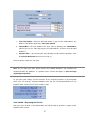
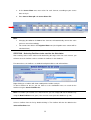
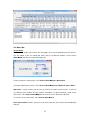
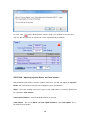
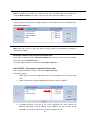
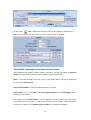
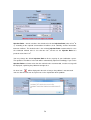
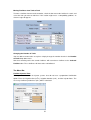
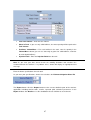
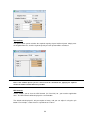
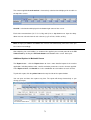
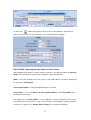
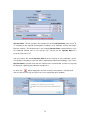
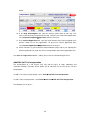
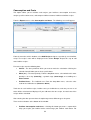
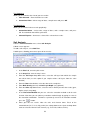
After clicking the Calculate button, you can still manually adjust the Concentration in
Irrigation Water for each fertilizer, as well as remove fertilizers from the Selected Fertilizers
box or add fertilizers to the list. The displayed results will change accordingly.
Congratulations!
You've successfully completed the first step of preparing your fertilizer recipe.
You now know which fertilizers you have to use and how to meet your crop’s requirements at
the lowest cost.
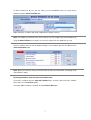
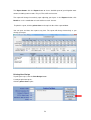
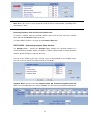
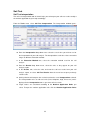
You can proceed to the Fill Tanks Screen by clicking the Fill Tanks button at the bottom of
the screen. Go to p.14.
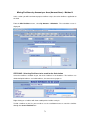
Additional Options on the Method 1 Screen
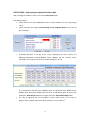
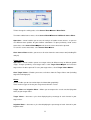
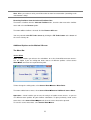
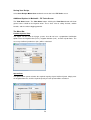
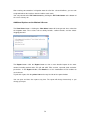
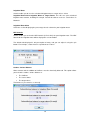
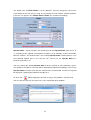
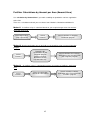
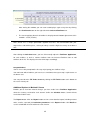
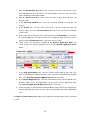
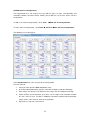
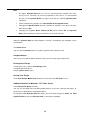
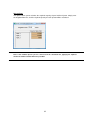
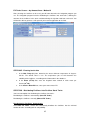
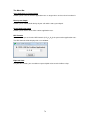
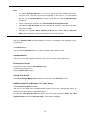
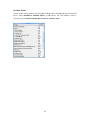
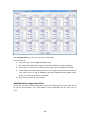
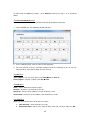
The View Alerts button: Clicking the View Alerts button will show general alerts related to
the irrigation water. These alerts refer to salinity hazards, sodium hazards, and the emitter
clogging potential.
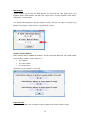
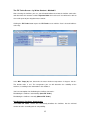
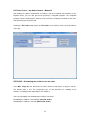
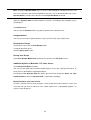
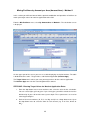
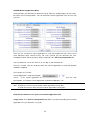
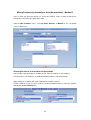
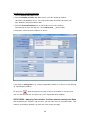
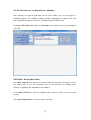
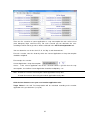
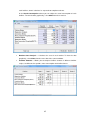
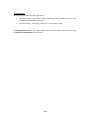
The View Results button: Enables you to view how manual changes you have made in
fertilizers' Concentration in Irrigation Water affect the accuracy reached for each element.
Unlike the Calculate button, Smart! will not recalculate fertilizer rates.
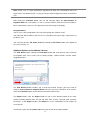
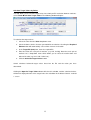
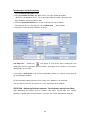
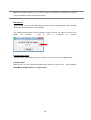
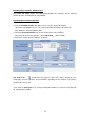
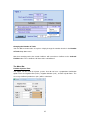
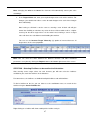
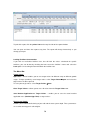
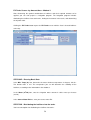
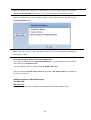
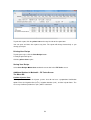
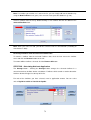
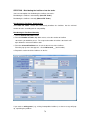
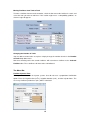
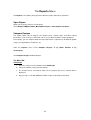
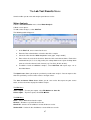
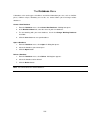
The Report button: Click the Report button to view a more detailed report of the water
content, including nutrient ratios, EC, pH and SAR, TDS, cost/m3, expected yield, and other
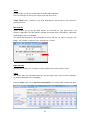
parameters. In the Report window, click Details to see the contribution of each fertilizer to
each element.
To print this report, click the printer icon on the top left side of the report window.
9