1
7TMOD
IGSS Modicon Modbus serial driver
2 INSTALLATION
2.1 AUTOMATIC INSTALLATION
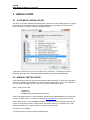
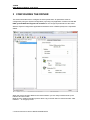
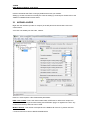
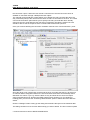
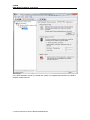
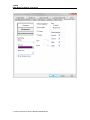
The driver is normally installed automatically along with the rest of the IGSS system. To verify if
the driver has been installed open the System Configuration (sysconfig.exe) and check if a
driver with ID:81 is present in the list of available drivers:
If the driver is present then you can proceed to the next section: “Configuring the Driver”,
otherwise install the driver using the manual installation procedure described below.
2.2 MANUAL INSTALLATION
Using the following step-by-step guide will install the driver manually on a PC where the IGSS
system has already been installed. You need to stop the IGSS system prior to the installation
and you need to be logged in with a user account with “Administrator” rights.
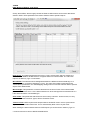
Step 1: Verify that the files:
7TMOD.DLL
7TMODc.DLL
COMMDRV.REG (latest updated version)
exists in the GSS\ directory. If the files doesn’t exists run the IGSSUpdateClient to get the files
from the 7T WEB server – or contact 7T Support ([email protected]) to get the files via e-mail.
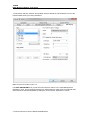
Step 2: Double-click on the COMMDRV.REG file to import the registry settings needed for the
system to recognize the driver. (please notice that double-clicking on a .REG file in a 64 Bit
Windows will NOT work, please contact 7T Support for instructions)
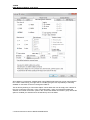
The driver is now installed.
C:\USERS\CMA\DESKTOP\DRIVER
DOCS\7TMOD.DOCX