1
IP Link® Device Interface
Ethernet Communication Sheet
extr_15_3618_1.pkn
Revision: 7/22/2009
This document provides additional assistance with wiring your Extron IP Link enabled product to your device.
Different components may require a different wiring scheme than those listed below.
For complete operating instructions, refer to the user’s manual for the specific Extron IP Link enabled product or
the controlled device manufacturer supplied documentation.
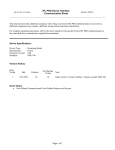
Device Specifications:
Device Type:
Manufacturer:
Firmware Version:
Model(s):
Matrix Switcher
Extron
1.08
SMX 500, SMX 300, SMX 400
Minimum Software and Firmware Requirements:
IP Link
Compiler
IP Link
Firmware
1.4
1.15
GC Version
3.0
Version History:
Driver
Version
Date
1
7/14/2009
Notes
Initial Extron Certified version. Tested on SMX400, firmware
v 1.08.
Driver Notes:
Page 1 of 4
IP Link® Device Interface
Ethernet Communication Sheet
extr_15_3618_1.pkn
Revision: 7/22/2009
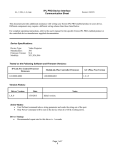
Control Commands & States:
Audio Mute 1-16
On
Off
Global Audio Mute
On
Off
Global Preset Recall
1-32
Global Video Mute
On
Off
Input
1-16
Break
Output
1-16
All
Output Control
1-16
Plane Number
0-15
Plane Preset Recall
1-10
Take
Audio-Video
Audio
Video Mute
On
Off
Volume Output 1-16
(Discrete)
0 to 64 in steps of 1
Volume Output 1-16 (Step)
Up
Down
Audio Mute 1-16
On
Off
Connection Status
Connected
Disconnected
Fan Status
Normal
Fan Problem
Status Unavailable
Status
Displays Matrix Ties
Temperature Status
Normal
Temp Abnormally High
Status Unavailable
Video Mute
On
Off
Voltage Level
Normal
Error
Volume Output 1-16
(Discrete)
0 to 64 in steps of 1
Video
Status Available:
Page 2 of 4
Status Unavailable
extr_15_3618_1.pkn
IP Link® Device Interface
Ethernet Communication Sheet
Revision: 7/22/2009
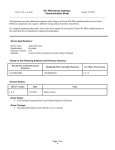
Configuring input output(s) ties on a single button:
This section will describe how to configure a button with either a single input and output tie or single input to
multiple output ties. Please note that there are a minimum of four selections required when configuring a tie in this
method.
To configure a button with a single input and a single output tie follow the steps below.
1. Select the plane you want to use.
2. Select the desired input from the “input” command.
3. Select the desired output from the “output” command.
4. Select the type of desired take from the “take” command.
To configure a button with multiple inputs and outputs repeat the steps above then follow the steps below.
1. Insert a one second delay.
2. Select the next desired output from the “output” command.
3. Select the next desired take from the “take” command.
4. Repeat as many times as desired.
Configuring for direct matrix front panel emulation:
This section will describe how to configure a panel to produce an input output selection capability.
To configure a panel button input, create the following button operation.
1. Select the desired plane you wish to use.
2. Select the desired input from the “input” command.
To configure a panel button output, create the following button operations.
1. Select the desired output from the “output” command.
2. Select the desired take from the “take” command.
Configuring for audio control:
This section will describe how to configure the panel to control audio using the encoder knob. Please note that
there are a minimum of two selections required when configuring audio control.
To configure the panel encoder knob, create the following button operations.
1. Select the desired plane you wish to use.
2. Select the desired audio control from either the “Volume (step) or Volume (discrete)” command.
Note: Plane selected must support Audio. Audio Mute, Audio Gain/Attenuation (step) and Audio
Gain/Attenuation (discrete) commands are dependent on the Output Control command, which sets the audio
output to be controlled and polled for status. Thus only one audio output can be controlled and polled at a time.
Global Audio Mute is the only control that affects all audio outputs and is not dependent on the Output Control
command.
Page 3 of 4
IP Link® Device Interface
Ethernet Communication Sheet
extr_15_3618_1.pkn
Revision: 7/22/2009
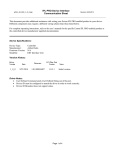
Network communication:
When configuring the Ethernet driver, be sure device settings match that of the GC configuration.
When configuring for a password, Administrator login is required and the password must have a minimum of 4 or
maximum of 12 characters.
Port Type:
Ethernet
Default User Name:
Default Password:
Default Port:
23
Multi-Connection
Capabilities:
Port Changeability:
Yes
Logon Credentials
Supported:
Yes
Yes
Ethernet Driver Configuration Description:
Please refer to manual for setting and changes to Network Communication parameters such as: User Name,
Password, and Port Number. Please look to Chapter 4: Software Configuration and Control for modification.
Changes to parameters can also be made through device default web pages in the Configuration Tab under System
Settings.
Notes for the Device:
Page 4 of 4