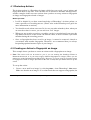
Download SureSign User Manual - Signum Technologies

Transcript
SureSign Photoshop Plug-ins
UserÕs Guide
Preface
Signum Technologies Limited reserves the right to change information within this
manual without notice, to reflect changes in the systemÕs design and specification.
All rights reserved.
First edition
Second edition
Third edition
Fourth edition
Fifth edition
September 1995
February 1996
September 1996
August 1997
April 1998
v1.0b.
v1.0.
v1.0.x for Macintosh and PC.
v2.0. for Macintosh and PC.
v3.0.x for Macintosh.
Distributing the Detector
The SureSign Detector Software Licence gives you permission to make an unlimited
number of copies of the SureSign Detector Plug-in and to distribute them freely.
Copyright Notice
SureSign, the SureSign Writer and SureSign Detector are all registered trademarks of
Signum Technologies Limited. Signum Technologies Limited owns the intellectual
property, the patents (three patent applications have been filed), trademarks, registered
names, and the SureSign product.
Macintosh and Power Macintosh are registered trademarks of Apple Computer, Inc.
Adobe Photoshop is a trademark of Adobe Systems, Inc.
Stuffit is a trademark of Aladdin Systems, Inc.
All other product names are trademarks or registered trademarks of their respective
holders.
Preface
http://www.signumtech.com
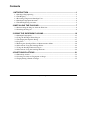
Contents
1 INTRODUCTION ..............................................................................................1
1.1 SureSign Fingerprinting ......................................................................................................2
1.2 The Registry......................................................................................................................... 3
1.3 Becoming a Registered SureSign User ................................................................................4
1.4 SureSign Fingerprint Structure ............................................................................................4
1.5 The SureSign Plug-ins Suite................................................................................................. 5
2 INSTALLING THE PLUG-INS.......................................................................... 7
2.1 Downloading the Plug-ins from the Web Site ..................................................................... 8
2.2 Installing the Plug-ins ..........................................................................................................8
3 USING THE SURESIGN PLUG-INS .............................................................. 12
3.1 SureSign Fingerprints ........................................................................................................13
3.2 Using the SureSign Writer Plug-in ....................................................................................13
3.3 The Fingerprint Options Dialog......................................................................................... 17
3.4 Log Files ............................................................................................................................18
3.5 Running the SureSign Writer in Demonstration Mode......................................................20
3.6 More About Using the SureSign Writer ............................................................................22
3.7 Using the SureSign Detector Plug-in ................................................................................. 24
3.8 More About Using the SureSign Detector ......................................................................... 29
4 PHOTOSHOP ACTIONS ............................................................................... 31
4.1 Photoshop Actions ............................................................................................................. 32
4.2 Creating an Action to Fingerprint an Image ......................................................................32
4.3 Fingerprinting a Batch of Images ......................................................................................35
Contents
http://www.signumtech.com
1 INTRODUCTION
This chapter describes:
1.1
1.2
1.3
1.4
1.5
SureSign fingerprinting.
The Registry.
Becoming a registered SureSign user.
SureSign fingerprint structure.
The SureSign Plug-ins suite.
Signum TechnologiesÕ Web site address can be found at the bottom of every page of
this manual.
1. Introduction
http://www.signumtech.com
Page 1
1.1 SureSign Fingerprinting
SureSign is a powerful new technology which helps protect your work by embedding an
invisible and secure identifier or ÔfingerprintÕ within a digital image. SureSign provides
a simple but highly effective method for communicating copyright information which
helps image users quickly identify and contact the copyright owner.
SureSign reduces the unauthorised use of valuable work, increases copyright awareness
amongst image users, and deters piracy because it furnishes useful evidence of
copyright or ownership in the event of a dispute. A fingerprinted image can be
identified in both printed and digital form, and this allows an audit trail so that image
providers can monitor and track the use of their material.
The highly robust SureSign fingerprint is part of the image file data itself (but does not
increase the amount of raw image data) and it is impractical to remove the fingerprint as
this renders the image unusable.
SureSign fingerprints are designed to be detectable even after the file has been cropped,
re-sized, compressed or copied, and even when the image is re-used as part of a
composite picture. Furthermore, the fingerprints are visually imperceptible and will not
degrade high-quality images, including those intended for pre-press use.
SureSign fingerprint detectors are widely distributed and available free from the Signum
Web site and also via third parties. This means that everybody can easily identify
fingerprinted images held or used by them.
SureSign fingerprinting tools are very affordable with solutions designed to match the
cost and productivity needs of both individual and corporate image providers. The
technology can be used on its own or in combination with other protective devices such
as encryption or visible watermarking.
Signum Technologies is committed to providing new and innovative copyright
protection and communication solutions for creators, providers and consumers of digital
content.
1. Introduction
http://www.signumtech.com
Page 2
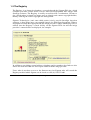
1.2 The Registry
The Registry is an interactive database, accessed through the Signum Web site, which
contains up-to-date contact details of users who have fingerprinted their images with
SureSign software. The Registry is readily accessible from a workstation, 24 hours a
day, which makes it simple for image users to identify and contact copyright holders,
thereby reducing the risk of copyright law infringement.
Signum Technologies (and some third parties) freely provide SureSign detection
software so that image users can examine images for SureSign fingerprints. When a
fingerprint is found, the Fingerprint ID (the image providerÕs unique identifying code) is
entered into the RegistryÕs search facility on the Signum Web site and the image
providerÕs contact details are displayed, for example:
In addition to providing a postal address, telephone and fax numbers, hot links are also
shown for email and URLs to allow rapid contact with the image provider.
Users who do not have access to the Internet may fax Signum who will search the
Registry on their behalf. Signum can be faxed on: +44 (0) 1242 251600.
1. Introduction
http://www.signumtech.com
Page 3
1.3 Becoming a Registered SureSign User
Until you register, the SureSign Writer runs in Demonstration Mode and will apply a
non-unique Fingerprint ID to your images. This is useful if you wish to evaluate the
software, but it does not provide you with any protection because the fingerprint applied
to your images does not identify you as the provider of the image. (Please refer to
section 3.5, Running the SureSign Writer in Demonstration Mode, for more
information.)
To take full advantage of the benefits of the SureSign fingerprinting system, you need to
become a registered SureSign user. To do this, you pay an annual fee which gives you:
· A unique Fingerprint ID which identifies your images as exclusively belonging to
you.
· An Access Code which unlocks your copy of the SureSign Writer so that you may
fingerprint images with your unique Fingerprint ID.
· An entry in the Registry database, for one year, so that you can be identified as
the provider of an image.
To register as a SureSign user, complete the order form for an Access Code to unlock
the SureSign Writer (you can find a link to this form on the How to License page of the
Signum Web site Ð prices and methods of payment are shown on the order form). When
we have processed your order, we will issue you with an Access Code, which allows
you to embed your unique Fingerprint ID into your images.
As a registered user, if your contact details change, you should advise Signum as soon
as possible so that your contact information on the Registry can be updated.
1.4 SureSign Fingerprint Structure
The SureSign fingerprint consists of two distinct elements which are embedded into the
image data:
1. The Fingerprint ID which identifies the originator of the image. All registered
SureSign users have a unique Fingerprint ID which is applied to every image that
they fingerprint.
1. Introduction
http://www.signumtech.com
Page 4
2. The Image ID which is used to identify images. The flexibility of the Image ID
means that you can use it to identify your images in a number of ways, for example:
· You can give each image a unique ID.
· You can use one ID for all images in a batch.
· If you are sending the same image to different clients, you can give each image
copy a different ID so that you may track its subsequent movement.
1.5 The SureSign Plug-ins Suite
The SureSign Plug-ins suite, which can be downloaded for free from the Signum Web
site, contains two easy-to-use SureSign Plug-ins for Photoshop:
1. The SureSign Writer which embeds a fingerprint in an image.
2. The SureSign Detector which searches for a fingerprint in an image.
u
Notes: The SureSign Writer runs in Demonstration Mode until you become a registered user
(see sections 1.3 and 3.5).
Installation of the Plug-ins is covered in Chapter 2, and use of the Plug-ins is covered in Chapter
3 of this manual.
1.5.1 System Requirements
We recommend the following minimum system specification:
· Apple Power Macintosh or 68040-based Apple Macintosh running System 7.0 or
later.
· Enough RAM to run Photoshop with your images.
· Photoshop v2.5.1, or later.
· The two SureSign Plug-ins together require 1MB of disk space.
For optimum performance we recommend the Apple Power Macintosh with a minimum
of 32MB of RAM.
1. Introduction
http://www.signumtech.com
Page 5
1.5.2 Distributing The Detector
To provide open access to fingerprint detection, the SureSign Software Licence allows
you to make an unlimited number of unaltered copies of the SureSign Detector Plug-in
and to distribute them freely. The SureSign Detector is available free from the Signum
Web site (follow the link from the Our Products page).
1.5.3 Range of Operation
SureSign Writer
Our tests have shown that the smallest image a SureSign fingerprint can be embedded
into and recovered from is 100 x 100 pixels (30KB uncompressed RGB) when no
editing or manipulation of the image has taken place after the fingerprint has been
applied. Tests have also shown that SureSign fingerprints can be read from as little as
80 x 80 pixels of uncompressed RGB image data taken from a larger sample but, as
with compression schemes, the results will vary according to the image content.
We recommend that the images you fingerprint are at least 150 x 150 pixels in size
(66KB uncompressed RGB) although, when fingerprinting very small images, you
should run your own tests to determine whether the fingerprints can be detected on
them.
SureSign Detector
As a guide, SureSign fingerprints can be detected on the following images:
· A fingerprint on a typical 20MB image should survive JPEG compression up to
10:1. Higher compression levels may also be possible.
· Fingerprints can be detected on images that have been rotated in 90 degree
increments ±1 degree (i.e. 0, 90, 180 and 270 degrees).
· If possible, the fingerprinted image should be returned close to its original size
(between 50% and 200% of the original size) before running the SureSign Detector
on it.
1. Introduction
http://www.signumtech.com
Page 6
2 INSTALLING THE PLUG-INS
This chapter covers:
2.1 Downloading the Plug-ins from the Web site.
2.2 Installing the Plug-ins.
2. Installing the Plug-ins on an Apple Macintosh
http://www.signumtech.com
Page 7
2.1 Downloading the Plug-ins from the Web Site
u
Note: You will need a copy of Stuffit Expander to decompress the SureSign Plug-ins. You can
download a free copy of Stuffit Expander from: http://www.aladdinsys.com.
If you have not already done so, locate the SureSign Plug-ins from the Signum
Technologies Web site by following the Our Products link on the home page.
Click on the Download Mac version icon. The Plug-ins Installer (called ÔSureSign 3
InstallerÕ) will be decompressed with Stuffit Expander and copied onto your machine.
2.2 Installing the Plug-ins
Before you install the new software, make sure your hard disk is backed up. Then
disable system extensions by restarting your machine while holding down the Shift key.
To install the SureSign Plug-ins:
1. Locate the SureSign Plug-ins Installer, called SureSign 3 Installer, which you
downloaded from the Signum Web site. Double click the icon to run the Installer.
When the splash screen is displayed, click on it to continue:
2. Installing the Plug-ins on an Apple Macintosh
http://www.signumtech.com
Page 8
2.
The main Installer window is now displayed:
Click on the Read Me button to display the Software Licence, then click on OK
when you have finished. If you do not accept the terms and conditions of the
Software Licence, click on Quit to exit the Installer and do not continue with the
rest of this installation.
3.
Drag the SureSign Photoshop Plug-ins icon across to the InstallerÕs right-hand
window and drop it onto the disk where the software is to be installed.
u
Note: You must choose a disk on which Photoshop is present so that the Installer can locate
the Plug-ins folder.
4.
The Installer will locate the Plug-ins folder for the current version of Photoshop.
Either click the Use ÒPlug-insÓ button to accept the selection, or locate the folder
where your Photoshop Plug-ins are usually found and click the Use Ò<folder
name>Ó button.
If the disk you have chosen for the installation does not have a copy of Photoshop,
the Installer generates a ÔPhotoshop not foundÕ error. If this happens, use the file
dialog (shown overleaf) to switch disks, and then click the Find Next Photoshop
button. Then, either click the Use ÒPlug-insÓ button to accept the selection, or locate
2. Installing the Plug-ins on an Apple Macintosh
http://www.signumtech.com
Page 9
the folder where your Photoshop Plug-ins are usually found and click the Use
button.
Ò<folder name>Ó
If you have more than one version of Photoshop, you may want to install for a
different version than the one found by the Installer. If you need to change drives,
use the dialog to do so, and then press the Find Next Photoshop button under the
file window. Then, either click the Use ÒPlug-insÓ button to accept the selection, or
locate the folder where your Photoshop Plug-ins are usually found and click the Use
Ò<folder name>Ó button.
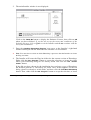
5. The Installer displays progress messages as it installs the Plug-ins. When the
installation is complete a dialog box appears:
Click on Quit to exit the installer or, if you wish to carry out another installation
(for another version of Photoshop, for example), click on Continue.
2. Installing the Plug-ins on an Apple Macintosh
http://www.signumtech.com
Page 10
6.
Now that installation is complete, go to Chapter 3, Using the SureSign Plug-ins.
2. Installing the Plug-ins on an Apple Macintosh
http://www.signumtech.com
Page 11
3 USING THE SURESIGN PLUG-INS
This chapter describes:
3.1
3.2
3.3
3.4
3.5
3.6
3.7
3.8
SureSign fingerprints.
Using the SureSign Writer Plug-in.
The Fingerprint Options dialog.
Log files.
Running the SureSign Writer in Demonstration Mode.
More about using the SureSign Writer.
Using the SureSign Detector Plug-in.
More about using the SureSign Detector.
3. Using the SureSign Plug-ins
http://www.signumtech.com
Page 12
3.1 SureSign Fingerprints
A SureSign fingerprint consists of a Fingerprint ID and an Image ID:
Fingerprint ID Ð The Fingerprint ID is unique and identifies you as the provider of an
image. It remains the same for every image that you fingerprint and it cannot be edited.
The Fingerprint ID is a six digit code of the form nn-XX-nn, where n represents a
number between 0 and 9, and X represents a capital letter of the alphabet between A and
Z.
u
Note: If you have not registered as a SureSign user, the SureSign Writer will run in
Demonstration Mode Ð the Fingerprint ID will be fixed at 00-AA-00 and it will not identify
you as the image provider. Refer to section 1.3, Becoming a Registered SureSign User, for
more information.
Image ID Ð The Image ID is a non-unique, user-definable seven digit code which
identifies an image. It is of the form XXnnnnn, where n represents a number between 0
and 9, and X represents a capital letter of the alphabet between A and Z.
3.2 Using the SureSign Writer Plug-in
u
Notes: If you do not have an Access Code, go straight to section 3.5, Running the SureSign
Writer in Demonstration Mode.
We suggest that you always keep a master copy of your original unfingerprinted images for
your archive because, once an image has been fingerprinted and saved, the fingerprint cannot be
removed, altered or overwritten with another fingerprint.
1.
Open the image you want to fingerprint in Photoshop.
2.
Select Signum from the Filter menu, and then select SureSign Writer from the submenu (shown overleaf):
3. Using the SureSign Plug-ins
http://www.signumtech.com
Page 13
3.
If this is the first time you are running the SureSign Writer Plug-in, the
Demonstration Mode dialog is displayed:
4.
To unlock your copy of the software, click on Enter Access Code... to display the
following dialog:
3. Using the SureSign Plug-ins
http://www.signumtech.com
Page 14
Type your Access Code into the box, then click on OK.
5.
Next, the Fingerprint Writer dialog is displayed:
6.
If required, edit the Image ID Ð remember that the first two characters must be
capital letters (A-Z) and the last five characters must be numbers (0-9), for
example, CA94965.
7.
If you want SureSign to increment the Image ID automatically for all subsequent
images that you fingerprint make sure the Increment Image ID box is checked.
u
Notes: If you select this option, the Image ID is automatically incremented by 1 each time
you fingerprint an image. A typical Image ID sequence, therefore, would be AA99998,
AA99999, AB00000, AB00001, etc.
You do not need to check the Increment Image ID box each time you run Photoshop.
8.
Clicking the Options... button displays the Fingerprint Options dialog which has
other features that you may find useful. For further details about these options refer
to section, 3.3, The Fingerprint Options Dialog.
When you have finished with the Fingerprint Options dialog, click its OK button.
3. Using the SureSign Plug-ins
http://www.signumtech.com
Page 15
9.
You have now finished setting up the fingerprint. Click OK on the Fingerprint
Writer dialog to apply the fingerprint to the image.
u
Note: If you have entered an invalid Image ID, SureSign will beep and will mark the
incorrect characters: an asterisk (*) signifies an incorrect letter, and a dash (Ð) signifies an
incorrect number. Enter a valid code and then click on OK.
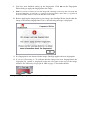
10. Before applying the fingerprint to your image, the SureSign Writer checks that the
image is not already fingerprinted. If it is, the following message is displayed:
11. If a fingerprint is not detected in the image, SureSign applies the new fingerprint.
12. If you use Photoshop 4: To indicate that the image has been fingerprinted, the
copyright (©) symbol is displayed before the file name at the top of the image
window: See Photoshop Copyright & URL on page 27 for further details.
3. Using the SureSign Plug-ins
http://www.signumtech.com
Page 16
13. Now that the fingerprint has been applied, save the image.
3.3 The Fingerprint Options Dialog
Click on the Options... button on the Fingerprint Writer dialog to display the Fingerprint
Options dialog:
Select Web Fingerprint
This option allows you to apply a heavier fingerprint to images. Only use this option
with images that are intended for use on a Web site - these are typically smaller RGB
images under 100KB in size. The heavy fingerprint will enable better detection on these
types of images but is not appropriate, or necessary, with other types of images.
3. Using the SureSign Plug-ins
http://www.signumtech.com
Page 17
Add logo
You can add the SureSign logo or a logo of your choice to your fingerprinted image. If
you create your own logos, you must store them in a special folder which is found in the
System Folder, as follows:
System Folder: Preferences: SureSign: Logos
We recommend that you save logos as PICT Resource files.
To add a logo:
1.
Check the Add logo box.
2.
The default logo is the SureSign logo. If you want to change this, select a different
logo from the pull-down list. A preview of the selected logo will be displayed.
3.
Select a position for the logo by clicking on one of the nine sectors in the sample
image under the Select logo position heading. The logo will be added to your image
when the fingerprint is applied.
4.
Adjust the Logo Opacity (from transparent to opaque), depending upon how
visible you want the logo to be on the fingerprinted image.
5.
When you have finished with the Fingerprint Options dialog, click OK to save any
changes you have made.
3.4 Log Files
SureSign automatically logs information about the images that have been fingerprinted,
and about the fingerprints that have been detected on images. It creates daily log files in
a special folder which is found in the System Folder, as follows:
System Folder: Preferences: SureSign: Logs
The log files are simple text files and there is a separate log file for each day that you
use the SureSign Writer or Detector. The following information will be added to the
dayÕs log file each time you run the SureSign Writer or Detector on an image during
that day:
3. Using the SureSign Plug-ins
http://www.signumtech.com
Page 18
·
·
·
·
·
·
The image file name.
Whether a fingerprint was added or detected.
The Fingerprint ID and Image ID that was added or detected.
The time and date that the fingerprint was added or detected.
The Photoshop Plug-in used (either SureSign Writer or SureSign Detector).
The machine ownerÕs name and the machineÕs name.
An example of log file entries is shown below:
Owl Fingerprinted
17-HW-95 AA00003
10:31 26 02 1996 SureSign Writer
Anita MacHD
Owl Detected
17-HW-95 AA00003
10:31 26 02 1996 SureSign Detector
Anita MacHD
Cat Fingerprinted
17-HW-95 AA00004
10:32 26 02 1996 SureSign Writer
Anita MacHD
Cat Detected
17-HW-95 AA00004
10:33 26 02 1996 SureSign Detector
Anita MacHD
To view the log file:
1. Open the Logs folder: System Folder: Preferences: SureSign: Logs.
2.
Locate the log file and double click on the file name to open it.
u
Note: The log files only contain text entries, and do not require a lot of disk space.
However, we recommend that you archive old log files on a regular basis.
3. Using the SureSign Plug-ins
http://www.signumtech.com
Page 19
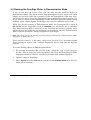
3.5 Running the SureSign Writer in Demonstration Mode
If you do not have an Access Code you can only run the SureSign Writer in
Demonstration Mode. This means that the fingerprint applied to your images will not be
unique, and you will not be able to remove or alter the fingerprint at a later date. Also,
you will not be able to access the Fingerprint Options dialog (described in section 3.3).
If you wish to evaluate a fully functioning version (with the Fingerprint Options dialog
enabled), please contact Signum Technologies for a special evaluation Access Code.
When you use the software in Demonstration Mode, the Fingerprint ID is fixed at
00ÐAAÐ00 and the Image ID is fixed at AA00000 (you will not be able to edit these
IDs). Demonstration Mode is useful if you are evaluating the SureSign software, but it
will not provide any protection for the images you fingerprint. Only use Demonstration
Mode if you do not require a unique fingerprint on your images.
u
Note: We advise you not to publish or provide images marked with a Demonstration Mode
fingerprint, for third party use.
Please refer to section 1.3, Becoming a Registered SureSign User, for further details
about ordering an Access Code, a unique fingerprint, and an entry into the Registry
database.
To run the SureSign Writer in Demonstration Mode:
1.
We strongly recommend that you first make a duplicate copy of your image(s)
because, once an image has been fingerprinted and saved, the Demonstration Mode
fingerprint cannot be removed, altered or overwritten with another fingerprint.
2.
Open the image in Photoshop.
3.
Select Signum from the Filter menu, and then select SureSign Writer from the submenu (shown overleaf):
3. Using the SureSign Plug-ins
http://www.signumtech.com
Page 20
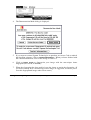
4.
The Demonstration Mode dialog is displayed:
5.
If you want to contact Signum Technologies to purchase an Access Code to unlock
the SureSign software, click on Contact Information.... When you have finished with
the contact information, click on the dialog to remove it.
6.
Click on Demo mode to fingerprint your image with the non-unique demo
fingerprint (00-AA-00, AA00000).
7.
When the fingerprint has been applied, save the image to retain the fingerprint. (If
you do not already have a master copy of this image, as suggested, we advise you to
save this fingerprinted image under a new name.)
3. Using the SureSign Plug-ins
http://www.signumtech.com
Page 21
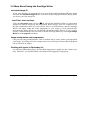
3.6 More About Using the SureSign Writer
Increment Image ID
If you want SureSign to automatically give your images different Image IDs then make
sure that the Increment Image ID box is checked in the Fingerprint Writer dialog when
you select your first image ID.
ÔLast FilterÕ short-cut keys
Using the Last Filter short-cut keys ( 1 ÐF) will run the SureSign Writer on subsequent
images but without displaying the Fingerprint Writer dialog. You can continue to use
this key combination until you select a new filter or exit Photoshop, and the SureSign
Writer will apply either the same fingerprint to your image, or will automatically
increment the Image ID if you checked the Increment Image ID box. If you wish to
specify a different Image ID, you need to run the SureSign Writer by selecting SureSign
Writer from the Signum sub-menu.
Image manipulation and compression
Carry out any image manipulation, such as rotation and re-sizing, before you fingerprint
your image. Avoiding excessive compression levels will help to ensure that fingerprints
can be detected on images.
Working with layers in Photoshop 4.0
As with most Photoshop filters, the SureSign fingerprint is applied to the current layer
only. Therefore, you should flatten your image before applying a fingerprint.
3. Using the SureSign Plug-ins
http://www.signumtech.com
Page 22
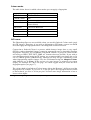
Colour modes
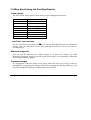
The table below shows in which colour modes you can apply a fingerprint:
Colour Mode
Apply Fingerprint?
RGB Colour
CMYK Colour
Grayscale
Indexed Colour
Yes
Yes
Yes
Convert to RGB first (also see GIF
format below)
Convert to RGB first
Yes
Yes
No
Lab colour
Multichannel
Duotone
Bitmap
GIF format
The Photoshop filters are not available when you work in Indexed Colour mode (used
for GIF images). Therefore, if you wish to fingerprint a GIF image, convert it to RGB
first, then apply the fingerprint before converting back to Indexed Colour.
Conversion to Indexed Colour is a process which destroys image data, so very small
GIF files, such as thumbnail images, cannot be expected to carry a detectable SureSign
fingerprint. Therefore, we recommend using RGB, CMYK, or grayscale colour modes
and saving as JPEG, TIFF, PICT, BMP, etc. formats wherever possible. If you wish to
save the fingerprinted image in GIF format, we recommend that your image has a file
size of 75KB or greater (in RGB mode), although you may still get a satisfactory result
when fingerprinting smaller images. We also recommend using the Adaptive Palette
with dithering set to None. If the end use for your images is primarily for screen
display, for example on a Web site page, we would suggest that you select the Web
fingerprint option (see page 17).
The colour depth of an Indexed Colour image affects the DetectorÕs ability to read the
fingerprint. For example, if you save as Ô3 bits per pixelÕ the fingerprint will be harder
to detect than if you save as Ô8 bits per pixelÕ because more image information is lost at
lower colour depths.
3. Using the SureSign Plug-ins
http://www.signumtech.com
Page 23
In all cases, when working with GIF files and small images, we advise you to conduct
your own tests to establish the most suitable parameters for your images and their
intended use.
3.7 Using the SureSign Detector Plug-in
1.
In Photoshop, open the image that you want to search for a fingerprint.
2.
Select Signum from the Filter menu and then select SureSign Detector from the submenu:
3.
SureSign displays a progress meter as it checks for a fingerprint on the image, and
then it displays the results of its search:
l
If no fingerprint is detected on the image, the following message is displayed:
Click on OK.
u
Note: This message does not necessarily mean that there is no fingerprint on the
image. For guidance about advanced detection techniques, please refer to Section 3.8
3. Using the SureSign Plug-ins
http://www.signumtech.com
Page 24
More About Using the SureSign Detector on page 29, or to the Signum Web site (see
the Support pages: Getting the Best Out of SureSign).
l
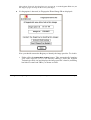
If a fingerprint is detected, its Fingerprint ID and Image ID are displayed:
Now you should contact the Registry to identify the image provider. To do this:
·
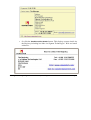
Either click the Instant Web lookup button. This automatically launches
your Web browser (if it is not already running), loads the Signum
Technologies Web site and displays the image providerÕs details (including
hot links for email and URLs), as shown overleaf.
3. Using the SureSign Plug-ins
http://www.signumtech.com
Page 25
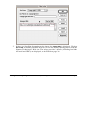
·
Or click the Post/Phone/Fax Details button. This displays contact details for
the Registry including hot links for Signum TechnologiesÕ Web and email
addresses:
3. Using the SureSign Plug-ins
http://www.signumtech.com
Page 26
Photoshop Copyright & URL
If you use Photoshop 4: On some fingerprinted images, the copyright symbol (©) is
displayed before the file name at the top of the image window.
This may indicate that the image has a SureSign fingerprint on it. However, it is not a
reliable way of checking for a fingerprint, as Photoshop does not display the copyright
symbol if the image, or part of it, is copied into a new document. The fingerprint will
still be there, but you will need to run the SureSign Detector to locate it.
u
Note: By running the Detector, you also switch on the copyright symbol in the title bar.
To look at the copyright information:
1.
Select File Info from the File menu, then select Copyright & URL from the Section
pull-down menu. The following dialog is displayed:
3. Using the SureSign Plug-ins
http://www.signumtech.com
Page 27
2.
If there is a SureSign fingerprint on the image, the Image URL is displayed. Click on
Go to URL to launch your Web browser (if it is not already running) and to load the
Signum Technologies Web site. The image providerÕs details (including hot links
for email and URLs) are displayed, as described on page 26.
3. Using the SureSign Plug-ins
http://www.signumtech.com
Page 28
3.8 More About Using the SureSign Detector
Colour modes
The table below shows which colour modes support fingerprint detection:
Colour Mode
Fingerprint Detection?
RGB Colour
CMYK Colour
Grayscale
Indexed Colour
Lab colour
Multichannel
Duotone
Bitmap
Yes
Yes
Yes
Convert to RGB first
Yes
Yes
No
ÔLast FilterÕ short-cut keys
Use the Last Filter short-cut keys ( 1 ÐF) to run the SureSign Detector on subsequent
images. You can continue to use this key combination until you select a new filter or
exit Photoshop.
Minimum image size
You can run the Detector on a whole image or on part of an image (by using
PhotoshopÕs marquee tool). If you select part of the image, we recommend a minimum
area of approximately 100KB.
Processed images
If a fingerprint cannot be found on an image which has been excessively resized or
manipulated, try applying the sharpen filter before running the SureSign Detector (you
may find it helpful to apply the sharpen filter several times).
3. Using the SureSign Plug-ins
http://www.signumtech.com
Page 29
Dithered images
If a fingerprint cannot be detected on a dithered image (such as a GIF image), apply a
blur filter before using the SureSign Detector. A subsequent sharpen filter can also help
to reveal a fingerprint.
u
Note: Dithering may render an image grossly distorted and, for this reason, fingerprint detection
may fail.
Composite images
If you run the Detector on the whole of a composite image, SureSign will report the first
fingerprint that it finds. Use PhotoshopÕs rectangular marquee tool to define an area
within the relevant section of the composite image before you run the Detector:
Image manipulation
If possible, return the image close to its original size (between 50% and 200%) and
orientation (±1 degree) before running the SureSign Detector.
3. Using the SureSign Plug-ins
http://www.signumtech.com
Page 30
4 PHOTOSHOP ACTIONS
This chapter covers:
4.1 A description of Photoshop actions.
4.2 Creating an action to fingerprint an image.
4.3 Creating an action to fingerprint a batch of images.
4. Photoshop Actions
http://www.signumtech.com
Page 31
4.1 Photoshop Actions
The Actions palette is a Photoshop 4 feature which lets you record a set of actions and
replay them back at any time. You can make use of actions to automate SureSign tasks,
and the examples in the next two sections show you how to set up actions to fingerprint
an image and fingerprint a batch of images.
Before you start
·
It will be helpful if you have some knowledge of PhotoshopÕs Actions palette, or
some experience of recording macros. (Please refer to the Photoshop user guide for
more information on actions.)
·
You should record actions on a test file (in case you make mistakes), then, when you
are sure the action is correct, you can run it on ÔrealÕ images.
·
When you are creating an action, everything you do is recorded until you press the
stop button. However, as the action can later be edited, it doesnÕt matter if you make
mistakes during the recording process.
·
Once a fingerprint has been saved in an image, it cannot be removed, altered or
overwritten with another fingerprint. Therefore, we recommend that you always
keep unfingerprinted master copies of your images.
4.2 Creating an Action to Fingerprint an Image
This example shows you how to create an action to add a fingerprint to an image.
u
Note: This action will not be useful to you if you are running the SureSign Writer in
Demonstration mode, or if you want to apply different fingerprints to images (unless you are
making use of the Increment Image ID facility). However, if you are going to set up the action
to fingerprint a batch of images (described in the next section) then you should first set up this
action.
To set up the action:
1.
Create a new small test image by selecting New... from PhotoshopÕs File menu.
Make sure that the new image is in a colour mode that can support a fingerprint (for
4. Photoshop Actions
http://www.signumtech.com
Page 32
example, RGB Colour ), and make sure that the imageÕs background is not
transparent (if it is, you will not be able to fingerprint the image).
2.
If the Actions palette is not visible, choose Show Actions from the Window menu.
3.
Select New Action... from the Actions sub-menu. The New Action dialog appears:
4.
Type in a new Name for the action, for example, Fingerprint Image.
5.
You can specify a function key to run this action; select one from the Function Key
pull-down menu and, if you also want to use the shift key as part of the key
combination, check the Shift box.
6.
You can give the action a colour to identify it when you are working in ÔButton
ModeÕ (this is available from the Actions sub-menu); choose a Color from the pulldown menu.
7.
When you have finished with this dialog, press the Record button. Everything you
now do in Photoshop will be recorded until you press the stop button (this can be
found at the bottom of the Actions palette).
8.
Select Signum from the Filter menu, and then select SureSign Writer from the submenu. The Fingerprint Writer dialog is displayed (shown overleaf):
4. Photoshop Actions
http://www.signumtech.com
Page 33
9.
Set all the fingerprint options you require, for example, choose an Image ID, check
the Increment Image ID box, or use the Options... button to add a logo and specify a
corner position for it. When you have finished, click on OK to add the fingerprint to
the image.
10. You have now finished recording the action, so press the stop button at the bottom
of the Actions palette.
11. Now, every time you want to fingerprint an image, you can do so by running this
action in any of the following ways:
· Highlight the actionÕs name in the Actions palette and press the play button
(marked >).
· Press the function key assigned to that action (if you chose one).
· Highlight the action name in the Actions palette and select ÒPlay <action
name>Ó from the Actions sub-menu.
12. Once the image has been fingerprinted, donÕt forget to save it.
4. Photoshop Actions
http://www.signumtech.com
Page 34
4.3 Fingerprinting a Batch of Images
You can use the Actions palette to set up an action to automatically fingerprint a folder
of images without you having to open each file individually. However, this is only
productive with a small volume of images, approximately 50 to 100 per week. For large
volumes of images we recommend that you use SureSign Server. You can obtain further
details about SureSign Server from our Web site.
To create an action to fingerprint a folder of images:
u
1.
Copy all the images you wish to fingerprint into a folder. (Make sure all the images
are in a colour mode which supports a fingerprint. See the table on page 23 for
more details.)
u
Warning: We recommend that you always keep unfingerprinted master copies of your
images, as a fingerprint cannot be removed, altered or overwritten with another fingerprint
once it has been saved in an image.
2.
In Photoshop, if you have already created the action to fingerprint an individual
image (described in the previous section), highlight this action in the Actions
palette. If you have not already set up this action, please do it now and then
highlight the action.
3.
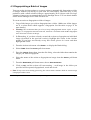
From the Actions sub-menu select Batch... to display the Batch dialog.
4.
Select Folder from the Source pull-down menu.
5.
Press the Choose button then, from the file dialog, select the folder that contains the
images you want to fingerprint.
6.
Select the name of the action to fingerprint an image from the Action pull-down
menu.
7.
From the Destination pull-down menu, choose Save and Close.
8.
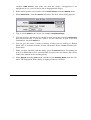
Click on OK, and the action will start running Ð each image in the folder you
specified will be opened, fingerprinted, saved and closed.
Note: If any errors occur during processing, the action cannot continue while an error message
is displayed on the screen.
4. Photoshop Actions
http://www.signumtech.com
Page 35