1
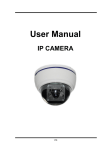
User Manual
3-AXIS INDOOR DOME
IP CAMERA
WARINGS
TO REDUCE THE RISK OF FIRE OR ELECTRIC SHOCK, DO NOT EXPOSE THIS
PRODUCT TO RAIN OR MOISTURE.
DO NOT INSERT ANY METALLIC OBJECT THROUGH VENTILATION GRILLS.
CAUTION
CAUTION
RISK OF ELECTRIC SHOCK
DO NOT OPEN
CAUTION: TO REDUCE THE RISK OF ELECTRIC SHOCK.
DO NOT REMOVE COVER (OR BACK).
NO USER-SERVICEABLE PARTS INSIDE.
REFER SERVICING TO QUALIFIED SERVICE PERSONNEL.
COPYRIGHT
THE TRADEMARKS MENTIONED IN THE MANUAL ARE LEGALLY REGISTERED
TO THEIR RESPECTIVE COMPANIES.
2
CONTENT
I.
Preface
4
II.
Product Specifications
4
III. Product Installation
5
A. Monitor Setting
5
B. Hardware Installation
6
C. IP Assignment
8
D. Install ActiveX control
10
IV. Live Video
12
V.
14
IP Camera Configuration
A. System
15
B. Network
19
C. A/V Setting
35
D. Event List
43
VI. Network Configuration
51
VII. I/O Configuration
53
VIII. Factory Default
55
IX. Micro SD Card Compatibility
56
I.
Preface
This IP Camera is a Full HD 3-Axis Dome IP camera with the web server
built in. User can view real-time video via IE browser. IP Camera supports
simultaneously H.264, Motion JPEG & MPEG4 video compression and dual
streaming which provides smooth and high video quality. The video can be
stored in the SD card and played back remotely. With user friendly interface, it is
an easy-to-use IP camera which is designed for security application.
II. Product Specifications
•
•
•
•
•
•
•
•
•
•
•
Main Features:
Full HD 1080P Real time
3D+2D Digital Noise Reduction
Digital Wide Dynamic Range
Day&Night Switch time control manually
IR Distance 15 Meter
Power over Ethernet available
Video output
H.264/ M-JPEG / MPEG4 compression
SD card backup
Support iPhone/Android/Mac
SDK for Software Integration
For the detail specification , please refer to the data sheet
4
III. Product Installation
A. Monitor Setting
1. Right-Click on the desktop. Select “ Properties”
2. Change color quality to highest (32bit).
5
B. Hardware Installation
1. Dome Installation Steps
a. Use screws to lock the
bottom of camera to the
ceiling or the wall.
b. Use 3-Axis to adjust the
lens angle.
c. Close the dome cover.
d. Tighten the screw on the
cover to fix it.
2. 3-Axis Diagram
Use the 3-Axis bracket to adjust the camera to appropriate angle.
6
3. Connector Instruction
The Cable and connector are as below. Connect power adaptor first,
then connect the IP Camera to PC or network, and set up the network
configurations according to the network environment. About I/O setting,
please refer to chapter VII in User Manual: "I/OConfiguration" for detail.
4. PoE ( Power Over Ethernet)(Optional) 802.3at, 30.0W PoE Switch is
recommended
Power over Ethernet (PoE) is a technology that integrates power into a
standard LAN infrastructure. It enables power to be provided to the network
device, such as an IP phone or a network camera, using the same cable as
that used for network connection. It eliminates the need for power outlets at
the camera locations and enables easier application of uninterruptible power
supplies (UPS) to ensure 24 hours a day, 7 days a week operation.
Ethernet
PoE IP Camera
PoE
Switch
Ethernet Cable
Ethernet Cable
PoE IP Camera
7
C. IP Assignment
1. You can use the software“IP Installer” to assign the IP address of IP Camera.
The software is in the attached CD.
2. There are two language versions of IP installer. Choose one as your need:
IPInstallerCht.exe: Chinese version
IPInstallerEng.exe: English version
3. There are 3 kinds of IP configuration.
a. Fixed IP (Public IP or Virtual IP)
b. DHCP (Dynamic IP)
c. Dial-up (PPPoE)
4. Execute IP Installer
5. For Windows XP SP2 user, the following message box may pop up. Please
click “Unblock”.
6. IP Installer configuration:
8
7. IP Installer will search for all IP Cameras connected on Lan. Click “Search
Device” to refresh the result list.
8. Click one of the IP Camera listed on the left side. The network configuration of
this IP camera shows on the right side. You may change the “name” of the IP
Camera as your preference (eg: Office, warehouse). Change the parameter
and click “Submit” . It will apply the change and reboot the Device.
9. Please make sure that the IP address of your PC and IP Camera are on the
same subnet.
The same Subnet:
IP CAM IP address: 192.168.1.200
PC IP address: 192.168.1.100
Different Subnets:
IP CAM IP address: 192.168.2.200
PC IP address: 192.168.1.100
To Change PC IP address:
Control Panel→Network Connections→ Local Area Connection Properties→
Internet Protocol (TCP/IP) → Properties
10. A quick way to access remote monitoring is to double-click the selected IP
Camera listed on “Device list” of IP Installer. An IE browser will be opened.
9
11. If you link to the IP Camera successfully, there pops a box asking you to log
in. Please key in the default user name"admin" and password"admin" when
you link to the IP Camera for the first time. You can revise the user name and
password later. Please refer to Chapter V: "A.2. UserManagement".
D. Install ActiveX control
For the first time to view the camera video via IE, it will ask you to install the
ActiveX component.
If the installation failed, please check the security setting for the IE browser.
1. IE→Tools → Internet Options… → Security Tab → Custom Level… →
Security Settings → Download unsigned ActiveX controls→ Select “Enable”
or Prompt.
2. IE → Tools → Internet Options… → Security Tab → Custom Level…
→Initialize and script ActiveX controls not marked as safe → Select “Enable”
or Prompt.
10
1
2
3
4
5
When popup the following dialogue box, click “Yes”.
11
IV. Live Video
Start an IE browser, type the IP address of the IP camera in the address field. It will show
the following dialogue box. Key-in the user name and password. The default user name
and password are “admin” and “admin”.
When the IP Camera is connected successfully, it shows the following
program interface.
Double-click the video to switch to full screen view. Press “Esc” or doubleclick the video again back to normal mode.
1.
:Get into the administration page
12
2.
3.
4.
5.
:Video Snapshot
Show system time, video resolution, and video refreshing rate.
Adjust image, 1/2x, 1x, 2x.
Select video streaming source. (When streaming 2 setting in『Video Setting』 is closed, this
function will not display.)
6.
7.
IP Camera supports 2-way audio. Click the “Chatting” check box. Then you can use
microphone which connects to the PC to talk to server side, which is IP Camera side
Control the relay output which is connected to this camera.
Right-Click the mouse on the video, it will show a
pop-up menu.
1. Snapshot: Save a JPEG picture
2. Record Start: Record the video in the local PC. It will ask you where to save
the video. To stop recording, right-click the mouse again. Select “Record
Stop”. The video format is AVI. Use Microsoft Media Player to play the
recorded file.
3. Mute: Turn off the audio. Click again to turn on it.
The "mute" button does not affect the playback recording video. As long as
the "IP Camera to PC" option in the audio setting is enabled, all the audio will
be recorded into the playback video even you click "mute" in the live page.
4. Full Screen: Full-screen mode.
5. ZOOM: Enable zoom-in and zoom-out functions. Select “Enable digital zoom”
option first within the pop-up dialogue box and then drag and drop the bar to
adjust the zoom factors.
6. Frame Buffm Sec: Build a buffm to accumulate several video frame and
play at regular intervals. This function can make video smooth-going when the
Network speed is slow and lag. If you select “100”, the interval between every
frame is fixed to 100 mSec. The slower the Network is, the bigger value
should be selected. The default value is null.
13
V. IP Camera Configuration
Click
page.
to get into the administration page. Click
14
to go back to the live video
A. System
1. System Information
a. Server Information: Set up the camera name, select language, and set up
the camera time.
(i) Server Name: This is the Camera name. This name will show on the IP
Installer.
(ii) Select language: There are 11 languages to choose from. When you
change the language, it will show the following dialogue box for
confirmation.
b. OSD Setting: Select a position where date & time stamp / text showing on
screen.
Moreover, click Text Edit can entry to adjust the OSD contents which is
Alpha of text. Finally, click Upgrade button to reserve the setting.
15
c. Server time setting: Select options to set up time - “NTP”, “Synchronize
with PC’s time”, “Manual”, “The date and time remain the same”.
Note: To synchronize with the NTP Server, please set the IP camera up on
the WAN instead of LAN.
16
2. User Management
IP CAMERA supports three different users, administrator, general user, and
anonymous user.
a. Anonymous User Login:
Yes: anonymous login is allowed
No: Username & password are required to access this IP camera
b. Add user:
Type the user name and password, then click “Add/Set”.The guest user
can only browse the live video page and is not allowed to enter the
configuration page.
c. Click “edit” or “delete” in the user list to modify them. The system will ask
you to key in the password in the pop-up window before you edit the user
information.
17
3. System update:
a. To update the firmware online, click “Browse…” to select the firmware.
Then click “Upgrade” to proceed.
Note: The firmware upgrade might be accompanied by the changing of
some setting and function, and the setting options might become different
to the user manual that you're reading now.
b. Reboot system:re-start the IP camera
c. Factory default:delete all the settings in this IP camera.
d. Setting Management:User may download the current setting to PC, or
upgrade from previous saved setting.
(i) Setting download:
Right-click the mouse button on Setting Download → Select “Save
AS…” to save current IP CAM setting in PC → Select saving directory
→ Save
(ii) Upgrade from previous setting:
Browse → search previous setting → open → upgrade → Setting
update confirm → click index.html. to return to main page
18
B. Network
1. IP Setting
a. IP Assignment
IP Camera supports DHCP and static IP.
(i) DHCP: Using DHCP, IP CAMERA will get all the network parameters
automatically.
(ii) Static IP: Please type in IP address, subnet mask, gateway, and DNS
manually.
b. IPv6 Assignment
IPv6 is a newer numbering system that provides a much larger address
pool than IPv4, which accounts for most of today’s Internet traffic. You can
set up IPv6 manually by key in Address, Gateway, and DNS, or enable
DHCP to assign the IP automatically.
19
c. Port assignment
(i) Web Page Port: setup web page connecting port and video transmitting
port (Default: 80)
(ii) HTTP Port:setup HTTPS connecting port (Default:443)
d. UPnP (Universal Plug and play)
This IP camera supports UPnP, if this service is enabled on your
computer, the camera will automatically be detected and a new icon will be
added to “My Network Places.”
(i) UPnP Port Forwarding:
When the camera is installed under a router, Enable UPnP Port
Forwarding to let the router open ports so that the video streams can
be sent out from a LAN. Set Web Port, Http Port, and RTSP port, and
make sure your router supports UPnPTM and the function has been
activated.
(ii) Note: UPnP must be enabled on your computer. Please follow the
procedure to activate UPnP.
<Approach 1>
• Open the Control Panel from the Start Menu
• Select Add/Remove Programs
• Select Add/Remove Windows Components and open Networking
Services section
• Click Details and select UPnP to setup the service
• The IP device icon will be added to “MY Network Places”
• User may double click the IP device icon to access IE browser
<Approach 2>
• Open "My Network Space", and click "Show icons for networked
UPnP devises" in the tasks column on the left of the page.
20
Windows may ask your confirmation for enabling the components.
Click "Yes".
• Now you can see the IP devise under the LAN. Double-click the
icon to access the camera via web browser. To disable the UPnP,
click "Hide icons for networked UPnP devises" in the tasks column.
21
e. RTSP setting
If you have a media player that supports RTSP protocol, you can use it
to receive the video streaming from IP camera. The RTSP address can be
set for two streaming respectively. Please jump to Chapter V-C:"Video
Setting". There're setting field for RTSP address of two streamings.
(i) RTSP Server: enable or disable
(ii) RTSP Authentication:
"Disable" means everyone who knows your camera IP Address
can link to your camera via RTSP. No username and password are
required.
Under "Basic" and "Digest" authentication mode, the camera asks
the user to give username and password before allows accessing.
The password is transmitted as clear text under basic mode, which
provides a lower level of security than under digest mode.
Make sure your media player supports the authentication schemes.
(iii) RTSP Port: setup port for RTSP transmitting (Default: 554)
(iv) RTSP Start and End Port: in RTSP mode, you may use TCP and UDP
for connecting. TCP connection uses RTSP Port (554). UDP connection
uses RTSP Start and End Port.
f. Multicast Setting (Based on the RTSP Server)
Multicast is a bandwidth conservation technology. This function
allows several user to share the same packet sent from IP camera. To
use
22
Multicast, appoint IP Address and port here. TTL means the life time of
packet, the larger the value is, the more users can receive the packet.
To use Multicast, be sure to enable the function "Force Multicast RTP via
RTSP" in your media player. Then key in the RTSP path of your camera:
"rtsp://(IP address)/" to receive the multicast.
g. ONVIF
(i) Choose your ONVIF version and settings.
Under ONVIF connection, the video will be transmitted by RTSP.
Be sure to enable the RTSP server in IP setting, or you're not able to
receive the video via ONVIF.
(ii) RTSP Keepalive:
When the function is enabled, the camera checks once in a while
if the user who links to the camera via ONVIF still keeps connecting. If
the connection had been broken, the camera stop transmitting video to
user.
h. Bonjour
This function enables MAC systems to link to this IP camera. Key in
the name here.
The web browser "Safari" also has Bonjour function. Tick "Include
Bonjour" in the bookmark setting, and you can see the IP camera appearing
under the bonjour category. Click the icon to connect the IP camera.
23
i. LLTD
If your PC supports LLTD, enable this function then you can check the
connection status, properties, and device position(like IP address) of this IP
Camera in the network map.
In the computer running Windows Vista or Windows 7, you can find
LLTD through the path:
Call out the Control Panel → Network and Internet → Network and
Sharing Center → Click "See full map".
24
2. Advanced
a. Https (Hypertext Transfer Protocol Secure): Https can help protect
streaming data transmission over the internal on the higher security level.
You can select the connection type. "Https" means user cannot connect the
camera via Http protocol. The Https path will be: "https://(IP address)/". If
you select "Http & Https", both the Http and Https path can be used to
access the camera.
(i) Remove the existing setting: Before setting new request, please
remove old secure identification. Select "Http" connection type and click
"Remove".
(ii) Created Request: Setting the secure identification and apply it.
25
(iii) There are two ways to set Certificate- Install Signed Certificate or
Create Self-Signed Certificate.
b. SNMP(Simple Network Management Protocol)
SNMP provides a simple framework for administering networked
hardware. To manage the IP camera, you have to prepare a MIB browser
or similar tools first. SNMPv1, SNMPv2c, and SNMPv3 can be enabled
simultaneously.
(i) SNMPv1 and SNMPv2:
The term "Community name" in SNMPv1 and SNMPv2c can be
roughly regarded as key. The person who has the community name
has the authority to read or edit the information of IP camera via SNMP.
Tick the box to enable SNMPv1 or SNMPv2c protocol, and specify
the community name for write(read and write) and read(read-only). The
user who use read community name to access the IP camera cannot
modify any data of this camera.
26
(ii) SNMPv3:
For data security reason, the authentication and encryption
assurances are added when developing SNMPv3. The user has to give
not only the security name( the same as "community name" in v1&v2c,
or sometimes we call it "context name") but the password in order to
access the IP camera. Please set security name, authentication type,
authentication password, encryption type, encryption password of
write and read respectively. The password must be 8~64 bits in length.
Different from in SNMPv1 and v2c, the user have to create an
account when using SNMPv3. In the account parameters, key in the
security name and password you set in the camera to get accessing.
(iii) SNMPv1/SNMPv2 Trap:
Trap is a mechanism that allows the a managed device to send
messages to manager instead of waiting passively for polling from
the manager. Specify the trap event. When those events happen, the
camera will send the ring message to the Trap Address, which is usually
the manager's IP address. Trap Community means the community that
can receive the trap message.
27
• Cold Start: The camera starts up or reboots.
• Setting changed: The SNMP setting is changed.
• Network Disconnected: The network connection was broken down.
(The camera will send trap messages after the network being
connected again)
• V3 Authentication Failed: A SNMPv3 user account tries to get
authentication but failed. (Due to incorrect password or community)
• SD Insert / Remove: A Micro SD card is inserted or removed.
c. Access List
You can deny an IP address or a range of IP address so that they
cannot access the IP camera. Tick the "enable" box, key in the IP address
you want to deny, select"deny" then click"Add" to add it to the list.
You can also choose to deny a range of IP address but allow one or
several IP address of them. Take the picture above for example, IP address
192.168.50.151~161 are not allowed to connect to the camera, but only
28
192.168.50.159 can access. Note: In the list "allow" condition must be
ranked before "deny" condition. For example, if we exchange the sequence,
set "Deny: 192.168.50.151~192.168.50.161" for the first item and "Allow:
192.168.50.159" for the second item in the list, the IP "192.168.50.159"
turns out to be denied by the camera because the "deny" condition has the
priority according to our ranking way.
d. QoS/DSCP(Quality of Server/Differentiated Services Code-point)
DSCP specifies a simple mechanism for classifying and managing
network traffic and provide QoS on IP networks. DSCP is a 6-bit in the IP
header for packet classification purpose.
The number 0~63 for Live Stream, Event / Alarm, and Management
represent the ratio that the bandwidth is divided. For example, if you set
5, 10, and 20 for the three items, then the bandwidth of the three item is
5:10:20. There is no difference between setting "0, 0, 0" or "63, 63, 63"
because under these two setting the three items will get equal bandwidth
(1/3).
29
e. IEEE 802.1x
IEEE 802.1x is an IEEE standard for port-based Network Access
Control. It provides an authentication mechanism to device wishing to
attach to a LAN or WLAN.
The EAPOL protocol support service identification and optional point to
point encryption over the local LAN segment.
Please check what version of the authenticator and authentication
server support. This camera supports EAP-TLS method. Please enter ID,
password issued by the CA, then upload related certificates.
30
3. PPPoE & DDNS
a. PPPoE: Select “Enabled” to use PPPoE. Key-in Username and password
for the ADSL connection. Send mail after dialed: When connect to the
internet, it will send a mail to a specific mail account. For the mail setting,
please refer to Server settings.
b. DDNS:
It supports DDNS (Dynamic DNS) service.
(i) Enable this service
(ii) Key-in the DynDNS server name, user name, and password.
(iii) Set up the IP Schedule update refreshing rate.
(iv) Click “Apply”
(v) If setting up IP schedule update too frequently, the IP may be blocked.
In general, schedule update every day (1440 minutes) is recommended
31
(vi) DDNS Status
• Updating: Information update
• Idle: Stop service
• DDNS registration successful, can now login
• Update Failed, the name is already registered: The user name has
already been used. Please change it.
• Update Failed, please check your internet connection: Network
connection failed.
• Update Failed, please check the account information you provide:
The server, user name, and password may be wrong.
32
4. Server setting
The settings of Email, FTP and SAMBA are used when the event happens,
schedule snapshot executes, or the alarm input is triggered. Select the item
to display the detailed configuration options. You can configure either one or
all of them.
a. Mail Setting:
Set up the server address and account information of your e-mail.
Click “Apply” to save the setting, then use “Test” button to test the server
connection. A message box will tell you “OK!” if it works, and a test e-mail
will be sent to receiver’s mail address.
b. FTP:
Set up the server address and account information of your FTP. Click
“Apply” to save the setting, then use “Test” button to test the server
33
connection. A message box will tell you “OK!” if it works, and a test file will
be uploaded to FTP space.
In PORT mode, the FTP server builds the connection to the user's data
port actively. However, from the user-side firewall's standpoint, the action
of connecting from FTP server is often considered to be dangerous and
should be blocked. In PASV mode, the problem is solved: The FTP server
waits for the data transmission connection built by the user. Make sure that
the server supports the mode you select.
c. Samba:
Select this option to send the media files via a network neighborhood
when an event is triggered. Click “Apply” to save the setting, then use “Test”
button to test the server connection. A message box will tell you “OK!” if it
works, and a test document will be created in the location.
If the test failed, check the sharing setting of your location folder. The
folder properties must be “shared” and the permissions must be “Full
Control” as the picture.
34
C. A/V Setting
1. Image Setting
For security and privacy purposes, there are three areas that can be set up for
privacy. Click the Area button first, and then drag an area on the above image.
Remember to save your settings. The masked area will not shown on both live
view and recording image.
Please refer to the details below for image settings:
A. Brightness, Contrast, Hue, Saturation, Sharpness can be adjusted here.
The available values are: -4, -3, -2, -1, 0, 1, 2, 3, 4.
B. AGC: The sensitivity of the camera can adjust to the environmental
lighting. Enable this function for getting brighter image on low light, but the
level of noise may also increase. The available values are: 16x, 24x, 32x,
48x, 64x.
35
C. Shutter Time: Choose the location of your camera or a fixed shutter time.
The shorter the shutter time is the less light the camera receives and the
image becomes darker , it can adjust by Day and Night.
The available values are: Outdoor, Indoor, 1/30, 1/50, 1/60, 1/100, 1/120,
1/125, 1/250, 1/500, 1/1000, 1/10,000.
Note: When you select a number in "Shutter Time", the shutter time will vary
in a range and be controlled by camera automatically.
D. Sense up: When enabled, provides a higher sensitivity in low light
conditions by slowing the shutter speed. The available values are: 1/30, 1/15 ,
1/10 , 1/5
E. D-WDR: This function enables the camera to reduce the contrast in the
view to avoid dark zones as a result of over and under exposure. If the Input
resolution is 30fps, the default value is fixed on ENABLED. The available
values are: OFF, 1, 2, 3, 4, 5, 6, 7, 8.
If the D-WDR is enabled the values for bright, dark and contrast can be
adjusted.
F. Anti Fog: Improve the image clarity on environments presenting high levels
of fog or smoke.
G. Lens Distortion Correction: Correct the image in the borders due to the
lens angles. The available values are: OFF, 1, 2, 3, 4, 5, 6, 7, 8
H. Video Orientation: Flip or mirror the image.
I. Day & Night: The camera can detect the light level of the environment. If
you choose "Light Sensor Mode", the image will be turned black and white at
night in order to keep a clear image. To set light sensor mode, appoint a lux
standard of switching D/N. Current lux value is provided for reference. Under
"Times Mode" the switch time of Color / Black and white will be according to
the given time. You can also control it by choosing "Color" or "B/W”.
36
J. Red / Blue gain: Set the values for Red / Blue gain. The available values
are: -5, -4, -3, -2, -1, 0, 1, 2, 3, 4, 5
K. Denoise: This function is able to filter the noise and blur from the image
and show a clearer view. You can set the values for 2D and 3D filters.
37
2. Video Setting
a. Video System Setting:
Video System: NTSC or PAL
Corridor Mode: 90 degrees, 270 degrees or none.
On Corridor Mode please take note of the lens’ position. If Corridor Mode
is set as 90 degrees or 270 degrees the relation of the image and the
camera would be as the following:
Image
Position
0 degrees
90 degrees
270 degrees
38
Choose the Video System (digital signal) and TV Output (analog signal).
b. Basic Mode of Streaming 1 and Streaming 2:
(i) Resolution: 1920x1080,1280x720 , 640x480, 320x240, or 176x144
(ii) Profile: Profiles are different compression way of H.264. High profile
provides better coding efficiency. Note that some devises do not
support every profile. For example, iPhone4 only supports Main profile.
(iii) Quality: The higher the quality is, the bigger the file size is. It might
affect Internet transmitting speed if the file gets too large.
(iv) Video Frame Rate: The video refreshing rate per second. The max
value is affected by the input resolution you choose.
(v) Video Format: H.264 or M-JPEG
(vi) RTSP Path: Set the RTSP output connecting route
39
c. Advanced Mode of Streaming 1 and Streaming 2:
(i) Resolution: 1920x1080,1280x720 , 640x480, 320x240, or 176x144
(ii) Profile: High profile provides better coding efficiency. Note that some
devises do not support every profile. For example, iPhone4 only
supports Main profile.
(iii) Bitrate Control Mode: In CBR(Constant Bit Rate) mode, the bitrate
keeps consistent all over the video. In VBR(Variable Bit Rate) mode,
the bitrate changes with the complexity extent of the video data.
VBR provides a better compression way and the file may be smaller.
However, the VBR file size cannot be predicted.
(iv) Video Quantitative: The quality parameter of VBR. You can choose 1~10
compression rate
(v) Video Bitrate: The quality parameter of CBR. You can choose
32kbps~8Mkbps. The higher the value is, the higher the image quality
is.
(vi) Video Frame Rate: The video refreshing rate per second. The max
value is affected by the input resolution you choose.
(vii)GOP Size: It means “Group of Pictures”. The higher the GOP is, the
40
better the quality is.
(viii) Video Format: H.264 or M-JPEG
(ix) RTSP Path: RTSP output connecting route
d. 3GPP Streaming mode:
3GPP Streaming is designed for mobile viewing. Please lower the
resolution, bitrate, or frame rate if the image flow isn't smooth when you
use the mobile phone.
(i) Resolution: 640x480, 320x240, or 176x144
(ii) Video Bitrate: The higher the value is, the higher the image quality is.
(iii) Video Frame Rate: The video refreshing rate per second.
(iv) Video Format: H.264 or MPEG4
(v) 3GPP Path: 3GPP output connecting route. If the IP address of your
camera is 192.168.40.150, and you key in “3g” in the column, the 3GPP
path will be rtsp://192.168.40.150/3g.
The rtsp here is separated from the rtsp setting in the "IP SETTING".
3GPP Streaming can still work even you select "disabled" in the rtsp server
option of IP Setting.
41
3. Audio:
IP Camera supports 2-way audio. Audio can be receive by the built-in mic
in the IP camera and transmitted to remote PC. User can also send audio
from remote PC mic to IP Camera’s external speaker.
a. IP Camera to PC
To receive Audio from IP camera, select “Enable” to start this function.
The Audio compression format can be choosing from 3 options. You can
also adjust the volume of 2-way audio.
b. PC to IP Camera
Tick “chatting” box in the browsing page, then your voice can be
propagated from PC to camera.
If "Chatting" and "Save to SD card" are enabled simultaneously, the sound
quality might be affected and becomes not smooth.
42
D. Event List
IP Camera provides multiple event settings.
1. Event Setting
a. Motion Detection
To enable motion detection, tick Area 1/2/3. Click Area 1/2/3 in Area Setting,
and draw an area on the preview screen. When motion is detected in the area,
the word Motion! will be displayed on the live screen. The camera will send
video or snapshot to specific mail addresses, trigger the output device, or save
video to FTP/ Micro SD card/ Samba.
By selecting save to SD card, the video or snapshot will be saved to the Micro
SD card. Also, by ticking E-mail/ FTP/ Samba on the Log option, the motion
detection log will be sent to E-mail/ FTP/ Samba simultaneously.
• Interval: For example, when selecting "10 sec", once the motion is detected
and the action is triggered, it cannot be triggered again within 10 seconds.
43
• Based on the schedule: When the option box is ticked, only during the
selected schedule time the motion detection is enabled.
b. Tampering Detection
When the camera view is covered, moved, hit by strong light, or out of focus,
the tampering detection will be triggered, and send snapshot or video to
mail/FTP/Samba/SD card, or trigger the external alarm. For example:
Before Tampering Detection
Tampering Triggered (Defocused)
Before Tampering Detection
Tampering Triggered (Lens Covered)
44
Before Tampering Detection
Before Tampering Detection
Tampering Triggered (Glare)
Tampering Triggered (Camera Moved)
• Interval: The tampering detecting interval. Take the diagram below as
example. The interval is set for 30 second; the camera lens is covered during
10 - 40 sec. At time point B, the camera compares the view with time point A,
and sends an alarm when it founds that the lens is covered. At time point C,
the camera compares the view with time point B, and sends an alarm when it
founds that the lens is uncovered.
45
c. Record File
Choose one of the format, AVI or JPEG .
d. Record Time Setting
Set up the video recording time for Pre Alarm and Post Alarm when
motion is detected, I/O, or other devices is triggered.
Note: Pre/Post Alarm record time is base on record time setting and
restricted to IP Cam built-in Ram memory. If the quantity of data is too huge
or video quality too high, recording frame might drop or decrease on post
alarm recording time.
e. Network Dis-connected
To avoid video loss, the camera will start to save the video to local
SD card when it detect no network connection. The video recording will
continuously be saved into SD card and divided into every 10 minutes a file
until the network is reconnected successfully. The oldest file will be deleted
if the capacity of SD card is full.
This function is only enabled under wire connection.
f. Network IP check:
Key in the target IP address and interval. The camera checks once in
a while according to the setting interval time that if it can link to the target IP
address. If connection failed, the camera starts to save the video to SD
card.
46
2. Schedule
a. Schedule: After complete the schedule setup, the camera data will be
recorded according to the schedule setup.
b. Snapshot: After enable the snapshot function; user can select the storage
position of snapshot file, the interval time of snapshot and the reserved file
name of snapshot.
c. Interval: The interval between two snapshots.
47
3. I/O Setting
a. Input Setting:
IP Camera supports input and output. When the input condition is triggered,
it can trigger the relay; send the video to mail addresses /FTP server /
SAMBA.
• Intervel:
For example, if you select "10 sec" here, once the motion is detected
and action is triggered, it cannot be triggered again within 10 seconds.
• Based on the schedule:
When the option box is ticked, only during the selected schedule time
the I/O is enabled. That is, for example, the 11th hour of Monday has
not been colored in the schedule table, then no action will be triggered
even the camera detects input signal during 11:00~12:00 on Monday.
b. Output Setting:
The output mode affects the DO or relay out duration.
(I) OnOff Switch: The camera triggers the external devise and lasts for 10
seconds. You can turn off the alarm manually by click "off" at the right
bottom of the live video page.
(ii) Time Switch: The camera triggers the external devise and lasts for
certain of time according to the interval setting, and the user is not
allowed to break off the alarm manually.
48
4. Log List
Sort by System Logs, Motion Detection Logs and I/O Logs. In addition,
System Logs and I/O Logs won’t lose data due to power failure.
49
5. SD card
a. Playback
Please Insert SD card before use it. Make sure pushing SD card into the
slot completely.
Click the date listed on this page, and it shows the list of the video. The
video format is AVI. Click the video to start Microsoft Media Player to play
it. To delete the video, check it, then click "Del".
b. SD Management
Choose “The 1st day” means the recoding file will be keep one day.
Example: It is five o’clock now. Choose “The 1st day”. The files will be kept
from five o’clock yesterday to five o’clock today.
The oldest file will be deleted if the SD card is full.
Note:The use of the SD card will affect the operation of the IP Camera
slightly, such as affecting the frame rate of the video.
50
VI. Network Configuration
• Configuration 1:
a. Internet Access: ADSL or Cable Modem
b. IP address: One real IP or one dynamic IP
c. Only IP Camera connects to the internet
d. For fixed real IP, set up the IP into IP Camera. For dynamic IP, start PPPoE.
• Configuration 2:
a. Internet AccessL: ADSL or Cable Modem
b. IP address: More than one real IP or one dynamic IP
c. IP Camera and PC connect to the internet
d. Device needed: Switch Hub
e. For fixed real IP, set up the IP into IP Camera and PC. For dynamic IP, start
PPPoE.
51
• Configuration 3:
a. Internet Access: ADSL or Cable Modem
b. IP address: one real IP or one dynamic IP
c. IP Camera and PC connect to the internet
d. Device needed: IP sharing
e. Use virtual IP, set up port forwarding in IP sharing.
52
VII. I/O Configuration
1. I/O Connection
a. Please connect the GND & DO pin to the external relay (buzzer) device.
Please connect the GND & DI pin to the external trigger device.
b. I/O PIN definition
• GND (Ground): Initial state is LOW
• DO (Digital Output): DC 5V
• DI (Digital Input): Max. 50mA, DC 5V
2. I/O Setup
a. Click I/O Setting from the system setup page via IE, and check “Out1” to
enable I/O signal.
b. Output Test
After the external input and output hardware is installed, you can use the
53
"Relay Out" bottom on the live video page to test if DO / Relay Out works.
(i) OnOff Switch mode:
Click "ON", the camera will trigger the external output devise for 10
seconds. For example, your alarm buzzer will continuously ring for
10 seconds. After 10 seconds the buzzer stops ringing, or you can
manually break off the output signal by clicking "OFF".
(ii) Time Switch mode:
Click "Pulse", the camera will trigger the external output devise for
several seconds, The duration length is according to the "interval"
setting in Output Setting.
54
VIII.Factory Default
If you forget your password, please follow the steps to revert back to default value.
• Remove the power and ethernet cable. Open the dome cover, and press and
hold the button as the picture below.
• Connect power to the camera again, and do not release the button during the
system booting.
• It will take around 30 seconds to boot the camera.
• Release the button when camera finishes proceed.
• Plug in the ethernet cable. Re-login the camera using the default IP
(http://192.168.1.200), and user name (admin), password (admin).
55
IX. SD Card Compatibility
The following is the compatible SD Card, and those in red are especially
recommended:
ADATA 4G
ADATA 512M
Blast 128M
GiGATEK 128M
Kingmax 256M
Kingston 128M
Kingston 1G
Kingston 256M
Kingston 32G
Kingston 512M
Phast 256M
Photofast 256M
PK 128M
PRETEC 128M
READY 128M
SanDisk 128M
SanDisk 16G
SanDisk 1G
SanDisk 256M
SanDisk 2G
SanDisk 32G
SanDisk 4GB
SanDisk 4GB
SanDisk 8G
SanDisk 16G
SanDisk 32G
Toshiba 4GB
SD CARD
SanDisk 512M
SanDisk 8G
SiliconPower 128M
SiliconPower 256M
TEKQ 128M
TEKQ 256M
Toshiba 128M
Toshiba 256M
Toshiba 4GB
Tracend 128M 80X
Tracend 1G 80X
Tracend 256M 80X
Tracend 2G 150X
Tracend 4G 150X
Tracend 512M 80X
Transcend 16G
Transcend 32G
Transcend 4GB
Transcend 8G
TwinMOS 128M
TwinMOS 256M
UMAX 128M
U-TEK 128M
SDHC CARD
Transcend 4GB
Transcend 8G
Transcend 16G
Transcend 32G
Kingston 32G
56