1
Firmware Info
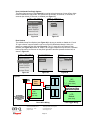
The Firmware Info option, selected from the Installer Setup screen (see Figure 46) is an option
screen that displays the Unit Name, firmware revision and address of that particular Room Unit
(see Figure 47). This information may be very handy if the installer is troubleshooting a
problem over the phone with On-Q Technical Support.
ROOM1
INSTALLER
SETUP
FIRMWARE INFO
Unit Name:
Reply Options
Door Options
ROOM 4
Rev: v1.0rc2.28
Address: 90:1040
Disc. Settings
Room Options
Firmware Info
System Reset
BACK
Figure 47
Figure 46
System Reset
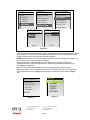
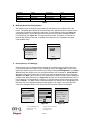
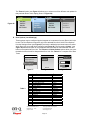
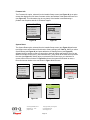
The System Reset option, selected from the Installer Setup screen (see Figure 48) performs a
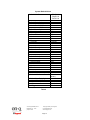
total system reset, which takes all Units back to factory settings (see Table 4). When you select
System Reset (see Figure 49) and press talk/select, a Warning screen (see Figure 50)
appears briefly to remind you that you are going to erase all names and settings. Then you are
asked to hold the Volume plus (+) and Volume minus (-) keys down at the same time to perform
the reset (see Figure 51). Shortly after you release those Volume keys, you should see a
screen similar to the one shown in Figure 52 and once the system has finished its reset, a
Room Unit screen similar to the one shown in Figure 53 will be seen.
ROOM1
INSTALLER
SETUP
SYSTEM RESET
Reply Options
Door Options
Disc. Settings
Room Options
Firmware Info
System Reset
Figure 48
SYSTEM RESET
SYSTEM RESET
SYSTEM RESET
=WARNING=
=WARNING=
SYSTEM
RESET
All
All names
names and
and
settings
settings will
will
be
be erased!
erased!
SYSTEM RESET
To Reset:
Hold VOL+ & VOL-
BACK
BACK
BACK
Figure 49
Figure 50
Figure 51
ROOM1
ALL
Rev v1.0cr2.28
Discovering…
My Address:
90: 1040
My Name:
ROOM 1
ROOM2
PATIO1
DOOR1
SETTINGS
Figure 53
Figure 52
301 Fulling Mill Road, Suite G
©Copyright 2008 by On-Q/Legrand,
Middletown, PA 17057
Inc All Rights Reserved.
(800)-321-2343
www.onqlegrand.com
Page 18