1
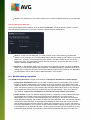
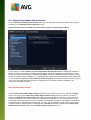
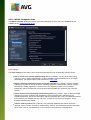
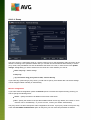
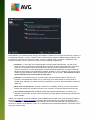
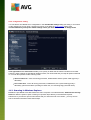
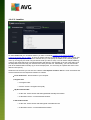
Add recipients of sent emails to whitelist - tick this checkbox to confirm that all recipients of sent
emails can be trusted, and all email messages coming from their email accounts can be delivered.
Modify subject for messages marked as SPAM - tick this checkbox if you would like all messages
detected as spam to be marked with a specific word or character in the email subject field; the
desired text can be typed in the activated text field.
Ask before reporting wrong detection - provided that during the installation process you agreed to
participate in the Privacy Preferences project. If so, you allowed reporting of detected threats to AVG.
The report is made automatically. However, you may tick this checkbox to confirm you want to be
asked before any detected spam gets reported to AVG to make sure the message should really be
classified as spam.
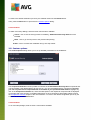
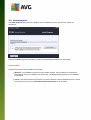
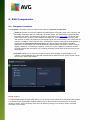
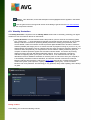
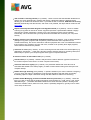
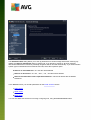
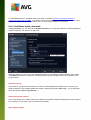
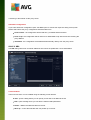
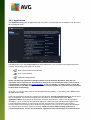
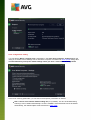
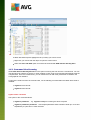
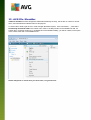
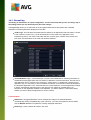
The Engine Performance Settings dialog (link ed to via the Performance item of the left navigation) offers
the Anti-Spam component performance settings:
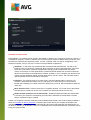
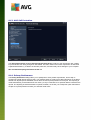
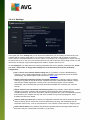
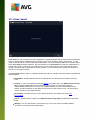
Move the slider left or right to change the level of scanning performance ranging between Low-end desktop /
High-end desktop.
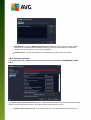
Low-end desktop - during the scanning process to identify spam, no rules will be used. Only
training data will be used for identification. This mode is not recommended for common use, unless
the computer hardware is really poor.
High-end desktop - this mode will consume a large amount of memory. During the scanning
process to identify spam, the following features will be used: rules and spam database cache, basic
and advanced rules, spammer IP addresses, and spammer databases.
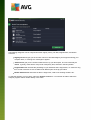
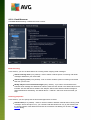
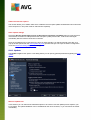
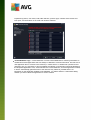
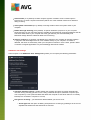
The Enable on-line checking item is on by default. It results in more precise spam detection via
A V G I nternet Sec urity 2 0 1 4 © 2 0 1 3 C opyright A V G T ec hnologies C Z, s .r.o. A ll rights res erved.
69