1
Getting Connected 69
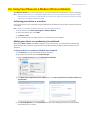
8.6 Using Your Phone As a Modem (Wireless Modem)
With Wireless Modem, you can use your phone as an external modem for another device, such as a computer.
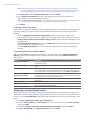
Note Make sure your phone has an active CDMA or GSM modem connection. For information about setting up a CDMA or
GSM connection on your phone, see “Wireless data connection” in this chapter. Also make sure you have connected
your phone to a computer via Bluetooth or USB.
Activating your device as a modem
Connect your device to your notebook using the USB cable, then follow the steps below to activate your device
as a modem.
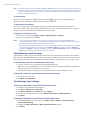
Note When you activate Wireless Modem, ActiveSync will be disabled automatically.
1.
2.
3.
4.
On your device, click Start > All Programs > Wireless Modem.
Under Connection Type, select USB.
Tap Menu > Start.
The next thing to do is to add your device as a modem onto your notebook.
Adding your device as a modem to your notebook
After you tap Menu > Start on the Wireless Modem screen of your device, your notebook will automatically
detect that your device has been connected. The Found New Hardware dialog box will then appear on your
computer.
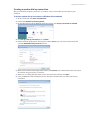
To add your device as a modem to a Windows Vista notebook
1. Click Cancel to close the Found New Hardware dialog box.
2. Open the Control Panel, then click Device Manager.
3. Right-click Generic Serial, then click Update Driver Software.
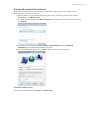
4. Click Browse my computer for driver software, then click Let me pick from a list of device drivers on
my computer.
5. Click Show All Devices, then click Have Disk and browse the Getting Started Disc to locate the USB
modem driver for your device.