1
SC-T7000 Series/SC-T5000 Series/SC-T3000 Series
User's Guide
Problem Solver
Problem Solver
What to Do When a Message Is Displayed
If the printer displays one of the messages shown below, refer to the solution listed and take the necessary steps.
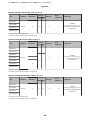
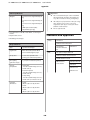
Message
What to do
Ink Cartridge Error
Ink cartridge cannot be
recognized. Insert again or replace
ink cartridge.
❏
Ink Cartridge Error
Ink cartridge cannot be detected.
Insert again or replace ink
cartridge.
Ink Cartridge Error
Please install the correct ink
cartridge.
Remove and reinsert the ink cartridge. If the message persists, insert a new ink
cartridge (do not reinstall the cartridge that caused the error).
U “How to replace” on page 119
❏
Condensation may occur in the ink cartridge. Leave it at room temperature for at least
four hours before installing the ink cartridge.
U “Notes on handling ink cartridges” on page 18
Insert a genuine Epson ink cartridge approved for use in the printer.
U “Options and Consumable Products” on page 137
U “Replacing Ink Cartridges” on page 119
Ink Low
The ink is low. Ready a new ink cartridge.
U “Options and Consumable Products” on page 137
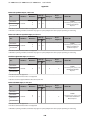
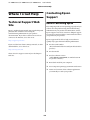
F/W Install Error
Firmware update failed. Restart
the printer.
Turn the printer off, wait for a few minutes, and then turn on the printer again.
Use EPSON LFP Remote Panel 2 to re-attempt the update.
If this message appears on the LCD panel again, contact your dealer or Epson Support.
Command Error
Check driver settings.
Press the W button and select Job Cancel to stop printing. Confirm that the printer driver
you are using supports this printer.
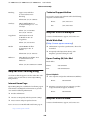
Reel Unit Error
Check Auto Take-up Reel Unit and
restart printer.
Turn the printer off, wait for a few minutes, and then turn on the printer again.
Reel Unit Error
Connect Auto Take-up Reel Unit
cable and restart printer.
After reconnecting the cable connecting the auto take-up reel unit to the printer, turn the
printer off and then on again.
Auto Take-up Reel Unit is
disconnected. Do you continue?
The auto take-up reel unit is not connected. After reconnecting the cable connecting the
auto take-up reel unit to the printer, select No to turn the printer off. Turn the printer again
after a short pause.
If this message appears on the LCD panel again, contact your dealer or Epson Support.
U The Setup Guide supplied with the optional auto take-up reel unit.
U The Setup Guide supplied with the optional auto take-up reel unit.
To continue printing without using the auto take-up reel unit, select Yes.
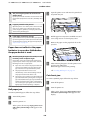
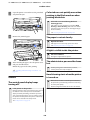
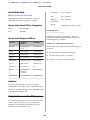
Take-Up Error
Is anything obstructing the
take-up reel sensor system?
After checking the take-up reel unit sensor and removing any obstructions, press the Z
button.
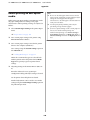
If there is loose paper around the take-up reel unit roll core, set the Auto switch to Off and
keep the Manual pressed in the take-up direction to remove the slack. After confirming
that the paper is correctly attached, return the Auto switch to its original position and
press the Z button.
U “Using the Auto Take-up Reel Unit (SC-T7000 Series Only)” on page 39
125