1
Epson SureColor T-Series User Guide
Introduction
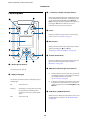
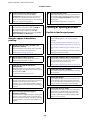
A Message
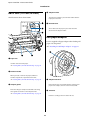
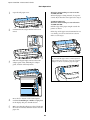
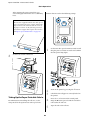
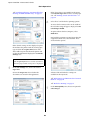
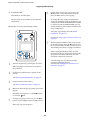
. : The Paper Tab
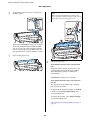
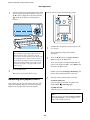
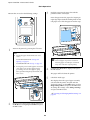
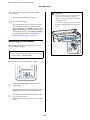
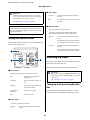
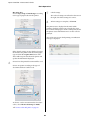
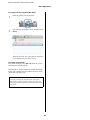
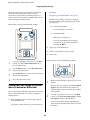
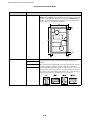
The information of loaded paper appears in the
info display area.
Displays the printer’s status, operation, and error
messages.
When you press the Menu button, the Paper
menu appears.
U“What to do When a Message is Displayed” on page
168
U“Paper menu” on page 134
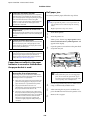
The Info Display Area
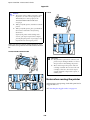
Displays the Source and Media Type of the
loaded paper.
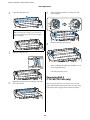
B Tabs/Info Display Area
When roll paper is used, it also shows the roll
width. When Roll Paper Remaining is On, it
shows the amount of roll paper remaining.
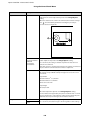
When the length remaining reaches or falls
below the value selected for Remaining Alert, a
icon appears above the tab icon and an
alert like that shown below is displayed to warn
that the printer is nearing the end of the roll.
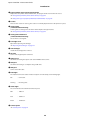
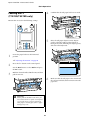
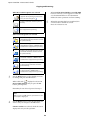
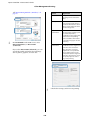
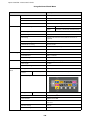
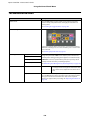
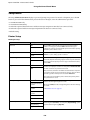
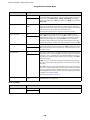
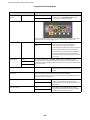
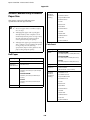
The tab/info display area contains the seven tabs listed
below.
Use the l/r buttons to select a tab.
Information on the selected tab appears in the info
display area.
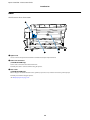
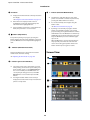
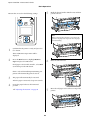
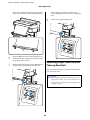
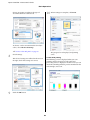
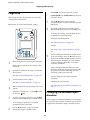
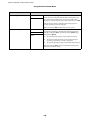
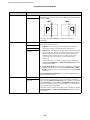
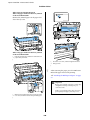
, : The Print Queues Tab
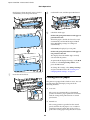
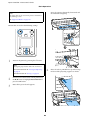
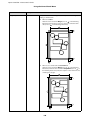
When roll paper is loaded on Roll 1/Roll 2 of the
T7270D/T5270D, you can check which is
selected (in use) by looking at the icon.
Print job information appears in the info display
area.
When you press the Menu button, the Print
Queues menu appears.
: Indicates a roll that is selected (in use).
The number indicates either Roll 1 or
Roll 2.
U“Print Queues menu” on page 132
The Info Display Area
The name of the job being printed appears
when the printer driver is used.
: Indicates a roll in a standby state.
If there is an automatic switching
command, this roll is selected for
printing.
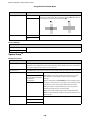
If an optional hard disk unit or Adobe PostScript
3 Expansion Unit is installed, it also shows the
number of held jobs, if any.
c
Automatic switching of roll paperU“Switching
Roll Paper Automatically before Printing
(T7270D/T5270D Only)” on page 87
Important:
A flashing , icon indicates that an optional
hard disk unit or Adobe PostScript 3
Expansion Unit is transmitting data to the
printer. Do not disconnect the power cord or
turn the printer off while the icon is flashing.
Failure to observe this precaution could
corrupt the data on the hard disk unit or
Adobe PostScript 3 Expansion Unit.
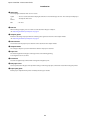
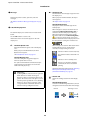
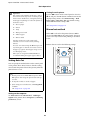
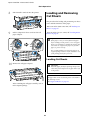
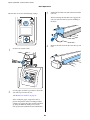
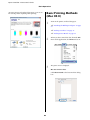
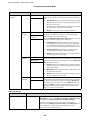
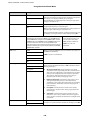
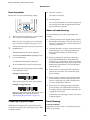
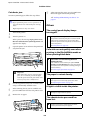
: The Ink Tab
Shows ink cartridge status in the info display
area.
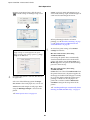
The Info Display Area
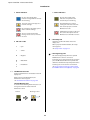
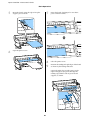
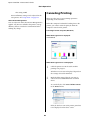
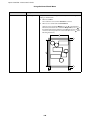
As shown in the following illustrations, the icon
changes based on the status of the ink cartridge.
Normal
16
Warning or error