1
EaseUS Todo Backup user guide
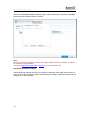
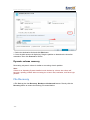
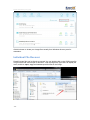
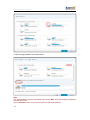
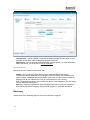
Interval - Set start time, finish time and interval time for the plan. For example, if you set
the start time at 6:00 am, finish time at 10:00 am, and interval time is 2 hours, then the
task will be executed three times at 6:00 am, 8:00 am and 10:00 am.
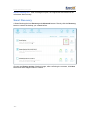
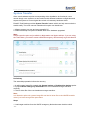
Weekly
Specify the time point on selected weekday(s) to perform the backup, the backup will
repeat every week.
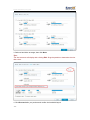
Monthly
Run the plan on specific day(s) every month. The plan can be set based on date or week.
And it also requires an exact time point when to perform the plan on selected day(s).
Every - Schedule the time by week. For example, run backup on the first Monday of each
month.
Start - Choose exact day(s) of a month to run backup.
Upon event
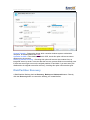
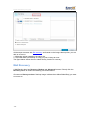
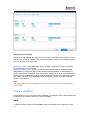
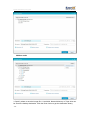
EaseUS Todo Backup creates backup triggered by the following four system events:
System startup - The backup plan will run when system starts up.
System shutdown - The plan will run when system shutdown (Currently, this option is not
available for Windows Vista and later version).
User log on - The plan will run when you log in Windows.
User log off - The plan will run when you log off Windows.
USB device plugged in - The plan will automatically run when you plug in the USB
device that is set as the destination.
Once a day only
After this option checked, the event backup will be executed once a day only.
Specified date
Specify one day for the event backup. Uncheck the option will make the event backup
available every day.
Run missed backup at system startup if computer is shutdown
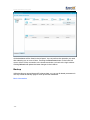
Regarding Daily, Weekly, Monthly type. If your scheduled backup is missed due to
power failure, or computer shut down, then the latest missed backup will automatically run
after the computer starts.
Note:
Upon event option is not available in Exchange backup.
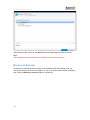
Backup type
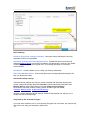
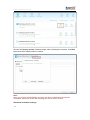
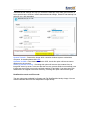
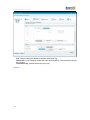
There are three backup types: Full, Incremental or Differential. Each of them can be
specified to a created schedule and decide how the schedule goes.
- 21 -