1
EXAMPLE: CREATING A MODEL OF AN OVERHEAD HOIST WITH ABAQUS/CAE
The instructions for the examples discussed in this manual will focus on using the Model Tree to
access the functionality of ABAQUS/CAE. Menu bar actions will be considered only when necessary
(e.g., when creating a finite element mesh or postprocessing results).
2.3
Example: creating a model of an overhead hoist with
ABAQUS/CAE
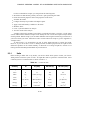
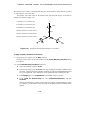
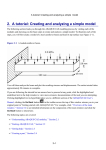
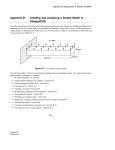
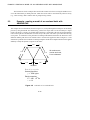
This example of an overhead hoist, shown in Figure 2–5, leads you through the ABAQUS/CAE modeling
process by using the Model Tree and showing you the basic steps used to create and analyze a simple
model. The hoist is a simple, pin-jointed framework that is constrained at the left end and mounted on
rollers at the right end. The members can rotate freely at the joints. The frame is prevented from moving
out of plane. A simulation is first performed in ABAQUS/Standard to determine the structure’s static
deflection and the peak stress in its members when a 10 kN load is applied as shown in Figure 2–5. The
simulation is performed a second time in ABAQUS/Explicit under the assumption that the load is applied
suddenly to study the dynamic response of the frame.
1m
1m
1m
1m
All members are
circular steel rods,
5 mm in diameter.
1m
10,000 N
Material properties
General properties:
3
ρ = 7800 kg/m
Elastic properties:
9
E = 200 × 10 Pa
ν = 0.3
Figure 2–5
Schematic of an overhead hoist.
2–12
EXAMPLE: CREATING A MODEL OF AN OVERHEAD HOIST WITH ABAQUS/CAE
For the overhead hoist example, you will perform the following tasks:
•
•
•
•
•
•
•
•
Sketch the two-dimensional geometry and create a part representing the frame.
Define the material properties and section properties of the frame.
Assemble the model.
Configure the analysis procedure and output requests.
Apply loads and boundary conditions to the frame.
Mesh the frame.
Create a job and submit it for analysis.
View the results of the analysis.
A Python script for this example is provided in “Overhead hoist frame,” Section A.1, in the online
version of this manual. When this script is run in ABAQUS/CAE, it creates the complete analysis model
for this problem. Run the script if you encounter difficulties following the instructions given below or if
you wish to check your work. Instructions on how to fetch and run the script are given in Appendix A,
“Example Files.”
As noted earlier, it is assumed that you will be using ABAQUS/CAE to generate the model.
However, if you do not have access to ABAQUS/CAE or another preprocessor, the input file that
defines this problem can be created manually, as discussed in “Creating an input file,” Section 2.3 of
Getting Started with ABAQUS/Standard: Keywords Version.
2.3.1
Units
Before starting to define this or any model, you need to decide which system of units you will use.
ABAQUS has no built-in system of units. All input data must be specified in consistent units. Some
common systems of consistent units are shown in Table 2–1.
Table 2–1
Consistent units.
Quantity
SI
SI (mm)
US Unit (ft)
US Unit (inch)
Length
m
mm
ft
in
Force
N
N
lbf
lbf
tonne (10 kg)
slug
lbf s2 /in
s
s
s
Mass
kg
Time
s
3
2
2
2
Stress
Pa (N/m )
MPa (N/mm )
lbf/ft
Energy
J
mJ (10−3 J)
ft lbf
Density
kg/m
3
tonne/mm
3
2–13
psi (lbf/in2 )
in lbf
3
slug/ft
lbf s2 /in4
EXAMPLE: CREATING A MODEL OF AN OVERHEAD HOIST WITH ABAQUS/CAE
The SI system of units is used throughout this guide. Users working in the systems labeled “US
Unit” should be careful with the units of density; often the densities given in handbooks of material
properties are multiplied by the acceleration due to gravity.
2.3.2
Creating a part
Parts define the geometry of the individual components of your model and, therefore, are the building
blocks of an ABAQUS/CAE model. You can create parts that are native to ABAQUS/CAE, or you can
import parts created by other applications either as a geometric representation or as a finite element mesh.
You will start the overhead hoist problem by creating a two-dimensional, deformable wire part. You
do this by sketching the geometry of the frame. ABAQUS/CAE automatically enters the Sketcher when
you create a part.
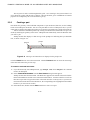
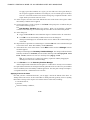
ABAQUS/CAE often displays a short message in the prompt area indicating what you should do
next, as shown in Figure 2–6.
previous
prompt
cancel
Figure 2–6
Messages and instructions are displayed in the prompt area.
Click the Cancel button to cancel the current task. Click the Previous button to cancel the current step
in the task and return to the previous step.
To create the overhead hoist frame:
1. If you did not already start ABAQUS/CAE, type abaqus cae, where abaqus is the command
used to run ABAQUS.
2. Select Create Model Database from the Start Session dialog box that appears.
ABAQUS/CAE enters the Part module. The Model Tree appears in the left side of the main window.
Between the Model Tree and the canvas is the Part module toolbox. A toolbox contains a set of icons
that allow expert users to bypass the menus in the main menu bar. For many tools, as you select an
item from the main menu bar or the Model Tree, the corresponding tool is highlighted in the module
toolbox so you can learn its location.
3. In the Model Tree, double-click the Parts container to create a new part.
2–14
EXAMPLE: CREATING A MODEL OF AN OVERHEAD HOIST WITH ABAQUS/CAE
The Create Part dialog box appears. ABAQUS/CAE also displays text in the prompt area near the
bottom of the window to guide you through the procedure.
You use the Create Part dialog box to name the part; to choose its modeling space, type, and base
feature; and to set the approximate size. You can edit and rename a part after you create it; you can
also change its modeling space and type but not its base feature.
4. Name the part Frame. Choose a two-dimensional planar deformable body and a wire base feature.
5. In the Approximate size text field, type 4.0.
The value entered in the Approximate size text field at the bottom of the dialog box sets the
approximate size of the new part. The size that you enter is used by ABAQUS/CAE to calculate
the size of the Sketcher sheet and the spacing of its grid. You should choose this value to be on
the order of the largest dimension of your finished part. Recall that ABAQUS/CAE does not use
specific units, but the units must be consistent throughout the model. In this model SI units will be
used.
6. Click Continue to exit the Create Part dialog box.
ABAQUS/CAE automatically enters the Sketcher. The Sketcher toolbox appears in the left side
of the main window, and the Sketcher grid appears in the viewport. The Sketcher contains a set of
basic tools that allow you to sketch the two-dimensional profile of your part. ABAQUS/CAE enters
the Sketcher whenever you create or edit a part. To finish using any tool, click mouse button 2 in
the viewport or select a new tool.
Tip: Like all tools in ABAQUS/CAE, if you simply position the cursor over a tool in the
Sketcher toolbox for a short time, a small window appears that gives a brief description
of the tool. When you select a tool, a white background appears on it.
The following aspects of the Sketcher help you sketch the desired geometry:
•
•
•
The Sketcher grid helps you position the cursor and align objects in the viewport.
•
When you select a sketching tool, ABAQUS/CAE displays the X- and Y-coordinates of the
cursor in the upper-left corner of the viewport.
Dashed lines indicate the X- and Y-axes of the sketch and intersect at the origin of the sketch.
A triad in the lower-left corner of the viewport indicates the relationship between the sketch
plane and the orientation of the part.
7. Use the Create Isolated Point tool
located in the upper left corner of the Sketcher toolbox
to begin sketching the geometry of the frame by defining isolated points. Create three points with
the following coordinates: (-1.0, 0.0), (0.0, 0.0), and (1.0, 0.0). The positions of
these points represent the locations of the joints on the bottom of the frame. Reset the view using
the Auto-Fit View tool
in the toolbar to see the three points.
Click mouse button 2 anywhere in the viewport to exit the isolated point tool.
2–15
EXAMPLE: CREATING A MODEL OF AN OVERHEAD HOIST WITH ABAQUS/CAE
8. The positions of the points on the top of the frame are not obvious but can be easily determined
by making use of the fact that the frame members form 60° angles with each other. In this case
construction geometry can be used to determine the positions of these points.
You create construction geometry in the Sketcher to help you position and align the geometry in your
sketch. The Sketcher allows you to add construction lines and circles to your sketch; in addition,
isolated points can be considered construction geometry.
For more information on construction geometry, see “Creating construction geometry,”
Section 19.10 of the ABAQUS/CAE User’s Manual.
a. Use the Create Construction: Line at an Angle tool
to create angular construction
lines through each of the points created in Step 8. To select the angular construction line tool,
do the following:
i. Note the small black triangles at the base of some of the toolbox icons.
These
triangles indicate the presence of hidden icons that can be revealed. Click the Create
Construction: Horizontal Line Thru Point tool
located on the middle-left of the
Sketcher toolbox, but do not release mouse button 1. Additional icons appear.
ii. Without releasing mouse button 1, drag the cursor along the set of icons that appear until
you reach the angular construction line tool. Then release the mouse button to select that
tool.
The angular construction line drawing tool appears in the Sketcher toolbox with a white
background indicating that you selected it.
b. Enter 60.0 in the prompt area as the angle the construction line will make with the horizontal.
c. Place the cursor at the point whose coordinates are (−1.0, 0.0), and click mouse button 1 to
create the construction line.
9. Similarly, create construction lines through the other two points created in Step 8.
a. Create another angular construction line oriented 60° with respect to the horizontal through the
point whose coordinates are (0.0, 0.0).
b. Create two angular construction lines oriented 120° with respect to the horizontal through the
points (0.0, 0.0) and (1.0, 0.0). (You will have to exit the drawing tool by clicking mouse
button 2 in the viewport and then reselect the tool to enter another angle value.)
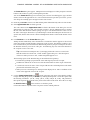
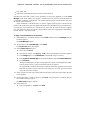
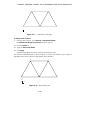
The sketch with the isolated points and construction lines is shown in Figure 2–7. In this figure the
Sketcher Options tool
has been used to suppress the visibility of every other grid line.
2–16
EXAMPLE: CREATING A MODEL OF AN OVERHEAD HOIST WITH ABAQUS/CAE
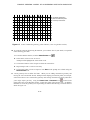
Use these preselection
points to locate the points
on the top of the frame.
Figure 2–7
Frame construction geometry: points and lines (1 out of 2 grid lines visible).
10. If you make a mistake while using the Sketcher, you can delete lines in your sketch, as explained
in the following procedure:
a. From the Sketcher toolbox, click the Delete Entities tool
.
b. In the sketch, click on a line to select it.
ABAQUS/CAE highlights the selected line in red.
c. Click mouse button 2 in the viewport to delete the selected line.
d. Repeat Steps b and c as often as necessary.
e. Click mouse button 2 in the viewport or click Done in the prompt area to finish using the
Delete Entities tool.
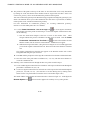
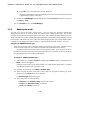
11. Create geometry lines to define the frame. While you are adding construction geometry and
moving the cursor around the sketch, ABAQUS/CAE displays preselection points (for example,
at the intersections of new construction geometry and existing construction geometry) that allow
you to align objects precisely. Using the Create Lines: Connected tool
located in the
upper-right corner of the Sketcher toolbox, connect the points with geometry lines. In addition,
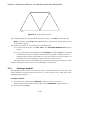
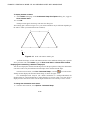
remember to create the geometry lines representing the internal truss bracing. The final sketch is
shown in Figure 2–8.
2–17
EXAMPLE: CREATING A MODEL OF AN OVERHEAD HOIST WITH ABAQUS/CAE
2
3
1
Figure 2–8
Frame geometry sketch.
12. From the prompt area (near the bottom of the main window), click Done to exit the Sketcher.
Note: If you don’t see the Done button in the prompt area, continue to click mouse button 2 in the
viewport until it appears.
13. Before you continue, save your model in a model database file.
a. From the main menu bar, select File→Save. The Save Model Database As dialog box
appears.
b. Type a name for the new model database in the File Name field, and click OK. You do not need
to include the file extension; ABAQUS/CAE automatically appends .cae to the file name.
ABAQUS/CAE stores the model database in a new file and returns to the Part module. The
path and name of your model database appear in the main window title bar.
You should always save your model database at regular intervals (for example, each time you switch
modules); ABAQUS/CAE does not save your model database automatically.
2.3.3
Creating a material
In this problem all the members of the frame are made of steel and assumed to be linear elastic with
Young’s modulus of 200 GPa and Poisson’s ratio of 0.3. Thus, you will create a single linear elastic
material with these properties.
To define a material:
1. In the Model Tree, double-click the Materials container to create a new material.
ABAQUS/CAE switches to the Property module, and the Edit Material dialog box appears.
2. Name the material Steel.
2–18
EXAMPLE: CREATING A MODEL OF AN OVERHEAD HOIST WITH ABAQUS/CAE
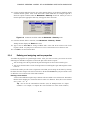
3. Use the menu bar under the browser area of the material editor to reveal menus containing all the
available material options. Some of the menu items contain submenus; for example, Figure B–7
shows the options available under the Mechanical→Elasticity menu item. When you select a
material option, the appropriate data entry form appears below the menu.
Figure 2–9
Submenus available under the Mechanical→Elasticity menu.
4. From the material editor’s menu bar, select Mechanical→Elasticity→Elastic.
ABAQUS/CAE displays the Elastic data form.
5. Type a value of 200.0E9 for Young’s modulus and a value of 0.3 for Poisson’s ratio in the
respective fields. Use [Tab] or move the cursor to a new cell and click to move between cells.
6. Click OK to exit the material editor.
2.3.4
Defining and assigning section properties
You define the properties of a part through sections. After you create a section, you can use one of the
following two methods to assign the section to the part in the current viewport:
•
•
You can simply select the region from the part and assign the section to the selected region.
You can use the Set toolset to create a homogeneous set containing the region and assign the section
to the set.
For the frame model you will create a single truss section that you will assign to the frame by selecting
the frame from the viewport. The section will refer to the material Steel that you just created as well
as define the cross-sectional area of the frame members.
Defining a truss section
A truss section definition requires only a material reference and the cross-sectional area. Remember
that the frame members are circular bars that are 0.005 m in diameter. Thus, their cross-sectional
area is 1.963 × 10⁻⁵ m2 .
Tip: You can use the command line interface (CLI) in ABAQUS/CAE as a simple
calculator. For example, to compute the cross-sectional area of the frame members,
2–19
EXAMPLE: CREATING A MODEL OF AN OVERHEAD HOIST WITH ABAQUS/CAE
click the
tab in the bottom left corner of the ABAQUS/CAE window to activate the
CLI, type 3.1416*0.005**2/4.0 after the command prompt, and press [Enter]. The
value of the cross-sectional area is printed in the CLI.
To define a truss section:
1. In the Model Tree, double-click the Sections container to create a section.
The Create Section dialog box appears.
2. In the Create Section dialog box:
a. Name the section FrameSection.
b. In the Category list, select Beam.
c. In the Type list, select Truss.
d. Click Continue.
The Edit Section dialog box appears.
3. In the Edit Section dialog box:
a. Accept the default selection of Steel for the Material associated with the section. If
you had defined other materials, you could click the arrow next to the Material text box
to see a list of available materials and to select the material of your choice.
b. In the Cross-sectional area field, enter a value of 1.963E-5.
c. Click OK.
Assigning the section to the frame
The section FrameSection must be assigned to the frame.
To assign the section to the frame:
1. In the Model Tree, expand the branch for the part named Frame by clicking the “ ” symbol
to expand the Parts container and then clicking the “ ” symbol to expand the Frame item.
2. Double-click Section Assignments in the list of part attributes that appears.
ABAQUS/CAE displays prompts in the prompt area to guide you through the procedure.
3. Select the entire part as the region to which the section will be applied.
a. Click and hold mouse button 1 at the upper left-hand corner of the viewport.
b. Drag the mouse to create a box around the truss.
c. Release mouse button 1.
ABAQUS/CAE highlights the entire frame.
2–20
EXAMPLE: CREATING A MODEL OF AN OVERHEAD HOIST WITH ABAQUS/CAE
4. Click mouse button 2 in the viewport or click Done in the prompt area to accept the selected
geometry.
The Edit Section Assignment dialog box appears containing a list of existing sections.
5. Accept the default selection of FrameSection, and click OK.
ABAQUS/CAE assigns the truss section to the frame, colors the entire frame aqua to indicate
that the region has a section assignment, and closes the Edit Section Assignment dialog box.
2.3.5
Defining the assembly
Each part that you create is oriented in its own coordinate system and is independent of the other parts
in the model. Although a model may contain many parts, it contains only one assembly. You define the
geometry of the assembly by creating instances of a part and then positioning the instances relative to
each other in a global coordinate system. An instance may be independent or dependent. Independent
part instances are meshed individually, while the mesh of a dependent part instance is associated with
the mesh of the original part. For further details, see “Working with part instances,” Section 13.3 of the
ABAQUS/CAE User’s Manual. By default, part instances are dependent.
For this problem you will create a single instance of your overhead hoist. ABAQUS/CAE positions
the instance so that the origin of the sketch that defined the frame overlays the origin of the assembly’s
default coordinate system.
To define the assembly:
1. In the Model Tree, expand the Assembly container and double-click Instances in the list that
appears.
ABAQUS/CAE switches to the Assembly module, and the Create Instance dialog box appears.
2. In the dialog box, select Frame and click OK.
ABAQUS/CAE creates an instance of the overhead hoist. In this example the single instance of the
frame defines the assembly. The frame is displayed in the 1–2 plane of the global coordinate system (a
right-handed, rectangular Cartesian system). A triad in the lower-left corner of the viewport indicates
the orientation of the model with respect to the view. A second triad in the viewport indicates the origin
and orientation of the global coordinate system ( -, -, and -axes). The global 1-axis is the horizontal
axis of the hoist, the global 2-axis is the vertical axis, and the global 3-axis is normal to the plane of the
framework. For two-dimensional problems such as this one ABAQUS requires that the model lie in a
plane parallel to the global 1–2 plane.
2.3.6
Configuring your analysis
Now that you have created your assembly, you can configure your analysis. In this simulation we are
interested in the static response of the overhead hoist to a 10 kN load applied at the center, with the
2–21
EXAMPLE: CREATING A MODEL OF AN OVERHEAD HOIST WITH ABAQUS/CAE
left-hand end fully constrained and a roller constraint on the right-hand end (see Figure 2–5). This is a
single event, so only a single analysis step is needed for the simulation. Thus, the analysis will consist
of two steps overall:
•
•
An initial step, in which you will apply boundary conditions that constrain the ends of the frame.
An analysis step, in which you will apply a concentrated load at the center of the frame.
ABAQUS/CAE generates the initial step automatically, but you must create the analysis step yourself.
You may also request output for any steps in the analysis.
There are two kinds of analysis steps in ABAQUS: general analysis steps, which can be used to
analyze linear or nonlinear response, and linear perturbation steps, which can be used only to analyze
linear problems. Only general analysis steps are available in ABAQUS/Explicit. For this simulation you
will define a static linear perturbation step. Perturbation procedures are discussed further in Chapter 11,
“Multiple Step Analysis.”
Creating an analysis step
Create a static, linear perturbation step that follows the initial step of the analysis.
To create a static linear perturbation analysis step:
1. In the Model Tree, double-click the Steps container to create a step.
ABAQUS/CAE switches to the Step module, and the Create Step dialog box appears. A list
of all the general procedures and a default step name of Step-1 is provided.
2. Change the step name to Apply load.
3. Select Linear perturbation as the Procedure type.
4. From the list of available linear perturbation procedures in the Create Step dialog box, select
Static, Linear perturbation and click Continue.
The Edit Step dialog box appears with the default settings for a static linear perturbation step.
5. The Basic tab is selected by default. In the Description field, type 10 kN central
load.
6. Click the Other tab to see its contents; you can accept the default values provided for the step.
7. Click OK to create the step and to exit the Edit Step dialog box.
Requesting data output
Finite element analyses can create very large amounts of output. ABAQUS allows you to control
and manage this output so that only data required to interpret the results of your simulation are
produced. Four types of output are available from an ABAQUS analysis:
•
•
Results stored in a neutral binary file used by ABAQUS/CAE for postprocessing. This file is
called the ABAQUS output database file and has the extension .odb.
Printed tables of results, written to the ABAQUS data (.dat) file. Output to the data file is
available only in ABAQUS/Standard.
2–22
EXAMPLE: CREATING A MODEL OF AN OVERHEAD HOIST WITH ABAQUS/CAE
•
•
Restart data used to continue the analysis, written to the ABAQUS restart (.res) file.
Results stored in binary files for subsequent postprocessing with third-party software, written
to the ABAQUS results (.fil) file.
You will use only the first of these in the overhead hoist simulation. A detailed discussion of printed
output to the data (.dat) file is found in “Output to the data and results files,” Section 4.1.2 of the
ABAQUS Analysis User’s Manual.
By default, ABAQUS/CAE writes the results of the analysis to the output database (.odb)
file. When you create a step, ABAQUS/CAE generates a default output request for the step.
A list of the preselected variables written by default to the output database is given in the
ABAQUS Analysis User’s Manual. You do not need to do anything to accept these defaults. You
use the Field Output Requests Manager to request output of variables that should be written at
relatively low frequencies to the output database from the entire model or from a large portion of
the model. You use the History Output Requests Manager to request output of variables that
should be written to the output database at a high frequency from a small portion of the model;
for example, the displacement of a single node.
For this example you will examine the output requests to the .odb file and accept the default
configuration.
To examine your output requests to the .odb file:
1. In the Model Tree, click mouse button 3 on the Field Output Requests container and select
Manager from the menu that appears.
ABAQUS/CAE displays the Field Output Requests Manager. This manager displays an
alphabetical list of existing output requests along the left side of the dialog box. The names
of all the steps in the analysis appear along the top of the dialog box in the order of execution.
The table formed by these two lists displays the status of each output request in each step.
You can use the Field Output Requests Manager to do the following:
•
•
•
•
Select the variables that ABAQUS will write to the output database.
Select the section points for which ABAQUS will generate output data.
Select the region of the model for which ABAQUS will generate output data.
Change the frequency at which ABAQUS will write data to the output database.
2. Review the default output request that ABAQUS/CAE generates for the Static, Linear
perturbation step you created and named Apply load.
Click the cell in the table labeled Created; that cell becomes highlighted. The following
information related to the cell is shown in the legend at the bottom of the manager:
•
•
•
The type of analysis procedure carried out in the step in that column.
The list of output request variables.
The output request status.
2–23
EXAMPLE: CREATING A MODEL OF AN OVERHEAD HOIST WITH ABAQUS/CAE
3. On the right side of the Field Output Requests Manager, click Edit to view more detailed
information about the output request.
The field output editor appears. In the Output Variables region of this dialog box, there is a
text box that lists all variables that will be output. If you change an output request, you can
always return to the default settings by clicking Preselected defaults above the text box.
4. Click the arrows next to each output variable category to see exactly which variables will be
output. The boxes next to each category title allow you to see at a glance whether all variables
in that category will be output. A black check mark indicates that all variables are output,
while a gray check mark indicates that only some variables will be output.
Based on the selections shown at the bottom of the dialog box, data will be generated at
every default section point in the model and will be written to the output database after every
increment during the analysis.
5. Click Cancel to close the field output editor, since you do not wish to make any changes to
the default output requests.
6. Click Dismiss to close the Field Output Requests Manager.
Note: What is the difference between the Dismiss and Cancel buttons? Dismiss buttons
appear in dialog boxes that contain data that you cannot modify. For example, the Field
Output Requests Manager allows you to view output requests, but you must use the field
output editor to modify those requests. Clicking the Dismiss button simply closes the Field
Output Requests Manager. Conversely, Cancel buttons appear in dialog boxes that allow
you to make changes. Clicking Cancel closes the dialog box without saving your changes.
7. Review the history output requests in a similar manner by right-clicking the History Output
Requests container in the Model Tree and opening the history output editor.
2.3.7
Applying boundary conditions and loads to the model
Prescribed conditions, such as loads and boundary conditions, are step dependent, which means that you
must specify the step or steps in which they become active. Now that you have defined the steps in the
analysis, you can define prescribed conditions.
Applying boundary conditions to the frame
In structural analyses, boundary conditions are applied to those regions of the model where the
displacements and/or rotations are known. Such regions may be constrained to remain fixed
(have zero displacement and/or rotation) during the simulation or may have specified, nonzero
displacements and/or rotations.
In this model the bottom-left portion of the frame is constrained completely and, thus, cannot
move in any direction. The bottom-right portion of the frame, however, is fixed in the vertical
2–24
EXAMPLE: CREATING A MODEL OF AN OVERHEAD HOIST WITH ABAQUS/CAE
direction but is free to move in the horizontal direction. The directions in which motion is possible
are called degrees of freedom (dof).
The labeling convention used for the displacement and rotational degrees of freedom in
ABAQUS is shown in Figure 2–10.
2
1 Translation in the 1-direction (U1).
2 Translation in the 2-direction (U2).
dof 5
3 Translation in the 3-direction (U3).
4 Rotation about the 1-direction (UR1).
dof 2
5 Rotation about the 2-direction (UR2).
6 Rotation about the 3-direction (UR3).
dof 3
dof 4
dof 1
3
Figure 2–10
dof 6
1
Displacement and rotational degrees of freedom.
To apply boundary conditions to the frame:
1. In the Model Tree, double-click the BCs container.
ABAQUS/CAE switches to the Load module, and the Create Boundary Condition dialog
box appears.
2. In the Create Boundary Condition dialog box:
a. Name the boundary condition Fixed.
b. From the list of steps, select Initial as the step in which the boundary condition will be
activated. All the mechanical boundary conditions specified in the Initial step must
have zero magnitudes. This condition is enforced automatically by ABAQUS/CAE.
c. In the Category list, accept Mechanical as the default category selection.
d. In the Types for Selected Step list, select Displacement/Rotation, and click
Continue.
ABAQUS/CAE displays prompts in the prompt area to guide you through the procedure.
For example, you are asked to select the region to which the boundary condition will be
applied.
2–25
EXAMPLE: CREATING A MODEL OF AN OVERHEAD HOIST WITH ABAQUS/CAE
To apply a prescribed condition to a region, you can either select the region directly in
the viewport or apply the condition to an existing set (a set is a named region of a model).
Sets are a convenient tool that can be used to manage large complicated models. In this
simple model you will not make use of sets.
3. In the viewport, select the vertex at the bottom-left corner of the frame as the region to which
the boundary condition will be applied.
4. Click mouse button 2 in the viewport or click Done in the prompt area to indicate that you
have finished selecting regions.
The Edit Boundary Condition dialog box appears. When you are defining a boundary
condition in the initial step, all available degrees of freedom are unconstrained by default.
5. In the dialog box:
a. Toggle on U1 and U2 since all translational degrees of freedom need to be constrained.
b. Click OK to create the boundary condition and to close the dialog box.
ABAQUS/CAE displays two arrowheads at the vertex to indicate the constrained degrees
of freedom.
6. Repeat the above procedure to constrain degree of freedom U2 at the vertex at the bottom-right
corner of the frame. Name this boundary condition Roller.
7. In the Model Tree, click mouse button 3 on the BCs container and select Manager from the
menu that appears.
ABAQUS/CAE displays the Boundary Condition Manager. The manager indicates that the
boundary conditions are Created (activated) in the initial step and are Propagated from
base state (continue to be active) in the analysis step Apply load.
Tip: To view the title of a column in its entirety, expand its width by dragging the
dividing line between the column headings.
8. Click Dismiss to close the Boundary Condition Manager.
In this example all the constraints are in the global 1- or 2-directions. In many cases constraints
are required in directions that are not aligned with the global directions. In such cases you can define
a local coordinate system for boundary condition application. The skew plate example in Chapter 5,
“Using Shell Elements,” demonstrates how to do this.
Applying a load to the frame
Now that you have constrained the frame, you can apply a load to the bottom of the frame. In
ABAQUS the term load (as in the Load module in ABAQUS/CAE) generally refers to anything
that induces a change in the response of a structure from its initial state, including:
•
•
•
concentrated forces,
pressures,
nonzero boundary conditions,
2–26
EXAMPLE: CREATING A MODEL OF AN OVERHEAD HOIST WITH ABAQUS/CAE
•
•
body loads, and
temperature (with thermal expansion of the material defined).
Sometimes the term load is used to refer specifically to force-type quantities (as in the Load
Manager of the Load module); for example, concentrated forces, pressures, and body loads but
not boundary conditions or temperature. The intended meaning of the term should be clear from
the context of the discussion.
In this simulation a concentrated force of 10 kN is applied in the negative 2-direction to the
bottom center of the frame; the load is applied during the linear perturbation step you created earlier.
In reality there is no such thing as a concentrated, or point, load; the load will always be applied
over some finite area. However, if the area being loaded is small, it is an appropriate idealization to
treat the load as a concentrated load.
To apply a concentrated force to the frame:
1. In the Model Tree, click mouse button 3 on the Loads container and select Manager from the
menu that appears.
The Load Manager appears.
2. At the bottom of the Load Manager, click Create.
The Create Load dialog box appears.
3. In the Create Load dialog box:
a. Name the load Force.
b. From the list of steps, select Apply load as the step in which the load will be applied.
c. In the Category list, accept Mechanical as the default category selection.
d. In the Types for Selected Step list, accept the default selection of Concentrated force.
e. Click Continue.
ABAQUS/CAE displays prompts in the prompt area to guide you through the procedure.
You are asked to select a region to which the load will be applied.
As with boundary conditions, the region to which the load will be applied can be selected
either directly in the viewport or from a list of existing sets. As before, you will select the
region directly in the viewport.
4. In the viewport, select the vertex at the bottom center of the frame as the region where the load
will be applied.
5. Click mouse button 2 in the viewport or click Done in the prompt area to indicate that you
have finished selecting regions.
The Edit Load dialog box appears.
6. In the dialog box:
a. Enter a magnitude of -10000.0 for CF2.
2–27
EXAMPLE: CREATING A MODEL OF AN OVERHEAD HOIST WITH ABAQUS/CAE
b. Click OK to create the load and to close the dialog box.
ABAQUS/CAE displays a downward-pointing arrow at the vertex to indicate that the load
is applied in the negative 2-direction.
7. Examine the Load Manager and note that the new load is Created (activated) in the analysis
step Apply load.
8. Click Dismiss to close the Load Manager.
2.3.8
Meshing the model
You will now generate the finite element mesh. You can choose the meshing technique that
ABAQUS/CAE will use to create the mesh, the element shape, and the element type. The meshing
technique for one-dimensional regions (such as the ones in this example) cannot be changed, however.
ABAQUS/CAE uses a number of different meshing techniques. The default meshing technique assigned
to the model is indicated by the color of the model that is displayed when you enter the Mesh module;
if ABAQUS/CAE displays the model in orange, it cannot be meshed without assistance from you.
Assigning an ABAQUS element type
In this section you will assign a particular ABAQUS element type to the model. Although you will
assign the element type now, you could also wait until after the mesh has been created.
Two-dimensional truss elements will be used to model the frame. These elements are chosen
because truss elements, which carry only tensile and compressive axial loads, are ideal for modeling
pin-jointed frameworks such as this overhead hoist.
To assign an ABAQUS element type:
1. In the Model Tree, expand the Frame item underneath the Parts container. Then double-click
Mesh in the list that appears.
ABAQUS/CAE switches to the Mesh module. The Mesh module functionality is available
only through menu bar items or toolbox icons.
2. From the main menu bar, select Mesh→Element Type.
3. In the viewport, select the entire frame as the region to be assigned an element type. In the
prompt area, click Done when you are finished.
The Element Type dialog box appears.
4. In the dialog box, select the following:
•
•
•
Standard as the Element Library selection (the default).
Linear as the Geometric Order (the default).
Truss as the Family of elements.
2–28
EXAMPLE: CREATING A MODEL OF AN OVERHEAD HOIST WITH ABAQUS/CAE
5. In the lower portion of the dialog box, examine the element shape options. A brief description
of the default element selection is available at the bottom of each tabbed page.
Since the model is a two-dimensional truss, only two-dimensional truss element types are
shown on the Line tabbed page. A description of the element type T2D2 appears at the bottom
of the dialog box. ABAQUS/CAE will now associate T2D2 elements with the elements in the
mesh.
6. Click OK to assign the element type and to close the dialog box.
7. In the prompt area, click Done to end the procedure.
Creating the mesh
Basic meshing is a two-stage operation: first you seed the edges of the part instance, and then you
mesh the part instance. You select the number of seeds based on the desired element size or on the
number of elements that you want along an edge, and ABAQUS/CAE places the nodes of the mesh
at the seeds whenever possible. For this problem you will create one element on each bar of the
hoist.
To seed and mesh the model:
1. From the main menu bar, select Seed→Part to seed the part instance.
Note: You can gain more control of the resulting mesh by seeding each edge of the part
instance individually, but it is not necessary for this example.
The Global Seeds dialog box appears. The dialog box displays the default element size that
ABAQUS/CAE will use to seed the part instance. This default element size is based on the
size of the part instance. A relatively large seed value will be used so that only one element
will be created per region.
2. In the Global Seeds dialog box, specify an approximate global element size of 1.0, and click
OK to create the seeds and to close the dialog box.
3. From the main menu bar, select Mesh→Part to mesh the part instance.
4. From the buttons in the prompt area, click Yes to confirm that you want to mesh the part
instance.
Tip: You can display the node and element numbers within the Mesh module by selecting
View→Part Display Options from the main menu bar. Toggle on Show node labels
and Show element labels in the Mesh tabbed page of the Part Display Options dialog
box that appears.
2.3.9
Creating an analysis job
Now that you have configured your analysis, you will create a job that is associated with your model.
2–29
EXAMPLE: CREATING A MODEL OF AN OVERHEAD HOIST WITH ABAQUS/CAE
To create an analysis job:
1. In the Model Tree, double-click the Jobs container to create a job.
ABAQUS/CAE switches to the Job module, and the Create Job dialog box appears with a list of
the models in the model database. When you are finished defining your job, the Jobs container will
display a list of your jobs.
2. Name the job Frame, and click Continue.
The Edit Job dialog box appears.
3. In the Description field, type Two-dimensional overhead hoist frame.
4. In the Submission tabbed page, select Data check as the Job Type. Click OK to accept all other
default job settings in the job editor and to close the dialog box.
2.3.10
Checking the model
Having generated the model for this simulation, you are ready to run the analysis. Unfortunately, it is
possible to have errors in the model because of incorrect or missing data. You should perform a data
check analysis first before running the simulation.
To run a data check analysis:
1. Make sure that the Job Type is set to Data check. In the Model Tree, click mouse button 3 on the
job named Frame and select Submit from the menu that appears to submit your job for analysis.
2. After you submit your job, information appears next to the job name indicating the job’s status. The
status of the overhead hoist problem indicates one of the following conditions:
•
•
•
•
Submitted while the job is being submitted for analysis.
Running while ABAQUS analyzes the model.
Completed when the analysis is complete, and the output has been written to the output
database.
Aborted if ABAQUS/CAE finds a problem with the input file or the analysis and aborts the
analysis. In addition, ABAQUS/CAE reports the problem in the message area (see Figure 2–2).
During the analysis, ABAQUS/Standard sends information to ABAQUS/CAE to allow you to
monitor the progress of the job. Information from the status, data, log, and message files appear in the
job monitor dialog box.
To monitor the status of a job:
1. In the Model Tree, click mouse button 3 on the job named Frame and select Monitor from the
menu that appears to open the job monitor dialog box.
2–30
EXAMPLE: CREATING A MODEL OF AN OVERHEAD HOIST WITH ABAQUS/CAE
The top half of the dialog box displays the information available in the status (.sta) file that
ABAQUS creates for the analysis. This file contains a brief summary of the progress of an analysis
and is described in “Output,” Section 4.1.1 of the ABAQUS Analysis User’s Manual. The bottom
half of the dialog box displays the following information:
•
•
•
2.3.11
Click the Log tab to display the start and end times for the analysis that appear in the log
(.log) file.
Click the Errors and Warnings tabs to display the first ten errors or the first ten warnings that
appear in the data (.dat) and message (.msg) files. If a particular region of the model is
causing the error or warning, a node or element set will be created automatically that contains
that region. The name of the node or element set appears with the error or warning message,
and you can view the set using display groups in the Visualization module.
It will not be possible to perform the analysis until the causes of any error messages are
corrected. In addition, you should always investigate the reason for any warning messages
to determine whether corrective action is needed or whether such messages can be ignored
safely.
If more than ten errors or warnings are encountered, information regarding the additional errors
and warnings can be obtained from the printed output files themselves.
Click the Output tab to display a record of each output data entry as it is written to the output
database.
Running the analysis
Make any necessary corrections to your model. When the data check analysis completes with no error
messages, run the analysis itself. To do this, edit the job definition and set the Job Type to Continue
analysis; then, resubmit your job for analysis.
You should always perform a data check analysis before running a simulation to ensure that the
model has been defined correctly and to check that there is enough disk space and memory available
to complete the analysis. However, it is possible to combine the data check and analysis phases of the
simulation by setting the Job Type to Full analysis.
If a simulation is expected to take a substantial amount of time, it may be convenient to run it in a
batch queue by selecting Queue as the Run Mode. (The availability of such a queue depends on your
computer. If you have any questions, ask your systems administrator how to run ABAQUS on your
system.)
2.3.12
Postprocessing with ABAQUS/CAE
Graphical postprocessing is important because of the great volume of data created during a simulation.
The Visualization module of ABAQUS/CAE (also licensed separately as ABAQUS/Viewer) allows you
to view the results graphically using a variety of methods, including deformed shape plots, contour plots,
2–31
EXAMPLE: CREATING A MODEL OF AN OVERHEAD HOIST WITH ABAQUS/CAE
vector plots, animations, and X–Y plots. In addition, it allows you to create tabular reports of the output
data. All of these methods are discussed in this guide. For more information on any of the postprocessing
features discussed in this guide, consult Part V, “Viewing results,” of the ABAQUS/CAE User’s Manual.
For this example you will use the Visualization module to do some basic model checks and to display
the deformed shape of the frame.
When the job completes successfully, you are ready to view the results of the analysis with the
Visualization module. In the Model Tree, click mouse button 3 on the job named Frame and select
Results from the menu that appears to enter the Visualization module. ABAQUS/CAE opens the output
database created by the job and displays a fast plot of the model. A fast plot is a basic representation of
the undeformed model shape and is an indication that you have opened the desired file. Alternatively,
you can click Visualization in the Module list located under the toolbar, select File→Open, select
Frame.odb from the list of available output database files, and click OK.
Important: The fast plot does not display results and cannot be customized, for example,
to display element and node numbers. You must display the undeformed model shape to
customize the appearance of the model.
The title block at the bottom of the viewport indicates the following:
•
•
•
The description of the model (from the job description).
•
The date the output database was last modified.
The name of the output database (from the name of the analysis job).
The product name (ABAQUS/Standard or ABAQUS/Explicit) and version used to generate the
output database.
The state block at the bottom of the viewport indicates the following:
•
•
•
Which step is being displayed.
The increment within the step.
The step time.
The view orientation triad indicates the orientation of the model in the global coordinate system.
You can suppress the display of and customize the title block, state block, and view orientation triad
by selecting Viewport→Viewport Annotation Options from the main menu bar (for example, many
of the figures in this manual do not include the title block).
Displaying and customizing an undeformed shape plot
You will now display the undeformed model shape and use the plot options to enable the display of
node and element numbering in the plot.
From the main menu bar, select Plot→Undeformed Shape; or use the
tool in the
toolbox. ABAQUS/CAE displays the undeformed model shape, as shown in Figure 2–11.
2–32
EXAMPLE: CREATING A MODEL OF AN OVERHEAD HOIST WITH ABAQUS/CAE
2
3
1
Figure 2–11
Undeformed model shape.
To display node numbers:
1. From the main menu bar, select Options→Undeformed Shape.
The Undeformed Shape Plot Options dialog box appears.
2. Click the Labels tab.
3. Toggle on Show node labels.
4. Click Apply.
ABAQUS/CAE applies the change and keeps the dialog box open.
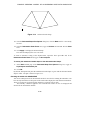
The customized undeformed plot is shown in Figure 2–12 (your node numbers may be different
depending on the order in which you sketched the frame members).
4
5
1
3
2
3
1
Figure 2–12
Node number plot.
2–33
2
EXAMPLE: CREATING A MODEL OF AN OVERHEAD HOIST WITH ABAQUS/CAE
To display element numbers:
1. In the Labels tabbed page of the Undeformed Shape Plot Options dialog box, toggle on
Show element labels.
2. Click OK.
ABAQUS/CAE applies the change and closes the dialog box.
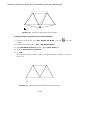
The resulting plot is shown in Figure 2–13 (your element numbers may be different depending on
the order in which you sketched the frame members).
4
7
5
5
4
1
3
6
3
1
2
2
2
3
1
Figure 2–13
Node and element number plot.
To disable the display of node and element numbers in the undeformed shape plot, repeat the
above procedure and, under Labels, toggle off Show node labels and Show element labels.
Displaying and customizing a deformed shape plot
You will now display the deformed model shape and use the plot options to change the deformation
scale factor and overlay the undeformed model shape on the deformed model shape.
From the main menu bar, select Plot→Deformed Shape; or use the
tool in the toolbox.
ABAQUS/CAE displays the deformed model shape, as shown in Figure 2–14.
For small-displacement analyses (the default formulation in ABAQUS/Standard) the
displacements are scaled automatically to ensure that they are clearly visible. The scale factor is
displayed in the state block. In this case the displacements have been scaled by a factor of 42.83.
To change the deformation scale factor:
1. From the main menu bar, select Options→Deformed Shape.
2–34
EXAMPLE: CREATING A MODEL OF AN OVERHEAD HOIST WITH ABAQUS/CAE
2
3
1
Figure 2–14
Deformed model shape.
2. From the Deformed Shape Plot Options dialog box, click the Basic tab if it is not already
selected.
3. From the Deformation Scale Factor area, toggle on Uniform and enter 10.0 in the Value
field.
4. Click Apply to redisplay the deformed shape.
The state block displays the new scale factor.
To return to automatic scaling of the displacements, repeat the above procedure and, in the
Deformation Scale Factor field, toggle on Auto-compute.
To overlay the undeformed model shape on the deformed model shape:
1. In the Basic tabbed page of the Deformed Shape Plot Options dialog box, toggle on
Superimpose undeformed plot.
2. Click OK.
By default, ABAQUS/CAE plots the undeformed model shape in green and the deformed model
shape in white. The plot is shown in Figure 2–15.
Checking the model with ABAQUS/CAE
You can use ABAQUS/CAE to check that the model is correct before running the simulation. You
have already learned how to draw plots of the model and to display the node and element numbers.
These are useful tools for checking that ABAQUS is using the correct mesh.
The boundary conditions applied to the overhead hoist model can also be displayed and
checked in the Visualization module.
2–35
EXAMPLE: CREATING A MODEL OF AN OVERHEAD HOIST WITH ABAQUS/CAE
2
3
1
Figure 2–15
Undeformed and deformed model shapes.
To display boundary conditions on the undeformed model:
1. From the main menu bar, select Plot→Undeformed Shape; or use the
tool in the
toolbox.
2. From the main menu bar, select View→ODB Display Options.
3. In the ODB Display Options dialog box, click the Entity Display tab.
4. Toggle on Show boundary conditions.
5. Click OK.
ABAQUS/CAE displays symbols to indicate the applied boundary conditions, as shown in
Figure 2–16.
2
3
Figure 2–16
1
Applied boundary conditions on the overhead hoist.
2–36
EXAMPLE: CREATING A MODEL OF AN OVERHEAD HOIST WITH ABAQUS/CAE
Tabular data reports
In addition to the graphical capabilities described above, ABAQUS/CAE allows you to write data
to a text file in a tabular format. This feature is a convenient alternative to writing tabular output
to the data (.dat) file. Output generated this way has many uses; for example, it can be used in
written reports. In this problem you will generate a report containing the element stresses, nodal
displacements, and reaction forces.
To generate field data reports:
1. From the main menu bar, select Report→Field Output.
2. In the Variable tabbed page of the Report Field Output dialog box, accept the default position
labeled Integration Point. Click the triangle next to S: Stress components to expand the
list of available variables. From this list, toggle on S11.
3. In the Setup tabbed page, name the report Frame.rpt. In the Data region at the bottom of
the page, toggle off Column totals.
4. Click Apply.
The element stresses are written to the report file.
5. In the Variable tabbed page of the Report Field Output dialog box, change the position to
Unique Nodal. Toggle off S: Stress components, and select U1 and U2 from the list of
available U: Spatial displacement variables.
6. Click Apply.
The nodal displacements are appended to the report file.
7. In the Variable tabbed page of the Report Field Output dialog box, toggle off U: Spatial
displacement, and select RF1 and RF2 from the list of available RF: Reaction force
variables.
8. In the Data region at the bottom of the Setup tabbed page, toggle on Column totals.
9. Click OK.
The reaction forces are appended to the report file, and the Report Field Output dialog box
closes.
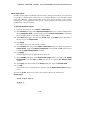
Open the file Frame.rpt in a text editor. The contents of this file are shown below.
Stress output:
Field Output Report
Source 1
---------
2–37
EXAMPLE: CREATING A MODEL OF AN OVERHEAD HOIST WITH ABAQUS/CAE
ODB: Frame.odb
Step: "Apply load"
Frame: Increment
1: Step Time =
2.2200E-16
Loc 1 : Integration point values from source 1
Output sorted by column "Element Label".
Field Output reported at integration points for Region(s) FRAME-1: solid
< STEEL >
Element
Int
S.S11
Label
Pt
@Loc 1
------------------------------------------------1
1
294.116E+06
2
1
-294.116E+06
3
1
147.058E+06
4
1
294.116E+06
5
1
-294.116E+06
6
1
147.058E+06
7
1
-294.116E+06
Minimum
At Element
-294.116E+06
7
Int Pt
Maximum
At Element
1
294.116E+06
4
Int Pt
1
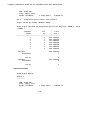
Displacement output:
Field Output Report
Source 1
--------ODB: Frame.odb
Step: "Apply load"
Frame: Increment
1: Step Time =
2–38
2.2200E-16
EXAMPLE: CREATING A MODEL OF AN OVERHEAD HOIST WITH ABAQUS/CAE
Loc 1 : Nodal values from source 1
Output sorted by column "Node Label".
Field Output reported at nodes for Region(s) FRAME-1: solid < STEEL >
Node
U.U1
U.U2
Label
@Loc 1
@Loc 1
------------------------------------------------1
735.291E-06
-4.66972E-03
2
-975.782E-21
-2.54712E-03
3
1.47058E-03
-2.54712E-03
4
1.47058E-03
-5.E-33
5
0.
-5.E-33
Minimum
-975.782E-21
-4.66972E-03
At Node
2
1.47058E-03
1
-5.E-33
At Node
4
5
Maximum
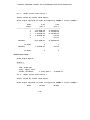
Reaction force output:
Field Output Report
Source 1
--------ODB: Frame.odb
Step: "Apply load"
Frame: Increment
1: Step Time =
2.2200E-16
Loc 1 : Nodal values from source 1
Output sorted by column "Node Label".
Field Output reported at nodes for Region(s) FRAME-1: solid < STEEL >
Node
RF.RF1
2–39
RF.RF2
EXAMPLE: CREATING A MODEL OF AN OVERHEAD HOIST WITH ABAQUS/CAE
Label
@Loc 1
@Loc 1
------------------------------------------------1
0.
0.
2
0.
0.
3
0.
0.
4
0.
5.E+03
5
909.495E-15
5.E+03
Minimum
At Node
0.
4
0.
3
At Node
909.495E-15
5
5.E+03
5
Total
909.495E-15
10.E+03
Maximum
Are the nodal displacements and peak stresses in the individual members reasonable for this hoist
and these applied loads?
It is always a good idea to check that the results of the simulation satisfy basic physical
principles. In this case check that the external forces applied to the hoist sum to zero in both the
vertical and horizontal directions.
What nodes have vertical forces applied to them? What nodes have horizontal forces? Do the
results from your simulation match those shown here?
2.3.13
Rerunning the analysis using ABAQUS/Explicit
We will rerun the same analysis in ABAQUS/Explicit for comparison. This time we are interested in
the dynamic response of the hoist to the same load applied suddenly at the center. Before proceeding,
click mouse button 3 on Model-1 in the Model Tree and select Copy Model from the menu that appears
to copy the existing model to a new model named Explicit. Make all subsequent changes to the
Explicit model (you may want to collapse the original model to avoid confusion). You will need
to replace the static step with an explicit dynamic step, modify the output requests and the material
definition, and change the element library before you can resubmit the job.
Replacing the analysis step
The step definition must change to reflect a dynamic, explicit analysis.
To replace the static step with an explicit dynamic step:
1. In the Model Tree, expand the Steps container. Click mouse button 3 on the step named Apply
load, and select Replace from the menu that appears.
2–40
EXAMPLE: CREATING A MODEL OF AN OVERHEAD HOIST WITH ABAQUS/CAE
2. In the Replace Step dialog box, select Dynamic, Explicit from the list of available General
procedures.
Model attributes such as boundary conditions, loads, and contact interactions are retained when
replacing a step. Model attributes that cannot be converted will be deleted. In this simulation
all necessary model attributes will be retained.
3. In the Basic tabbed page of the Edit Step dialog box, enter the step description 10 kN
central load, suddenly applied and set the time period of the step to 0.01 s.
Modifying the output requests
Because this is a dynamic analysis in which the transient response of the frame is of interest, it
is helpful to have the displacements of the center point written as history output. Displacement
history output can be requested only for a preselected set. Thus, you will create a set that contains
the vertex at the center of the bottom of the truss. Then you will add displacements to the history
output requests.
To create a set:
1. In the Model Tree, expand the Assembly container and double-click the Sets item.
The Create Set dialog box appears.
2. Name the set Center, and click Continue.
3. In the viewport, select the point at the center of the bottom edge of the truss. In the prompt
area, click Done when you are finished.
To add displacements to the history output request:
1. In the Model Tree, click mouse button 3 on the History Output Requests container and
select Manager from the menu that appears.
2. In the History Output Requests Manager dialog box that appears, click Edit.
The history output editor appears.
3. Under the Domain field, select Set. ABAQUS automatically provides a list of all the sets
created for a given model. In this case you have created only one set, Center.
4. In the Output Variables region, toggle off the Energy output and click the arrow to the left
of the Displacement/Velocity/Acceleration category to reveal history output options for
translations and rotations.
5. Toggle on U, Translations and rotations to have the translations and rotations
for the selected set be written as history output to the output database file.
6. Click OK to save your changes and to close the dialog box. Dismiss the History Output
Requests Manager.
2–41
EXAMPLE: CREATING A MODEL OF AN OVERHEAD HOIST WITH ABAQUS/CAE
Modifying the material definition
Since ABAQUS/Explicit performs a dynamic analysis, a complete material definition requires that
you specify the material density. For this problem assume the density is equal to 7800 kg/m3 .
To add density to the material definition:
1. In the Model Tree, expand the Materials container and double-click Steel.
2. In the material editor, select General→Density and type a value of 7800 for the density.
Changing the element library and submitting the job for analysis
As will be discussed in Chapter 3, “Finite Elements and Rigid Bodies,” the elements available
in ABAQUS/Explicit are a subset of those available in ABAQUS/Standard. Thus, to ensure that
you are using a valid element type in your analysis, you must change the element library from
which the elements are selected to the explicit element library. ABAQUS/CAE automatically filters
the available element types according to the selected element library. After changing the element
library, you will create and run a new job for the ABAQUS/Explicit analysis.
To change the element library:
1. In the Model Tree, expand the Frame item underneath the Parts container. Then double-click
Mesh in the list that appears.
ABAQUS/CAE switches to the Mesh module.
2. From the main menu bar, select Mesh→Element Type, select the frame in the viewport, and
change the Element Library selection to Explicit.
To create and run the new job:
1. In the Model Tree, double-click the Jobs container.
2. Name the new job FrameExplicit.
3. Set the Job Type to Full analysis, and submit the job.
2.3.14
Postprocessing the dynamic analysis results
For the static linear perturbation analysis done in ABAQUS/Standard you examined the deformed shape
as well as stress, displacement, and reaction force output. For the ABAQUS/Explicit analysis you can
similarly examine the deformed shape and generate field data reports. Because this is a dynamic analysis,
you should also examine the transient response resulting from the loading. You will do this by animating
the time history of the deformed model shape and plotting the displacement history of the bottom center
node in the truss.
2–42
EXAMPLE: CREATING A MODEL OF AN OVERHEAD HOIST WITH ABAQUS/CAE
Plot the deformed shape of the model. For large-displacement analyses (the default formulation in
ABAQUS/Explicit) the displaced shape scale factor has a default value of 1. Change the Deformation
Scale Factor to 20 so that you can more easily see the deformation of the truss.
To create a time-history animation of the deformed model shape:
1. From the main menu bar, select Animate→Time History; or use the
tool in the toolbox.
The time history animation begins in a continuous loop at its fastest speed. ABAQUS/CAE displays
the movie player controls on the left side of the prompt area.
2. From the prompt area, select Animation Options.
The Animation Options dialog box appears.
3. Change the Mode to Play Once, and slow the animation down by moving the Frame Rate slider.
4. You can use the animation controls to start, stop, and step through the animation. From left to right,
these controls perform the following functions: play, stop, first image, previous image, next
image, and last image.
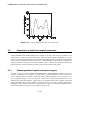
The instantaneous load on the truss causes it to respond dynamically during the 0.01 s of the analysis.
You can more closely observe this by plotting the vertical displacement of the node set Center.
You can create X–Y curves from either history or field data stored in the output database (.odb)
file. X–Y curves can also be read from an external file or they can be typed into the Visualization module
interactively. Once curves have been created, their data can be further manipulated and plotted to the
screen in graphical form. In this example you will create and plot the curve using history data.
To create an X–Y plot of the vertical displacement for a node:
1. From the main menu bar, select Result→History Output.
ABAQUS/CAE displays the History Output dialog box. To see the complete description of the
variable choices, increase the width of the History Output dialog box by dragging the right or left
edge.
2. Select Spatial displacement: U2 at Node 1 in NSET CENTER.
3. Click Plot.
ABAQUS/CAE plots the vertical displacement at the center node along the bottom of the truss, as
shown in figure Figure 2–17.
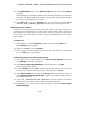
Exiting ABAQUS/CAE
Save your model database file; then select File→Exit from the main menu bar to exit
ABAQUS/CAE.
2–43
COMPARISON OF IMPLICIT AND EXPLICIT PROCEDURES
Figure 2–17
2.4
Vertical displacement at the center of the truss.
Comparison of implicit and explicit procedures
ABAQUS/Standard and ABAQUS/Explicit are capable of solving a wide variety of problems. The
characteristics of implicit and explicit procedures determine which method is appropriate for a given
problem. For those problems that can be solved with either method, the efficiency with which the problem
can be solved can determine which product to use. Understanding the characteristics of implicit and
explicit procedures will help you answer this question. Table 2–2 lists the key differences between the
analysis products, which are discussed in detail in the relevant chapters in this guide.
2.4.1
Choosing between implicit and explicit analysis
For many analyses it is clear whether ABAQUS/Standard or ABAQUS/Explicit should be used. For
example, as demonstrated in Chapter 8, “Nonlinearity,” ABAQUS/Standard is more efficient for
solving smooth nonlinear problems; on the other hand, ABAQUS/Explicit is the clear choice for a
wave propagation analysis. There are, however, certain static or quasi-static problems that can be
simulated well with either program. Typically, these are problems that usually would be solved with
ABAQUS/Standard but may have difficulty converging because of contact or material complexities,
resulting in a large number of iterations. Such analyses are expensive in ABAQUS/Standard because
each iteration requires a large set of linear equations to be solved.
2–44