1
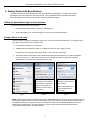
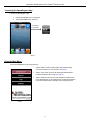
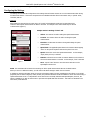
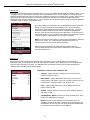
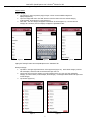
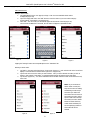
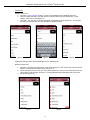
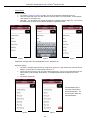
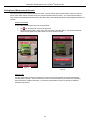
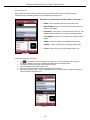
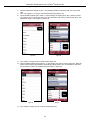
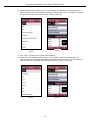
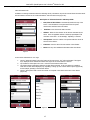
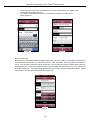
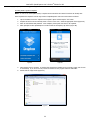
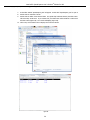
LaserSoft SpeedCapture User’s Guide 2nd Edition for iOS Copyright © [2014] Laser Technology, Inc. All rights reserved. Unauthorized duplication, in whole or in part, is strictly prohibited. 2. Getting Started with SpeedCapture This chapter describes the basic knowledge necessary to get started with SpeedCapture. It explains how to get the SpeedCapture app from the App Store and launch the app. Once the application has been successfully launched, follow the directions in this chapter to use the main menu and configure the settings. Getting the SpeedCapture App From the App Store To get the SpeedCapture app from the App Store: 1. Use the App Store search function to search for “SpeedCapture”. 2. Tap the SpeedCapture icon to install the app as you would for any other iOS application. Pairing a Phone to the Laser To ensure a phone is properly communicating with the laser, it must be connected with Bluetooth. To begin this process, verify that the laser is powered on and within range: 1. Find and tap the Settings icon on the phone. 2. Tap Bluetooth on the Settings list (Figure 2). If Bluetooth is listed as “OFF,” toggle it to “ON.” If prompted to enter a PIN, the PIN number is 6912 to connect the laser via Bluetooth. 3. Tap the laser device’s serial number (which should be listed among the other devices you connect via Bluetooth on your phone (Figure 3). Within a few seconds, the laser should be described as “Connected” (Figure 4). SpeedCapture is now prepared to communicate with the laser. Figure 2 When the TruSpeed device is powered on, your iPhone will recognize it and list the device serial number, but describe the connection as “Not Paired.” To pair the device with your iPhone, tap the device serial number. Figure 3 Figure 4 Within a few seconds, the screen should appear as shown here. NOTE If the laser is powered off when viewing the current or available Bluetooth connections on a phone, the laser device may be described as “Not Connected” even if the two have already paired. Power the laser on and tap the device serial number to re-establish that connection. Sometimes more than one attempt is necessary when establishing the Bluetooth connection between the laser and the phone. It may be necessary to “forget” the laser device from the Bluetooth list and then re-pair them or totally shut down and restart the phone. 3