1
HuddleCamHD VISCA
Camera Control Software
DATA SHEET
HuddleCamHD
VISCA Control Software
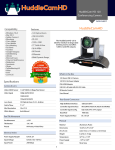
HuddleCamHD VISCA Camera Control Software allows users to control up to 16 cameras
directly from any PC or Smartphone on your
network.
Activate the WebRemote for far-end camera
control from mobile devices or computers over
LAN, Wi-Fi, WAN IP Networks.
Use the PresetVisualizer to layout your room
presets visually. Simply click the area you want to
see and a whole new level of control is at your
fingertips!
KEY FEATURES
• Up to 500 presets
• WebRemote - Use on any computer/smartphone
• PTZ VIsualPad- A visual layout of your camera presets
• Use up to 7 cameras in daisy-chain or 16 cameras in
home run mode from one computer
• IPRemote- Remote camera controls via IP
• External IP Address for far end control
• Free trial available upon request
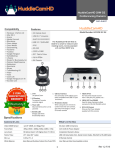
1. Main Controller
2. Setting
3. WebRemote
4. IPRemote
The main remote control
interface provides convenient
pan, tilt, zoom controls along
with access to more advanced
features such as WebControl
and PTZVisual (see page 2).
The Settings screen shows
additional video and control
settings such as Exposure,
White Balance, Auto Pan,
Start with Windows, Camera
ON/OFF, and more...
The WebRemote is accessable
from any PC, Mac, Smartphone
or Web Browser when the
Web Control is turned on in
the Main Controller.
The IPRemote provides client
access to the main
controller over a secure
socket connection allowing
control of the camera
connected to your computer
with the Main Controller
installed.
Specifications
Software
Supported Operating Systems
Digital Download
Windows Vista, Windows 7, Windows 8,
Software and License - Sent via Email
Windows 8.1, and Windows 10
User Manual - Digital Download
Minimum Requirements
CPU 1Ghz, 1GB RAM, HD Space 20MB
Installation Size
8MB
Licensing
1 License per Device (Computer)
All HuddleCamHD cameras
Warranty
Perpetual
Any VISCA controllable camera
Supported cameras
1
DATA SHEET HuddleCamHD Control Software
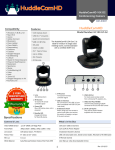
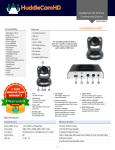
1. PresetVisualizer
1
Main Interface
2. Profile Pictures
Use up to 8 profile pictures as
preset locations
3. Profile Title Box
Name your profile pictures
in this box.
2
4. Clickable Presets
Drag and drop clickable presets.
5. PTZ Controls
3
Convenient Pan, Tilt & Zoom
controls.
4
6. Reset Button
Resets entire layout. Use
when reconfiguring a room.
7. Pictures Button
Toggle on and off use of profile pictures.
8. Names Button
Toggle on and off use of profile picture
name boxes.
9. Lines Button
Show/hide lines that connect to
each preset button.
5
10. Exit
Closes PTZVisual Application
6
EXAMPLE USE CASES
8
9 10
PTZ VisualPad
Board Room
Board Room
7
Classroom
Classroom
Perfect for setting for far end
camera control with presets for
each board member seat.
Ideal for distance learning and
webinar settings to use a visual
preset layout.
Auditorium
Auditorium
Great for laying out complex
scenes such as an orchestra or live
broadcast application.
Still have questions?
Give us a call.
800-486-5276
152 Robbins Road
Downingtown, PA 19335
HuddleCamHD
2
DATA SHEET HuddleCamHD Control Software
HuddleCamHD
Request a trial
@ HuddleCamHD.com
Still have questions?
Give us a call.
800-486-5276
152 Robbins Road
Downingtown, PA 19335
3
HuddleCamHD