1
Connection
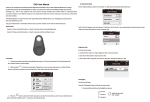
1. iTag will connect the smart phone automatically when power on, if it
shows “disconnected” on the App, please click the “Connect” button to
connect it again.
2. Click the button “
” to find more connectable iTag devices, such
as car keys, bags and so on. (Note: Click the arrow icon will turn to
submenu, such as add photo for iTag, rename and set the ring tone etc.)
3. Press the
button to enter into “Delete” submenu to remove the
item which you don’t need, or slide this item to left on “device list”
interface, click “–” to remove it out of the device list.
Do Not Disturb Mode
On the “Setting” interface, switch “Do not disturb” on, alert function of all
devices will be shut down.