1
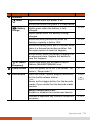
Security Menu The Security menu contains the security settings, which safeguard your system against unauthorized use. NOTE: You can set the user password only when the supervisor password has been set. If both the supervisor and user passwords are set, you can enter any of them for starting up the system and/or entering BIOS Setup. However, the user password only allows you to view/change the settings of certain items. A password setting is applied right after it is confirmed. To cancel a password, leave the password empty by pressing the Enter key. Account’s Password Status Supervisor/User Password Is shows whether you have set the supervisor/user password or not for the system. Set Supervisor/User Password sets the supervisor/user password. You can set the supervisor/user password to be required for starting up the system and/or entering BIOS Setup. Password on Boot allows you to enable or disable the entering of password for booting up your system. This item appears only on Windows 7 models. HDD Security Status HDD 0 Password State shows whether you have set the hard disk password or not. Set HDD 0 Password sets the password for locking the Primary Master hard disk drive. After setting a password, the hard disk drive can only be unlocked by the password no matter where it is installed. TPM Setup Menu TPM Support enables or disables TPM (Trusted Platform Module) support. TPM (Trusted Platform Module) is a component on your computer’s mainboard that is specifically designed to enhance platform security by providing a protected space for key operations and other security critical tasks. Using BIOS Setup 5-5