1
Media Play from smar tphone, tablets
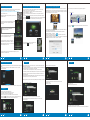
1. Please install the free AirFun APP first before use the WD-Share
To get above APP from CD or download from website:
https://play.google.com/store/apps/details?id=com.realtek.airfun.client
or Scanning QR code:
After the installation completes, a shortcut will be
created on your smartphone/tablet.
Media Play from Windows OS
1. Please install the free AirFun Software first before use the WD-ShareTo get above Software
from CD.
Mirror Desktop from Windows XP/Vista/7/8
MirrorOp is the fastest multimedia remote desktop sender for Windows! With MirrorOp for
5. The Main Page will pop up.
Windows installed on your Windows computers in the home network, you can remotely
After the installation completes, a shortcut will be created on your computer.
operate the PCs from a WD-Share to watch videos, play games, surf the internet, or anything
2. Please turn on the WiFi on your computer and make connection to WD-Share SSID
you like as if you were in front of your PC!
Mirror Desktop
“WIHD xxx ” before Play.
3. To start the AirFun, simply click on the shortcut. It will connect the WD-Share automatically.
The window will pop up.
4.You can drag PC’s photo, music or video to the ocation of the AirFun playback folder
or
2. Please turn on the WiFi on your device (smartphone, tablet)
. By accessing folder and choosing “Play now”, the selected files will be streamed
and played directly on TV, monitor or projector.
Media Play
and make connection to WD-Share SSID “WIHD xxx ”
Mirror On/Off
before Play.
Mirroring
! Note: Any change of Setup will cause the disconnection of
WiFi and restart. Please re-connect the WiFi and proceed with
6. Click
to your TV
icon to star/stop your PC’s screen showed on big screen.
1. Please install the free MirrorOP Software first before use the WD-ShareTo get above
setup and playback.
Software from CD.
After the installation completes, a shortcut will be created on your computer.
2. Please turn on the WiFi on your computer and make connection to WD-Share SSID
3. To start the AirFun, simply click on the shortcut.
“WIHD xxx ” before Play.
The window will pop up
3.To start the MirrorOP, simply click on the shortcut
. it will start to search the available
WD-Share in the network.
4. Then software auto fill the IP address, Login Name with your WD-Share, and press
“Connect”.
4. Select the photo, music or video which you want to
play from your device, then tap “Menu” for options of
“Play Now”, the selected multimedia content will be
Note: AirFun support virtual remote
controller, press
icon for Settings.
streamed and played directly on big screen.
Note: You may download others DLNA Player from Google Play by search “DLNA”,
Example: iMedishae, online Video APP…
08
EN
09
Media Play from USB Storage
EN
EN
11
Network Setup
You can play video/music/photo files on the connected USB Storage.
You could configure the settings for communication, such as Network Name (SSID) and key.
1. Connect the USB Storage to the USB port on the WD-Share. The following interface will be
There are 3 modes of connection:
displayed on your screen.
10
EN
System Setup
4. Virtual AP Setup:
setting the wireless key.
• Virtual AP only Mode(F actory Default setting: To share multimedia content from your smart
phone , tablet and computer to the TV monitor or projector without home network
• Bridge to Wireless Mode: Connect the media player to Router with WIFI.
• Bridge to Ethernet Mode: Connect the media player to Router with RJ-45 Cable.
Bridge mode: When you stream the multimedia content of Bridge to wireless Mode or Bridge to
Ethernet Mode, you can also receive other information from internet, With free APP of
iMediaShare, you can even share web video from Facebook, Picasa or YouTube with your friends
and family on a larger display.
Below are settings for Virtual AP only Mode, Bridge to wireless Mode and Bridge to Ethernet.
1. Wired Connection : DHCP mode
5. Virtual AP Bridge: Setting the mode of Connect the WD-Share to Router
Bridge to Wireless: Connect the WD-Share to Router with WIFI
Bridge to Ethernet: Connect the WD-Share to Router with RJ45 Cable
Language:
Choose the right language you want.
2. Navigate to the Home screen, and select the USB Storage icon for media content you wish
to access. It can be Video, Music, or Photo.
Advanced Setting
Two ways for setup the WD-Share:
• Remote control (Include) , this is a quick setup
• Web Browser or AirFun Software
For saving time, we recommend to setup by remote control.
Press button
on the remote control. The interface will be displayed on your screen.
Main functions have Network, Audio, Video, and System Setting.
2. Device Name: Main Service Set Identifier. It’s the "name" of your wireless network.
3. WiFi Connection: Select Wireless SSID to continue, insert the Network Key.
(Virtual AP Bridge must be Bridge to Wireless mode)
Factory Default:
Remove all settings and restore to factory default settings
12
EN
13
EN
14
EN
15
EN