1
Getting Started with S7-PLCSIM
3.3
Running the Sample Program
Selecting the Execution Option
With the sample program downloaded to the CPU, you can now run the program.
Before starting the program, ensure that the program execution is set for
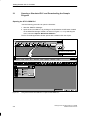
continuous scan. Use the menu command Execute Scan Mode Continuous
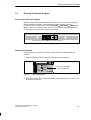
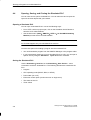
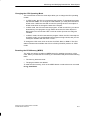
Scan or click on the toolbar button (shown in Figure 3-4) to select the execution
control option for running the program continuously.
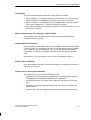
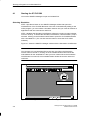
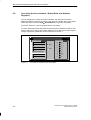
Click here for Continuous Scan program execution.
Figure 3-4
Selecting Continuous Scan Program Execution
Starting the Program
Use the following procedure to switch the CPU into RUN mode and start the
program.
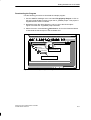
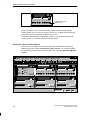
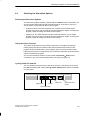
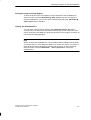
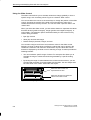
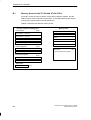
1. Click the RUN check box in the CPU view object. See Figure 3-5.
CPU 300/400
SF
DP
DC
RUN
STOP
Figure 3-5
RUN-P
Click here to switch the
CPU to RUN mode.
RUN
STOP
MRES
Selecting RUN Mode
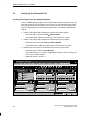
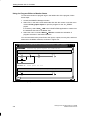
2. Click either bit 0 or bit 1 in the Input Variable view object to turn on I 0.0 or I 0.1,
as shown in Figure 3-6.
Testing Your S7 Progams with S7-PLCSIM
C79000-G7076-C201-02
3-5