1
Voice Of Rapture: The Tenor
Common Front Panel Controls
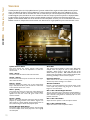
This instrument has a variety of special front panel performance controls that allow deep real-time performance customization.
Voice of Rapture: The Tenor contains multiple preset categories that share a number of common controls which allow users to
shape the sound.You can see each control’s internal midi CC assignment by hovering your mouse over many of the controls and
looking down at the “hint” text displayed in the Info bar at the bottom of Kontakt. To turn on the Info bar, press the “i” button at
the top of Kontakt.
To assign midi CC automation to any knob, simply right-click (PC) or Command-Click (Mac) on the knob and then click the Assign
Midi CC button that appears. The next midi controller you move will automatically be assigned to the control.You can access more
automation features in the “Auto” tab window on the left side of Kontakt. You can also customize and create your own custom
presets by using the File Save/Load menu at the top of Kontakt. Just choose a new preset name and save it in the same Instrument
folder location to insure that Kontakt can locate all necessary files the next time you load it. All custom control knob settings will
be saved with the instrument preset.
SOUNDIRON
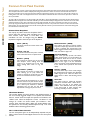
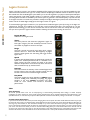
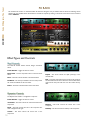
Selector Menu Dropdown
The majority of presets contain this dropdown which is
used to select the currently active articulation, be it a
chant, staccato, vowel sustain or vocal effect. The
articulation can also be changed using the Black
keyswitches mapped to the lower part of the keyboard.
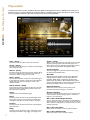
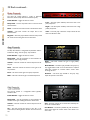
Release Volume - (CC90)
This controls the volume of release samples
only. These samples play when the last note of
a string is released. The small glowing radio
button toggles Release Samples on/off if you
don’t want them to play at all.
Swell - (CC 72)
This knob controls the volume swell of the
instrument.
Attack - (CC 74)
This knob controls the sharpness of attack.
Lower values have more of a pluck sound.
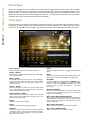
Sync/Free Button
In the main (non-lite) presets, this button
toggles tempo-syncing on and off. When off,
the “Stretch” knob can be used to control
playback speed. When the red enable/bypass
button to the right is off, the instrument
reverts to sampler mode and playback returns
to the natural source speed, for best audio
quality.
Release - (CC76)
This controls the release time of the main
note samples.* Lower settings cause the
sound to be damped and cut off, while
higher settings allow notes to ring out
longer.
Stretch - (CC92)
This knob, active only in “Free” mode, changes
the playback speed of samples using Kontakt’s
TMPro engine. Lower values are slower and
higher values are faster with 64 being normal
speed.
Start Offset - (CC78)
This controls the amount of sample start
offset allowing you to jump ahead into
samples to change the sound. This can also
be used to control the amount of “pluck.”
Pitch
This controls the pitch shifting up or down
from the natural root pitch of each sample.
You can use this knob to transpose the pitch
up or down by 24 semitones in half-step
increments. You can also use the Pitch
Keyswitches to change the pitch via midi.
Auto-Pan
This special mode for sustains & staccatos
simulates an ensemble effect. When active, a
single note will play at the default pan
position. Each additional note will be placed
in the stereo field at wider position, with
increasing variability as voices are added.
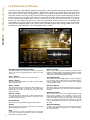
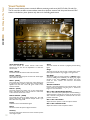
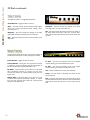
Waveform Window
This window displays the actual waveform and playback position of
the most recently triggered sample. In most presets, the interactive
blue “O” marker shows the sample start position and is linked to the
“Offset” knob. When the Sequencer is active, the Green “S” and
Orange “E” marker are shown instead (not included in “Lite”
presets). These interactive sliders display the sample playback start
end position for the currently selected sequencer step. This visual
feedback makes customizing phrases easier.
5
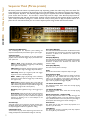
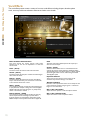
Mic 1 & Mic 2 Mixer Controls
The two microphone types can be independently adjusted, with pan
sliders, volume knobs and active/bypass buttons for each microphone
channel.