1
MEMJETTM PRINT ENGINE MPCA
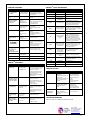
PRINTING PROBLEMS
CONDITION
PROBLEM
SOLUTION
Ink Tank installed, no
Ink Level indicators
in Toolbox.
Ink contacts dirty,
preventing Printer/Ink
Tank communication.
Remove Ink Tank(s). Clean
prism and QA Chip contacts,
see Maintenance, Cleaning Ink
Tank Contacts.
Extra lines; losing
data
Database problem.
Check data in database
program.
Improper output
(address information
out of order, misfeeding, etc.)
Wrong interface
settings.
Static electricity.
Dirty Media Sensor.
Check software or database on
PC.
Close the software and then turn
Printer OFF and ON.
Clean Media Sensor.
Media jams
Double feeding.
Media curled or bent.
Media too thin.
Adjust Sheet Separators.
Uncurl media.
Minimum media thickness:
0.004".
Improper cabling /
connector.
Use Proper cable (see Operator
Manual).
Check plug connections,
ON/OFF switch and fuse on
back panel.
No communication
Unit not receiving
power.
Print too light or
missing character
dots
Clogged or dirty
Printhead.
Running out of ink.
Check the Printhead.
Replace Ink Tanks.
Blurry address
Image is not sharp.
Clean Printhead using one of the
Cleaning Levels in the Driver or
Toolbox.
Replace Ink Tanks or change
printer resolution setting.
Check media thickness.
Split line of type
Feeding problems
A line of type does
not match up.
Check media thickness.
Minimum thickness: 0.004".
Increase resolution of print.
Double sheets.
Media misfeeds.
Adjust Sheet Separators.
Paper Light Flashes
Paper misfeeds.
Press Paper button to feed
paper into position for printing.
Cancel Light Flashes
Ink Tank Missing
Install Ink Tank.
MEMJETTM PRINTHEAD
CONDITION
Missing parts of
letters or text.
PROBLEM
Air and bubbles
blocking nozzles.
Printhead is dry.
SOLUTION
Clean Printhead using
recirculation, priming or cycles of
depriming and priming found in
the Driver or Toolbox.
Rehydrate Printhead by wiping
with distilled water and a wet,
clean, lint-free cloth.
LABEL
COMING FROM
J1002
Driver Printed Circuit
Assembly (DPCA)
Power Supply.
J551
Interface board
Clutch Control.
J703
Interface board
Feeder Sensor Control.
P2004
Feeder Encoder
Reader Board
Feeder Encoder Control.
P2002
Lower Clamshell
Service Station Home Sensor,
Service Station Index Sensor, Service
Station Lifts Up Sensor, Exit Sensor,
Entry Sensor, Black Mark Sensor,
Clamshell Open/Closed Switch.
P2006
Driver Printed Circuit
Assembly (DPCA)
Motor PWM Control/Encoder signals
for (a) Print Engine Paper Motor, (b)
Print Engine Pump Motor, (c) Feeder
Motor, (d) Wiper Motor
J35
Control Buttons
Debris on Printhead.
P2005
Ink level PCA, Pinch
Valve, Ink Cartridge
QAI interfaces
Ink Level Optical Sensors, Print
Engine Accelerometer (level sense),
Pinch Valve Actuator and Position
Sensors, Ink Cartridge QAI,
Temperature Sensor.
P2003
Service Station Lifter
Motor & Encoder,
Service Station
Translation Motor
Service Station Lifter Arm and
translation drive signals.
J20
Pen Driver Printed
Circuit Assembly
(PPCA)
J2001
Upper Clamshell
Ink flooding, air in the
Printhead or a dirty
Printhead.
No print or crisp
blocks of missing
drops.
Electrical failure or
poor electrical
connection.
Reseat the Printhead.
Replace the Printhead.
System will not
reprime ink after
replacing Printhead
Cartridge.
Printhead nozzles dry.
Ink Tanks may be 1/3
full or less.
Wipe Printhead manually with
distilled water and a wet, clean,
lint-free cloth.
Replace Ink Tanks.
Printhead Latch solenoid, Printhead
Latch Open/Closed Sensor, Label
Gap IR transmitter LED.
J1000
Power Button
PPCA
Data input to Printhead.
J260 (CAT-5)
PPCA
Data input to Printhead.
ON/OFF Switch.
SERVICE STATION
CONDITION
PROBLEM
SOLUTION
Motor stalls
Jammed gear train due to
broken post or improperly
seated gears.
Squeegee blade wedged, not
seated properly.
Debris build-up on blade and
rollers, increasing friction.
Bad motor.
Check each of the possible
causes and correct if
possible: reseat gears
and/or squeegee, clean
debris from blade and
rollers.
Retest.
If motor is still stalled,
replace motor.
Color mixing
Wiper Roller saturated.
Squeegee blade is wedged,
not seated properly or
bowed.
If saturated, clean or
replace Roller.
Reseat squeegee.
If squeegee is bowed,
adjust squeegee blade.
Service Station
cannot be
removed from
Print Engine
Wiper Roller Latches not
completely closed when
Station was installed.
Latches hooked on bottom of
paper path.
Carefully unhook Latches
from bottom of paper path
and re-lock correctly.
Clean Printhead using one of the
Cleaning Levels in the Driver or
Toolbox.
Wipe Printhead manually with
distilled water and a wet, clean,
lint-free cloth.
Primary 24 VDC supply to PPCA.
J250 (CAT-5)
Replace Printhead.
Ink mixing – Mixed
or muddy colors.
Printhead QAI Bus and 2.5 VDC QAI
power, 3.3 VDC logic power for
Printhead, VPOS enable & VPOS
power good signal, DOUT from
Printhead, Printhead reset lines, 5
VDC power for current sense buffer,
analog current sense line from PPCA,
pushbutton (2) inputs to MPCA.
Pen Driver Printed
Circuit Assembly
(PPCA)
Clean Printhead using one of the
Maintenance Levels.
Wipe Printhead manually with
distilled water and a wet, clean,
lint-free cloth.
Power/Paper/Cancel Buttons/LED
P1
NOTE: Bubbles often disappear
with printer use.
Print shows
regularly missing or
misdirected nozzles
or ink color mixing.
DESCRIPTION
SOFTWARE PROBLEMS
Refer to the manual for the application software being used.
630 Lively Blvd.
Elk Grove Village, IL 60007
Phone: (847) 364-6363
Fax: (847) 364 9898
www.astromachine.com
Copyright © 2014 ASTRO MACHINE CORP.
9/2014