1
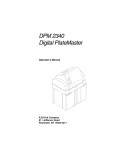
DPM 2340 Digital PlateMaster with software 5.1 and above Operator’s Manual ABDick - A Presstek Company 55 Executive Dr. Hudson, NH 03051-4903 ©2005 ABDick - A Presstek Company All rights reserved. No part of this publication may be duplicated, reproduced, or transmitted in any form or by any means, electronic or mechanical, including photocopy, recording or any information storage and retrieval system, without prior written consent of ABDick - A Presstek Company. ABDick - A Presstek Company makes no representations or warranties with respect to the contents hereof and specifically disclaims any implied warranties of merchantability or fitness for any particular purpose. Further, ABDick - A Presstek Company reserves the right to revise this publication and to make changes from time to time in the contents hereof without obligation of ABDick - A Presstek Company to notify any person or organization of such revisions or changes. ABDick - A Presstek Company disclaims any responsibility or liability for personal injury, death or property damage caused by or arising out of (i) the failure of operators to observe all operating and safety instructions and warnings contained herein or (ii) the improper use, abuse, neglect or unauthorized repair of the equipment described herein, and the purchaser and any subsequent owner or lessee of such equipment shall defend, indemnify and hold ABDick - A Presstek Company harmless from and against all liability caused or arising out of such nonobservance, improper use, abuse, neglect or unauthorized repair. Mega and Mega Plus are trademarks of ABDick - A Presstek Company. Warning: This is a Class A Product. In a domestic environment this product may cause radio interference, in which case the user may be required to take adequate measures. If this equipment does cause harmful interference to radio or television reception, which can be determined by turning the equipment off and on, the user is encouraged to try to correct the interference by one or more of the following measures: — Reorient or relocate the receiving antenna. — Increase the separation between the equipment and receiver. — Connect the equipment into an outlet on a circuit different from that to which the receiver is connected. — Consult the dealer or an experienced radio/TV technician for help. 10 9 8 7 6 5 4 3 2 Oct WARNING: This Class A digital apparatus meets all requirements of the Canadian Interference-Causing Equipment Regulations. Cet appareil numerique de la casse A respectetoutes les exigences du Reglement sur le materiel brouilleur du Canada. WARNING: This is a Class A product per EN55022:1998. In a domestic environment this product may cause radio interference in which case the user may be required to take adequate measures. ii • • • • • • Table of Contents •••••• Introduction Welcome . . . . . . . . . . . . . . . . . . . . . . . . . . . . . . . . . . . . . . . 1-1 About this Manual . . . . . . . . . . . . . . . . . . . . . . . . . . . . . . . . 1-1 Installing the DPM . . . . . . . . . . . . . . . . . . . . . . . . . . . . . . . . 1-3 Safety . . . . . . . . . . . . . . . . . . . . . . . . . . . . . . . . . . . . . . . . . . 1-4 Specifications . . . . . . . . . . . . . . . . . . . . . . . . . . . . . . . . . . . . 1-6 Getting Started Locating the Major Areas . . . . . . . . . . . . . . . . . . . . . . . . . . 2-1 Describing the Functional Operation . . . . . . . . . . . . . . . . . . 2-2 Describing the Status Panel and Function Switch . . . . . . . . 2-4 Describing the RIP Workstation . . . . . . . . . . . . . . . . . . . . . 2-6 Describing the DPM Status Bar . . . . . . . . . . . . . . . . . . . . . . 2-8 Setting Preferences . . . . . . . . . . . . . . . . . . . . . . . . . . . . . . 2-11 Working with the Media Database . . . . . . . . . . . . . . . . . . 2-13 Displaying Media Usage . . . . . . . . . . . . . . . . . . . . . . . . . . 2-15 Supplies . . . . . . . . . . . . . . . . . . . . . . . . . . . . . . . . . . . . . . . 2-16 Turning on the DPM . . . . . . . . . . . . . . . . . . . . . . . . . . . . . 2-17 Shutting Down the DPM . . . . . . . . . . . . . . . . . . . . . . . . . . 2-18 Operating Basics About Cassettes . . . . . . . . . . . . . . . . . . . . . . . . . . . . . . . . . . 3-1 Replacing Media . . . . . . . . . . . . . . . . . . . . . . . . . . . . . . . . . 3-2 Adjusting Media . . . . . . . . . . . . . . . . . . . . . . . . . . . . . . . . 3-12 Explanation of the Exposure Sweep Test Pattern . . . . . . . 3-16 Using the Take-up Cassette Accessory . . . . . . . . . . . . . . . 3-18 Adjusting the Plate Catcher . . . . . . . . . . . . . . . . . . . . . . . . 3-20 Troubleshooting Error Messages and Alerts . . . . . . . . . . . . . . . . . . . . . . . . . . 4-1 Clearing Jams . . . . . . . . . . . . . . . . . . . . . . . . . . . . . . . . . . . . 4-7 Maintaining the DPM • • iii • • • • Servicing the DPM Quarterly . . . . . . . . . . . . . . . . . . . . . . . 5-1 Changing the Air Filter . . . . . . . . . . . . . . . . . . . . . . . . . . . . 5-1 Changing Chemicals . . . . . . . . . . . . . . . . . . . . . . . . . . . . . . 5-2 Appendix A Supporting Applications . . . . . . . . . . . . . . . . . . . . . . . . . . A-1 Locating Authorized ABDick International Subsidiaries A-1 Locating Authorized ABDick International Regional Offices A-1 Important Safety Warnings . . . . . . . . . . . . . . . . . . . . . . . . A-3 Index • • • iv • • • Chapter 1 Introduction •••••• Welcome Congratulations on your purchase of the DPM (Digital PlateMaster). ABDick has combined leading-edge internal drum technology with reliable in-line processing to provide you with this state-of-the-art platemaker. About this Manual The DPM is an advanced platemaker using precision internal drum technology and an integrated processor. The platemaker interfaces with feature enhanced PrintersRIP® software. This manual contains important information about installation, calibration, and daily use of the DPM, including working with the media cassettes, and processing systems. Information about the PrintersRIP® and valuable tips about getting the most out of your RIP are found in the separate PrintersRIP® Operator’s Manual. Each chapter of this manual has a specific focus. The information contained in these chapters are organized to provide ease of use and understanding leading you to effective use of the DPM. Chapter 1 This chapter describes relevant information about safe operation of the DPM, specifications about the equipment and its installation, and also how to use this manual effectively. Chapter 2 ‘Getting Started’ helps you to become familiar with the DPM. It also identifies essentials for getting up and running quickly, and how to sustain quality output from the equipment. Chapter 3 ‘Operating Basics’ includes procedures used in the day-to-day operation of the platemaker. Chapter 4 ‘Troubleshooting’ helps you resolve those infrequent occurrences when the DPM does not function as expected. Chapter 5 ‘Maintaining the DPM’ provides procedures for keeping your platemaker operating at its best. Chapter 6 ‘Appendix’ provides you with specific safety information, and a list of authorized ABDick International subsidiaries. • • 1-1 • • • • Assumptions Read the DPM Operator’s Manual and the PrintersRIP® Operators Manual before starting to work with the platemaker. This manual assumes you have some familiarity with digital platemaking as well as a basic knowledge of Microsoft Windows NT. Conventions Certain notational conventions have been applied to this manual to aid in understanding the information presented. The following fonts and special symbols are used throughout this manual. 1 Paragraphs which are numbered contain instructions which you should follow. Text written in the sans-serif bold face represents a menu title, menu item or control item in a dialogue box. Text written in this bold typewriter face represents literal information which should be typed exactly as it appears in the manual. Text written in italic and appearing within a sentence, is important related reference information. Text written in bold italic and appearing within a sentence, represents a specific button on the DPM or on a menu window or dialogue box. Text located in the left margin and preceded by an arrow, is important information about the topic presented at that point. It should be read carefully. • • • 1-2 • • • In addition, other graphics depicting buttons found within screens on the RIP Workstation will be displayed whenever appropriate. Introduction Installing the DPM The DPM must be installed or removed by a qualified ABDick service representative or an authorized dealer/distributor. The IEC connector on the detachable power cord retaining bracket on the DPM inlet receptacle prevents it from serving as the “disconnect device” for the DPM. A power cord that is permanently wired into the power supply should have a readily accessible disconnect device incorporated into the fixed wiring. Installation Assistance Installation of the DPM Digital PlateMaster is not difficult, but to ensure that the entire system is properly installed and configured, the hardware and software must be installed by an authorized ABDick service technician in accordance with the installation instructions in the DPM Service Manual and with national and local regulations concerning electrical safety. Installation Requirements CAUTION: To prevent damage to the platemaker when moving it, always pick it up by the base frame only. To prevent spilling or contamination of processor chemistry, drain the activator and stabilizer tanks. The DPM Digital PlateMaster must be placed on a hard, flat stable surface with a free space of 58 cm (23”) at the back, not including the plate catcher, and 76 cm (30”) at the sides. Free access at the front must be provided for installing and removing the media cassettes, and maintaining the processor area. Electrical supply The DPM must be connected to a grounded 180 - 240 V ac, 50 or 60 Hz outlet. WARNING: The DPM is Class I electrical equipment. For your personal safety, it must be connected to a protected ground (earth) in accordance with national and local regulations. Fuses The DPM has internal fuses that may only be changed by authorized service personnel. WARNING: The electrical distribution box should be accessed only by authorized ABDick service technicians. Dangerous high voltages are present when the machine is connected to the facility power supply. Introduction • • • • 1-3 • • Safety Protect yourself, others, and your equipment by observing all safety warnings contained in this guide. Before attempting to operate the DPM, be certain that each operator has read this guide and is thoroughly familiar with the operating instructions and safety warnings. You will find a summary of safety data at the end of this guide. WARNING: This equipment is Class I rated electrical equipment and must be connected to a properly grounded, three (3) wire power supply in accordance with national and local regulations. Failure to do so creates a potential danger of electrical shock. The circuit to which the equipment is connected must be current protected by a device with suitable interruption capability as required by national or local standards (whichever is the most stringent). The power cord used to connect the equipment to the facility power supply must comply with national and local standards and must have a minimum rated current capacity of 20 Amp. (N.A.)/16 Amp. (Europe). Safety Devices The following illustrations identify and describe the function of the safety devices used on the DPM. Do not operate the PlateMaker without all covers, interlocks, and safety devices in their original, factory installed positions. NOTE: A LASER INTERLOCK SWITCH is located under this cover. ON/OFF Switch/Circuit Breaker (15 A) is located on the back of the DPM. PROCESSOR ACCESS DOOR INTERLOCK SWITCHES IMAGING UNIT ACCESS and LASER INTERLOCK SWITCHES Two interlock switches are activated by the doors. The processor drive motor and heater are disabled when either door is open. The four switches disable the laser unit when the light shield or a cover is removed. Safety Device Locations • • • 1-4 • • • Introduction Laser Safety The DPM is a Class I laser product and contains a laser which, however, is totally shielded by the cabinet. When the cabinet is opened, the interlock system automatically switches off the laser, and there is no risk of laser radiation. WARNING Only authorized service personnel may override the interlock system. The warning labels located near the interlock switches and apertures of the drum assembly are intended for such personnel. This warning appears near interlock switches. These warnings appear near front aperture and ends of the imaging drum. Introduction • • • • 1-5 • • Specifications This section includes important information regarding both functional and physical specifications for the DPM. Functional Specifications Imaging technology Internal drum. Light source 675-nm, 10mW visible red laser diode. Maximum imaging area 35.5 x 49 cm (14” x 19.3”). Resolution 900 to 3600 dpi Speed of exposure At 2400 dpi (28 full size plates per hour). At 900 dpi (38 full size plates per hour). Spot size 10 -30 microns, automatically matched to the chosen resolution. Accuracy (within an image) +/- 25 microns. Repeatability (within an image) +/- 5 microns. Output media RA process films. Polyester and paper based plates. Media loading Daylight cassette with automated loading. Media width Plate: 22.9 cm to 34.0 cm / 9” to 13.4”. Film: 22.9 cm to 35.6 cm / 9” to 14”. • • • 1-6 • • • Introduction Media cassette capacity 61 m (200 feet). Take-up cassette accessory capacity 10 m (33 feet). Take-up cassette accessory dimensions (W x H x D) 45.2 x 13.3 x 12.7 cm (17.8” x 5.25” x 5.00”). Physical specifications Dimensions (W x H x D) 1 37 x 114 x 71.1 cm (54” x 45” x 28” without Plate Catcher). 137 x 114 x 104 cm (54” x 45” x 41” with Plate Catcher). Weight 306 kg / 675 lbs. Power consumption (without accessories) 1400 W. Rated voltage 180 / 200 / 208 / 220 / 230 / 240 VAC, 50/60 Hz. Rated current 12 Amp. Main circuit breaker 15 Amp / 250 V In addition, the DPM has internal fuses that may only be changed by authorized service personnel. Ambient temperature 18 to 27° C (65 - 80° F). Relative humidity 30 - 70% Noise level Less than 70 dBA. Data interface Differential Fast SCSI-2. Introduction • • • • 1-7 • • • • • 1-8 • • • Chapter 2 Getting Started •••••• This chapter provides useful information about your DPM and RIP Workstation. It will guide you to a basic understanding of the three main areas of the platemaker, initial default settings, and will highlight those things that are important in obtaining consistent quality results in a convenient manner. Take time to read this chapter thoroughly before attempting any of the procedures found in the following chapters. Locating the Major Areas Become familiar with the major external areas shown in the drawing below. They will be referenced throughout this manual. CASSETTE COVER MEDIA and DRUM Area CONVEYOR Area PROCESSOR Area DPM Major Areas • • 2-1 • • • • Describing the Functional Operation The following is a brief description of the media path during the platemaking operation of the DPM. MEDIA Feed Rollers Input Rollers GUIDE HOOP GUIDE BOX or TAKE-UP CASSETTE DRUM Knife Conveyor Rollers Buffer Output Rollers PROCESSOR INPUT GUIDE EXIT STABILIZER ACTIVATOR TANK Functional Diagram of the DPM 1 When the “Load” command is given, the feed rollers move the media to the input rollers which pull it from the media and load it into the drum. During media loading, the carriage and optics unit is located to the middle of the drum. At each end of the carriage, a semicircular guide hoop is mounted. These guides support the media during loading and prevent it from falling onto the optics unit. Sensors on the guides report an error to the PrintersRIP® if the media is not properly loaded. 2 The input and output rollers feed the media around the drum and through the output and knife module, holding the media securely in place. The input and output sensors monitor the position of the media and report an error to the PrintersRIP® if the media is not loaded or positioned properly. • • • 2-2 • • • The optics unit moves to the right-hand end of the drum. The media is exposed from right to left. The media is exposed by a laser which spins continuously around a central spindle as the carriage moves along the length of the drum. The carriage will only move as far as necessary to expose the job, depending on the format of the page and its orientation in the drum. 4 The input rollers and output rollers and buffer rollers then transfer the exposed media from the drum to the guide box. Getting Started 3 At the same time, media for exposure of the next page enters the drum. If the take-up cassette accessory is installed, the exposed media will leave the drum and enter the take-up cassette. The knife cuts the media and the buffer rollers pass the media through the buffer module to the conveyor section and the processor. If desired, the media in the drum can be removed using the UNLOAD command, and a different media can be installed. If the take-up cassette accessory is installed, an EJECT command can be issued. The media is cut, and the buffer rollers pass the media into the take-up cassette. The cassette can be removed and the media developed off-line. Getting Started • • • • 2-3 • • Describing the Status Panel and Function Switch The panel shown provides the operator with important information regarding the status of the DPM while powered on. Each message, and the related use of the function switch is described below. ERROR TAKE-UP ON LINE BUSY ON EJECT LOAD UNLOAD FUNCTION SWITCH Status Panel and Function Switch • • • 2-4 • • • Getting Started Status Panel The messages indicate the operational status of the DPM. Message Function ON illuminates whenever the power is switched on to the DPM. BUSY illuminates whenever the DPM is carrying out an operation, i.e., during platemaking or media transport. ON LINE illuminates whenever the power is switched on, unless in service mode, or an interlock is open. When not illuminated, the DPM is off-line with respect to the PrintersRIP®, and you will not be able to image media. TAKE-UP illuminates after an EJECT command has been performed, to show that the media has been cut and the media has been forwarded to the Take-up Cassette. The take-up cassette accessory, if installed, can be removed and the media developed in an off-line processor. also illuminates when the platemaker detects that neither the Guide Box nor the Take-up Cassette are installed when the platemaker is ready to advance media from the Drum. ERROR illuminates if an error occurs in the functioning of the DPM. See “Troubleshooting” on page 4-1. Media messages and the function switch The media messages relate specifically to the status of the media in the drum. Only one of these messages is displayed at a time. Pushing the Function Switch carries out the function displayed: Message Function EJECT illuminates when imaged media is ready to be inserted into the Take-up Cassette. Pushing the function switch will cause the media to be cut by the knife and then transported forward until it is free of the buffer rollers. LOAD illuminates when a different media has been placed in the DPM. Pushing the function switch transports the media into the drum for exposure. LOAD flashes if the media is out of media. UNLOAD illuminates when no imaged media is in the drum, and the platemaker is not busy. Pushing the function switch will cause the media to be removed from the drum. The media can be removed/changed at this time. NOTE: LOAD, EJECT and UNLOAD can also be performed from the Media Settings window at the RIP Workstation. Getting Started • • • • 2-5 • • Describing the RIP Workstation The ABDick RIP Workstation should be dedicated to running the DPM only. It should have only ABDick approved software installed. If nonapproved programs are installed by the end user, service calls caused by those programs will not be covered under the warranty or by your maintenance agreements. RIP Workstation The RIP Workstation consists of 5 major parts: Important: The PrintersRIP® Dongle is the security key that enables your PrintersRIP®™ program to operate. If the Dongle is lost, a new one must be purchased at full price. Handle your PrintersRIP® Dongle carefully. • • • 2-6 • • • • • • • • Computer Monitor PrintersRIP® Dongle Keyboard Mouse Three major software programs combine to operate your DPM. • The DPM Status bar: used to control the DPM. • The PrintersRIP®: used to process your printing jobs. • The button bar: displays icons that can be used to start the DPM Status bar and PrintersRIP® and access online manuals. Getting Started The button bar displays icons for the PrintersRIP® and DPM Status window. Starts the PrintersRIP® program and also makes the program window appear if it is minimized, or hidden behind another window. See your PrintersRIP® manual for more information on the RIP operations. Starts the DPM Status bar. See “Describing the DPM Status Bar” on page 2-8 for more information on the status bar. Opens a program window containing electronic versions of the PrintersRIP® Operators Manual, and the DPM Operators Manual. Button Bar Getting Started • • • • 2-7 • • Describing the DPM Status Bar The DPM Status Bar, which is displayed at the bottom of your screen, contains all the controls used to operate the DPM. From the DPM Status Bar you can: • • • • • • monitor the status of the platemaking process monitor the status of the processor add new media set exposure values set preferences customize the media database The bar is divided into five main sections: System Panel Media Panel Processor Panel Take-up Cassette Panel (only displays data when in take-up mode) Menu Panel The System Panel This panel displays the general system state, the number of plates (or images) in progress and the selected path (processor or take-up cassette) and the general system state. General system state: If BUSY, wait before opening doors or covers. Path: Toggle between processor path and take-up cassette path. • • • 2-8 • • • Getting Started Media Panel The media panel displays the media status, currently selected media product code and a gauge reflecting the counter associated with this media. Media status is blank when media is loaded and “unloaded” when there is no media in the drum. Media product code. Click to open the Media Database. See “Working with the Media Database” on page 2-13. Media counter displays how much media is left in the input cassette. Processor Panel The processor panel displays the activator and stabilizer levels, heater temperature and processor status. Processor state Processor temperature Stabilizer and Activator levels: Blue indicates proper levels. Red indicates low levels. Take-up Cassette Panel The take-up cassette panel is only displayed when a take-up cassette is inserted into the DPM. Check the panel to determine if it is safe to remove the take-up cassette. Important: Do not remove the take-up cassette when the lock is in the locked position. Unlocked It is safe to remove the take-up cassette. The galley has been cut. Locked: An uncut galley is partially in the take-up cassette. Click the lock to display a menu to release the take-up. Exposed media advances into the take-up The amount of media in the take-up cassette. Getting Started • • • • 2-9 • • Menu Panel Click DPM in the menu panel to display menus for customizing and managing the DPM. For instructions on Setting Preferences, see “Setting Preferences” on page 2-11. For instructions on Media Setup, see “Working with the Media Database” on page 2-13. For instructions on Media Usage, see “Displaying Media Usage” on page 2-15. From the service menu you can open a terminal window. • • • 2-10 • • • Getting Started Setting Preferences To open the preference tabs, click DPM on the Menu Panel and click Preferences from the pop-up menu. General Preferences Select either Imperial or Metric measurement units. Set auto login to bypass typing a user name and password when logging on. Imaging Engine Preferences Select an auto feed option based on your loading procedures. Use prompt or Feed Always if you load in the daylight. Use Feed Never if you load in the dark. Use Feed Never for Cardboard Cassettes. Turn on and off the spinner. Important: Use sparingly to prolong the spinner’s life. Getting Started • • • • 2-11 • • Printers RIP Preferences Zoom levels range from 1:64 (farthest away) to 1:8 (closest). The default is 1:64. A change to the Roam preference, takes effect the next time you restart the PrintersRip® Take-up Cassette Preferences The maximum take-up capacity is 33 feet (10 m). The media is automatically cut when it reaches maximum capacity. Set the minimum galley leader to match your offline processor. • • • 2-12 • • • The media database displays a list of all the product codes that are applicable to your DPM along with their properties (Emulsion, base, thickness, width, associated counter), and adjustments (feed length and centering). Opening the Database Open the database by using one of the two following methods: Getting Started Working with the Media Database • Click the Media product code on the Media Panel. Click the product code to open media database. OR • Click DPM on the Menu panel and click Media Setup. Getting Started • • • • 2-13 • • Using the Media Settings Window See “To adjust exposure values:” on page 3-13. Click a media to select it. See “To adjust the image centering on the plate:” on page 3-15. See “To adjust the plate length:” on page 3-14. Loads media into the drum in preparation for imaging. Returns media from the drum. Advances the media by a full-plate length. In Take-up mode (negative film and take-up cassette loaded), this transports the imaged film into the takeup cassette. Customizing the Database You can customize the database display to display only selected media or to sort the media. Select which product codes you want displayed in this list by doubleclicking in the Show column to toggle between Yes and No. Select the Show All box, in the bottom left of the window, to show all product codes. Unclick it to show only the ones selected for show (yes). Sort the database according to your criteria by clicking the column headings. • • • 2-14 • • • The Media Usage screen displays information about the number of images you made and the amount of media used since the last time you reset the counter. To open the Media Usage window, click DPM from the menu panel and click Media Usage from the pop-up menu. Getting Started Displaying Media Usage The customer counters can be reset to zero to track images taken and media used over a certain time period. The machine counters cannot be reset. The measurement unit selected here overrides the unit set on the General Tab. Getting Started • • • • 2-15 • • Supplies WARNING Use only ABDick brand media and chemicals for optimum results and equipment life. The use of other brands, that result in damage to the equipment, may void warranty protection and result in termination or nonrenewal of any maintenance agreement. Contact ABDick for compatibility requirements between media and chemicals. Tips About Supplies • Maintaining the proper level of chemicals in the processor tanks is very important. Although the DPM will detect low chemical levels, best performance is obtained by checking the replenisher bottles daily and keeping them filled. • Plate media is light sensitive. Always store it in its original containers (plastic bag and box), or in a input cassette. • Store plate media away from sources of excessive heat, like radiators and direct sunlight. • Avoid touching the printing surface of media. • Use ABDick activator, stabilizer, etch, and fountain solution for best results. • • • 2-16 • • • When you power on the DPM, the processor begins its warm-up cycle. When the software is completely loaded, the ON LINE message illuminates. Always wait for the ON LINE light to appear before you perform any operation, including shutting down the DPM. Important: If you need to power on the DPM immediately after powering it off, wait at least 10 seconds to prevent damage to the electronic circuitry of the PlateMaker Because the warm-up cycle heats the processor chemicals to their operating temperature, always be sure the tanks are filled with chemicals before you power on the DPM. If the tanks are empty at power up, the warm-up circuitry will not turn on. The liquid level must be kept within 6 mm (1/4”) of “Full” operating level for proper operation. Getting Started Turning on the DPM To power on the DPM: 1 Check that both processor tanks are filled with chemicals. If they are not, see “Filling the processor with chemicals” on page 5-5. 2 Fill the replenisher bottles with pre-mixed activator and stabilizer each day. Do not make plates if the replenisher bottles are empty or not in place. 3 Press the ON/OFF switch to turn on the DPM. The DPM processor may require 15 - 20 minutes to warm up before plates can be made (depending on room temperature). 4 Power on the RIP Workstation. ON/OFF Switch is located on the back of the DPM. Power On/Off Switch Getting Started • • • • 2-17 • • Shutting Down the DPM The DPM machine may be turned off and on without shutting off the RIP Workstation. If the RIP Workstation has also been turned off, do not turn it on again until the DPM has been turned on and has completed the boot up cycle (Status Panel lights illuminated). To power off the RIP Workstation 1 Close the software programs by one of the following methods. • In File on the menu bar, select Close. • Click the Close (“X”) Window Control Button in the upper right corner of the program title bar. • Double-click the Control-menu Icon in the upper left corner of the program title bar. Follow directions in any dialogue box that may appear. • • • 2-18 • • • 2 3 On the Start menu, select Shut Down. 4 When the OK To Turn Your Computer Off appears, turn off the RIP Workstation. When the Shut Down Window appears, select Shut down and click on the OK button. Chapter 3 Operating Basics •••••• This chapter covers the procedures used in the daily operation of the DPM. It includes information about working with media, cassettes, and relevant RIP Workstation activities. About Cassettes The DPM uses ABDick brand media. Follow the steps in this chapter to ensure that the media is properly loaded. The input cassette and Take-up Cassette are conveniently accessible from the front of the DPM. The input cassette is in the upper position and the guide box is located under the input cassette. If you have the Take-up Cassette Accessory (used when running negative film), it is located where the guide box is shown here. See “Using the Take-up Cassette Accessory” on page 3-18 in this chapter for specific procedures in the use of this accessory. Cassette Cover Media Guide Box or Take-up Cassette Cassette Locations • • 3-1 • • • • Replacing Media Two types of input cassettes can be used with the DPM—cardboard or reloadable. Replacing an input cassette involves the following steps: • Remove the old media To remove a Cardboard Cassette: See page 2. To remove a reloadable cassette: See page 8. • Insert the new media To load a cardboard cassette: See page 6. To load a reloadable cassette See page 10. • • • • Set the media type. See page 12 and load it into the drum. Adjust the exposure (if necessary). See page 13. Adjust the plate length (if necessary). See page 14. Adjust the centering on the plate (if necessary). See page 15. Working with Cardboard Cassettes To remove a Cardboard Cassette: 1 If the BUSY message is illuminated, wait for it to go out. ERROR TAKE-UP ON LINE BUSY ON EJECT LOAD UNLOAD BUSY message • • • 3-2 • • • Operating Basics 2 Open the Cassette Cover. Cassette Cover Media Cassette Guide Box or Take-up Cassette Cassette Locations 3 Is the UNLOAD message illuminated? NO Wait for the UNLOAD message to illuminate. YES Press the Function Switch and wait until the UNLOAD message flashes. ERROR TAKE-UP ON LINE BUSY ON EJECT LOAD UNLOAD Function Switch UNLOAD message and Function Switch Operating Basics • • • • 3-3 • • 4 Partially remove the cassette and adapter. Push down on the two holding forks and slide the cassette toward you to the stop. Cassette Cover Cassette and adapter Fork Removing the cassette 5 Wait for the BUSY message to go out. Remove the cassette from the two upper forks. ERROR TAKE-UP ON LINE BUSY ON EJECT LOAD UNLOAD BUSY message • • • 3-4 • • • Remove the cassette adapter assembly from the cassette. Turn the latch until it stops. Cassette Adapter Guide and End-cap 3 Latch 2 Operating Basics 6 1 Cassette Cassette Adapter Guide and End Caps 7 Is the cassette empty? NO Do Step 8. 8 YES Discard the cassette, and load another cassette. See “Carefully align the cassette adapter with the forks and push the cassette assembly in until it latches.” on page 3-7 in this Chapter. Tape the media leader to the cassette, and set the cassette aside for future use. If the media will not be used in the immediate future, place the cassette in the plastic sleeve and the original shipping box. Cassette with media leader taped Operating Basics • • • • 3-5 • • To load a cardboard cassette: 1 Pull the media from the cassette until you have approximately 5 inches beyond where the tape secured the media inside the cassette (new cassettes only). Previously used cassettes will only need approximately 3 inches of leader pulled from the cassette. 2 Cut the media leaving approximately 3 inches of leader (new cassettes only). 3 Thread the leader through the cassette adapter guide and end-cap assembly. 4 Insert the cassette adapter end-cap pins into the media and attach the latch end-cap. Turn the latch until it stops. Cassette Adapter Guide and End-cap Media Guide edge 1 Pin Latch 2 3 Cassette Latch end-cap Attaching the Cassette Adapter Guide and End Caps 5 • • • 3-6 • • • Cut the media even with the longer edge of the cassette adapter guide. Carefully align the cassette adapter with the forks and push the cassette assembly in until it latches. Cassette Operating Basics 6 Fork Cassette and forks Operating Basics • • • • 3-7 • • Working with a Reloadable Cassette To remove a reloadable cassette 1 If the BUSY message is illuminated, wait for it to go out. ERROR TAKE-UP ON LINE BUSY ON EJECT LOAD UNLOAD BUSY message 2 3 Open the Cassette Cover. Is the UNLOAD message illuminated? NO Wait for the UNLOAD message to illuminate. YES Press the Function Switch and wait until the UNLOAD message flashes. ERROR TAKE-UP ON LINE BUSY ON EJECT LOAD UNLOAD Function Switch UNLOAD message and Function Switch • • • 3-8 • • • Partially remove the cassette. Push down on the two holding forks and slide the cassette toward you to the stop. NOTE: If you are using multiple media types, you may wish to purchase extra input cassettes to avoid handling the media rolls in daylight and to avoid steps 6 and 7. 5 After the BUSY message has gone out, remove the cassette from the two upper forks. 6 Tape the media leader to the roll. Remove the media spool and media roll from the input cassette. Media Roll Operating Basics 4 Media Spool Open Input Cassette with spool and roll 7 Loosen the Clamping clinch nut. Remove the Clamping end-plate and remove the roll from the media spool. Place the roll in its black plastic bag as quickly as possible (to minimize media fogging). If the media roll is empty, properly dispose of it. Clamping clinch nut Clamping end-plate Detent clinch nut Detent end-plate Clamping side end-cap Removing the media roll from the spool Operating Basics • • • • 3-9 • • To load a reloadable cassette 1 Adjust the detent end-plate for the size media you wish to load. 2 Remove the media roll from its black plastic bag. Place the roll on a flat surface with the media leader coming off the bottom of the roll, and away from you. Remove the Clamping end-plate from the spool, if it is on. 3 Insert the media spool into the large center hole of the media roll Detent side end-cap. Feed the spool through the large center hole in the media spool Clamping side end-cap. Clamping end-plate Media wrap direction Media spool Detent side end-cap Detent end-plate Insert media spool • • • 3-10 • • • Rotate the media spool assembly until the pins line up with their matching end-cap holes, and slide the spool toward the media roll left until it stops. 5 Place the Clamping end-plate onto the media spool assembly. Rotate the Clamping end-plate until its pins line up with the media roll end-cap holes. Slide the Clamping end-plate towards the media roll until it stops. Gently hand tighten the clinch nut on the Clamping end-plate. 6 Place the open input cassette on a flat surface. The top of the cassette should face away from you. 7 8 Place the media spool into the bottom of the cassette. Operating Basics Note: There should not be a gap between the end plates and media spool. 4 Remove the tape from the media roll leader, and pull a few inches out of the cassette. Close and latch the lid. Pulling media leader from cassette 9 Trim the front edge of the media across the lower guide. 10 Carefully align the cassette with the DPM forks and push until it latches. Operating Basics • • • • 3-11 • • Adjusting Media Note: Every time you change the media type, you must tell the DPM software what type of media you installed. To set the media type 1 Click the media panel of the DPM Status window screen. The Media Settings window opens. Media Database 2 3 Click the product code that you just inserted. Click Load. The media is loaded into the drum. • • • 3-12 • • • To adjust exposure values: Note: If the resolution is not already in the list, you can add it by clicking Add Resolution. 2 3 Click the resolution that your are running for your jobs. 4 Examine the plate and find the strip where the circles disappear into the background. Note the exposure setting displayed on the left side of the strip. 5 Change the exposure slider to reflect the value in step 4. Click Set as Current. 6 7 Click Save. 1 With the product code highlighted on the Media Settings screen, click Exposure. The Exposure Settings window opens. Operating Basics Note: The DPM software calculates the job exposure based on the selected media types and the job resolution. You can, however, set the exposure more precisely for any given media product code/resolution combination. If you are using a product code for the first time you must adjust the exposure setting. Click Fine sweep to output a plate with several strips of the exposure sweep test pattern, each exposed with a different exposure value at small increments. The base exposure is the value shown on the slider. See “Explanation of the Exposure Sweep Test Pattern” on page 3-16. Click OK. Operating Basics • • • • 3-13 • • To adjust the plate length: 1 With the product code highlighted on the Media Settings Screen, click Feed Length. The Feed Length Adjust window opens. Feed Length Adjust Screen 2 Click Test (optional). A 20 inch (508 mm) test plate is produced by the DPM. • • • 3-14 • • • 3 Measure the length of the test plate and enter the actual and expected measurements. 4 5 6 Click Calculate. Repeat steps 2 - 4 as necessary. Click OK. click Centering. The Center Adjust window opens. Operating Basics To adjust the image centering on the plate: 1 With the product code highlighted on the Media Settings Screen, Center Adjust Screen 2 Click Test (optional). A centering adjustment plate is produced by the DPM. TOP RIGHT LEFT (Measure distance from center to left edge of material) Offset = (Measure distance from center to right edge of material) RIGHT - LEFT 2 * Offset may be positive or negative Centering Adjustment Plate 3 Measure the distance from both the right and left edges to the center line on the target. 4 5 6 Enter the measured distances. Click Calculate. Click OK. Operating Basics • • • • 3-15 • • Explanation of the Exposure Sweep Test Pattern Important features of the Exposure Bar 1 Exposure number at which the bar was written. 2 The date and time the exposure job was first sent through the rip. 3 The resolution at which the exposure bar was written. 1 2 3 Exposure Bar Features Selecting exposure for negative film. 4 Visual Exposure Target area. This target works best for the MEGAPRO® products. 5 Dmin patch: May be used for setting exposure with negative film media. 6 Dmax patch: Used for setting exposure with negative film materials. The desired value is 5.0 to 5.5 optical density for all standard films. For SD (economy) material, the desired value is 3.8 to 4.0. Selecting exposure for MEGAPRO® material plate. 4 5 Plate material must be completely dry. How to Read the Visual Exposure Target • • • 3-16 • • • 6 Cross Hatch Exposure Target Area: This is an alternative target to determine exposure. This target works best for the Quicksilver products. • Using a 25X loupe, inspect the point at which the positive and negative lines meet at the various exposures. • Determine the correct number by comparing the results to the illustration. Operating Basics 7 7 Important factors impacting the accuracy of the settings. Be aware that the following will impact the results of the exposure calibration process and in turn, the imaging results: • For negative film material processed off line, a reliable and accurate densitometer capable of measuring transmission densities up to 4.0 or higher is needed. • The DPM processor chemistry must be within the specified life. • Plates must be evaluated under the recommended viewing conditions. Operating Basics • • • • 3-17 • • Using the Take-up Cassette Accessory The Take-up Cassette enables you to expose a galley of negative film for offline processing. Negative film is used to expose metal plates. To Install the Take-up Cassette: Note: If plate media is loaded, remove the media. See “To remove a Cardboard Cassette:” on page 3-2. 1 2 Open the Cassette Cover. Remove the guide box. Push down on the 2 forks and pull the guide box toward you. Cassette Cover Guide Box Removing the Guide Box 3 Carefully align the Take-up Cassette over the lower forks, and push the cassette in until it latches. Take-up cassette Forks Installing the Take-up Cassette • • • 3-18 • • • Load an input cassette containing negative film. See “To load a cardboard cassette:” on page 3-6. 5 In the PrintersRIP®, configure a page setup and input channel for the Take-up Cassette. See the PrintersRIP® manual. To remove the Take-up Cassette: 1 If the Take-up panel on the DPM Status Bar shows that the media in the Take-up cassette is uncut, click the lock to display the pop-up menu. 2 3 4 Operating Basics 4 Select Eject takeup and wait for the lock to open. Open the Cassette Cover. Remove the Take-up Cassette. Cassette Cover Take-up Forks Removing the Take-up Cassette The media type must be plate for ON LINE processing (guide box) of cut plates. 5 Install an empty Take-up Cassette to continue in Take-up mode. OR Return to Processor mode. See “To return to Processor mode:” on page 3-19. To return to Processor mode: 1 After the Take-up cassette has been removed, insert the guide box. 2 Load a input cassette containing plate media. See “Replacing Media” on page 3-2. 3 Close the top cover. Operating Basics • • • • 3-19 • • Adjusting the Plate Catcher The Plate Catcher, which is located on the back of the DPM, is where the processed plates will be delivered when using the in-line processor. Each time you produce plates with a new length, the Plate Catcher must be adjusted to accept the length of media that will be produced. NOTE: When producing plates of various lengths, best results can be obtained by batching plates with similar lengths (less than 10 cm / 4 inches difference). To adjust the plate catcher: 1 Locate the Plate Catcher. Located on the back of the DPM in the middle of the lower half of the equipment. 2 Will you be producing media of various lengths? NO Do Step 3 only. 3 YES Skip to Step 4. Adjust the Plate Catcher so that it is 2.5 cm (1") longer than the media length you will be producing. Grasp the adjustable center slide, and extend it to the appropriate length. 4 Adjust the Plate Catcher so that it is 2.5 cm (1") longer than the longest media length you will be producing. Grasp the adjustable center slide, and extend it to the appropriate length. • • • 3-20 • • • Chapter 4 Troubleshooting •••••• The DPM utilizes a combination of proven imaging design, simple media path, and reliable processor technology. In the unlikely event that difficulty should arise in these areas, the procedures in this chapter will be valuable in resolving media related difficulties. This chapter contains an explanation of Error Messages and Alerts as well as procedures for removing jams. Error Messages and Alerts When malfunctions occur, you are alerted by: • “Error Handler Messages” • “Status Bar Error Indicators” • “Device Dialog Errors” Error Handler Messages Error handler messages are displayed with an error code. For details on the error message, click Detail. Error code ERROR CODES 6012 POSSIBLE CAUSE Media jam in drum or guide box. RECOMMENDED ACTION Clear all media from the drum and guide box area. See “Clearing Drum Area Jams” on page 4-8. • • 4-1 • • • • ERROR CODES • • • 4-2 • • • POSSIBLE CAUSE RECOMMENDED ACTION 6013 or 6014 There is no media in the drum. Insert an input cassette with media. Click the menu button on the error handler window to access the media database screen. Select the media you are loading. Click Load. The job automatically starts. 6015 Take-up Cassette full or contains cut media. Remove the Take-up Cassette for offline processing and replace it with an empty cassette. The job automatically starts. 6016 No Take-up Cassette in the machine. Negative film is loaded pending job take-up. Insert a Take-up Cassette or click Cancel on the error handler message window. 6017 Machine covers open; interlocks open. Close the machine covers. Respond to the prompt to eject the fogged media from the drum. The jobs automatically start. 6018 Processor doors open. Close the processor doors. The jobs automatically start. 6019 Activator Level low. Wait for the DPM busy indicator to change to ready. Replenish activator chemistry. The job automatically starts. 6019 Stabilizer Level low. Wait for the DPM busy indicator to change to ready. Replenish stabilizer chemistry. The job automatically starts. 6020 An internal engine error occurred. Correct the problem based on the error text displayed in the error window. Turn off the DPM and turn it back on. Re-enable the RIP output queue. 6024 Processor temperature is low. Wait for the processor to warm up, and the job automatically starts. 6026 No guide box in the machine. Plate media is loaded pending job for processor. Install a guide box. The job automatically starts. Or cancel the job. 6027 Media load operation failed. Retry the load operation. The drum may need to be cleared if the load failed because of a jam. 6028 Media jam in processor. Clear all media from the processor area. See “Clearing processor area jams” on page 4-21. Troubleshooting Status Bar Error Indicators Icons displayed in the Status Bar indicate system error, such as when liquid levels are low. DPM Status POSSIBLE CAUSE USER ACTION Processor Activator level low. Wait for the DPM busy indicator to change to ready. Replenish activator chemistry. See “Filling the processor with chemicals” on page 5-5. Processor Stabilizer level low. Wait for the DPM busy indicator to change to ready. Replenish stabilizer chemistry. See “Filling the processor with chemicals” on page 5-5. No media in the drum. Load the material. See “Replacing Media” on page 3-2. Material load operation failed. Retry the load operation. The drum may need to be cleared if the load failed because of a jam. Processor temperature is low. Heater is on. Wait for the processor to warm up. Media jam in processor. Clear all media from the processor area. “Clearing processor area jams” on page 4-21. There is cut media in the Take-up Cassette. Remove the Take-up Cassette and replace it with an empty cassette. No Take-up Cassette in the machine. Film media is loaded. Install a Take-up Cassette or change the media loaded to plate and install a guide box. *Icon flashes Troubleshooting • • • • 4-3 • • DPM Status POSSIBLE CAUSE USER ACTION No guide box. Plate media is loaded. Install a guide box or change the material loaded to film and insert a Take-up Cassette. Engine off or offline. Turn on the DPM. Enable outputs. *Icon flashes • • • 4-4 • • • Troubleshooting Device Dialog Errors MESSAGE POSSIBLE CAUSE USER ACTION ScriptWorks Print Buffer size must be at least xxx bytes. Current size is yyy. Please adjust in Configure RIP dialogue. The PrintersRIP® is not configured properly. From the PrintersRIP® menu, click ConfigureRIP and adjust the Printer buffer size. Restart the RIP. Requested resolution is not supported. A resolution not supported by the DPM has been selected in the page setup. Use the PrintersRIP® menu to correct the resolution in the page setup. Different X and Y resolutions not supported. The horizontal resolution and the vertical resolution do not match in the page setup. Use the PrintersRIP® menu to correct the resolution in the page setup. Media Width Mismatch (engine = xx, job = yy). The plate width selected in the device dialogue is not achievable with the currently loaded media. If the plate width is incorrectly set in device dialogue, change it and then click OK. The job will be imaged. Use the PrintersRIP® menu to correct the plate width in the page setup so future jobs can proceed. If the plate width specified in the page setup is the correct required width, change the loaded media and click OK to run the job or click CANCEL to proceed to the next job. Plate Width [xx] > Max. [yy]. Plate Width [xx] < Min. [yy]. The user has entered an invalid plate width. Correct the plate width. Top Margin [xx] < Min. [yy]. Left Margin [xx] < Min. [yy]. Right Margin [xx] < Min. [yy]. The user has entered an invalid margin. Note: The top margin corresponds to the plate gripper (or punch) margin. Enter a margin value greater than the specified minimum (typically .8"). Troubleshooting • • • • 4-5 • • MESSAGE • • • 4-6 • • • POSSIBLE CAUSE USER ACTION Image Length [xx] > Min. [yy]. The image dimensions exceed the imageable area of this job. Click OK to clip the image. Click CANCEL to proceed to next job (this job is moved to the held queue. Click DISABLE to disable the RIP queue and correct the problem at the desktop. Media type mismatch. Job type: Processor Media type: Negative film The pending job is going to the processor but the media loaded is negative film. Cancel to proceed to the next job. OR Select Disable to stop the RIP queue and change the loaded media. OR Change the output destination and select OK to send the job to take-up. Media type mismatch. Job type: Take-up Media type: Plate media The pending job is going to the Take-up Cassette but the media loaded is plate media. Cancel to proceed to the next job. OR Select Disable to stop the RIP queue and change the loaded media. OR Change the output destination and select OK to send the job to the processor. When media jams occur in the DPM, the following procedures will assist you in clearing the jams. Identifying Troubleshooting Areas There are three main areas where jams may occur—Drum area, Conveyor area and Processor area. Troubleshooting Clearing Jams MEDIA and DRUM Area CONVEYOR Area PROCESSOR Area Jam Areas Troubleshooting • • • • 4-7 • • Clearing Drum Area Jams If a media jam occurs in the drum area, error messages are displayed in the PrintersRIP® Window. To clear a media jam in this area of the DPM, perform the following jam clearance procedure. To remove media jams from the drum: 1 Allow sufficient time for any jobs in the processor to finish. Wait approximately 1 minute, or until the BUSY message is no longer illuminated, before doing this procedure. ERROR TAKE-UP ON LINE BUSY ON EJECT LOAD UNLOAD BUSY message 2 3 • • • 4-8 • • • Turn off the power switch on the back of the DPM. Open the cassette cover. Pull the media toward you until you can cut the media. Push down on the forks, and pull the cassette toward you about 20 cm (8 in). Cassette Cover Media Troubleshooting 4 Clearing the Media area 5 6 Cut the media and remove the media. Is the Take-up Cassette installed? NO Do Step 7. YES • Pull the Take-up Cassette forward and cut any media extending from the drum into the cassette. This will save the imaged media already in the Take-up Cassette. • Remove the Take-up Cassette. • Skip to Step 11. Troubleshooting • • • • 4-9 • • 7 Pull the guide box toward you and check for media extending through the guide box and into the conveyor area. Push down on the forks, and pull the guide box toward you. Cassette Cover Guide Box or Take-Up Cassette Clearing the Media area 8 Has the media extended into the conveyor area? NO Skip to Step 10. • • • 4-10 • • • YES Do Step 9. Remove any media from the conveyor area. Pull the latch pin at each side of the conveyor and pivot it toward you. Troubleshooting 9 Latch Pins Conveyor Guide Conveyor Guide Troubleshooting • • • • 4-11 • • 10 Remove the guide box, or (if installed) the Take-up Cassette Accessory. Push down on the forks, and pull the guide box toward you. Cassette Cover Guide Box or Takeup Cassette Forks Removing the Guide Box or Take-up Cassette 11 Remove the upper light shield. Pivot the latch levers inward, and slide the light shield forward until they clear the forks. 12 Remove the lower light shield Pivot the latch levers inward, and slide the light shield forward until they clear the forks. • • • 4-12 • • • Troubleshooting 13 Remove the right and left side covers. Lift them straight up until they clear the machine. Upper Light Shield Latch Levers Side Cover Latch Levers Side Cover Lower Light Shield Removing Light Shields and Side Covers Troubleshooting • • • • 4-13 • • The DPM will not restart if any pieces of media remain in the drum area. 14 Remove all media from the drum. 15 Check the media path through the drum. Are there large folds of media caught in the path? NO YES Skip to Step 17. The media must be carefully removed. See Step 16. MEDIA Feed Rollers Input Rollers GUIDE HOOP GUIDE BOX DRUM Knife Conveyor Rollers Buffer Rollers Output Rollers Drum Area Media Path • • • 4-14 • • • Carefully cut the media out of the media path. 17 Remove any media extending from the feed rollers. All media must be removed before proceeding. Gently pull the media from the drum and do not exceed 2.25 Kg (5 lbs.) of force. If the media will not move, check for large folds. If necessary, do Step 16 again. Install and latch the lower light shield. 18 19 20 21 Install and latch the lower light shield. Install and latch the upper light shield. Troubleshooting 16 Remove the large folds of media from the drum media path. Re-install the guide box or Take-up Cassette. Re-install the side covers. Place them straight down over the cabinet ends. Upper Light Shield Side Cover Latch Levers Latch Levers Side Cover Lower Light Shield Installing Light Shields and Side Covers 22 Is the processor path clear of media? NO YES See “Clearing processor area jams” on page 4-21. Do Step 23. Troubleshooting • • • • 4-15 • • 23 Turn the power switch on. 24 Wait for the BUSY message on the Status Panel to go out. ERROR TAKE-UP ON LINE BUSY ON EJECT LOAD UNLOAD BUSY message on the Status Panel 25 Use the Function Switch below the Status Panel to reload media. ERROR TAKE-UP ON LINE BUSY ON EJECT LOAD UNLOAD Function Switch Status Panel and Function Switch • • • 4-16 • • • Troubleshooting 26 From PrintersRIP®, select DPM 2340 > Output > Output Controller/Monitor. 27 De-select the disable outputs. Click on the 3 for disable outputs. Enable outputs in PrintersRip® Clearing media jams during load If the media fails to load properly, error messages are generated in the PrintersRIP® Window indicating the existence of a jam. To clear a media loading jam: 1 Allow sufficient time for any jobs in the processor to finish. Wait approximately 1 minute, or until the BUSY message is no longer illuminated, before doing this procedure. ERROR TAKE-UP ON LINE BUSY ON EJECT LOAD UNLOAD BUSY message 2 3 4 Turn off the power switch on the back of the DPM. Open the cassette cover. Remove the media and slowly pull it toward you. Troubleshooting • • • • 4-17 • • Only a short length of media should come out with the cassette. Push down on the forks, and pull the cassette toward you about 20 cm (8 in). Cassette Cover Media Clearing the Media area 5 Are you able to easily remove the media and the short length of media? NO The media is fed too far into the drum. See “Clearing Drum Area Jams” on page 4-8. 6 7 YES Do Step 6. Pull a small amount of additional media from the media cassette. Carefully trim the media. Trim the media even with the longer edge of the cassette adapter guide. 8 9 Re-install the media. Turn on the power. The switch is on the back of the DPM. • • • 4-18 • • • Troubleshooting 10 Wait for the processor unit to warm up. The BUSY message turns off. ERROR TAKE-UP ON LINE BUSY ON EJECT LOAD UNLOAD BUSY message on the Status Panel 11 Load the media. Push the LOAD button on the Status Panel to load the media. ERROR TAKE-UP ON LINE BUSY ON EJECT LOAD UNLOAD LOAD Button on the Status Panel Troubleshooting • • • • 4-19 • • 12 From PrintersRIP®, select DPM 2340 > Output > Output Controller/Monitor. 13 De-select the disable outputs. Click on the 3 for disable outputs. Enable outputs in PrintersRip® • • • 4-20 • • • If you are unfamiliar with working in the processor area of the DPM, review the procedures in “Changing Chemicals” on page 5-2 for more information regarding the processor area. This procedure will be helpful in clearing any media jam that may occur in the processor area of the DPM. To clear a media jam in the processor area: 1 Turn off the power switch on the back of the DPM. 2 Open the front doors. 3 Lift the lever up and slowly pull out the processor using the handle. Troubleshooting Clearing processor area jams Lever Handle Processor Lever and Handle 4 Slide the drip tray out and place it on the floor in front of the processor unit. The drip tray is stored under the processor unit. Troubleshooting • • • • 4-21 • • 5 Remove any media that has become jammed in the conveyor path. If necessary, see “Clearing conveyor area jams” on page 4-27 for more information. Cassette Cover Front Door Latch Pins Front Door Upper Conveyor Guide Lower Conveyor Guide Conveyor Guide Never remove media by pulling it backwards. This will contaminate the input rollers and require you to clean the input guide and rollers. 6 Remove any media that is jammed in the processor. Unlatch the input guide and pivot it toward you and pull the media forward through the rollers. Input Guide Opening the Input Guide 7 Remove any media that is in the activator rack. Unlatch and remove the rack. If necessary, remove the activator guide. • • • 4-22 • • • Remove any media that is in the stabilizer rack. Unlatch and remove the rack. If necessary, remove the stabilizer guide. Latch Stabilizer Rack Activator Rack Troubleshooting 8 Unlatching the Processor Racks 9 Check that the exit guides are clear of media. These are located above the plate catcher. 10 Clean any guides that are dirty and may have contributed to the jam. If necessary, see “Cleaning the processor unit” on page 5-7 for information about any guide you may need to clean. Thumb Screw Guide Disassembling the Processor Racks Troubleshooting • • • • 4-23 • • The pin on the rack must be aligned with the slot in the tank. 11 Install the stabilizer rack into the stabilizer tank and the activator rack into the activator tank. Stabilizer Rack Activator Rack Installing the Processor Racks 12 Ensure that the gears on each rack are engaged. You will not be able to latch the racks if the gears are not engaged correctly. 13 Latch each rack. Latch Latching the Processor Racks • • • 4-24 • • • Troubleshooting 14 Close and latch the processor input guide. Input Guide Input Guide Latch Processor Frame Latching the Input Guide 15 Install the drip tray. 16 Push the processor unit into the DPM until it latches. 17 Close the front doors. Front Doors Front Doors 18 Turn on the power. The switch is on the back of the DPM. Troubleshooting • • • • 4-25 • • 19 Wait for the processor unit to warm up. The BUSY message turns off. ERROR TAKE-UP ON LINE BUSY ON EJECT LOAD UNLOAD BUSY message on the Status Panel 20 From PrintersRIP®, select DPM 2340 > Output > Output Controller/Monitor. 21 De-select the disable outputs. Click on the 3 for disable outputs. Enable outputs in PrintersRip® • • • 4-26 • • • Media jams that occur in the conveyor area can be cleared using this procedure. To clear a conveyor area jam: 1 Allow sufficient time for any jobs in the processor to finish. Wait approximately 1 minute, or until the BUSY message is no linger illuminated, before doing this procedure. Troubleshooting Clearing conveyor area jams ERROR TAKE-UP ON LINE BUSY ON EJECT LOAD UNLOAD BUSY message 2 Turn off the power switch on the back of the DPM. ON/OFF Switch is located on the back of the DPM Power On/Off Switch Troubleshooting • • • • 4-27 • • 3 4 Open the cassette cover. Open the front doors. Cassette Cover Front Doors Cassette Cover and Front Doors • • • 4-28 • • • 5 Remove any media from the upper portion conveyor area. Pull the latch pin at each side of the conveyor and pivot it toward you. Cassette Cover Front Door Troubleshooting If there is media extending from the guide box, see “Clearing Drum Area Jams” on page 4-8 for more information. Latch Pins Front Door Upper Conveyor Guide Lower Conveyor Guide Conveyor Guide 6 Remove any media that is in the lower portion of the conveyor. Swing the lower conveyor guide toward you to remove any media. This is located just below the upper portion of the conveyor guide. It can be accessed through the front doors. 7 Close and latch the upper and lower portions of the conveyor guide. Troubleshooting • • • • 4-29 • • If there is media jammed in the processor, see “Clearing processor area jams” on page 4-21 for more information. 8 9 Check for any media that may be jammed in the processor path. Close the front doors and cassette cover. Cassette Cover Front Door Front Door Cassette Cover and Front Doors 10 Turn on the power. The switch is on the back of the DPM. 11 Wait for the processor unit to warm up. The BUSY message turns off on the Status Panel. ERROR TAKE-UP ON LINE BUSY ON EJECT LOAD UNLOAD BUSY Message on the Status Panel 12 From PrintersRIP®, select DPM 2340> Output > Output Controller/Monitor. 13 De-select the disable outputs. • • • 4-30 • • • Troubleshooting Click on the 3 for disable outputs. Enable outputs in PrintersRIP® Troubleshooting • • • • 4-31 • • • • • 4-32 • • • Chapter 5 Maintaining the DPM •••••• Your DPM has been designed to deliver consistent high quality output. To ensure that the outstanding imaging results you have become accustomed to are not degraded, a few maintenance activities are required. This chapter details those procedures that should be performed. Servicing the DPM Quarterly The DPM requires cleaning and lubrication by an authorized ABDick service technician every 3 months. Contact the authorized service organization in your area to schedule this. Changing the Air Filter The air filter, 2340-AF, must be changed every 3 months to ensure that dust does not contaminate the imaging area, and that sufficient air flow is maintained in the drum area. To change the air filter: 1 Turn the platemaker off. 2 Open the filter cover and remove the air filter. 3 Install a new filter, 2340-AF with the metal mesh down, and close the cover. Filter Cover ON/OFF Switch is located on the back of the DPM Changing the Air Filter • • 5-1 • • • • Changing Chemicals Important: To obtain optimum results with your new chemicals, you should also clean the processor unit at the same time you change chemicals. The activator filter element should also be changed every month. Draining chemicals To drain the chemicals: 1 Open the front doors. Front Door Processor Processor 2 Lift the lever up and slowly pull out the processor using the handle. Lever Handle Processor Lever and Handle • • • 5-2 • • • Maintaining the DPM 3 Remove the chemistry replenisher bottles. Replenisher Bottles Locating the Replenisher Bottles Do not allow each tank to drain unattended. 4 5 Place a bucket under the side of the processor unit. Locate the drain hoses on the side of the processor. Place the end of the stabilizer drain hose in the bucket. The hose toward the back of the processor is the stabilizer drain hose. Maintaining the DPM • • • • 5-3 • • 6 Turn the lever to open the hose valve. The stabilizer chemistry will drain from the tank into the bucket. Processor Unit Stabilizer Hose Valve Activator Hose Draining the Processor Tanks WARNING! Obey all laws regarding disposal of chemicals in your area. 7 8 9 10 When the tank is empty, turn the lever to close the hose valve. Return the hose to its original position and empty the bucket. Repeat Steps 4 - 8 to drain the activator tank. Push the red button on the filter. The pressure in the system must be released before opening the filter assembly. The filter is full of activator chemicals. 11 Place a bucket under the activator filter canister. 12 Carefully unscrew the activator filter canister. Red Button Bucket Activator Filter Canister Draining the Filter Canister • • • 5-4 • • • Replace the activator filter element every month, or every chemical change with the MEGAPRO® products. No mixing is required for the Quicksilver products. 13 Drain the filter canister. Tip the canister to drain the chemicals. 14 Re-assemble the filter taking care not to cross-thread the canister. 15 Always clean the processor when changing chemistry. See “Cleaning the processor unit” on page 5-7 in this Chapter. Filling the processor with chemicals To fill the processor with chemicals: 1 Read the label on the chemical bottles to determine if mixing is required. Follow mixing instructions when required. 2 Maintaining the DPM Replace the activator filter every month for the Quicksilver products. Check that both drain hose valves are closed. If mixing is required, do not pour chemicals and water separately into the tanks. This will not result in proper mixing. Each tank holds 5.0 gallons (19 liters) of chemistry. An additional 2 quarts (1.9 liters) is for the replenishment bottles. Drain Hoses Valve Always have the rack assemblies in position before filling the unit with chemistry. Closing Drain Hose Valves 3 Pour the solution into the filling spout of the tank (where the replenisher bottle was removed). Be careful to pour solution into the correct tank. Tanks are labeled on the outside. Fill until the chemical level reaches the base of the filling spout. Don’t overfill. Maintaining the DPM • • • • 5-5 • • 4 Refill the replenisher bottles as needed. Fill the replenisher bottle and install the feeder cap. Insert the replenisher bottle into the filling spout with the label facing out. The replenisher bottle will add chemistry to the tanks bringing it to the proper fluid level. Replenisher Bottle and Label Filling Spout Filling Tanks and Replenisher Bottles 5 6 Rinse the mixing container and stirring stick, if necessary. Have both tanks been filled? NO YES Repeat Steps 1 - 6 to mix the other chemical Do Step 7. solution and fill the other tank. 7 Gently push the processor unit into the DPM. Be careful to avoid spilling the chemicals. 8 9 Close the front doors. Wait for the processor unit to warm up before beginning operation. The platemaker will not operate until it has reached operating temperature (15 - 20 minutes). • • • 5-6 • • • Cleaning should be performed after 1875 square feet (172.5 m2) or 4 weeks (whichever comes first) with MEGAPRO® products. Cleaning should be performed after 1400 square feet (130 m2) or 3 weeks for the Quicksilver products. Failure to properly clean the processor on a timely basis can result in improper processing, scratches on plates, jams, and reduced chemical life. Since you must change your chemicals at the same time, you should clean the processor unit every time you change chemicals. The processor unit also includes a filter, 2340-PF, to remove particles from the activator chemistry. This filter should be changed every month, or with every activator chemical change with MEGAPRO® products, and every month for the Quicksilver products. To clean the processor unit: 1 Open the front doors. 2 Lift the lever and slowly pull out the processor unit using the Maintaining the DPM Cleaning the processor unit handle. Lever Lever 3 4 Remove the chemistry replenisher bottles. Drain the chemicals from both tanks. See the “Draining chemicals” on page 5-2 in this Chapter. 5 Slide the drip tray out and place it on the floor in front of the processor unit. The drip tray is stored under the processor unit. 6 Unlatch and pivot the processor input assembly. Maintaining the DPM • • • • 5-7 • • 7 Turn the latches on each processor rack. Latch Input Assembly Latch Unlatching the Processor Racks 8 Lift one rack out and set it on the drip tray. 9 Take the drip tray and rack to a sink for cleaning. 10 Repeat Steps 8 and 9 for the second rack. Do Steps 11-13 to clean the Stabilizer Rack. 11 Remove the thumb screws and the guide for the stabilizer rack. Thumb Screw Guide Disassembling the Stabilizer Rack • • • 5-8 • • • 12 Clean the racks, guide, and 6 rollers with clean, warm water. Rollers and guide should be cleaned with isopropyl alcohol and a cotton pad. Polish all of the stainless steel guides with a high quality metal polish. 2 Rollers Maintaining the DPM Do not use abrasive materials such as sanding cloth or scouring pads on any rollers or guide. Paddle Wheels 4 Rollers Rollers and Paddle Wheels 13 Install the guides back onto the racks making sure the “V” in the tab is aligned correctly with the pin in the rack. "V" Groove Re-assembling the Stabilizer Rack Maintaining the DPM • • • • 5-9 • • Do Steps 14-19 to clean the Activator Rack. 14 To remove the Paddle Shaft: • Unscrew the thumb screw approximately 1/4-in. (6 mm). Do not completely remove the thumb screw. • Slide the bushing outward to the thumb-screw. With the bushing free of the rack, pivot the shaft out of the rack. Paddle Shaft bushing Thumb Screw groove in rack Disassembling the Activator Rack 15 Remove the two thumb screws (A) through the top of the rack and remove the top and bottom guides. 16 Loosen the thumb screws (B) and separate the top guide from the bottom guide. 17 Loosen the thumb screws (C) and remove the front guide. Thumb Screw (A) Front Guide Thumb Screw (C) Top Guide Bottom Guide Do not use abrasive materials such as sanding cloth or scouring pads on these parts. • • • 5-10 • • • Thumb Screw (B) 18 Clean the racks, guides, and rollers with clean, warm water. Rollers and guides should then be cleaned with isopropyl alcohol and a cotton pad. Polish all of the stainless steel guides with a high quality metal polish. bottom and front guides back onto the racks making sure the “V” groove in the lower guide tab is aligned correctly with the pin in the rack. Maintaining the DPM 19 Install the top guide into the bottom guide. Then, install the top, Front Guide "V" Groove Top Guide Bottom Guide Re-assembling the Activator Rack 20 Install the paddle shaft: • Holding the bushing and the thumb screw at the end of the shaft, pivot the shaft into the groove of the rack. • Seat the bushing in the groove of the rack. • Tighten the thumb screw. Paddle Shaft bushing Thumb Screw groove in rack Installing the Paddle Shaft in the Activator Rack 21 Rinse the tanks with warm water. Drain the tanks using the drain hoses and a bucket. 22 Wipe the tanks dry with a clean cloth. Maintaining the DPM • • • • 5-11 • • The pin on the rack must be aligned with the slot in the tank. 23 Install the stabilizer rack into the stabilizer tank and the activator rack into the activator tank. Stabilizer Rack Activator Rack Installing the Processor Racks 24 Ensure that the gears on each rack are engaged. You will not be able to latch the racks if the gears are not engaged correctly. 25 Latch each rack. Latch Latching the Processor Racks • • • 5-12 • • • The processor input guide does not need to be cleaned every time the chemistry is changed. Cleaning is only necessary if a residue builds up on the guide. NO Do Steps 27 - 30. YES Skip to Step 31. 27 Remove the 2 thumb screws on the processor input guide. 28 Lift the guide out. Maintaining the DPM 26 Is the input guide clean? Guide Thumb Screw (2) Input Assembly Removing the Input Assembly Guide 29 Clean the guide you removed and the one in the DPM. 30 Install the guide using the 2 thumb screws. Guide Thumb Screw (2) Input Assembly Assembling the Input Assembly Guide Maintaining the DPM • • • • 5-13 • • The processor input guides will only latch when it is closed correctly. 31 Close and latch the processor input guide. Input Guide Processor Frame Input Guide Latch Latching the Input Guide 32 Install the drip tray. 33 Refill the tanks and replenisher bottles with chemicals. See “Filling the processor with chemicals” on page 5-5 in this Chapter. 34 Install the replenisher bottles. Replenisher Bottles Installing the Replenisher Bottles 35 Push the processor unit into the DPM. 36 Close the front doors. 37 Wait for the processor unit to warm up before beginning operation. The platemaker will not operate until it has reached operating temperature (15 - 20 minutes). • • • 5-14 • • • Appendix Supporting Applications For assistance in the operation of the DPM, consult the ABDick I.Q. Knowledge Database online (www.abdick.com) or contact the Digital Prepress Support Center at (888) 787-7222 in the United States. Locating Authorized ABDick International Subsidiaries Canada ABDick Company of Canada, Ltd. 94 Brockport Drive Rexdale, Ontario M9W 5C5 Telephone: (416) 675-3933 Fax: (416) 675-6986 United Kingdom ABDick Ltd. Great West Trading Estate 983 Great West Road Brentford, Middlesex England TW8 9DN Telephone: 44 20 8326 1200 Fax: 44 20 8326 1201 Locating Authorized ABDick International Regional Offices Europe, Africa, and Near East ABDick Ltd. European Distributor Group Great West Trading Estate 983 Great West Road Brentford, Middlesex England TW8 9DN Telephone: 44 20 8326 1200 Fax: 44 20 8326 1201 Latin America and Caribbean Region 7400 Caldwell Ave. Niles, IL 60714 Telephone: (772) 785-9157 Fax: (772) 878-8069 Pacific and Far East Region 7400 Caldwell Ave. Niles, IL 60714 Telephone: (847) 647-2491 Fax: (847) 647-6940 A-1 • • • A-2 • • • • Before attempting to operate the platemaker, be certain that each operator has read this guide and is thoroughly familiar with the operating instructions and safety warnings. • Always unplug the machine before undertaking repair, service, or maintenance. • Read and heed all warning labels. • Do not modify the unit, remove guards, covers, etc. and/or attempt to Appendix A Important Safety Warnings defeat any interlock switches. Under no circumstances attempt to operate the machine without all safety covers, interlocks, and other safety devices in their original, factory-installed condition. • Obey all laws concerning the disposal of developing and processing chemicals, and other substances, in your area. • ABDick recommends that repair and serving of your machine be performed only by a qualified ABDick service representative or an authorized dealer/distributor. Repair or servicing of the equipment by owners, operators, or unauthorized service personnel is not advised due to safety risks posed and the possibility of voiding applicable warranty coverage. • Do not overfill the chemical tanks (see filling instructions). Be careful to avoid spillage of chemicals when filling and when sliding the processor unit in and out of the machine. • Under no circumstances are the door or cover interlocks to be defeated. CLASS I LASER PRODUCT according to EN 60825-1:1994 CAUTION Adjustments or performance of procedures other than those specified herein may result in hazardous radiating exposure. • • • • A-3 • • • • • A-4 • • • Index •••••• A ABDick A-1 accuracy 1-6 adjusting exposure 3-13 image centering 3-15 plate length 3-14 air filter 5-1 ambient temperature 1-7 auto feed 2-11 auto logon 2-11 B button bar 2-7 C cardboard cassettes, changing 3-2 cassette adapter guide attaching 3-6 location 3-5 cassettes 3-1 changing air filter 5-1 cardboard cassettes 3-2 media type 3-12 reloadable cassettes 3-8 chemicals adding 5-5 changing 5-2 draining 5-2 cleaning the processor 5-7 closing software programs 2-18 contacting ABDick A-1 conventions 1-2 conveyor area jams 4-27 current 1-7 D data interface 1-7 database 2-13–2-14 defining media type 3-12 description of operation 2-2 device dialog messages 4-5 dimensions 1-7 disconnect device 1-3 dongle 2-6 DPM status bar, See status bar drum area jams 4-8 E eject media 2-14 eject timer 2-11 electrical requirements 1-3 end caps attaching 3-6 location 3-5 error messages device dialog 4-5 handler 4-1 exposure adjusting 3-13 speed 1-6 F filling the processor 5-5 function switch 2-5 fuses 1-3 G galley leader, Take-up cassette 2-12 ground 1-3 guide box 3-18 H help 2-7 I image centering 3-15 imaging area 1-6 imaging engine setting preferences 2-11 input cassette 3-9 replacing 3-2–3-13 inserting take-up cassette 3-18 installing platemaker 1-3 • • I-1 • • • • interlock switches 1-4 J jams conveyor area 4-27 drum area 4-8 loading 4-17 processor area 4-21 L laser diode 1-6 safety 1-5 load media 2-14, 3-2 M main circuit breaker 1-7 maintenance, routine 5-1 measurement units 2-11 media database 2-13–2-14 ejecting 2-14 loading 1-6, 2-14, 3-2 spool 3-9 type 3-12 width 1-6 media cassettes about 3-1 capacity 1-7 changing cardboard 3-2 changing reloadable 3-8 loading 3-7, 3-10 messages device dialog error messages 4-5 error handler 4-1 media 2-5 status 2-5 N noise level 1-7 O on/off switch 1-4 operational description 2-2 output media 1-6 P plate catcher 3-20 plate length 3-14 • • • I-2 • • • power consumption 1-7 cord 1-4 off 2-18 supply 1-4 up/on 2-17 preferences general 2-11 imaging engine 2-11 printers RIP 2-12 status bar 2-11–2-12 take-up cassette 2-12 PrintersRIP 2-7 setting preferences 2-12 processor area jams 4-21 processor mode returning to 3-19 R relative humidity 1-7 reloadable cassettes, changing 3-8 repeatability 1-6 resolution 1-6 RIP Workstation 2-6 routine maintenance 5-1 S safety devices 1-4 laser 1-5 power supply 1-4 requirements 1-4 warnings A-3 setting media type 3-12 shutting down 2-18 space requirements 1-3 specifications 1-6 spinner standby 2-11 spot size 1-6 status bar 2-8 indicators 4-3 setting preferences 2-11–2-12 status panel 2-4 support A-1 switches, interlock 1-4 take-up cassette about 3-1 capacity 1-7 inserting 3-18 removing 3-19 setting preferences 2-12 technical support A-1 troubleshooting areas 4-7 turn off 2-18 turn on 2-17 Index T V voltage specifications 1-7 W warm-up cycle 2-17 weight 1-7 • • • • I-3 • • • • • I-4 • • • ONS7557-1 12/05 Printed in USA