1
2.1.2 Windows 98 / Windows 2000
Windows 98 comes pre installed with Internet Explorer 5.0 embedded
into the operating system. As a result, the operating system as a whole
meets the requirements for the installation and operation of the TDP
software.
1.
To install the TDP software, locate the TDP90_Install.exe file on the
CD-ROM using Windows Explorer. When you have located it,
double-click it to start the setup process.
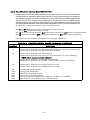
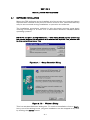
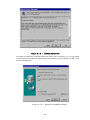
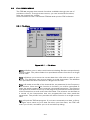
You will see the first Setup dialog (Figure 2.1.1). Click on the Setup
button to continue installation. The Setup will unpack the necessary
components. After it completes, you will see a Welcome dialog box.
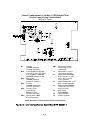
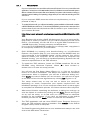
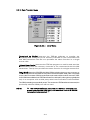
Click Next> to continue. Before you can continue, you will have to agree
to the terms of the License Agreement by clicking OK (Figure 2.1.3).
The setup wizard may or may not ask to reboot the computer,
depending on which components your system required from the
installation package. If so, let the computer restart and run setup again
to complete the installation process. No further reboots will be required.
2.
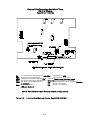
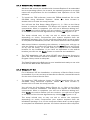
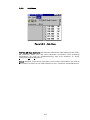
After setup finishes unpacking the software, a dialog box will pop up
with the option to continue (by clicking on the Next> button see Figure
2.1.4), exit the setup, or at this time you may choose an alternate
location for the installation. If you have no objections to the default
location just click on the Next> button to continue the installation.
3.
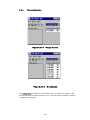
The TDP installation will ask what START menu Program Group you
want the TDP software shortcut installed. Click FINISH if the default
Program Group name is adequate.
The Data Programming Software is now installed and ready to use with
an 8.33 kHz AM series Transceiver.
2.1.3 Windows NT 4.0
For a Windows NT 4.0 installation, a minimum of Service Pack 4 must
be installed. If you do not have at least Service Pack 4, contact Microsoft
for the most current Service Pack.
1.
To install the TDP software, locate the TDP90_Install.exe file on the
CD-ROM using Windows Explorer. When you have located it,
double-click it to start the setup process.
You will see the first Setup dialog (Figure 2.1.1). Click on the Setup
button to continue installation. The Setup will unpack the necessary
components. After it completes, you will see a Welcome dialog box.
Click Next> to continue. Before you can continue, you will have to agree
to the terms of the License Agreement by clicking OK (Figure 2.1.3).
The setup wizard may or may not ask to reboot the computer,
depending on which components your system required from the
installation package. If so, let the computer restart and run setup again
to complete the installation process. No further reboots will be required.
2-4