1
7: Scope - Lab Scope
Lab Scope Function Keys
Panel Function Key (Lab Scope)
Panel Menu - Edit Option
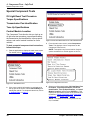
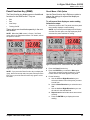
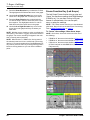
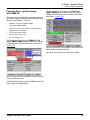
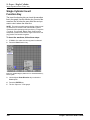
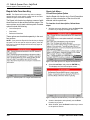
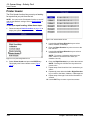
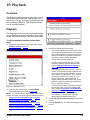
The Panel function key displays a menu of additional
functions for the Lab Scope screen. They are:
Use the Panel function key’s Edit menu option to
change the settings for a panel that displays a
reading.
•
Edit
•
Auto Setup
•
Grid Off/On
•
Training Off/On
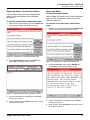
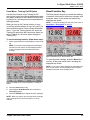
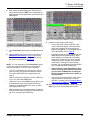
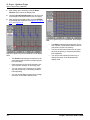
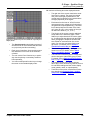
To edit a panel that displays a reading, follow
these steps:
1
These options are described separately in the next
few sections.
NOTE: When the lab scope screen is “frozen,” the Panel
menu options are Playback and Save. For details, refer to
Freeze Function Key (Lab Scope) on page 66.
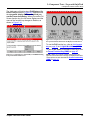
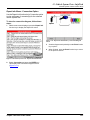
If DMM is on, select the panel to edit. The panel must
be a panel that currently displays a reading.
NOTE: If the top panel is selected and has a solid
border, and you want to select a bottom DMM
panel, press the EXIT key to change the border to
moving dashes. Then select a DMM panel.
2
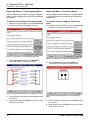
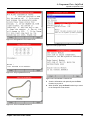
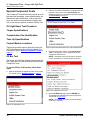
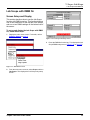
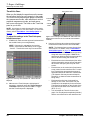
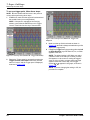
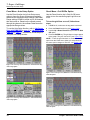
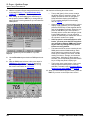
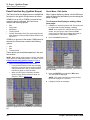
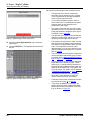
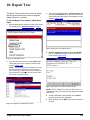
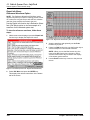
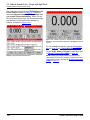
Press the Panel function key (see Figure 7.39).
3
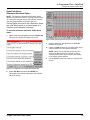
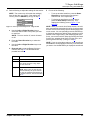
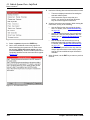
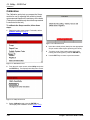
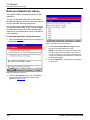
Press the ENTER key to select the Edit option.
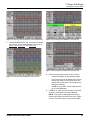
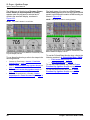
The edit fields are displayed.
NOTE: If the panel’s border was moving dashes,
the border changes to a solid line.
4
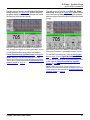
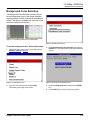
Change the fields as necessary.
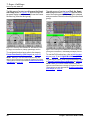
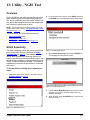
Figure 7.39: Lab Scope Screen, DMM Off - Panel Function Key
NOTE: If you press the Panel function key to display the
menu, but do not want to select an option, either press the
EXIT key or press the Panel function key again to close
the menu.
Scope / InfoTech User Guide
69