1
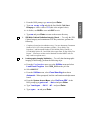
Agilent Technologies
5DX Series 5000 Installation Guide
Manual Version A
5DX Series 5000
Software Revision 8.0
April 2002
Copyright Agilent Technologies, Inc.
All Rights Reserved
N7200-90116
Emergency Shut Down Procedure
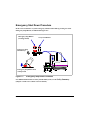
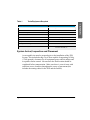
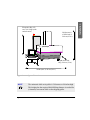
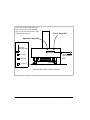
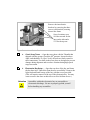
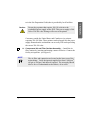
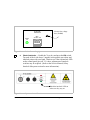
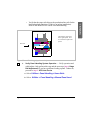
In the event of a disaster or system emergency, shut down the 5DX by pressing one of the
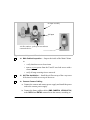
Emergency Stop Buttons, as indicated in Figure T-1:
Emergency Stop Button
(Locking Switch)
X-ray On Indicator
Emergency Stop
Release Keys
5DX Series 5000
Emergency Stop Button locks
when pressed
Figure T-1
Emergency Stop Button Locations
For additional information on safety and the 5DX system, see the Safety
(Chapter 2 of the User’s Guide or Service Guide).
ii
Summary
Notices
© Copyright Agilent Technologies, Inc. 2002.
All Rights Reserved.
Printed in USA
N7200-90116 Printed: April 2002
NOTICE
This manual is provided “as is” and is subject to change without notice.
AGILENT TECHNOLOGIES MAKES NO WARRANTY OF ANY KIND WITH REGARD TO THIS MATERIAL,
INCLUDING, BUT NOT LIMITED TO, THE IMPLIED WARRANTIES OF NONINFRINGEMENT,
MERCHANTABILITY AND FITNESS FOR A PARTICULAR PURPOSE.
Agilent Technologies shall not be liable for errors contained herein, nor for direct, indirect, general, special, incidental
or consequential damages in connection with the furnishing, performance, or use of this material.
Adobe™ is a trademark of Adobe Systems Incorporated which may be registered in certain jurisdictions.
Hewlett-Packard® is a registered trademark of Hewlett-Packard Company
Microsoft® is a U.S. registered trademark of Microsoft Corp.
Windows®
and MS Windows® are U.S. registered trademarks of Microsoft Corp.
Manual Printing History And System Software Revisions:
This page lists this manual's printing history and the system's software revisions. If you receive manual updates or
system software revisions, a new Printing History Page will accompany the updates and revisions. It is important that
you insert the new Printing History Page in the manual and remove the old one.
Software Revision
8.0
Manual Revision
Rev A.1, April 2002
iii
Safety Information
WARNING
This product produces X-rays. Do not attempt to open any part of the
product. Exposure to X-rays can cause serious bodily injury. Refer all
servicing to service-trained personnel.
WARNING
This product produces X-rays. Do not operate this product or turn on
the X-rays source unless all shielding is in place. Operation without
shielding in place can result in serious bodily injury.
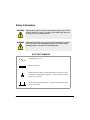
ELECTRIC SYMBOLS
Alternating current (ac)
Direct Current (dc)
Indicates the field wiring terminal that must be connected to earth
ground before operating the equipment — protects against electrical
shock in case of fault.
Frame or chassis ground terminal — typically connects to the equipment’s metal frame.
iv
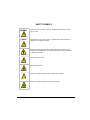
SAFETY SYMBOLS
WARNING
Calls attention to a procedure, practice, or condition that could result in bodily
injury or death.
Caution
Calls attention to a procedure, practice, or condition that could cause damage to
equipment or permanent loss of data.
Instruction symbol affixed to product. Indicates that the user must refer to the
manual for specific WARNING or CAUTION information to avoid personal injury
or damage to the product.
Indicates hazardous voltage.
Indicates Pinch Hazard.
Indicates this equipment produces laser radiation when energized.
Indicates this equipment produces X-rays when energized.
v
WARNINGS
The following general safety precautions must be observed during all phases of operation, service, and repair of
this product. Failure to comply with these precautions or with specific warnings elsewhere in this manual
violates safety standards of design, manufacture, and intended use of the product. Agilent Technologies, Inc.
assumes no liability for the Customer’s failure to comply with these requirements.
Ground the Equipment: For Safety Class 1 equipment (equipment having a protective earth terminal), an
uninterruptible safety earth ground must be provided from the main power source to the product input wiring terminals
or supplied power cable.
DO NOT operate the product in an explosive atmosphere or in the presence of flammable gases or fumes.
For continued protection against fire, replace the line fuses(s) only with the fuse(s) of the same voltage and current
rating and type. DO NOT use repaired fuses or short-circuited fuse holders.
Keep away from live circuits: Operating personnel must not remove equipment covers or shields. Procedures
involving the removal of covers or shields are for use by service-trained personnel only. Under certain conditions,
dangerous voltages may exist even with the equipment switched off. To avoid dangerous electrical shock, DO NOT
perform procedures involving cover or shield removal unless you are qualified to do so.
DO NOT operate damaged equipment: Whenever it is possible that the safety protection features built into this
product have been impaired, either through physical damage, excessive moisture, or by any other reason, REMOVE
POWER and do not use the product until safe operation can be verified by service-trained personnel. If necessary,
return the product to an Agilent Technologies Sales and Service Office for service and repair to ensure that safety
features are maintained.
Do not service or adjust alone: Do not attempt internal service or adjustment unless another person, capable of
rendering first aid and resuscitation, is present.
Do not substitute parts or modify equipment: Because of the danger of introducing additional hazards, do not install
substitute parts or perform any unauthorized modification to the product. Return the product to an
Agilent Technologies Sales and Service Office for service and repair to ensure that safety features are maintained.
vi
Agilent 5DX Installation Guide
Emergency Shut Down Procedure . . . . . . . . . . . . . . . . . . . . ii
Notices . . . . . . . . . . . . . . . . . . . . . . . . . . . . . . . . . . . . . . . . iii
Safety Information . . . . . . . . . . . . . . . . . . . . . . . . . . . . . . . iv
Agilent 5DX Installation Guide . . . . . . . . . . . . . . . . . . . . . . vii
Agilent 5DX Installation
Overview . . . . . . . . . . . . . . . . . . . . . . . . . . . . . . . . . . . . . . . 1
Preparing for Agilent 5DX Installation . . . . . . . . . . . . . . . . . 1
Time Required for Installation . . . . . . . . . . . . . . . . . . . . 2
What has to be done before installation begins? . . . . . 2
System Arrival, Inspection and Placement . . . . . . . . . . 3
System Hardware Installation and Setup . . . . . . . . . . . . . 14
System Performance Verification Procedure . . . . . . . . . . 24
System Start-up . . . . . . . . . . . . . . . . . . . . . . . . . . . . . . . . 27
Panel Handling Subsystem Verification . . . . . . . . . . . . . . 30
Appendix A: SMEMA
Introduction . . . . . . . . . . . . . . . . . . . . . . . . . . . . . . . . . . . . 43
SMEMA Signals . . . . . . . . . . . . . . . . . . . . . . . . . . . . . . . . 44
SMEMA Connectors . . . . . . . . . . . . . . . . . . . . . . . . . . . . . 47
Appendix B: Wiring Configuration
Wiring Configuration . . . . . . . . . . . . . . . . . . . . . . . . . . . . . 49
3-Phase Wye or Delta
. . . . . . . . . . . . . . . . . . . . . . . 52
3-Phase Wye with Neutral . . . . . . . . . . . . . . . . . . . . . 54
Agilent 5DX Installation
Overview
This document is intended to guide you through the Agilent 5DX
installation process. All major steps have check boxes like this:
on
the left side of the page. Use these check boxes as you proceed with the
installation to ensure all steps of the installation are complete.
NOTE
Installation is intended to be performed by qualified Agilent
Customer Engineering personnel only.
Preparing for Agilent 5DX Installation
You may need to refer to the following documents.
• Unpacking Instructions (N7200-90075-C)
• Site Preparation Manual (N7200-90109)
• Agilent 5DX System Administration Manual (N7200-90124) (This
document is also on-line.)
• 5DX Service Guide (on-line document)
• Agilent Electrostatic Discharge Control Specification (A-5951-1589-1)
• Agilent X-Ray Safety Test Procedure (5021-1979) and X-Ray Safety Test
Report (N7200-90092)
The unpacking instructions (N7200-90075-C) will be located on the
outside of the crate. The Site Preparation Manual has been sent to the
customer before this installation began. The Service Guide and System
Administration Manual are on-line when you get the system up and
running. The ESD document is one of general corporate nature that you
should already be familiar with, if you are not, please review it as soon as
possible.
Agilent 5DX Installation
Time Required for Installation
It will generally take one or two days to install the Agilent 5DX System. If
this is the first installation at the site, the three-day Basic Maintenance
Training should also be provided for the customer’s maintenance personnel
and primary operators.
The time estimate is a general guideline. You may take more or less time
to install the 5DX system depending on the customer’s requirements, what
components are to be installed, and how the 5DX system is handled
throughout the delivery and installation process.
You will need a copy of the X-ray Safety Test Procedure (5021-1979) and the
X-Ray Safety Test Report (N7200-90092) to complete the installation.
You may need to acquire these before entering the customer site. These
documents are available from your Agilent logon at: http://
mskc.usa.agilent.com. Click on the EPT/SPT tab at the top of the page.
Click on LMC Quality X-ray documentation. Both the procedure and
report are available from this page.
What has to be done before installation begins?
All system components and software have been delivered and an
acceptable site has been chosen for installation. All utilities (air, electric,
etc.) are ready for the installation and are at the site of installation as
specified in the Site Preparation Manual.
NOTE
2
An Agilent CE must be present to break the seal on the truck
(domestic shipments) and for pallet unloading, system
movement, uncrating and placement (whenever possible).
Agilent 5DX Installation
Tools/Equipment Required
Description
Standard CE toolkit with 5DX tool set
Torx Screwdrivers
Installation
Table 1
Notes
Agilent PN E7200-67917
10, 15, 20, 25 sizes
Medium size adjustable wrench
Standard (SAE) socket set
Multimeter
Continuity “beep” is useful
Level
25 cm (10 inch) minimum
Calipers
6”
Flashlight / Trouble light with stand
Radiation meter(s)
Victoreen 440 RF/D
Victoreen 290 GM, etc.
System Arrival, Inspection and Placement
An acceptable site must be prepared prior to the installation of the 5DX
System. This includes having a level floor capable of supporting 3630 kg
(>7600 pounds), clearances for all equipment, power and air utilities and
acceptable climate control. Movement to the final location should be
considered before transportation. Make sure there is a travel route with
sufficient access clearances throughout the course of movement (this
includes the turning radius for the 5DX and the forklift).
Agilent 5DX Installation
3
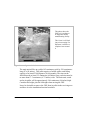
This photo shows the
5DX as it is waiting to
be shipped from the
manufacturing facility.
This is how it will look
just prior to crating. For
shipment, it will have a
complete crate around
it.
Figure 1
System Arrival
The main unit will be on a pallet 165 centimeters wide by 226 centimeters
long (87 x 89 inches). This pallet requires a forklift with a rated lifting
capacity of at least 4536 kilograms (10,000 pounds). The tines on the
forklift must be at least 152 centimeters (60 inches) long, each tine must be
no more than 17.5 centimeters (6.75 inches) wide. The main unit, crated
and on its pallet ,will be approxiamtely 244 centimeters (96 inches) high.
Consider this height, plus the lift height when moving the 5DX.
It may be desirable to remove the 5DX from its pallet in the receiving area
and move it to the installation location from there.
4
Agilent 5DX Installation
Installation
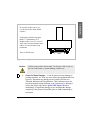
Be careful of cables, hoses, etc.,
(see the note below about forklift
caution.)
Forklift tines should be no more
than 17.5 centimeters (6.75
inches) wide, set to 87.5 cm (34.5
inch) center-to-center distance apart
and be 152 cm (60 inches) long
(minimum)
(Rear of 5DX shown)
Figure 2
Caution
1.
Use fork lift here
ONLY
System Arrival
Lift the system where shown only. Do Not use a lift or jack on
the rest of the frame or system damage could occur.
Check for Gross Damage — Look for and record any damage to
packing materials, etc. Note any areas where the equipment has been
exposed. Document any damage on the waybill. Note the two
Tiltwatch Indicators and Drop Monitor. These indicators must not
have been tripped during shipment or the system may be damaged.
Advise the carrier and contact Agilent 5DX Support Services
immediately. If significant damage exists, document the damage
completely (take pictures if possible) prior to further unpacking or
movement.
Agilent 5DX Installation
5
2.
Accessories — If there is an accessories crate or pallet, it is advisable to
move it to the installation area before opening. (If there is a wooden crate,
open it by removing the bolts from the front of each (there are bolts on top as
well as on both sides.)) Remove the boxes from the accessory crate or pallet.
3.
Electronics bay — This will be located on the same pallet as the main
unit. The unpacking instructions provide information on removal from
the main 5DX pallet. The electronics bay is tethered to the main unit,
leave this tether in place even after installation.
Caution
4.
Do not rely on the tether to move the electronics bay along with
the main unit. Someone must push or pull the electronics bay
while the main unit is being transported.
Verify Items Shipped — CE must be present for system and crate
unloading, system movement, and system placement: (whenever
possible) Inspect all received containers and verify the correct number
of items arrived with the shipment. (See the packing list: If the
packing list is missing, contact the customer facility receiving
personnel.)
6
Agilent 5DX Installation
Installation
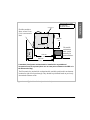
Electronics Bay 192
cm (76 in.) high (with
status beacon)
Height (max.)
of main unit is
240 cm (95 in.)
5DX Series 5000
Depth (main unit
only) 188 cm (74 in.)
Width (max.) 146 cm (58 in.)
Figure 3
NOTE
System Dimensions
The main unit while on its pallet is 2.44 meters or 96 inches high.
This height plus the required forklift lifting distance is needed for
(clearance) movement while on the shipping pallet.
Agilent 5DX Installation
7
5.
Move 5DX To Install Site — To remove the 5DX from its pallet, remove
the four (15/16”) nuts from the 5DX in the bottom four corners of the main
frame. When you are ready, (using acceptable lifting equipment) raise the
5DX from its pallet and move to the install area. You will need assistance to
move the tethered electronics bay along with the main unit.
Be very careful while moving the forklift in place to remove the
5DX from its pallet. You will likely have to do this at the rear of
the unit and there are wires, air lines and the interlock controller
that can all be damaged by careless forklift use.
Caution
6.
Staging — Organize all materials in the installation area. Prior to
beginning installation, find the box with the foot pads and spacers
(part number E7200-80024).
7.
Clear Packaging — Remove all remaining items from the 5DX
pallet. Remove the remaining packing materials, straps, padding etc.
from the 5DX. Tape is applied to the edges of the tower door to
prevent damage during shipping. Be sure to remove this tape to ensure
a good door seal.
8.
Inspect the 5DX — Inspect the 5DX and accessories for damage.
Inspect system exterior for abrasions or dents. Record any damage on
the waybill. Advise the carrier and contact Agilent 5DX Support
Services immediately.
WARNING
9.
While lowering the 5DX on the threaded foot pads and spacers,
make sure the forklift operator is aware you will be under the
raised system.
System Placement — When the system has been delivered to the
install area, move it to the desired placement location. Position the
system according to the customer’s requirements then install the foot
8
Agilent 5DX Installation
Table 2
Spacer Size Reference
Spacer
In Centimeters
In Inches
Quantity
Spacer A (E7200-24715)
1.60 cm
0.630 in.
4
Spacer B (E7200-24717)
3.175 cm
1.25 in.
8
Spacer C (E7200-24716)
7.62 cm
3.0 in.
4
ADVICE
If the height of the system does not matter, it may be best to
install all the spacers so none become lost.
10. Check System Height and Position —
If the 5DX is installed on a
production line, adjust the system location such that the fixed rail
aligns with the production line conveyors. Markings will be on each
outer barrier frame to show where the stage position for loading and
unloading will be (see Figure 4). Use these markings to align height
and position of the 5DX with the customers line.
— Adjust pads as required. This is
done by turning the top of the threaded shaft (see Figure 5). Use a
level inside the system on the granite base in various locations rather
than on the top of the system. Check x and y orientation in all 4
corners.
11. Verify that the system is level
ADVICE
If the 5DX system is to be integrated into a production line, you may wish
to level and adjust height at the same time. Align the 5DX with the
production line using the lines marked on the outer barrier frame.
Agilent 5DX Installation
9
Installation
pads with spacers for the estimated height requirement (see Table 3 on
page 10). It is recommended that the pads and spacers be put on while
the system is elevated by the fork lift. The system can be lowered on to
the pads and spacers, however this is extremely difficult to execute.
Table 3
Height Configuration Chart
Spacer Combinations
Minimum Height in
centimeters (inches)
Maximum Height in
centimeters (inches)
A
81.0 (31.9)
82.9 (32.6)
B
82.5 (32.5)
84.4 (33.2)
A B
84.1 (33.1)
86.0 (33.9)
B B
85.7 (33.7)
87.6 (34.5)
C
87.0 (34.2)
88.9 (35.0)
A B B
87.3 (34.4)
89.2 (35.1)
A C
88.6 (34.9)
90.5 (35.6)
B C
90.1 (35.5)
92.0 (36.2)
A B C
91.7 (36.1)
93.6 (36.9)
B B C
93.3 (36.7)
95.2 (37.5)
A B B C
94.9 (37.4)
96.8 (38.1)
ADVICE
10
Use the spacer combination closest to the minimum for better system
stability. For example if you need a height of 87 centimeters, two B
spacers would work but use one C instead; this way the threaded shaft is
closer to its bottom point. Using no spacers is not an option due to cable
and camera requirements.
Agilent 5DX Installation
Installation
Use these alignment marks
on the 5DX to align the
system with the customer’s
line.
(left side shown)
Figure 4
Stage Rail Alignment Markings
Agilent 5DX Installation
11
Check the height of both stage rail
belts. (If the system has a middle
rail, you can use only the outer rails
for height adjustment.)
“Fixed” Stage Rail
Adjustable Stage Rail
Foot with
threaded shaft
A spacer
Height of Stage
Belt (top) Above
B spacer
Floor
C spacer
Spacers
Spacers
Floor Level
(The left side of the system is shown.)
Figure 5
12
Height Setup
Agilent 5DX Installation
Outer Barriers
Back
Flexible conduit to
allow at least 92 cm
(36 in.) movement is
ideal.
Installation
Recommended Locations
⊗ Air Service
⊕ Electric service
146 cm
⊕
⊗
Electronics
Bay
Main Unit
Front
58 in.
191 cm
75 in.
front
The mobile
workstation
table would
normally be
positioned here.
267 cm
105 in.
A standard (local) power outlet should be installed for any additional
accessories such as a printer (there are no extra power outlets on the 5DX or in
the Electronics Bay).
The Electronics bay and mobile workstation table would be positioned in an alternate
location for right to left pass through. They should be positioned based on previously
determined customer needs.
Figure 6
Typical Installation (overhead view)
Agilent 5DX Installation
13
System Hardware Installation and Setup
Site preparation and movement to the final location should be complete at
this point. Verify correct placement of the main unit, and subsystems (such
as the Electronics Bay, user interface and monitor) with your customer (see
Figure 6). Begin assembly of the 5DX system using the following
procedure:
1.
Stage Release — There are several tie wraps securing the stage,
movement motors and assemblies inside the main cabinet. Remove
these to allow both X and Y movement.
2.
Check Lead Panels — There are eight lead panels around the outer
edge of the granite. Check to make sure none have come loose during
shipment.
3.
Inner Barrier Release — There are brackets mounted to both sides of
the inner barrier. Each is held in place by three screws (see Figure 7).
Open the top sliding access panel on each side and remove these to
allow barrier movement. These parts may be discarded or recycled
after they are removed.
Caution
14
The screws also have washers. Be careful not to drop the bracket
screws or washers inside the 5DX.
Agilent 5DX Installation
Installation
Remove the inner barrier
brackets by removing the three
screws (each bracket) securing
them to the frame.
Screw locations: use a
9/64 hex wrench for the
ones on the side and a
5/32 for the top one.
Figure 7
Inner Barrier Bracket
4.
Check X-ray Tower — Open the tower door with the T-handle that
5.
Electronics Bay Setup — Open the rear door of the bay and locate
shipped with the system. Check the SF6 pressure. It must be above
40psi, and should be 55-65psi. Verify all cords are firmly seated in
their connections. Two bolts in the tower door are designed to prevent
damage during shipment and to reduce vibration during high speed
stage movement.
the bay door keys. Unlock the front door for accessibility. Remove the
light stack and install on top of the bay with the screws provided.
(This will require removal of the top of the electronics bay. You may
want to remove the doors at this time as well to facilitate access.)
Attention
Assemblies within the electronics bay are susceptible to
electrostatic discharge. Be sure to properly ground yourself
before handling any assemblies.
Agilent 5DX Installation
15
6.
Electronics Bay Subassemblies & PCBs — Inspect the condition of
electronics subassemblies. Inspect the individual subassemblies and
pc boards; look for those which may have unseated during shipping.
Particular attention should be paid to the motion driver assemblies.
7.
Mobile Workstation Cabling — Route the monitor, keyboard and
operator console cabling toward the mobile workstation table location.
16
Agilent 5DX Installation
Installation
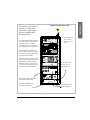
Electronics Bay (rear view)
This drawing is provided for
reference. As long as the
cable tether is kept in place,
the cables should remain
installed correctly.
(The electronics
bay is shown
without the rear
door.)
The cable bundle from the main unit
is routed through the larger hole in
the bottom panel. The bundle
containing the monitor, keyboard,
etc. cables goes out the smaller hole.
Each hole has a removable cable
clamp to make cable routing easier.
It is best to remove the whole panel
to route the cables initially.
Cables from the main unit and from
the electronics bay are labeled. The
labels indicate where each cable
should be routed. Cables from the
electronics bay are labeled for their
routing to the workstation table.
Keyboard, mouse,
monitor, etc. are
routed out here.
1
0
!
Power to the mobile workstation
table and the main cabinet
AC Main (installed by the
customer’s electrician)
Figure 8
Cables from the main
unit are routed into
here.
Cable Harness Routing
Agilent 5DX Installation
17
8.
Mobile Workstation Table Assembly — Unpack and assemble the
mobile workstation “Computer Table” according to the manufacturer’s
instructions included with the unit. Set the height of the keyboard
table and monitor shelf according to customer needs.
9.
Operator Interface Assemblies — Unpack the monitor, keyboard,
and mouse and put them on the workstation table. Connect all cables
as shown by the labels.
10. Operator Control Panel —
Install the Operator Control Panel on the
workstation table using two screws (0624-0853) and mounting to the
parallel monitor supports. Connect the cable (E7200-61469) to the
port on the side of the control panel.
11. Accessory Power —
The power outlet box needs to be assembled
with the mobile workstation cart.
a.
Install the power outlet box (E4000-61623) on the rear of the bracket
(E7200-01220) that will mount to the mobile workstation table using
two screws (0515-0433).
b.
Mark the input voltage at 200-208 or 220-240
AC, whichever is appropriate, with a
permanent marker.
200-208 V
220-240 V
c.
Install the bracket to the rear vertical support of the mobile
workstation table using two screws (0624-0394).
d.
Route the cables from the power outlet box for a neat appearance.
Use cable ties (provided) to secure to the mobile workstation table.
12. Laser Printer (Optional) — If a laser printer
came with the system,
install the printer in a location convenient to the proper power source.
United States and Canada customers will receive printers requiring
108 - 110 Volts. Plug these printers in to a wall 110 outlet (as referred
18
Agilent 5DX Installation
Caution
Do not plug a printer that requires 108-110 volts in to the
workstation power supply on the 5DX. This power supply is 200208 or 220-240 volts. Damage will occur to the printer.
Customers outside the United States and Canada receive printers
requiring 220-240 Volts. These printers can be plugged in to the power
supply mounted on the workstation cart or to any wall outlet providing
the correct 220-240 volts.
— Install the air
filter canister by inserting and turning counter-clockwise. Connect the
facility air input line. (see Figure 9)
13. Compressed Air and Filter Canister Assembly
NOTE
The air filter and connection are located on the lower rear of the
main cabinet. Verify the input air supplied is at least 5.6 Kg/cm2
(80 psi or 550 kpa), and adjust if required. The air supply should
also be free of contaminants such as debris, oil or water
Agilent 5DX Installation
19
Installation
to in the Site Preparation Guide) that is provided by local facilities.
Air input assembly
Air input
Air filter canister - push up in here and turn
counterclockwise.
Figure 9
Air Input and Filter Canister
14. Main Cabinet Inspection — Inspect
the inside of the Main Cabinet
to:
•
verify that there are no loose items
• remove excess grease from the X and Y axes lead screws with a
clean cloth
• verify all stage securing ties are removed
15. Air Filter Installation — Install the air filter on top of the x-ray tower.
It fits into a beveled area on top of the tower.
16. Connect Camera Cabling
20
a.
Connect the camera and camera power supply and install the power
cord to the camera power supply.
b.
Connect the frame grabber cables (SMD CAMERA, N7200-61734)
to the DATA1 and DATA2 connection on the camera, according to
Agilent 5DX Installation
c.
Connect the SERIAL (telephone style) connection on the camera.
d.
Connect the shutter cable (CAMERA SHUTTER, E7200-61463) to
the SYNC connector on the camera (the sync connector is the one
closest to the LEDs).
— Work with the customer electrician to provide
main power installation to local code. For general service feed
location, see Figure 8 on page 17 and Figure 10 on page 22. Normal
requirements are:
17. AC Main Hookup
• Between 195 and 240 volts, three phase (3Φ) 5Ø or 6Ø Hz. (See
appendix C for overall requirements)
• Where allowed, the recommended attachment is via flexible conduit,
allowing a range of motion for the electronics bay of a minimum of 1
meter (a bit over 3 feet) to allow for serviceability. For optimum
flexibility, extend this to 2 meters. Cables must be the stranded type
(not solid). Follow local code if it supersedes these instructions.
• A breaker panel near the 5DX installation area can be used to allow
complete power down in case of an emergency. The E1135C PDU
(Power Distribution Unit) has a rotating, lockable switch for this as
well.
NOTE
5DX systems are pre-wired with a cord and plug. The local
electrician will only need to install a suitable outlet where the
plug can be inserted. Follow local code regulations.
Agilent 5DX Installation
21
Installation
the labels. Be very careful to when making this connection since the
pins are very small and fragile. Use great care to orient the sockets
correctly! Incorrect connection CAN BE forced. Connector
damage will result. If the sockets are incorrectly oriented, there will
be no image in the image window. If Data1 and Data2 are switched,
the picture on the image window will be upside down.
To Mains
Supply
E1135C
POWER DISTRIBUTION UNIT
!
ON
MAINS
100-240V ~ 1 o
200-240V ~ 3 o 50-60 Hz
200-415V ~ 3 o
80A MAX
___VAC ___ o ___ FLA
OFF
!
!
0
CB2
CB1
CB4
CB3
CB6
CB5
1
CB8
CB7
CB10
CB9
Have the electrician secure the conduit with appropriate fittings to the PDU.
See the appendix for the PDU for additional information.
Figure 10
Power Distribution Unit
18. Connect Power from PDU —Connect the power cords to the PDU as
described by the information in Figure 11 below.
!
8
7
6
5
!
4
Figure 11
22
3
2
50 Hz
60 Hz
100V
120V
127V
200V
208V
220V
230V
240V
1
PDU Rear Panel
Agilent 5DX Installation
Installation
The auxiliary outlets are numbered. The following components plug into
the respective auxiliary outlets as follows:
• Outlet 1 — Rear Laser Displacement Sensor
• Outlet 2 — Front Laser Displacement Sensor
• Outlet 3 —
• Outlet 4 —
• Outlet 5 — X Servo Module
• Outlet 6 — R Servo Module
• Outlet 7 — Y1 Servo Module
• Outlet 8 — Y2 Servo Module
Agilent 5DX Installation
23
System Performance Verification Procedure
The following procedures should be closely followed to verify proper
system performance.These steps will verify that all levels are correct before
full power is applied to all assemblies.
AC Voltage Check — After the site power (main) is connected to the
1.
PDU, unplug all subassembly AC power cords.
a.
Make sure all connectors are properly seated prior to turning on the
power, especially the connectors that attach to the back of the PDU.
System damage may occur if all connectors are not properly seated.
b.
Turn the power ON using the switch on the rear of the PDU.
WARNING
Voltage and current sufficient to cause severe shock or other
bodily damage are present in this assembly.
c.
Check the bay AC voltage using line voltage safety precautions:
d.
The PDU output voltage should be between 195 volts, and 240 volts
AC. If it is not:
• Turn off mains power from the system at the facility circuit
breaker.
• Check the wiring into the PDU. Have the customer electrician
verify all wiring. Repeat this process until the range above is
reached.
24
e.
If the output voltage is in the range, turn power off at the main circuit
breaker on the rear of the PDU.
f.
Reconnect all subsystem power cords.
g.
Verify the expansion chassis (PCI expansion box, below the CPU)
power switch is OFF.
Agilent 5DX Installation
Check that the other components in the electronics bay are in the ON
state, so they will power up when the PDU is switched on.
i.
Turn on PDU breaker, but not the switch.
CPU Power Up — The switch should be off on the expansion chassis.
The power for the main CPU (Kayak computer) is controlled by
the power switch on the expansion chassis.
NOTE
3.
a.
Switch the expansion chassis ON.
b.
Power ON the computer monitor. Allow CPU to boot up and note
any warnings or errors. Errors indicate a system (hardware/software)
failure and require troubleshooting and repair before proceeding. For
troubleshooting, refer to the Service Guide (N7200-90041).
c.
Switch the PDU ON (if it is not already).
Vacion™ Power Supply Voltage Check — Use a voltmeter and
measure the Vacion Power Supply at test point J04000 on the power
supply. It is located under the main unit in the rear (see Figure 12).
Measure this at the BNC connector on the power supply. The reading
may be as high as 3 volts d.c. but after warm-up (~1/2 hour) it should
read in the 20 - 50 millivolt range and be continuing to drop slowly.
Agilent 5DX Installation
25
Installation
2.
h.
Measure the voltage
here (J04000)
VACION PUMP
POWER SUPPLY
INPUT
~200-240 V 60VA
J04000
POWER
ON
Figure 12
4.
Vacion Power Supply
Check Interlocks — Enable the X-ray key and press the ON switch.
Tap each of the 6 side doors, 2 topside access panels, tower door and
interlock points with your hand. Watch to see if the red interlock LED
on the control panel goes off. If it does, adjustment of interlock
switches may be required. (Refer to the Service Manual, Safety
Interlock Subsystem section for more information.).
Watch the interlock LEDs to
make sure they stay on.
Figure 13
26
Operator Control Panel
Agilent 5DX Installation
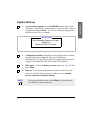
1.
Log on to the Computer - Press Ctrl Alt Del and the login screen
will appear. It already has “Administrator” as the user name. Type in
the password and press Enter. You will see a dialog box appear like
that below; press a key to continue.
WARNING
Run Automatic Startup for Proper
Operation!
Press Any Key to Continue
Figure 14
2.
Start-up Warning Dialog Box
Configure the network - Immediately after logging on the first time,
the network must be configured. Have your local systems
administrator or IT specialist perform the required network protocol
settings as described in the Site Prep Guide (N7200-90049).
NOTE
3.
5DX Logon - A box with Enter your name comes up. Type
press Enter.
S and
4.
Start-up - In the system configuration window, use the arrow and
enter key (or select the letter shown in yellow) to select: System
Access > Startup > Automatic Startup.
If you go too far into a menu, use the Esc key to back out one
level from the current menu item.
Agilent 5DX Installation
27
Installation
System Start-up
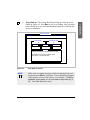
5.
The system will begin the start-up procedure (see Figure 15).
===========================================
PERFORMING AUTOMATIC STARTUP PROCEDURE
===========================================
Figure 15
6.
Start-up message
Start-up - There will be several messages about the system starting up
and initializing subsystems. During this, the system should home the
stage and start the rotary scintillator.
28
Agilent 5DX Installation
X-ray Start-up - The system should now bring up a start-up screen
similar to Figure 16. Press Esc to exit X-ray Startup, since you don’t
want to bring up X-rays yet.Panel Handling should be verified before
X-rays are turned on.
5DX X-ray Control
COLD Start
Agilent Technologies
MicroAmps (100)
Kilovolts (160)
0
Focus (V)
765.0
xx minutes remaining
0
Grid (V)
Filament (V)
500.0
0.0
Dialog
X-RAYS were down for an extended period (cold start)
To continue, turn X-ray Control switches on and
press <Enter>. To quit, Press <Esc>.
Figure 16
NOTE
X-ray Start-up Screen
Other error or warning messages could occur during this process.
In general, press Esc to clear these. If error dialog boxes appear
with a choice, use one of the choices. For example: “Failed to
establish X-ray power on, do you wish to retry start-up (Y/
N)”. Press N to disable the retry.
Agilent 5DX Installation
29
Installation
7.
Panel Handling Subsystem Verification
NOTE
All main cabinet access panels must be closed and the green and
red interlock LEDs lighted on the operator control console.
NOTE
When installing a Pay Per Use system, remember to use Agilent
CE test credits during all panel handling verification, so as not to
use customer credits during this setup phase.
1.
Verify Correct Load/Unload Configuration — Standard systems are
Left-to-Right. However, if the customer requires a Right-to-Left
configuration, a procedure must be followed to change the
configuration to Right-to-Left. This procedure is available in the
online documentation 5DX Service Guide. If it is required, do this
before you continue further. If not, proceed with the next step now.
2.
NOTE
Stage Alignment Verification — Check loading and unloading.
a.
Select Utilities > Load Panel Program from the menu. From the
pick list, choose 5DX_512. (The older panel uses 4picalibxxx/sub
where xxx = the last three digits of the serial number of the machine).
b.
From the Utilities Menu, select Panel Handling and choose
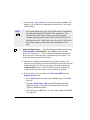
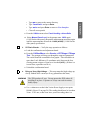
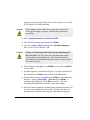
Automatic. Load and unload the calibration board several times,
homing the rails after each load and unload iteration.
On passback models, errors may occur. If so, perform Reset
Panel Handling to clear them.
• Verify that the load and unload cycle is consistent, and the
external barriers (doors) operate smoothly both in the open and
the closed directions.
30
Agilent 5DX Installation
R
B
PN
DB
Board in
This drawing represents a
left to right system. Flow
is reversed for a right to left
system
PASS BACK
OS PASS THROUGH
OS
DB
W
PN
W B
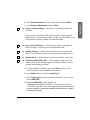
R
Figure 17
3.
Main Stage (top down view)
Verify Panel Handling System Operation — Verify operation and
width adjust: Only perform this step and the next step (Step 4.-Stage
Rail Adjustment) if you have problems loading a panel. Otherwise,
proceed to Step 5.- XYZ Axis Checks
a.
Select Utilities > Panel Handling > Home Rails.
b.
Select Utilities > Panel Handling > Manual Panel Load.
Agilent 5DX Installation
31
Installation
• Verify that the stage rails align to the production line rails for the
load and unload transitions (if this is an in-line installation).
Refer to the online Service Guide for troubleshooting.
c.
At the prompt, enter 11450 (see note below) and press Enter. This
number is the width of the confirmation panel in mils (1 mil equals
Ø.ØØ1 inches).
It is recommended you use the value for the newer Confirmation
and Adjustment board (E7200-90039) for installation. This
board uses the 11450 value. If there is not a newer board
available, the older panel (E7200-60027) (Four Pi 403570-101)
will need to be used. If that is the case, use a value of 11950 here
and all other instances where this guide mentions the 11450
value.
NOTE
4.
Stage Rail Adjustment — After the board has loaded, unload it using
Panel Handling > Unload Panel. (Press Esc to abort the load
process if you need to.) If the confirmation and adjustment board
does not load or unload properly, adjustment will be required. You
should perform the steps below anyway.
a.
Open the two sliding access panels on top of the main unit. Use
calipers (or equivalent) to measure the distance between the fixed rail
and the adjustable rail for the main stage. The distance should be
11.480 (±0.005) inches (11.980 for the older panel). Measure the
width at both ends of the rails to verify that they are parallel.
b.
If this distance is incorrect then select Quit from 5DX under the
System Access menu.
• At the DOS prompt type ca and press Enter to go to the Calib
directory.
• Type vs machine.cfg and edit the appropriate home
width that requires correction. (This should be the line with
“@Mach_MainHomeWidth”
• After editing, press ALT w to save the changes then press ALT x
to exit the file.
32
Agilent 5DX Installation
• Type ma to return to the master directory.
Installation
• Type loadinit and press Enter.
• Type auto and press Enter to return to User Interface.
• Close all access panels.
5.
6.
c.
From the Utilities menu select Panel Handling > Home Rails.
d.
Select Manual Panel Load. At the prompt enter 11450 again
(11950 for the older panel). Repeat the measurement procedure again
until the measurements all meet the 11.480 (±0.005) (11.980 for the
older panel) specification.
XYZ Axis Checks — Verify the stage operation as follows:
a.
Load the confirmation and adjustment board.
b.
From the Utilities Menu, select Service > XYZ Stage > Z Stage
Test. The prompts will step you through the setup test parameters.
The results should be contained in four graphs. There should be no
more than 5 mil. difference (Z coordinates only) between the four.
(Passing means a sigma of equal to or less than (±0.5).) (If there is a
second laser, repeat the test for it.)
c.
Unload the confirmation board.
Bring up X-ray High Voltage — This step ramps the high voltage up
slowly without drive current (no X-ray generation at this time).
WARNING
a.
The 5DX produces X-rays. Do not operate the 5DX unless all
shielding is in place. Exposure to X-rays can result in serious
bodily injury.
Use a voltmeter to recheck the Vacion Power Supply at test point
J04000. (Figure 12 on page 26) The reading should now be less than
20 mv. If it is not, or has risen since your last reading, there is a
Agilent 5DX Installation
33
problem--do not bring up X-Rays. Refer to the online Service Guide
(N7200-90041) for troubleshooting.
Caution
b.
Select System Access then Quit from 5DX.
c.
From the DOS prompt, type ca and press Enter.
d.
Type vs xray.cfg and edit the line Cold Start Rampup to
have a value of 60 instead of 15.
Caution
34
If the reading is not less than 20mv, allow more time for the
Vacion power supply to operate. Recheck this again before
proceeding.
Failure to do this step could result in permanent damage to
the X-ray tube. The X-ray tube has components that need to
warm up before generating X-rays. The system has been unpowered for an extended period of time so the X-ray tube requires
a 60 minute start up.
e.
After editing the xray.cfg file, use Alt W to save the file and Alt X to
exit the editor.
f.
From the Operator Control Panel (Figure 13 on page 26) turn the XRay Enable Key to Enable, then push the X-Ray On Button.
g.
From the DOS prompt, type ma and press Enter to enter the master
directory. Then type xrayon -zero and press Enter. A
warning will be displayed. Press Esc to continue. The time
remaining should indicate 60 minutes in the status display.
h.
After 60 minutes ramp time, the high voltage should show about 160
kv in the status display and remain stable. If it does not, there is a
problem and you should contact Agilent 5DX Hardware Support.
Agilent 5DX Installation
From the DOS prompt, type ca and press Enter.
j.
Type vs xray.cfg and edit the line labeled Cold Start
Rampup so it has a value of 15 (this is the original value).
k.
As before, use Alt W to save and Alt X to exit.
l.
Type ma and press Enter to return to the master directory.
Installation
i.
5DX Main Cabinet Radiation Integrity Check — To verify the 5DX
7.
Cabinet Integrity and containment of X-Ray emissions, perform the
following:
• Complete a formal on-site radiation survey. Use two documents: Document
Number 5021-1979 is the procedure to follow, “X-ray Safety Test
Procedure,” and Document Number E7200-90084 (Series I and II), or
N7200-90092 (Series 2L,3 and 5000) is the report form “X-Ray Safety Test
Report.” (The latest versions can be obtained from the MSKC web site:
http://mskc.usa.agilent.com/)
Laminography Imaging Validation — To verify that laminographic
8.
imaging is functioning, perform the following steps:
a.
From the User Interface menu, go to the Utilities menu and select
Load Panel Program. Select 5DX_512 from the pick list.
b.
Select 400 FOV.
c.
From the Utilities menu, select Panel Handling then choose
Automatic. When prompted, load the confirmation and adjustment
board.
d.
From the System Access Menu, select Quit from 5DX. At the
DOS prompt type gotocal -dots and press Enter.
e.
Type loadsync -f400 -b1 and press Enter.
f.
Type sync -e and press Enter.
Agilent 5DX Installation
35
g.
Select the camera icon on the graphic display window. Switch the
display to Live Laminography.
h.
Verify that the 5 dot calibration pattern is visible on the graphic
display window. (Some adjustment of the focus (Z axis) may be
required.)
i.
From the DOS prompt type auto and press Enter.
Self Test Validation — To verify that Self Test is functioning
9.
properly, perform the following steps:
a.
From the System Access menu select System Startup.
b.
Select Automatic Startup to bring the 5DX to a ready state.
c.
Select Utilities > Service Menu > Adjust > Self-test > Self
Test Setup
d.
Go to Utilities > Service Menu > Adjust > Self-test. From the
menu, select Run.
e.
For information on running self tests, see the System Administration
Guide (on line with the system manuals).
f.
Verify that all tests pass. If tests do not pass, refer to the Service
Guide (N7200-90041) or try self test setup and run self test again.
It may be difficult for Self-Test to pass until Confirm and Adjust
has been run.
NOTE
10. System Operation Functional Checks —
To verify that the overall
system is functioning properly, perform the following steps:
a.
36
From the Utilities menu, select Load Panel Program then
choose 5DX_512. Select a 400 FOV.
Agilent 5DX Installation
Load the confirmation and adjustment board, if not still in from
previous step.
c.
From the Utilities menu, select Align Board. When prompted,
choose Manual and Use Previous Alignment for all views
d.
A Caution Box will appear:
Board will need to be exposed to continuous X-rays. Do you want to
turn on Live X-rays (Y/N)
Press Y.
e.
Follow the steps on the screen: verify that the alignment points are in
range. Perform adjustment if necessary, including the Z-axis for
focus. Be aware that large corrections in any of the axes indicate a
possible change in an axes’ zero reference, or change in rail location.
If the alignment is not where expected, it may mean that an
alignment or reference in the axes assemblies has changed. If
alignment is significantly moved (such as out of the view), verify
the confirmation & adjustment panel is loaded correctly. Home
the axes and recheck. Next, try a customer board and verify that
the alignment is off by the same amount. If the alignment is
significantly out of range, it may require a verification of the axes
assemblies’ alignment. Refer to the System Administration
Manual.
NOTE
f.
Select Automatic. Verify that the images are clear and focused.
g.
From the Utilities menu, select Surface Map. Select Automatic.
h.
From the top level User Interface menu, select Test. Select Panel.
Provide data entries as requested (for most items, simply pressing
Enter will be appropriate).
i.
Review the measurement information and verify there were no
failures.
Agilent 5DX Installation
37
Installation
b.
— To verify that system
hardware is functioning properly, perform the following steps:
11. Hardware Reliability Functional Checks
a.
From the User Interface menu, select System Access menu,
select Quit from 5DX.
b.
From the DOS prompt type auto -demo and press Enter.
This command will initiate and repeat the automatic inspection
mode for the confirmation and adjustment board.
NOTE
c.
Select Test. Select Panel and press Enter. Follow the menu steps
through to the start of inspection mode.
d.
When the first test run is completed, the process should continue to
repeat without operator interaction. Allow the demo inspection mode
to run for a minimum of two hours. If convenient at the time, let the
tests run overnight.
e.
Press Esc to stop the inspection when done.
f.
When the demo period is complete, from the System Access
menu, select Quit from 5DX.
g.
Enter User Interface from the DOS prompt by typing auto and
pressing Enter.
12. Final Adjustments — Perform
the final adjustments by selecting
Confirm and Adjust > Adjust > All. All of the adjustments will
run in proper order. Remain at the controller, some intervention or
input may be required during adjustment cycle. Run self-test setup.
When completed, run the self-test. Select Adjust > Self-test > Run.
13. File Backup and Restore
a.
38
— Run the backup utility.
Select Adjust from the Confirm and Adjust menu and press Enter.
Agilent 5DX Installation
Select Backup/Restore from the Adjust menu and press Enter.
c.
Select Backup Adjustments and press Enter.
14. Verify a Customer Board
— Request a test panel/board from the
customer.
If the customer already has 5DX systems in place, check a typical
application to be used on this machine. If this is the first 5DX on site,
verify that the customer’s board will load and unload.
15.
Back up the Hard Drive — Follow the procedure as described in
detail in Chapter 3 of the System Administration Guide.
— Replace all electronic bay access panels and
doors. Clean the system exterior removing any dirt, hand prints, etc.
16. System Cleanup
17. Set the Clock
— Set the system clock to the customer’s time zone.
— If the customer wants to have the
audible alarm sound when the light tower indicates RED, you must
perform the following procedure.
18. Turn the Audible Alarm ON
a.
Using the Windows Explorer, go to the Calib directory for the
current software release installed on the system.
b.
In the Calib directory, locate the cxobj.cfg file.
c.
In the cxobj.cfg file, perform a search to locate the server section
named INDICTRS.
d.
Under the INDICTRS section, edit the line
“bBuzzerIndicatorInstalled=TRUE” to turn the buzzer ON or to
“=FALSE” to turn the buzzer OFF. NOTE: the line may be commented
out by a ; symbol. To make the line effective, you will delete the
; symbol
from the front of the line.
Agilent 5DX Installation
39
Installation
b.
e.
Save the file and exit from Windows Explorer.
f.
You will need to reset the 5DX to allow the changes to be
recognized. Before you continue, verify that there is no panel inside
the 5DX.
g.
Select User Interface > System Access > Shutdown > Long Term
Shutdown.
h.
Wait for the system to completely shut down. Select Quit from 5DX.
i.
At the Dos prompt, type EXIT.
j.
Click on the “5DX Reset” icon on the desktop.
k.
After the reset completes, click on the “Start 5DX Interface” icon on
the desktop.
l.
When the interface prompts, log on.
m. Select Sytem Access > Startup > Automatic Startup
to restart the
5DX. Wait for all of the startup sequence to complete.
n.
In the User Interface, select Confirm & Adjust > Panel Handling >
Hardware Control to open the Hardware Control window.
o.
Click on the Lights/Lasers tab in the Hardware Control window.
p.
Click the buzzer ON button to turn it on and to verify that the audible
alarm will sound.
19. Check your work —
Verify that all steps are complete and all boxes
(like the one on the left) are checked off.
40
Agilent 5DX Installation
— Complete all other hardware
related install documentation and provide copies to the customer.
It is likely the customer will need additional documentation - be
sure the customer is aware that local radiation requirements must
be met. This varies between states, provinces, regions and
countries.
NOTE
— Make a copy of the Xray survey document and test results and provide a copy to the
customer.
21. Complete X-ray Survey Documentation
22.
Mail All Original Documentation — Mail original X-ray Safety Test
Report (E7200-90084 or N7200-90092) and signed Hardware
Acceptance (5021-1982) to:
SPT HW Support Manager
Agilent Technologies, Inc.
815 14th Street S.W. MS BU221
Loveland, CO 80537-6390
USA
Notes:
Agilent 5DX Installation
41
Installation
20. Complete Install Documentation
42
Agilent 5DX Installation
Appendix A
SMEMA
Introduction
The communication interface between adjacent machines is provided by
way of a Surface Mount Equipment Manufacturers Association (SMEMA)
compliant protocol. The purpose of multi-machine in-line interfacing is to
allow the Agilent 5DX to integrate directly into your printed circuit
assembly manufacturing process.
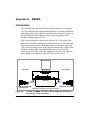
There are two SMEMA connectors on each side of a 5DX system. This
allows the system to be configured to load panels from the left or the right
or for altering the system to a dual-lane panel flow. Standard, single-lane
5DX systems will only use the front connector on both sides of the system.
Systems with the middle rail installed (dual-lane) will use the both
connectors on both sides. The front connectors will refer to the front lane
status and the rear connectors will refer to the rear lane status.
UNLOAD PANEL
LOAD PANEL
SMEMA
Connectors
Cable L SMEMA I/O
MAIN UNIT
SMEMA
Connectors
Cable L SMEMA I/O
To Downstream Machi
To Digital I/O Assembly
(Input/Output)
This 5DX is configured for Left-to-Right flow through.
Figure A-1
Location of SMEMA connectors (NOTE: Single lane installations
only use the “Front” connector.)
Agilent 5DX Installation
SMEMA A-43
SMEMA Signals
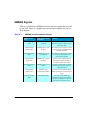
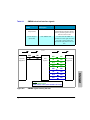
Table A-1 identifies the SMEMA electrical interface signals that are used
by the 5DX. Figure A-2 graphically represents these signals in a process
flow diagram.
Table A-1
SMEMA electrical interface signals
SMEMA Signal
Name
SMEMA A-44
Digital I/O Assembly
Description
Function
Send Request Input
(SRI)
SMEMA SRI - Panel In
Available
The upstream equipment forces this
signal low when it is ready to send a
panel to the 5DX.
Transfer Request
Output (TRO)
SMEMA TRO - 5DX
Not Busy
The 5DX forces this signal low when
it is ready to accept the panel from the
upstream equipment.
Send Request Output
(SRO)
SMEMA SRO - Panel
Out Available
The 5DX forces this signal low when
it is ready to send a panel to the
downstream equipment.
Transfer Request
Input (TRI)
SMEMA TRI - Output
Not Busy
The downstream equipment forces
this signal low when it is ready to
accept the panel from the 5DX.
Good Panel Output
(GPO)
SMEMA GPO - Panel
Passed
The 5DX uses this signal to indicate
that the panel being sent has been
tested and is good.
Untested Panel
Output (UPO)
SMEMA UPO Untested Panel Output
The 5DX uses this signal to indicate
that the panel being sent has not been
tested.
Good Panel Output
(GPO)
Rear SMEMA GPO
The 5DX with the middle rail
installed uses this signal to indicate
that the panel being sent in the rear
lane has been tested and is good.
Agilent 5DX Installation
Table A-1
SMEMA electrical interface signals
SMEMA Signal
Name
Digital I/O Assembly
Description
Function
Untested Panel
Output (UPO)
Rear SMEMA UPO
The 5DX with the middle rail
installed uses this signal to indicate
that the panel being sent in the rear
lane has not been tested.
Transfer Request
Input (TRI)
Rear SMEMA TRI
The 5DX with the middle rail
installed forces this signal low when
it is ready to send a panel to the
downstream equipment for the rear
lane.
PCA Flow
SRI
TRI
TRO
5DX
System
SRO
SRI
TRI
TRO
GPO
GPI
UPO
UPI
SRO
SRI
TRI
TRO
GPO
GPI
UPO
UPI
Downstream
Equipment
WIRING
Upstream
Equipment
SRO
Key:
Front Panel Lane
Rear Panel Lane (with middle rail only)
Figure A-2
SMEMA signals used by the 5DX
Agilent 5DX Installation
SMEMA A-45
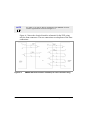
NOTE
See Table A-1 on page A-44for an explanation of the SMEMA electrical
interface signals that are referenced in Figure A-2.
Figure A-3 shows the electrical interface schematic for the 5DX, using
only the front connectors. The rear connections are a duplicate of the front
connections.
Figure A-3
SMEMA A-46
SMEMA Electrical interface schematic( for front connectors only)
Agilent 5DX Installation
SMEMA Connectors
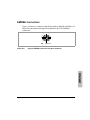
Figure A-4 shows a connector with all pin numbers labeled, and Table A-2
shows the pin number and signal description for the 5DX SMEMA
connectors.,
1
2
3
5
6
4
8
7
11
9
12
10
14
13
AMP
A typical SMEMA connector with pins numbered
WIRING
Figure A-4
206043-1
Agilent 5DX Installation
SMEMA A-47
Table A-2
SMEMA connector information
Connector
Upstream SMEMA
Pin#
1
2
3
Downstream SMEMA
4
5-13
14
1
2
3
4
5
6
7
8
9-13
14
SMEMA A-48
Signal Description
Ready to Accept - 5DX is ready to receive
a panel.
Floating signal return for (1)
Panel Available - Upstream equipment is
ready to send a panel.
Electrical ground
N/A
Grounded shield
Ready to Accept - Downstream
equipment is ready to received panel.
Electrical ground
Panel Available - 5DX is ready to send a
panel.
Floating signal return for (3)
GPO - Good panel out. PCA has been
tested and considered good with no
defects.
Floating signal return for (5)
UPO - Untested panel out. PCA being
transferred was not tested.
Floating signal return for (7)
N/A
Grounded shield
Agilent 5DX Installation
Appendix B
Wiring Configuration
Wiring Configuration
This appendix contains the wiring configuration information for the
Agilent 5DX System.
There are two possible wiring configurations for the 5DX: a three phase
wye or delta and a three phase wye with neutral. The drawings in this
appendix show how the Power Distribution Unit (PDU) is wired for those
configurations. It also lists the options associated with each configuration
and lists those options to be used in international locations.
The 220 volt outlet strip wire egress is through the holes on the front of the
Power Distribution Unit. The 220 volt outlet strip for the mobile
workstation table uses the wire egress hole on the left as indicated in Figure
B-1. The Vacion Pump power supply and auxiliary power strip use the wire
egress hole on the right.
E1135C
POWER DISTRIBUTION UNIT
!
ON
OFF
MAINS
100-240V ~ 1 o
200-240V ~ 3 o 50-60 Hz
200-415V ~ 3 o
80A MAX
___VAC ___ o ___ FLA
!
Wire Egress for the 220
Volt Outlet Strip for the
Mobile Workstation
Table (monitor)
Figure B-1
!
0
CB2
CB1
CB4
CB3
CB6
CB5
1
CB8
CB7
CB10
CB9
Wire Egress for the 220 Volt
Outlet Strip for the Vacion Pump
Power Supply, High Voltage
Power Supply and X-ray Tower
fan
PDU Wire Egress
Agilent 5DX Installation
Wiring Configuration B-49
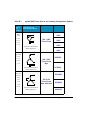
Table B-1
Power
Source
and
Loading
Agilent 5DX Power Source and Loading Configuration Options
Input Configuration,
Input Wiring, and
Terminal Block Wiring
3-Phase
Delta
Load:
Description
VAC
200V
L1
L2
L1-L2
L1-L3
200 - 240V
Three Phase
L3
G
L2-L3
230V
(17 A)
Input and Terminal Block
Wiring-Figure B-4
3-Phase
Wye Load:
240V
L1
L1-L2
120/208V
L1-L3
L2-L3
L2
(17 A)
L3
G
208 - 220V
Three Phase
Wye
127/220V
Input and Terminal Block
Wiring-Figure B-4
3-Phase
Wye with
Neutral
Load:
220V
220/380V
L1
G
L1-N
N
L2-N
L2
L3-N
380- 415V
Three Phase
Wye w/Neutral
230/400V
L3
(10 A)
Input and Terminal Block
Wiring-Figure B-6
B-50 Wiring Configuration
240/415V
Agilent 5DX Installation
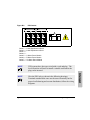
Figure B-2
PDU Outlets
!
8
7
6
5
!
4
3
2
50 Hz
60 Hz
100V
120V
127V
200V
208V
220V
230V
240V
1
NOTE
5DX systems have been pre-wired with a cord and plug. The
local electrician will need to install a suitable outlet where the
plug can be inserted.
NOTE
Wire the PDU only as shown in the following drawings.
Terminals numbered the same are the same electrically but for
proper load balancing and current distribution, follow the wiring
diagrams.
Agilent 5DX Installation
Wiring Configuration B-51
WIRING
Outlet 1 — Laser Displacement Unit 2
Outlet 2 — Laser Displacement Unit 1
Outlet 3 —
Outlet 4 —
Outlet 5 — X Motor Servo Module
Outlet 6 — R Motor Servo Module
Outlet 7 — Y1 Motor Servo Module
Outlet 8 — Y2 Motor Servo Module
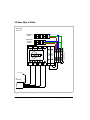
3-Phase Wye or Delta
OPTIONS:
3PD 3PY
E4000-61623
Monitor
03066-61635
Expansion
Chassis
L2
L3
N
T3
N
Neutral Reference Conductor in rear
terminal. Do no t move
L1
1
0
LL1 LL2 NEU G
T1
T2
10A 10A
Figure B-3
WH/BLU
ORG/BRN
RED/BLK
BLK
AC
“MAINS”
GRN
Chassis Ground
Lug
Input Wiring — 3-Phase Wye or Delta
B-52 Wiring Configuration
Agilent 5DX Installation
GRN/YEL
Main Cabinet GND
GRN/YEL
GRN/YEL
CB2
CB3
CB4
CB5
CB6
CB7
CB8
CB9
CB10
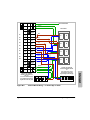
PDU Outlets
NEU
NEU
01
BRN
01
BRN
01
BRN
01
BRN
02
BRN
02
03
BLUE
6
3
7
4
8
BLUE
BLUE
NEU
NEU
GRN/YEL
220Volts AC Switched
Outlets in the Main Cabinet
for:
X-ray Tower Fan, VacIon
Pump Power Supply and
High Voltage Power Supply
GRN/YEL
GRN/YEL
220Volts AC Switched
Outlets in the Electronics
Bay for:
Focus Coil Power Supply,
Low Voltage Power Supply,
Digital I/O and E. Bay fans
Figure B-4
2
BLUE
BRN
03
5
BLUE
02
03
1
Terminal Block Wiring — 3-Phase Wye or Delta
Agilent 5DX Installation
Wiring Configuration B-53
WIRING
CB1
1
3
4
5
6
7
8
9
10
11
12
13
14
16
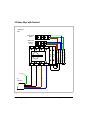
3-Phase Wye with Neutral
OPTIONS:
3PN
E4000-61623
Monitor
03066-61635
Expansion
Chassis
L2
L3
N
Neutral Reference Conductor in rear
terminal. Do no t move
L1
1
0
LL1 LL2 NEU G
T1
T2
T3
N
10A 10A
Figure B-5
BLU
BRN
BLK
BLK
AC
“MAINS”
GRN
Chassis Ground
Lug
Input Wiring — 3-Phase Wye with Neutral
B-54 Wiring Configuration
Agilent 5DX Installation
GRN/YEL
Main Cabinet GND
GRN/YEL
GRN/YEL
CB2
CB3
CB4
CB5
CB6
CB7
CB8
CB9
CB10
NEU
BLUE
NEU
BLUE
01
01
01
BRN
BRN
1
5
2
6
3
7
4
8
BRN
01
02
BRN
02
BRN
02
03
03
03
NEU
NEU
BRN
BLUE
BLUE
GRN/YEL
GRN/YEL
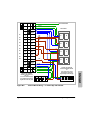
220Volts AC Switched
Outlets in the Electronics
Bay for:
Focus Coil Power Supply,
Low Voltage Power Supply,
Digital I/O and E. Bay fans
Figure B-6
PDU Outlets
220Volts AC Switched
Outlets in the Main Cabinet
for:
X-ray Tower Fan, VacIon
Pump Power Supply and
High Voltage Power Supply
Terminal Block Wiring — 3-Phase Wye with Neutral
Agilent 5DX Installation
Wiring Configuration B-55
WIRING
CB1
1
3
4
5
6
7
8
9
10
11
12
13
14
16
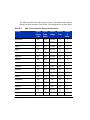
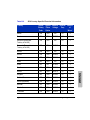
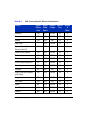
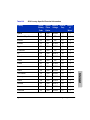
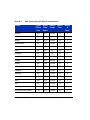
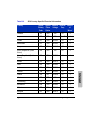
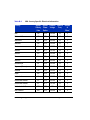
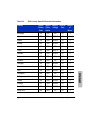
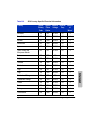
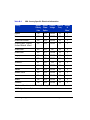
The following table shows the Agilent Country Code and associated power
options for most countries of the world. All configurations are three phase.
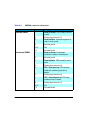
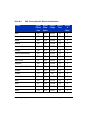
Table B-2
5DX Country Specific Electrical Information
Country
Agilent
Country
Code
Agilent
Power
Option
Nominal
Voltage
Nominal
Freq.
Number
of
Wires*
Afghanistan
531
3PN
220/380
50
5
Albania
481
3PN
220/380
50
5
Algeria
721
3PY
127/220
50
4
Algeria
721
3PN
220/380
50
5
Angola
762
3PN
220/380
50
5
Argentina
357
3PN
220/380
50
5
Australia
602
3PN
240/415
50
5
Austria
433
3PN
220/380
50
5
Bahamas
236
3PD
240
60
4
Bahamas
236
3PY
120/208
60
4
Bahrain
525
3PN
230/400
50
5
Bahrain
525
3PD
240
50
5
Bangladesh
538
3PD
220
50
4
Barbados
272
3PY
200
50
4
Barbados
272
3PD
230
50
4
Belarus
017
3PN
220/380
50
5
Belgium
423
3PN
230/400
50
5
B-56 Wiring Configuration
Agilent 5DX Installation
5DX Country Specific Electrical Information
Country
Agilent
Country
Code
Agilent
Power
Option
Nominal
Voltage
Nominal
Freq.
Number
of
Wires*
Belize
208
3PD
230
60
4
Benin
761
3PN
220/380
50
5
Bermuda (Dependent
Territory of the UK)
232
3PD
240
60
4
Bermuda (Dependent
Territory of the UK)
232
3PY
120/208
60
4
Bolivia
335
3PD
230
50
5
Bolivia
335
3PN
230/400
50
5
Botswana
793
3PN
230/400
50
5
Brazil
351
3PD
230
60
4
Brazil
351
3PY
127/220
60
4
Brazil
351
3PN
220/380
60
5
Brunei
561
3PN
240/415
50
5
Bulgaria
487
3PN
220/380
50
5
Burkina Faso
760
3PN
220/380
50
5
Burma (Myanmar)
546
3PN
230/400
50
5
Burundi
767
3PN
220/380
50
5
Cambodia
555
3PY
120/208
50
4
Cambodia
555
3PN
230/400
50
5
Agilent 5DX Installation
Wiring Configuration B-57
WIRING
Table B-2
Table B-2
5DX Country Specific Electrical Information
Country
Agilent
Country
Code
Agilent
Power
Option
Nominal
Voltage
Nominal
Freq.
Number
of
Wires*
Cameroon
742
3PY
127/220
60
4
Cameroon
742
3PN
230/400
50
5
Canada
122
3PD
240
60
4
3PN
220/380
50
5
Cape Verde
Cayman Islands (Dependent
Territory of the UK)
244
3PD
240
60
4
Central African Republic
754
3PN
220/380
50
5
Chad
756
3PN
220/380
50
5
Chile
337
3PN
220/380
50
5
China, People's Republic of
570
3PN
220/380
50
5
Colombia
301
3PY
120/208
60
4
Colombia
301
3PD
220
60
4
Congo, Democratic Republic
of the (Zaire)
766
3PN
220/380
50
5
Congo
763
3PN
220/380
50
5
Costa Rica
223
3PD
240
60
4
Cyprus
491
3PN
240/415
50
5
Czech Republic
435
3PN
220/380
50
5
Denmark
409
3PN
220/380
50
5
B-58 Wiring Configuration
Agilent 5DX Installation
5DX Country Specific Electrical Information
Country
Agilent
Country
Code
Agilent
Power
Option
Nominal
Voltage
Nominal
Freq.
Number
of
Wires*
Djibouti
777
3PN
220/380
50
5
Dominican Republic
247
3PD
220
60
4
Ecuador
331
3PD
240
60
4
Ecuador
331
3PY
127/220
60
4
Egypt
729
3PN
220/380
50
5
El Salvador
211
3PD
230
60
4
Fiji
055
3PN
240/415
50
5
Finland
405
3PN
230/400
50
5
France
427
3PD
220
50
4
France
427
3PY
127/220
50
4
France
427
3PN
220/380
50
5
Gabon
755
3PN
220/380
50
5
The Gambia
750
3PN
220/380
50
5
Germany
428
3PN
230/400
50
5
Ghana
749
3PN
230/400
50
5
Gibraltar
472
3PN
240/415
50
5
Greece
484
3PN
220/380
50
5
Greenland
101
3PN
220/380
50
5
Agilent 5DX Installation
Wiring Configuration B-59
WIRING
Table B-2
Table B-2
5DX Country Specific Electrical Information
Country
Agilent
Country
Code
Agilent
Power
Option
Nominal
Voltage
Nominal
Freq.
Number
of
Wires*
Grenada
063
3PN
230/400
50
5
Guatemala
205
3PD
240
60
4
Guinea
746
3PN
220/380
50
5
Guinea-Bissau
764
3PN
220/380
50
5
Guyana
312
3PD
220
50
4
Haiti
245
3PD
220
60
4
Honduras
215
3PD
220
60
4
Hong Kong
582
3PN
220/380
50
5
Hungary
437
3PN
220/380
50
5
Iceland
400
3PN
220/380
50
5
India
533
3PN
230/400
50
5
Indonesia
560
3PN
220/380
50
5
Indonesia
560
3PY
127/220
50
4
Ireland
419
3PN
220/380
50
5
Israel
508
3PN
230/400
50
5
Italy
475
3PN
220/380
50
5
Italy
475
3PY
127/220
50
4
Ivory Coast (Cote d'Ivoire)
748
3PN
220/380
50
5
B-60 Wiring Configuration
Agilent 5DX Installation
5DX Country Specific Electrical Information
Country
Agilent
Country
Code
Agilent
Power
Option
Nominal
Voltage
Nominal
Freq.
Number
of
Wires*
Jamaica
241
3PD
220
50
4
Japan
588
3PD
200
50 or 60
4
Jordan
511
3PN
220/380
50
5
Kazakhstan
021
3PN
220/380
50
5
Kenya
779
3PN
240/415
50
5
Korea, Republic of (South
Korea)
580
3PD
220
60
4
Korea, Republic of (South
Korea)
580
3PN
220/380
60
5
Kuwait
513
3PN
240/415
50
5
Laos
553
3PN
220/380
50
5
Lebanon
504
3PN
220/380
50
5
Lesotho
799
3PN
220/380
50
5
Liberia
765
3PY
120/208
60
4
Liberia
765
3PD
240
60
4
Luxembourg
045
3PN
230/400
50
5
Macedonia
029
3PN
220/380
50
5
Malawi
797
3PN
230/400
50
5
Malaysia
557
3PN
240/415
50
5
Agilent 5DX Installation
Wiring Configuration B-61
WIRING
Table B-2
Table B-2
5DX Country Specific Electrical Information
Country
Agilent
Country
Code
Agilent
Power
Option
Nominal
Voltage
Nominal
Freq.
Number
of
Wires*
Mali
745
3PN
220/380
50
5
Malta and Gozo
473
3PN
240/415
50
5
Mauritania
741
3PN
220/380
50
5
Mauritius
785
3PN
230/400
50
5
Mexico
201
3PY
127/220
60
4
Monaco
015
3PY
127/220
50
4
Monaco
015
3PN
220/380
50
5
Morocco
714
3PY
127/220
50
4
Morocco
714
3PN
220/380
50
5
Mozambique
787
3PN
220/380
50
5
Myanmar (Burma)
546
3PN
230/400
50
5
Namibia
792
3PN
230/400
50
5
Nepal
536
3PN
220/380
50
5
Netherlands
421
3PN
220/380
50
5
Netherlands Antilles
277
3PN
220/380
50
5
Netherlands Antilles
277
3PY
127/220
50
5
Netherlands Antilles
277
3PD
220
50
5
New Zealand
614
3PN
230/400
50
5
B-62 Wiring Configuration
Agilent 5DX Installation
5DX Country Specific Electrical Information
Country
Agilent
Country
Code
Agilent
Power
Option
Nominal
Voltage
Nominal
Freq.
Number
of
Wires*
Nicaragua
219
3PD
240
60
4
Niger
751
3PN
220/380
50
5
Nigeria
753
3PN
230/400
50
5
Norway
403
3PN
220/380
50
5
Norway
403
3PD
230
50
5
Oman
523
3PN
240/415
50
5
Pakistan
535
3PN
230/400
50
5
Palau
683
3PD
240
60
4
Panama
225
3PD
230
60
4
Paraguay
353
3PN
220/380
50
5
Peru
333
3PD
220
60
4
Peru
333
3PN
220/380
60
5
Philippines
565
3PD
230
60
4
Philippines
565
3PY
127/220
60
4
Poland
455
3PN
220/380
50
5
Portugal
471
3PN
220/380
50
5
Puerto Rico
903
3PY
120/208
60
4
Puerto Rico
903
3PD
240
60
4
Agilent 5DX Installation
Wiring Configuration B-63
WIRING
Table B-2
Table B-2
5DX Country Specific Electrical Information
Country
Agilent
Country
Code
Agilent
Power
Option
Nominal
Voltage
Nominal
Freq.
Number
of
Wires*
Qatar
518
3PN
240/415
50
5
Romania
485
3PN
220/380
50
5
Russia
462
3PN
220/380
50
5
Rwanda
769
3PN
220/380
50
5
Saudi Arabia
517
3PY
127/220
60
4
Senegal
744
3PY
127/220
50
4
Serbia and Montenegro
479
3PN
220/380
50
5
Seychelles
780
3PN
240/415
50
5
Sierra Leone
747
3PN
230/400
50
5
Singapore
559
3PN
230/400
50
5
Slovakia (Slovak Republic)
030
3PN
220/380
50
5
Somalia
770
3PN
220/380
50
5
Somalia
770
3PD
230
50
5
South Africa
791
3PN
230/400
50
5
Spain
470
3PY
127/220
50
4
Spain
470
3PN
220/380
50
5
Sri Lanka
542
3PN
230/400
50
5
Sudan
732
3PN
240/415
50
5
B-64 Wiring Configuration
Agilent 5DX Installation
5DX Country Specific Electrical Information
Country
Agilent
Country
Code
Agilent
Power
Option
Nominal
Voltage
Nominal
Freq.
Number
of
Wires*
Suriname
315
3PY
127/220
60
4
Swaziland
795
3PN
230/400
50
5
Sweden
401
3PN
230/400
50
5
Switzerland
441
3PN
220/380
50
5
Syria
502
3PN
220/380
50
5
Tahiti, Society and
Marquesas Islands
641
3PY
127/220
60
4
Taiwan
583
3PD
220
60
4
Tajikistan
023
3PN
220/380
50
5
Tanzania
783
3PN
230/400
50
5
Thailand
549
3PN
220/380
50
5
Togo
752
3PY
127/220
50
4
Togo
752
3PN
220/380
50
5
Trinidad and Tobago
274
3PD
230
60
4
Trinidad and Tobago
274
3PN
230/400
60
5
Tunisia
723
3PY
127/220
50
4
Tunisia
723
3PN
220/380
50
5
Turkey
489
3PN
220/380
50
5
Turkmenistan
024
3PN
220/380
50
5
Agilent 5DX Installation
Wiring Configuration B-65
WIRING
Table B-2
Table B-2
5DX Country Specific Electrical Information
Country
Agilent
Country
Code
Agilent
Power
Option
Nominal
Voltage
Nominal
Freq.
Number
of
Wires*
Uganda
778
3PN
240/415
50
5
Ukraine
018
3PN
220/380
50
5
United Arab Emirates
520
3PN
230/400
50
5
United Kingdom - England
Scotland Wales N. Ireland
412
3PN
230/415
50
5
United States
000
3PD
240
60
4
United States
000
3PY
120/208
60
4
Uruguay
355
3PN
220/380
50
5
Uzbekistan
025
3PN
220/380
50
5
Venezuela
307
3PD
240
60
4
Vietnam
552
3PY
127/220
50
4
Vietnam
552
3PN
220/380
50
5
Western Samoa
615
3PN
230/400
50
5
Yemen
521
3PN
230/400
50
5
Zambia
794
3PN
220/380
50
5
Zimbabwe
796
3PN
220/380
50
5
* Number of Conductors includes Safety Grounding Conductor
# All Configurations are 3 phase
B-66 Wiring Configuration
Agilent 5DX Installation