1
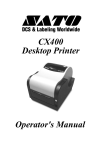
CX400
DESKTOP PRINTER
SERVICE MANUAL
SATO CX400 Service Manual
SATO GROUP OF COMPANIES
BARCODE SATO
INTERNATIONAL PTE LTD
SATO AMERICA INC.
10350 Nations Ford Road Suite A,
Charlotte, NC 28273
Tel: 1-704-644-1650
Fax: 1-704-644-1662
Website: www.satoamerica.com
Email: [email protected]
438A Alexandra Road #05-01/ 02,
Alexandra Technopark,
Singapore 119967
Tel: 65-6271-2122
Fax: 65-6271-2151
Website: www.barcodesato.com
Email: [email protected]
SATO UK LTD
SATO EUROPE NV
Valley Road, Harwich, Essex England
Co12 4RR, United Kingdom
Tel: 44-1255-240000
Fax: 44-1255-240111
Website: www.satouk.com
Email: [email protected]
Leuvensesteenweg 369, 1932 Sint- Stevens-Woluwe, Brussels, Belgium
Tel: 32 (0)-2-788-80-00
Fax: 32 (0)-2-788-80-80
Website: www.sato-europe.com
Email: [email protected]
SATO DEUTSCHLAND GMBH
SATO POLSKA SP Z O.O.
Ul Okolna 2, 50-422 Wroclaw
Tel: 48-71-335-23-20
Fax: 48-71-335-23-25
Website: www.sato-europe.com
Email: [email protected]
Schaberweg 28, 61348
Bad Homburg, Germany
Tel: 49 (0)-6-1726-8180
Fax: 49 (0)-6-1726-818-199
Website: www.sato-europe.com
Email: [email protected]
SATO SHANGHAI CO, LTD
BAR CODE SATO ELECTRONICS (S) PTE LTD
11 Floor, D, Pudong South Road 1111,
Pudong New Area, Shanghai,
China 200120
Tel: 86 (0)-21-58307080
Fax: 86 (0)-21-58307978
Website: www.barcodesato.com
Email: [email protected]
438A Alexandra Road #05-01/02,
Alexandra Technopark, Singapore 119967
Tel: 65-6271-5300
Fax: 65-6273-6011
Website: www.barcodesato.com
www.satosingapore.com
Email: [email protected]
SATO BAR CODE & LABELLING
SDN BHD
BARCODE SATO (THAILAND) CO., LTD
Suite B-08-11&12, Block B Plaza Mont' Kiara, No.2, Jalan Kiara Mont'
Kiara,
50480 Kuala Lumpur, Malaysia
Tel: 60-3-6203-5950
Fax: 60-3-6203-1209
Website: www.barcodesato.com
Email: [email protected]
370/8 Supattra Building, 5th Floor, Rama9 Road, Bangkapi, Huay Kwang
Bangkok 10320, Thailand
Tel: 662-719-7780-3
Fax: 662-719-7784
Website: www.barcodesato.com
Email: [email protected]
Warning: This equipment complies with the requirements in Part 15 of FCC rules for a Class A
computing device. Operation of this equipment in a residential area may cause unacceptable
interference to radio and television reception requiring the operator to take whatever steps necessary to correct the interference.
All rights reserved. This document, nor any part of it, may be reproduced or issued to third parties
in any form without the express permission of SATO America, Inc. The material in this document
is provided for general information only and is subject to change without notice. SATO America,
Inc. does not assume responsibility for any errors or omissions.
06 Nov 03
TABLE OF CONTENTS
INTRODUCTION
General Description
Theory of Operation
Switches and Indicators
Connection Ports
Monitoring Sensors
Operational System
1-1
1-1
1-2
1-3
1-4
1-5
ACCESSORIES INSTALLATION
Cutter Attachment
Dispenser Attachment
Font Module
Firmware Upgrade
2-1
2-3
2-5
2-5
OPERATIONAL SETUP
Media Loading
Ribbon Loading
Input/Output Connections
Media Sensor Calibration
Media Index Sensor Calibration
Dispenser Sensor Calibration
3-1
3-2
3-3
3-3
3-4
3-4
TROUBLESHOOTING
Problem Isolation
Self-Diagnosis Label
4-1
4-2
MAINTENANCE
Cleaning
Print Head Replacement
Main Circuit Board replacement
Platen Roller Replacement
5-1
5-1
5-3
5-6
TECHNICAL DATA
Physical Properties
Enviromental Specifications
Power requirements
Printer Performance
Printer Specifications
6-1
6-1
6-1
6-1
6-1
SATO CX-400 Service Manual
TECHNICAL DATA
Media Specifications
Ribbon Specifications
Serial Interface Specifications
Regulatory Approvals
6-2
6-2
6-2
6-3
BLOCK DIAGRAMS
System Block Diagram
Control Board Block Diagram
Panel Board Schematic
Sensor Board Schematic
Main Board Wiring Diagram
7-1
7-2
7-2
7-3
7-3
SATO CX400 Service Manual
1
INTRODUCTION
This manual is laid out in a manner consistant with the product discussed and provides all of the
information required for general printer setup, operation, troubleshooting, and maintenance. For
specialized programming, refer to the Programming Manual also provided with the product.
GENERAL DESCRIPTION
SATO CX400 printers are compact desktop printers designed especially for bar code labeling
and tagging. The CX uses SATO Command Language, making it simple to integrate with other
SATO models.
Designed for convenience, the CX has many advanced features such as larger media capacity,
user replaceable print head and platen, a high lift print head carriage that makes it easy to clean
and load supplies. The printer is also designed to use eye-mark or gap-label sensing
The CX400 uses a single sensor element for both direct thermal and thermal transfer printing.
The printing method may be selected by using configuration settings in the software program or
by sending the commands directly to the printer. The current setup may be determined by
printing a self-test label which identifies all setup parameters.
A slot in the rear of the unit permits external feeding of media for larger rolls with greater linear
feet.
THEORY OF OPERATION
When activated, the media and ribbon (where applicable) are fed conjunctively past the print
head by an integrated drive train. The drive train is electric motor driven, coupled to a gear
configuration located on the left side of the printer chassis. Paper guides within the chassis
assembly ensure that the media remains properly positioned during the printing process and is
fed unimpeded through the front cover. The exhausted ribbon material is rewound onto a take-up
core installed within drive train driven spindles.
A series of strategically located sensors sends signals to the processing unit. The processing unit
in turn sends response signals to the various features based on programmed and recieved data.
Correct signals initiates print head activity.
SATO CX400 Service Manual
PN 9001110A
Page 1-1
Section 1: Introduction
Cover
Printer Assembly
Print Head Assembly
Chassis Assembly
Paper Holder
Housing
Paper Guides
Base
Front Cover
Platen Roller
Primary Components, Figure 1-1
SWITCHES & INDICATORS
Power Switch
A two position switch that controls power to the printer.
When the “0” position is pressed, power is removed from
the printer. When the “1” position is pressed, power is
supplied to the printer.
Feed Key
Press and hold during startup for test label.
Press during printing to pause.
Press during pause to feed a blank label or print the
duplicate of the prior label.
Press to reset the printer to the factory settings.
Power Indicator
Continuously illuminated when functional.
Blinks when a malfunction has occured.
Page 1-2
PN 9001110A
SATO CX400 Service Manual
Section 1: Introduction
SWITCHES & INDICATORS
Error Indicator
Not illuminated when the printer is operational.
Blinks when a malfunction has occured.
Power Indicator
Error Indicator
Feed Button
Power Switch
DETAIL
Switches and Indicators, Figure 1-2
CONNECTION PORTS
Parallel Port
Located on the left rear side of the printer. Permits PC
connection for advanced programming, control, and
operation.
Serial Port
Located on the right rear side of the printer. Converts the
serial port signal to/from the micro-controller to RS232
voltage level. Also permits PC connection for advanced
programming, control, and operation.
VAC Power Supply Port
Located centrally on the rear of the printer. Permits the
connection of the voltage supply transformer.
SATO CX400 Service Manual
PN 9001110A
Page 1-3
Section 1: Introduction
CONNECTION PORTS
Extension Connection Port
Accessible from the front of the printer and is located
behind the face cover. Permits the connnection of optional
extension modules.
Serial Port
VAC Power Supply Port
Parallel Port
Extension Port
Front View
Rear View
Connection Ports, Figure 1-3
MONITORING SYSTEMS
Media Index Sensor
Determines the print location upon the label by detecting a
label gap or eye mark and then stepping the media to the
print position.
Ribbon Sensor
Allows the printer to continuously monitor the presence of
ribbon when operating in the thermal transfer mode.
Dispenser Sensor
Monitors the presence of a label in the dispenser. When
the label is removed from the dispenser, the next label will
be prompted
Print Head Open Sensor
Detects when the print assembly is not latched into the
print position.
Page 1-4
PN 9001110A
SATO CX400 Service Manual
Section 1: Introduction
OPERATIONAL SYSTEMS
MicroController
The SH7034 microcontroller utilizes a 16 bit external and
32 bit internal data bus based on the Hitachi SH1.
Flash Memory
Has 2M bytes of Flash ROM located on the main board for
Firmware, character, and bar code font storage. The flash
ROM has a total size of 1M x 16 bit.
DRAM
The 2 MB of DRAM is located on the main board. Volatile
data such as working buffers and parameters are
allocated here.
EEPROM
On board memory is 128 Bytes.
RS232 Transceiver
Converts the serial port signal to and from the
microcontroller to the RSR232C voltage levels.
Centronics Interface
The data recieved from the host is transmitted to the
micro-controller.
Ouput Ports
The ports control the motor, LED, media sensor, 24 volt
relay, and interface fault conditions.
Relay
Removes the 24 volt supply to the thermal print head
during the transient period while the power is being
switched on. Otherwise the thermal print head may be
damaged.
Extension Connection Port
Permits the connnection of all optional extension modules.
Configuration Jumper
Selects the systems configuation.
Boot/Normal
Is a two position switch that when in the normal position,
allows the program on the expansion board to be
executed only after the power has been reset. When in the
boot position, the boot program will be executed first. This
permits the CPU to reload a program into the on board
Flash ROM after complete corruption. The default setting
is in the normal position.
SATO CX400 Service Manual
PN 9001110A
Page 1-5
2
ACCESSORIES INSTALLATION
Optional accessories are those hardware and software items that may be purchased and used in
conjunction with the basic printer package. Namely, these are the cutter attachment, dispenser
attachment, and font module. Since the hardware options affect the method of operational setup,
they must be installed prior to any setup activities. If applicable, refer the relative procedure
below for specific instructions on accessory installation before proceeding to the Operational
Setup unit.
CUTTER ATTACHMENT
The cutter assembly is an attachment for the automated cutting of labels, tags, or tickets. A back
feed function is included for retracting the label back to the first print position after cutting. The
following procedure provides detailed instructions on cutter assembly installation and assumes
that the unit is without additional attachments that may pose an impediment to cutter installation.
CAUTION: Printer electronics are susceptable to static discharge.
Ensure appropriate grounding measures are taken before
beginning any activity inside the printer.
1. Turn off power and disconnect power supply cord.
2. Lift cover (Figure 2-1, 1) to expose print assembly (2).
3. Simultaneously, press the two purple buttons located on the top side of print assembly (2)
and pivot upward.
4. Remove the two screws (3) securing front cover (4) to cover hinge (5).
5. If peeler (6) is present, remove screw (7) and manipulate rightward. Lift away peeler (6).
6. Pry power switch (Figure 2-2, 8) from housing (9) and disconnect leads.
7. Remove the two screws (10) securing housing (9) to base assembly (11).
8. Manipulate housing (9) from base assembly (11) and lift away.
NOTE: Pull the lower front edge of the housing away from the base
assembly, then begin manipulating the housing upward.
9. Plug daughter board (not shown) into port JP29 of mother board (12).
10. Direct the two leads of daughter board through the power switch slot of housing (9).
11. Tuck the prior two power switch leads safely away within the housing unconnected.
12. Manipulate housing (9) onto base assembly (11) oriented as was removed.
13. Secure housing (9) to base assembly (11) using two screws (10).
14. Plug power switch (8) into the two leads of daughter board.
SATO CX400 Service Manual
PN 9001110A
Page 2-1
Section 2: Accessories Installation
15. Insert power switch (8) into its respective slot of housing (9) oriented with the on position
upward.
16. Plug cutter assembly lead (13) into external connector (14).
17. Manipulate cutter assembly (15) into the face of printer chassis (16).
18. Secure cutter assembly (15) to printer chassis (16) by applying screw (17) to their upper
right corner.
NOTE: When properly installed, the tab of the cutter assembly
bracket shall insert into the slot of the printer chassis and the cutter
will nest there as the peeler cover prior to removal.
1
2
6
7
3
1
4
5
Cutter Installation, Figure 2-1
19. Ensure print media and ribbon are properly loaded in the printer.
20. Lower the print assembly and latch in position.
21. Close cover, connect power supply cord, and apply power.
22. Send the following command stream to enable: <ESC>A <ESC>CK1 <ESC>Z.
Page 2-2
PN 9001110A
SATO CX400 Service Manual
Section 2: Accessories Installation
16
16
17
9
14
98
17
15
13
14
DETAIL
12
8
15
13
DETAIL
12
10
11
10
11
Cutter Installation, Figure 2-2
DISPENSER ATTACHMENT
The dispenser assembly incorporates an integrated label sensor as part of the monitoring
feature. The sensor identifies the presence of a label and prevents the printing of the next label
until it is removed.
The following procedure provides detailed instructions on dispenser and dispenser sensor
installation. The procedure assumes that the unit is without additional attachments that may pose
an impediment to sensor installation.
CAUTION: Printer electronics are susceptable to static discharge.
Ensure appropriate grounding measures are taken before
beginning any activity inside the printer.
SATO CX400 Service Manual
PN 9001110A
Page 2-3
Section 2: Accessories Installation
1. Turn off power and disconnect power supply cord.
2. Lift cover (1) to expose print assembly (2).
3. Simulataneously, press the two purple buttons located on the top side of print assembly (2)
and pivot upward.
4. Remove the two screws (3) securing cover (4) to cover hinge (5) and lift away.
5. Remove clips (6) and (7) from the left and right ends of roller shaft (8) respectively.
NOTE: Before removing the retaining clips from each end of the
roller shaft, it is advised that their orientation be observed and
noted.
4
7
1
11
6
10
8
9
REARVIEW
2
15
14
13
3
16
12
10
4
5
Dispenser Installation, Figure 2-3
Page 2-4
PN 9001110A
SATO CX400 Service Manual
Section 2: Accessories Installation
6. Manipulate roller shaft (8) with roller (9) from front cover (4).
7. Apply sensor (10) to cover (4) as design dictates and secure using screw (11).
8. Insert the connector end of sensor (10) through the left bracket of cover (4).
9. Insert roller shaft (8) into roller (9) and manipulate into brackets of cover (4).
10. Secure the roller assembly with clips (7) and (6) to the right and left ends of shaft (8)
respectively.
11. Reapply cover (4) to cover hinge (5) and secure using screws (3).
10. Observe to ensure that despenser sensor (10) wire is oriented so that it is not being
pinched.
CAUTION: Ensure that the left clip does not pinch the sensor wire
as it passes through the cover mounting brackets.
11. Plug dispenser sensor (10) into external connection port (12).
12. Apply wire clamp (13) to sensor (10) wire.
13. If not already present, insert dispenser (14) into the mounting slots of printer chassis (15)
oriented so that their mounting orifices are aligned.
NOTE: The dispenser must be inserted into the right side slot first,
then manipulated into the left slot. The peeler mounting orifice is
located on the front right side of the printer chassis above the
external connection port.
14. Secure dispenser (14) and clamp (13) using screw (15).
15. Ensure that print media and ribbon are properly loaded in the printer.
16. Lower and latch print assembly (2) into operational position.
17. Close cover (1), connect power supply cord, and apply power.
18. Set the E2PROM through commands: <ESC>A <ESC>CK0 <ESC>Z.
FONT MODULE
The font module stores special font types and characters. The maximum capacity options of the
font module is 2 M or 4 M bytes.
FIRMWARE UPGRADE
The printer’s operating systems software may be upgraded or reloaded through the parallel port
located on its back side. Connect the parallel interface cable supplied with the printer to the
computer LPT1 port and the printer parallel port. Place the Firmware upgrade disk in the
computer and follow the instructions in the Readme.TXT file.
SATO CX400 Service Manual
PN 9001110A
Page 2-5
Section 2: Accessories Installation
1. Load the printer with ribbon and media as required.
2. Turn the printer on and allow 3 seconds to power up.
3. Enter the MS-DOS mode on the computer.
4. Type “X:SATO” (were X is the location fo the Firmware Upgrade file) at the DOS prompt.
5. Allow 5 minutes for the power and error LED’s to begin blinking in synchronicity.
6. Toggle the power switch off and then on again to complete the process.
7. Press and hold the printer feed button until it begins printing a self-testing label.
8. Switch the printer off and then on again to return to operation mode.
9. Examine the self-test label contents to ensure a correct upgrade or reload.
10. Repeat as necessary until the printed check sum is 0000.
11. Disconnect computer from the parallel port.
NOTE: The check sum value should always be 0000. Otherwise,
there are error bits in the onboard flash memory. The sum value is
the last four characters printed in the upper left row of the self-test
label. Refer to Self-Diagnosis in the Troubleshooting section of his
manual if still unsure.
Page 2-6
PN 9001110A
SATO CX400 Service Manual
3
OPERATIONAL SETUP
This section provides all guidance and instructions necessary for simple printer setup and
operation. The CX-400 printer is delivered factory calibrated and should not require calibration
upon initial setup.
However, the use of off-brand media or ribbon often has an adverse operational effect. Thusly,
load the consumables and attempt operation to determine if calibration is necessary.
MEDIA LOADING
Media must be loaded, and in the same manner, regardless of whether direct thermal or thermal
transfer printing is to be performed. However, following media installation, ensure that the correct
printer program is also loaded
NOTE: To assist in the instruction of media loading, the print
assembly has been removed from the illustration below to
provide a better view of more important features. The actual
printer will have the print assembly attached. The print
assembly is not removable.
1. Lift cover (Figure 3-1, 1) to expose the print assembly.
2. Simultaneously, press the two purple buttons located on the top side of the print assembly
and pivot upward.
3. Unwrap the new media (2) and unwind a few labels from the roll.
4. Separate paper roll holder (3) and insert media roll (2) so that it unwinds from the bottom.
5. Lock paper roll holder (3) into position by the downward movement of the purple switch
attached.
6. Separate purple paper guides (4) and feed media (2) across chassis between them.
7. Slide paper guides (4) together to make light contact with each side of media (2)
8. Pull media (2) forward and feed it through the discharge slot of cover (5).
9. Lower and press print head assembly into operational position.
10. When the error LED stops blinking, press the feed button to begin printing.
SATO CX400 Service Manual
PN 9001110A
Page 3-1
Section 3: Operation
1
2
IA
MED
3
4
5
Media Loading, Figure 3-1
RIBBON LOADING
Perform the following procedure only if thermal transfer printing is desired. If thermal transfer
printing is desired, program the printer accordingly. Refer to the Programming Manual for
guidance.
1. Lift cover (Figure 3-2, 1) to expose print assembly (2).
2. Simultaneously, press the two purple buttons (3) located on the top side of print assembly
(2) and pivot upward.
3. Place ribbon roll (4) between ribbon supply spindles (5) so that the coated side is oriented
outward.
NOTE: The coated side has the duller sheen. If still unsure,
scratch each side to determine which is coated.
NOTE: The ribbon supply spindle is located on the lower
side of the print assembly.
Page 3-2
PN 9001110A
SATO CX400 Service Manual
Section 3: Operation
NOTE: The ribbon cores and spindles for supply and take-up
are notched. When a core is properly installed, it will nest
with its respective spindle.
4. Feed enough of ribbon (4) out so as to insert take-up core (6) onto rewind spindles (7).
5. Advance purple thumbwheel (8) of rewind spindles (7) to take up ribbon slack.
1
1
4
2
5
2
3
ON
RIBB
7
6
8
ON
RIBB
ON
RIBB
4
Ribbon Loading, Figure 3-2
INPUT/OUTPUT CONNECTIONS
For typical operation, the voltage power transformer is the only required connection. Its
connection port is centrally located on the rear of the printer. Refer to the Introduction unit of this
manual for specific identification if necessary.
The parallel and serial ports are required for sending commands and data from the host to the
printer. Instructions for their use may be found in the Programming manual. Their locations are
also in the rear of the printer.
MEDIA SENSOR CALIBRATION
The media dispenser sensor monitors media presence. When the print media is exhausted, the
sensor signals an error condition. If the sensor incorrectly detects the presence of print media
available for use, the dispenser sensor may require calibration. Perform the applicable steps
below relative to the media type used.
.
SATO CX400 Service Manual
PN 9001110A
Page 3-3
Section 3: Operation
For Eye-Mark Detection
1. Install both printer ribbon and print media while in the TT mode.
2. Send the following commands to the printer: <ESC>A <ESC>&11 <ESC>Z.
3. Allow 5 seconds for the printer to complete the process.
For Label-Gap Detection
1. Install print media into the printer while.
2. Place the printer in the TT mode by sending <ESC>A <ESC>CP1 <ESC>Z.
3. Send the following commands to the printer: <ESC>A <ESC>&10 <ESC>Z.
4. Allow 5 seconds for the printer to complete the process.
0.06" (1.5mm) =NON-PRINT
0.75" (19mm)
0.25" (5.0mm)
LABEL
PRINT HEAD
GAP, NOTCH, OR BAR WIDTH
MIN: 0.04" (2mm)
MAX. 1.0" (25mm)
EYE-MARK ON
BOTTOM OF LINER
MIN LABEL PITCH
0.39" (10mm)
MIN. LENGTH
= 0.59" (15mm)
BACKING PAPER INSIDE EDGE
LABEL INSIDE EDGE
0.06" (1.5mm) = NON-PRINT
LABEL FEED DIRECTION
LABEL
Figure 3-3, Label Stock Diagram
Page 3-4
PN 9001110A
SATO CX400 Service Manual
Section 3: Operation
MEDIA INDEX SENSOR CALIBRATION
CX-400 Printers can use an eye-mark (black bar) label gap or label notch sensing. The gap and
notch sensor is a transmissive or see-thru type with an infrared light source directed through the
label from above and detected by a separate receiving sensor underneath the label liner tag. A
reflective sensor is used to detect eye-marks printed on the bottom of the label liner or tag. The
eye-mark must not reflect more than 12 % of the light. Since the same receving sensor is used
for all three types of sensing, it must be calibrated with the media that will be used. For thermal
transfer printing, the ribbon must be installed while the calibration is performed.
Media sensor calibration may also be required if the printer frequently fails to print, has excessive
print position variance, or the print image is mis-located. Calibration may be performed by either
clicking on the calibration buttons of the Label Gallery Free software, through the Windows
Printer Driver, or more directly by sending printer commands to the printer. To signify a successful
calibration, the printer will feed 6 linear inches of label upon completion. Perform the applicable
steps below relative to the media type used.
For Eye-Mark Detection
1. Install both printer ribbon and print media while in the prper mode (DT or TT).
2. Send these commands to the printer: <ESC>A <ESC>CI1 <ESC>CA <ESC>Z.
3. Allow the printer to feed 6 linear inches of labels to complete the calibration.
For Label-Gap Detection
1. Install the print media while in the TT mode.
2. Send these commands to the printer: <ESC>A <ESC>CI2 <ESC>CA <ESC>Z.
3. Allow the printer to feed 6 linear inches of labels to complete the calibration
DISPENSER SENSOR CALIBRATION
For Thermal Transfer
1. Place a label in the discharge slot over the sensor.
2. Send the following commands to the printer: <ESC>A <ESC>&P1 <ESC>Z.
3. Allow 5 seconds for the printer to complete the process.
For Direct Thermal
1. Place a label in the discharge slot over the sensor.
2. Send the following commands to the printer: <ESC>A <ESC>&P0 <ESC>Z.
3. Allow 5 seconds for the printer to complete the process.
SATO CX400 Service Manual
PN 9001110A
Page 3-5
Section 3: Operation
Page 3-6
PN 9001110A
SATO CX400 Service Manual
4
TROUBLESHOOTING
The CX400 label printer has integrated systems and performance monitors for instant status
output. The red error LED and the green power LED work in conjuction to provide all of the status
information required. The following table provides status identification.
Red and green blink together - Media index failure or media out.
• Ensure media is present, correctly loaded, and not jammed.
• Calibrate printer.
• Ensure the media sensor is functioning.
Red and green blinking alternately - Ribbon error.
• Ensure ribbon is present, correctly loaded, and not jammed.
• Calibrate printer.
• Ensure ribbon sensor is functioning.
Green constant and red blinking with long on and short off - Print head is open.
• Close print head.
Red and green blinking at 50% of normal intensity - RS232 error.
• Ensure computer and printer baud rates are comparable.
• Ensure computer and printer data bits are comparable.
• Ensure computer and printer parity bits are comparable.
Red and green lights are not illuminated - Power source is interupted.
• Ensure power switch is in On position.
• Ensure source power.
• Ensure power supply adaptor fuse is not blown.
• Test power switch.
• Inspect wiring harnesses and power supply adaptor.
• Substitute power supply adaptor.
• Replace circuit board.
Label will not feed.
• Ensure media is correctly loaded.
• Ensure the power is on, the error indicator is off, then press the feed button.
• Disconnect the communication cable and press the feed button. If the printer feeds with the cable
disconnected, there is either a defect in the host computer or its cable.
SATO CX400 Service Manual
PN 9001110A
Page: 4-1
Section 4: Troubleshooting
Labels feed continuously.
• Ensure media is correctly loaded and that the gap/mark goes through the media sensor.
• Ensure the sensor setup matches the media used. Reprogram as necessary.
Poor print quality:
• Clean the print head.
• Ensure the media is correctly loaded and without lateral movement while being fed.
• Ensure print darkness and print speed settings are sufficient for optimum results.
• Test cycle using a different print media to determine if the media is of inferior quality.
• Ensure the labels are of the correct type for the setup.
Host stops responding or displays “printer not ready” message.
• Ensure the communication cable is connected and not defective.
• If through serial port, ensure that a null modem cable or adaptor is used and that the host and
printer share the same protocol settings. Determine by the self-test label.
• If a communication switch is being used, remove the switch and connect directly to the host.
• Ensure a correct software setup. Refer to software instructions for guidance.
• Restart both the printer and the host, run the original software, and try again.
Self-test label will not print.
• Ensure that the correct media has been loaded.
• Disconnect the communication cable, restart printer, attempt to print again.
PRINTER SELF-DIAGNOSIS
A simple self-diagnosis may be initiated by either a series of printer commands or activated via the feed
button located on the printer face. Upon activation of the self-diagnosis process, the printer will print a label
identifying various parameters and conditions as they exist within the system. The table below defines the
parameters and conditions identified on the self-diagnosis label.
SELF-DIAGNOSIS LABEL
Image Pattern (1):
Used to check the print head, motor, roller, and other
mechanical assemblies.
Version Information (2):
Includes the date code, firmware version, and the check sum
value.
RS232 Protocols (3):
Contains the baud rate, parity, data bit number, and the number
of stop bits.
Darkness (4):
Provides the darkness setting. May be altered through printer
commands.
Print Length (5):
On board memory of the total linear length of print activity. This
non-resettable feature permits monitoring of component life
cycles and warranty validation.
Print Speed (6):
Identifies the print speed setting. The default speed is 3 ips.
Page: 4-2
PN 9001110A
SATO CX400 Service Manual
Section 4: Troubleshooting
Media Sensor Used (7):
Identifies which media sensor type has been selected for use.
The correct one must be selected by printer commands or
through the application software.
Print Mode (8):
Identifies the print mode setting. TT = Thermal Transfer and DT
= Direct Thermal.
Last Label Tear-Off (9):
Indicates whether the back-feed function is utilized for tearing
off printed labels.
Control Code Denifition (10):
Displays the control code setting. Control codes affect the
commands and special controls.
Pitch Offset (11):
The offset value affects the start print position in relation to the
label’s leading edge.
Cut Count (12):
On board counter of the total cut sequences. Permits monitoring
of component life cycles.
Memory Slot 1 (13):
Provides on board non-volatile flash memory for storing
graphics, font characters, etc. 512K bytes.
Memory Slot 2 (14):
Optional on board non-volatile flash memory for storing
graphics, font characters, etc. 2M or 4M bytes.
Self-Diagnosis Label, Figure 3-1
SATO CX400 Service Manual
PN 9001110A
Page: 4-3
Section 4: Troubleshooting
Page: 4-4
PN 9001110A
SATO CX400 Service Manual
5
MAINTENANCE
CLEANING
During general use, atmospheric debris will work its way into the unit. Ribbon and paper debris
will also accumulate on its moving parts. Periodic cleaning is manditory to ensure proper function
and long life.
Typically, fading of the printed image is the first sign that the unit requires cleaning. As the debris
continues to build up, the image will become increasing lighter. It is highly recommended that this
be prevented by the initiation of a cleaning schedule if regular or intensive use is forecast.
1. Turn off power switch and disconnect power supply cord.
2. Lift top cover to expose print assembly.
3. Simultaneously, press the two purple buttons located on the top side of print assembly.
4. Pivot printer assembly upward to expose printer chassis.
5. Remove the printer ribbon and print media from the unit.
6. Wipe or vacuum away larger, loose debris.
7. Moisten a cotton swab with isoprophl alcohol and wipe the print head and rollers clean.
8. Dry with a soft, dry material.
CAUTION: Harsh cleaners must not be used. Mediums containing
Hexane also must not be used as it will negatively react to plastic.
PRINT HEAD REPLACEMENT
The print head is a high wear part. It is advised that a spare be kept on standby to ensure that
print production continues unimpeded. The procedure below provides instructions on print head
replacement.
CAUTION: Printer electronics are susceptable to static discharge.
Ensure appropriate grounding measures are taken before
beginning any activity inside the printer.
1. Turn off power and disconnect power supply cord.
2. Lift cover (Figure 5-1, 1) to expose print assembly (2).
3. Simultaneously, press the two purple buttons located on the top side of print assembly (2)
and pivot upward.
5. Remove the ribbon from the rewind spool to expose the print head assembly (3).
6. Press downward on the upper right side of the print head assembly (3) and manipulate the
unit free.
SATO CX400 Service Manual
PN 9001110A
Page: 5-1
Section 5: Maintenance
7. Remove the two screws (4) securing print head bracket (5) to print head cover (6) and
separate.
8. Remove the two screws (7) securing print head (8) to print head cover (6).
9. Disconnect the wiring harnesses from print head (8). Lift away print head (8).
10. Prepare to install replacement print head (8).
11. Connect replacement print head (8) to wiring harnesses.
12. Orient replacement print head (8) within cover (6) and secure using screws (5).
13. Apply bracket (5) onto print head cover (6) and secure using two screws (4).
14. Manipulate print head assembly (4) into print assembly (2) with the left side first.
15. Reapply printer ribbon as required and latch print assembly (2) for operation.
16. Close cover (1), connect power supply cord, and switch power on.
17. Test cycle for proper function.
4
7
5
1
6
8
3
2
Print Head Replacement, Figure 5-1
Page: 5-2
PN 9001110A
SATO CX400 Service Manual
Section 5: Maintenance
MAIN CIRCUIT BOARD REPLACEMENT
The circuit board should never require replacement except in the event of an electrical failure.
Therefore, ensure that the component failure is not sourced elsewhere prior to circuit board
removal.
CAUTION: Printer electronics are susceptable to static discharge.
Ensure appropriate grounding measures are taken before
beginning any activity inside the printer.
1. Turn off power and disconnect power supply cord.
2. Lift cover (Figure 5-2, 1) to expose print assembly (2).
3. Simultaneously, press the two purple buttons (3) located on the top side of print assembly
(2) and pivot upward.
4. Remove applicable front cover/attachment.
NOTE: If the unit has the optional cutter module installed, it may be
removed via a single screw located on the top right side of the
cover. If the peeler cover is installed, two screws located at the
hinge must be removed.
1
5
4
3
Pull Outward and Lift Here
2
7
6
Circuit Board Replacement, Figure 5-2
SATO CX400 Service Manual
PN 9001110A
Page: 5-3
Section 5: Maintenance
5. Pry power switch (4) free from housing (5) and disconnect leads.
6. Remove the two screws (6) securing housing (5) to printer base (7).
7. Manipulate housing (5) from base (7) and disconnect wiring harness.
NOTE: Pull the lower front edge of the housing away from the base
assembly, then begin manipulating the housing upward.
8. Remove the four screws (Figure 5-3, 8) securing printer chassis (9) to printer base (7).
9. Disconnect all wiring harnesses from mother board (11).
10. Remove the four screws (10) securing main circuit board (11) to printer base (7).
11. Prepare to replace main circuit board (11).
12. Place replacement circuit board (11) into base (7) oriented so that mounting holes are
aligned and secure using four screws (10).
13. Connect all wiring harnesses to replacement circuit board (11) as was removed.
14. Place printer chassis (9) onto base (7) oriented so that mounting holes are aligned and
secure using four screws (8).
9
8
8
11
10
7
Circuit Board Replacement, Figure 5-3
Page: 5-4
PN 9001110A
SATO CX400 Service Manual
Section 5: Maintenance
CAUTION: Before securing the printer chassis to the base, ensure
that the power switch and light leads are routed to the right of the
unit and such that they are not being pinched.
15. Manipulate housing (5) over printer chassis (9) down to rest on printer base (7).
16. Secure housing (5) to printer base (7) using two screws (6) applied from the underside.
17. Reinstall applicable front cover/attachment.
18. Connect power switch (4) to its respective two leads and insert into face of housing (5)
oriented with the “I” position up.
19. Lower and latch print assembly (2) into operational position.
20. Close cover (1), connect power supply cord, switch power on, and test cycle.
Expansion Slot
JP12
External Connector
JP11
JP14
Ribbon Sensor
JP15
Eye-Mark Sensor
JP24
Gap Sensor
JP2-1
Print Head Open Sensor
JP16
Motor
Ground
JP17
JP18
Panel Board
JP29
Print Head
Daughter Board
Circuit Board Replacement, Figure 5-4
SATO CX400 Service Manual
PN 9001110A
Page: 5-5
Section 5: Maintenance
PLATEN ROLLER REPLACEMENT
The platen roller is high a wear part. It is advised that a spare be kept on standby to ensure that
print production continues unimpeded. The procedure below provides instructions on platen
roller replacement.
CAUTION: Printer electronics are susceptable to static discharge.
Ensure appropriate grounding measures are taken before
beginning any activity inside the printer.
1. Turn off power and disconnect power supply cord.
2. Lift cover (Figure 5-5, 1) to expose print assembly (2).
3. Simultaneously, press the two purple buttons (3) located on the top side of print assembly
(2) and pivot upward.
4. Remove applicable front cover/attachment (not shown).
NOTE: If the unit has the optional cutter module installed, it may be
removed via a single screw located on the top right side of the
cover. If the peeler cover is installed, two screws located at the
hinge must be removed.
1
5
4
3
2
7
6
Platen Roller Replacement, Figure 5-5
Page: 5-6
PN 9001110A
SATO CX400 Service Manual
Section 5: Maintenance
5. Pry power switch (4) free from housing (5) and disconnect leads.
6. Remove the two screws (6) securing housing (5) to printer base (7).
7. Manipulate housing (5) free from base (7) and lift away.
NOTE: Pull the lower front edge of the middle cover away from the
base assembly, then begin manipulating the housing upward.
CAUTION: Take note of the location and orientation of
components as they are removed to assist in reassembly.
8. Remove e-clip (Figure 5-6, 8) from the face of gear (9). Withdraw gear (9).
9. Remove screws (10) from printer chassis (11) retaining each end of platen roller (12)
CAUTION: This platen incorporates the use of two different
bushing sizes; three of one size and a single bushing of the other.
Their size difference is not distinguishable to the eye. If they are
mixed, a caliper will be required to identify which is the odd size.
10. Manipulate platen roller (12) fully to the right and withdraw outermost bushing (13) from its
right shaft and then fully to the left to remove outermost bushing (14) from its left shaft.
11. Lift out the right end of platen roller (12) and then withdraw the left end from chassis (11).
12. Remove remaining bushings (15) from each end of platen roller (12).
13. Prepare to reassemble the unit.
14. Apply a single bushing (15) to each end of platen roller (12).
15. Insert the longer end of roller (12) fully into the left orifice of chassis (11) and then
manipulate the shorter end into the right orifice of the chassis.
16. Apply from the exterior of chassis (11), remaining bushings (14) and (13) to the left and right
ends of platen roller (12) respectively.
17. Secure the assembly in place with one screw (10) on each end.
18. Insert gear (9) onto the left shaft of platen roller (12) and secure using e-clip (8).
19. Manipulate housing (Figure 5-5, 5) over printer chassis (9) down to rest on printer base (7).
20. Secure housing (5) to printer base (7) using two screws (6) applied from the underside.
21. Reattach the applicable cover and/or attachment.
22. Connect power switch (4) to its respective leads and insert into face of housing (5) oriented
with the on position up.
23. Lower and latch print assembly (2) into operational position.
24. Close cover (1), connect power supply cord, switch power on, and test cycle.
SATO CX400 Service Manual
PN 9001110A
Page: 5-7
Section 5: Maintenance
2
11
10
10
13
9
15
12
14
8
8
15
Platen Roller Replacement, Figure 5-6
Page: 5-8
PN 9001110A
SATO CX400 Service Manual
6
TECHNICAL DATA
All technical data deemed pertinent has been tabulated below for quick reference. Find the
relative section header and then locate the specific type of technical data in the left column.
PHYSICAL PROPERTIES
Dimensions
7.76” (197mm) x 10.2” (257mm) x 6.5” (164mm)
Weight
(3.67kg) Including power module.
ENVIROMENTAL SPECIFICATIONS
Operating Temperature
(5° to 40° C)
Storage Temperature
(-20° to 60° C)
Operating Humidity
25 to 85 % RH, Non-Condensing
Storage Humidity
25 to 85 % RH, Non-Condensing
POWER REQUIREMENTS
Source Voltage to Power Module
120 VAC, 60 Hz, 90 W
Supply from Power Module
19 VAC
Operational Power Consumption
70 W
Standby Power Consumption
Less than 2W
PRINTER PERFORMANCE
Print Speed
1, 2, 3, 4 ips
Resolution
203 Dots per Inch (8 dpmm)
Maximum Print Width
4.1” (104mm)
Maximum Print Length
50” (1270mm)
PRINTER SPECIFICATIONS
Print Method
Thermal Transfer or Direct Thermal
Onboard CPU
Hitachi SH7034 (16 Bit External, 32 Bit Internal)
Integrated CLock
20M Hz (26 MIPS)
Panel Features
Green Power LED, Red Error LED, Feed Button
DRAM
2MB
Flash ROM
2MB
Additional Memory
2 or 4 MB Flash ROM
SATO CX400 Service Manual
PN 9001110A
Page 6-1
Section 6: Technical Data
PRINTER SPECIFICATIONS
Onboard Sensors
Media Index - Reflective or Gap/Eye-Mark.
Ribbon Out Sensor
Print Head Open
Text Fonts
U, S, M, WB, WL, XU, XS, XM, XB, XL, OCR-A/B.
Text Rotation
0, 90, 180, 270 Degrees, Four direction rotational.
Graphics Formats
SATO Hex/Binary, PCX.
Graphics Rotation
0, 90, 180, 270 Degrees
Bar Code Capabilities
UPC A/E, EAN8/13, EAN128, Code 39, Code 93, Code 128,
MSI, I25, M25, Codabar, PDF417, UCC128, Postnet, Bookland,
MaxiCode.
Interface Connections
RS-232C Serial Interface Port w/ DB9-S Connector
IEEE-1284 Compatible Parallel Interface Port
AC Power Module
120 VAC Input, 19 VAC Output. Class 2.
Wall Mounting Brackets
Located on bottom for anchor mounting to wall.
MEDIA SPECIFICATIONS
Media Type
Direct Thermal - Paper or synthetic label or tag.
Thermal Transfer - Paper or synthetic label or tag.
Maximum Label Roll Diameter
5” (127mm)
Label Roll Core Diameter
0.75” (19.05mm)
Minimum Inter-label Gap
0.08” (2mm)
Maximum Inter-label Gap
1” (25.4mm)
RIBBON SPECIFICATIONS
Ribbon Material
Wax, resin, or combination.
Maximum Ribbon Roll Diameter
1.50” (38mm)
Maximum Ribbon Length
100m
Ribbon Roll Core Diameter
0.72” (18.4mm)
SERIAL INTERFACE SPECIFICATIONS
Interface Type
RS-232C Port w/ DB9-S Connector.
Speed
9600, 19200, or 38400 Baud.
Parity
Odd, Even, or None.
Data Bits
7 or 8
Stop Bits
1 or 2
Default Parameters
9600 Bauds, No Parity, 8 Data Bits, 1 Stop Bit.
REGULATORY APPROVALS
FCC Class B, CE, TUV, CCC, and UL.
Page 6-2
PN 9001110A
SATO CX400 Service Manual
7
BLOCK DIAGRAMS
Main Board
Main Board
Thermal Print Head
Thermal Print Head
Platen
Roller
Platen
Roller
Media Sensor
Media Sensor
Print Head Open Sensor
Print Head Open Sensor
Dispensor Sensor
RS232
RS232(9 pin)
(9 pin)
Cutter
Ribbon Sensor
Ribbon Sensor
IEEE 1284
SPP
IEEE 1284
SPP
Cutter
Dispensor Sensor
Panel Board
Panel Board
Stepping
Motor
Stepping
Motor
External AC Adaptor
External AC Adaptor
System Block Diagram, Figure 7-1
SATO CX400 Service Manual
PN 9001110A
Page 7-1
Section 7: Block Diagrams/Schematics
CS7
Flash ROM
(U8, U9)
Flash ROM
System Bus
System Bus
High
Port
High
D15-8
74374
Output Port
(U11)
D15-8
74374
D7-0
(U6)
(U7)
IEEE1284-SPP
(P1)
IEEE1284-SPP
Data
(P1)
Output
CS4
(U11)
Low
Output Port
Low
74374
Output Port
(U15)
74374
Cutter
Baby Board
Cutter
(JP29)
Baby Board
PE/Fault
(JP29)
Motor
Driver
(U16, U17)
Driver
(JP17)
(JP16)
LED
(JP16)
Paper Sensor Control (JP2, JP15)
(RY2) Control (JP2, JP15)
24 VoltPaper
Relay Sensor
24 Volt Relay (RY2)
RS23
(P2)
(U2)
EEPROM
SP232ACT
(U7)
Motor
LED
D7-0
(U15)
(JP17)
(U16, U17)
RS232 Transceiver
SP232ACT
RS232 Transceiver
EEPROM
RS23
(P2)
(U2)
Feed Key (JP16)
Paper Feed
Sensor
(JP16)
Key(JP15)
(JP14) (JP15) Booter/Normal
RibbonPaper
Sensor
Sensor
(JP5)
Dispenser
Sensor
Booter/Normal
Ribbon
Sensor (JP14)
Cutter Dispenser
Sensor (JP13)
(JP5)
Sensor
Motor T.
M. (JP4)
Cutter
Sensor (JP13)
Configuration
Jumper
Configuration
(JP7)
Data
(U13)
PE/Fault
CS4
CPU - SH7034
(U6)
(JP11)
CPU - SH7034
Expansion
SlotExpansion
(JP11)
Slot
System Bus
RAS, CAS
(U10)
System Bus
DRAM
(U10)
DRAM
RAS, CAS
(U8, U9)
Input Port
CS774374
Input Port
(U13) 74374
Jumper
(JP7)
Motor T. M. (JP4)
Thermal Print Head
(JP18)
Thermal Print Head
(JP18)
Control Board Block Diagram, Figure 7-2
HEADER 6
HEADER 6
1
J1
S1
S1
Key1
1
2
2
3
3
4
4
5
5
6
6
Key1
power
power
+5V +5V
error
error
GNDGND
J1
Panel Board Schematic, Figure 7-3
Page 7-2
PN 9001110A
SATO CX400 Service Manual
Section 7: Block Diagrams/Schematics
JP1
JP1 1
OC1
1
OC1
3
1
1
3
2
2
4
2
3
4
2
3
4
4
R359F
R359F
Sensor Board Schematic, Figure 7-4
Panel Board
Panel Board
Motor
Motor
(JP16)
Motor Thermal Sensor
Motor Thermal Sensor
(JP17)
(JP16)
(JP4)
(JP17)
(JP4)
(JP18)
(JP18)
MAIN BOARD
MAIN BOARD
(JP24)
(JP24)
(JP3)
(JP3)
(JP15)
(JP15)
(JP2-1)
(JP2-1)
(JP14)
(JP14)
(JP12)
(JP12)
(JP13)
Thermal Print Head
Thermal Print Head
Print Head Open
Print Head Open
Sensor
Sensor
(JP13)
AC
Media
IR
Ribbon
Connect Sensor Board
LED Ribbon Sensor
AC AdaptorMedia Sensor IR
(JP1)
Adaptor(19 VAC)
Sensor Board LED BoardSensor BoardConnect Sensor Board
(JP1)
(19 VAC)
Board
Board
Board
Print Head Open
Cutter Module
Print Head Open
Sensor
Cutter Module
Sensor
Main Board Wiring Diagram, Figure 7-5
SATO CX400 Service Manual
PN 9001110A
Page 7-3
Section 7: Block Diagrams/Schematics
Page 7-4
PN 9001110A
SATO CX400 Service Manual